


PC Gaming: Optimized - The Ultimate Guide (including NVIDIA/AMD CP + G-Sync/Freesync + HDR Best Settings)
Many of you asked me to provide the most Optimized Settings for PC Gaming for a very long time, so (since the launch of Starfield) I finally decided to dig deep into the PC optimization void and, after months of research and direct testing, here's my complete guide and suggestions for it.
The goal is to noticeably increase average FPS (incl. 1% lows), stabilize Frame Time, remove micro-stutters, decrease input lag, properly setup HDR and all without sacrificing picture quality.
My direct testing and focus was on Windows + NVIDIA Control Panel + In-Game + HDR settings, but you can also find AMD Control Panel optimized settings as well.
I will also try at best to explain very technical/difficult names and features in the simplest yet effective way possible for most people to better understand what exactly each setting/change is doing and why it was changed accordingly.
I will avoid "risky" third-party tools or de-bloaters which may permanently harm your system as well.
Essential first steps:
Use Windows 11 23H2 or newer (Windows 11 IoT Enterprise LTSC 2024 or newer even better!) and make sure to be fully up-to-date running Windows Update multiple times (and Reboot if necessary) until no more updates are being prompted;
Windows Update will generally also update most drivers for your PC, but after you're done with it I highly recommend to also manually double check for your device drivers' updates on your OEM website or from dedicated App (e.g. Lenovo Vantage) (if you have a laptop or pre-assembled PC) or if you have a custom built PC go update GPU drivers directly from NVIDIA or AMD websites; If you want to also debloat NVIDIA Drivers before installation follow my dedicated guide here
Make sure all your installed Games are also up-to-date with their latest patches.
Windows 11 "Safe De-Bloating"
These steps will contribute in having the most lightweight version of the OS (which will contribute in stabilize the frame time and fix stuttering in games) without compromising its stability:
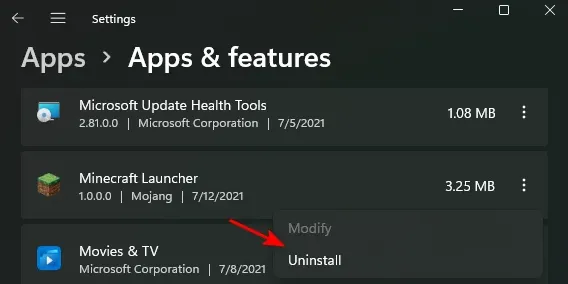
Go to Settings -> Apps -> Apps & features and Uninstall all unnecessary/unused applications from your system (by clicking the 3 dots on the right for each app)
Only use Windows Defender. Avoid installing/using any other third-party Anti-Virus software (so also uninstall them if present and then Reboot)
Click for Full Screen
Use Chris Titus Windows Utility: Search for "Windows PowerShell" in the Taskbar and Open it as Administrator, then run the following command (you can copy/paste it):
iwr -useb https://christitus.com/win | iex
This will open the latest, online version of the great free Chris Titus Utility Scripts (if it prompts to install Chocolatey, do so) you can use to rapidly adjust new installations of Windows in a very safe and automatic way (if you know what you're doing).
So go directly to the "Tweaks" tab and select exactly what you see in the preview image above, then click "Run Tweaks" and wait for the scripts to finish (in the separate PowerShell window), then you can close the utility
Use the free O&O ShutUp10++ tool to disable most of Windows 11 telemetry and background "spying" processes by following this guide (where you will also find my already curated profile, ready to directly Import in the app)
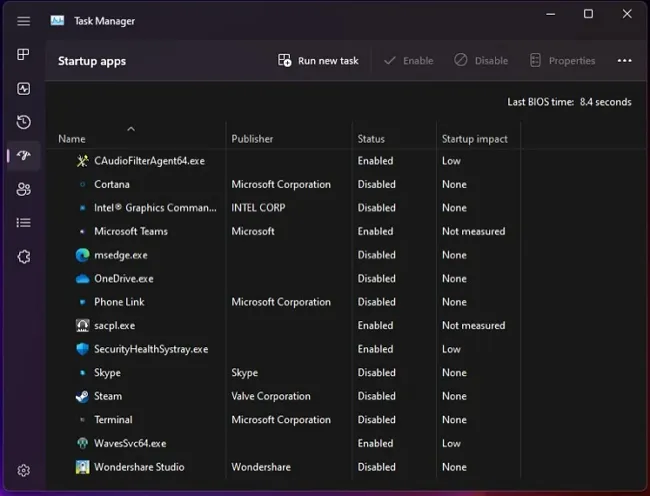
Press Ctrl + Alt + Del to open Task Manager -> Go to Startup Apps section -> Disable all unnecessary Startup apps
Clean your system and check for its integrity using in-built Windows tools by following this guide
Windows 11: Optimized Settings
Now that you have a slimmed, stable and efficient Windows 11 OS, it's time to configure it at best for gaming.
If you're using a Laptop, plug it to the AC Power: even if everyone should already know it, please don't game on battery and pretend good performance at the same time...
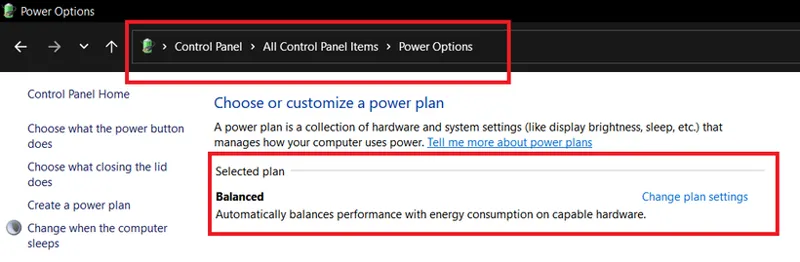
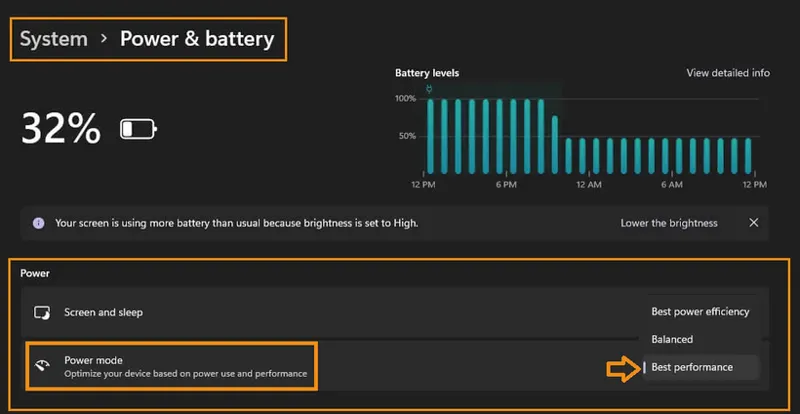
Then:Use the default "Balanced" power plan (in old Control Panel) + "Best Performance" power mode (in New Control Panel) when plugged to AC: the Windows 11 "Balanced" power plan + "Best performance" power mode provides very good FPS (incl. 1% lows) in all games I've tested so far along with ensuring that CPU is working at max only when needed, therefore making it more efficient both in idle, for everyday tasks AND gaming.
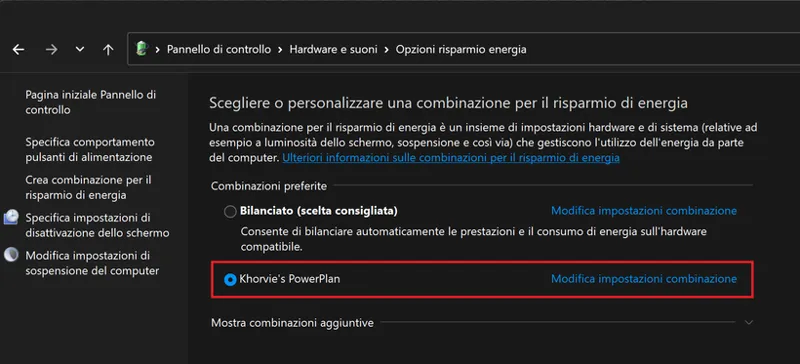
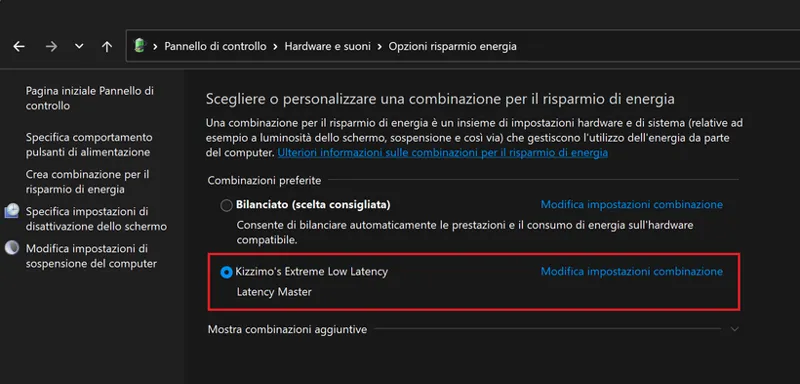
If you're using a Laptop where the OEM also created additional Cooling profiles options (e.g. Lenovo "Intelligent Cooling" vs "Performance" profiles), you should use its maximum cooling profile when gaming instead (e.g. changing it in the Lenovo Vantage app or using its keyboard shortcut to rapidly change it to "Performance" before gaming and returning to "Intelligent Cooling" after)If you're gaming on a Desktop PC, use the "Khorvie's" Custom Power Plan (in the classic Windows 11 Control Panel): after re-testing 40+ custom power plans (for days) against latest stock Windows 11 (26H2) ones (incl. High Performance and Ultimate Performance), "Khorvie's PowerPlan" now provided the highest Average FPS, highest 1% Low FPS, smoothest frametimes, lowest input latency and under control temps at the same time for most games I've tested.
The only disadvantage is that it will draw more power. You can even test/keep it on laptops but only when plugged to AC and only if the laptop won't overheat while using it.
You can download "Khorvie's PowerPlan" here (installation instructions included)
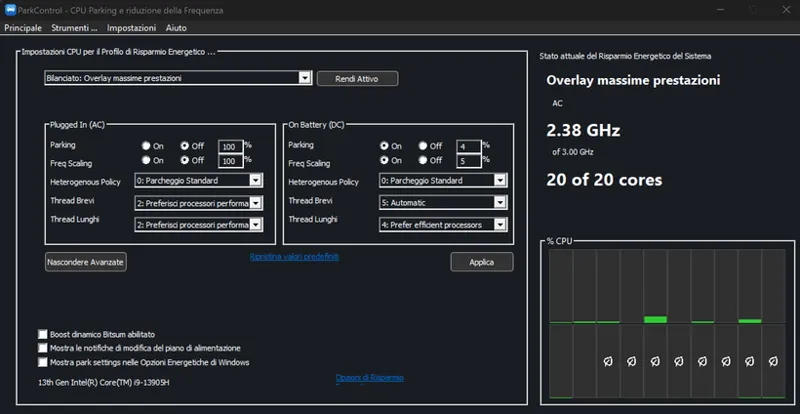
[FOR INTEL CPUs ONLY] Disable Core "Parking" and "Frequency Scaling" (only when Plugged In to AC) with ParkControl: which you can download for free here. By disabling those, coupled with also setting "Heterogenous Policy" to "Standard Parking" and "Short + Long Threads" to "2: Prefer performant processors" you will noticeably improve frame times and remove most if not all stutters in all games (especially the most CPU demanding). Also set the "On Battery (DC)" section as above to prolong battery life and have your laptop quieter and colder while still preserving performance, then just make sure the program is starting with Windows
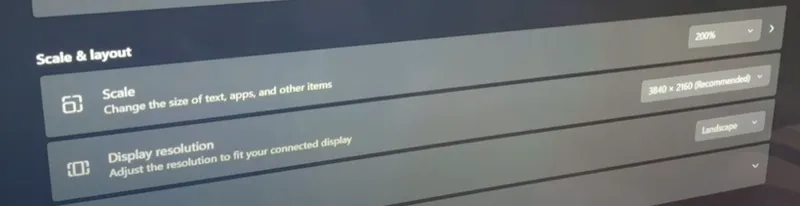
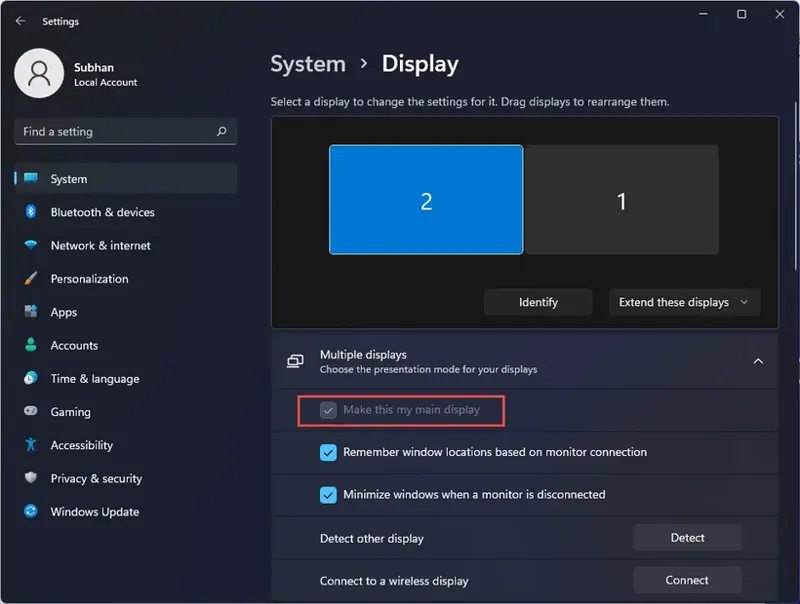
Use your display Native Resolution + Max Refresh Rate (as main): for example if you connected your PC to an LG OLED, from Windows 11 System -> Display section set its Resolution to 3840x2160, 200% Scale @ 120hz Refresh Rate. Then make it the "main" display as shown in the image above
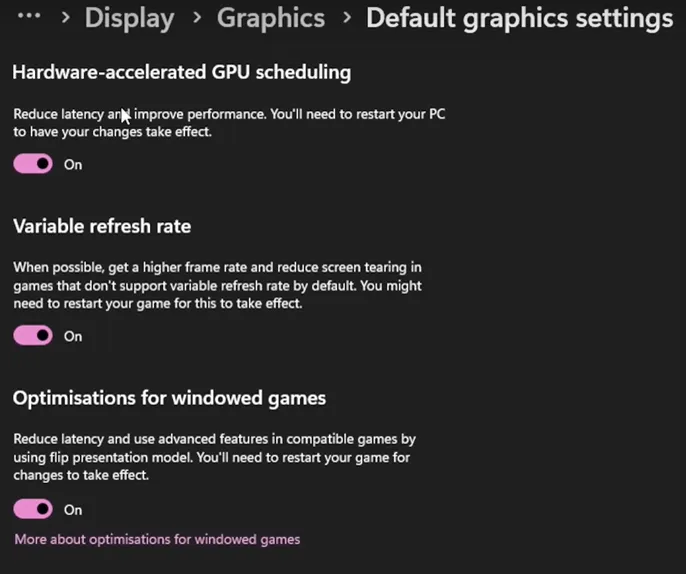
Enabled all the new Windows 11 graphics features: from Settings -> System -> Display -> Graphics -> Default graphics settings. Those combined will provide lower latency and better compatibility with newer games and features (see more in the the next section for NVIDIA)
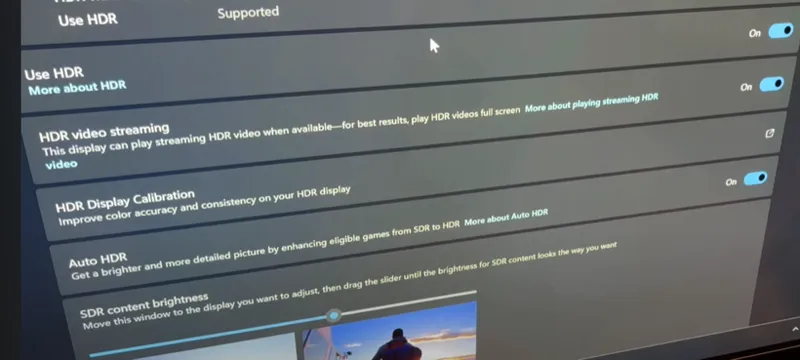
Always enable HDR before gaming + use Auto HDR (or disable it if you use RTX HDR): in the System -> Display -> Use HDR section. This is VERY important.
Considering many native HDR games won't even trigger to HDR if the system "Use HDR" option is disabled, it's best to be sure that the setting is always enabled before launching any game.
This way: native ones will always correctly handshake to HDR10 while SDR ones will be auto-converted to a good Native HDR10 presentation thanks to the AutoHDR in a similar way Xbox Series do as well.
In this section you can also tweak "SDR content brightness" which I recommend to be set to 35 (which will correspond to 250 nits)
If you don't want to manually re-enter this section to enable/disable the Use HDR toggle each time before gaming, you have two options:
1) Always use HDR even for Windows (Recommended)
2) Use this shortcut to quickly toggle between "Use HDR: On/Off" before/after using a game: Win + Alt + B
NOTE: Starting from Windows 11 24H2 Build 4202, Dolby Vision may be automatically enabled system wide instead of HDR on specific displays. My advice is to turn it OFF in favor of HDR (by going into Display Settings -> HDR - > Expand the HDR options -> untick "Use Dolby Vision" ) as DV may have both a worse picture compared to properly setup HDR + HGIG and an higher input lag as well.
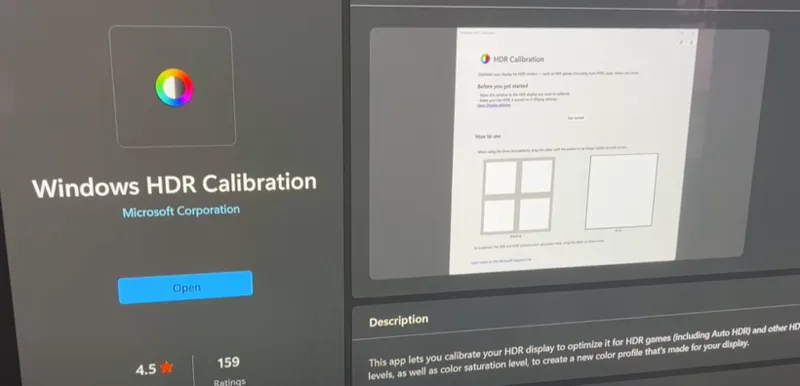
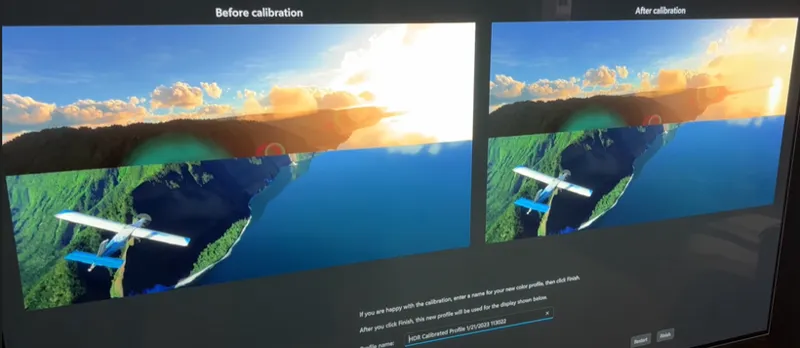
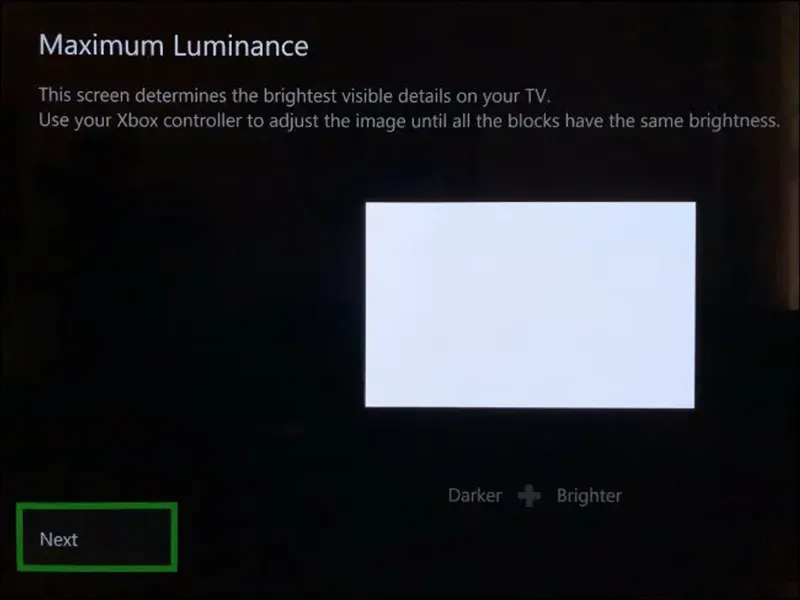
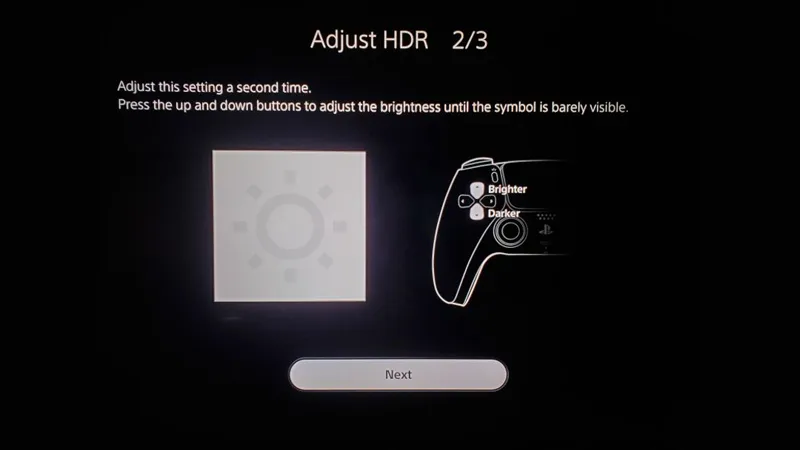
Download and install the new Windows HDR Calibration app (from Microsoft Store): make sure "Use HDR" is On, then Open it and start configure it in very similar way to the Xbox and PS5 HDR Calibration apps and suggestions. Basically:
-Always set the black "Minimum Luminance" (first section) to 0 (leftmost);
-Set the subsequent two white "Maximum Luminance" sections the same, depending if you're using HGIG or not on the TV (e.g. if HGIG on LG OLEDs: 800 nits for all except G2/C4 to 1.000 nits and G3/G4 to 1.500 nits. While if not using HGIG but Dynamic Tone Mapping instead: set those two slider to 4.000 nits or Max value if you can't reach those nits);
-Leave the last "Color Saturation" section to Less (Default), at the leftmost position.
Once you've done, you can give a name to the calibrated profile for your Display/TV and save it. This will remain associated to it and be used by all supported native HDR games + all Auto HDR and RTX HDR games as well
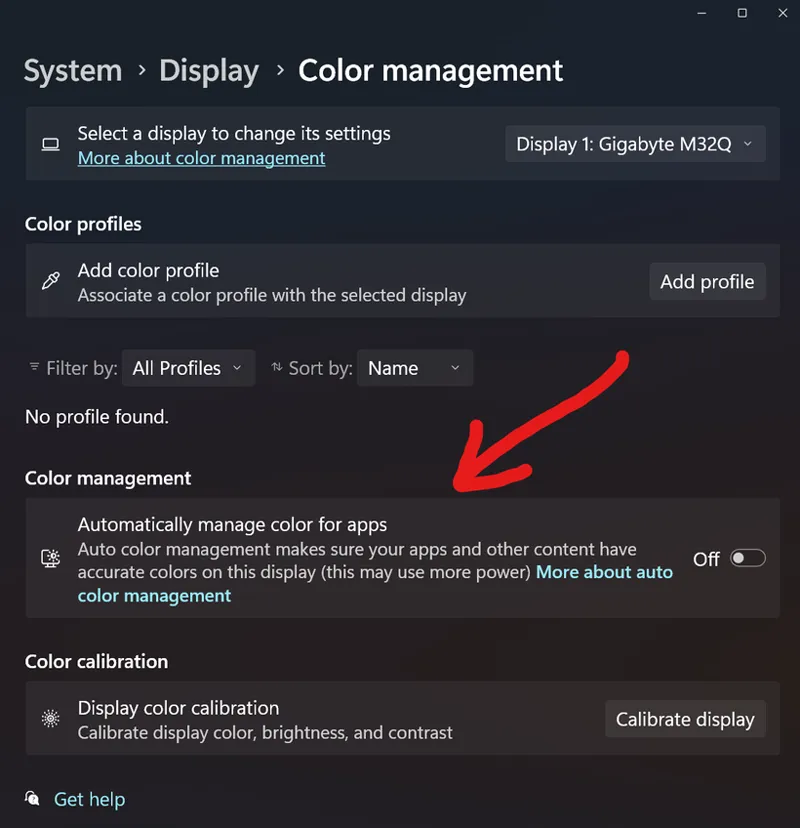
Disable Automatic Color Management (ACM): even if on paper this setting should only regard SDR, you will also find it in System -> Display -> Color Mangement section even when HDR is enabled. I highly recommend to disable it in all cases as it may both degrade the performance and actually ruin color accuracy if everything is already properly calibrated
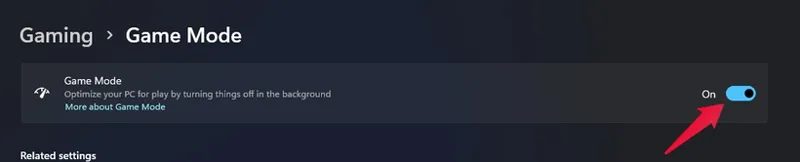
Be sure Game Mode is enabled: in Settings -> Gaming -> Game Mode. This will ensure that every time you launch a game, many Windows 11 background tasks will be automatically halted and/or reduced in priority to allow a less stuttery, more consistent gaming experience. Everything will be back to normal when you exit the game
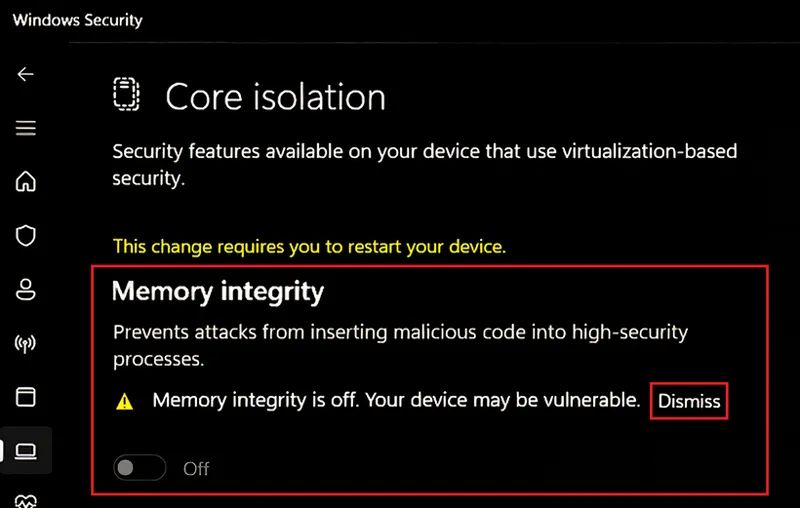
Disable Memory integrity: from Windows Defender -> Device Security -> Core Isolation section. I waited a bit to recommend this but after testing over 50 games between this extra security feature On (Default) vs Off, disabling it provided from 5% up to 20% performance improvement, especially for 1% Low Fps more than Avg Fps, which is just a too big gain to ignore for additional security which you may never actually need outside of enterprise environment. All the other Windows Defender features coupled with a browser extension like AdGuard (with security filters enabled along with adblocking and privacy ones) is more than enough to stay protected in a home/gaming environment while still leveraging the performance benefits above. Don't forget to click on "Dismiss" the security warning in order to avoid being nagged about it after reboot
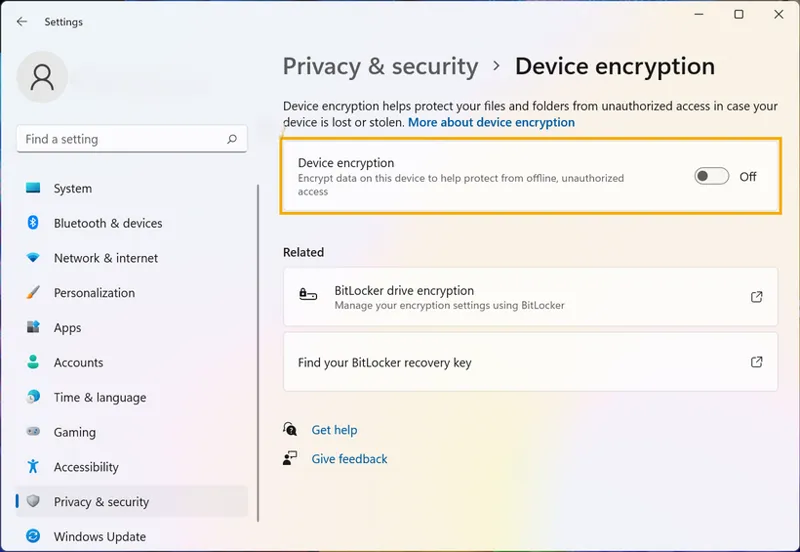
Disable Device encryption (BitLocker): by default Windows 11 often encrypts the entire system drive automatically on new installations which is known to cause noticeable disk slowdowns, especially with big file transfers and NVMe streaming during gaming. Even worse, it sometimes messed up with Windows Updates causing random BSODs, often unfixable if not with a clean install. To avoid all of that you can disable it from Settings -> Privacy & security -> Device encryption as shown in the image above
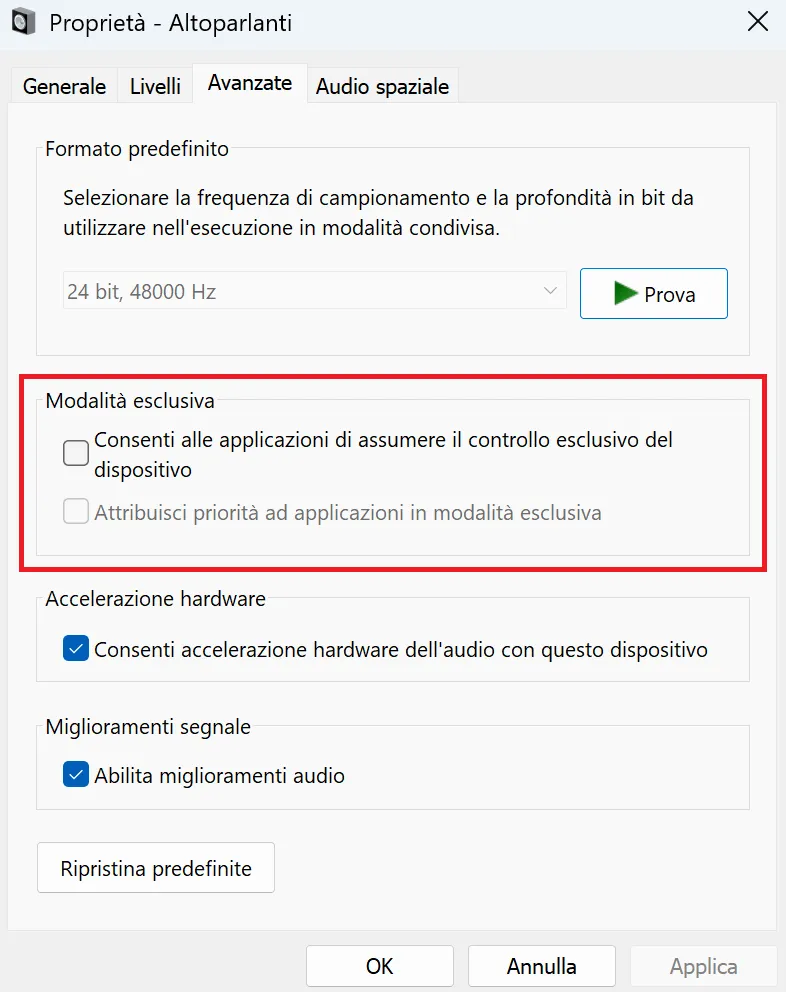
Disable Windows audio "Exclusive Mode" for both Speakers and Headsets (separately): by going in Old Control Panel -> Audio Settings -> [Select your audio devices one by one] -> Click Properties -> Go to the Advanced tab -> Uncheck both options in the image above.
I found that these options (enabled by default) will just introduce echos and/or muffled sounds, especially with multi-channel tracks (5.1/7.1/Atmos) when combined with live audio processing like Dolby Atmos for Speakers/Headphones. You can keep "Audio Enhancements" enabled.
Tweak Win32PrioritySeparation: by opening "regedit" and navigating to
HKEY_LOCAL_MACHINE\SYSTEM\CurrentControlSet\Control\PriorityControl
then open "Win32PrioritySeparation" and set it to 2a (Hexadecimal) or 42 (Decimal)
This will configure the CPU and the system to have a "Short, Fixed Boost + Boost Priority for the foreground application", which will translate in having noticeably lower input lag, higher 1% Lows and smoother/more consistent Frametimes for games (which will always be foreground applications)
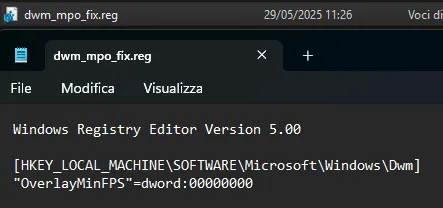
DWM MPO Fix: if you use Windows 11 24H2 or newer, I highly recommend applying this registry tweak to fix occasional rendering issues especially when Alt+Tabbing programs, particularly Chromium based browser (like Edge) which can cause part of the tabbed programs to remain "stuck" on screen switching to another one. The "OverlayMinFPS=0" parameter means that Windows will always try to use hardware composition whenever available which can also lead to smoother and more consistent animations when using Windows in general.
To install the tweak, just copy/paste the following text into Notepad and Save as "dwm_mpo_fix.reg" so to create a .reg file to just double click and confirm/apply:
Windows Registry Editor Version 5.00[HKEY_LOCAL_MACHINE\SOFTWARE\Microsoft\Windows\Dwm]
"OverlayMinFPS"=dword:00000000
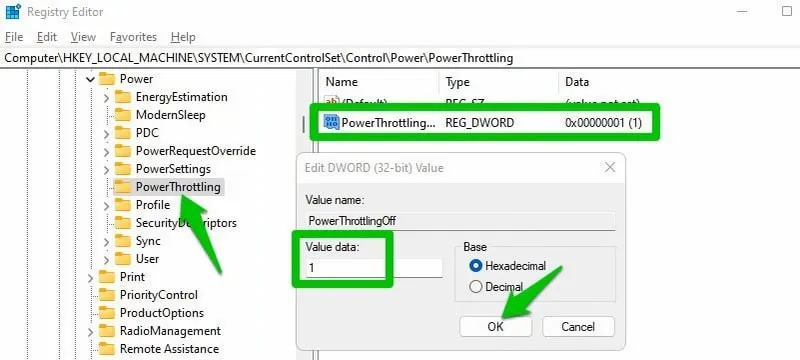
Disable Power Throttling: open "regedit" and navigate to:
HKEY_LOCAL_MACHINE\SYSTEM\CurrentControlSet\Control\Power\PowerThrottling
then change the PowerThrottlingOff parameter to 1
This will remove any software (not hardware) so artificial throttling directly done by Windows to save power, fixing possible CPU/GPU bottlenecks while gaming
If you don't see the option at all it's probably because you're on a desktop (not a laptop) and/or throttling is already disabled.
If you want to be 100% sure to disable software CPU throttling also on desktop, you can manually create the "PowerThrottling" key/folder on the left tree and then manually add the parameter "PowerThrottlingOff" as a New DWORD (32-bit) value and assign "1" to it.
If you have Windows 11 Pro or Enterprise, you can also press Win + R, type gpedit.msc, and press Enter.Navigate to:
Computer Configuration → Administrative Templates → System → Power Management → Power ThrottlingFind the policy Turn off Power Throttling and set it to Enabled.
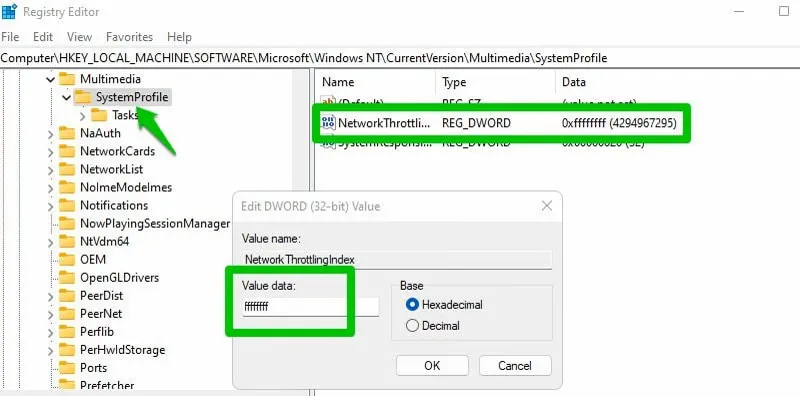
Disable Network Throttling: open "regedit" and navigate to:
HKEY_LOCAL_MACHINE\SOFTWARE\Microsoft\Windows NT\CurrentVersion\Multimedia\SystemProfile
then change NetworkThrottlingIndex to ffffffff
This will remove any software (not hardware) so artificial throttling directly done by Windows to save bandwidth
Optimize TCP for Gaming: Transmission Control Protocol (TCP) is a protocol that governs how computers establish connections and reliably exchange data over networks, ensuring data arrives correctly and in the right order. Optimizing TCP directly improves your connection bandwidth usage, lowers latency, and stabilizes the connection.
For gaming, this means improved ping (especially to servers far away), and a lower chance of ping spikes, lag, and disconnections. If you are still using the default Windows TCP settings, then there are a bunch of TCP optimizations you can make to improve your online gaming experience.
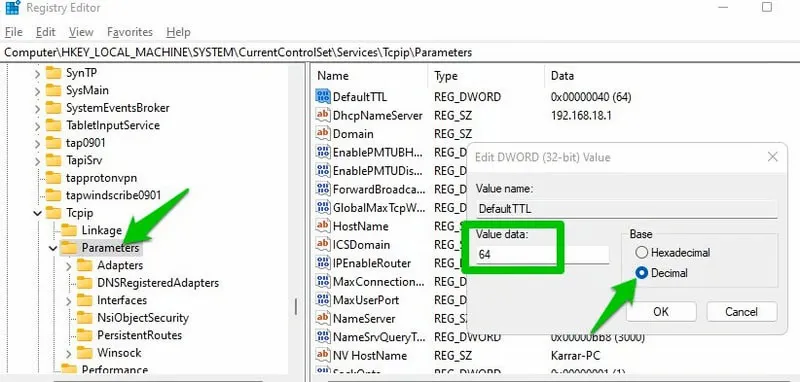
Open "regedit" and navigate to:
HKEY_LOCAL_MACHINE\SYSTEM\CurrentControlSet\Services\Tcpip\Parameters
Adjust the following settings in Decimal values.
If you don't have/see these settings listed, you can add them manually by right clicking in the empty space -> New DWORD (32-bit) value and then entering the following Decimal values:
DefaultTTL -> 64
GlobalMaxTcpWindowSize -> 65535
MaxUserPort -> 65534
Tcp1323Opts -> 1
TcpMaxDupAcks -> 2
TCPTimedWaitDelay -> 30
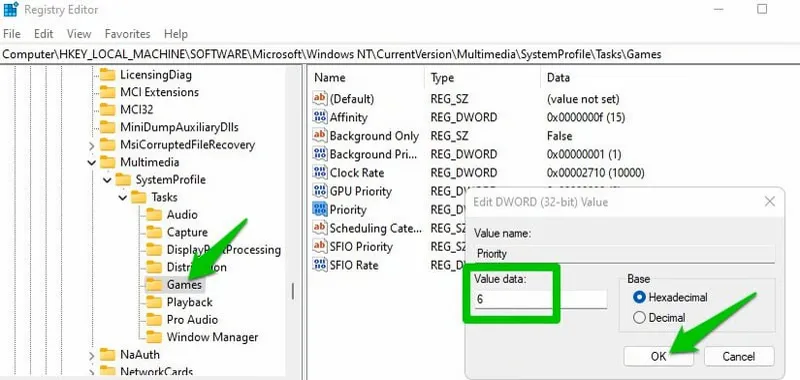
Prioritize Games: Windows 11 has an hidden registry section which can control how much priority to assign to foreground games compared to any other tasks, automatically and natively without the help of third party tools (like Process LASSO and similar)
Open "regedit" and navigate to:
HKEY_LOCAL_MACHINE\SOFTWARE\Microsoft\Windows NT\CurrentVersion\Multimedia\SystemProfile\Tasks\Games
Here, change the listed parameters with the values below to assign more priority to Games when launched opposed to other OS tasks.
If you don't have/see these settings listed, you can add them manually by right clicking in the empty space -> New DWORD (32-bit) value and then entering the following values:
Affinity -> 0
Background Only -> False
Background Priority -> 1
GPU Priority -> 8
Priority -> 6
Scheduling Category -> High
SFIO Priority -> High
SFIO Rate -> 4
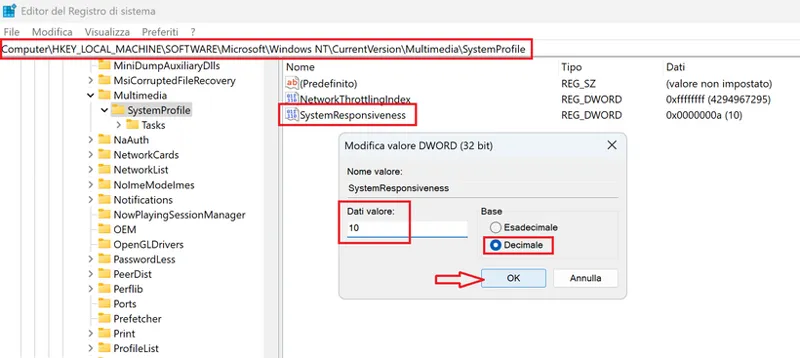
Increase system responsiveness: by default Windows 11 dedicates 20% of CPU resources to background tasks. If you don't have a lot of programs and tasks running in the background while gaming (which I highly NOT recommend to do), you can reduce that amount to 10% in order for Windows to allocate more CPU resources to games themselves.
Open "regedit" and navigate to:
HKEY_LOCAL_MACHINE\SOFTWARE\Microsoft\Windows NT\CurrentVersion\Multimedia\SystemProfile
Here change the SystemResponsiveness parameter to 10 (Decimal)
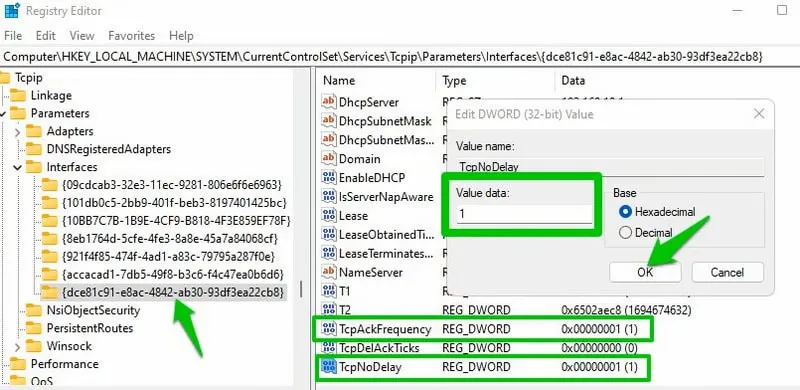
Turn Off Nagle’s Algorithm to reduce lag when gaming online: By default, Windows uses Nagle’s Algorithm that ensures network efficiency by storing small packets and sending them as large packets instead. This saves bandwidth and prevents network congestion. However, in online gaming, this behavior also introduces latency as the network waits for sufficient packets to accumulate before sending them.
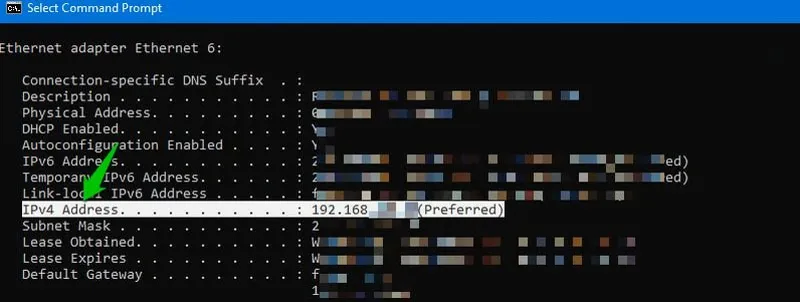
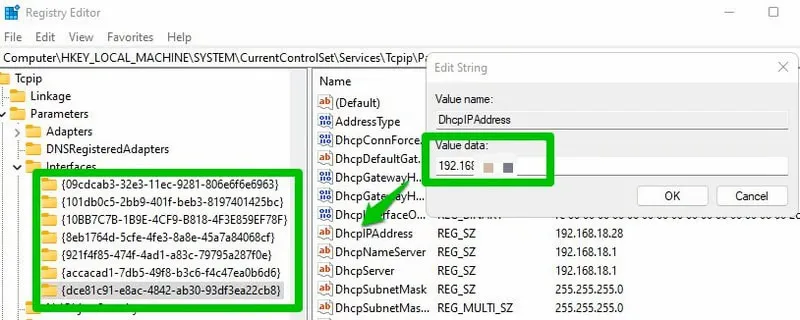
To disable Nagle’s Algorithm, you need to know your IPv4 address first. To find out, press the Windows+R keys and type cmd in the Run dialog to open the Command Prompt. Here use the ipconfig/all Command Prompt command. This will show lots of information about the network. Take note of the IPv4 Address here.
Afterward, open "regedit" and navigate to:
HKEY_LOCAL_MACHINE\SYSTEM\CurrentControlSet\Services\Tcpip\Parameters\Interfaces
There will be a bunch of interface keys/folders. Open each one and look at the DhcpIPAddress value of each. You need to find the one that has the DhcpIPAddress value the same as your IPv4 address.Once found, create two DWORD (32-bit) Value entries inside that interface key and then name them TcpNoDelay and TcpAckFrequency.
Afterward, change the value of each to 1 to disable Nagle’s Algorithm.
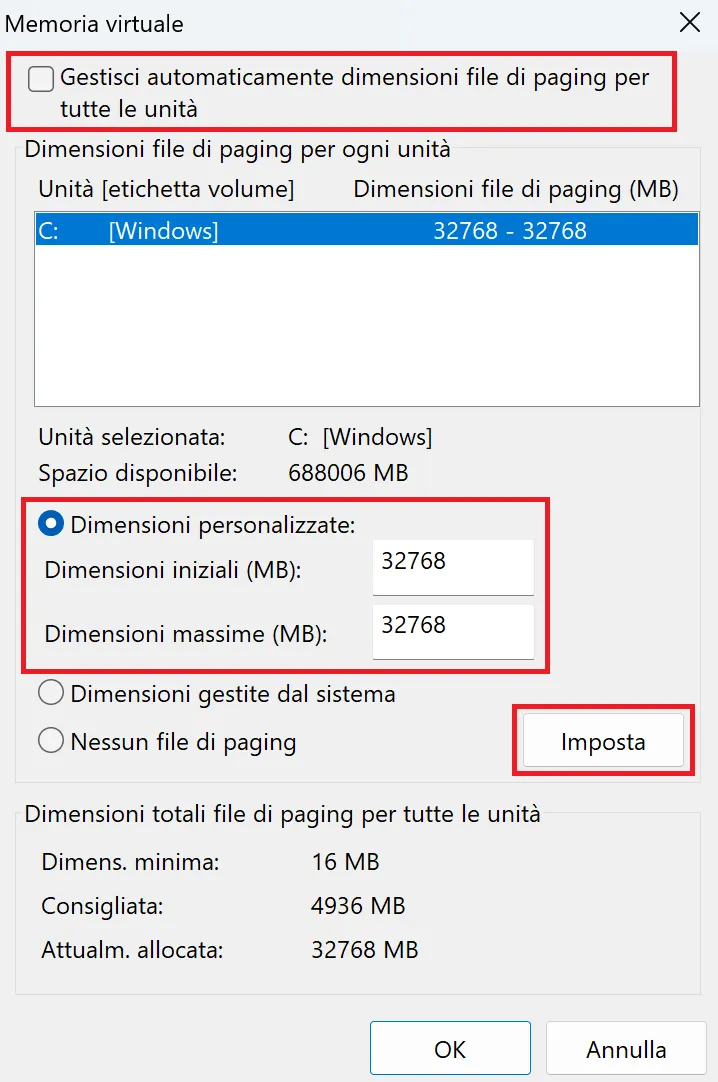
Set a fixed Virtual Memory size: by default Windows sets a minimum and maximum virtual memory usage on each boot and dynamically changes it based on actual RAM and system usage (to adapt to many hardware configurations without wasting too much SSD space) That said, every time Windows does that it actually introduces a small overhead which can consume a bit of resources during gaming and creates possible stutters/spikes on some configurations.
My advice is going to
Settings -> System -> About -> Device Specifications -> Advanced system settings -> Performance - Settings -> Advanced Tab -> Virtual Memory section -> Change
Then unselect the Windows managed option in the upper part of this window and manually set the same Min & Max custom Virtual Memory size to: 32768 MB (32GB) and click "Set" before clicking OK
This will guarantee the correct functioning of the OS (including saving crash dumps correctly) and games which may still need to access virtual memory without the overhead of Windows constantly changing it dynamically during gaming itself, so making performance more consistent. 32GB will also ensure maximum stability even with most heavy games (e.g. MS Flight Simulator 2024) and/or heavy multitasking (OBS recordings, Video Rendering, browsing with many tabs open etc.)
NVIDIA Control Panel: Optimized Settings
With Windows 11 ready to go, it's time to move to NVIDIA Control Panel specific optimizations which, as introduced in the guide, aim to increase as much as possibile the in-game performance while providing the best stability/consistency at the lowest input lag possible, all without noticeably sacrificing quality:
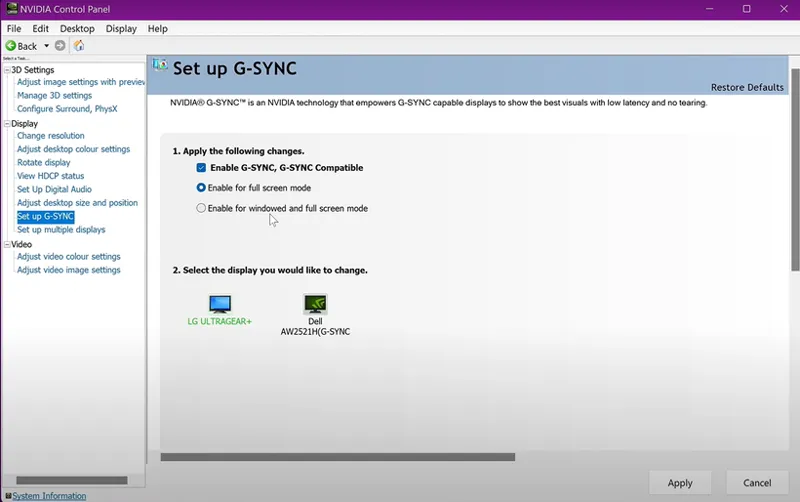
Enable G-SYNC: for the previously setup main display you will use for gaming (e.g. LG OLED). If you're not able to do so, first verify VRR & G-Sync is also enabled on the Display itself. G-Sync (or NVIDIA's proprietary Variable Refresh Rate technology) will ensure consistently smooth gameplay even when the game framerate is unstable and/or is unlocked.
Use the "Enable for full screen mode" option for best compatibility and stability while remembering to also set games to "Full Screen Mode" or even better to "Borderless Window" (which will have even lower input lag now) in their in-game settings whenever possible (see the next In-Game settings section for more info)
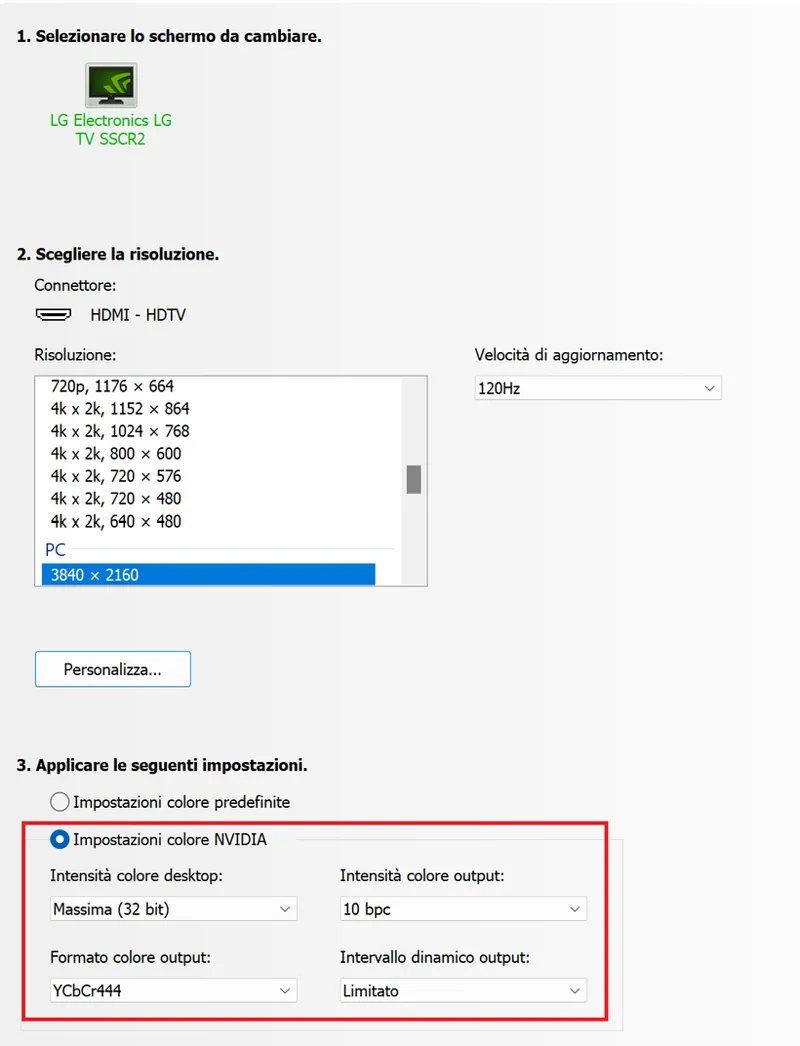
Use your display Native Resolution + Max Refresh Rate (again): also in NVIDIA CP -> Display -> Change Resolution section. For LG OLEDs I also recommend to manually set YCbCr444 Output color format, Highest (32-bit) color depth, 10 bpc Output color depth at Limited Output dynamic range. If you use your PC also for movies and media consumption, avoid PC Mode / HDMI input icon on the TV for the reasonings you can find here and here , otherwise you can use PC Mode + enable 4:4:4 Pass Through at the same time (on the TV) for the best picture quality at reduced input latency with any TV preset in use (but with locked Clarity options which may be detrimental for movies).
If you have a regular PC monitor, use RGB + Full
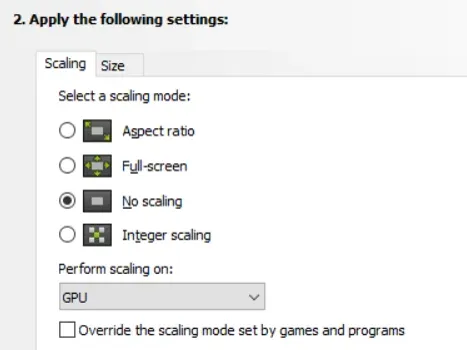
Use the "No scaling" + "GPU" combo: in the Display - Adjust desktop size and position section. This will ensure the lowest latency I've measured in all games I've tested so far. Just remember to also set games to match your Native Display Resolution set above.
If after the change you're seeing black bars or a strange 4096x2160 native resolution on some 4K/HDR TVs (e.g. LG C1 OLED), it's a known bug: follow these steps to fix it by manually removing the exotic resolution and restore the proper/native/standard 3840x2160 (4K) resolution
Now it's time to setup the "good stuff".
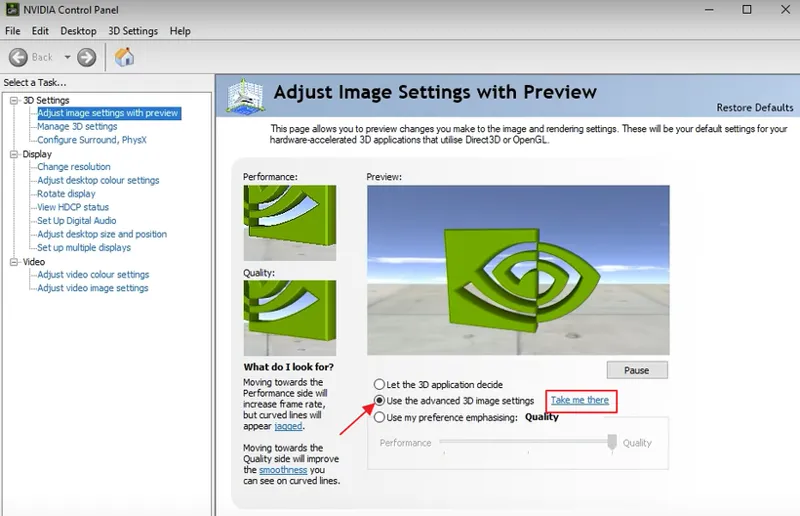
Go to 3D Settings -> Adjust image settings with preview and select Use the advanced 3D image settings, then click Take me there
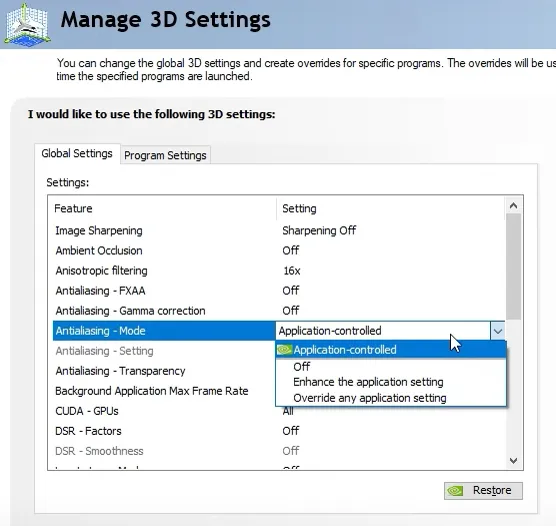
Here you can find a complete list of both "Global" and "Program" settings. As those names suggest, the first sheet will apply the selected settings to ALL programs and games while (after) you can manage eventual differences for specific program/games for which you desire/need to change specific values for them only.
I will now provide my full list of Global Optimized Settings below, along with the reasonings behind each setting:
Image Scaling/Sharpening: Scaling/Sharpening Off
This is basically an old method of upscaling lower-res contents to native resolution which was vastly superseded by DLSS 2.5.1 and higher, which is highly recommended instead
Ambient Occlusion: Off
This setting is best to be left for the game itself to be managed or you may noticeably lose performance if forced at driver level
Anisotropic Filtering: Application-controlled
Even if 16x AF for all games is a good idea as the visual improvements to textures' definition on medium-long distances is big with a very little if zero performance cost, forcing it at driver level may create textures issues with some games (e.g. Starfield) so it's better to manage this setting directly in-game (when available)
Anti-Aliasing - FXAA: Off
This setting is best to be left for the game itself to be managed or you may noticeably lose performance if forced at driver level
Anti-Aliasing Gamma Correction: On
This is a legacy option for older games like Half-Life 2 which can leverage it, but will just be ignored for most modern games. You can keep it On without negative effects
Anti-Aliasing Mode: Application-Controlled
This will ensure AA will be directly controlled by games, which is what you want. When using DLSS (highly recommended) there's no need to also separately enable AA in-game as AA is included in all DLSS profiles during the upscale
Anti-Aliasing Setting: Application-Controlled
This will ensure AA will be directly controlled by games, which is what you want. When using DLSS (highly recommended) there's no need to also enable AA in-game as AA is included in all DLSS profiles during the upscale
Anti-Aliasing Transparency: Off
No need. It is already controlled by game
Background Application Max Framerate: Off
If you're an avid "multitasking" user which often switches between a game and other PC tasks, you can set it to 20 to be sure the game isn't tanking your regular Windows performance, but nowadays the new "Borderless Window" mode makes it unnecessary. Leave it Off
CUDA - GPUs: Select your most powerful GPU
If you have multiple GPUs on your system (e.g. iGPU + dGPU in a Laptop), make sure to select only the most powerful GPU (e.g. dGPU) here in order to leverage CUDA processing more efficiently
CUDA - Sysmem Fallback Policy: Prefer No Sysmem Fallback
This will ensure that games' assets/textures only get loaded in faster VRAM, improving performance, but with the only drawback to crash the game if VRAM is not enough. If this is often the case, try lowering the game graphics' options (for example starting with using a lesser DLSS tier like from Quality to Balanced or Performance) to reduce VRAM usage
DSR - Factors: Off
This is basically Supersampling. It could be useful if you have a 1080p or 1440p monitor along with a very powerful GPU (e.g. which can easily manage to run games at 4K/60fps and above). How? You can for example enable it (along with all multipliers inside the setting) and then select the 1440p (2560x1440) or 4K resolution (3840x2160) respectively + enable DLSS: Quality or Balanced in-game to have a better than native 1080p or 1440p image + TAA and also better performance with it at the same time. If you're already using a 4K Display, leave it Off
DSR - Smoothness: Off
If you enabled DSR - Factors, set this to 33%
Low Latency Mode: On
This will noticeably reduce input latency without being too heavy on the CPU like the "Ultra" setting (which can cause frametime spikes/stutters in CPU-bound games)
That said, contrary to "Ultra" and NVIDA Reflex, the "On" setting doesn't include an auto-fps limiter so you have to set it manually for your display through the separate/dedicated option in NVCP for the best smoothness and responsiveness.
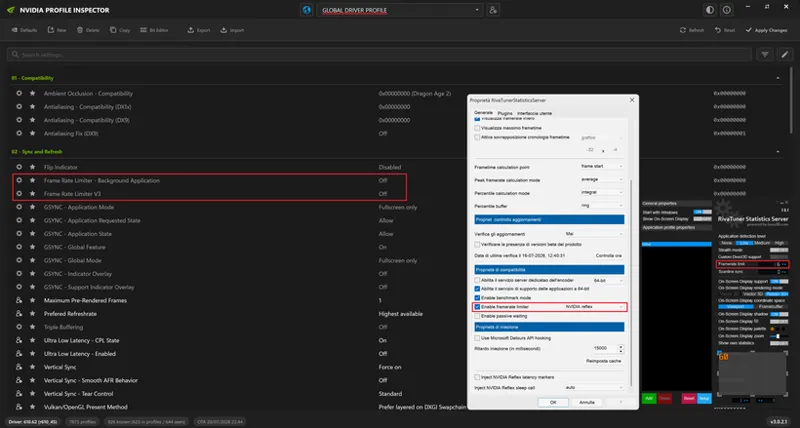
Max Frame Rate: Off - Then use RTSS to set a Global fps cap following Reflex guidelines, also configured as this image below (both for NVIDIA Profile Inspector and RTSS itself)
Click for full screen
If you have a 60hz display set it to 59 fps
If you have a 75hz display set it to 73 fps
If you have a 90hz display set it to 88 fps
If you have a 100hz display set it to 97 fps
If you have a 120hz display set it to 116 fps
If you have a 144hz display set it to 138 fps
If you have a 165hz display set it to 157 fps
If you have a 175hz display set it to 166 fps
If you have a 180hz display set it to 171 fps
If you have a 200hz display set it to 189 fps
If you have a 240hz display set it to 224 fps
If you have a 280hz display set it to 258 fps
If you have a 320hz display set it to 292 fps
If you have a 360hz display set it to 325 fps
If you have a 480hz display set it to 416 fps
If you have a 500hz display set it to 431 fps
This will ensure to always be within your VRR/G-Sync range in-game without ever activating V-Sync (which otherwise could still work as a fallback to fix tearing but noticeably increasing latency and making frametime consistency worse)
Using RTSS (configured as in the screenshot above to use Reflex as fps limiter) instead of "Max Framerate" in NVCP will also ensure the lowest latency possible even for games which don't have native Reflex support/integration. If you want to record with OBS while showing RTSS overlays while setup this way, I suggest "Desktop Capture" set in "DXGI Desktop Duplication" method
Monitor Technology: G-SYNC
Select this to make sure G-Sync is working properly with the selected main display
Multi-Frame Sampled AA (MFAA): Off
This setting will improve MSAA when selected in-game, but is not necessary when using DLSS as this already incorporates an AA solution in it so, when enabled, this setting could cause flickering issue together with DLSS
OpenGL GDI Compatibility: Auto
This will ensure the max compatibility with both older and new games. No need to change it
OpenGL rendering GPU: Select your most powerful GPU
If you have multiple GPUs on your system (e.g. iGPU + dGPU in a Laptop), make sure to select only the most powerful GPU (e.g. dGPU) here in order to leverage a more efficient rendering
Power management mode: Normal or Optimal Power
Similarly to the the Windows 11 Balanced Power Plan suggestion, there is no need to always have the GPU at max usage all the time (it could even hurt the performance by becoming hotter and then getting downclocked) so this setting will ensure the GPU will only be maxed out when needed in a more efficient way
Preferred refresh rate: Highest available
This will ensure correctly leveraging G-Sync
Shader Cache: 10GB Minimum (If you have 1 TB+ storage, try 100GB)
10GB is the new default with most recent NVIDIA drivers and the new recommended minimum Shader Cache size to set for modern games...that said, if you have enough storage space (1 TB+) and/or alternate playing many different games in parallel (so not playing only one at a time), you can try setting Shader Cache to 100GB. This doesn't mean 100GB of disk will be "wasted", but only that you can collect shader cache from many different games up to 100GB before the drivers will start deleting older cache, so you will avoid shader re-compilation stutters even in that extreme scenario.
In all cases, when you install new NVIDIA drivers all shaders' cache will be deleted automatically and you will start "fresh" again
Texture Filtering - Anisotropic sample optimization: Off
This setting aims to reduce Anisotropic Filter quality to improve performance, but considering how small 16x AF impact is it's really not necessary, especially considering it can also cause flickering issues when using DLSS
Texture Filtering- Negative LOD bias: Allow
This will allow games to increase performance by rendering LOD closer to the player. Many games may stop working properly if set to "Clamp" and also DLSS could cause severe flickering issues with "Clamp". Leave it to Allow
Texture Filtering - Quality: Quality
This will ensure 16x Anisotropic Filtering quality when selected in-game, but also making the next option available to be changed
Texture Filtering - Trilinear optimization: On
Trilinear optimizations are aimed to make 16x Anisotropic Filtering more efficient, improving its performance a bit without losing quality at all nor causing issues with DLSS, so you can leave it On
Threaded optimization: Auto
If you have a powerful, multi-core CPU along with a good GPU, this settings will help in GPU-bound situations where CPU multi-cores + multi-threading may help in keeping the performance high. If you have an under-specs' CPU (e.g. an old dual-core only) you can try setting this to Off and see if performance in games will improve for you
Triple Buffering: Off
This is very important to be disabled both here at driver level and in-game level when using G-Sync or it may cause FPS drops and stuttering
Vertical Sync: On
This is very important to be enabled at driver level AND disabled at in-game level when using G-Sync as with G-Sync this is not real V-Sync, but (together with the manual FPS Limiter we've set before and/or NVIDIA Reflex) this will ensure the variable FPS in games will always be matched to the Variable Refresh Rate of the Display but always up to few frames under the max Refresh Rate (to always have the lowest input lag and no tearing)
In DX12 games without Reflex support V-Sync will actually trigger only when FPS is higher than used Refresh Rate to eliminate tearing but will automatically disable itself when FPS go back under the Refresh Rate, preserving smoothness and low input lag
Virtual Reality Pre-Renderes Frame: 1
That's default for VR headsets, so leave it alone even if you don't have one
Virtual Reality - Variable Rate Super Sampling: Adaptive
Also for VR headsets only, but you can set it do Adaptive to improve VR performance at no noticeable quality loss
Vulkan/OpenGL present method: Prefer layered on DXGI swapchain
This will enable Borderless Fullscreen advantages of Windows 11 also for Vulkan and OpenGL games while also including better G-Sync and Auto HDR support for them. If you encounter issues with specific games (e.g. flickering) you can revert to "Auto" just for them
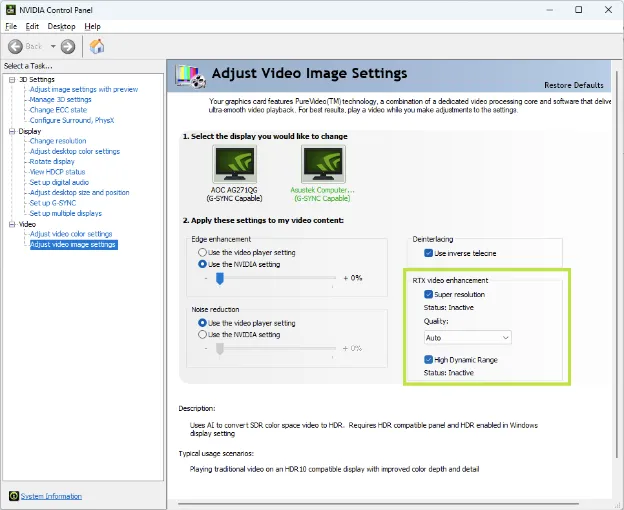
Enable RTX video enhancements (Super Resolution: Auto + High Dynamic Range): under NVCP Video section. This will noticeably improve low-res video upscale + introduce a very good "AutoHDR" upscale also for SDR videos
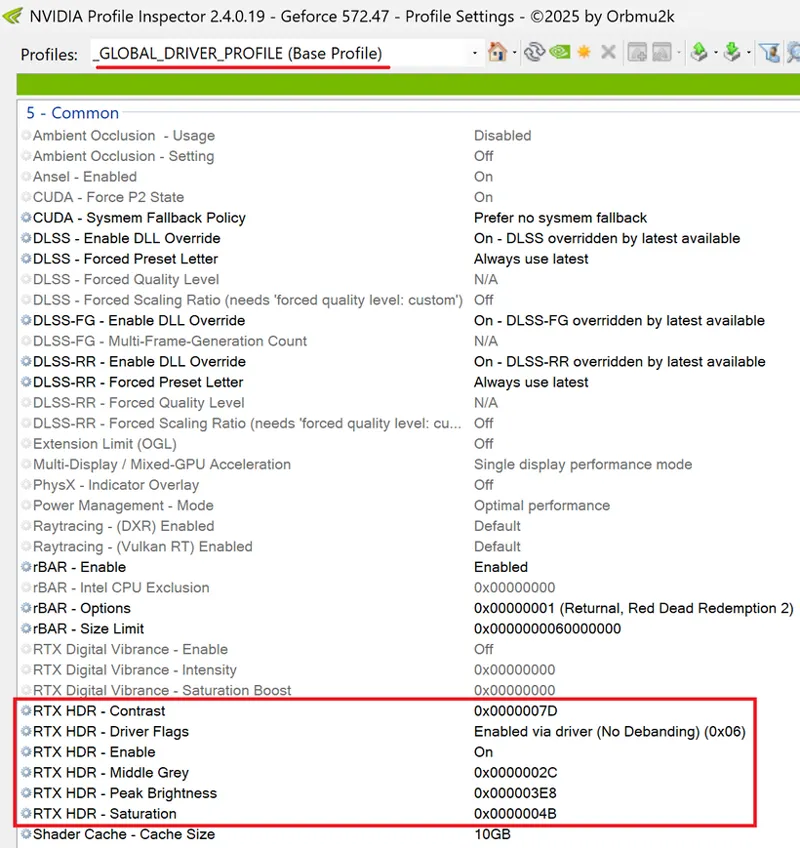
Enable RTX HDR instead of Windows AutoHDR: for a much better SDR-to-HDR AI upscale (with correct black levels, much less color banding, better contrast and higher peak brightness) for ALL SDR games. You can enable it officially by using the new NVIDIA App but actually it's not necessary to install it. You can just use latest NVIDIA Profile Inspector and then configure it as the image above (for LG G3/G4/G5 OLEDs use these), click "Apply changes". RTX HDR will have a noticeably hit to performance by default (around -10%) but activating the above flag "No Debanding (0x06)" the cost for it will lower to around -3% with no visible differences compared to default and, trust me, it is definitely worth it over Windows AutoHDR (which you also need to disable if you want to use this).
If some of your native HDR10 games will have washed out colors after the change, set "RTX HDR - Enable" flag to Off only for them (through NVIDIA Profile Inspector or disable RTX HDR only for them in NVIDIA App)
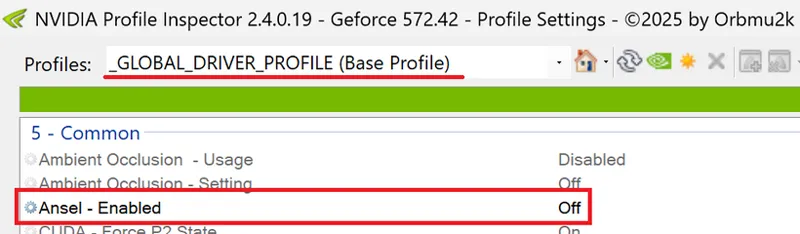
Disable Ansel (via NVPI): to remove added stutters when using VRR/G-Sync but also improve input latency and frame pacing for everybody. Ansel is an NVIDIA driver feature to capture 360° screenshots in-game which basically no one is using and can ruin frame pacing, especially when using VRR
Apply all settings and reboot your PC
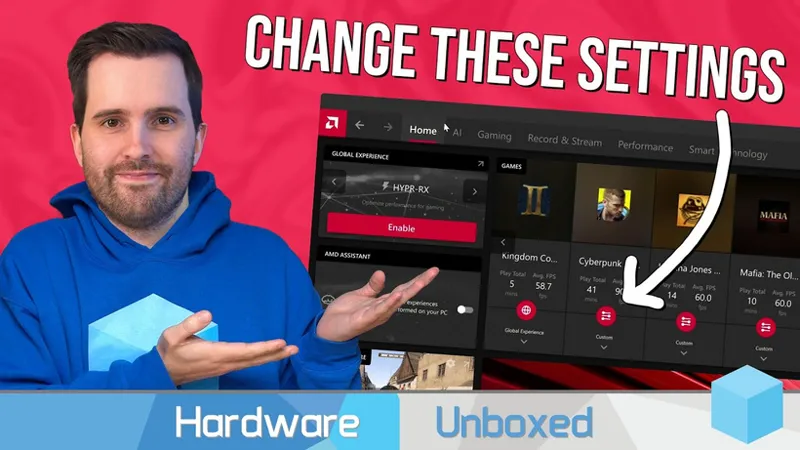
AMD Control Panel: Optimized Settings
While I did not test and verified myself the AMD Control Panel optimizations, after a bit of searching I think the following one is the most comprehensive and thought out optimization guide you can find for it, so go have a look
PC In-Game Settings: Optimized
If you came this far and applied all the previous optimized settings for both Windows & NVIDIA/AMD Control Panel, just remember to always change the following in-game settings for PC games:
Use "Borderless Fullscreen/Window" mode whenever possible otherwise use "Full Screen" mode (to work best with both G-Sync/Freesync, the manual FPS Limiter and NVIDIA Reflex)
Always use native Display Resolution @ Highest Refresh Rate: e.g. 3840x2160 (4K) on LG OLEDs @ 120hz
Disable V-Sync: as this is already enabled at driver level (and working differently for G-Sync/Freesync, the manual FPS Limiter and NVIDIA Reflex)
Disable Triple Buffering and Double Buffering: as those settings will cause issues (with G-Sync/Freesync, the manual FPS Limiter and NVIDIA Reflex)
Disable any Frame Rate Cap: as G-Sync/Freesync + V-Sync (at NVIDIA driver level) + the manual FPS Limiter and NVIDIA Reflex will already cap your FPS few frames under your actual Refresh Rate automatically, so no need to add others FPS limiters. In DX12 games without Reflex support the NVCP V-Sync will automatically eliminate tearing if FPS goes above the Refresh Rate and automatically disable itself under
Always enable NVIDIA Reflex set to "On": whenever available. Similarly but even better than Low Latency Ultra (and also an automatic replacement of it), this will noticeably decrease input lag, improve frame time consistency and also automatically guarantee G-Sync is always working as intended (below your set Refresh Rate). The "+ Boost" added feature will not allow GPU to downclock itself while using the game, which may have a little more consistent input latency but at expense of considerably higher power usage/temps and some reported average FPS drops, so it's better to keep Reflex without Boost for the majority of users and cases
Set Anisotropic Filtering also to 16x: whenever available
Always use DLSS4+ Super Resolution: this is one of the most important setting to ALWAYS enable considering that, in all cases I've tested at 4K, the "Performance" DLSS 4.5+ preset is now better than old DLSS4 "Quality" preset which by its own was better than Native IQ, but now performing much faster than it!
Thanks to DLSS SR you will also have much better Frame Times and even less VRAM consumption thanks to hardware accelerated AI Image Reconstruction.
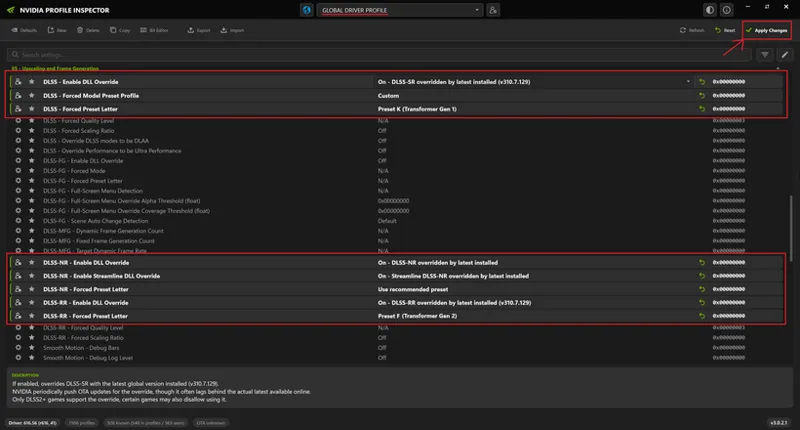
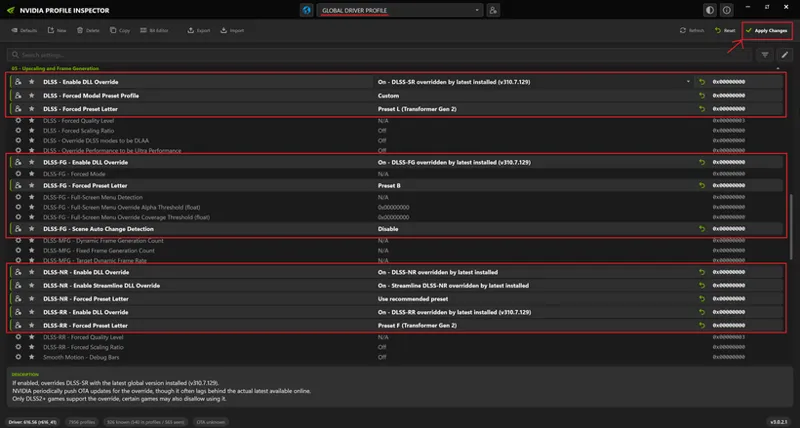
I also recommend using nvidiaDlssGlom to easily update all DLSS files for all games and then configure NVIDIA Profile Inspector as follows for the Global profile (all games). This method will also make using mods as "DLSSTweaks" no more necessary and should also preserve online multiplayer without getting banned:
For RTX 2000/3000 Series:
Click for full screen
For RTX 4000/5000 Series and newer:
Click for full screen
If NVIDIA DLSS4+ is not supported in the game but AMD FSR3+ is, use this one with the same suggestions (it will be less efficient, but still worth it)
Evaluate if also adding DLSS4+ Frame Generation on top: this is another way to multiply your average FPS by adding hardware-accelerated AI Motion Interpolation to what you already achieved up to now, but differently than DLSS4+ Super Resolution, this will not further lower your input lag but the opposite, it will increase it again a bit (but may be unnoticeable thanks to NVIDIA Reflex being forcefully enabled with it). Furthermore, another disadvantage may be the introduction of motion artifacts (as ghosting, UI/HUDs flickering) especially if the base FPS you're trying to double are too low (usually sub-50fps). So my advice is to first try it mainly for non-competitive games and/or games with Ray Tracing / Path Tracing enabled as well. If you don't notice any severe artifacts you can keep it On, otherwise reduce it to 2x max or disable it
Starting with DLSS4 Frame Generation (using Transformer Model) and NVIDIA Profile Inspector v2.4.0.19 I also recommend setting the new "DLSS-FG Scene Auto Change Detection" option to "Disable"
This will fix an otherwise annoying recurrent "hitch" when moving the camera in-game along with inconsistent framerate/frametime going from static to moving scenes and vice versa + reduce CPU usage (and temps) as well.
If NVIDIA DLSS4+ Frame Gen is not supported in the game but AMD FSR3+ Frame Gen is, use this one with the same suggestions (it will be a bit less efficient, but still worth it)Always use the new DLSS4+ Ray Tracing Reconstruction: whenever available for Ray Traced games. This will basically improve Ray Tracing through hardware accelerated AI RT Reconstruction at the same performance cost, if not a bit lower
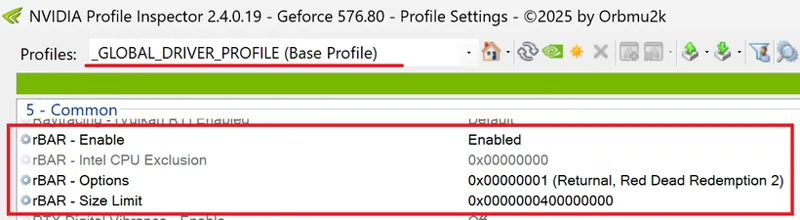
Force enable ReBAR for all games: follow the instructions of this video to enable ReBAR both on your BIOS (if compatible) and NVIDIA Profile Inspector for all games (as shown below)
IMPORTANT:
rBAR - Size Limit should be at the same amount of your actual VRAM for best efficiency (e.g. less microstutters)
See the table below to identify the correct hex value to copy and use there based on your VRAM:
0x0000000100000000 (for 4 GB)0x0000000180000000 (for 6 GB)
0x0000000200000000 (for 8 GB)
0x0000000280000000 (for 10 GB)
0x0000000300000000 (for 12 GB)
0x0000000400000000 (for 16 GB)
0x0000000600000000 (for 24 GB)
0x0000000800000000 (for 32 GB)
After testing 25+ games, I measured an FPS boost of around 5% both for Average FPS and 1% Lows when enabled as above. If a game is not working correctly after the change (e.g. Ratchet & Clank Rift Apart crashing the Desktop as soon as you quit it or FFVII Remake/Rebirth stuttering) you can disable ReBAR just for those games with NVIDIA Profile Inspector as an exceptionUse my suggested in-game HDR settings for your TV: you can find over 200+ personally tested in-game calibrated HDR settings here , on my Patreon "About" page and Index. Many are accessible to everyone for free, but for the others I kindly ask you to support my work as I usually need to buy those games at full price for providing updated settings at D1 release or near. Thank you! 🙏🏻
LG OLEDs: Optimized Settings
With the entire PC (Windows 11 + NVIDIA/AMD Control Panel + In-Game Settings) configured as suggested, you can then finally use the:
Optimized Settings for LG 2026+ OLED Series (see and apply the Xbox columns; use DTM: Off + Tone Mapping Gain: 0 & All Pro Sliders: 100 = HGIG in HDR instead of DTM: On)
Optimized Settings for LG 2023-2025 OLED Series (see and apply the Xbox columns; use HGIG in HDR instead of DTM)
Optimized Settings for LG 2019-2022 OLED Series (see and apply the Xbox columns; use HGIG in HDR instead of DTM)
Optimized Settings for LG 2018 OLED Series (see the relative section in the post)
[4K/HDR] Optimized Gameplay (YouTube Playlist)
Here you will find Very High Quality (among the best seen on YT), Direct-feed gameplay recordings in Native 4K, 60fps, color-accurate and Calibrated HDR after applying all the optimizations in this guide to my new PC (Full Specs and Setup in each video description)
For this reason, I highly recommend to see them from a true HDR display!
YouTube will still decently tone map them to SDR automatically if you can't.
I will periodically add new gameplay recordings for select games over time, so if you like them please support my work by leaving a Like & Subscribe on the YouTube channel and here on Patreon!
NOTE:
In order to preserve the highest and smoothest quality of the recordings, the actual performance you see is around 5-10% slower than normal. Just consider that as a reference if you want to compare it with similar setups.
Let me know in the comments what improvements you had after all these optimizations (if any) and generally if you found them useful or not.
Enjoy :)
-P
Comments (353)
Hey Paolo , if you have free time can you check my recent comment on this post ? I posted it about 4 days ago , Appreciate it
If I'm using a 1080p monitor with DLSS Quality or DLAA in every game, which upscaling preset should I use, L or K?
L if you have an RTX 4000/5000 K if you have a 2000/3000
What do you think about frame generation mode C?
I tried it with a bunch of games and honestly I reverted to B. C increased my fps from around 100-110 fps to 115-120 fps (RTX 4080 with DLSS FG 2x) but reintroduced noticeable ghosting on movement (especially on HUDs and fine elements like hair, fences etc.) which were basically solved with B, so I vastly prefer it even if a bit heavier. Just like DLSS SR Preset L, DLSS RR Preset F and now with DLSS FG Preset B it seems like NVIDIA is not able to improve performance while preserving or improving quality more than those, so it's inventing these other things along with the DLSS 5 AI Slop Filter.
Hello, its me again ^^ I have some issues bro i hope you got an idea: 1) In Nvidia Profile Inspector under "05 - Upscaling and Frame Gen." --> DLSS-RR - Forced Preset Letter i have chosen Preset F; but instead of (Transformer Gen 2) its "Preset F (unused)". Of Course i updated latest dlss files with nvidiagloom. 2) I always have to change some settings in NVIDIA Profile Inspector because they somehow reset after some time has passed: - rBar settings always are "disabled" after some time although i enabled it - "DLSS-FG - Scene Auto Change Detection" always changes back to default although I disabled it 3) In NVIDIA Profile Inspector unter "07 - System, Memory and Compute" should i turn Shader Cache - Pre-compile Shader Options to Disabled or another Option? Thank you very much for helping clueless guys like me out! I appreciate it.
1) Yea I personally renamed it editing NVPI files but even if it says "Unused" it's actually being used. (It's just the latest stable release of NVPI still with labels not yet updated) 2) Every time you update drivers some settings revert back. I always keep an Export/Backup of my Global NVPI Profile and just Import/Restore + Apply in few clicks after a driver update and that's it 3) I already posted a screenshot of that and I suggest to set it to Medium (for Auto re-compiling shaders in the background when in Idle after a driver update)
Hi Paolo hope you're doing well , I don't have hdr monitor , it's asus tuf vg249q3a it doesn't support hdr but it's Gsync Compatible , is there specific color settings I should do to it ? since your guide is focusing on 4k hdr monitors + should I also set dlss quality to performance and enable fg like you said because my monitor resolution is 1080p not 4k , thanks again for your efforts
I still have Kizzimo power plan but I see you now recommend Khorvie again do I stay on Kizzimo or switch back to Khorvie?
I would switch back to Khorvie as it's more compatible with Windoes 11 26H2 while Kizzimo started creating issues there. Khorvie was always great too so not a meaningful loss
Should precompile still be set to Medium?
Yes
Hey I noticed when using frame gen it doesn't work is it due to dlss glom causing issues?
No, glom doesn't cause any issue with FG if this is also configured correctly as suggested in NVPI
Hi Paolo. If I have Win 25H2, can I still use the Kizzimo power plan? And I also want to ask why I don't have Win 26H2 yet, when will I have an update available? Now I have Win 11 Pro and I haven't been offered any update to 26H2 yet. And is it worth switching to 26H2??? Thanks
Kizzimo will still work there, yea, but 26H2 will be officially released for everyone via Windows Update next month. You can manually install it now via a small "enablement package" to download. Currently the differences with 25H2 are minor but it will for sure be the next main Win11 base soon, so better to adapt sooner than later
Buongiorno Paolo, ti chiedo un consiglio: di recente tramite DDU ho disinstallato dal mio portatile sia i driver Intel che Nvidia, rifatto un'installazione pulita di entrambi i driver aggiornati. In particolare con Nvidia ho utilizzato, sempre tramite una tua guida, NVCleanstall. Per aggiornare i driver Nvidia ora cosa mi consigli di fare? Pulizia di nuovo o posso evitare ed installarli sempre tramite NVCleanstall? Grazie in anticipo!
Da quel punto in poi puoi semplicemente usare NVCleanstall per pulire l'installer standard dei nuovi drivers allo stesso modo, dopodichè semplicemente fare un Express Install sopra i drivers che hai. Non serve usare DDU tutte le volte a meno che tu non abbia problemi reali. L'unica cosa che farei in più è un Backup/Export delle impostazioni Globali di NVPI e un Restore/Import in NVPI dello stesso al termine dell'installazione dei nuovi drivers. Ci vogliono 2 secondi. Tutto qui :)
UPDATE - 2026/09/24 Reverted to "Khorvie's" as the suggested custom power plan as Windows 11 26H2 doesn't accept "Kizzimo" or other recent custom PP anymore
If I'm using old version of windows 11 should I still use Kizzimo power plan ? + Should I update windows 11 regularly or just stick to my version it's 24H2 and I'm comfortable with it because I always hear that new updates may add bugs or affect performance or add new unneeded bloatware
The power plan cannot be imported on the newly installed 25H2.
I have it on 25H2 and even 26H2?
Good morning, hope you're doing well! Quick question: I just picked up a Samsung S95H (2026). Will the RTX HDR edits from this guide work well for it? Also, I'm running two secondary monitors—a Samsung G8 and an Asus Gen 3 OLED (2026). How do I handle per-screen max nits configuration since each display has a different peak brightness? Thanks in advance!
Hello, if the “DLSS-RR - Forced Preset Letter” field shows “Preset F (unused)” instead of “Preset F (Transformer Gen 2)” as shown in your screenshot, will it still work correctly, or did I do something wrong?
Yes it will, read my other recent comments
In NVIDIA Profile Inspector, under DLSS-RR – Forced Preset Letter, I only have Preset F (unused). However, in your screenshot, it shows Preset F (Transformer Gen 2). I’m using an RTX 3080 Ti with an updated version of DLSS via nvidiaDlssGloM, as well as the latest version of NVIDIA Profile Inspector.
I manually edited the XML file the program uses 😅 , but even if you see "Preset F (Unused)" it will still work (as it's just a label) A new version of NVPI will be released soon and you will also see "Preset F (Transformer Gen 2)" 👍
Hey Paolo. Under the section "For RTX 4000/5000 Series and newer" it is likely that the guide needs to be updated to use Ray Reconstruction Model F - Transformer 2 that just released as of this week over the Model E - Transformer 1 that was previously recommended. I have not done any testing on Model F but Hardware Unboxed has put out a video on it and gave a pretty straightforward recommendation to use the newer Model F in all cases. Just wanted to point it out for your guide.
I've just updated it :) Also the dedicated nvidiaDlssGlom guide will be updated shortly
Hey Paolo, Could you create a guide on how you configured OBS with NVIDIA? For recording and possibly also with the Replay Buffer feature. That would bei great ❤️
Should i use the Studio drivers or game ready drivers? I sometimes feel a studio driver performs better, and sometimes Game-Ready Driver performs better, which one should i stick to? i Use the 591.44 studio right now, which driver and it's version should i install and stick to? I just can't decide, an external suggestion (I mean yours) would help to stick to one. Have an Laptop RTX 5060
Same bug with not being able to change the hex values for rbar size limit back to how they were for my graphics card and I'm too lazy to enter everything I changed on profile inspector back again. Heard using revamped seems to work. Any downsides to using it as a workaround for now ?
No downsides I think as Revamped just reads the same lines, it only changes the "mask" which lets you see/edit them. The proper fix would be deleting all previous versions of NVPI, starting from scratch from latest stable and re-enter all changes manually then export a new Global Profle .nip file and use that as a backup to restore in all future NVPI versions
" after re-testing 40+ custom power plans (for days)" -- Resulting in "latency Master" aka Kizzimo plan. Now i'd like to make you an offer you can't refuse : I will provide you with a powerplan that is better and even lower in latency. If i turn out to be correct you gift me one guide from the single purchasable guides section (of my liking) and in return you will improve your guide with a better powerplan. If i turn out to be incorrect i will gift 2x a monthly membership to randomly selected free members. DM me on here or add tlgnetherworld on discord if interested , wouldnt surprise me if you have "heard" about this powerplan already but couldnt find it anywhere anymore
What's that energy plan you're talking about?
Hi Paolo I've been using the khorvie power plan but it's messing with my atmos sound output. It keeps reverting it to multichannel and often I lose sound altogether. Is there a way of changing the power plan setting so as not to cause this?
Try the new "Kizzimo" Power Plan I uploaded to replace both Khorvie and Endgame ones
Hi Paolo. Since the new update, when I set the rbar settings it keep show me 1GB even if I set 40000000 for the 16gb value https://imgur.com/a/5HpmHAM
Are you sure you're using latest stable (not pre-release) version of NVPI? If yes you should be able to pick the exact size in the center drop down menu (like picking 16GB size) directly, at least on drivers 610.xx
Hi, so i use the Kizzimo power plan but it makes a lot stutter on valorant, when i changed to endgame again it fixes, it seems not stable on my pc (Ryzen 5 5600) or Valorant, and the max fps higher on Endgame powerplan than Kizzimo, so i just use the endgame powerplan right now
Ok
Ok, just a short question. Your previous suggestion regarding Power Plan was Khorvie => now it's Kizzimo - is it any better than Bitsum or Khorvie? These two are also quite respectable Thank you!
Yeah, Kizzimo is currently the best I tried so far (best performance at lowest latency with good temps) or I wouldn't have updated it ;)
I followed this to a T and am now getting the 0x1A MEMORY MANAGEMENT black screen of death so I gotta restore point. I might just retry it all without Chris Titus tool and ParkMobile.
I also had some issues with GPU disabling / fans going 100% / no signal - and having to restart the PC Until i've used DDU (Display Driver Uninstaller) and forced deleted everything GPU-wise - it didn't stop. I'm not sure what could have caused that. Thoughts? GPU is new - 5070 Ti
UPDATE - 2026/07/29 As promised, here's my updated and completely overhauled Overall Settings Chart for LG OLEDs 2026+ to align both with the many changes needed for newer models but also with a new, more complete and easier to read presentation. Hope you like it ;) Click -> https://raw.githubusercontent.com/P40L0X/P40L0-Image-Archive/main/Patreon/LG_OLEDs_2026+_Chart_Modern_P40L0_v2.png
UPDATE 2025/07/27 If you're gaming on a Desktop PC, use the "Kizzimo's Extreme Low Latency" Custom Power Plan (in the classic Windows 11 Control Panel): after re-testing 40+ custom power plans (for days) against latest stock Windows 11 (25H2) ones (incl. High Performance and Ultimate Performance), "Kizzimo's Extreme Low Latency" now provided the highest Average FPS, highest 1% Low FPS, smoothest frametimes, lowest input latency and under control temps at the same time for most games I've tested. The only disadvantage is that it will draw more power. You can even test/keep it on laptops but only when plugged to AC and only if the laptop won't overheat while using it. You can download "Kizzimo's Extreme Low Latency" power plan from the post (installation instructions included)
Hi P40L0! sorry to bother byut i have a question. In the guide you said to set in the game "uncapped fps" while set Riva to secified caps based on Hz of our monitor. But for the games that have only standard caps of frames and where you can't uncap it so we can only use their standardised caps (like 30/60/120 fps), should we set Riva based on this caps? (example: setting the game to 120 and for this set Riva to 116). Thank you for your future answer :D.
For those games set the game cap to the highest possble, possbly higher than Riva
Hi P40L0, there's something strange happening here, when I use the new Endgame Performance power plan, my 5800x3d do not go up to 4450MHz, it keeps it at 3400MHz maximum. The old Khorvie's power plan was working normally.
Weird, I have zero issue in reaching my 5050Mhz maximum on my 7800X3D which is very similar. Maybe update to latest AMD chipset drivers
UPDATE 2025/07/25 OP updated replacing previous video guide and recommendations for AMD GPU Control Panel with this new one: https://youtu.be/r87cOPfXIyA
Hi P40L0! Sorry to bother, but exploring the wey i found 2 "optimization fixes" that i did'nt found in your guide, i will post them here so you can read abouth them, and maybe if you think are good could pput in the guide! 1)(ony for whom have Windows pro edition) Search tab > write "edit group policy" > Administrative template > Windows components > App privacy > double click on "let windows apps run in the background" > Click on "enabled", then click on the tab on the right of "default on all apps" and click on "force deny" > click on Apply, then OK; 2) Search tab > write "services" > find "SysMain" and double click it > In the tab click "disable", then stop the services if it's running > apply & ok; Did you know them? What do you think? Hope in being of help, bye!
I don't recommend either of those two. 1) Some native Store apps may be useful in background (as MS Store auto updates, native mail client like Wino Mail, NanaZip and others) 2) Don't disable SysMain or the system may become unstable
UPDATE - 20/07/2026 - Updated Chris Titus Tool settings and suggestions based on its latest version.
Hi, You forgot to disable Mouse Acceleration :)
Endgame Power plan reverts to balance in Xbox mode. Can you check if its same for you?
Try pinning/opening classic Windows Control Panel in Xbox Mode and manually set Endgame Performance in Xbox Mode, it should stay
Do we still use preset L for games that have ray tracing without ray reconstruction? Also for a 9800X3D is the power plan you suggest better than using the balanced?
No, whenever you see DLSS Ray Reconstruction enable it in-game and force RR Preset E. This until RR 4.5 will come next month which will be the best for RT/PT and most probably will introduce a new RR Preset to choose (like RR Preset F or G) I have a 7800X3D and use "Endgame Performance" power plan myself and works fantastic. It should be the same for 9800X3D
I have a 5070 Ti and play at 1440p. Is it still worth overriding the DLSS preset to L, or is it better to keep it at recommended?
Performance L will look and play great also at 1440p, yes
Hello Just a quick question on LG TV as a monitor usage (C3 for example) Why not RGB Full and YCbCr444 - Limited? Isn't Windows natively using RGB full itself? Thank you!
You can read more on why 4:4:4 Limited (and not Full RGB) is recommended with these TVs here: https://www.resetera.com/threads/lg-2017-2025-oleds-optimized-settings-for-xbox-one-series-x-s-ps4-ps5-switch-1-2-pc-and-webos-movies-sdr-hdr-dv.73304/post-99290590
UPDATE 08/07/2026 If you're gaming on a Desktop PC, use the "Endgame Performance" Custom Power Plan (in the classic Windows 11 Control Panel): after re-testing 40+ custom power plans (for days) against latest stock Windows 11 (25H2) ones (incl. High Performance and Ultimate Performance), "Endgame Performance" now provided the highest Average FPS, highest 1% Low FPS, smoothest frametimes, lowest input latency and under control temps at the same time for most games I've tested. The only disadvantage is that it will draw more power. You can even test/keep it on laptops but only when plugged to AC and only if the laptop won't overheat while using it. You can download "Endgame Performance" power plan in the link in the post (installation instructions included)
So replace khorvie power plan with endgame performance plan?
Only see Frame Rate Limiter V3 and Frame Rate Limiter Background Application in newest Profile Inspector. The other two options are not there 🤔 . Both are turned off. Is this enough with using RTSS's framelimiter set to 138 fps and Nvidia Reflex for my TV ?
Yes should be enough
Paolo I Need help before when I Player Games like stelar Blade with all your tweaks my frametimes were perfectly flat an my gameplay buttert smooth when with the last re 9 game but now they stutter heavyly and it’s only dlss Games I dont know why I use all your tweaks and there Perfect never had any problems
I've updated my guide twice recently about RTSS cap. Last update was: 1) Disable NVIDIA Control Panel "Max Framerate" cap (see also how NVIDIA Profile Inspector should look after you do that) 2) Use RTSS Reflex cap (not Async) and set RTSS as also shown in my picture using the fps cap suggested for your Refresh Rate 3) Everyting else in the games should be the same as before and with no stutters.
Hi Paolo , first I wanted yo thank you for your amazing guide it's super helpful and optimized my system and games very well , keep up the great work , secondly I don't have hdr monitor , it's asus tuf vg249q3a it doesn't support hdr but it's Gsync Compatible , is there specific color settings I should do to it ? since your guide is focusing on 4k hdr monitors + should I also set dlss quality to performance and enable fg like you said because my monitor resolution is 1080p not 4k . Thanks again
UPDATE - 29/06/2026 In NVCP/NVPI, set: Max Frame Rate: Off - Then use RTSS to set a Global fps cap following Reflex guidelines, also configured as the new image in the post (both for NVIDIA Profile Inspector and RTSS itself): If you have a 60hz display set it to 59 fps If you have a 75hz display set it to 73 fps If you have a 90hz display set it to 88 fps If you have a 100hz display set it to 97 fps If you have a 120hz display set it to 116 fps If you have a 144hz display set it to 138 fps If you have a 165hz display set it to 157 fps If you have a 175hz display set it to 166 fps If you have a 180hz display set it to 171 fps If you have a 200hz display set it to 189 fps If you have a 240hz display set it to 224 fps If you have a 280hz display set it to 258 fps If you have a 320hz display set it to 292 fps If you have a 360hz display set it to 325 fps If you have a 480hz display set it to 416 fps If you have a 500hz display set it to 431 fps This will ensure to always be within your VRR/G-Sync range in-game without ever activating V-Sync (which otherwise could still work as a fallback to fix tearing but noticeably increasing latency and making frametime consistency worse) Using RTSS (configured as in the new screenshot in the post to use Reflex as fps limiter) instead of "Max Framerate" in NVCP will also ensure the lowest latency possible even for games which don't have native Reflex support/integration. If you want to record with OBS while showing RTSS overlays while setup this way, I suggest "Desktop Capture" set in "DXGI Desktop Duplication" method
Do you also want us to use rtss basically as our go to for solely frame limiting or frame monitoring and counting as well?
UPDATE - 28/06/2026 In NVCP/NVPI, set: Max Frame Rate: Off - Then use RTSS to set a Global fps cap following Reflex guidelines +1fps above them, also configured as the image in the post (both for NVIDIA Profile Inspector and RTSS itself) If you have a 60hz display set it to 59 fps If you have a 120hz display set it to 117 fps If you have a 144hz display set it to 139 fps If you have a 165hz display set it to 158 fps If you have a 180hz display set it to 172 fps If you have a 240hz display set it to 225 fps If you have a 360hz display set it to 326 fps If you have a 480hz display set it to 417 fps This will ensure to always be within your VRR/G-Sync range in-game without ever activating V-Sync (which otherwise could still work as a fallback to fix tearing but increasing latency and making frametime consistency worse) The "+1fps" above the Reflex guidelines for each Refresh Rate ensures you're actually giving priority to the Reflex auto-cap whenever available (e.g. 116fps at 120hz) which will have the lowest latency possible while still correctly capping all other games without Reflex support (e.g. at 117fps at 120hz instead) This method will also immediately make you aware of which game is actually using Reflex (e.g. if you see 116fps) or not (if you see 117fps) Using RTSS (configured in the screenshot in the post) instead of "Max Framerate" in NVCP will also ensure better 1% Lows and flatter Frametimes in all games + will fix recording bugs like black screens in OBS when using "Game Capture" and overlays + will also fix the "fat frametime" graph visual bug in RTSS overlay when using DLSS Frame Generation (with Transformer Model) as well! Directly in RTSS you can also add games as exceptions to the Global profile with different fps caps if needed using the "Add" green button (e.g. Halo Infinite or Death Stranding: Director's Cut which will require a 120fps cap or multiples of 30 to work without judders) and those will work seamlessly with the Global profile set for all other games
Why do you recommend in RTSS Async vs Nvidia Reflex? According to the Reddit guide here (and multiple other sources) https://www.reddit.com/r/OptimizedGaming/comments/1i2de1p/psa_dont_use_rtsschange_your_rtss_framerate/ It appears that Async vs Reflex in RTSS introduces significant input lag for not that much more stable real world frametimes. I love the guide but I really want this cleared up. It would seem that using Nvidia Reflex inside of RTSS instead of Async is the way to go. Would love to hear your thoughts on this, or if this is just an overlooked portion of the guide since Reflex inside RTSS is a new feature, relatively speaking.
Hi there is a new DLSS - NR option turning up in the new version of the NVPI. Any changes to be done in that?
Yeah but they do nothing at the moment. NVIDIA must officially release DLSS 5 and its .dlls first and then they should work then.
Re-tweaked "Win32PrioritySeparation you got 2A in your post i must to change to 28?
2a (Hexadecimal) is best
Paolo quick question I bought an oled rig strix oled 4 monitor is it better for me to use no scaling + display rather then your suggestion my monitor has 0.03 ms what’s better
I would still use No scaling + GPU if you have an NVIDIA card
Hi Paolo. I know this question was raised before but I can't find it. The processor scheduling is adjusted for Background services instead of Programs. Is tha correct? Cheers
That's just a visual bug when you manually change Win32PrioritySeparation to something custom in the registry. When you set it to "2a" it actually means: "Short, Fixed Quantum + High Priority Boost for the Foreground application" Which will basically lower latency and improve performance more for the foreground/active application (like games)
UPDATE - 2026/04/06 - Win32PrioritySeparation is now suggested again at 2a (Hexadecimal) or 42 (Decimal) This will configure the CPU and the system to have a "Short, Fixed Boost + Boost Priority for the foreground application", which will translate in having noticeably lower input lag, higher 1% Lows and smoother/more consistent Frametimes for games (which will always be foreground applications)
hey mang! i love your guide and thank you so much for providing it. i have a question and not sure if you'd be able to answer it... i use all of your nvidia profile inspector settings and when i play arc raiders, my game crashes after about 10-15 minutes and it's always the same error: LoginId:91b18d0847e6e5bc0c6bbea1433cd78e EpicAccountId:50b7db44015e47118129ed091bd944da CurrentQueue.Fence.D3DFence->GetCompletedValue() failed at .\Runtime/D3D12RHI/Private/D3D12Submission.cpp:994 with error DXGI_ERROR_DEVICE_REMOVED with Reason: DXGI_ERROR_DEVICE_RESET GPU Crash: EnqueueCopy AccessModePass[Graphics] Streamline Streamline BufferPoolCopyOps TexturePoolCopyOps ClearGPUMessageBuffer VirtualTextureClear UpdateDistanceFieldObjectBuffers UpdateDistanceFieldAtlas UpdateGlobalDistanceField Scene EnqueueCopy AccessModePass[ PioneerGame PioneerGame runtime once it crashes that one time, it won't do it again that same play session (another 2 hours or so). it's driving me bananas and wasn't sure if you knew it was related to a specific setting?
Could be many things but usually it may be due to an excessive undervolt/overclock or the CPU and/or GPU, so I would double check that first (maybe testing PC stability using free tools like OCCT)
Hey, thanks for the guide! I’ve been using it for months now every time I reinstall Windows. Also, the Chris Titus Utility got an update—could you check it out and maybe update the guide? Thanks!
Hi! I applied most of this and noticed my games are indeed running and looking a lot better! Thanks a ton for making this available! However, when I'm NOT gaming, I've noticed that FireFox seems to be performing more sluggishly. Particularly, if I'm watching a YT video on my primary monitor and browsing on my second monitor, the framerate of the video looks much choppier until I make focus on the window again. Do you have any idea if any of these steps would have caused this?
This guide has made my games not only look better, but run so smooth now. I had to get a displayport 1.2 cable for my monitor for it all to work the best. I do have a question though. Should you disable Low Latency Mode (to Off) if the game has nVidia Reflex or is it okay to keep it On for those games? Thank you for the guide!
It's ok to always keep Low Latency On globally as Reflex will automatically bypass it when detected. Enjoy ;)
Hello, can we ever expect one day a guide for optimizing windows for handhelds like MSI claw that run integrated intel graphic cards?
In Settings > Display > HDR there is no SDR content brightness anymore. I only have HDR content brightness. What do I set it to?
I think you have to enable HDR first to see that option
UPDATE - 2026/04/06 Updated both the PC Optimization Guide and nvidiaDlssGlom guide. Changelog: - Updated NVIDIA Profile Inspector screenshots and suggestions to reflect the new major version and also the new NVIDIA features introduced with Driver 595.97 and latest NVIDIA App (e.g. DLSS Frame Generation Preset B, Auto Shader Compilation) - Updated nvidiaDlssGlom screenshot to reflect the OTA availability of NVIDIA DLSS 310.6.0 + Streamline 2.11 .dlls, which are necessary for the new features above to work - Split and updated screenshots/suggestions for RTX 2000/3000 Series and RTX 4000/5000 Series and newer - DLSS MFG above 2x could introduce noticeable artifacts and higher input latency, so I specified a note in the PC Optimization guide to revert to 2x or turn it Off if those are too noticeable for you Enjoy ;) -P
You also need latest NVIDIA Profile Inspector as shown in my screenshots You can also use the Search function in it
Been a big fan of your guides for years now. Started with using them to adjust settings for my LG TVs and now I’m following it for every game I play that you post. Slightly PC related: do you have any plans on doing an optimized guide for the ROG Xbox Ally X? I’d find it super useful if you decide to. Either way, thanks for all your work!
Can please you share the best settings you mentioned for AdGuard?
For AdGuard browser extension there is really not anything to change except enabling filters like: Adblocking + Privacy + Social Media Extensions + Anti-Annoying + Security + Your specific Language
any changes to tweaks with Chris Titus Windows Utility ? after the newest update some options are not available and there are new ones and the tweak list order have been changed as well so its hard to follow the current screenshots
Ok, I will have a look at it
Paolo can you do a guide for netting tweaking like transmit buffer and offloading settings would appreciate that
I already included some network tweaks. I think you actually don't need more than that
UPDATE - 2026/03/01 Max Frame Rate: Manually set it based on your current Refresh Rate (following Reflex guidelines +1fps above them) If you have a 60hz display set it to 59 fps If you have a 120hz display set it to 117 fps If you have a 144hz display set it to 139 fps If you have a 165hz display set it to 158 fps If you have a 180hz display set it to 172 fps If you have a 240hz display set it to 225 fps If you have a 360hz display set it to 326 fps If you have a 480hz display set it to 417 fps This will ensure to always be within your VRR/G-Sync range in-game without ever activating V-Sync (which otherwise could still work as a fallback to fix tearing but increasing latency and making frametime consistency worse). The "+1fps" above the Reflex guidelines for each Refresh Rate ensures you're actually giving priority to the Reflex auto-cap whenever available (e.g. 116fps at 120hz) which will have the lowest latency possible while still correctly capping all other games without Reflex support (e.g. at 117fps at 120hz instead) This method will also immediately make you aware of which game is actually using Reflex (e.g. if you see 116fps) or not (if you see 117fps)
Interesting but very unexpected update. How d you or when do you figure out to update the little things like t his?
recently there have been a lot of discussion about Preset L on Performance mode might be better than Preset M on the same mode, any thoughts?
Preset L is just too heavy outside Ultra Performance mode: it can noticeably lower fps and/or ruin frametime consistency if used on higher quality modes, and this with all NVIDIA cards (the older the higher cost) Personally I would just stick with DLSS 4.5 Performance + Preset M, then just remember to set in-game Sharpness sliders to 0
Hi there, I may be stupid, but in the section "Set a fixed Virtual Memory size", which drive do I select? My OS drive is not the drive where I install my games.
OS drive
Hi Paolo, if I wanted to turn off gsync because of VRR flicker, what settings should I use in nvidia control panal and in game to have a smooth frame rate with no screen tearing?
Honestly I wouldn't turn G-Sync off. The flicker you see is caused by unstable framerate (dropping below 40fps) so I would first try to optimized both Windows and games in order to have smoother framerate or using a lower fps cap for them as an exceptiom (e.g. 60fps) in order to avoid the frametime fluctuate too much, causing the VRR flicker. Also: having the flicker during loading screens can't be fixed and is perfectly normal. If you still want VRR: Off, turn off G-Sync in NVCP and turn back V-Sync: On in-game. If you want to lock fps, still use NVCP fps cap and leave the game fps unlocked in-game
Ciao Paolo, dopo aver applicato tutti i settaggi ed impostato l'HDR ho notato che l'LG C5 navigando in Brave cambia in continuazione la luminosità delle pagine. Cosa può essere? Ho un pc con RTX 3070. Questo è il video: https://youtu.be/uscml3KCCt8 Grazie in anticipo!
Mmmh, assicurati che Auto Color Management (ACM) è Off nelle impostazioni profilo colore di Windows 11. Valuta anche di fare una installazione pulita degli ultimi drivers NVIDIA 591.86 che sono ottimi e hanno sistemato un sacco di cose
UPDATE 2026/01/24 If Battlefield 6 Anti-Cheat (EA Javelin) or other Anti-Cheat software auto-close your games with a warning about expired or not updated Secure Boot certificates, follow this guide on How to manually and safely download and update Secure Boot certificates for your PC: https://www.elevenforum.com/t/secure-boot-update-howto.41997/
Awesome guide! I have one problem (maybe addressed in recent updates... will check it out) that I'm hoping you'll have an answer for and could help others with similar issues. --- Occasionally, my display will freeze, and my entire monitor goes white/grey. It will hang like that for a couple of seconds (maybe 10-15s), then go black, maybe white/grey once more, then my display entirely loses signal (e.g., the "searching for signal" message will be displayed in my monitors UI). Eventually, the display and all windows comes back, though my background/wallpaper is now gone, just solid black. If I was playing a game, it will have crashed, but most applications are still running. Also, some overlays will remain broken through restart. For example, I use fancy zones in powertoys for window tiling. After such an event, I can still actually tile windows, but when hitting the hot key which normally displays the zone overtop of existing windows, nothing is displayed. I believe that the issue comes down to competing overlays, and have also noticed it almost always occurs when I open claude desktop app. I also notice it occurs more frequently when my nvidia driver is out of date. Any ideas? Thanks, and again, awesome content!!
An interesting observation on this -- one of those crash events occurred this morning, and it so happens that I was out of date on nvidia driver. After installing the latest driver, without a restart, my fancy zones overlay UI was restored (when hitting the hot key to tile, I can see the zones in the overlay to drag and drop windows to).
i see you went out of your way to block your ip address but in the section about nagles algorithm your ipv4 address is visible under dhcpipaddress, stay safe and thank you for your guides!
That's not my IP address, but thanks for noticing it ;)
UPDATE 2026/01/15 - Guide updated including DLSS 4.5 and NVPI changes
Hello, please advise, with the release of dlss4.5 on rtx 4080, do I need to change any settings in dlssGlom and nvidia profile inspector? Also, do I need to use dlssGlom in addition to Nvidia Profile Inspector? And if I need to use dlssGlom, do I need to replace the dlss files with the new 5.0 versions (3 files) before clicking update, and then click update?
I already did and wrote everything you should know here: https://www.resetera.com/threads/pc-gaming-optimized-the-ultimate-guide-including-nvidia-amd-cp-g-sync-freesync-hdr-best-settings.757693/post-149714818
UPDATE 2025/01/07 - NVIDIA officially released DLSS 4.5: no changes are needed to the guide or NVPI, but there are important new things to know you can read here: https://www.resetera.com/threads/pc-gaming-optimized-the-ultimate-guide-including-nvidia-amd-cp-g-sync-freesync-hdr-best-settings.757693/post-149714818
dlss4.5 looks amazing at 4k performance preset M! have you checked if the newest 591.74 cause problems in particular with youtube videos? crashing the videos, black screens, stuttering etc? i am on an rtx 4080 on win 11 23H2 so with the previous 591 branch drivers i had that problem. so i ended up using the 581.80
UPDATE 2025/12/28: Disable Device encryption (BitLocker): by default Windows 11 often encrypts the entire system drive automatically on new installations which is known to cause noticeable disk slowdowns, especially with big file transfers and NVMe streaming during gaming. Even worse, it sometimes messed up with Windows Updates causing random BSODs, often unfixable if not with a clean install. To avoid all of that you can disable it from Settings -> Privacy & security -> Device encryption
UPDATE 2025/12/23: - Min & Max custom Windows Virtual Memory size is now recommended to: 32768 MB (32GB) This will guarantee the correct functioning of the OS (including saving crash dumps correctly) and games which may still need to access virtual memory without the overhead of Windows constantly changing it dynamically during gaming itself, so making performance more consistent. 32GB will also ensure maximum stability even with most heavy games (e.g. MS Flight Simulator 2024) and/or heavy multitasking (OBS recordings, Video Rendering, browsing with many tabs open etc.)
So 32 go is safe as long as I have 32 gba of ram?
UPDATE 2025/12/22 - Disable Memory integrity: from Windows Defender -> Device Security -> Core Isolation section. I waited a bit to recommend this but after testing over 50 games between this extra security feature On (Default) vs Off, disabling it provided from 5% up to 20% performance improvement, especially for 1% Low Fps more than Avg Fps, which is just a too big gain to ignore for additional security which you may never actually need outside of enterprise environment. All the other Windows Defender features coupled with a browser extension like AdGuard (with security filters enabled along with adblocking and privacy ones) is more than enough to stay protected in a home/gaming environment while still leveraging the performance benefits above. Don't forget to click on "Dismiss" the security warning in order to avoid being nagged about it after reboot
Why use adguard and not use ublock origin on Firefox ? Isn't that safe enough ? Or is brave with setting adblock to aggressive even better security wise ?
UPDATE 2025/12/07 (NVIDIA Control Panel) Shader Cache: 10GB Minimum (If you have 1 TB+ storage, try 100GB) 10GB is the new default with most recent NVIDIA drivers and the new recommended minimum Shader Cache size to set for modern games...that said, if you have enough storage space (1 TB+) and/or alternate playing many different games in parallel (so not playing only one at a time), you can try setting Shader Cache to 100GB. This doesn't mean 100GB of disk will be "wasted", but only that you can collect shader cache from many different games up to 100GB before the drivers will start deleting older cache, so you will avoid shader re-compilation stutters even in that extreme scenario. In all cases, when you install new NVIDIA drivers all shaders' cache will be deleted automatically and you will start "fresh" again
I meant 10GB is the new default and minimum recommended (I wrongly wrote 16GB as a typo, there's no 16GB option. I just fixed it, sorry) 100GB is still most recommended
Sir, I just reconfigured my 5090 and...it's simply magic. I didn't even make registry changes or anything like that, and in Alan Awake 2, for example, I went from getting around 120 FPS in 4K with temperatures reaching almost 80°C, to now, with BDO "fishing" and AA2 running simultaneously, at a constant 170 FPS in 4K as well, and...incredible...it never even reached 50°C, both times with the game on ultra settings. I found it incredible, truly... Congratulations, sir. Thanks for the great work. P.S. I created a Patreon account with another account to lend a hand, because it seems like the bare minimum I could do. ^^
What settings did you change to get this
Hi Paolo. I have a question about the NVPI RTX HDR settings. Is the peak brightness value in the image set to 1000 nits? I am using an LG C1 and am wondering if that value should be set to a specfic 800 nit value for that TV or if your recommended 0x000003E8 value will work for me anyway?
For 800 nits the last 3 hex value should be 320 instead of 3E8 and you're good to go ;)
UPDATE 2025/11/30 NVCP Anti-Aliasing Gamma Correction is now recommended to: On This is a legacy option for older games like Half-Life 2 which can leverage it, but will just be ignored for most modern games. You can keep it On without negative effects
Paolo if I don’t have problems with stutters und cpu bound games can is use ultra low latency I never really had any problems before and is the input better with it then just ON ?
No, I wouldn't recommend it still as real input latency advantages are minimal and can still cause stutters or worse 1% Lows.
The parkcontrol stays the same even with Khorvie?
Good observation. No, after you switch to Khorvie you need to double check ParkControl again (but that's only for Intel CPUs. You don't need it on AMD)
UPDATE 2025/11/10 If you're gaming on a Desktop PC, use the "Khorvie's" Custom Power Plan (in the classic Windows 11 Control Panel): After re-testing 20+ custom power plans (for days) against latest stock Windows 11 (25H2) ones (incl. High Performance and Ultimate Performance), "Khorvie's PowerPlan" now provided the highest Average FPS, highest 1% Low FPS, smoothest frametimes, lowest input latency and under control temps at the same time for most games I've tested. The only disadvantage is that it will draw more power. You can even test/keep it on laptops but only when plugged to AC and only if the laptop won't overheat while using it. You can download "Khorvie's PowerPlan" from the post (installation instructions included)
Is using this power plan safe ? A bit afraid to fry my rather expensive components 😅when using this instead of the ones provided by Windows.
UPDATE 2025/11/09 If you're gaming on a Desktop PC, use the "High Performance" power plan (in the classic Windows 11 Control Panel) This will give you a bit more performance and lower latency than the "Balanced power plan + Best Performance power mode" combo at the expense of a bit higher power consumption, but that's not a problem for Desktop PC gaming. I also found that since Windows 11 25H2 the "High Performance" power plan actually gave me better results than both the hidden "Ultimate Performance" power plan or any other custom plans I tried like the former "FramesyncLabs BOOST" which I also previously recommended to import, which from now on it's not necessary anymore
But for gaming laptops,framesync is still the best?
UPDATE 2026/11/03: Updated Chris Titus Utilities Tweaks' Recommendations and also put them before applying O&O ShutUp 10 ones, which should immediately reflect the changes done with Chris Titus first and then you can add more on top in O&O (or even Import my already available in my separate Win 11 Privacy guide here: https://www.patreon.com/posts/66031257 )
With having added all tweaks to Chris Titus Utilities before your latest update including your latest settings for O&O ShutUp is there anything performance or privacy related that is important to add or can I leave everything as it is (asking cause I don't want to do things all over again 😅 ) ?
Hey P40L0, any chance you will be updating the Chris Titus Winutil image for this guide? There have been quite a few changes,such as different settings to toggle. Thanks
Are you still using ISLC from this Guide? https://www.patreon.com/posts/72575936?collection=673639
No
Hi P4OLO, I've been using these settings for a while, and they've been great. However, after updating my PC yesterday to the 2025-09 Cumulative Update Preview for Windows 11 Version 24H2 (KB5065789), my gaming performance dropped from a steady 60 FPS to 30-40 FPS, particularly in AC Shadows. Have you updated your PC yet, and could you check if any settings in this guide might be causing the issue with the new update? My system specs are a Ryzen 7 5800X3D and an RTX 4090.
I've also updated to 25H2 + latest WU and I've no issues. Are you sure it's just shaders being recompiled from scratch? Maybe also try updating to latest NVIDIA drivers as well
Hey Paolo love your guides since day one. Could you make a network adapter settings guide to likely we should disable checksum offloading etc. ?
I wouldn't touch anything else compared to my full guide. Maybe you can use CloudFlare DNS (both IPv4 and IPv6) instead of Auto and that's it ;)
Hey P40L0! Can this guide be used for Windows 10 too? I still use them (and will do so for a long time :P), so it made me wonder if it's compatible and/or will do any good....
Most of it yes but it's time to upgrade di Windows 11, which is objectively a better OS for gaming (and will also run better once debloated and tweaked using this guide)... ;)
What do you think of Win11Debloat by Raphire on Github? (idk if links are allowed in comments) I have personally used it multiple times and it is extremely fast and highly customizable. It runs via a PowerShell script, with every function being thoroughly detailed on Github. Very curious to hear your thoughts on it, and thanks for making such great content!
I think it's also really good, but it's a but more complicated than Chris Titus Utility and you may risk to remove too much if you don't pay attention to the configurable options. For most users Chris Titus + O&O cover the same things but are easier to use.
Hello, please tell me why the image may flicker slightly from time to time, as if it were flashing with a slight gray film. I don't know how to explain it, it just flickers... Maybe it's because of gsync, or some other setting... I configured it according to this guide. Oled65c4, rtx4080.... And another question for oled65c4 rtx hdr: should I set it to 7D, 2C, 3E8, 4B, or other values....
Those flickers only happen when the game stutters and/or suddenly drops below 40fps when VRR/G-Sync is enabled, which is normal. The only solution is making sure to always be above 40fps and to reduce stutters to minimum. Flickering during loading screens is perfectly normal instead. Those RTX HDR values are ok for C4
hey did nvidia cp get updated or something as i only get off or ultra option and no on?
Don't think so, I'm on 581.15 and I still have Low Latency: On?
Great Guide! I notice Windows Memory compression isn't mentioned. It's on by default in Windows, and I hear a lot of advice to turn it off and claims that doing so will reduce stuttering in games. Any thoughts?
Hi P40L0, just wanted to ask. I set up everything perfectly in RTX HDR settings. But when it comes to settings in games like brigthness, contrast and all the others. Does RTX HDR override the game's settings or do they stack together? I usually only use RENODX when I need to fix the game's poorly implemented HDR.
There are no in-game HDR settings when you use RTX HDR as this only works for SDR titles, auto converting them to HDR with the settings you setup for RTX HDR. Also no need to use RenoDX in those cases. For Native HDR titles RTX HDR will be automatically disabled.
Have you ever compared latency and fps between vanilla Windows pro vs Windows LTSC with all your tweaks? I have windows 11 ltsc and will be following your guide tomorrow along with your LG G4 settings can't wait m right now I was just rubbing Windows 11 LTSC and Chris Titus tweaks so not sure how much more I can expect from my 12900k and RTX 5090.
Yes I did in the past and DPC latency was basically non-existent on IoT while Pro had many latency spikes. Just follow my latest guides and enjoy ;)
I have a 12900k does parking cores really help much? If you had 1 tweak on here that helps the most what would you say it is RTX 5090 12900k. I also switched to Chris Titus poseri plan is this the best?
Yes, ParkControl will help a lot for Intel CPUs
Sorry I meant 45
So your suggesting warm 25 now for PC HDR gaming is that correct?
Hi, I followed your RTX HDR guide, but I have an issue as you can see here: https://i.imgur.com/QJ7UVbt.png No options appear for selecting contrast, middle grey, Peak Brightness, and Saturation! How can I fix this? I'm using the latest nvidia profile inspector. I also have an OLED C2.
You need to enter the values manually in those boxes
UPDATE 2025/08/27 - nvidiaDlssGlom is now recommended to keep all DLSS files updated globally (without the need to manually swap games' files anymore) - NVIDIA Profile Inispector DLSS Override is no longer necessary when doing so
Hey Paolo, Which Clipping Software do you recommend? I have a NVidia GPU. So Shadowplay or OBS or Something else?
Personally I only use OBS ;)
Hi Paolo, I have 119.88 hz and 120 hz in the display settings. When I select 120 hz from the Nvidia control panel, it is 119.88 hz, but there is also a 120 hz option in Windows. Which one is better to choose?
120hz in Windows
UPDATE 2025/08/16 - Fixed "SystemResponsiveness" reg tweak as it was erroneously recommended to 10 in Hexadecimal value while the correct tweak is in Decimal value
something broke and my right mouse click on any icon results in infinite spinning wheel, do you know what this is?
Try restoring BIOS defaults and see if it fixes it. If it does you have to find the change that causes it there
Is the power & battery settings and intel cpu settings applicable on pc? Or laptop only?
Both PC and Laptops
UPDATE #2 - 2025/08/10 - Suggested Pagefile fixed value is now 16384 (16GB): this will ensure that even the most memory-demanding games (Flight Simulator 2024, Star Citizen etc.) will find enough Pagefile size as an extra resort without causing microstutters due to Windows constantly changing it and avoiding "out-of-memory" errors for PCs with lower RAM, all without wasting too much SSD space for reserving it.
Hi Paolo, just to be sure: Before clicking on ajust the virtual memory, there is a setting "adjust to get the best performance for: Program or background. Which one do you think I need to select? Thank you.
UPDATE 2025/08/10 - Updated recommended Chris Titus Tweaks to latest utility version
Paolo should I try perfomant processors instead of prefer performant in park control wouldn’t that be better ?
I wouldn't as that would totally exclude E-Cores which could still be useful for background processes, so avoiding secondary loads to P-Cores
UPDATE 2025/07/15 IMPORTANT: rBAR - Size Limit should be at the same amount of your actual VRAM for best efficiency (e.g. less microstutters) See the table below to identify the correct hex value to copy and use there based on your VRAM: 0x0000000100000000 (for 4 GB) 0x0000000180000000 (for 6 GB) 0x0000000200000000 (for 8 GB) 0x0000000280000000 (for 10 GB) 0x0000000300000000 (for 12 GB) 0x0000000400000000 (for 16 GB) 0x0000000600000000 (for 24 GB) 0x0000000800000000 (for 32 GB) After testing 25+ games, I measured an FPS boost of around 5% both for Average FPS and 1% Lows when enabled as above. If a game is not working correctly after the change (e.g. Ratchet & Clank Rift Apart crashing the Desktop as soon as you quit it or FFVII Remake/Rebirth stuttering) you can disable ReBAR just for those games with NVIDIA Profile Inspector as an exception
In the current NPI, 'rBAR size Limit' is indicated in 'GB'. If I am using a VGA with 16GB of VRAM, should I select 4GB for 'rBAR size Limit'? Should I assume that 0x0000000400000000 = 4GB?
UPDATE 2025/07/14 Shader Cache: 10GB Minimum (If you have 1 TB+ storage, try 100GB) 10GB will provide the same performance of "Default" setting (which will be equal to 4GB) for 90% of games...but for the heaviest ones out there (e.g. Star Citizen, Flight Simulator) it will noticeably reduce random shader compilation stutters. That said, if you have enough storage space (1 TB+) and/or alternate playing many different games in parallel (so not playing only one at a time), you can try setting Shader Cache to 100GB. This doesn't mean 100GB of disk will be "wasted", but only that you can collect shader cache from many different games up to 100GB before the drivers will start deleting older cache, so you will avoid shader re-compilation stutters even in that extreme scenario. In all cases, when you install new NVIDIA drivers all shaders' cache will be deleted automatically and you will start "fresh" again
Paolo can you try to test out without hags I get lesser stutters and better latency with it off and I read setting cssr on real time does help what do you think about it and thank you for all your hard work
HAGS should always be on in order to leverage borderless full screen optimizations, DLSS/FSR Frame Gen and new graphics features and techs. What do you mean by cssr?
UPDATE 2025/07/02: Updated this reg tweak to: HKEY_LOCAL_MACHINE\SOFTWARE\Microsoft\Windows NT\CurrentVersion\Multimedia\SystemProfile\Tasks\Games Affinity -> 0 As this means Windows will leverage all CPU Cores/Threads for games, which is what you want with single-CCD CPUs (like 7800X3D/9800X3D) while for multi-CCDs CPUs (like 7950X3D/9950X3D) you can use ParkControl to prioritize Performance Cores over E-cores.
I have an Intel CPU and use Park Control set on prefer p Cores. Should I leave for affinity the default-f or still use 0 Like you Mention
UPDATE - 2025/07/01 Expanded manual FPS caps for G-Sync in NVCP: Max Frame Rate: Manually set it based on your current Refresh Rate (following Reflex guidelines) If you have a 60hz display set it to 59 fps If you have a 120hz display set it to 116 fps If you have a 144hz display set it to 138 fps If you have a 165hz display set it to 157 fps If you have a 180hz display set it to 171 fps If you have a 240hz display set it to 224 fps If you have a 360hz display set it to 324 fps If you have a 480hz display set it to 416 fps This will ensure to always be within your VRR/G-Sync range in-game without ever activating V-Sync (which otherwise could still work as a fallback to fix tearing but increasing latency and making frametime consistency worse)
What about 175hz monitors?
UPDATE - 2025/06/22 Re-tweaked "Win32PrioritySeparation" Previously it was set to "2A" (Hexadecimal) which may had a very slight advantage in input lag but was more prone to frametime spikes when background processes accumulated (e.g. Windows Update, Windows indexing, Windows Defender etc.). The new "28" (Hexadecimal) doesn't have the High Foreground Boost so this won't happen and frametimes will be more consistent while keeping input lag lower than default.
Should rebar size limit not be at 0004? thats what jay2cents use in his video
Paolo can you do a guide for a clean NVIDIA driver install I think this would improve performance too
I think you should clean install NVIDIA drivers only if you have issues. If you don't it's not necessary. I already made a mini-guide on how to do so here: https://www.reddit.com/r/nvidia/comments/1jpikiu Latest drivers 576.80 are also pretty good so far.
Should MPO not be disabled along with fullscreen screen optimizations, as having it enabled when MPO is disabled can cause issues? MPO enabled can cause stuttering, etc.
That fix doesn't disable MPO, it will just fix its issues with 24H2
The latest version of NVInspector has quite significantly changed the location of some settings. Might be worth revisiting recommendations there.
I still see 2.4.0.19 as latest stable and the pictures are already updated?
UPDATE #3 - 2025/06/10 - Added a note to disable Dolby Vision in favor of HDR (if you find it automatically enabled system wide after latest Windows 11 updates) - Added the suggestion to disable ACM (Automatic Color Management)
What should i limit my fps to when using 360 hz monitor?
UPDATE #2 - 2025/06/10 - Clarified/expanded Win11 CPU Throttling tweak
UPDATE 2025/06/10 Added 7 new Windows 11 tweaks to: - Disable Power Throttling - Disable Network Throttling - Prioritize Gaming tasks - Increase Windows responsiveness - Reduce network lag and spikes for online gaming - Improve network bandwidth - Optimize Windows virtual memory usage Always do a backup of your default settings before applying the changes (e.g. creating a Windows 11 System Restore point) More info in the article itself. Enjoy! ;) -P
Paolo can you explain why you choose texture filtering quality instead of high quality shouldn’t it be better ?
Texture filtering is tied to Anisotropic Filtering and it's widely demonstrated that Quality is basically undistinguishable to High Quality while running faster so it's an already good default.
UPDATE 2025/05/29 Added the following new Win11 tweak: -DWM MPO Fix: if you use Windows 11 24H2 or newer, I highly recommend applying this registry tweak to fix occasional rendering issues especially when Alt+Tabbing programs, particularly Chromium based browser (like Edge) which can cause part of the tabbed programs to remain "stuck" on screen switching to another one. The "OverlayMinFPS=0" parameter means that Windows will always try to use hardware composition whenever available which can also lead to smoother and more consistent animations when using Windows in general.
This tweak was by far the best one you’ve ever did I can’t believe how smooth the game runs now, please look for more reg tweaks if you can ❤️
UPDATE 2025/05/22 For 2023-2025+ LG OLEDs: Changed recommended Color Temp from W50 to W45: to remove a slight yellow tint on whites (probably introduced after last few FW updates) while still remaining color accurate and within the D65 standard (used by all movies and games as well) For people preferring a colder temp (for example if they watch TV in a bright room most of the time) I added W25 as a personal preference option. I don't recommend ever going colder than that or you will drift away too much from color accuracy and things will just become too bluish
Are you using 25 temp then?
absolute insane guide, i recommend this one too any LG OLED TV owners.
Where can I find Exclusive Mode, I can't find it? Output is set to dolby atmos via hdmi
Old Windows Control Panel -> Audio -> your device -> right click -> Properties
Paolo can you make a guide for the best process lasso settings many people recommend this Programm ?
Honestly I think Lasso is unnecessary. AMD scheduling is fixed automatically with Win11 24H2, for Intel you can use ParkControl which is free and can already prioritize P-Cores over E-Cores. For giving games higher priority you can use my registry tweak in my anti-stutters guide.
UPDATE 2025/04/17: - Added latest Chris Titus Utility tweaks: https://i.imgur.com/e5UT48r.png
How often do I apply these tweaks? Are they taken away after every update? Only asking is when I opened it, my previous tweaks weren't selected and reopening the app after this new tweaks were applied, they weren't selected.
UPDATE 2025/04/16 Updated classic NVCP settings: - Low Latency Mode: On (instead of Ultra) This will noticeably reduce input latency without being too heavy on the CPU like the "Ultra" setting (which can cause frametime spikes/stutters in CPU-bound games) That said, contrary to the "Ultra" and NVIDA Reflex, the "On" setting doesn't include an auto-fps limiter so you have to set it manually for your display through the separate/dedicated option in NVCP for the best smoothness and responsiveness. - Max Frame Rate: Manually set it based on your current Refresh Rate (following Reflex guidelines) If you have a 60hz display set it to 59 fps If you have a 120hz display set it to 116 fps If you have a 144hz display set it to 138 fps If you have a 165hz display set it to 157 fps If you have a 240hz or 244hz display set it to 225 fps or 227 fps respectively This will ensure to always be within you VRR/G-Sync range without ever activating V-Sync (which otherwise could still work as a fallback to fix tearing but increasing latency and making frametime consistency worse)
Oh cool so this doesn't cause stutter in Indiana Jones or Shadows AC? Also is there a performance hit in general, with this like ultra?
Hey P40L0 The MAster of tuning :), What do you think of RTX Dynamic Vibrance in games together with RTX HDR? Thanks in advance
I think it's unnecessary, especially considering it needs NVIDIA App which is buggy and mess up with performance. I would avoid installing NVIDIA App completely so only use drivers and enable/comfigure RTX HDR at driver level via NVIDIA Profile Inspector as instructed in the guide
Here's a handy little tool for auto enabling HDR when a game launches and disabling when it closes https://github.com/Codectory/AutoActions Works well 👍
UPDATE 2025/13/04 - ParkControl usage and settings are now suggested [FOR INTEL CPUs ONLY]: this because AMD works much better and/or actually need default Core Parking and Frequency Scaling to work at best, especially on new X3D chips
i see, i bet its the same for the 7800x3d right? just to confirm the default values are parking:off (100%) and frequency scaling on (0%) when plagued in ac?
UPDATE 2025/03/31 Added the following suggestion in NVIDIA settings: - Disable Ansel (via NVPI): to remove added stutters when using VRR/G-Sync but also improve input latency and frame pacing for everybody. Ansel is an NVIDIA driver feature to capture 360° screenshots in-game which basically no one is using and can ruin frame pacing, especially when using VRR
UPDATE 2025/03/30: - Added "Win32PrioritySeparation" tweak to further lower input lag, improve 1% Lows and make Frametimes smoother/more consistent for applications in the foreground (e.g. games). You can find it at the end of the Windows section
How’s the testing for this one? Any I’ll effects other than foreground apps performance? Like this doesn’t affect rtss, controller stuff, or stability and in game fps?
UPDATE 2025/03/29: Added the new custom FrameSync Boost Power Plan: if you want to squeeze every bit of performance and latency from your system without losing normal idle behavior. Just beware that temps and power consumption may slightly increase when using it.
Framesync Boost power plan never heard of this one before? Is it official? Also any downsides such as incompatibility or fps loss or is it just increased temps?
Yeah some reason the profile inspector keeps crashing when trying to chnage private flag setting? Is this confirmed to be the new driver or could it be the new profile inspector or something else? As I kinda need the new driver as it's optimized for AC Shadows.
Yes, that seems to be new drivers fault. Try using DDU to completely remove them and install 572.47 which is latest stable (and runs great even with newer games, just manually add them in classic NVCP if not there already so you can also find them in Inspector)
UPDATE 2025/03/23: Starting with DLSS4 Frame Generation (using Transformer Model) and NVIDIA Profile Inspector v2.4.0.19 I also recommend setting the new "DLSS-FG - Private Flags" option (in 8 - Extra section) to "Disable Scene Change Detection" This will fix an otherwise annoying recurrent "hitch" when moving the camera in-game along with inconsistent framerate/frametime going from static to moving scenes and vice versa + reduce CPU usage (and temps) as well.
UPDATE 2025/03/21: - Guide updated following the new NVIDIA Profile Inspector v2.4.0.19 changes - If you had the "DLSS-FG - Forced Preset Letter" flag of previous version set to "Always use latest" -> that was wrong as the author of NVPI misnamed it for another setting which is now correctly called "DLSS-FG - Private Flags" (under section "8 - Extra"), so go there and revert it to default (0x00000000)
So is there no more forced preset letter for fg?
Can you take a pass over ReBar settings with the latest NVPI? There are new settings regarding Intel CPU exclusions, and I've read that the rBAR - Options setting may be deprecated. Looking for the most stable options for a global profile.
I just updated the guide following the changes but the new rBAR Intel CPU exclusion should be left to default (which means disabled for AMD and automatically enabled for some Intel CPUs), while rBAR Options still work and I still recommend it as they were before (custom size to 10GB) as that will provide the best performance for most games while specific games will use a specific size set by NVIDIA automatically, so the global setting won't interfere with them
Wondering if I’m doing something wrong. Using a G3 OLED. Low latency set to ultra, gsync compatible on, and vsync on in nvidia control panel and off in games. I have RTSS running to monitor my fps and in Doom Eternal I’m locked at 120 fps with inconsistent frame timing(9-16ms). If I turn low latency mode off and set my max frame rate to 117, it runs at a solid 117 and consistent frame time(8.5ms) Might I have something wrong? Update: This seems to only be an issue with Doom Eternal on game pass. Tested with other games and they’re all running at a locked 116 fps.
Yeah, both Doom Eternal and latest Indiana Jones use Vulkan instead of DX12 which create issues with Ultra Low Latency. You can try disabling ULL only for them and manually set a 116 cap + use Reflex when available in-game.
Question - Do you recommend to disable Memory Integrity and VMP?
Yes but only if you use the PC mainly for gaming and not much else. If you also use it for work and/or you have sensible data on it (credit cards, bank accounts, family photos etc.) keep those enabled for additional security.
UPDATE 2025/02/13: - NVIDIA Profile Inspector was updated to v2.4.0.11 and now includes all RTX HDR & DLSS options, so there is no need to use the custom XML anymore - DLSS "Always use latest" preset option in Inspector is now available also for Ray Reconstruction and Frame Generation - Images and article updated to reflect that - Latest version of DLSS Swapper is also recommended to make this process easier/faster
Paolo if my game only says borderless should I use borderless or fullscreen ?
Borderless = Borderless Fullscreen. Use that
Paolo is it Safe to disable secure boot and TPM in bios ? Because in you LTC windows version that is disabled ?
Yes but only in LTSC and if you use it for gaming only (at home). If you use the PC also for personal stuff and work data + home banking etc. it's better to keep them enabled.
After meticulously following all the steps on my laptop with Windows 11 and RTX 3070 connected to an external Samsung Odyssey 7 monitor via DisplayPort, Lossless Scaling no longer works. When I activate it, the colors become more saturated, but the frame counter shows 60/60. What happened?
Not sure as I'm not using it (having proper FG support on 4000 series). I suppose could be related to G-Sync/V-Sync settings so you can try troubleshooting from there
Hi, setting YCbCr444 and limited in the nvidia control panel makes my colors look washed out as opposed to RGB + Full. I have 4:4:4 pass through enabled and have set the input icon as PC along with all your other recommended settings. Are these "washed out colors" actually the correct colors?
If you're also using Windows 11 in HDR, yes, that's normal as "SDR in HDR" on desktop is slightly washed out on Windows, but anything HDR (or RTX HDR) will look correct instead.
UPDATE 2025/02/03: This is very interesting for NVIDIA owners (RTX 4000/5000 Series): https://www.reddit.com/r/nvidia/comments/1ig4f7f/the_new_dlss_4_fg_has_better_performance/ Apparently also updating/replacing Streamline .dlls to latest v2.7.2 for each game + adding "sl.pcl.dll" to all of them even if not present will actually leverage the new DLSS4 FG with Tensor Cores (which currently MSI Afterburner + RTSS will wrongly show like a "thick" line with 0.1-0.5ms latency as a Frametime graph + low 1% Lows) The real benefit is a noticeable performance bump (+6% fps average!), less lag, less artifacts and less VRAM usage in all games. Just do a backup before replacing for very few games which don't like the new files (also don't do it for online games with anti-cheat systems)
Ok, I've personally tried the following games with updated Streamline v2.7.2 .dlls + new DLSS4 FG Transformer model support with my 4080: - Forza Horizon 5 - Flight Simulator 2024 - Cyberpunk 2077 (2.21 had Streamline 2.7.1, I've updated it to 2.7.2) - Hellblade 2 - Indiana Jones and the Great Circle All worked fine after the change, DLSS FG performance was improved in all (around 5-6% fps boost + less lag + better clarity with less artifacts in motion) but I confirm that the new model will mess with MSI Afterburner + RTSS Overlay's Frametime graph and 1% Low numbers (thick graph with 0.1-0.5ms latency and wrongly low 1% Lows) but luckily the actual smoothness and responsiveness of the games were better :) I tried searching for Streamline .dlls in FF7: Rebirth but it doesn't use them at all: this only uses DLSS SR .dll and that's it, so not applicable here. Overall a very good find from that Redditor and I recommend swapping them for older games (do a backup of original files just in case)
Paolo can you make a download link for a base profile of the NVIDIA inspector settings you use to import and use ?
Here's my Global/Base profile for Inspector: https://mega.nz/file/1kFyAJSI#8Ue8HzXn06VF2jzOKU-UphpAbcsY5eCZ4CWjtmFvyNE Beware this targets a LG G3 OLED at 4K/HDR/120hz and G-Sync/VRR enabled + PC Mode + 4:4:4 @ 10-bit
UPDATE 2025/01/31: - I now also suggest to add DLSS Ray Reconstruction preset to the "Overrides" section, which can also be set to "0x00FFFFFF" = "Latest" https://i.imgur.com/rlPmifQ.png
Paolo one question should memory allocation policy be set as default or too moderate like panjo on YouTube says do have info on that if that helps ?
What do you mean by memory allocation? Shader cache or ReBaR size or?
(BIG) UPDATE 2025/01/30: After new NVIDIA drivers v572.16 you can now enable "Latest" DLSS4 preset (currently Preset K) via both NVIDIA App and NVIDIA Profile Inspector (v2.4.0.8 and above) by adding this custom XML file in its main folder before launching it: https://mega.nz/file/tscTSDxI#49cIYkevZ53DbLASX9m_DEoHpyF0OMIYVFwMEBpNQ88 Then setting it up like this: https://i.imgur.com/0Ny8UkH.png This will automatically use the "Latest" DLSS preset (with insane quality improvements) without the need to manually change them again in the future! Moreover, additional DLSS Override options were added both in NVIDIA App and Inspector which will force games to use latest version of DLSS .dlls without the need to manually replace it in the future as well! The NVIDIA App has a whitelist of games where you can do this, but via Inspector you can force it globally to all games as follows: https://i.imgur.com/SzujLRL.png Only pay attention to online games with strict anticheat which may wrongly detect this. If you prefer to continue manually swapping DLSS .dlls into game folders (to be sure or to be ahead of the drivers' versions), you can still do that. I actually still recommend swapping .dlls the usual way to be 100% sure versions + presets are applied properly. Latest DLSS4 v310.2.1 .dlls can be downloaded separately from here: https://mega.nz/file/RIk0UTpR#_BklZRMY0KN2hF097B14BBPuSrMkFjiI3P1RYrj3i0Q Enjoy :) -P
UPDATE 2025/01/28: ReBAR Global Settings/Recommendations in NVIDIA Profile Inspector updated. After testing 25+ games with many combinations (ReBAR: Off, ReBAR: Enabled with Options and Size Limit to default, ReBAR Enabled with different rBAR Size limits etc.) those ones was the most consistently performant (both in 1% Lows and Average FPS) across the majority of them and in all cases were better than rBAR: Off. Just beware that some games still need specific rBAR tweaks to work it properly, but are very few: among the 25 I tested I only had issues with Ratchet & Clank Rift Apart (which needed rBAR: Off) and Final Fantasy VII Remake/Rebirth which work more smoothly with rBAR Size Limit set to "Returnal" or 0x000000000C800000. Enjoy :) -P
One question I have an rtx 3090 with plenty of vram is it fine to use rBAR size limit - - - - - 0x0000000100000000 that’s 4GB of ram instea of C800000 which is 200MB VRAM ?
Paolo one question is it fine to use for rebar globally the final fantasy rebirth settings that you suggested today so far I had no stutter problems and by the way you’re unreal engine ini tweaks are perfect thank you so much for that !!
No, globally ReBar is best to be set to "Enabled" without any other options or size (so for the games to use drivers' default for that game, which is usually tested/chosen by NVIDIA itself). For Rebirth NVIDIA didn't yet and defaults cause severe stuttering. Manually changing it to "Returnal" type as shown will fix that.
UPDATE 2025/01/23: Official DLSS4 .dlls are now available (from Cyberpunk 2.21 patch) and you can download them separately from here: https://easyupload.io/m/xgy5cc You can use them to replace old .dlls in all games and benefit from the new "Transformer" AI model (for much improved picture quality and stability even with lower internal resolutions as 4K DLSS Performance) Just remember to also update NVIDIA Profile Inspector with this new custom XML you can download from here: https://mega.nz/file/418EABTZ#wLs34XHVmcVYBcfhvU3wOQbHUKcHkXDBJddudTvzOSQ and then globally set "Preset J (Transformer)" as the new best preset
So this works without the dlss 4 driver update?
Fyi after using ur o&o settings right clicking freezes the window so i cant run stuff as admin
This doesn't happen to me and seems somewhat unrelated to O&O? Maybe try restoring the changes and apply them a couple at a time until you find the culprit
Dont think the core parking part apply to the 9800x3d
Nope, that's only for multi CCDs CPUs (you won't even see the option there)
UPDATE 2024/10/22: - HGIG is now recommended for PC over DTM in HDR for LG 2019-2024 OLEDs
So no process lasso? Also is Throttlestop High Performance Mode the same as Windows Performance where it doesn't allow for idling and keeps it at high power consumption 24/7? Like not having it on wouldn't hurt my undervolt would it?
Process Lasso is not needed except if you want a more simplified way to assign High Proprity process to games, while for the rest there is already ParkControl. Throttlestop High Performance is the same as using High Performance power plan on Windows, yes. It will consume a bit more power, but not outside the limits you've set with your undervolt/overclock, so if those are stable it will also be the power plan. It's very similar to Balanced + Best Performance set in new NVCP.
Hey you mean minimum luminance should be 0 right and not maximum as that's the black section.
Yes, I meant Minimum Luminance for the black section. I fixed the wording, thanks :)
UPDATE 09/17/2024: - Chris Titus Winutil settings updated for its latest version
Hi P40L0 1. If I have 12 bpc output color depth available (LG C3) - is it a recommended setting over 10 bpc? Any reason not to set it? Also, would I need to update any settings on my LG C3 (it is now configured based on your other guide)? 2. Have you used the DLSS Updater? I know you recommend using just the latest DLSS file, but it might be very inconvenient and also some games support older DLSS versions only. If not using it, do you manually update each game individually, including after the game update when it might get overridden?
And question 3 I am still confused whether I need to use HGIG or DTM. You have settings for both and apparently one is better than the other for some games. Ideally, I would have different profiles for different games which I could toggle + I could manually adjust TV settings for best possible settings
Being on Windows 11 24H2 for a while I decided, for testing purpose, to disable Virtualization entirely from BIOS (so for my AMD 7800X3D I needed to disable both "SVM Mode" and "IOMMU" settings from there) and also made sure that Virtual Machine Platform was unchecked/uninstalled in Windows' additional features, rebooted and...I gained around +5% more FPS on average, even at 4K (20+ games tested) 🫡 That said this will auto-disable Core Isolation / Memory Integrity from Windows Defender and make virtual machines stop working, so I still wouldn't add it in the guide as a main suggestion. Personally I only game (on my gaming desktop at home) and the base Windows Defender + AdGuard extension in Edge (including security filters enabled) + the usual good behaviours are enough protection in my case, like it was even during Windows 10 years (without Core Isolation), but the security and virtualization trade off is up to you to decide.
I connect all my devices so my receiver via HDMI 2.1 and my G3 doesn't let me change the HDMI icon to anything other than the receiver looking icon. Can't pick video game console or PC. Is that a problem?
No, as you shouldn't use PC Icon/Mode and/or 4:4:4 on an Input which will share both gaming and movie playback, otherwise for movies most (useful) Clarity options won't work.
Update 08/17/2024: - An even better audio tweak has been added (replacing the previous one)
Update 08/15/2024: - Updated Suggested Tweaks for Chris Titus utility - Updated my personal O&O Shutup10++ tweaks' file following the new version of the app - Added "Audio Enhancements" suggestion for improving audio quality and use less CPU at the same time
Hello, can you please tell me when all settings in nvidia inspector and control panel are reset? After installing a new driver? And such a question, if I export settings in the inspector, they are saved only from the inspector, or from the nvidia control panel are also pulled through the inspector? I just want to do something that constantly manually do not re-configure ... And also when exporting in the inspector is available four points, which is the correct choice, I chose the second...? Thanks
Some settings (not all) are reset even if you direct update drivers while choosing to keep settings, so I always recommend to backup NVIDIA Profile Inspector's Base Profile only and just restore it after each drivers update, and you should be set (after a reboot).
Hello I have a question on setting RGB vs YCbCr444 in the Nvidia control panel. Everywhere I see it is said RGB is better since it can use Full instead of Limited. Why do you say to use YCbCR444? Is it only for TVs that are connected to a PC?
Yes, those TVs (LG OLEDs in particular) are pre-calibrated with 4:4:4 Chroma (so with also Limited color space) and will look best and without any middle re-conversions (so also with lowest input lag with it). PC Monitors are the same but with RGB Full in mind.
Hello, can you advise, I installed Nvidia app, now there is no stream launch on twitch, how to launch stream on twitch now, or is it impossible? In Geforce experience there was a stream on twitch.....
I'm not sure as, personally, I don't use any of them (I just install NVIDIA drivers with classic Control Panel + NVIDIA Profile Inspector), but consider that NVIDIA App is still Beta and doesn't have all GFE features (yet)
Noticed that i get vrr flicker on desktop is that normal? Goes away when i disable freesync
No it's not as it doesn't happen with VRR/G-Sync on my G3
Hello after using the windows hdr tool am i supposed to use the same nits in games? Like in cyberpunk?
Yes as most HDR games won't read its values.
Hello, I am your new subscriber, need your help, would be very grateful. I have a denon 3800 receiver. I have a pc and a zidoo z9x for movies, the receiver itself is connected to a Lg cx 55 TV via hdmi earc. What do I need to set the icon on the hdmi in the TV, I set the icon of the pc, while the media player is off, everything is fine, but as soon as I switch to the media player the icon of the pc disappears and appears as if several sources and with two sources turned on I can not change the icon at all, it is not available in the TV. Due to the fact that the pk icon is there, but it disappears when I turn on the media player, I can't change some of the TV settings for the player, how can I deal with this? Do I need to choose a different icon and will it affect the display of pc and delay, it is important to me for games....
You don't have to use the PC icon for the receiver in the HDMI2 (eARC): just leave what the TV auto-assign to it or manually set it to any other icon than PC. Then use HDMI1 port for the PC itself so that should be set to the "PC" icon/mode for the lowest input lag (coupled with VRR/G-Sync).
Hi, Just checking if auto HDR in Windows 11 is meant to blow out the whites? When watching a youtube video with white in it, its always 100% brightness on the white parts if that makes sense... its unnatural and very jarring. Anyway to reduce this while keeping autohdr? Thanks!
AutoHDR doesn't work in videos. Are you referring to RTX HDR? If yes you can tweak it as suggested in my dedicated article here: https://www.patreon.com/posts/99110213?utm_campaign=postshare_creator&utm_source=android
Paolo do you recommend Auto fan curve or costume fan curve
For what? PC, GPU or both? Personally I didn't touch GPU fan curve (but only used MSI Afterburner to Undervolt it + overclock VRAM speed) while for the PC fan curve I've an AM5 (ASUS Rog Strix) with 7800X3D so from the BIOS I've used AMD "Q-Fan" auto-tuning (which suggested me to increase CPU fan and lower the case fan a bit) and auto-accepted it. Everything works perfectly and almost silent after
Paolo one question would you recommend getting the new NVIDIA app and would you recommend auto tuning my gpu with the NVIDIA app ?
Absolutely not. The new NVIDIA App is currently limited/bugged and can also decrease performance or create issues in-game. Personally I'm only using pure NVIDIA Drivers with just the old Control Panel, no GFE nor NVIDIA App and I manage all the extras (RTX HDR, DLSS Presets, ReBar etc.) using NVIDIA Profile Inspector. Everything is perfect this way.
Should I turn off core isolation?
On Intel: Yes (it will improve performance in games) On AMD: No (for some reason it will degrade performance in games when disabled)
Paolo just one more thing how do I start my game in sdr on pc do I have to disable something
Honestly you can always keep Windows 11 in HDR following my guide and SDR games wll be correctly "contained" within its signal. If you have an NVIDIA RTX card, use RTX HDR to Auto convert them in a good HDR signal, otherwise if you have AMD use Win11 AutoHDR.
What should use for a monitor does 3E8 for RTX HDR work also for monitors ?
Usually yes as it's also default of RTX HDR (1.000 nits) but if your monitor uses HGIG you can put its actual max nits by using this site for decimal to exadecimal conversion: https://www.rapidtables.com/convert/number/decimal-to-hex.html
Is dlss 3.7 and preset e really experimental? As it doesn't work as well as 3.5 did and preset f in terms of fps and no stutter for a lot of older and some new dlss games after replacing the dlss file. For example, battlefield 2042 a looks and plays great with 3.7 and preset e. But mw2 singleplayer stutters nonstop when shooting, moving,aiming down sights etc with 3.7 and preset e.
It's not experimental, it's latest and also new default. If some older games have issues with it, revert to previous .dll with Profile C or F only for them through Inspector.
reBAR has caused me frame time issues more often than not, so despite the small FPS boost, I leave it off. Same goes for GPU scheduling which has caused me problems in CPU-bound titles.
The default "Balanced" power plan (in old Control Panel) + "Best Performance" power mode (in New Control Panel) when plugged to AC is now recommended. After testing 50+ games and benchmarks, this provided the best and most consistent results compared to old High/Ultimate Performance power plans (with no power modes control) and "Balanced/Balanced" (power plan + power mode) while having the plus of still properly going in Idle states (and lower temps) when needed, without consuming a lot more power and making a lot more noise like the old plans (both for AMD and Intel CPUs). OP also updated.
What about dlss tweaks?
It's unnecessary with NVIDIA Profile Inspector (which will also allow changing DLSS presets and playing online without getting banned)
Hey P40L0 the link for the XML to use in NVIDIA Profile Inspector for the Auto HDR doesn't work.
Works on my side. Make sure to create and log-in with a free account on NexusMods first: https://www.nexusmods.com/site/mods/781?tab=files&file_id=2792
This is a great guide! Is it possible to see some sort of change log as edits that suggest new settings occur? Right now I diff the emails from time to time.
You're right, I will add the changelog starting from next updates! ;)
I absolutely love this guide, being a PC graphics nerd is not enough to be able to optimize everything, I read this guide and I feel like a totally noob, congrats, it's amazing 💖. So I use DLSS Swapper (github.com/beeradmoore/dlss-swapper) to improve the DLSS quality updating the libraries for some games but I'd like to know which version to use and why (depending on every game maybe, my graphics card, etc.), do you know where I can find that? Thanks P40L0!
You don't need DLSS Swapper but just NVIDIA Profile Inspector + the XML file I provide later in the guide to add in its folder, then manually select the DLSS preset you prefer globally. Currently DLSS 3.7.0 with Preset E provides the best results. You can read more here: https://www.resetera.com/threads/pc-gaming-optimized-the-ultimate-guide-including-nvidia-amd-cp-g-sync-freesync-hdr-best-settings.757693/post-121230585
Ciao Paolo stesso problema anche io con LG g3 aspect ratio 16:9 (just scan grigia) impostato tutto come spiegato nella tua guida sia Windows che pannello nvidia e anche io ho le bande nere e risoluzione 4096x2160 come risolvo? Devo usare CRU? Grazie
Sì usa CRU e rimuovila come da istruzioni linkate
I’m looking at buying a new laptop. Do you have any recommended specs for utilising all of the features in this guide?
If it's also a personal/business laptop I recommend latest Lenovo Yoga Pro 9i with NVIDIA 4060, which is extremely well built and suitable also for gaming. If you want a gaming-focused laptop you can have a look at the Legions but personally if you're really that serious about gaming get a Desktop PC.
Regarding balanced DLSS for 4K gaming, I had the following inquiry: Why is using it the case? I was under the impression that anything of a inferior level below quality DLSS would have a significant negative impact on image quality. Alternatively, is the increase in frame rate worthwhile over image quality loss? Any additional information regarding DLSS would be a tremendous help.
It's obvious that the higher profile you go with DLSS as far as your PC can handle it the better at any res (with DLAA being the best), but as a PQ/Performance ratio goes DLSS in general (with forced global Preset F) is much better than XeSS, FSR2 and any other upscaling and AA technique and can be summarized like this: -DLAA = 100% Native Res + NVIDIA AI Anti-Aliasing only. Much better than Native + TAA -Quality = 67% Native Res. It will be still better than Native + TAA at noticeably better performance and less VRAM usage -Balanced = 58% Native Res. It will be close to Native Res + TAA (especially targeting 4K) with even more performance and less VRAM usage -Performance = 50% Native Res. You will start noticing a softer and degraded image quality over Native + TAA but it's not that bad and the performance improvement will be very high with VRAM usage much lower -Ultra Performance: 33% Native Res. Visual quality will noticeably drop and I don't recommend it unless for some reason you really want extremely high FPS and very low VRAM usage. So personally at 4K I would stick with DLAA or Quality only if your PC is so powerful to have performance to spare, otherwise Balanced is, well, actually "balanced" and you can start with that before trying to turn down other visual settings.
I am running a 7800x3d. In ParkControl "Heterogenous Policy" to "Standard Parking" and "Short + Long Threads" are not showing as available settings under Plugged In (AC). Any suggestions?
It's normal as it doesn't have E-Cores like 7950X3D has (and for gaming is better without them most the time), so don't worry about it.
Do you have any suggestions for the AutoHDR intensity slider?
Yes, keep it at max.
Ciao Paolo!!! I'm Riccardo and I live near Venice, I would find it very useful you have a changelog of the changes/additions to this guide, what do you think? I have a pc amd7600/4070ti on oled c1
Here the changes of last edit: https://www.patreon.com/posts/99110213?utm_campaign=postshare_creator
Use atlasos
No.
Would you recommend Bitsum highest performance paired with your park control settings or my manafacturer's gaming performance mode
No, stick to Windows Balanced Power Plan + "Balanced" or "Best Performance" Power Mode. Then use your Laptop "Best Performance" mode too.
So is preset c not the way to go anymore and now F is?
Yes. I've re-tested 25+ DLSS games and Preset F was the most consistently good for all (no ghosting/smearing as Preset C but with better Anti-Aliasing with same performance)
Color Depth and all those settings will work for a Samsung s90c?
Yes, just skip the last TV settings for LG OLEDs
Thanks for all your guides and insight! I got an LG C3 last month, so I'm finally able to experience HDR gaming. I was very confused by the conflicting things most sources were saying on Reddit and elsewhere, as well as having trouble calibrating various games, but your guides have been a lifesaver. However, I came across this notable issue with Windows 11's tone curves that I haven't seen you address, so hopefully you can check it out if you're unfamiliar, or help explain which is truly best: https://github.com/dylanraga/win11hdr-srgb-to-gamma2.2-icm I applied the fix according to the instructions here, and it does absolutely make an impact in making SDR content appear less gray and washed out, but it does replace the color profile set according to your instructions. Fortunately, Windows 11 allows you to switch between them conveniently, but I don't know how many people are informed about this oversight in Windows 11.
For most users I think that correctly setup the native HDR10 profile through Win11 HDR Calibration app is the easiest and best thing overall. From there, it's up to Microsoft fixing thre SDR to Auto HDR rendition and it's probably best adjusting in-game settings to compensate instead of messing with different TV profiles to manually switch. Thanks for sharing the workaround tho!
I'm getting some stuttering in games despite my average FPS being fine. These stutters occur when the 99% FPS counter plummets. Temps are fine and there appear to be no bottlenecks, so I don't know what's causing it.
Hi There I had one question In your LG 2023 optimized spreadsheet you mention disabling 4:4:4 pass through, is this still appropriate when using a Gaming PC with a 4090? Also thanks for all the work you put into these guides!
Yes, keep it disabled. If on PC you're not watching movies you can use the "PC Mode" (changing its HDMI Icon to "PC") which will both enable 4:4:4 and reduce input lag outside Game Optimizer preset.
You changed the guide to not remove GaneDVR. I don't know how to reenable it. Can you advise?
You can re-enable it from Settings -> Games section
I'll soon build my first gaming PC, I already have most of all the parts and I intend to use your settings, it will be a challenge for me as I've never done this before and I don't even have experience with Windows, I've always been a console-only gamer and I've always strived for the best image possible to play and thanks to that I discovered your patreon. I was watching several videos on tiktok about how to configure the PC to have more fps and also overclock to use 100% of the capacity of the computer's parts, but I will blindly trust your suggestions. God help me, I'm just a perfectionist and I want the best possible My PC parts so far are these: rx6700xt 12gb red devil, ryzen 7 5700x, aorus elite b550m motherboard
If you want the best possible for PC Gaming I highly suggest getting an NVIDIA GPU, better if 4000 series with DLSS 3 and Frame Gen support (a 4060 Ti or 4070 at least) and DDR5 32GB RAM 6000Mhz or faster SSD M.2 2280 and CPU an Intel 13th gen i7 13700 or i9 13900 or AMD Ryzen 7 7735 or 7840HS or 7940HS
Does the CX OLED have the 12 bit option under the “PC” resolution tab? I only see the 12 bit option on the native resolution under “Ultra HD, HD, SD” tab.
Make sure to remove the 4096x2160 resolution by following these steps: https://www.monitortests.com/blog/guide-how-to-remove-4096x2160/ and try again. If you are not seeing it, it's probably a bandwidth limitation of the HDMI port you're using, so stick with 10-bit
Hello, when I click on Core Isolation, it says that page doesn't exist. Also, ycbcr444 limited only goes up to 10 bpc for my LG C1.
About Core Isolation: that's ok, it means it is not active. About C1, double check if the native resolution is not 4096x2160, if it is it's a know bug and you need to remove it from the PC following these steps: https://www.monitortests.com/blog/guide-how-to-remove-4096x2160/ , and then return to the correct 4K one (3840x2160)
ciao paolo, se dal pannello nvidia metto "no scaling e gpu" ho le bande nere a dx e sx della tv (lg c1)...come mai?
Hai impostato la risoluzione 3840x2160 sia in Windows che nel Pannello di Controllo di NVIDIA e in + l'Aspect Ratio 16:9 con opzione "Just Scan" attiva sulla TV?