

The new NVIDIA RTX HDR and NVIDIA App: a literal Game Changer for HDR on PC
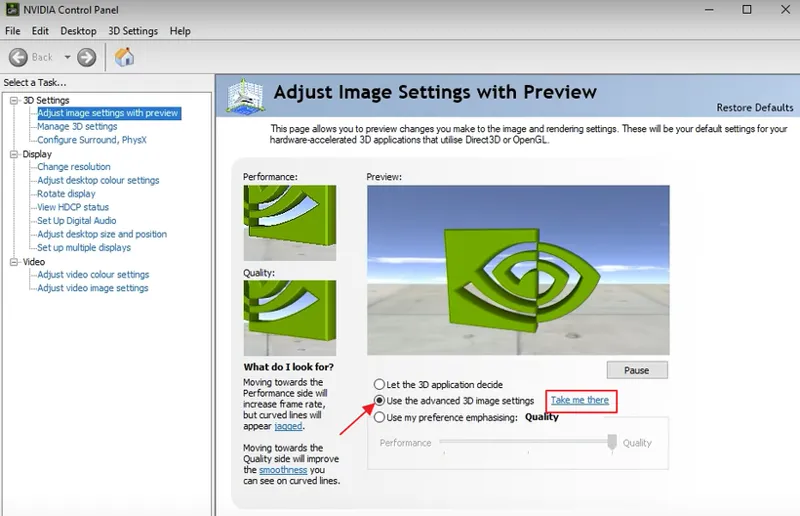
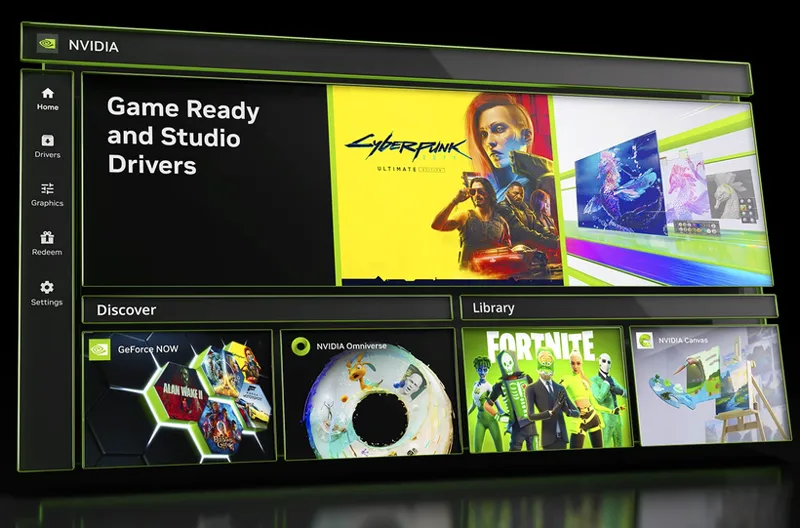
After over 15 years since the launch of current NVIDIA Control Panel, which was enriched with options but has not changed at all from an UI/UX perspective (still resulting in a very slow, clunky and outdated experience), NVIDIA finally decided to completely overhaul its "Front-End" application to control all graphics settings and features within a single NVIDIA App, which is also merging GeForce Experience functionalities with no more need to log-in.
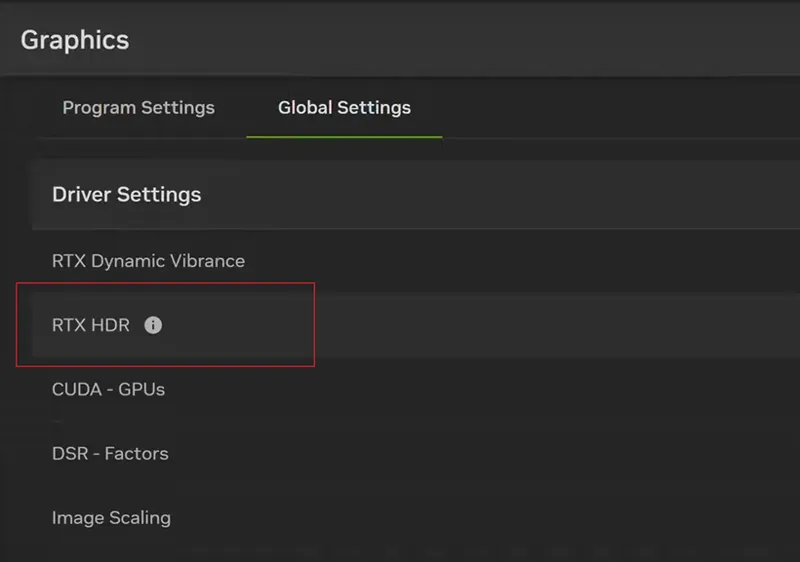
While the new app is a very welcome refresh for managing the same Global and per-game settings (which are still tied to the same options/values at a driver level and currently not all of them are changeable from the new app) in a much faster and in a much more pleasant way, along with providing a streamlined way to manage drivers updates, overlays, filters and find other NVIDIA apps...the real news is the addition of the new RTX HDR for Games as a new Global Setting which is de-facto a MUCH better replacement of the current Windows 11 AutoHDR feature.
NVIDIA already provided an RTX HDR Upscale + Upconversion for all SDR video reproduced in web browsers, streaming apps and even specific offline clients like VLC, but now the feature expanded also for all SDR games with the following benefits over AutoHDR:
No more black level raise
Much less color banding (as RTX HDR includes a de-banding filter)
Higher Peak Luminance
Better contrast
Much wider compatibility: it will basically work on ALL DX9 to DX12 SDR games + possibility to also convert OpenGL/Vulkan games when using the DXGI model for them (in NVCP). With some mods, even very old DX7-DX8 games can be processed!
It will only apply to SDR games (ignoring native HDR10 ones) but you can also try/prefer it over (bad) native HDR10 titles by just disabling their HDR in-game and re-start them in SDR
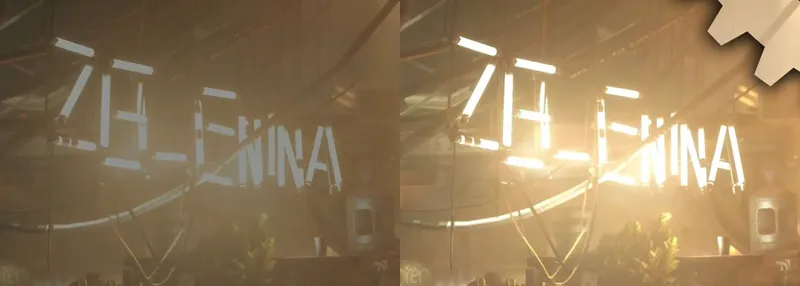
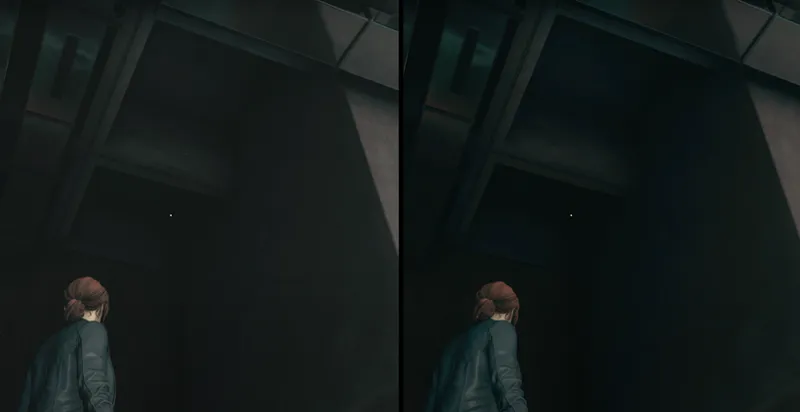
(AutoHDR on the left; RTX HDR on the right)
Too good to be true?
Are there any drawbacks in this?
Only two: Performance and Colors Oversaturation (re-ntroduced after drivers 560.xx)
RTX HDR currently hits average FPS by around -8% by just enabling it as is, but you know me: I've already found a way to optimize it globally with one click... :)
To also fix the oversaturation issue, continue reading.
First, in order to enable RTX HDR for Games you need:
An NVIDIA RTX GPU (2000 series or newer)
Windows 11 22H2 or newer
NVIDIA Drivers 551.61 or newer
A single HDR display (for multiple HDR displays you need driver 565.90+ and latest NVIDIA App)
AutoHDR must be DISABLED in Windows 11 (you can also turn off Notifications for it)
HDR must be ENABLED system-wide in Windows 11
DSR/DLDSR and Image Scaling must be disabled in NVCP
The game must launch in SDR mode
Then you could install the new NVIDIA App and enable it globally from there...but actually you don't need to do it as there is a better method without the need to install the new app at all.
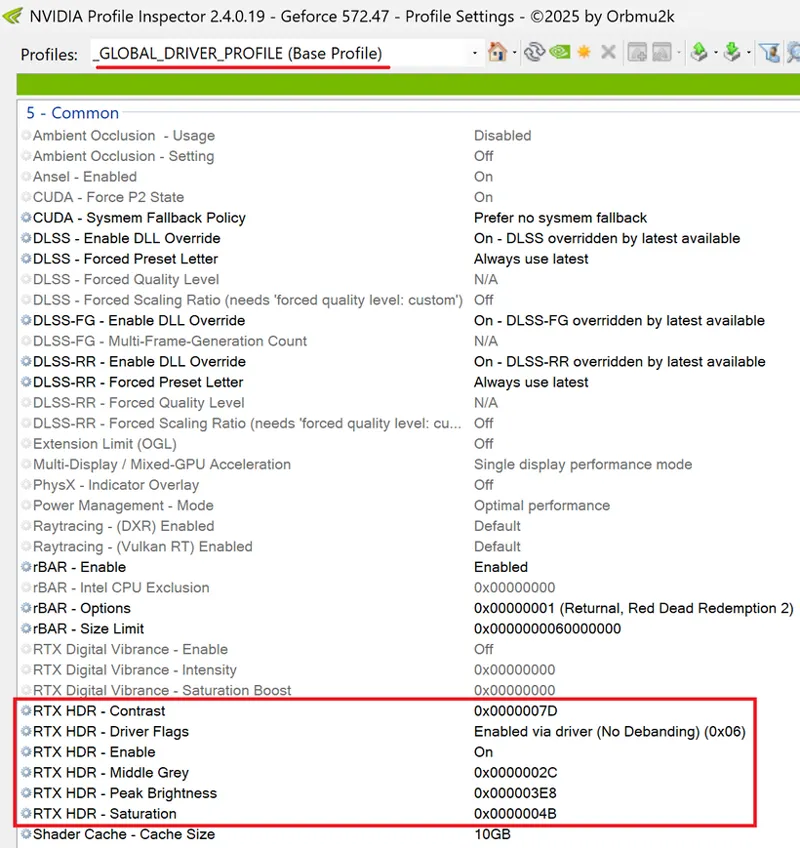
Even better you can set RTX HDR globally as shown below:
(for LG G3/G4/G5 OLEDs use -> these)
You can in fact just use latest NVIDIA Profile Inspector with the settings above (which will also fix the color oversaturation issue and Gamma 2.2 tracking) , click "Apply changes" and reboot. Activating the feature flag "No Debanding (0x06)" the cost for it will lower from around -8% to around -3% your average FPS with no visible differences compared to default and, trust me, it is definitely worth it.
If some of your native HDR10 games will have washed out colors after the change, set "RTX HDR - Enable" flag to Off only for them (through NVIDIA Profile Inspector or disable RTX HDR only for them in NVIDIA App).
The other good news is in fact that the new NVIDIA App is just a new "Front-End" for all these settings and won't disrupt/change anything set through classic Control Panel or NVIDIA Profile Inspector.
My final advice is in fact to setup everything as suggested in my full, always updated PC Gaming Optimization Guide and then use the "Export" function of NVIDIA Profile Inspector to save your "Base" (Global) profile which will include all Control Panel Global settings + additional tweaks (as RTX HDR settings, DLSS Preset E, ReBar enabled globally etc.) in a safe place and then "Import" it and apply it again after each drivers upgrade:
Quick and painless.
Let me know if that worked for you and what do you think about RTX HDR over Windows 11 AutoHDR.
Enjoy :)
-P
Comments (23)
Hi Paolo. Is it normal that after changing the settings on Profile Inspector the NVIDIA App still shows different values for nits/grey middle point/contrast/saturation?
Yes as NVIDIA App applies RTX HDR at "filters/overlay" level while NVPI at "drivers level" (which is more performant and compatible in my opinion)
UPDATE 2025/03/21: - Updated RTX HDR settings' for the new NVIDIA Profile Inspector v2.4.0.19
UPDATE 2025/02/13: - NVIDIA Profile Inspector was updated to v2.4.0.11 and now includes all RTX HDR options, so there is no need to use the custom XML anymore - Images and article updated to reflect that
It seems the Prefer layered on DXGI swapchain is not working on OpenGL and Vulkan games, It says on the Nvidia overlay when I enable RTX HDR that OpenGL is not supported even though I enable DXGI on NVCP.
It works for me, that's just a message from NVIDIA App Beta (which you can completely uninstall and RTX HDR will still work perfectly on a driver level + you can configure it using NVIDIA Profile Inspector)
UPDATE 2024/09/05: - After drivers 560.xx, NVIDIA RTX values need to be changed again to correctly track Gamma 2.2 and fix colors' oversaturation. I've just updated them both for the universal suggestion and specifically for G3/G4
Hello, I have a lg cx, the values 320,32,64,64 and low quality 0x06 are no longer correct, do I need to change?
What about settings for my LG OLED CX using RTX HDR with HDR Dynamic Vibrance?
You don't need to use any "HDR Dynamic Vibrance". Just set the overall general settings for RTX HDR through NVIDIA App or directly in NVIDIA Profile Inspector (which I recommend) as shown in this post. For CX just set Peak Brightness to 800 nits or set the last 3 hexadecimal value in Inspector's Peak HDR Brightness line to 320 instead of 3E8
Hello, installed exactly the Nvidia app for rtx hdr, disabled hdr auto in Windows, enabled rtx hdr in nvidia. My TV I have lg cx 55, tone processing HGIG, in the application nvidia rtx hdr such settings 1000, 50, 0, 0, are they correct for my TV, because when calibrating windows hdr brightness 800? If the settings are not correct, how can I change them in the nvidia app itself? I will be grateful for help
You can change it to 800, 50, 0, 0 for CX within NVIDIA App globally to be even more accurate. The 1.000 nits was an "universal" recommendation as still looks good on CX (and will match G2/C4 too), but with 800 you will be a bit more accurate in your case.
Hi paolo does my monitor need to support HDR 1000nits to use RTX HDR because I have an BenQ peak brightness is 400 does it still work then and do the recommended values from you work for me too. Thank you in advance 👍🏻
Try doing the Windows 11 HDR Calibration and see at what point you're clipping the second and third brightness screens: if it's around 1.000 nits, yeah, you can apply the recommended settings for most, otherwise write down the nits and convert them in hexadecimal values to put in NVIDIA Profile Inspector's RTX Peak HDR Brightness field here: https://www.rapidtables.com/convert/number/decimal-to-hex.html The rest of RTX HDR settings will be fine.
Hello I am your new supporter because I have been working with PC HDR since windows 10 got it first time. Now I tune HDR on all my PC games using reshade+lilium shaders and sometimes use AutoHDR addon flr reshade by MajorPainThe Cactus for those SDR titles or titles with bad HDR where Windows AutoHDR does not work or is bad. Now, do you recommend to switch to RTX HDR instead using my method dealing with reshade for every game ad spending time analysing and tuning? I have an RTX4090.
Absolutely yes: forget ReShade and all HDR mods, disable AutoHDR, enable RTX HDR instead and set it as recommended for your display. That's it for all SDR-to-HDR titles, while native HDR10 ones won't be altered.
Hi, ive done the Nvidia profile inspector + XML tweak but how do I know that its working? Thanks!
If you reopen Inspector and still see the same settings, it's working ;) Also if you set Preset E and replaced DLSS Upscale .dll to 3.7+ , open the game and you don't see any error message, it's also working ;)
i am sorry i supposed to say 0%, i see, thanks for your answer, i will try that value too and see how it looks
quite interesting, i will try it, it will be ok if i set the saturation at default 50? i guess it doesnt affect the peak brightness or something
Default is 0% which will noticeably oversaturate colors (blue and red especially) and don't affect Peak Luminance. Saturation at -50% as my new suggestion in the post (both through app and/or NVIDIA Profile Inspector hex code) will fix it, making it go back to as "neutral" as native/calibrated HDR.
i would like to ask peak brightness slider should be at 1000 or it depends on the peak brightness of the HDR monitor? for example 800 nits for an lg c2 with HGIG enabled
On paper: yes, but I found that maxing it out to 1.000 looks best both on 800 nits and 1.500 nits display, other than 1.000 ones. ;)