




Mod It Yourself (3) - Objectives (career level, skill level, timed tasks)
This time I'll again present how to modify easily some objectives in the aspirations or in the careers. As you are now a bit more familiar with the process, the presentation will be quicker and more areas will be covered, but at the end of this article (and each next) I will list all tutorials published so far, so you can quickly jump to previous ones, if you forget anything.
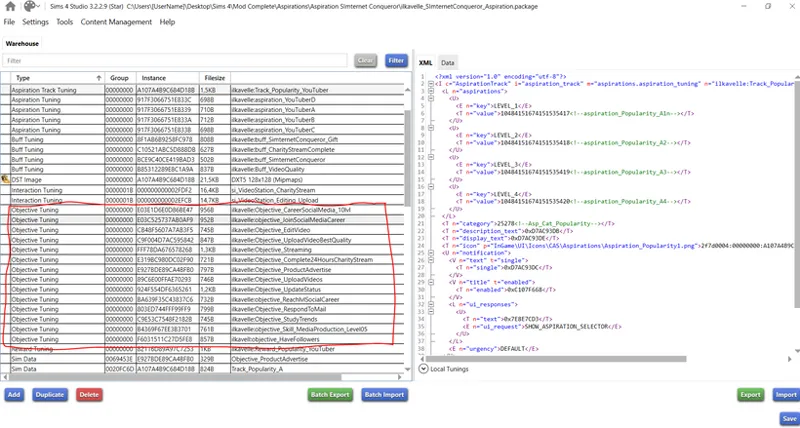
Open Sims4Studio and find Objectives tuning. For this tutorial I'll first show example on my Simternet Conqueror Aspiration.
1. Career level
Click on the Objective "ilkavelle:Objective_CareerSocialMedia_10lvl"
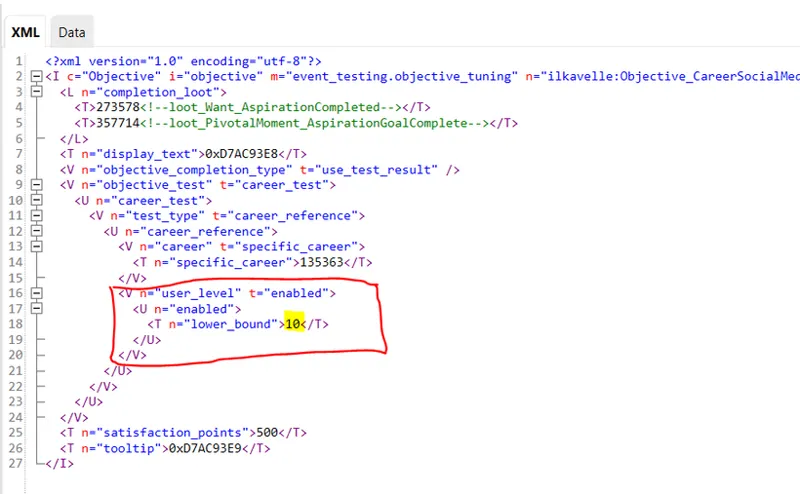
You'll see on the right (in the XML tab) how this objective is structured. There is the career_test that indicates that the Sim must reach at least 10th level of the specific_career, to complete the task.
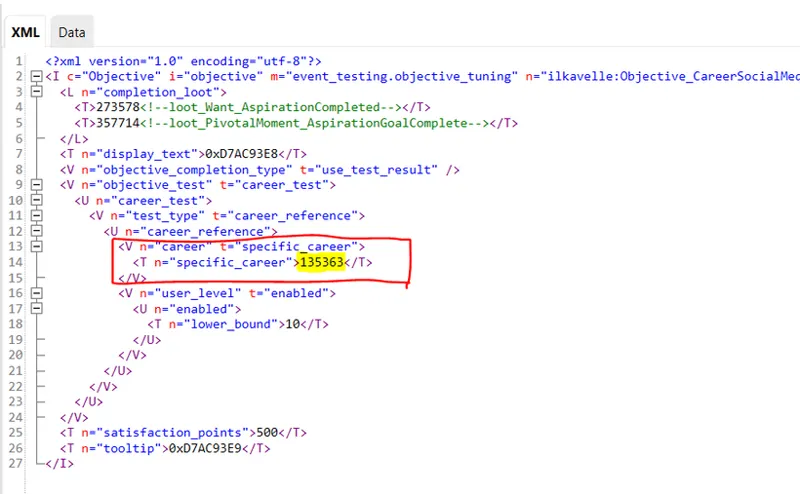
Here the specific career = Social media career and it is represented by the reference number 135363, but I will not explain how we know this today. There will be separate post focused only on this topic.
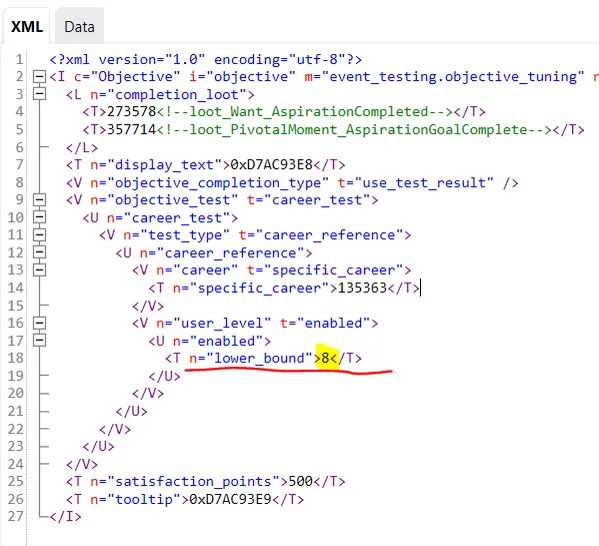
Let's change the career level to 8. Save, close the mod and open the game.
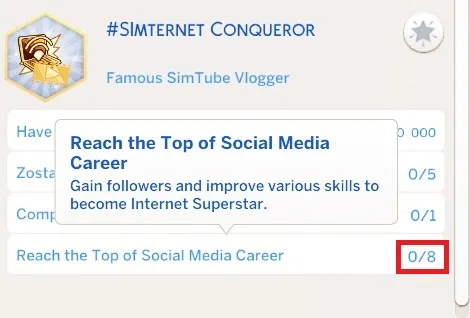
As you can see now this objective shows 8.
Strings (text) adjustment
We still however see the text saying "Reach the Top of Social Media Career". We changed the value in Objective Tuning, but we still need to change the text to appear correctly.
Let's open this mod again. And open again this objective:
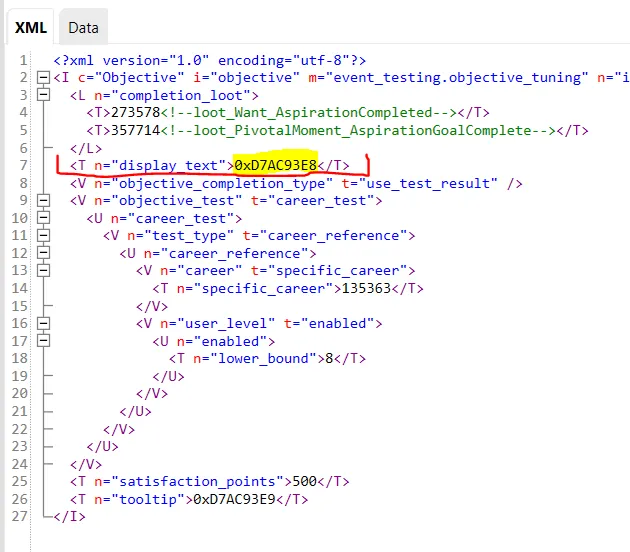
I want to show you now, how we can say, which text is assigned to this objective. I marked the section with red pen and the key reference with yellow : 0xD7AC93E8. String reference always starts with "0x" and then there is the value associated with the text.
Let's go now to String Table of the language you want to change (the language of your game). I was presenting this in details in this tutorial Text (Strings), so here it will be a quick catch-up.
In the Data tab click "Edit Items" and the list with all strings will open.
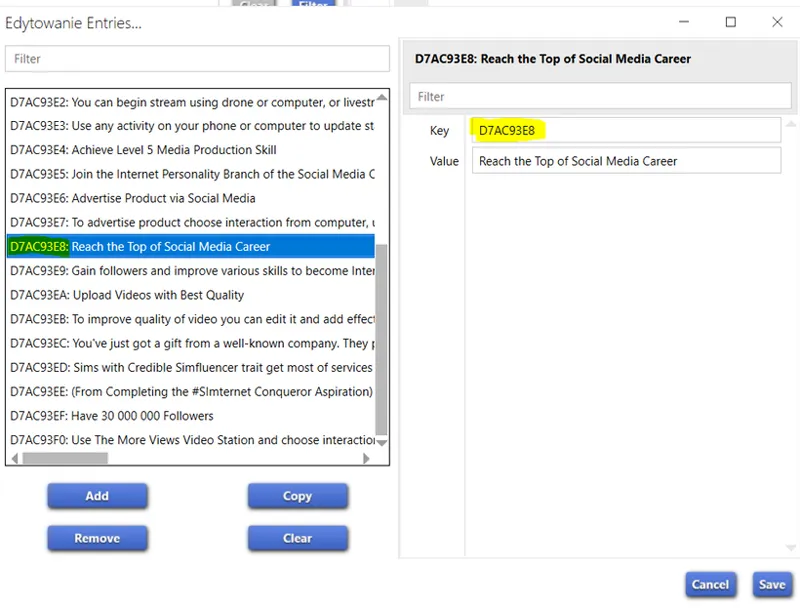
I found on the list the text that we want to change. And you can see the reference visible in the Objective tuning: "D7AC93E8". This is how you can recognize which text was used in the specific tuning, if you have doubts.
Now you can modify the text and save it. When you open the game, it should show the changed text.
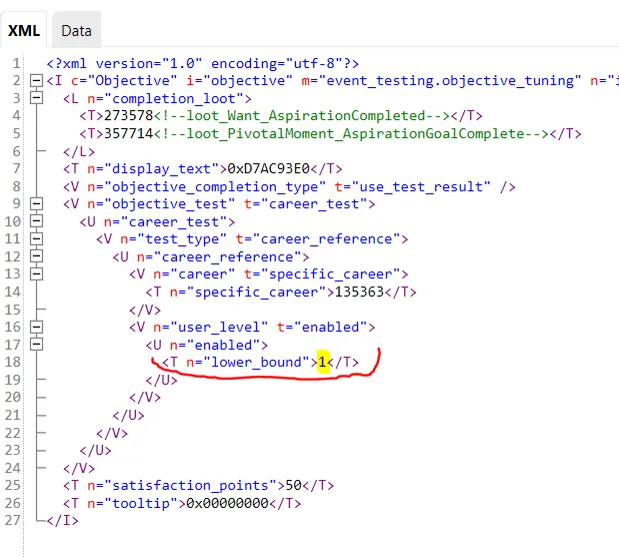
Another example of the career level objective from this mod is objective "ilkavelle:objective_JoinSocialMediaCareer".
The task says only about starting the specific career, so here we see that only level 1 of this career is required.
2. Skill level
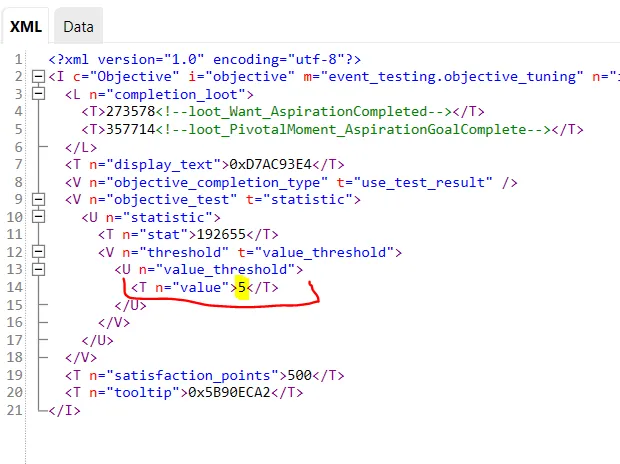
In the same mod, go to objective "ilkavelle:objective_Skill_MediaProduction_Level05"
Media production skill is represented by reference number 192655 (stat).
And below we can see the value 5 - so to complete this task Sim must reach level 5 of Media production skill.
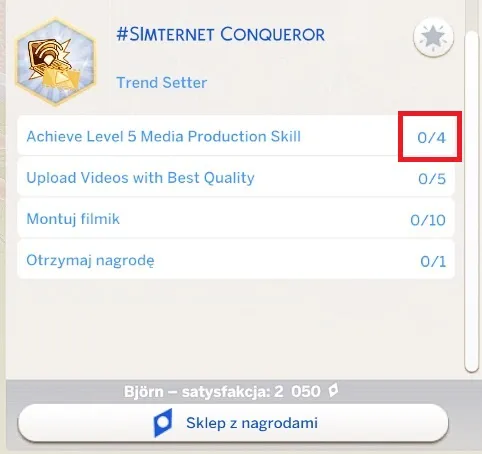
Let's change the skill level to 4. Save, close the mod and open the game. This is what you should see in the game after the modification. Again, we just changed the objective tuning, so the text still says about level 5.
3. Timed objectives
For these objectives let's check my Music Producer Aspiration.
a) Total time passed on doing certain activity
There are objectives where it says to do some activities for total amount of time, e.g. to play instrument for 75H, or other. I'll show you how these are built and how to change the time.
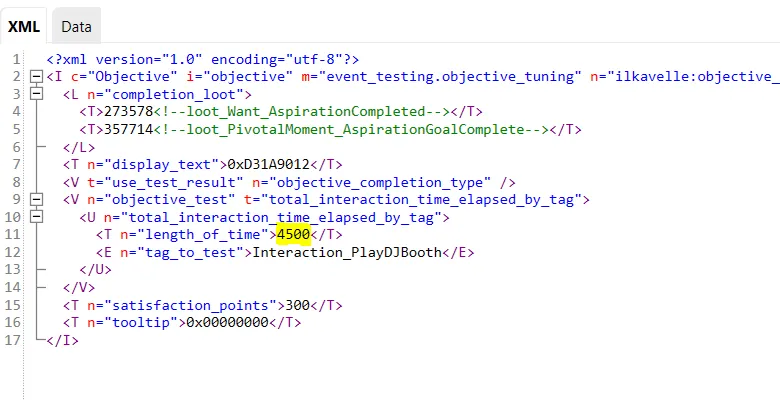
In my my Music Producer Aspiration, find the objective called "ilkavelle:objective_Asp_MusicProducer_DJMixingHours"
You can see that in this objective there is this "length_of_time" and it equals 4500. This are Sim minutes and equals 75 hours (4500 / 60 = 75 ;) )
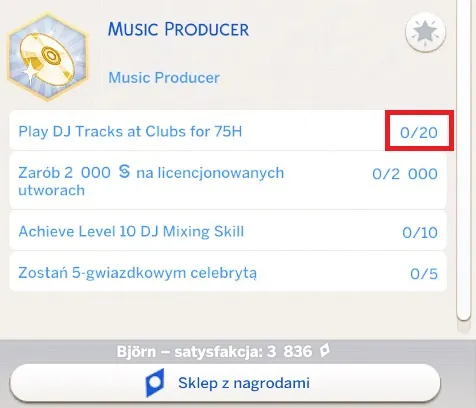
If you want to change it, for example to 20 hours, you need to write it in minutes, so 1200. I changed the value from 4500 to 1200 and saved the mod. After opening the game this objective looks now like this:
Again, text requires changing as well.
b) Time passed at one time straight
These are the objectives for which you need to spend on an activity a certain amount of time straight, e.g. watch TV 1h straight.
To see, how these are built and how to change the time, find the objective called "ilkavelle:objective_Asp_MusicProducer_ProduceFirstSong"
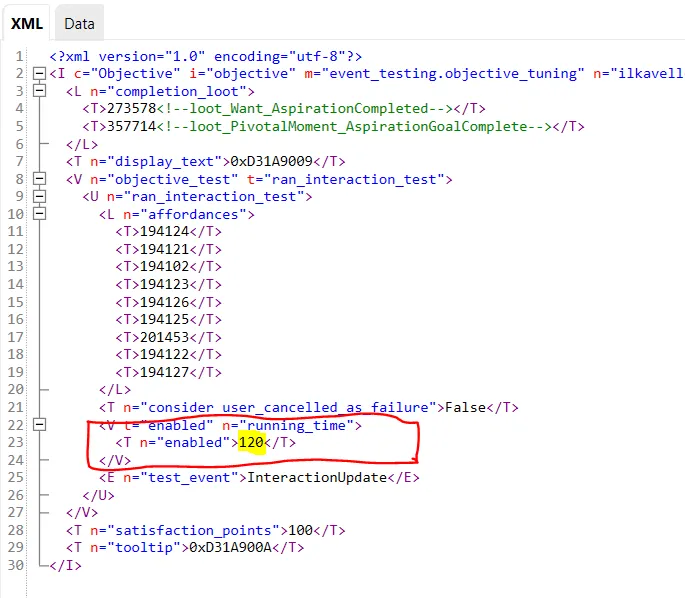
I marked with red pen the section where the time value is set, it is called "running_time" and here it's 120 minutes, so 2 H (Sim hours of course).
Above this section there is the list of so called "affordances" - affordance is a word for interaction, so you have here list of interactions that will complete this task, if done 2h straight.
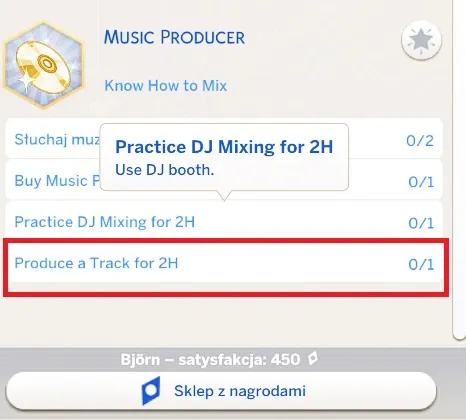
I changed the running_time value to 60. Now this objective will complete only after 60 Sim minutes of producing a song on the Music production station. However we'll not really see this change in the game, because this type of objective will always show 0/1:
As you can see, we changed the value from 120 to 60. The game still shows 0/1 (as previously) and the text was left unchanged, so it still shows Produce Track for 2H. You will only see the difference when completing this task.
c) Other
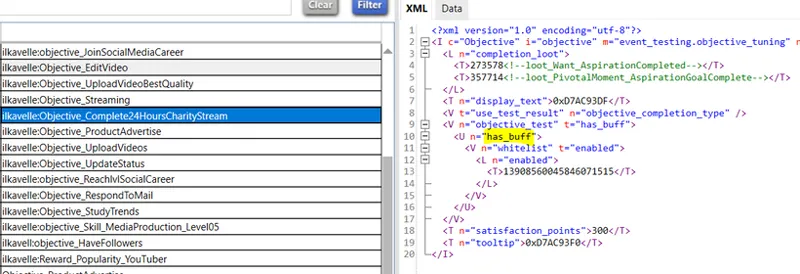
There might be other objectives that seem to be time based, but in the code they are not. The validation is checked differently, for example with the buff that appears in the game after some time. Good example of this would be making a 24H Charity Stream (Simternet Conqueror Aspiration). We could think that the objective is checking time here, but in the reality, it checks for a buff that appears when this 24H stream is completed successfully:
Why do I show this to you? Because sometimes you might get confused why the task mentions time, but there is no time evaluation in the code. Or why the task mentions a skill, but in the objective there is some code structure that doesn't look like the one I showed above. I tried to show here the most common types of objectives, but to be frank - there is a lot more to discover. You can check on your own different objectives in various aspirations mods, what is the task and how it is represented in the code. Observing and comparing is one of the way of learning.
------------------------
Last Notes
This is all for today :) I sped up a bit, so you don't get bored. But still I don't want to show too much at once, to not make you feel overwhelmed.
Unfortunately, in terms of changing the mods, you need to remember that if there is a patch and I update the mod for the patch, and you will redownload it, the changes, you made, will not show up in the mod that you redownload. You will need to make them again.
With a time, I will show you how to keep the mod updated after the patch, how to check if it's still working. But for now you need to remember this and please do not feel discouraged when a patch destroy your work.
List of all tutorials:
Comments (4)
This is such a great idea and i truly appreciate you taking the time to share this with everybody. I recently started making overrides with the billboards in San Myshuno and it’s been so fun. Do you know perhaps how to override the phone wallpaper or phone screen in the game? I’ve been looking everywhere for a tutorial but none so far. Thank you in advance
Honestly I have no idea! I usually don't make the graphics replacements, I don't even know where to look for. I thought that maybe there is a phone object in debug and it has various textures but nope. I mean there is a phone object in debug but it has no texture at all ^^ But then I found an Object Tuning for phone: ref number = 149493 and name = prop_phone. It has a list of client_states and it looks like actually a list of phone colors, first few on the list: key">149293 phone_Color_TurquoiseStripes; key">149294 phone_Color_Default ; key">149295 phone_Color_Lime . I found these client states but I don't know how to replace it :(
I'm about to start making all kinds of aspirations for my sims! Thank you so much!!!
I'm happy to hear that :) good luck! :)