

Mod It Yourself (2) - Text (Strings)
Today I will show you how to change the text appearing in mod. It's very easy, and some of you probably already know this from translating. But also text plays a very important role in mods, so I need to show it.
Text in programming is called String. And more precisely, String is a data type used to represent text. To change it in mods, we will look for the files called String Tables.
This tutorial will work for any changes in the text, but also for translating the mod to other language.
Let's start :)
Step 1 - Open the mod you want to modify
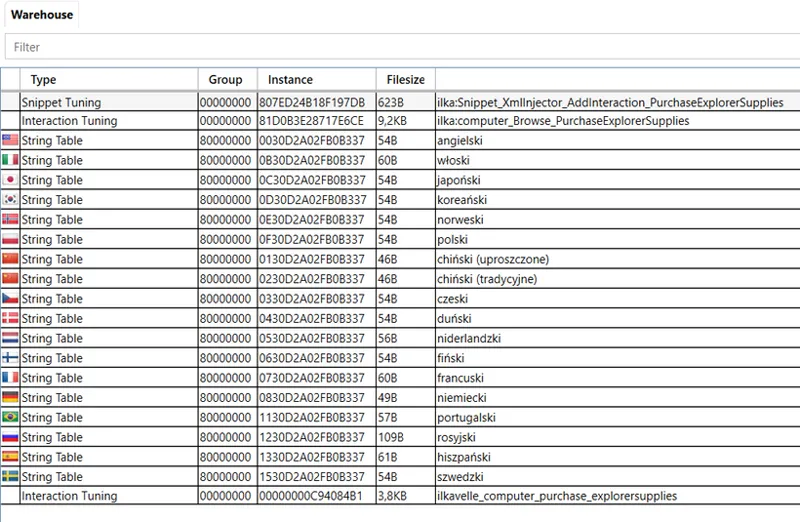
Let's practice on my Buy Explorer Supplies mod, which has almost only string tables in it.
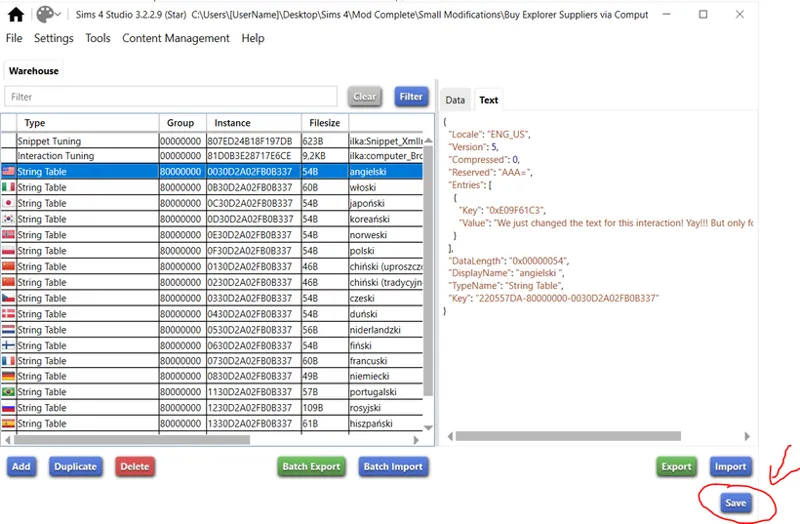
As you can see, there are String Tables for each language (sorry, names are in Polish, but you can see the flags. You always see them in a language chosen in your S4S settings).
When I create a mod, I write a text in English and then copy it to all other languages.
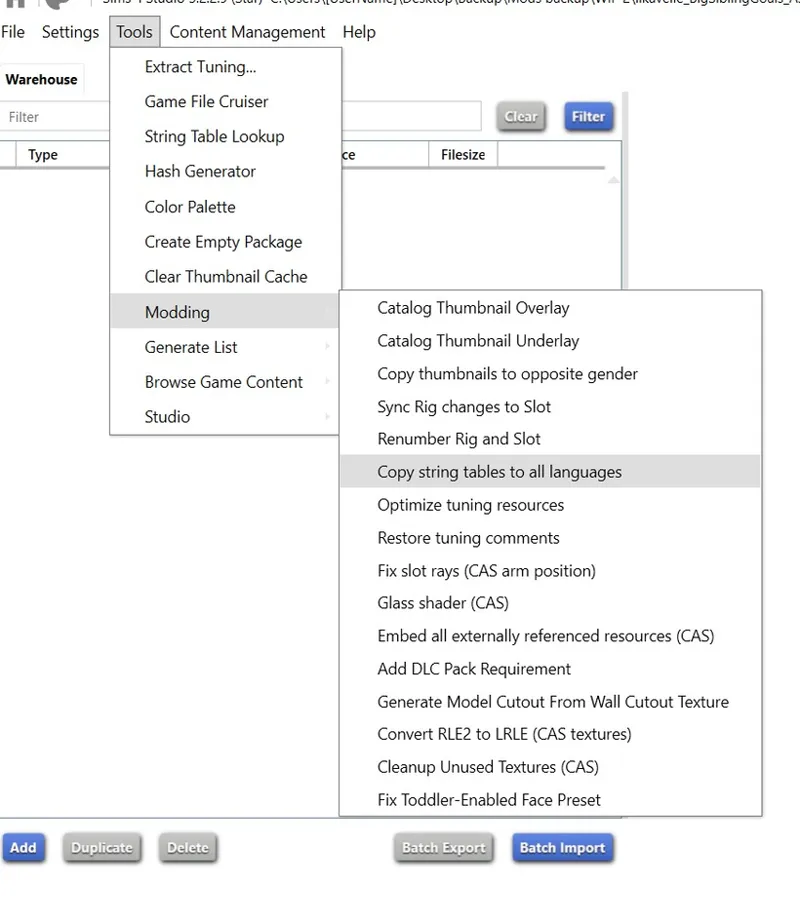
*For anyone curious, how to do it - there is this quick option in S4S to copy string tables to all languages:
Then text can be translated to other languages. The game will show only the text from the String Table for the language that you have set in your game. If you play in German, it will show the text from German String Table.
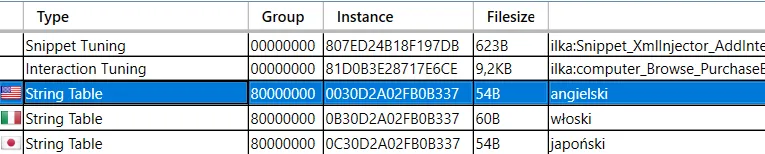
Step 2 - Find and click the String Tables you want to change
If you change the text for your own purposes only, it is enough then to change only the strings for your language. I have a game in Polish, but for the tutorial purposes I will change the English strings.
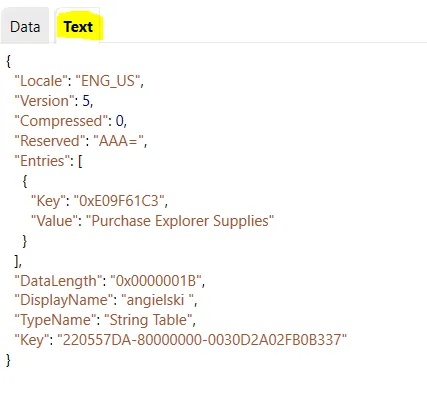
On the right side, you'll see the text under the tab Text (marked with yellow):
In this mod, there is just one text - the name for the interaction "Purchase Explorer Supplies" :) But of course in other mods there is more text.
Step 3 Go to Data tab
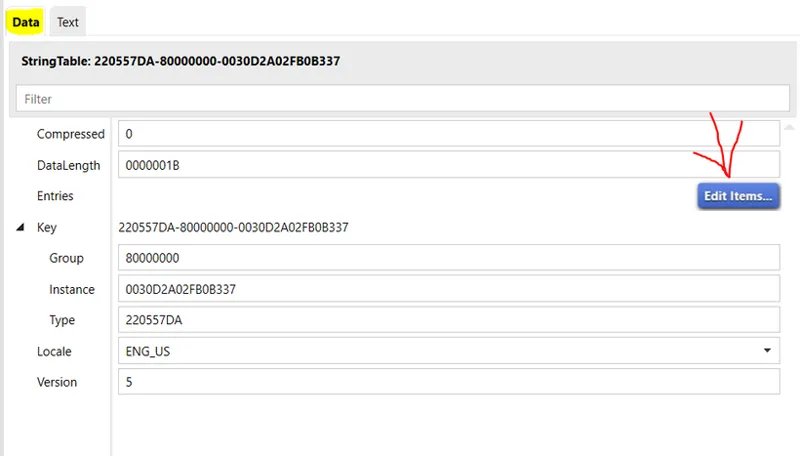
Now change the tab and go to Data tab (marked with yellow below) and then click Edit Items (pointed with red arrow below):
Step 4 Change the text you want
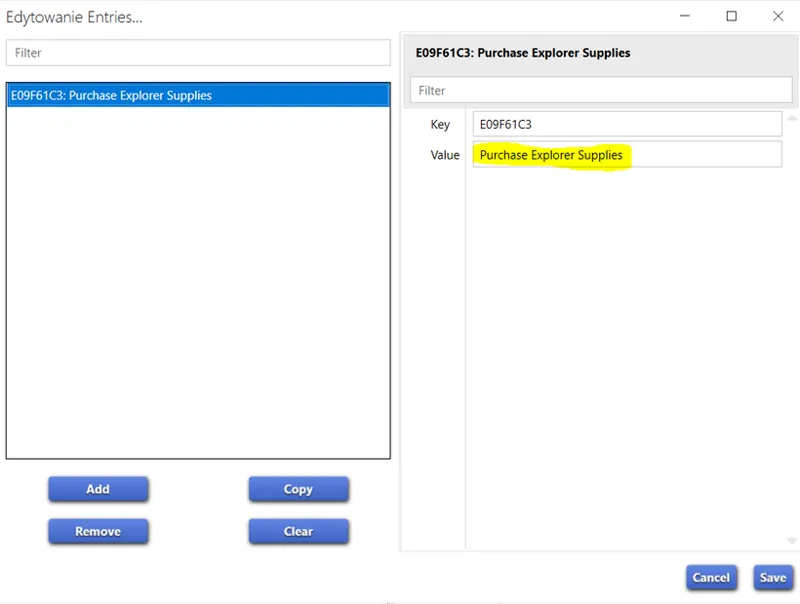
After clicking Edit Items, you'll see this view:
On the left side there is a list of all strings in this String Table. Here only 1, but usually there is more.
On the right side you can change the details of this string. To change the text, edit text in Value space (marked with yellow above).
Important! Never change Key number - this is a reference number put into other files to recognize which text to show when. In this case this key number (E09F61C3) is put in the interaction file - so the game knows to show the text "Purchase Explorer Supplies" and not just blank space, when showing this interaction.
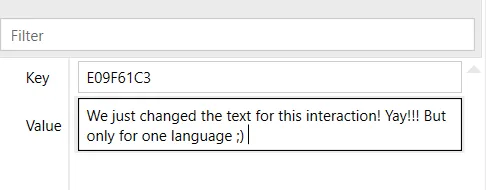
Now change the text.
I entered this new text in the Value space ;)
Step 5 Save everything
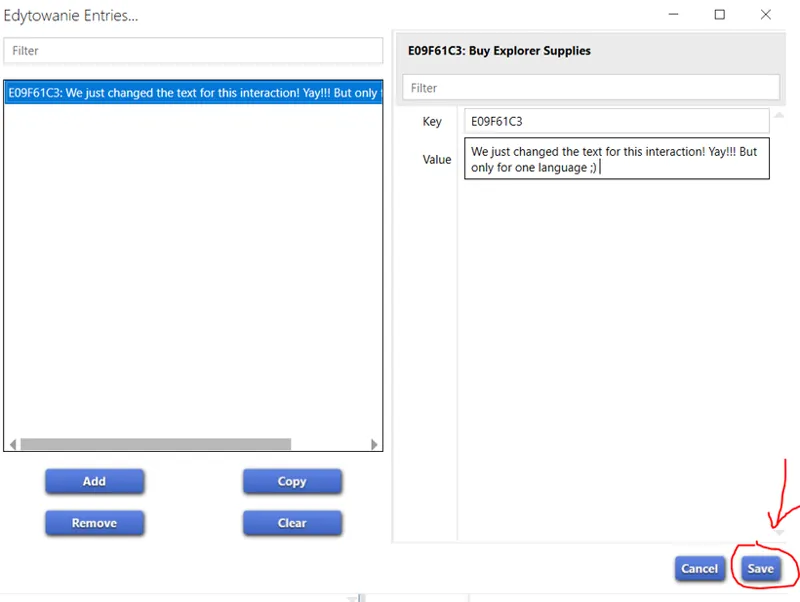
First, save the string change, by clicking on Save button in the right down corner of the window:
Then remember to save entire mod:
You can see here also, that the text within Text tab now also changed.
After saving, you can close the mod.
Step 6 Check your changes in the game
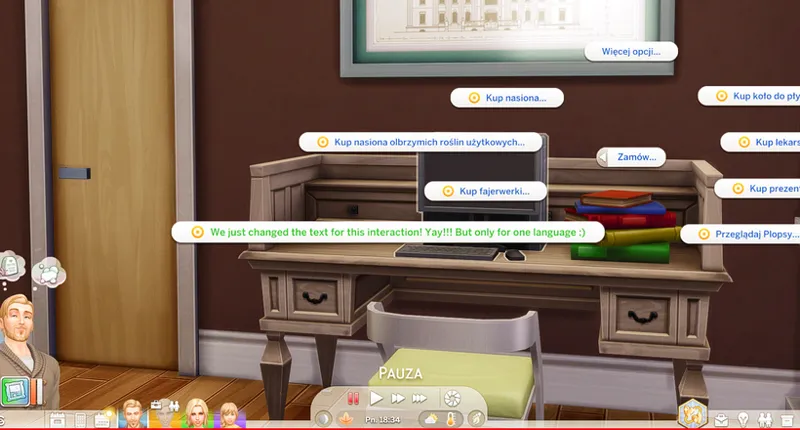
And here it is, the interaction for which we changed the name ;) It works in the same way as before, only the text appearing for it changed.
Last note
You can use this method for making translations. In this case you need to open a String Table for a language to which you are translating, and in the Value space put translated text.
That's all for today :)
Let me know if there is any specific topic that you would like me to cover!
Comments (11)
thank you so much . it is helpfull that I can read it again because I have reading issues
I'm happy to help :)
Thank you! I've been making gameplay mods for myself for a while but never knew how to do that! :)
that's great that you find it helpful! :)
Thank you!! 💖 I really love that you are doing this. For me, it has been so hard to find information about modding. I'm so excited, because with this help I'm hoping I'm going to be able to finally make something! 🤞🏻🥰
Yay! Keeping fingers crossed for your modding journey :)
Thank you so much Ilka, I loooved your tutorial, so clear and easy to understand!!! Even used it right after reading on a small mod and it was so easy to change the copy now and all worked, ahhh, can't thank you enough!! 💖💖💖 If you ever feel like doing another tutorial, one thing I would looove to learn, is how professional modders like you update mods! (In the same vibe of "Change it yourself", and also because I have some mods of retired modders that I would love to update myself). Questions that are in my mind: Are you going through every single file in each mod and re-extracting the tuning and pasting the new and old in a text compare program, or is there a faster way to know if something has changed in the first place? Do you work in S4S directly or in a coding IDE (for example i couldn't figure out how to even search for a text in the S4S XML window). And how do I know if I have to update "Sim Data" that is in the mod? I was searching for a tutorial like this, but all I found are articles on how to download an updated mod to your mods folder hehe, not how to actually update the mod myself :)
I was thinking about it, as this is a very important aspect! But it is a bit more complicated, so I'll need to prepare it very well, so you do not get lost :) And I think it would be better to first do a "first mod" tutorial and then in the next tutorial to focus on updating it after the patch. That way it will be more step by step approach.
Thank you!!
cé tro bien fait
Thanks a lot for your tutorials :)