


How to Translate Unreal Engine Games with Translator++
Translating Unreal Engine games (UE4 and UE5) has historically required juggling multiple complex command-line utilities—unpacking .pak or IoStore archives, converting raw binary .locres tables or cooked assets to JSON, editing files manually, and rebuilding archives from scratch.
Translator++ streamlines this entire pipeline into a single, unified visual workflow. With its dedicated Unreal Parser, Translator++ automatically detects game archives, extracts player-facing strings into a project grid, and generates clean, non-destructive override patches (_P.pak or IoStore sets) that leave your original game installation completely untouched.
Whether you are localizing UI menus, subtitles, dialogue trees, quest logs, or item descriptions, this guide demonstrates how to translate supported Unreal Engine games from start to finish.
The Workflow in Practice
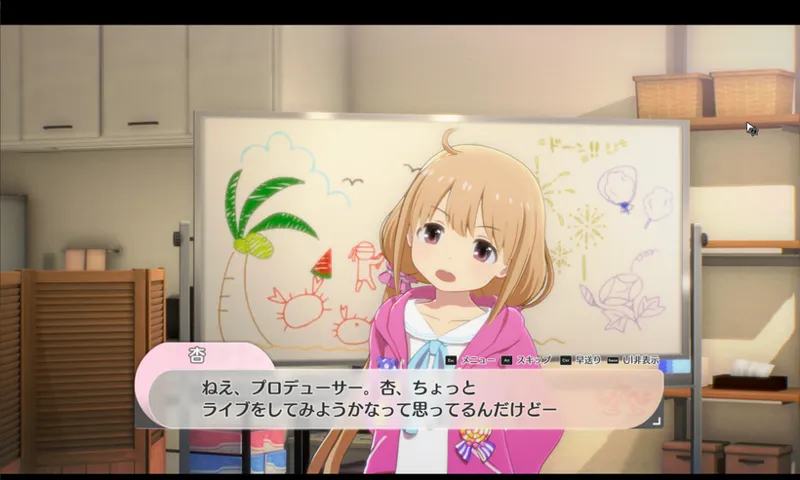
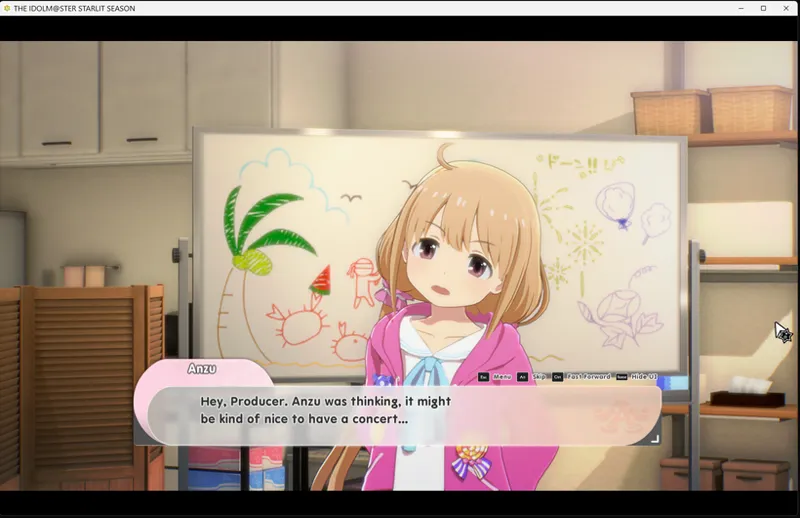
The screenshots below demonstrate a real-world translation pipeline using THE IDOLM@STER STARLIT SEASON (Unreal Engine 4). The exact same workflow applies across supported Unreal Engine titles and any target language:
Original Game (Untranslated): Running with its native Japanese dialogue and interface.
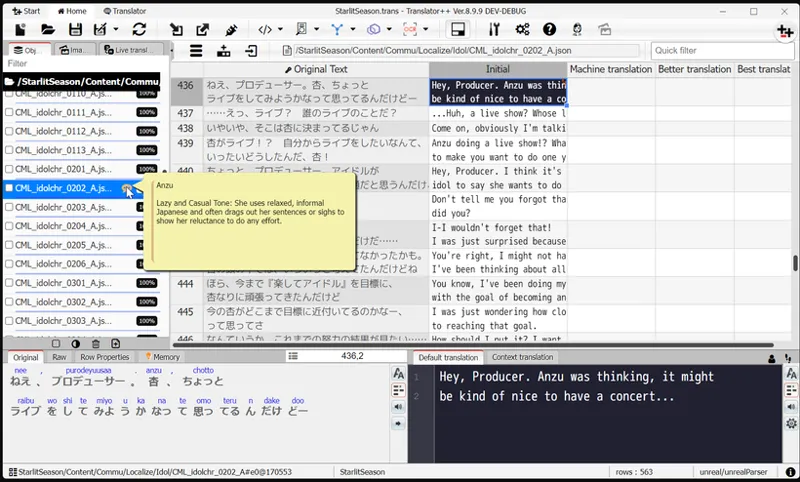
Translator++ Project Grid: Extracted text organized neatly with context, glossary support, and integrated machine translation / LLM side-by-side views.
In-Game Translated Result: The localized text injected via an override patch, with zero alterations to the original game directory.
What Makes Translator++ Powerful for Unreal Engine?
Instead of relying on fragile manual hex editing or custom extraction scripts, Translator++ acts as a complete localization suite for Unreal modders:
Universal Container Support: Reads standard .pak archives as well as modern Unreal Engine 5 IoStore containers (.utoc and .ucas).
Intelligent String Extraction: Prioritizes native Unreal localization tables (.locres) for clean player-facing text, while offering fallback scanning for embedded strings in cooked assets (.uasset / .uexp).
AES Decryption Support: Easily unpacks encrypted commercial games simply by supplying the project's AES key in the setup window.
Modern Translation Workflows: Utilize Google Translate, DeepL, or local/cloud LLMs (OpenAI, Claude, Ollama) directly inside the grid, complete with batch processing and customizable glossaries.
Non-Destructive Patch Generation: Automatically exports high-priority override patches (zzz_unreal_P.pak or .utoc/.ucas pairs) that load over the original files without risk of corrupting base game data.
Prerequisites Before Starting
Translator++ (latest version) with the Unreal Parser add-on installed and enabled.
The game's root installation folder (ensure you select the folder containing the executable, not individual .pak files directly).
AES Encryption Key: If the game uses encrypted .pak or .ucas archives, obtain the 256-bit AES key (widely documented in modding and data-mining communities) and have it ready.
Free storage space for temporary extraction files and exported patches.
Step-by-Step Translation Guide
Step 1: Create the Translation Project
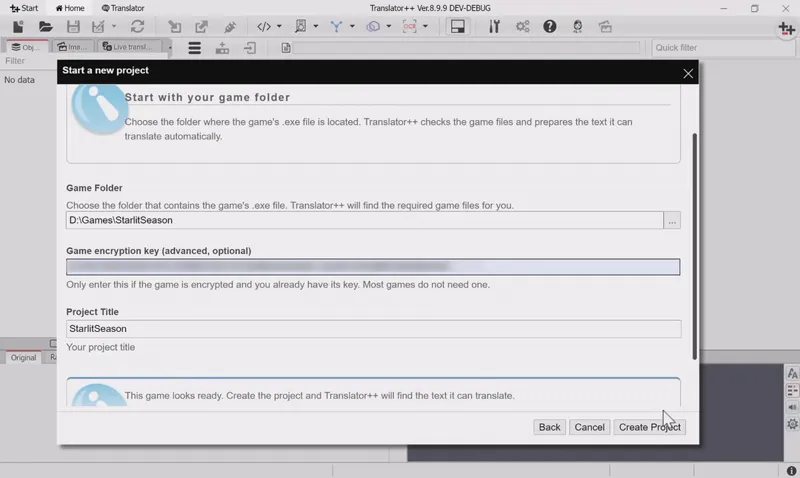
Launch Translator++ and click Start.
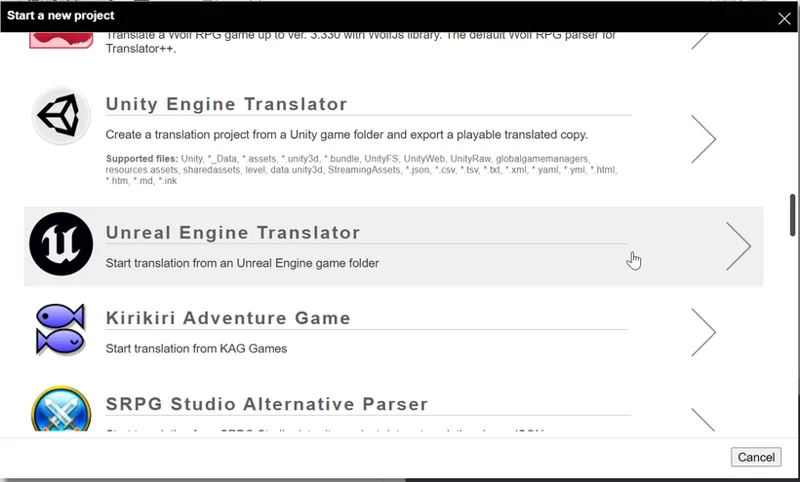
Select Unreal Engine Translator.
Point the file selector to the game installation folder (the root directory containing the .exe).
Review the pre-scan status:
Translator++ will automatically detect whether the game uses legacy .pak archives or UE5 IoStore containers.
If encryption is detected, enter the 64-character hexadecimal AES key in the Advanced field.
Click Create Project and allow the scan to complete.
The text is organized under the Objects pane by source asset, while the main grid displays your Original Text alongside the active translation column.
Step 2: Review and Filter Extracted Strings
Unreal games store text across multiple locations. Focus your attention on high-value, player-facing resources:
Localization Resources (.locres): These contain the cleanest UI, subtitles, menus, and system prompts. Prioritize these first.
Cooked Assets (.uasset / .uexp): Used when text is hardcoded into blueprints, widget blueprints (UMG), or data tables.
Filter Wisely: Look for assets named Menu, HUD, Widget, UMG, Dialogue, Quest, or Item. Avoid editing internal asset names, variable IDs, or blueprint class names that could break game scripts.
Step 3: Translate with Precision
Work in batches to maintain quality and consistency across long storylines:
Leverage CAT Features: Set up a glossary for character names, fictional locations, and menu terminology to keep machine translations consistent.
Preserve Syntax & Tags: Unreal games often rely on formatting tags (e.g., <RichText.Bold>, {0}, \n). Never remove or alter these escape codes, or the UI layout may break in-game.
Mind Text Boundaries: Video game text boxes and HUD elements have strict visual constraints. Always verify that translated strings are not drastically longer than the original text.
Step 4: Export the Override Patch
Rather than re-baking an entire 50GB game folder, Translator++ builds a lightweight patch mod:
Click Export → to folder and select an empty output folder.
Translator++ builds an override package matching the game's architecture:
Legacy .pak games: Generates a single zzz_unreal_P.pak file.
UE5 IoStore games: Generates a matched trio: zzz_unreal_P.pak, zzz_unreal_P.utoc, and zzz_unreal_P.ucas.
Copy the exported file(s) into the game’s [GameName]/Content/Paks (or ~mods) folder as instructed by the generated README.txt.
Why the _P suffix matters: Unreal Engine prioritizes archives ending in _P as runtime patches. The game automatically loads your translated strings over the original asset data without modifying your base installation.
(Note: Use the Inject feature only if you want Translator++ to create a standalone, fully unpacked, ready-to-play copy of the game.)
Step 5: In-Game Testing & Quality Assurance
Launch the game and navigate through translated menus, dialogue sequences, and HUD elements.
Verify that:
Fonts support your target language’s characters and diacritics.
Strings do not overflow beyond buttons or text containers.
Dialogues trigger normally without freezing or skipping.
Troubleshooting & Advanced Support
Because Unreal Engine is heavily customizable, custom asset pipelines, non-standard compression schemes, or proprietary anti-tamper measures can occasionally require extra tuning.
If text does not extract, the patch fails to load, or you run into a title with non-standard formatting:
Confirm that the patch files are placed in the correct Content/Paks or ~mods directory.
For IoStore titles, ensure that .pak, .ucas, and .utoc remain together and share identical filenames.
Save your project log and export console outputs.
Join the Discussion on Discord
Encountered a unique Unreal Engine title? Need help verifying an AES key, handling a custom font, or requesting support for a specific asset format?
👉 Join our Discord Community!
Head over to the dedicated #unreal-engine channel to share project setups, report compatibility findings, discuss parser features, and collaborate directly with fellow translators and the developer.
Happy translating,
Dreamsavior