
Proper localization of Unity Games with the Unity Parser 🎮✨
Howdy fellow translators,
Burning in translation into Unity games has always had a reputation for being a bit of a headache. If you’ve ever tried doing it manually, you know the drill: firing up AssetStudio or UABEA to extract bundles, running dnSpy to dig through code, editing raw text files, and crossing your fingers that the game doesn’t crash when you repack everything.
With the Unity Parser add-on for Translator++, we wanted to replace that entire messy pipeline with a clean, visual workflow.
Today, let’s look at what the Unity Parser can do, how it differs from runtime modding, and a complete walkthrough on how to localize a Unity title into a playable, standalone build!
Unity Soft Translation vs. Unity Engine Translator: What’s the Difference?
With this, we have 2 way to translate Unity game now: Unity Soft Translation and Unity Engine Translator. Here is a quick guide on when to use which:
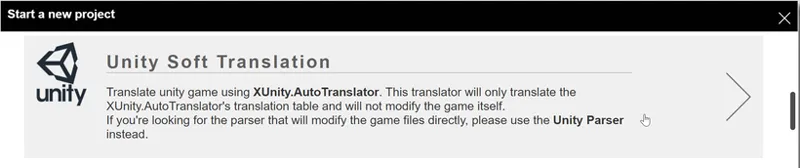
Unity Soft Translation (Runtime Hook): Uses XUnity.AutoTranslator to hook text in memory while the game is running. It’s great for games with heavily encrypted or inaccessible files, but requires mod plugins to run alongside the game.
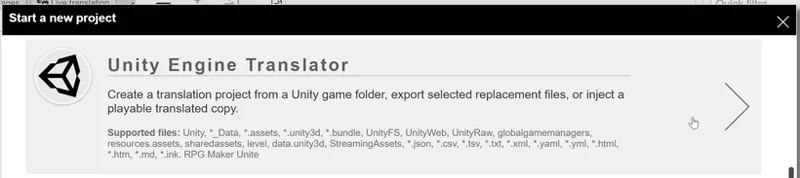
Unity Engine Translator (Direct Binary Modding): This parses the game’s actual data files (.assets, AssetBundles, StreamingAssets, assemblies), lets you translate them in your grid, and exports a clean, standalone, fully playable copy of the game. Zero runtime injection lag, completely self-contained!
See It in Action
1. Standard Unity Localization
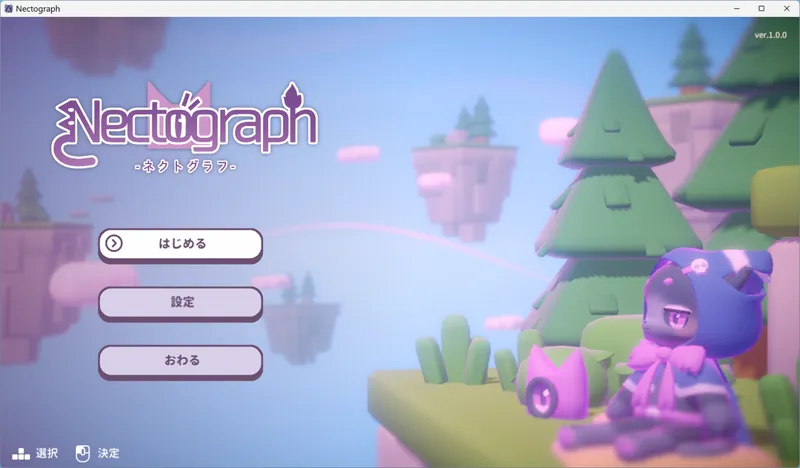
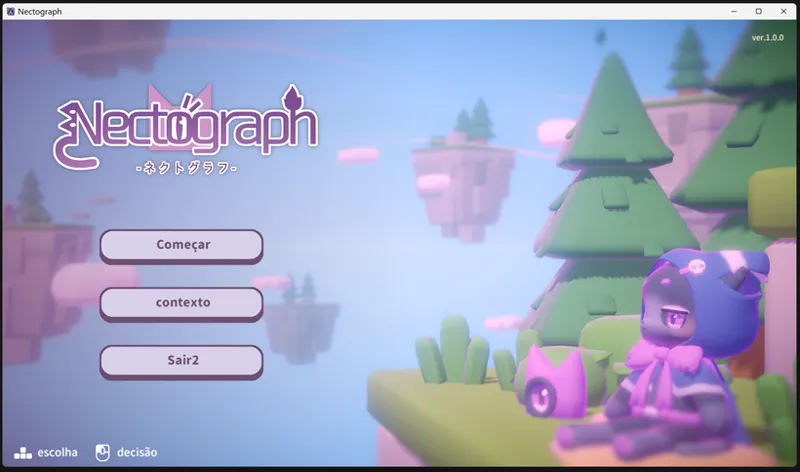
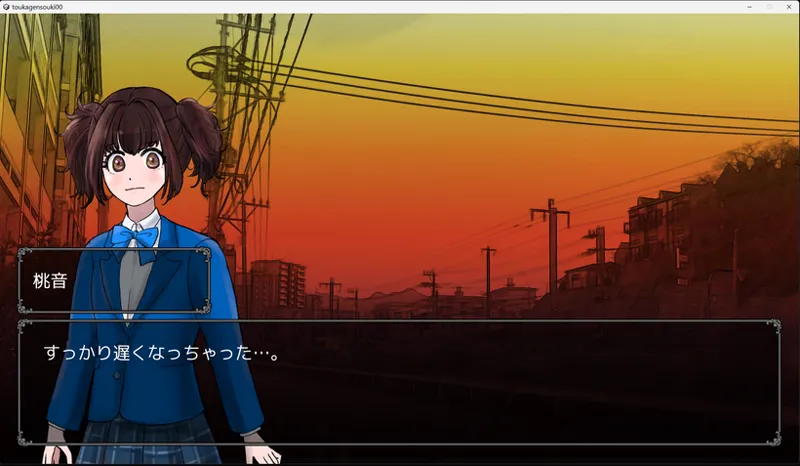
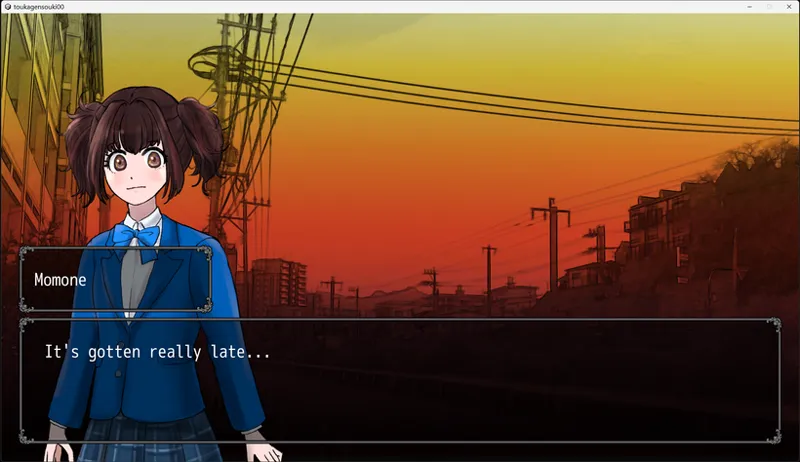
Here’s a look at UI, menus, and narrative assets extracted and translated cleanly from Japanese to Portuguese:
Original (Japanese)
Translated (Portuguese)
2. Deep Context Parsing: RPG Maker Unite!
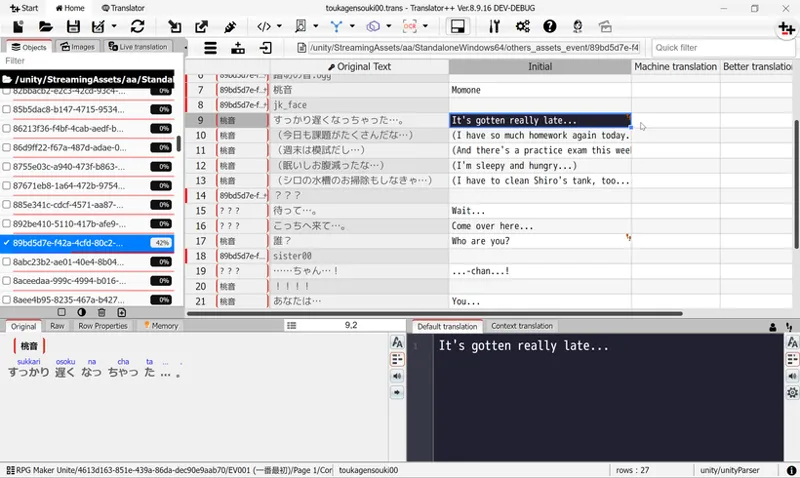
One of the coolest features of the Unity Parser is its speaker-aware parsing for RPG Maker Unite titles.
Normally, extracting dialogue leaves you with lines of anonymous text. But Unity Parser pulls the actor/speaker name, the map location, and the event command context, linking them directly to the line:
Why this matters for your workflow:
When you use machine translation or AI/LLMs (like ChatGPT or Claude) inside Translator++, passing the speaker’s name gives the AI crucial context. It knows who is talking, allowing it to choose the right tone, pronouns, and personality rather than making blind guesses!
What Can Unity Parser Read?
Under the hood, the parser extracts text from:
Serialized Assets & AssetBundles: .assets, .unity3d, .bundle, resources.assets, sharedassets*, and level* files.
TextAssets & MonoBehaviours: UI labels, dialogue databases, and native Unity Localization StringTables.
StreamingAssets: Plain-text files like JSON, CSV, TSV, XML, YAML, Markdown, and Ink narrative scripts.
Mono Managed Assemblies: Hardcoded string literals inside game .dll files.
Built-in Safety Checks: The parser automatically flags internal identifiers, script paths, and engine variables with red safety tags so you don’t accidentally translate something that could break the game.
Step-by-Step Guide: How to Translate a Unity Game
1. Create the Project
Open Translator++, click Start, and select Unity Engine Translator.
Select the game’s root folder (the folder where the game .exe and the *_Data folder live together).
(Optional) Enter the source language code (e.g., ja), or leave it blank to let auto-detection handle it.
Click Create Project. Translator++ will scan the game’s assets without altering the original files.
2. Review Your Strings & Red Tags
In the Objects pane, browse through extracted assets like UI, Menu, Dialog, or Quest.
Mind the Red Tags: If a row is tagged red, it’s likely an internal variable, code hook, or asset path. Leave it untouched unless you are 100% sure it’s player-facing text!
Tip: For your first test, translate just 5–10 obvious strings on the title screen so you can verify the export pipeline quickly.
3. Translate Safely
Translate your text using your preferred method—manual editing, CAT glossaries, or batch AI/MT tools:
4. Export a Playable Copy
Go to Export → to folder (or use Inject).
Pick an empty destination folder outside of the original game directory.
Translator++ makes a clean duplicate of the game and automatically rebuilds the modified assets, text files, and assemblies. If anything fails, it rolls back gracefully so you never end up with a corrupt build.
5. Test In-Game!
Launch the .exe inside your newly exported folder:
Check for character clipping or text running outside dialogue boxes.
Verify that special characters/accents show up properly and aren’t replaced by missing-glyph squares (□), which means the game’s font needs more characters.
Let’s Chat on Discord! 💬
Every Unity game is built a little differently—some use custom encryption, Addressables, unique font setups, or unconventional asset packings.
If you run into an edge-case game, have questions about font swapping, or want to share feedback on how the Unity Parser is working for you:
👉 Discuss your translation project in our Discord channel
Thank you all so much for your continued support—it’s what makes developing tools like this possible.
Happy translating, and let me know what games you’re working on!
Dreamsavior
Comments (2)
Thé programm Unity engine translator, error during thé proceessing
Après un moment, tout s arrête, écran noir, relancer windows