
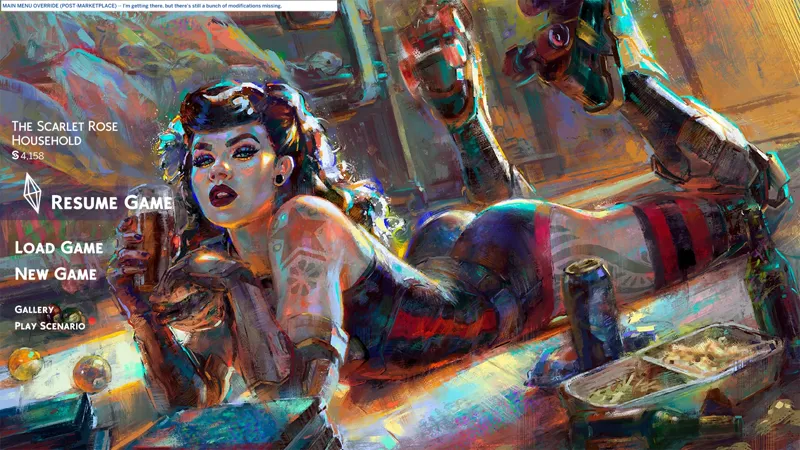
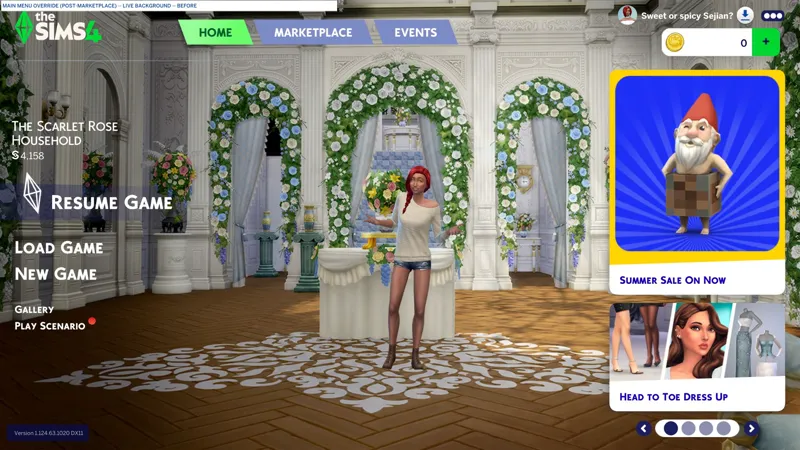
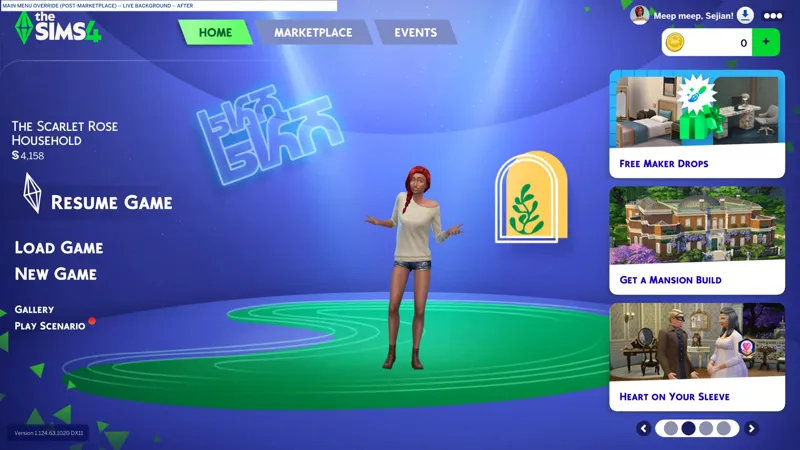
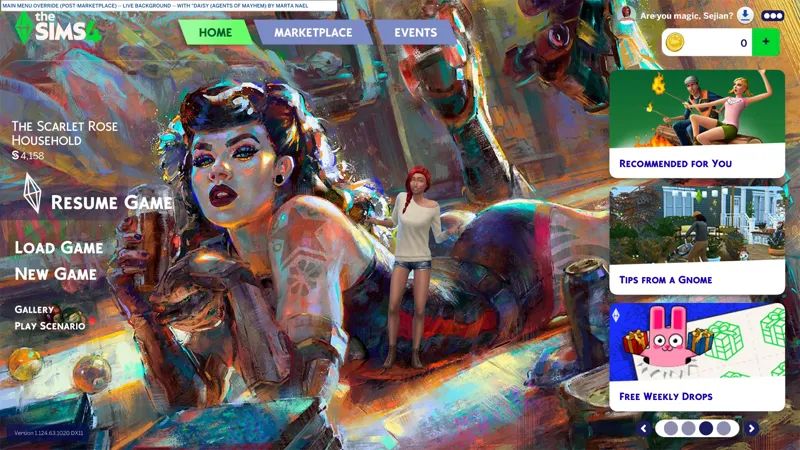







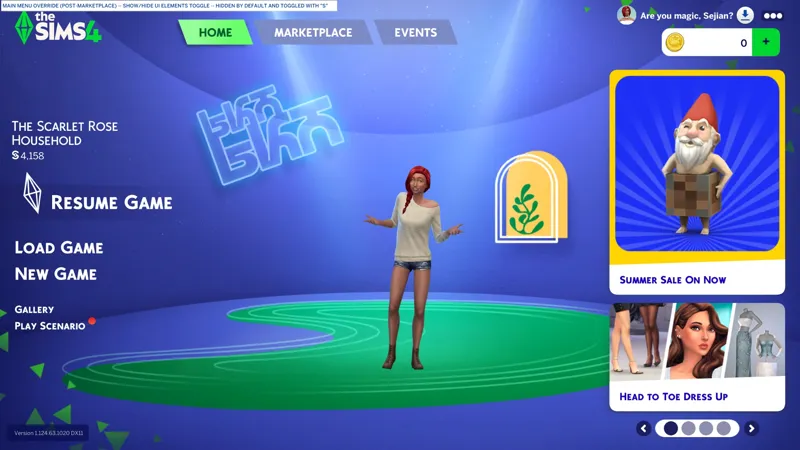
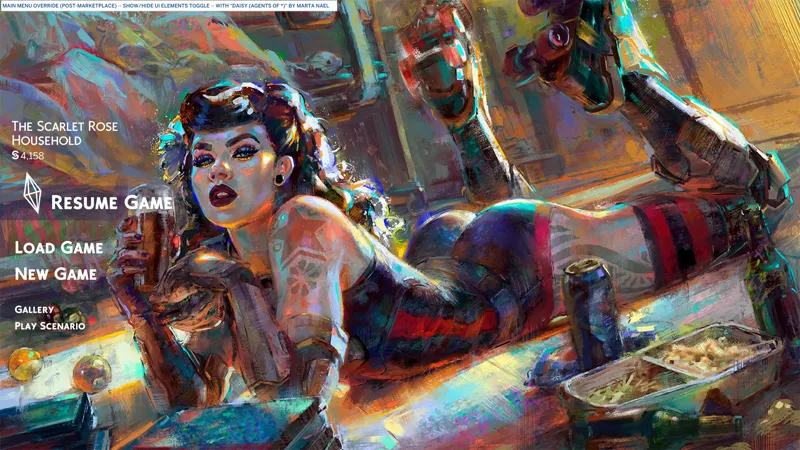








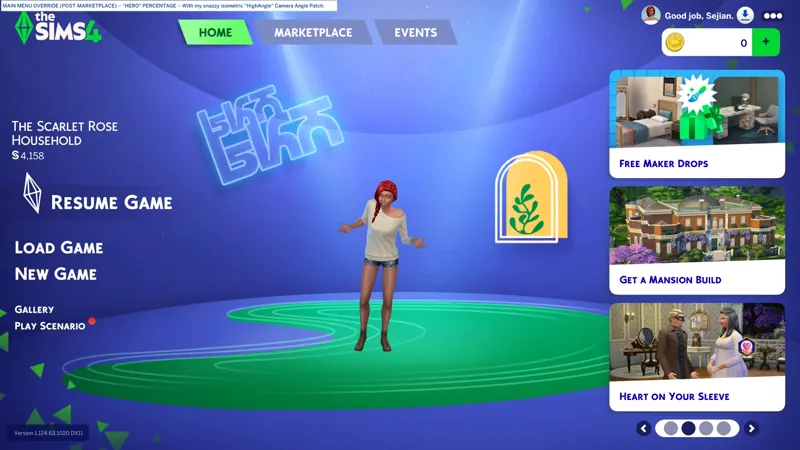















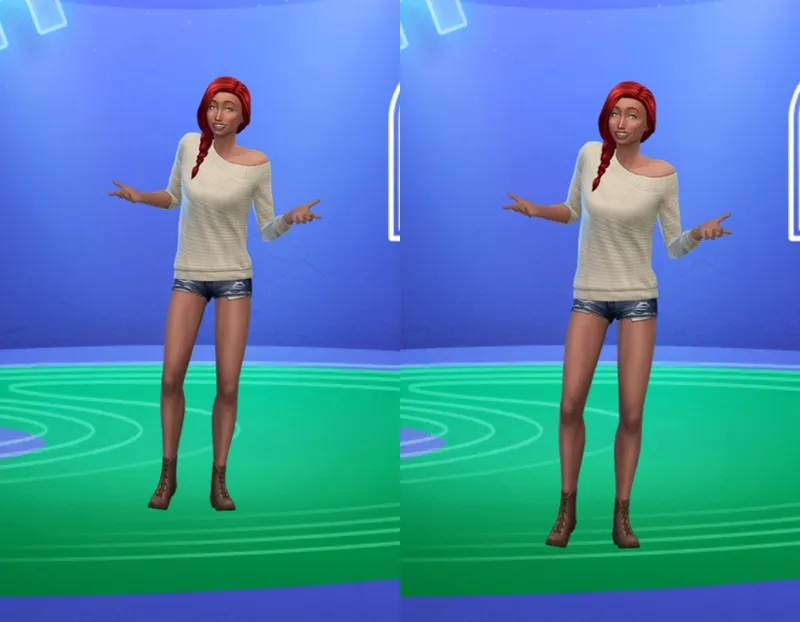

🚧🎓 D.I.Y. Main Menu Override for Update 5/21/2026 (Post-Marketplace) -- [6/22-X] 🕒 Instructions for "COLORS - NEW/RESUME HOVER TEXT" almost done. Just need the screenshots. -- 🎉 I've gone a full day of restarts without seeing any ads (except for the one time I disabled my override), which might mean that the ad modifications work as intended. !@#$ your ads, EAxis!
⚔️ TS4: BASE GAME ⋆✒️ 6/19/2026 ⋆⚡ 6/21/2026 x2
🔄 Specifically for Update 5/21/2026 [🌐] ⋆ 🪟 1.124.63.1020 ⋆ 🍎 1.124.63.1220
🚧 EAxis modified the SGFX a bit (a lot), so I need to rebuild this thing one step at a time. The Live Background and the Full-Screen Pop-Up Ads are my main priorities.
😺 The challenge of having to dissect my own mod to rebuild my forgotten/lost modifications is exhilarating. It's 3 AM in the morning and I'm having the time of my life. I love this !@#$.
🎙️ Wanna see you with it, sho' could treat you right. Give me just a minute of your time tonight. We both are here to have good fun, so let it whip! Let's whip it, baby! Let's whip it right. Let's whip it baby! Work it all night! -- All night long! All naaaaaaiiiiiiiight!
☆// ⋆ FOREWORD + DISCLAIMER:
Every modification listed in this post is "standalone", meaning it's all independent of each other and you can pick and choose what you want to add to your override.
This isn't absolutely everything that the modding community knows how to do to the Main Menu, it's just what I've figured out so far from either mucking around, or by dissecting third-party mods.
When I learn more, I will add more.
[...] or by dissecting third-party mods.
Yes, this means that some of these modifications were pilfered from the community pantry, the same way I pilfered the modifications for "Expandable BuildBuy Catalog" and created "My Beautiful Squishy" after TwistedMexi left their mod unmaintained for almost (2) years with no word on whether or not it would ever be updated, despite "Better BuildBuy" getting regular updates. To be quite frank, I see "Expandable BuildBuy Catalog" as a modification that EAxis should have officially added to the game a long time ago, because Build Mode is a pain in the arse without it! <HUFFS>
I have "questionable ethics", but I also have red lines, e.g. I won't show you how to do the more advanced stuff that creators like SimMattically and NISANE do, because I consider that to be their "creative property". If I were to figure out how to do any of that on my own, then I'd share it - and by "it" I mean my modification, not theirs.
As for the rest of this, it's all "basic" modifications to EAxis' code.
--
Depending on how long you've been here, you may have read that I intend to publicly D.I.Y. some of my mods, specifically my SGFX Overrides and SGFX Patches, because I know those mods are necessary for some Simmers to be able to play the game, and I don't want to disappear permanently (for any reason - like my refusal to shut up about certain things) and then have someone else come along, recreate the mods, and then paywall them.
This is the start.
With this post, I will figure out how to format SGFX D.I.Y. in a way that makes sense.
☆// ⋆ NOTICE ME SLIGHTLY, SENPAI:
<INSERT DOWNLOAD LINKS HERE WHEN MODS ARE COMPLETED>
☆// ⋆ TABLE OF CATENTS:
🚧 BEFORE WE BEGIN -- A crash course in modding SGFX.
LIVE BACKGROUND -- There's gotta be more to this, right? 🖼️
FULL SCREEN ADS - MARKETING -- Literally no one asked for this. 🤬
FULL SCREEN ADS - LIVE EVENTS -- And no one likes full screen ads. ⛔
LOGO DIVIDER -- This entry might get pushed down a bit. 🕹️
SHOW/HIDE UI ELEMENTS TOGGLE - PART 1 -- I am, indeed... 💰
SHOW/HIDE UI ELEMENTS TOGGLE - PART 2 -- ... the magicks! 🔄
HERO PERCENTAGE -- If is too big, then you might have a bad time! 🧙♀️
COLORS - NEW/RESUME HOVER TEXT -- I like a likkle consistency. ▶️
TBC...
🚧// ⋆ BEFORE WE BEGIN:
These instructions require you to know your way around Narnia, obviously.
It's not that difficult to go from not knowing how to do any of this, to getting the programs you need (Sims 4 Studio and JPEXS), extracting and modifying the necessary Scale Form GFX resources, then importing the modified Scale Form GFX resources into a new PACKAGE file.
The most challenging part might be JPEXS, because the user interface is a bit finicky.
I'll explain some of this when I'm done.
For those of you who have stepped even one foot into Narnia, these instructions should be super easy, 🌾 an inconvenience. Also, there be pictures! What more do you need?!
🖼️// ⋆ LIVE BACKGROUND:
I'm still testing whether or not this is the only modification required. So far, this seems to be it. I've restarted the game multiple times, I've left it idling on the Main Menu for about 45 minutes, I've entered CAS, Live Mode, and Marketplace, then back to Main Menu and it seems fine.
Of course, you still need an actual image override for it to work as intended. I do mine standalone, separate from the actual SGFX override.
EAxis changed the image resources used for the Live Background, but the old ones still exist. It appears that for us to make this work at all, we need to modify the bit of code that tells the game which image resources to use, and re-direct it to the old image resources.
Shirley there's another way to do this? <SQUINTS>
--
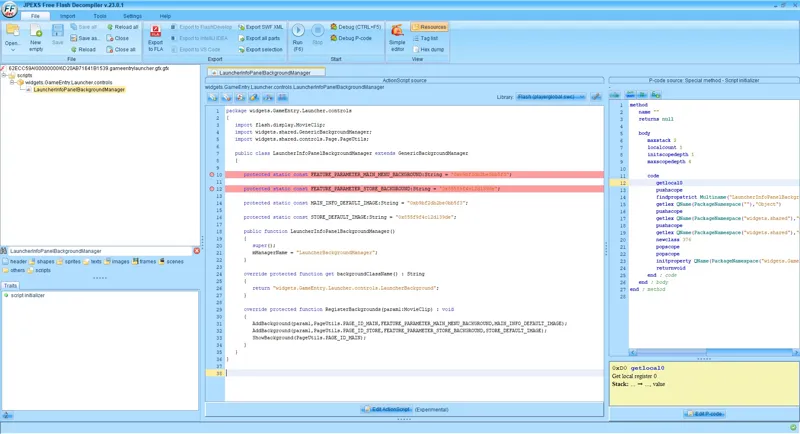
We're modifying the "GameEntryLauncher" Scale Form GFX (SGFX) resource:
62ECC59A!00000000!6D20AB71641B1539.gameentrylauncher.gfx(.gfx)
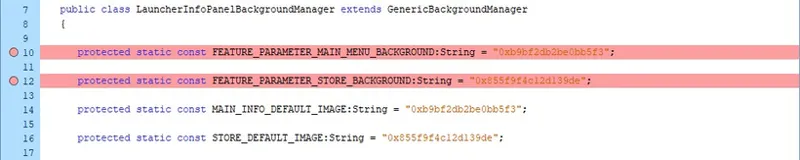
And we're modifying some code in the "LauncherInfoPanelBackgroundManager" script:
Open "gameentrylauncher.gfx" with JPEXS.
Search for the following script (use the "Quick Find" feature in the resource panel by pressing CTRL+F on your keyboard, then copypasting the resource name):
LauncherInfoPanelBackgroundManager
Select "LauncherInfoPanelBackgroundManager" and click "Edit ActionScript".
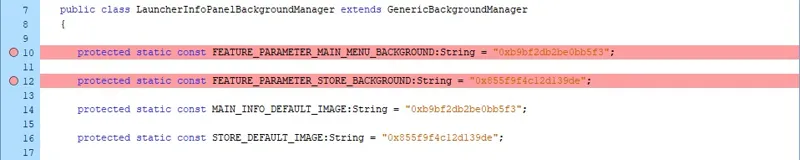
Modify the following bits of code on the following lines:
LINE 10 -- Replace [1] with [2].
0x8315e2f3135f835b
0xb9bf2db2be0bb5f3
LINE 12 -- Replace [1] with [2].
0xc940e39fcf5927de
0x855f9f4c12d139de
Click "Save" to save the changes to the script.
Click the "Save" button 💾 on the toolbar to save the changes to the SGFX.
🤬// ⋆ FULL SCREEN ADS - MARKETING:
Approach with caution! I'm only kinda certain that this still works.
If this still works, it will prevent full-screen ads on the Main Menu for sales, packs, etc. I assume it still works, but it'll take some days to verify.
--
We're modifying the "GameEntryLauncher" Scale Form GFX (SGFX) resource:
62ECC59A!00000000!6D20AB71641B1539.gameentrylauncher.gfx(.gfx)
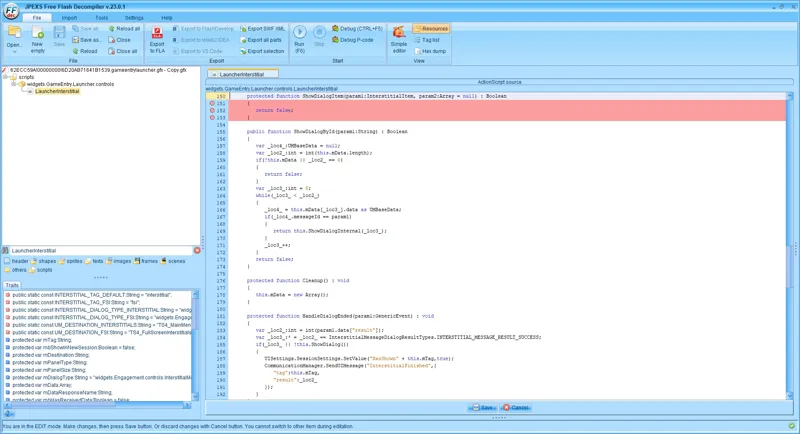
And we're removing a bunch of code from the "LauncherInterstitial" script:
Open "gameentrylauncher.gfx" with JPEXS.
Search for the following script (use the "Quick Find" feature in the resource panel by pressing CTRL+F on your keyboard, then copypasting the resource name):
LauncherInterstitial
Select "LauncherInterstitial" and click "Edit ActionScript".
Scroll down to the following section (use the "Quick Find" feature in the editor by pressing CTRL+F on your keyboard, then copypasting the section name):
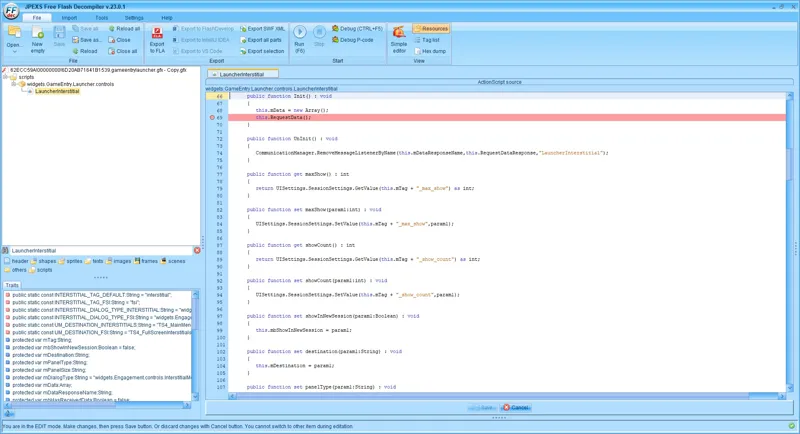
public function Init() : void
Remove the following line of code:
this.RequestData();
It should look like this when you're done:
Scroll down to the following section (use the "Quick Find" feature in the editor by pressing CTRL+F on your keyboard, then copypasting the section name):
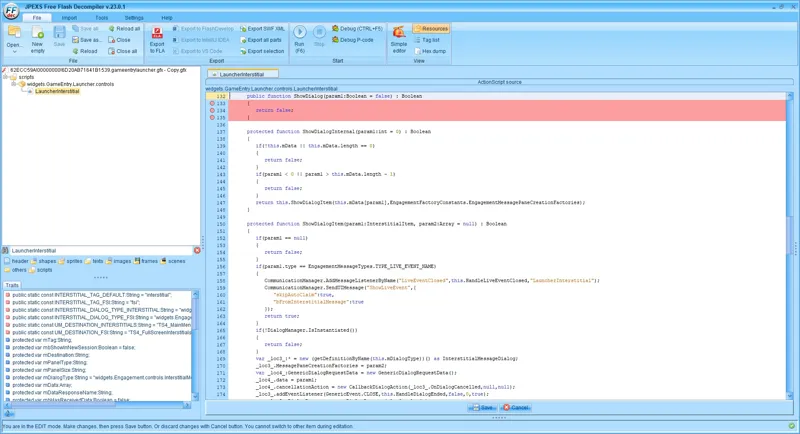
public function ShowDialog(param1:Boolean = false) : Boolean
Replace the nested block of code with the following:
return false;
Scroll down to the following section (use the "Quick Find" feature in the editor by pressing CTRL+F on your keyboard, then copypasting the section name):
protected function ShowDialogItem(param1:InterstitialItem, param2:Array = null) : Boolean
Replace the nested block of code with the following:
return false;
Click "Save" to save the changes to the script.
Click the "Save" button 💾 on the toolbar to save the changes to the SGFX.
⛔// ⋆ FULL SCREEN ADS - LIVE EVENTS:
Approach with caution! I'm only kinda certain that this still works.
If this still works, it will prevent full-screen ads on the Main Menu for Live Events. It's gonna take some days to verify. EAxis renamed the script (cheeky) and modified some code.
--
We're modifying the "LiveEvent" Scale Form GFX (SGFX) resource:
62ECC59A!00000000!B7937F6B38CA3045.liveevent.gfx(.gfx)
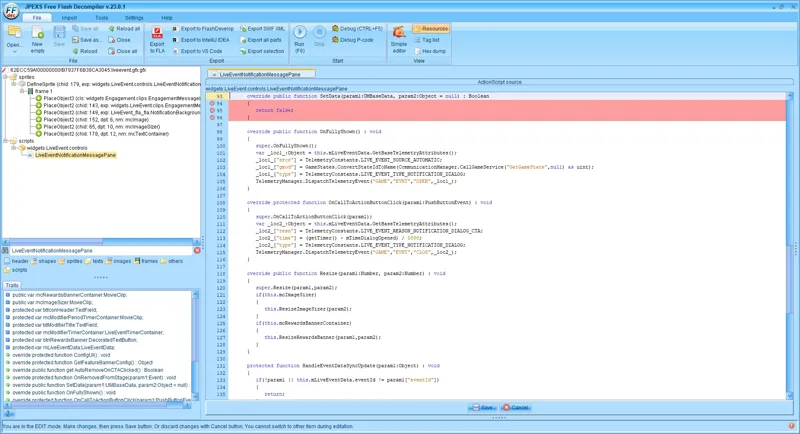
And we're removing a bunch of code from the "LiveEventNotificationMessagePane" script:
Open "liveevent.gfx" with JPEXS.
Search for the following script (use the "Quick Find" feature in the resource panel by pressing CTRL+F on your keyboard, then copypasting the resource name):
LiveEventNotificationMessagePane
You'll get results under sprites and scripts, but it's the script that we want.
Select "LiveEventNotificationMessagePane" and click "Edit ActionScript".
Scroll down to the following section (use the "Quick Find" feature in the editor by pressing CTRL+F on your keyboard, then copypasting the section name):
override public function SetData(param1:UMBaseData, param2:Object = null) : Boolean
Replace the nested block of code with the following (it's a lot of code, stretching from LINE 95 to LINE 188 [in the current script], so be careful that you get all of it, and that you don't accidentally delete anything else):
return false;
Click "Save" to save the changes to the script.
Click the "Save" button 💾 on the toolbar to save the changes to the SGFX.
🕹️// ⋆ LOGO DIVIDER:
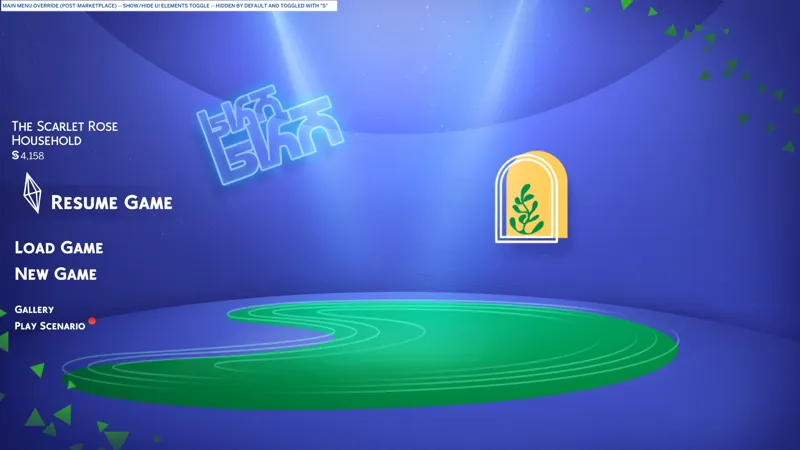
This is the faint line seen immediately under the "The Sims 4" logo on the top left:
--
We're modifying the "GameEntryLauncher" Scale Form GFX (SGFX) resource:
62ECC59A!00000000!6D20AB71641B1539.gameentrylauncher.gfx(.gfx)
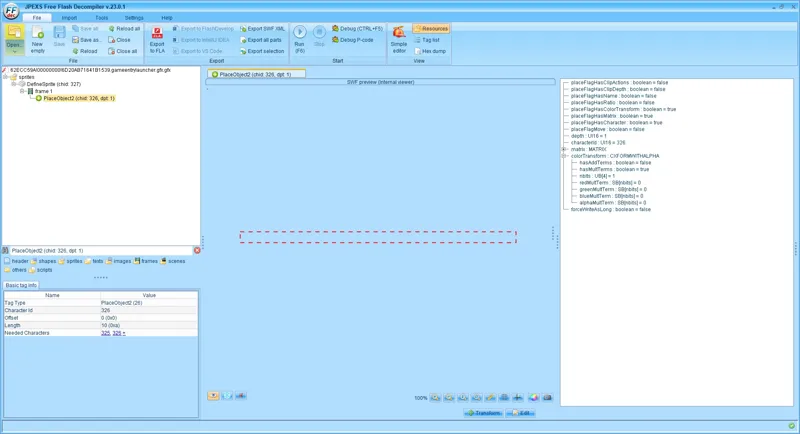
And we're modifying a "PlaceObject" in a sprite:
Open "gameentrylauncher.gfx" with JPEXS.
Search for the following "PlaceObject" (I do this like this so you can easily copypaste):
PlaceObject2 (chid: 326, dpt: 1)
Select "PlaceObject2 (chid: 326, dpt: 1)" and click "Edit".
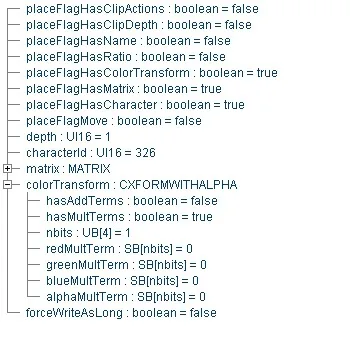
Select "placeFlagHasColorTransform : boolean = false" and check the box to enable it, then click in the empty space below the other options for the change to take effect.
Double-click on "colorTransform : CXFORMWITHALPHA" to expand the hidden options.
Select "hasMultTerms : boolean = false" check the box to enable it, then click in the empty space below the other options for the change to take effect.
Select each of the following newly enabled options and change their value as shown (do the last one first, then work your way up to avoid accidentally enabling "forceWriteAsLong"):
redMultTerm : SB[nbits] = 0
greenMultTerm : SB[nbits] = 0
blueMultTerm : SB[nbits] = 0
alphaMultTerm : SB[nbits] = 0
Verify "forceWriteAsLong : boolean = false" is FALSE and that you didn't accidentally enable it. JPEXS can be a pain in the rear when modifying "PlaceObject" options and you accidentally enable things you're not meant to when clicking around the options.
Click "Save" to save the "PlaceObject" changes. The rectangular box that was once red, should now be transparent.
Click the "Save" button 💾 on the toolbar to save the changes to the SGFX.
The modified "PlaceObject2" options should look like this when you're done:
💰// ⋆ SHOW/HIDE UI ELEMENTS TOGGLE - PART 1:
"Part 1" makes the following UI elements transparent/invisible by default, and allows you to "toggle" their visibility with the "S" key:
Info Panel -- The Sims 4 logo, the divider, the navigation tabs, the options button and the welcome text, and the bucks nonsense.
Marketing Carousel
If used with the "Part 2" modification, then the "Version Info" will also be hidden by default, and toggled with the "S" key.
--
We're modifying the "GameEntryLauncher" Scale Form GFX (SGFX) resource:
62ECC59A!00000000!6D20AB71641B1539.gameentrylauncher.gfx(.gfx)
And we're adding chunks of code to the "LauncherInfoPanel" script:
Open "gameentrylauncher.gfx" with JPEXS.
Search for the following script (use the "Quick Find" feature in the resource panel by pressing CTRL+F on your keyboard, then copypasting the resource name):
LauncherInfoPanel
You'll see multiple results under sprites, frames, and scripts, but there's one script specifically named "LauncherInfoPanel", and that's the one we need.
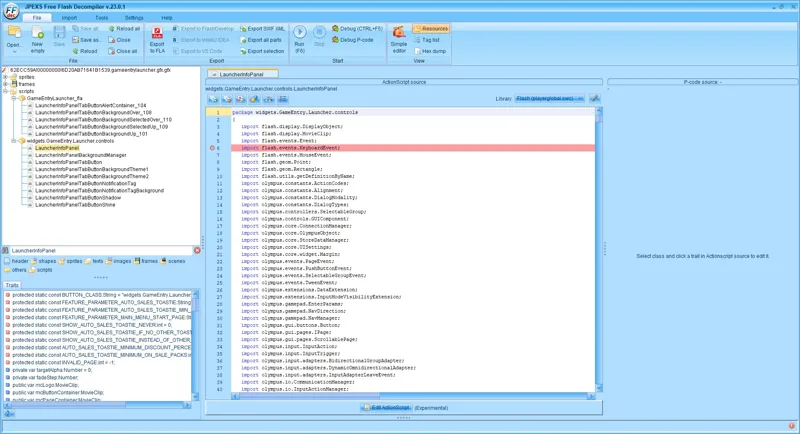
Select "LauncherInfoPanel" and click "Edit ActionScript".
Add the following line of code to the "import" section at the start of the script:
import flash.events.KeyboardEvent;
Scroll down to the following section (use the "Quick Find" feature in the editor by pressing CTRL+F on your keyboard, then copypasting the section name):
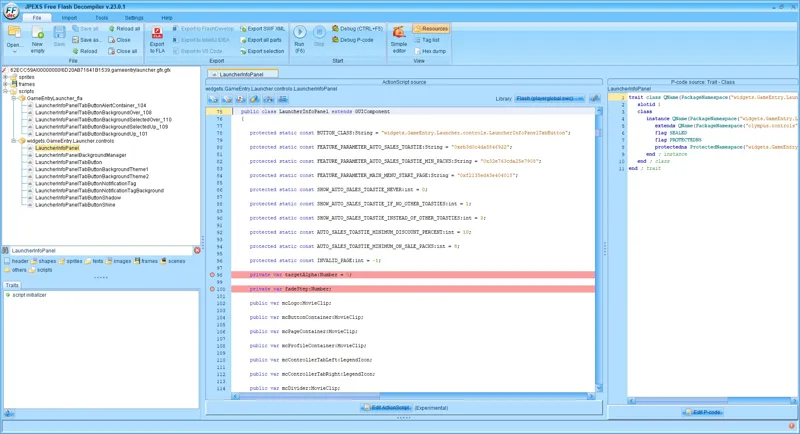
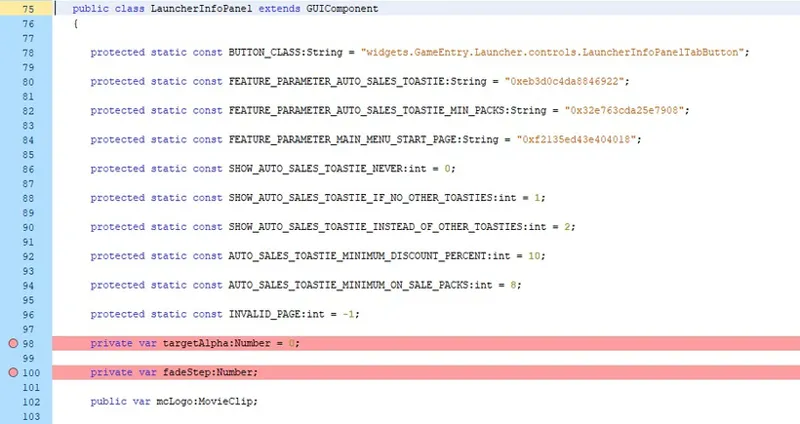
public class LauncherInfoPanel extends GUIComponent
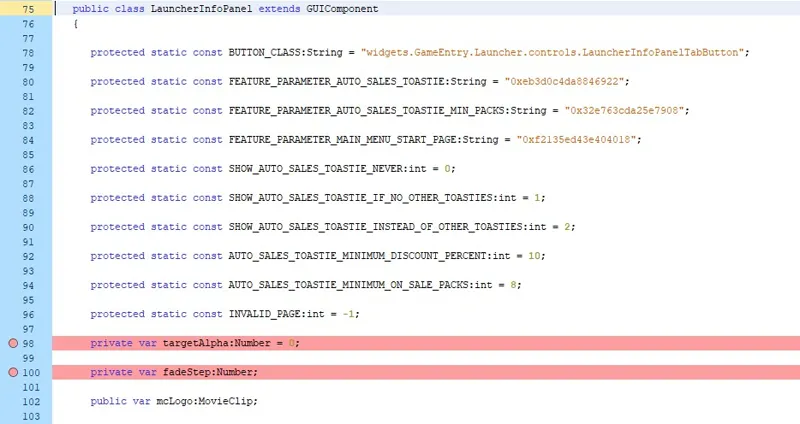
Add the following lines of code:
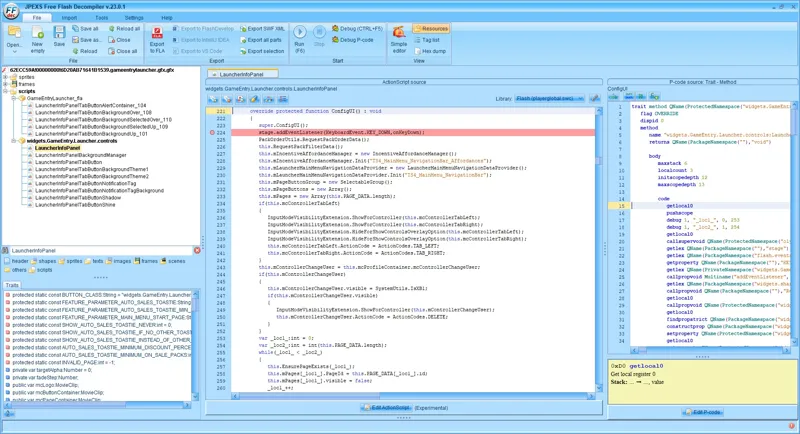
private var targetAlpha:Number = 0;
private var fadeStep:Number;
Scroll down to the following section (use the "Quick Find" feature in the editor by pressing CTRL+F on your keyboard, then copypasting the section name):
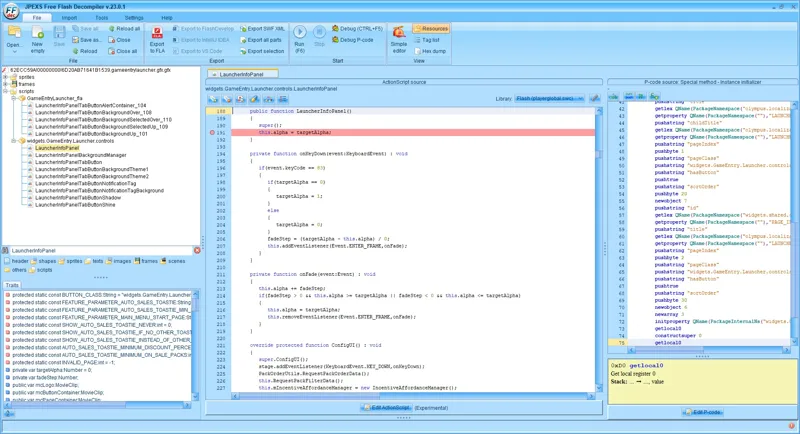
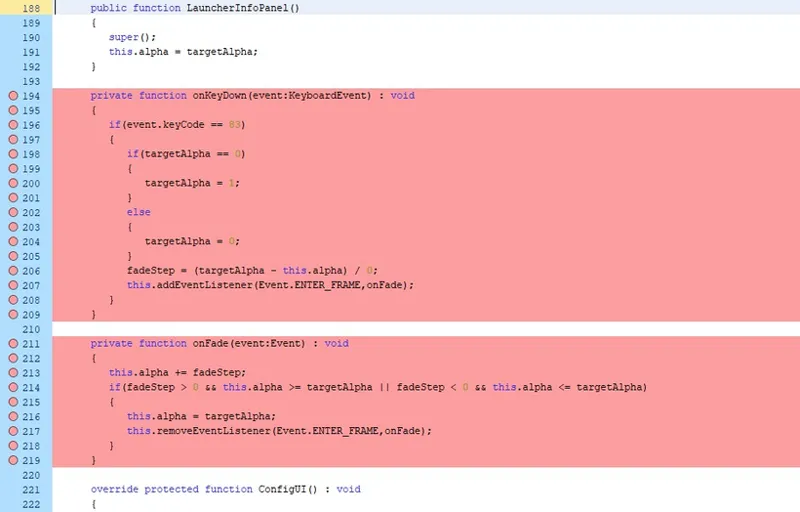
public function LauncherInfoPanel()
Add the following line of code:
this.alpha = targetAlpha;
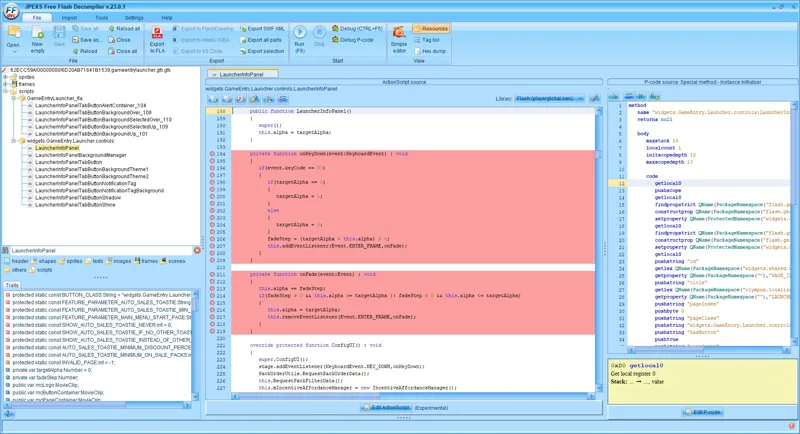
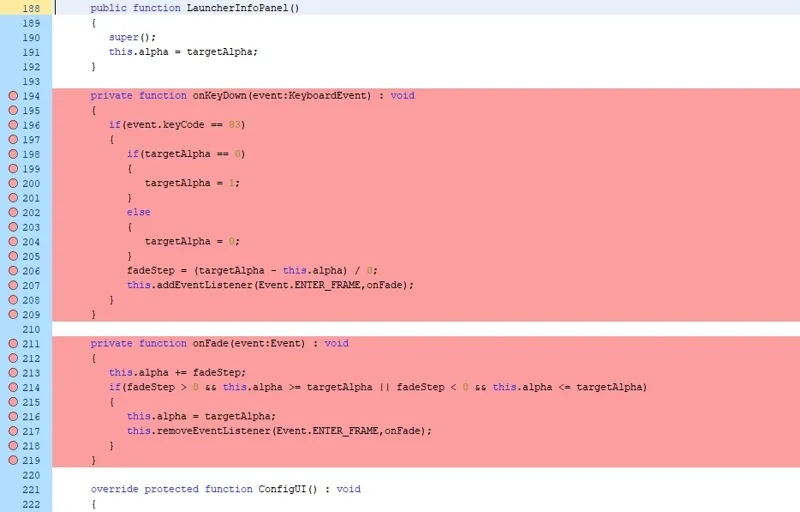
Directly below the previous section, we need to add the following two chunks of code:
Copypaste the quoted block of code into the script as it is provided below, with the (hidden) preceding spaces before the start of every line.
Patreon formatting is weird with code like this. I see the preceding spaces in the editor but not in the published post, but the block of code appears to copy with the preceding spaces.
If the first line of the quoted block of code is misaligned in the script editor (too many preceding spaces), just ignore it. The editor will align it properly when you save the changes.
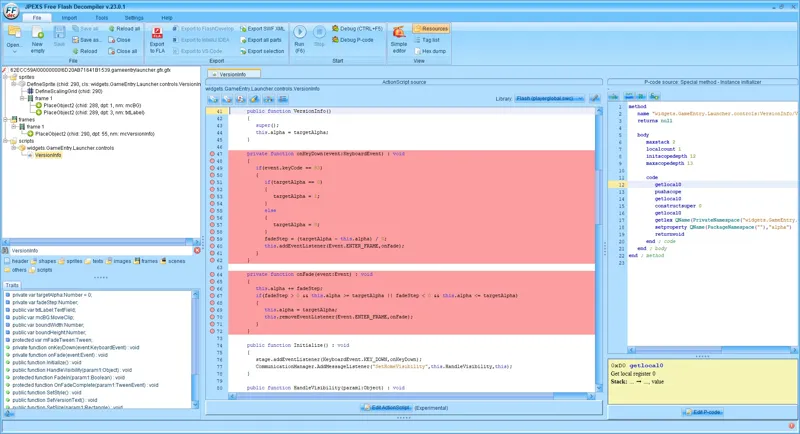
private function onKeyDown(event:KeyboardEvent) : void
{
if(event.keyCode == 83)
{
if(targetAlpha == 0)
{
targetAlpha = 1;
}
else
{
targetAlpha = 0;
}
fadeStep = (targetAlpha - this.alpha) / 0;
this.addEventListener(Event.ENTER_FRAME,onFade);
}
}private function onFade(event:Event) : void
{
this.alpha += fadeStep;
if(fadeStep > 0 && this.alpha >= targetAlpha || fadeStep < 0 && this.alpha <= targetAlpha)
{
this.alpha = targetAlpha;
this.removeEventListener(Event.ENTER_FRAME,onFade);
}
}
Catch your breath, then let's continue.
Scroll down to the following section (use the "Quick Find" feature in the editor by pressing CTRL+F on your keyboard, then copypasting the section name):
override protected function ConfigUI() : void
Add the following line of code:
stage.addEventListener(KeyboardEvent.KEY_DOWN,onKeyDown);
Click "Save" to save the changes to the script.
Click the "Save" button 💾 on the toolbar to save the changes to the SGFX.
🔄// ⋆ SHOW/HIDE UI ELEMENTS TOGGLE - PART 2:
"Part 2" makes the following UI elements transparent/invisible by default, and allows you to "toggle" their visibility with the "S" key:
Version Info
If used with the "Part 1" modification, then the "Info Panel" and the "Marketing Carousel" will also be hidden by default, and toggled with the "S" key.
--
We're modifying the "GameEntryLauncher" Scale Form GFX (SGFX) resource:
62ECC59A!00000000!6D20AB71641B1539.gameentrylauncher.gfx(.gfx)
And we're adding chunks of code to the "VersionInfo" script:
Open "gameentrylauncher.gfx" with JPEXS.
Search for the following script (use the "Quick Find" feature in the resource panel by pressing CTRL+F on your keyboard, then copypasting the resource name):
VersionInfo
You'll see results under sprites, frames, and scripts. It's the script that we need.
Select "VersionInfo" and click "Edit ActionScript".
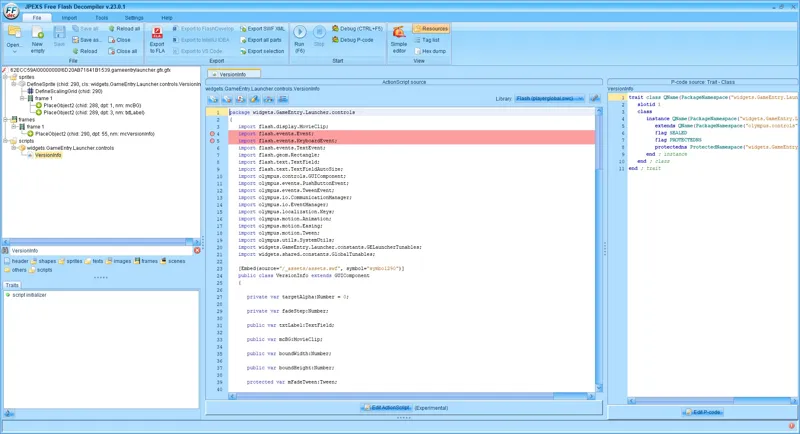
Add the following lines of code to the "import" section at the start of the script:
import flash.events.Event;
import flash.events.KeyboardEvent;
Scroll down to the following section (use the "Quick Find" feature in the editor by pressing CTRL+F on your keyboard, then copypasting the section name):
public class VersionInfo extends GUIComponent
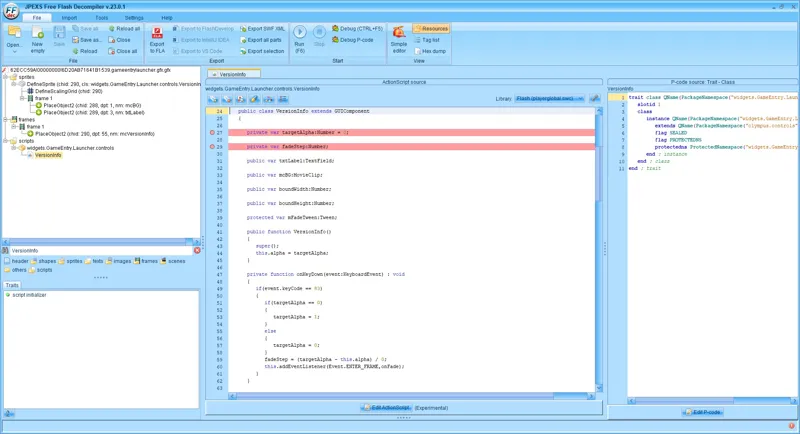
Add the following lines of code:
private var targetAlpha:Number = 0;
private var fadeStep:Number;
Scroll down to the following section (use the "Quick Find" feature in the editor by pressing CTRL+F on your keyboard, then copypasting the section name):
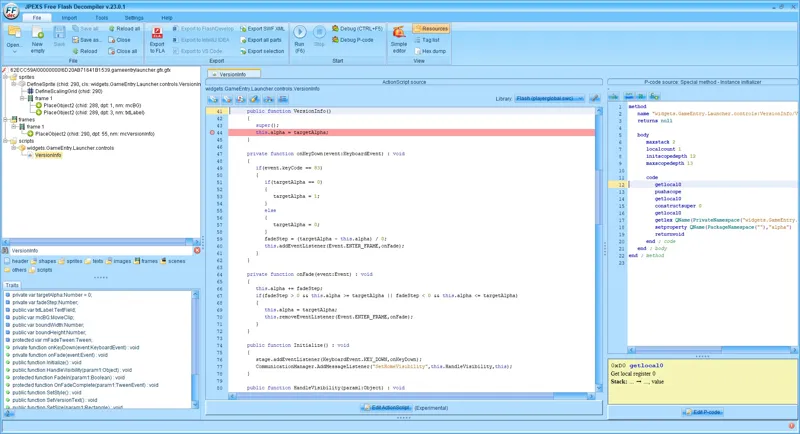
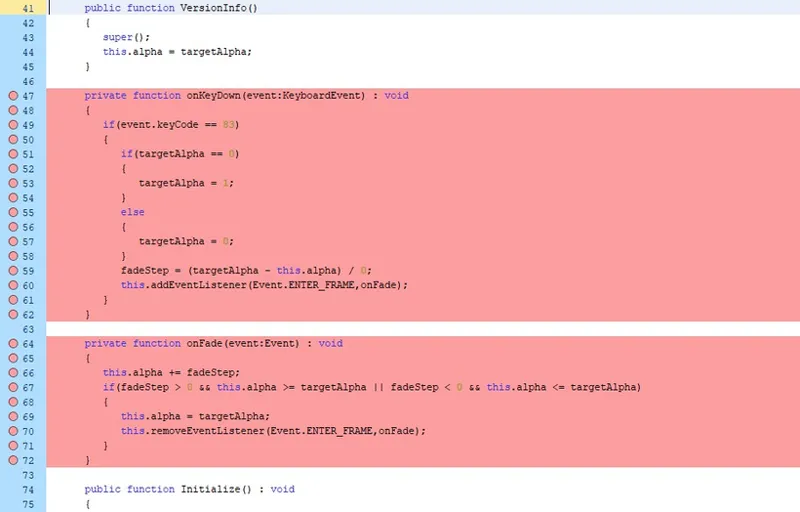
public function VersionInfo()
Add the following line of code:
this.alpha = targetAlpha;
Directly below the previous section, we need to add the following two chunks of code:
Copypaste the quoted block of code into the script as it is provided below, with the (hidden) preceding spaces before the start of every line.
Patreon formatting is weird with code like this. I see the preceding spaces in the editor but not in the published post, but the block of code appears to copy with the preceding spaces.
If the first line of the quoted block of code is misaligned in the script editor (too many preceding spaces), just ignore it. The editor will align it properly when you save the changes.
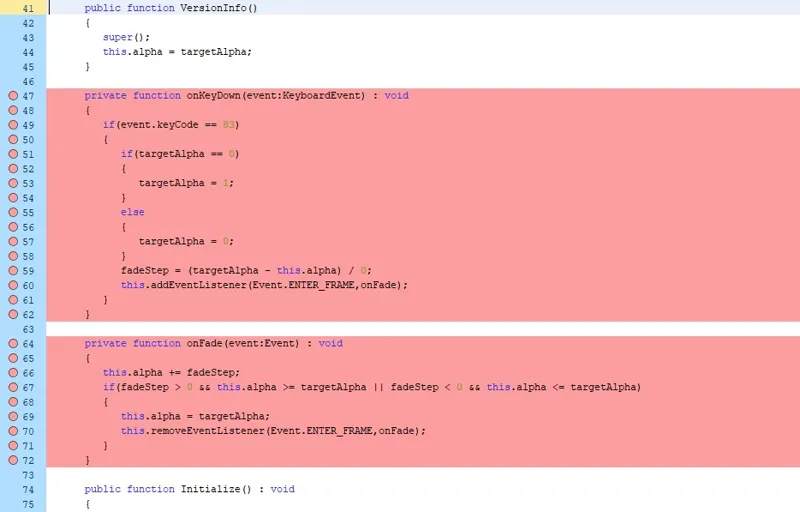
private function onKeyDown(event:KeyboardEvent) : void
{
if(event.keyCode == 83)
{
if(targetAlpha == 0)
{
targetAlpha = 1;
}
else
{
targetAlpha = 0;
}
fadeStep = (targetAlpha - this.alpha) / 0;
this.addEventListener(Event.ENTER_FRAME,onFade);
}
}private function onFade(event:Event) : void
{
this.alpha += fadeStep;
if(fadeStep > 0 && this.alpha >= targetAlpha || fadeStep < 0 && this.alpha <= targetAlpha)
{
this.alpha = targetAlpha;
this.removeEventListener(Event.ENTER_FRAME,onFade);
}
}
Scroll down to the following section (use the "Quick Find" feature in the editor by pressing CTRL+F on your keyboard, then copypasting the section name):
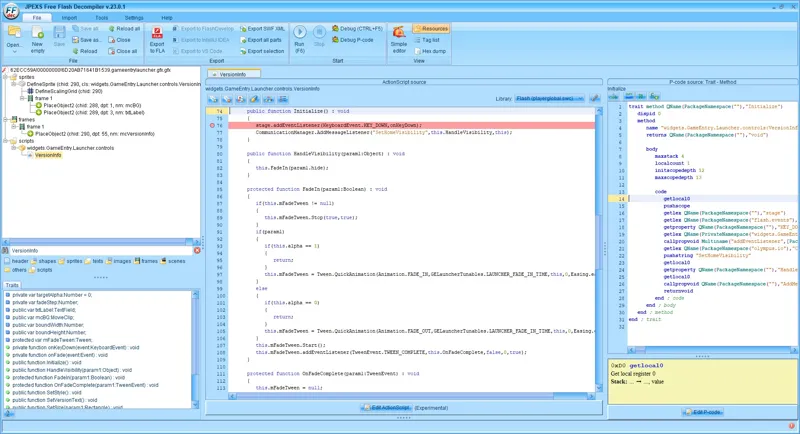
public function Initialize() : void
Add the following line of code:
stage.addEventListener(KeyboardEvent.KEY_DOWN,onKeyDown);
Scroll down to the following section (use the "Quick Find" feature in the editor by pressing CTRL+F on your keyboard, then copypasting the section name):
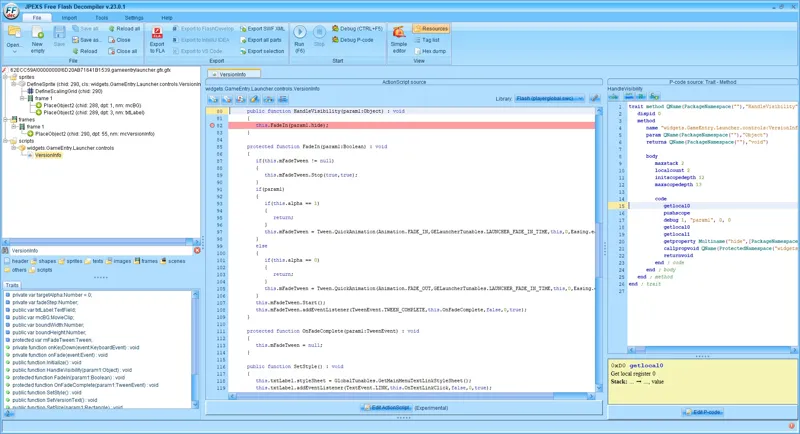
public function HandleVisibility(param1:Object) : void
Modify the following line of code to say "hide" instead of "show":
this.FadeIn(param1.show);
this.FadeIn(param1.hide);
Click "Save" to save the changes to the script.
Click the "Save" button 💾 on the toolbar to save the changes to the SGFX.
🧙♀️// ⋆ HERO PERCENTAGE:
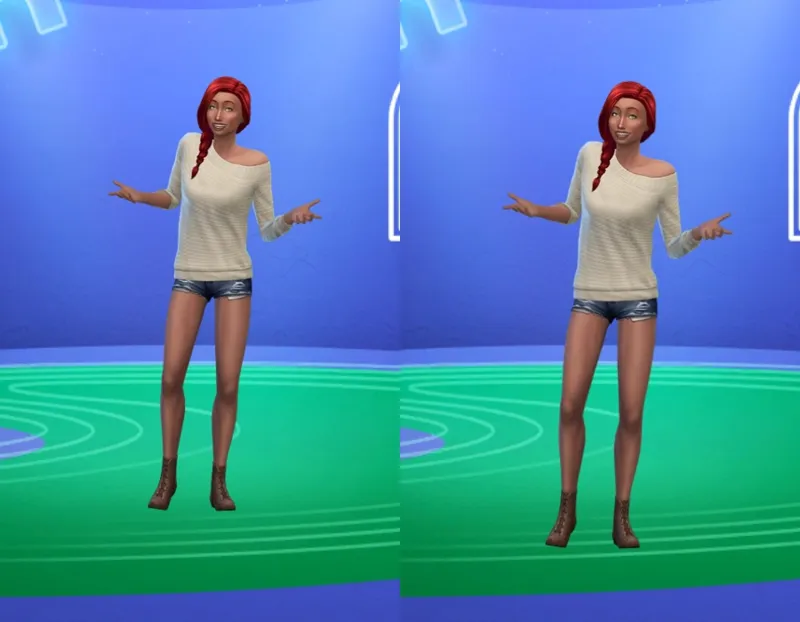
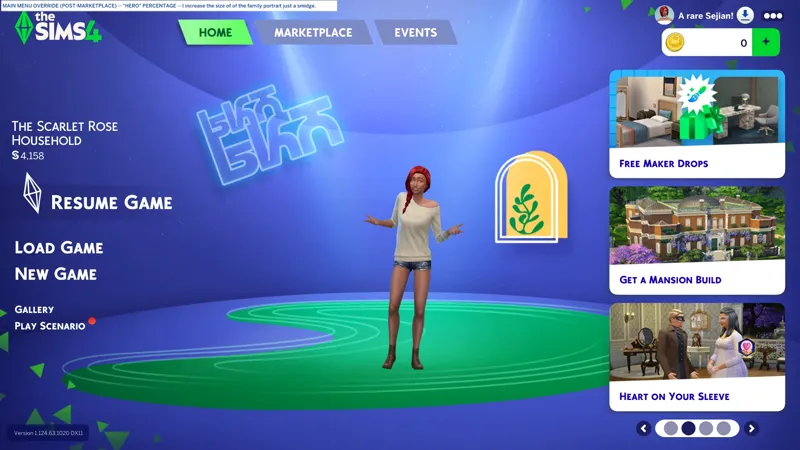
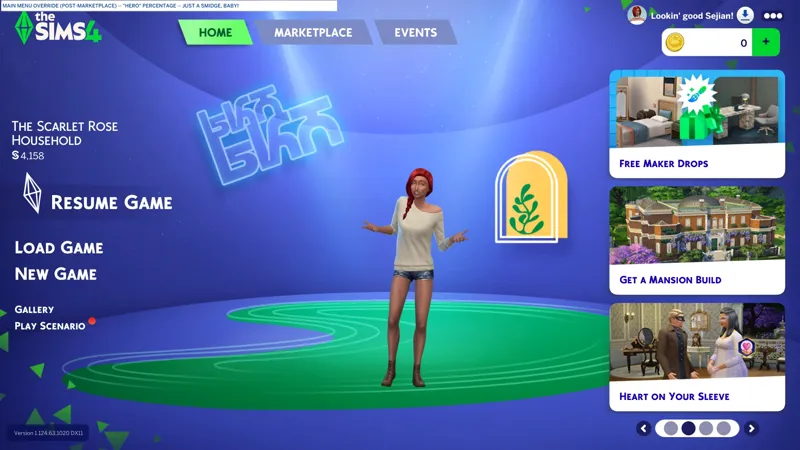
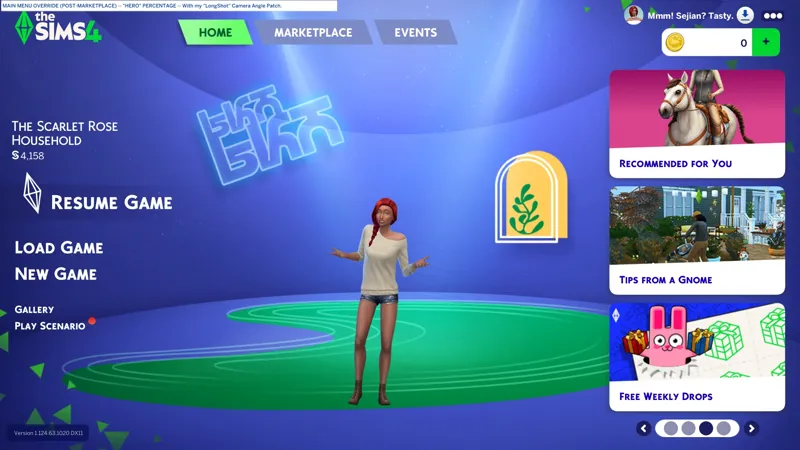
This totes not completely pointless modification changes the size of the family portrait UI element. I increase mine just a smidge, then further modify the position of the family portrait camera with my "Camera Angle Patches" (which are TUNING overrides).
Whether you're mucking about with "Hero Percentage" values or with "Camera Angle Patches", it's important that you test your modifications with a full household that includes pets, specifically ponies, to ensure that your modifications aren't resulting in body parts clipping "out of frame". The family portrait UI element is a square, or a rectangle... is a shape with four sides!
I spent many hours mucking around with my "Camera Angle Patches" to ensure they were perfection a.k.a. as I wanted them. Many game restarts and "localthumbcache.package" deletions were had.
--
We're modifying the "GameEntryLauncher" Scale Form GFX (SGFX) resource:
62ECC59A!00000000!6D20AB71641B1539.gameentrylauncher.gfx(.gfx)
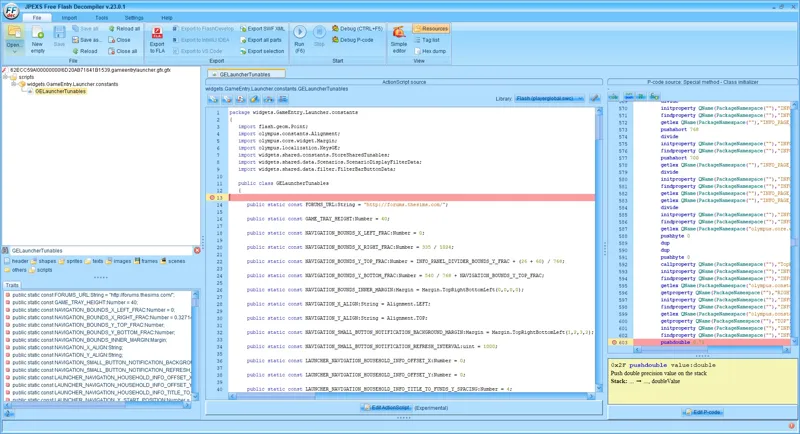
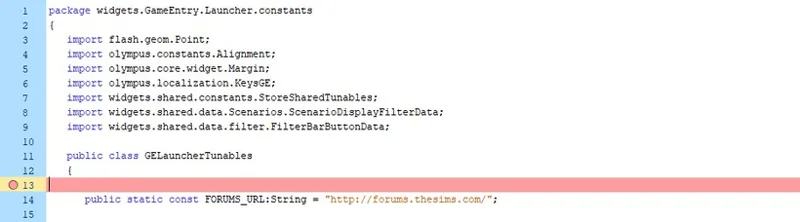
And this time, we're modifying P-Code for the "GELauncherTunables" script:
Open "gameentrylauncher.gfx" with JPEXS.
Search for the following script (use the "Quick Find" feature in the resource panel by pressing CTRL+F on your keyboard, then copypasting the resource name):
GELauncherTunables
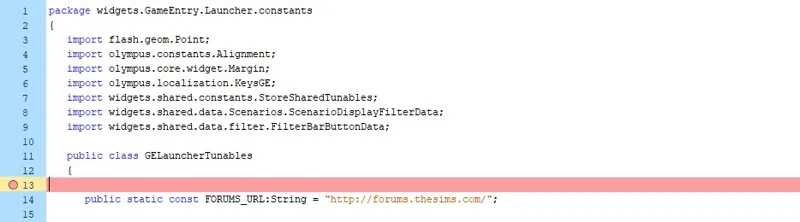
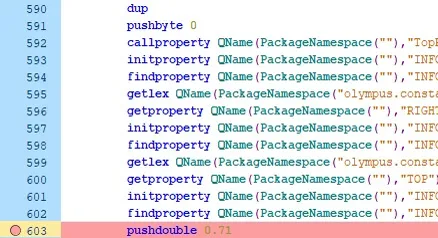
Select "GELauncherTunables" and click on LINE 13 to populate the P-Code panel.
Click anywhere in the P-Code panel and...
Press CTRL+F to open "Quick Find" and search for the following value:
0.66
Or scroll to LINE 603.
Click "Edit P-code" and change "0.66" to the following value:
0.71
Click "Save" to save the changes to the P-Code for the script.
Click the "Save" button 💾 on the toolbar to save the changes to the SGFX.
▶️// ⋆ COLORS - NEW/RESUME HOVER TEXT:
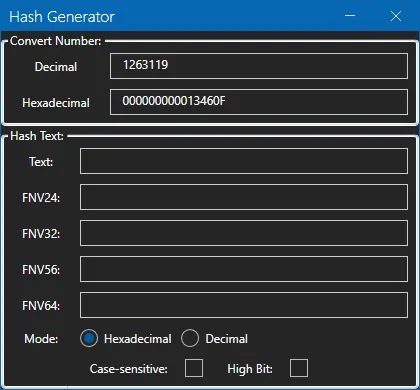
Scale Form GFX (SGFX) script uses decimal color codes, not hexadecimal (hex) color codes. You can convert HTML/hex color codes to decimal color codes (and vice versa) either online or by using the "Hash Generator" tool built into Sims 4 Studio:
Get the HTML/hex color code for your color.
Open Sims 4 Studio and navigate to TOOLS » HASH GENERATOR.
Copypaste your HTML/hex color code at the end of the zeroes in the "Hexadecimal" field, and the decimal equivalent will generate in the "Decimal" field. If you want to convert decimal to hexadecimal, then copypaste your decimal color code into the "Decimal" field, and the last 6 characters seen in the "Hexadecimal" field, is your hex color code.
I don't much mind the little green animation that plays when hovering over the New/Resume button, but I don't like the inconsistency of the green color used for the hover text. It's a very tiny thing to get irked over, but it irks me, so I change it to a darker green that closer matches the text on the "navigation tabs".
--
We're modifying the "GameEntryLauncher" Scale Form GFX (SGFX) resource:
62ECC59A!00000000!6D20AB71641B1539.gameentrylauncher.gfx(.gfx)
And we're modifying code in the "GELauncherThemeTunables" script:
Open "gameentrylauncher.gfx" with JPEXS.
Search for the following script (use the "Quick Find" feature in the resource panel by pressing CTRL+F on your keyboard, then copypasting the resource name):
GELauncherThemeTunables
Modify the following bits of code on the following lines:
LINE 8 -- Replace [1] with [2].
24621
1263119
Click "Save" to save the changes to the script.
Click the "Save" button 💾 on the toolbar to save the changes to the SGFX.