
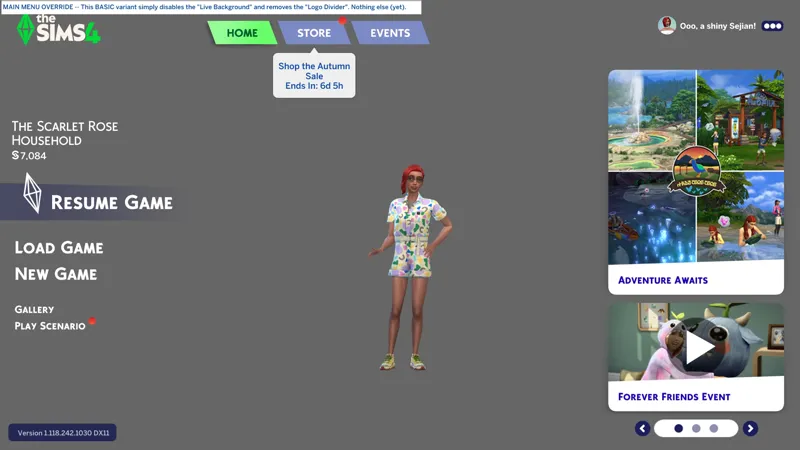
🫀 [BG] SGFX: Main Menu "Online Backgrounds Disabled" + No Logo Divider + D.I.Y. with S4S and JPEXS v23.0.1 -- [3/2] ☄️ Post still incomplete.
⚔️ TS4: BASE GAME ⋆ 🚀9/30/25 ⋆🌠 NIL ⋆☄️ 3/2/26
🔄 Rebuilt for almost every game update [🌐] whether or not it's broken [🌐].
🎓 10/1/25 -- Text-based D.I.Y. complete. Screenshots or video still pending.
☆// ⋆ TOTES "SIMPLE" VARIANT DESCRIPTION:
This is a basic variant of my (7th) standalone neurodiversity-friendly "SGFX Override".
I was asked to do a thing, so I did a thing:
Resurrects LunarBritney's "Online Backgrounds Disabled" basic Main Menu override.
Removes the "Logo Divider" seen directly under the "The Sims 4" logo.
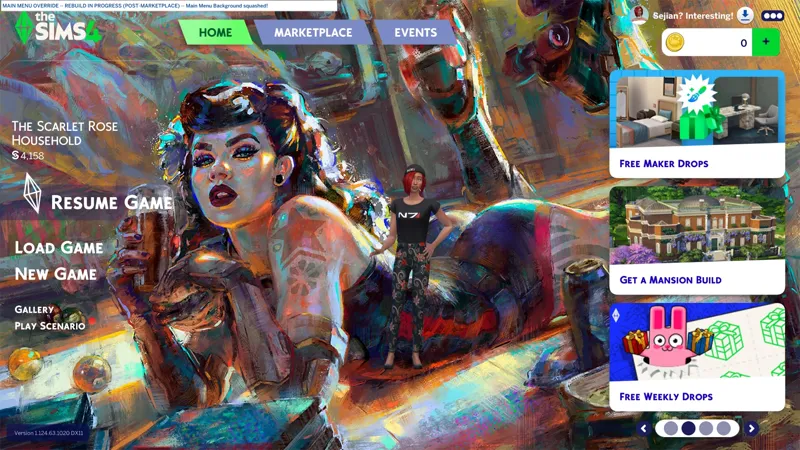
It does absolutely nothing else - meaning all of the full-screen ads are still enabled.
⋆ ── ─ ─ ─ ─ ─ ─ ─ ─ ─ ─ ⋆ \\🎁// ⋆ ─ ─ ─ ─ ─ ─ ─ ─ ─ ─ ── ⋆
☆// ⋆ NOTICE MY POST ATTACHMENTS, SENPAI:
🎁 GDrive Folder -- https://../drive/SGFX_MainMenuOBDD
🎁 SFS Folder -- PENDING™
⋆ ── ─ ─ ─ ─ ─ ─ ─ ─ ─ ─ ⋆ \\🫀// ⋆ ─ ─ ─ ─ ─ ─ ─ ─ ─ ─ ── ⋆
☆// ⋆ TABLE OF CATENTS:
D.I.Y. FOREWORD - I'M THE MASTER OF MY SEA -- Self-explanatory?
D.I.Y. STEP (1) - GET YO' TOOLS READY
D.I.Y. STEP (2) - PREPARE DAT 🍑
D.I.Y. STEP (3) - EXPORT DAT SGFX
D.I.Y. STEP (4) - RENAME DAT SGFX
D.I.Y. STEP (5) - OPEN DAT SGFX WITH JPEXS
D.I.Y. STEP (6) - DISABLE DAT LIVE BACKGROUND
D.I.Y. STEP (7) - SQUASH DAT LOGO DIVIDER
D.I.Y. STEP (8) - YOU ARE BECOME SGFX MODDER
⋆ ── ─ ─ ─ ─ ─ ─ ─ ─ ─ ─ ⋆ \\🎓// ⋆ ─ ─ ─ ─ ─ ─ ─ ─ ─ ─ ── ⋆
☆// ⋆ D.I.Y. FOREWORD - I'M THE MASTER OF MY SEA:
I've said before that I want my "Scale Form GFX" mods to survive if I ever M.I.A. permanently for any reason - specifically those "neurodiversity-friendly" mods that remove those catdamn annoying UI effects that EAxis insists on shoving everywhere.
To that end, I intend to D.I.Y. all of my "Scale Form GFX" mods eventually, including "My Beautiful Squishy" (just in case the OG goes unmaintained for another "almost [2] years"), so that if that "perma-M.I.A." ever happens, you won't have to rely on anyone else to maintain my mods - you'll be able to do it yourself if necessary.
And yes, this includes all of my "SGFX Patches" too.
This D.I.Y. is specific to this variant, but in the future, I may D.I.Y. everything I can do in the Main Menu. If I do, then I will migrate these D.I.Y. instructions to that post and link to it instead.
Most of my Main Menu modifications can be applied individually, so you can pick and choose what you want to do with your personalized mod. In fact, most of my "Scale Form GFX" mods modifications can be applied individually, which is why I have no issue creating and maintaining so many variants of my "Scale Form GFX" mods.
I can variant all day, baby! 😹
Is super easy, barley an inconvenience! 🌾
☆// ⋆ D.I.Y. STEP (1) - GET YO' TOOLS READY:
🎙️ First thing's first, download the following tools:
✅ Sims 4 Studio -- https://../download-sims-studio-open-version
As of 10/1/2025, we're still using the "Open Beta Version".
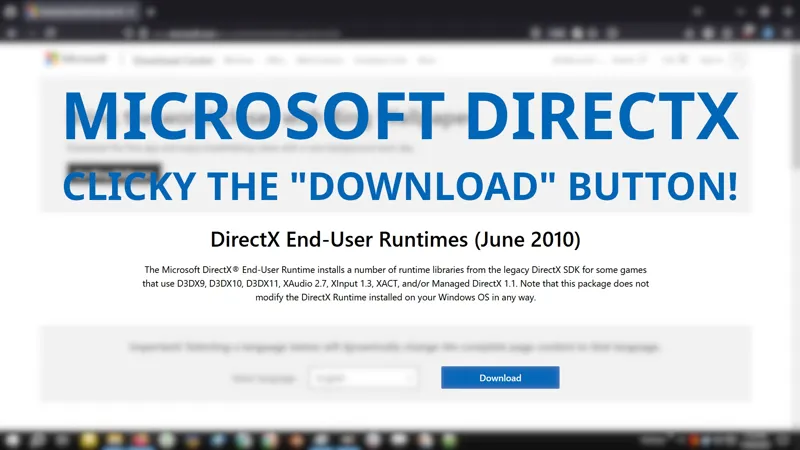
S4S requires Microsoft .NET Framework 6.0 -- https://../download/dotnet/6.0
I recommend downloading the SDK (6.0.428) and ignoring errthang else.
See the following post for more info. -- https://../posts/135153740
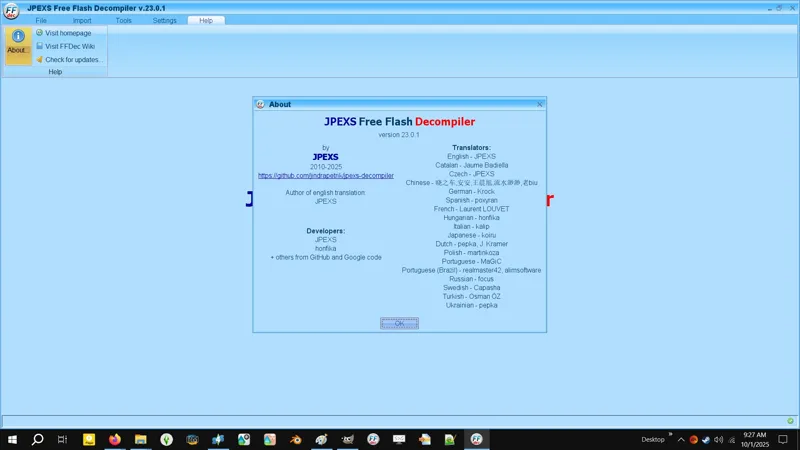
✅ JPEXS Free Flash Decompiler -- https://../jpexs-decompiler/releases
DOWNLOAD THE SPECIFIC VERSION THAT I USE!
See the following post for more info. -- https://../posts/140183487
I use the ZIP download, but you're welcomed to use one of the installers.
☆// ⋆ D.I.Y. STEP (2) - PREPARE DAT 🍑:
🎙️ Second thing second... that section title is extremely juvenile, I'm sorry.
1️⃣ Navigate to your "Mods" folder:
"%UserProfile%\Documents\Electronic Arts\The Sims 4\Mods"
"C:\Users\[username]\Documents\Electronic Arts\The Sims 4\Mods"
"%UserProfile%\OneDrive\Documents\Electronic Arts\The Sims 4\Mods"
"C:\Users\[username]\OneDrive\Documents\Electronic Arts\The Sims 4\Mods"
2️⃣ Create a "New Folder" and name it something obvious like "WIP_MainMenu".
This gon' be your "workspace" so that you don't have files scattered all over the place like a total newb. Don't fret, we were all newbs once, but now is time to git gud, scrub.
☆// ⋆ D.I.Y. STEP (3) - EXPORT DAT SGFX:
🎙️ Third thing third... I'm running out of songs. I'll add screenshots later™.
1️⃣ Open Sims 4 Studio and navigate to "Tools » Game File Cruiser".
2️⃣ Filter the categories for "Scale Form GFX" and tick the corresponding checkbox.
3️⃣ Filter the resource list for "gameentrylauncher" and select the resource.
INSTANCE IDENTIFIER -- 6D20AB71641B1539
4️⃣ Click on "Batch Export" down at the bottom and save the "Binary" file in that "workspace" folder you should have created in your "Mods" folder.
5️⃣ Exit all opened Sims 4 Studio windows. We're moving onto JPEXS.
☆// ⋆ D.I.Y. STEP (4) - RENAME DAT SGFX:
We're out of songs. Pfft.
"Binary" files are "locked" when opened in JPEXS, so we first need to change the FILE EXTENSION of our ".binary" file to ".gfx".
You can copypaste your "Binary" file then change the file extension of the copy if you want to keep a backup available - so you won't have to re-export it in the event we muck it up like total newbs.
⛔ DO NOT TOUCH THE STRING OF NUMBERS AT THE BEGINNING OF THE FILENAME!
✅ Change the file extension from ".binary" to ".gfx". Any of the following will work:
[STRING!OF!NUMBERS].gameentrylauncher.ScaleFormGFX.binary.gfx
[STRING!OF!NUMBERS].gameentrylauncher.ScaleFormGFX.gfx
[STRING!OF!NUMBERS].gameentrylauncher.ScaleForm.GFX
[STRING!OF!NUMBERS].gameentrylauncher.gfx
☆// ⋆ D.I.Y. STEP (5) - OPEN DAT SGFX WITH JPEXS:
If you "installed" JPEXS, then your ".gfx" FILE TYPE might already be configured to open with JPEXS, so you can double-click on the "*_gameentrylauncher.gfx" file to open it in JPEXS.
HOWEVER, if you're using the ZIP release, then your ".gfx" FILE TYPE won't be configured to open with JPEXS. We can ignore it for now and just drag and drop the file into an opened instance of JPEXS, but if you intend to do a lot of "Scale Form GFX" modding, then it'll be more efficient to manually configure the ".gfx" FILE TYPE to open with JPEXS. I'll do a section for this later... maybe in the JPEXS post.
⛔ Always choose "NO TO ALL" on the "WARNING" prompt/popup window when opening "Scale Form GFX" resources in JPEXS.
✅ Open your "*_gameentrylauncher.gfx" file in JPEXS.
If you're encountering any issues, then do the following:
Open JPEXS.
Drag and drop the "*_gameentrylauncher.gfx" file into the JPEXS window.
☆// ⋆ D.I.Y. STEP (6) - DISABLE DAT LIVE BACKGROUND:
Let's modify a "script"!
We're gonna need screenshots for this section.
BE ADVISED: JPEXS is kinda finicky, especially with the built-in CTRL+F search feature.
1️⃣ Click on the [STRING!OF!NUMBERS] in the resource list in the left panel, then press CTRL+F on your keyboard to bring up the search bar for the resource list.
2️⃣ Search for "LauncherBackground".
You'll see results in "sprites" and "scripts".
3️⃣ Click on the "script" result under "widgets.GameEntry.Launcher.controls" with the matching name - "LauncherBackground" - for it to load into the "ActionScript" editor in the middle panel.
4️⃣ Click on the "Edit ActionScript" button below the "ActionScript" editor.
DO NOT ACCIDENTALLY MAKE ANY UNINTENDED CHANGES TO THE SCRIPT.
If you do, then click on the "Cancel" button and click on "Edit ActionScript" again.
5️⃣ Click anywhere inside the "ActionScript" editor then press CTRL+F on your keyboard to bring up the "Quick Find" search feature.
If you ALT+TAB or click anywhere other than on the "Quick Find" bar when it's open, then it will automatically close. If it happens, then just open it again.
6️⃣ Search for the following line of code:
_loc1_.LoadUrlWithFailureImage(_loc2_,this.mDefaultImage,IMAGE_DOWNLOAD_TIMEOUT_MILLISECONDS);
7️⃣ Select that line of code, starting with the "_" and ending with the ";" and replace it with the following line of code:
_loc1_.LoadLocalImage(this.mDefaultImage);
8️⃣ Click on the "Save" button below the "ActionScript" editor.
If you encounter any errors when trying to save the changes to the script, it means you mucked up something, so click on the "Cancel" button, then redo steps 6️⃣, 7️⃣, and 8️⃣.
🎉 Et voila! You just disabled EAxis' fugly Main Menu Live Background image!
How easy was that?
Super easy, barley an inconvenience! 🌾😹
Now let's get rid of the "Logo Divider".
☆// ⋆ D.I.Y. STEP (7) - SQUASH DAT LOGO DIVIDER:
In the previous section we modified a "script", now let's modify a "sprite", specifically a "place object" in a "sprite".
We're gonna need screenshots for this section too.
BE ADVISED: JPEXS is kinda finicky, especially with the built-in CTRL+F search feature.
1️⃣ Click on the [STRING!OF!NUMBERS] in the resource list in the left panel, then press CTRL+F on your keyboard to bring up the search bar for the resource list.
2️⃣ Search for "PlaceObject2 (chid: 299, dpt: 1)".
You'll get one result under "sprites » DefineSprite (chid: 300) » frame 1"
3️⃣ Click on "PlaceObject2 (chid: 299, dpt: 1)" for it to load into the "SWF preview" viewer in the middle panel.
4️⃣ Click on the "Edit" button below the "SWF preview" viewer.
5️⃣ In the panel on the right side, look for "placeFlagHasColorTransform : boolean = false".
It's the (5th) option in the list.
6️⃣ Click on "placeFlagHasColorTransform : boolean = false" and tick the checkbox, then click anywhere else in the right panel for the new setting to take effect.
"false" will change to "true" and a new setting will appear in the list. This new setting is named "colorTransform : CXFORMWITHALPHA".
7️⃣ Double-click on "colorTransform : CXFORMWITHALPHA" to expand the additional settings and look for "hasMultTerms : boolean = false".
It's the (2nd) option in the sub-list.
8️⃣ Click on "hasMultTerms : boolean = false" and tick the checkbox, then click anywhere else in the right panel for the new setting to take effect.
(4) new "*MultTerm" settings will appear:
redMultTerm : SB[nbits] = 256
greenMultTerm : SB[nbits] = 256
blueMultTerm : SB[nbits] = 256
alphaMultTerm : SB[nbits] = 256
9️⃣ Click on each of the (4) new "*MultTerm" settings and change the value from "256" to "0", then click on the "Save" button below the "SWF preview" viewer.
You really only need to change the "alphaMultTerm" value, but I like to be "extra" extra - have you seen my latest "Bruno" rant? Is extra AF. 👹
After saving the changes, the red bar in the "SWF preview" viewer will turn transparent.
🎉 Et voila! You just squashed your first UI element!
Now we can save our changes to the ".gfx" file and import it into a new PACKAGE in Sims 4 Studio!
☆// ⋆ D.I.Y. STEP (8) - YOU ARE BECOME SGFX MODDER:
With our modifications complete, now we save our changes to the ".gfx" file and import it into a new PACKAGE in Sims 4 Studio.
1️⃣ We're still in JPEXS. Click on the big blue "Save" button on the top left corner of JPEXS (in the "File" tab, in case you're not on the "File" tab for some reason).
Sometimes the "big blue Save button" won't activate. This is one of the many finicky things about JPEXS. If this happens, then click on any other entry in the resource list for JPEXS to "acknowledge the changes" and activate the "big blue Save button". Is likely a bug, but it's been a bug in literally every JPEXS release I've used.
2️⃣ With your changes saved, click on the "Close all" button to "close" the ".gfx" file within JPEXS.
JPEXS has this... sometimes very useful, sometimes very irritating, way of remembering your last opened ".gfx" file, and will load it the next time you open JPEXS. I will explain this in more detail in the JPEXS post, but for now, just "Close all".
3️⃣ Now "Exit" JPEXS and open Sims 4 Studio.
We don't need JPEXS anymore. It's time to create a new PACKAGE and import our modified "Scale Form GFX" resource. In other words, it's time to make a mod!
4️⃣ In Sims 4 Studio, navigate to "Tools » Create Empty Package" and save a new PACKAGE with an obvious name in that "workspace" folder in your Mods folder that you should have created a long, long time ago.
I prefix my "work-in-progress" mods with "wip_", so for this, you could just name it "wip_MainMenuOverride". Simple.
5️⃣ Your new PACKAGE will open on the "WAREHOUSE" tab. Click on the "Batch Import" button down at the bottom of the Sims 4 Studio window and navigate to your "workspace" folder if necessary, and do one of the following to import your modified ".gfx" file:
Single-Click on the ".gfx" file to select it, then click on the "Open" button to import it into the PACKAGE.
Double-Click on the ".gfx" file to import it into the PACKAGE.
If your ".gfx" file fails to import with an error, it means you may have accidentally changed that [STRING!OF!NUMBERS] I said not to touch.
6️⃣ Click on the "Save" button in the bottom right of the Sims 4 Studio window to save your PACKAGE.
Sims 4 Studio automatically saves a PACKAGE after any resource is imported using the "Batch Import" button, but "Save" it again just to be sure.
7️⃣ Launch the game and see if our mod works.
Keep in mind that all we did here is disable the "Live Background" and squashed the "Logo Divider". If you do not already have a "custom Launcher Background" prepared, you will see EAxis' fugly "Local Background" image. This is the image resource that we replace with the "custom Launcher Background".
If you experience a "crash to desktop", then launch the game again. If it "crashes to desktop" again, then we've mucked something up.
If your game loads properly and you see the changes we've made, then you still need to ALT+TAB and navigate to your The Sims 4 "USER FOLDER" (this is the folder that contains your "Mods" folder) and verify that there isn't a NEW "LastException.txt" error file.
No NEW "LastException.txt" error file means we done did good.
A NEW "LastException.txt" error file means we done mucked it up.
🎉 Et voila! You're a "Scale Form GFX" mod creator! <TOSSES CONFETTI ERRWHERE>
Now try not to fall down the rabbit hole of being an obnoxious arsehat who exploits their community, or if you do, then ensure that I don't find out, because I will publicly tear you a new one like I did to TwistedMexi and JayeSims. 👹😸
☆// ⋆ TBC...
Comments (2)
You're the best! Thanks a lot!
You're welcome! 😸 If you want anything else added to it - anything that I've done in my other Main Menu Override (they're almost all individual modifications) - just let me know. I'm away for a... some hours, so I'll finish the post (and the D.I.Y.) when I'm back.