
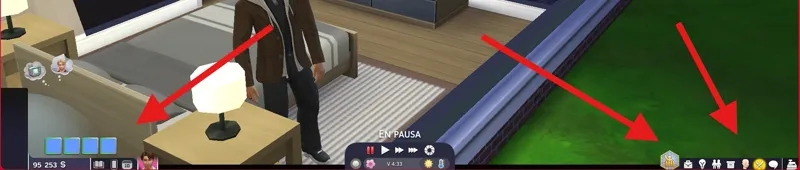
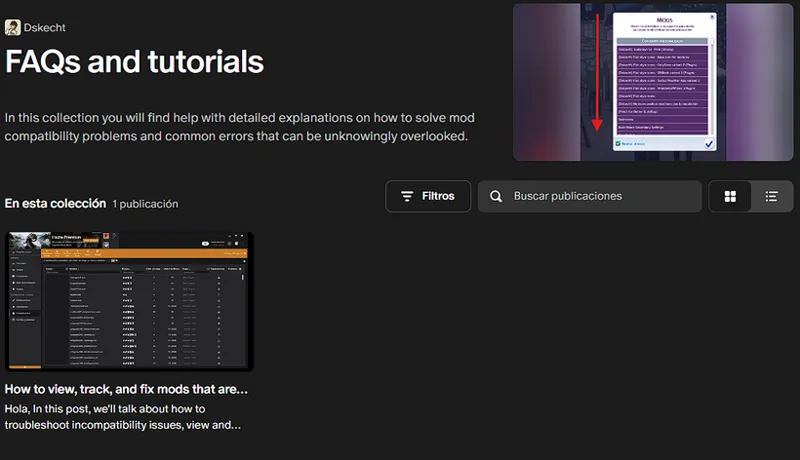
How to fix the problem with the interface when it is unresponsive or corrupted.
A basic but useful tutorial on how to fix the unresponsive interface problem.
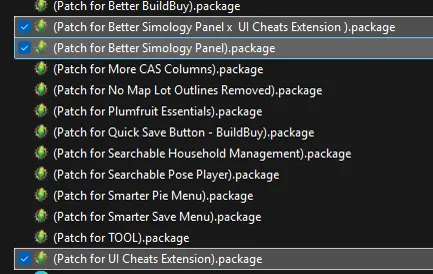
Okay, so why is this happening? The answer is simple: it's because one or both of the following mods are missing.
This means you have the patches for these mods installed, but not the original mods themselves, since the patches use modified original files from those mods to function correctly. In other words, those mods are either missing or didn't load properly.
De ahí surge el problema de la interfaz.
How can this be solved?
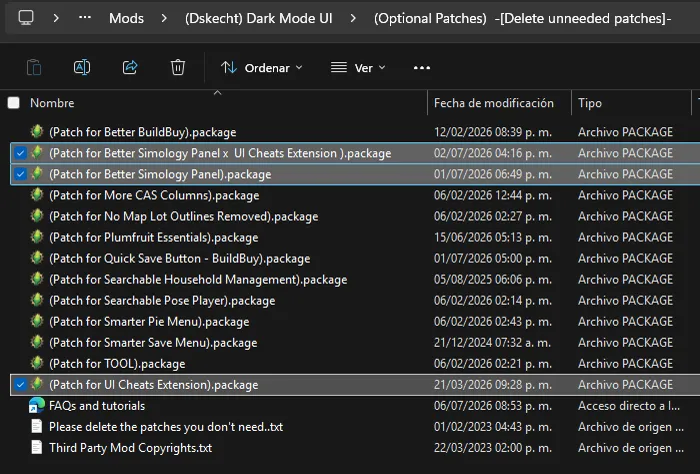
Well, it depends on your problem, since there are 2 conflicting mods and 3 patches for each situation.
In other words, you should remove any patches you don't use or verify that those mods are installed or present in the game's mods folder.
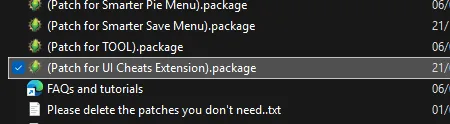
In other words, if you only use the UI Cheats Extension, you only need to leave its patch and remove the 2 patches for Better Simology Panel.
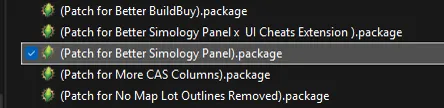
For Better Simology Panel, you should leave its patch and remove both the patch for UI Cheats Extension and the "Better Simology Panel x UI Cheats Extension" file, as they are not needed.
If you use both mods, you don't need to do anything. As long as the mods and patches are present in the game folder, and you know how the loading order works, one patch will override the one below it, so there's no conflict.
Finally, if you don't use or don't know what those mods are, simply delete those patches to return everything to normal.
Important note:
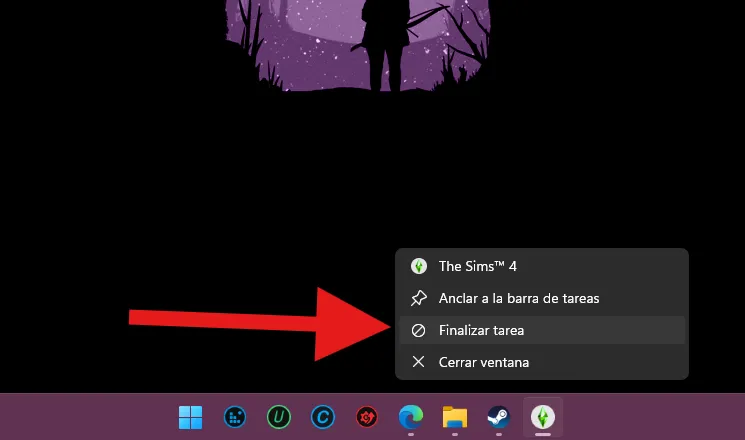
When this error occurs, the interface freezes and prevents you from closing the game. Therefore, you need to force it to close by right-clicking and selecting "End task" in the Windows 11 taskbar, or through your operating system's Task Manager.
They're still not working, what can I do?
Once the problem persists even without further mods, then you can proceed to look for a solution.
You must go one by one until the problem is solved.
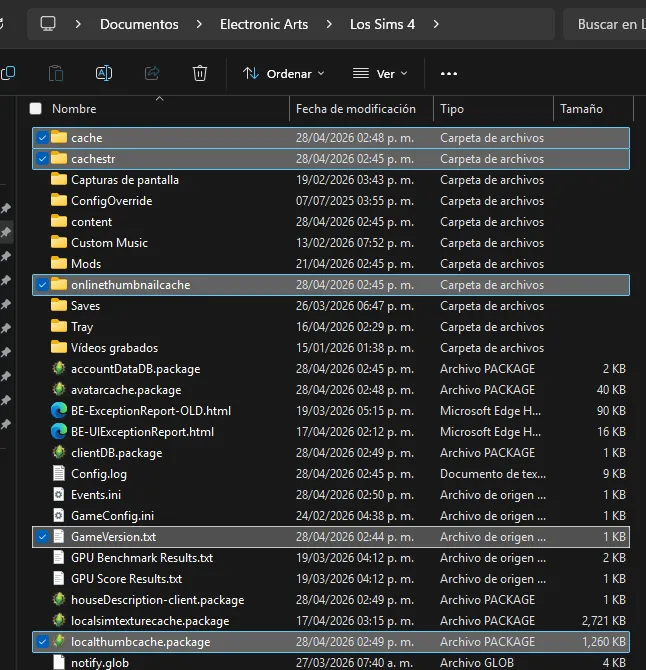
Clear cache
The first thing you should always do when the game crashes.
You must delete the following files and folders that you will see below.
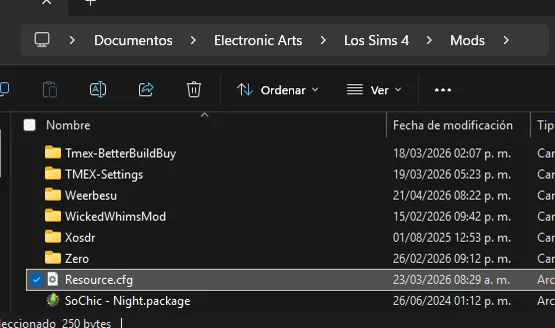
Delete the "Resource.cfg" file
I don't know why, but this file gets corrupted after a while. In short, it tells the game where to look for mod files within the Mods folder.
If this file fails or becomes corrupted, stop searching for other files; it's best to delete it and let the game create a new one to fix the problem.
If you have any further questions, you can check out my collection of help posts, tutorials, and frequently asked questions.
If you have any questions, please leave them in the comments. I hope these tips have helped you solve your problem.
Comments (2)
where do I get patches?
They are already pre-installed with the mods that need them