
Call of Duty: Modern Warfare 2 (2022) - HDR Optimized Settings
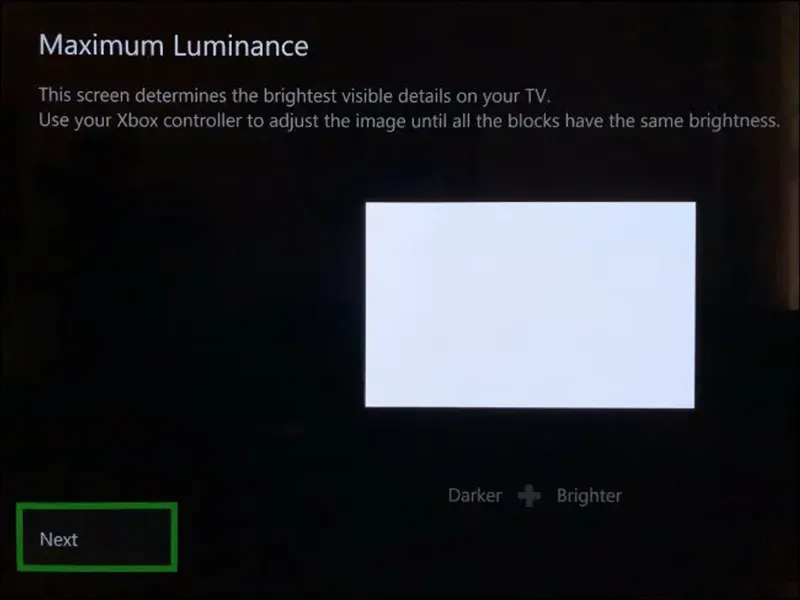
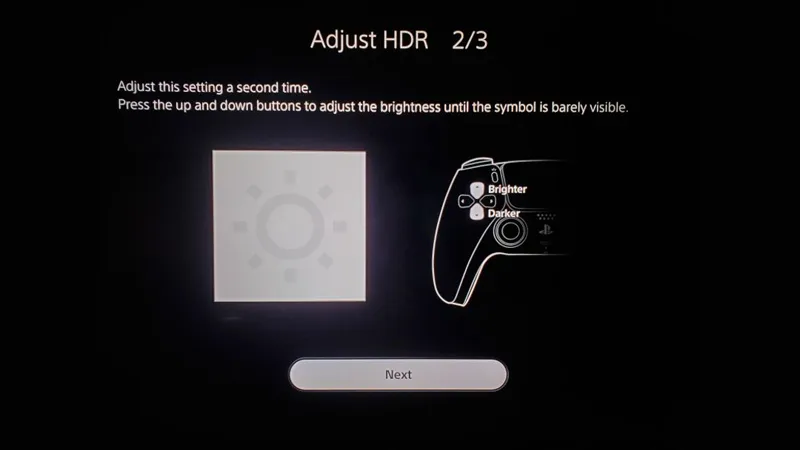
The game DOES USE/APPLY Xbox & Playstation HDR Calibration app settings.
The game has a very good HDR implementation as it will actually read and apply the system HDR Calibration app settings directly to the in-game HDR sliders as soon as you open the game, with a measured Peak HDR Luminance up to 10.000 nits.
As for the Beta, even in the Final version there is still a strange behavior/bug which I will explain later tho...
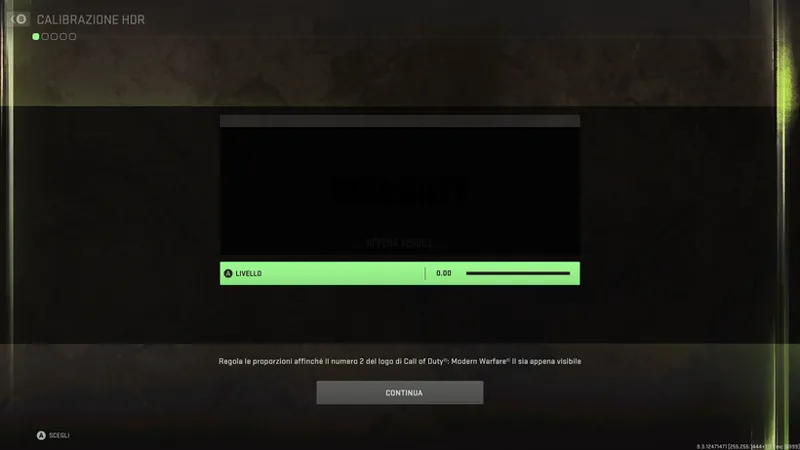
In my case, the first HDR Black Point screen when I opened the game was already correctly set to 0.0
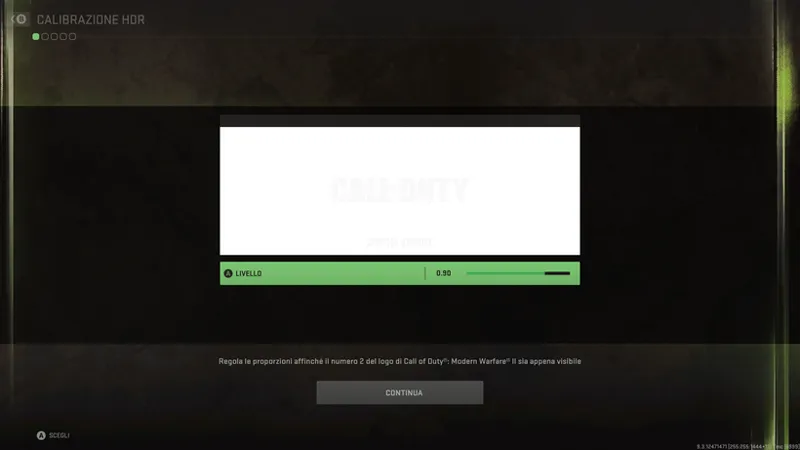
The second and third HDR White Point screens were already correctly setup at 0.90 (which corresponds to around 4.000 nits as I calibrated the system HDR Calibration app for Dynamic Tone Mapping)
So, if you've already calibrated the system HDR Calibration app for your TV, just Accept all three in-game HDR sliders on the first boot of the game and you're good to go.
Otherwise, if you want to be sure:
If you have an LG OLED and:
> you're using Dynamic Tone Mapping or Dynamic Contrast:
Set HDR Black Point slider to: 0.00 (nits);
Set the other two HDR White Point sliders to: 0.90 (which is around 4.000 nits in-game).
> you're using HGIG:
Set HDR Black Point slider to: 0.00 (nits);
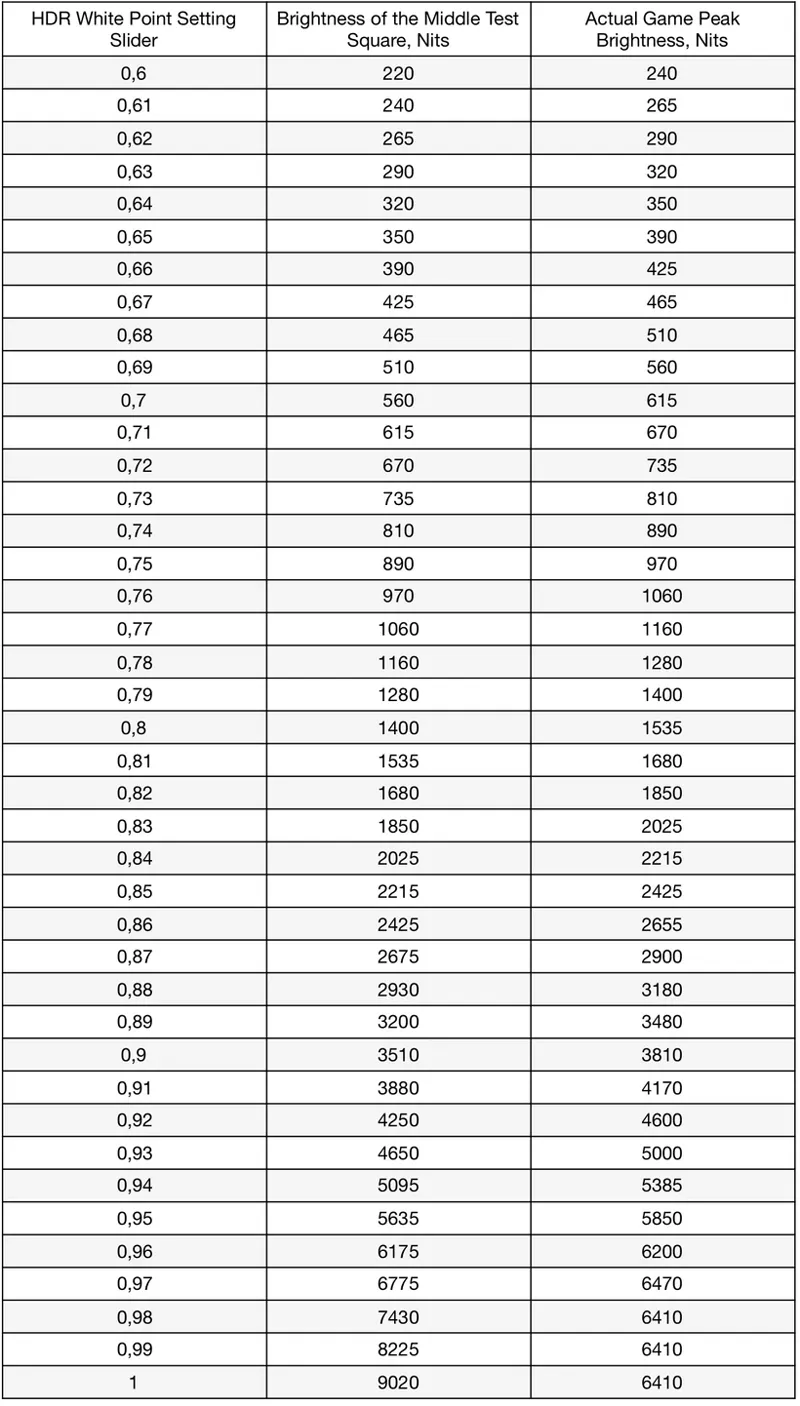
Set HDR Whitepoint slider to: 0,73 (which is around 800 nits) or 0,76 (for G2; 1.000 nits) or 0,8 (for G3).
If you don't have an LG OLED and:
> you don't have an HGIG option:
Set HDR Black Point slider to: 0.00 (nits);
Set the other two HDR White Point sliders to: 0.76 (which is around 1.000 nits in-game)
> you're using HGIG:
Set HDR Black Point slider to: 0.00 (nits);
Set the other two HDR White Point sliders to one of those values and the corresponding real Peak HDR Luminance of your TV in "nits":
BUG ALERT:
As for the Beta, even in the Final version you won't have access to the in-game HDR settings anymore after the initial setup (which will be prompted only at the very first launch of the game). So be sure to dial-in the correct HDR settings since the beginning or you would be forced to uninstall/reinstall the game to access the HDR settings again.
BONUS SUGGESTIONS:
On default video settings, the game is a bit too "blurred" and "grainy" both on Xbox & Playstation, but you can fix both issues with the following suggestions:
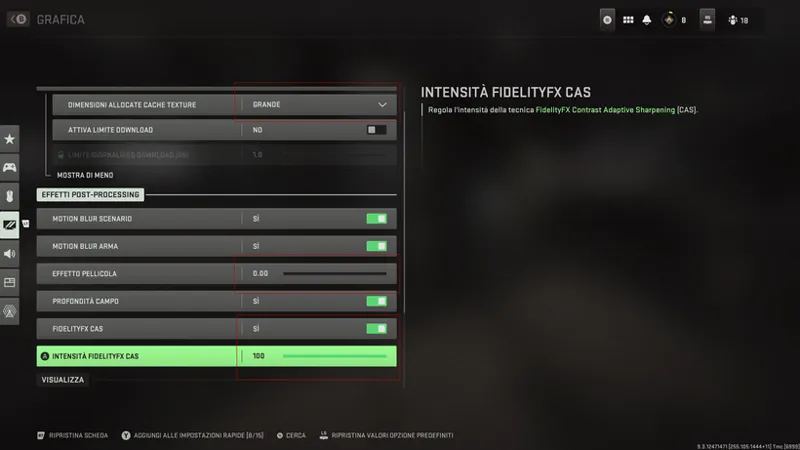
Set the Cloud Streaming Textures Cache from "Automatic" to "Large": as long as you've enough free space on disk, this will increase the high quality textures saved locally for a faster streaming (and less internet data consumed) during the game;
Disable Film Grain: by setting it to 0.00 to improve picture clarity;
Enable FidelityFX CAS (on Xbox Series X|S, PS5 and PC only): and set its intensity to 50 to much improve image clarity without noticeable over sharpening artifacts and no performance drops at all on current hardware.
Enjoy! :)
Cheers,
-P
Comments (6)
HDR doesn't have a white point slider, all I see now is HDR brightness with 1.000 default, so how should I do this?
If the 3 calibration screens didn't appear to you, it means the game is using system-level calibration
Any suggestion/preference for either DTM or HGiG? I’m on an LG CX
On 2019-2022 LG OLEDs HGIG is better in a dark room, DTM in a dim/bright room. Your choice ;)
I just downloaded this today on PS5 and didn’t get the HDR calibration screen at all 😬
Yeah, on PS5 it seems it's just applying what you have setup in the system HDR Calibration app and that's all. No way to change it again in-game