
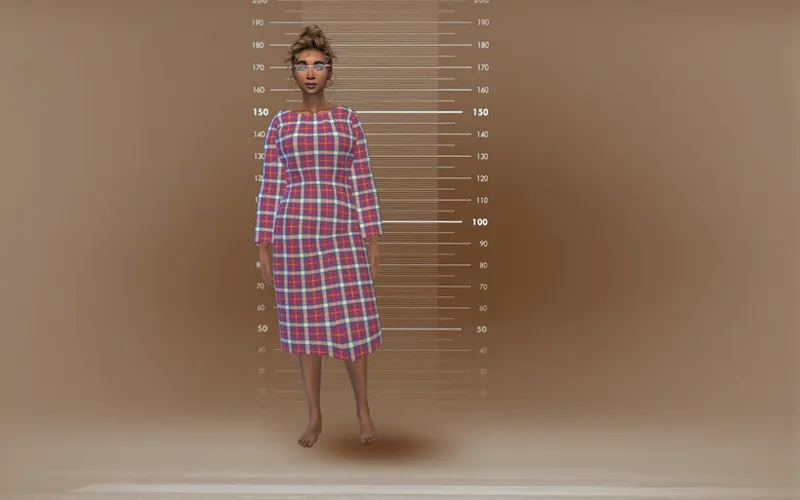
Vintage WIPs #3
I've been flooded with work the previous week (I'm a freelancer, so my workload tends to vary highly from week to week, and the last one or two have been BONKERS), so unfortunately - cc-wise - I didn't manage to do half of what I'd been planning to do. Le sigh. What I did get done is also of the 'looks totally unimpressive' kind, so don't expect any visual fireworks today! I thought I might still share it though, as while it may look like nothing big, I actually managed to solve some riddles and fix problems which had been plaguing me (and my creations) for literal years. Who knows, maybe some other creator who's pulling their hair our trying to figure out the very same things will stumble upon this post and save themselves hours of frustration?
1. Uv-1
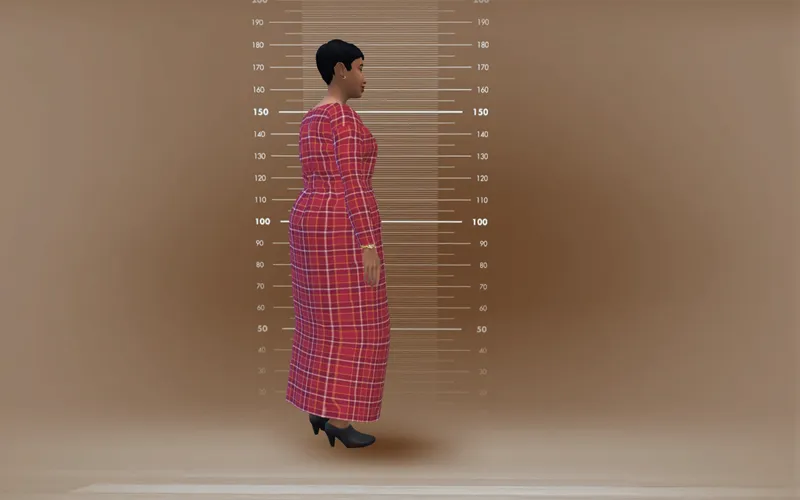
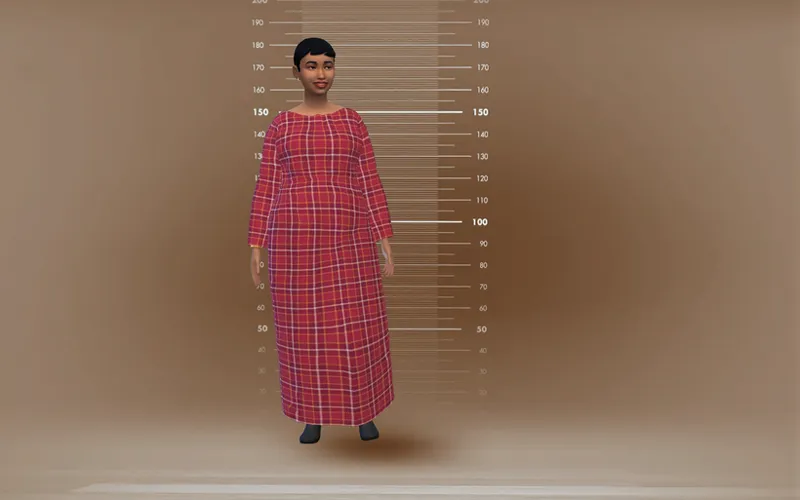
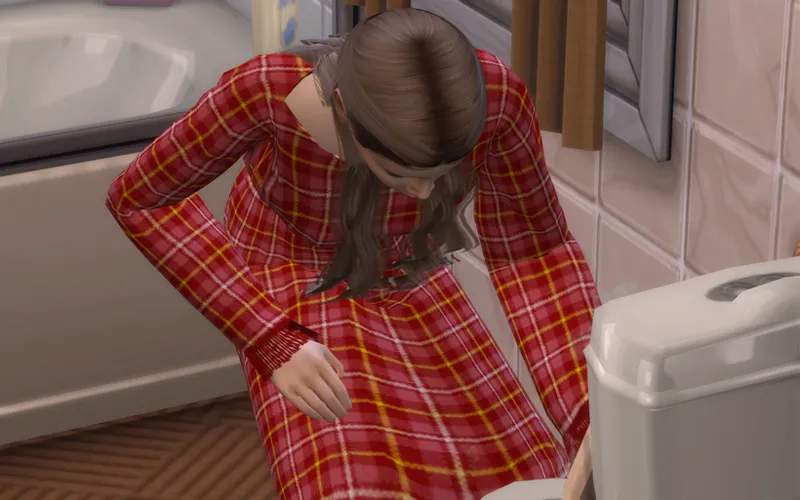
I started off by finally checking the dress in game. It worked reasonably well, but required some extra attention dedicated to uv-1. Here's the first (and smallest) discovery - not trying to pimp my own patterns or anything, but they are perfect for noticing any problems you might've made while mapping! Absolutely merciless; every single misplaced vertex can instantly be spotted. No chance I would've picked up on that if I was using a solid swatch.
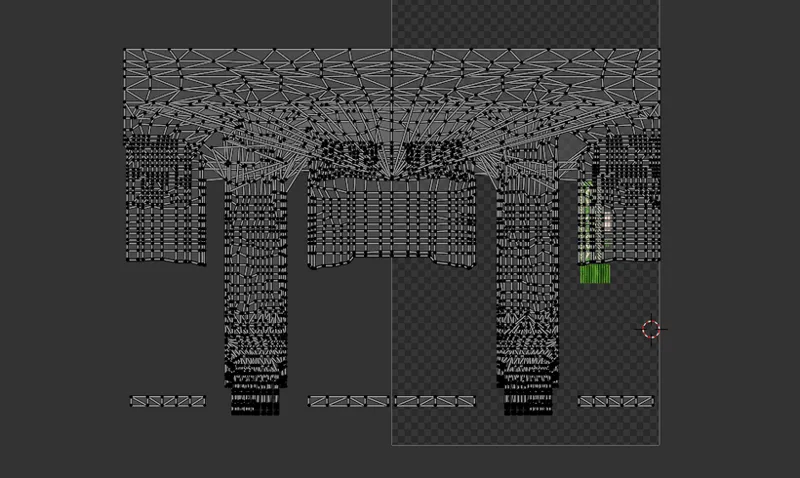
By the way - if we're already at uv-1 - I'm trying out something new this time. You know how it's always been a golden rule that you have to unwrap your whole mesh over the right body parts, so that they'd move with the body sliders? I kept doing it religiously for years, but lately I've been thinking... This makes no sense whatsoever for skirts. If you make a skirt irl, its size depends on the waist and hips' circumference; the size of your thighs and/or calves is irrelevant. It shouldn't move with those sliders. And it should move with the hips. So that's where I placed the entire lower part of the mesh this time. As I hoped, works like a charm.
2. Paint.net's 'Fill from file'
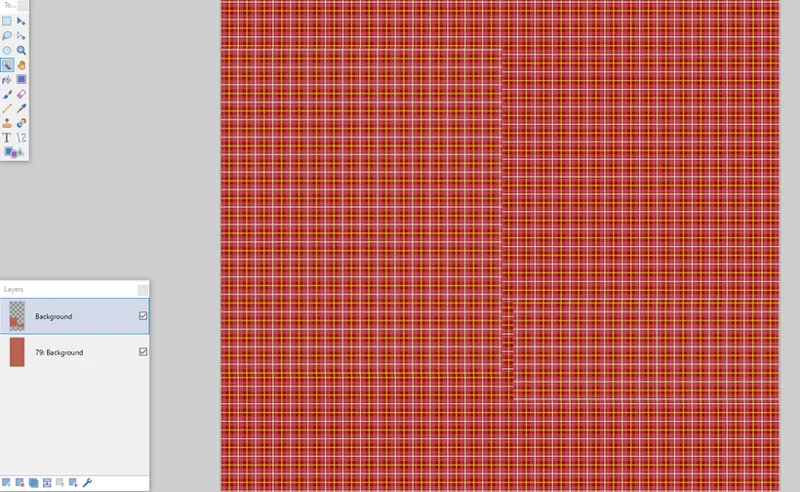
So that's just a small thing and probably I should've figured it out sooner, but it turns out the 'fill from file' option in Paint.net (which I've been using for patterns since ever...) works differently than I always thought. I'd assumed the software always picks the same starting point for filling with pattern - that even if you select only some limited area, it still starts spreading the pattern from the corner of the file, just doesn't display it over the non-selected areas. Turns out I was wrong. Unfortunately, I learned it the hard and annoying way, having wasted hours on trying to 'fix' my suddenly 'broken' uv-0. I just couldn't make those dang patterns align! When one of them looked good, the other was shifted, no matter what I did. Turned out there was no way I could've made it work: while the majority of my testing swatches were filled over the entire file, there was one which I made later, putting the texture only over the dress uv layout. Of course it didn't work.
The worst thing is, it left me in a kind of a loop. What I've always been doing was to first place the uvs over a testing swatch, making sure everything aligns nicely; then bake the 3d layer, and only at the end, in Paint.net, fill a copy of that baked layer - cropped to the right dimensions - with one swatch after another. But if that gives me with a different pattern placement than the one of my testing swatch, stuff won't align. Crap!
Eventually I came up with a solution to that conundrum: I pre-prepared 2048x4096 files for all the swatches, and at the texturing stage I'll be importing them to my texture file and cropping to size. A couple of clicks more, a little less automated, but at least it should be fool-proof. Actually, I should probably add them to the post with my patterns... Yup, I will once I'm done here.
3. Annoying shine on glass shader
That's not what I'd been planning to do this week, but I decided it'd be a good idea to check if, once I make the overcoat, I could place two layers of fringes using glass shader on top of one another. The thing is, TS4 wasn't made to use transparency in this way, so it comes with certain in-built limitations. Like textures clashing badly if the game has to render two (or more) layers pretending to be glass in more or less the same place.
But before I even got to the point of layering those sets of fringes, I was met with another problem: ugly, plastic shine on the texture. Not that it was a big surprise - I know this problem from my earlier creations. And I'd never managed to get rid of it. I accepted it that nothing could be done. And it seemed to be visible only in CAS anyway - and wasn't that extreme - so I thought I could live with it. But this time it really, really annoyed me (and also, I vaguely remembered another creator mentioning once in passing that she DID manage to fix that...), so I did some digging in the S4S forums and OH MY GOODNESS. I found it. The culprit.
Missing bump map.
That's it.
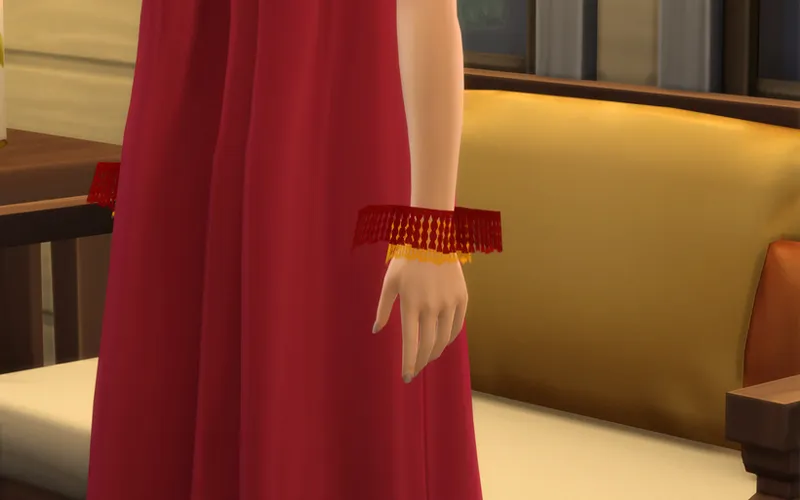
Importing an empty one into the file did the trick.
Those things are officially bracelets. I didn't know bracelets even CAN use bump maps. EA's bracelets don't. But then again, EA's bracelets also don't try to pretend they're glass 😉
I know it may seem like a minor thing, but I was close to tears when I saw it worked. I've hated that shine for YEARS. Now I should probably look through all my old cc and fix it in all the packages which came with the same problem. I don't even know how many there are. My German folk costumes had accessory fringes, so that one for sure...
4. Layering transparent accessories
That big success made me even more determined to somehow make two sets of fringes-using-transparency work. The original idea was to base the fringe of the dress' sleeves - the one which is supposed to go 'inside' - on glasses. That trick has always worked for me for transparent hat veils clashing with alpha hair, so I was rather optimistic about it.
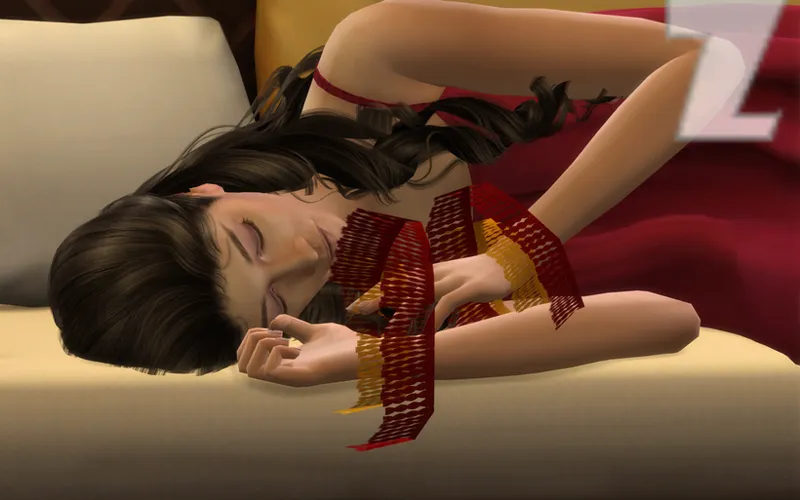
So the weird thing is - it did work before I fixed the shine problem, but once I added the bump maps to both sets, it stopped. The texture of the inside fringe was suddenly getting displayed on the mesh of the one outside. That, my friends, looks dumb. So I rushed to S4S forums again, hoping to find a solution. I read through a number of threads, some of them claiming you have to get your sort layers in order, others - that sort layers won't help in this case and nothing can be done. But I mean - I knew there's something somewhere there in the settings which controls it, otherwise my hats-made-of-glasses trick never should've worked! And there was at least one person in the forums who managed to fix 'eyelashes getting displayed on top of alpha hair' problem by messing with sort layers. They posted screenshots. They did fix it. So I proceeded to experiment with sort layers too.
After several attempts, culminating in setting the outer fringe to 17200 and the inner to 0, and still seeing no results, I went for the only idea I had left: doing the completely unintuitive thing and swapping those numbers. AND IT WORKED.
I don't know how it works, I don't know why, it goes against everything I've ever learned about sort layers, but it does work this way: the outer layer needs a lower sort layer number than the inner one. Magic. Mystery. I don't care, it freaking works. I can have my two layers of fringes for the poshest of them all! 🥳
(I accidentally deleted the modified file today in the morning. I edited the numbers once again, this time assigning 16000 to the inner and 14200 the outer fringe. Worked again).
***
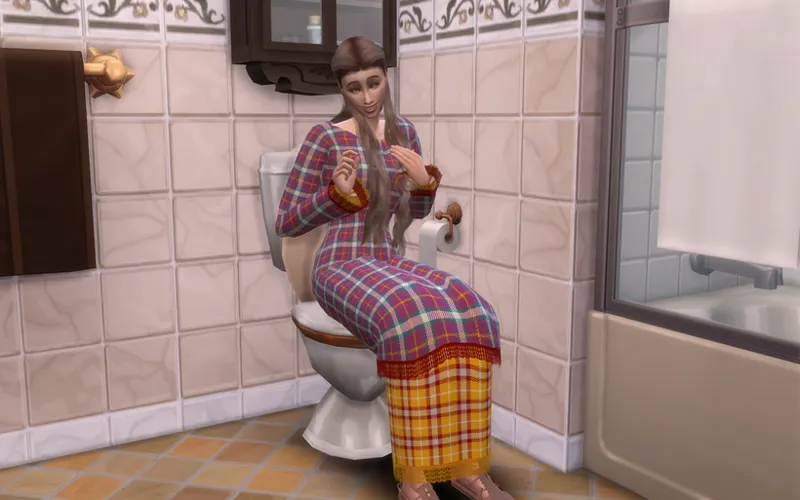
And that was it for the big discoveries! In less groundbreaking news, I made the overcoat as well (I wanted to Blender-sew it on top of the other one, but in the end decided I was just wasting time; it's literally the same mesh as the dress, just fattened...). It's separated into top and bottom, and while I had to move the uvs to fit everything, it still gives the illusion of the bottom part being the exact same mesh as the dress, just with another layer of clothing thrown over it. Looks just like I wanted it to look, so I'm rather pleased with myself 😁 And that means I'm finally, FINALLY ready to attend to my belts and turn them from rectangles-with-a-bunch-of-modifiers into proper meshes!
Comments (2)
Owww nice work! I use Paint.net to recolour custom content, but have never been able to figure out how to use a pattern file. I’ve only ever been able to recolour with solid colour. Do you know of any Paint.net tutorials out there so I can learn to add a pattern to an object? Many thanks in advance 🌸🌺
Hello there! I don't know of any, unfortunately, but maybe I can be of some help anyway. Do you have the plugins I mentioned here? Those two? https://forums.getpaint.net/topic/28556-fill-from-file-fill-from-clipboard-for-3511-updated-june-22-2014/ . Once you install them, it's pretty easy: you choose 'fill from file', browse for whichever seamless pattern you have prepared, and then change the tiling mode (by default it's set to 'no tiling') to whichever you prefer (I always choose the 2nd, so tiling & no mirroring). If you recolour the same way I do, i.e. have a layer for recolouring at the very bottom and a 3d-imitating overlay layer on top, that should be it; the only thing left is to use the magic wand to select the empty space on the 3d layer and then switch to the bottom layer, the one with your new pattern, and delete that selected area. And you're done! (Hope that made sense 😅)