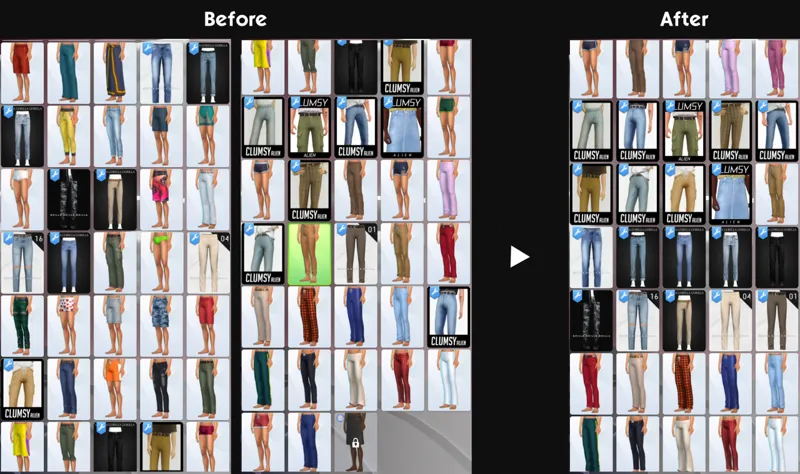
Quickly Sort CAS Thumbnails w/ Sims 4 Studio
Here's a quick guide to batch edit a group of packages and change the CAS display index in one go! This method is a much quicker way to sort your CAS CCs together compared to the previous method of using S4CASTools, which can only be applied to individual packages instead of a group of them.
🆕 With the S4S v3.2.1.3 update, there's now an option to change all CCs in a folder to your assigned display index number, sorted by package name. If you're looking to sort your CCs alphabetically, now you can! More details later.
CAS display index: value that is assigned to CAS CC packages that will determine where it can be found in the CAS catalog. The lower the value is, the higher up they show in the catalog, and vice versa.
Do note that for every batch fix you do, it will create a backup folder with all the unedited files stored in \Documents\Sims 4 Studio\Batch Fixes, which can bloat your storage quickly. Do your batch fix in small batches, regularly check in-game if it works correctly, and continue. You might need to delete the backup files in the folder if you’re no longer using the unedited files.
// Process:
1. Have the most recent Sims 4 Studio (Star) installed.
2. Separate files into folders based on creators. Here I have Gorillax3 & clumsyalien’s CCs into their own respective folders:

Whatever packages you put in a folder will all obtain the same CAS display index value. So if you want to have specific style of CCs sorted together, put them all in the same folder.
It's also recommended that you rename the folders to include the CAS display index value you plan to assign, so that it's easy to do batch edit again when new CCs are added into that folder.
3. Go into My CC, right click a folder, and select the option to batch edit CAS Display Index.


🆕 S4S 3.1.2.3 update:

If you choose the first option: all packages in that folder will be assigned the same display index value. Example: packageA to packageD will all be assigned 70 as its CAS display index.
If you choose the 2nd option (Sorted by package name): each package will be given the display index value you assigned + decimals so that it will be sorted alphabetically. Example: packageA is assigned with 70 - packageB: 70,001 - packageC: 70,002 - and so on.
If you're looking to sort your CCs alphabetically or by release date (e.g. QRsims's / Rusty's CCs), the 2nd option will be best for you :)
4. Once you've clicked the option, it will ask you which folder you’re doing the batch fix on & the backup folder, and ask you what value you’d like for all packages in that folder. As an example, I've set clumsyalien’s folder to 70 and gorillax3’s to 75.

There's no restriction on what value you choose. All that matters is that CAS CCs with lower CAS display index value will show up higher in the catalog than CCs with higher CAS display index value.
5. Click OK and it will tell you which files has been edited. Once you've successfully edited your files, you'll get a nicely sorted CAS CCs to browse :)