
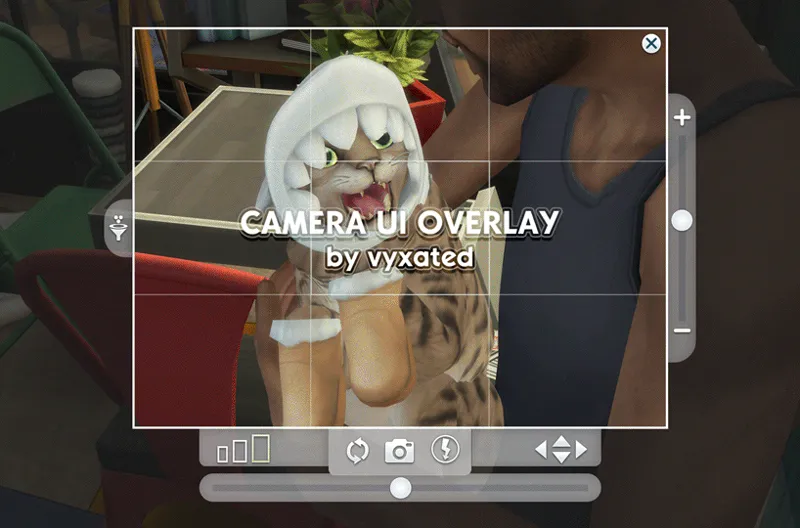
[PSD] Camera UI Overlay
A recreation of the camera overlay for your screenshots and story tellers out there. Mimics the camera mode while giving you complete control of how you compose your shots (whether it be in-game screenies or CAS pics). Enjoy!
Made in Photoshop, can be accessed in Photopea (see end of post for more info), all done in vectors and layer styles.
// Download options
1000 x 1500 pixels
1500 x 2250 pixels
3000 x 4500 pixels: good for upscaled SRWE pics.
TOU
Don’t re-upload, re-edit, and claim as yours. Just link back to this post and tag me if you use/share it :)
..That’s it. If you have any suggestions & feedback, please send them my way 😊
.PSD Info
// Overview

Every layer has been named and arranged in a way that hopefully makes sense. If you find the file overwhelming, try disabling/enabling each folder and see what it does.
// Template sizes
Square
Portrait - 3 : 4
Landscape - 4 : 3
Landscape - 16 : 9
.PSD Guide
// Customizable layers are color-coded
Gray-coded folders contain the layers below:
green for pictures
orange for moveable layers
red for toggleable layers
// Ctrl + right click to bring up layer selection
or enable [Auto-Select] with the move tool active to move layers on the go. Use this to easily move the orange-coded layers.

// How to resize overlay
Do not resize the folders using the transform tool. If you do so, layer styles (drop shadow, stroke, etc.) will not get properly resized.
Instead, resize the canvas with the Image Size option. In the pop-up, click the cog wheel at top right, and enable Scale Styles.

// How to insert overlay into your screenshot
Resize the canvas so that the overlay fits with your screenshot dimension and then save. This way, you get a template size that is tailored to your screenshots. Or pick the file that works best.
Copy & paste your selected template set into your screenshot.
Make adjustments if needed. You can hide the red-coded layers or move around orange-coded layers. You can also hide any folders you want to exclude, like the zoom UI for example.
Move around folders while you’re zoomed out. It’ll help reduce the movement lag.

One template set consists of those 3 layers; a folder containing the template, a layer to place your image, and a mask layer that fits with the frame.
// Image tip
Layers marked green are where you can copy your image to. There are 2 ways you can use it:
Disable/hide the “mask for selection” layer if you simply want to have the overlay on top of your screenshot. Or,
Copy your screenshot into the layer named “! Your Image Here !”
You can then edit the background layer to add blur, darken it, etc. while keeping the image within the frame free of those effects.

// For Photopea users:

One main issue Photopea has is if you try to resize the canvas or use the transform tool, it will reset the box corners.
One way to prevent this problem is to convert each folder as Smart Object (right click a folder, then select the option to do so). Or, if you simply want to move the folders around, do it via Ctrl + Drag instead of the transform tool.
To access the folder contents from the Smart Object, double click the thumbnail and it will bring up a new window, which will contain all the layers.