
opening/splash screen tutorial + resources
Here's a guide on how to change the splash screen that you see when you boot up the game :-)
tools involved: Photoshop/Photopea/GIMP, DDS Converter Tool, and Sims 4 Studio
credit: thesammy58's thread for originally finding the main splash screen resource!
You can find all of my released opening screen overrides from the link below
// Base files
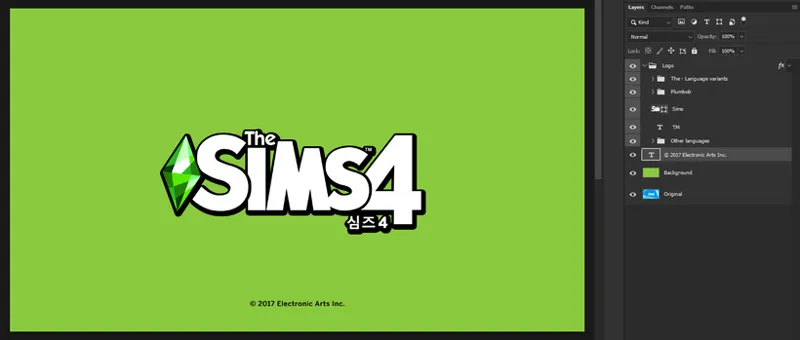
base .psd file: TS4 logo separated + language variations
.package & image files for these languages:
English, Chinese, Dutch, French, German, Japanese, Korean, Spanish, English text for other languages*
Each language above has their own unique splash screen ; you can opt to make them unique or keep the same screen/logo for everything.
* on the English text for other languages file, it's for other languages that didn't get a unique splash screen or uses the English text version.
* since it's hard to distinguish which resource is for which, I compiled them all into one package/psd file.
* they've already been named in such a way to make importing into S4S much quicker. Don't worry about exporting as there is a method to export them in bulk.
// Editing & replacing background and logo
All splash screen are sized at 1600 x 900 pixels, and it is recommended to keep the ratio at 16:9. Making it at other screen ratios may leave in some blank spaces.
The logo has been remade using vectors to ensure the sharpest quality if you decide to resize the image
Recolor the base logo or add new layer styles to further customize the logo, or remove it entirely if you so wish
You can put in any images as the background layer
Photopea can be used too to access the base files
Regarding the Other Language base file, detailed instructions will be in the exporting files section.
// Formatting & exporting images
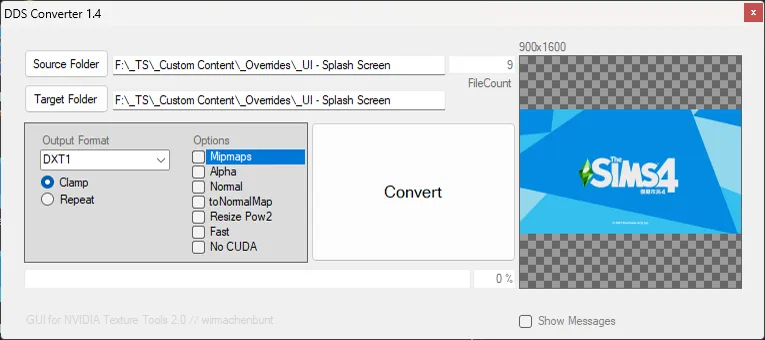
In order to have the opening/splash screen work properly, they have to be exported & imported as DDS files with the DXT1 compression and without mipmaps.
There are two ways of exporting:
Export each image one by one as .DDS DXT1 without mipmaps using GIMP (manual / slower)
Export as PNG first, then convert using DDS Converter Tool (detailed tutorial & tips about file automation here) (batch export / quicker)
// option 1 : manually
Export each screen as PNGs first. If you use GIMP to edit, simply keep the document open. For exporting Other Languages PNGs, see the last section
Open the selected language's original DDS file in GIMP, then drop/copy the custom PNG file into the same document
Merge the layers together. Make sure you do so, otherwise the 2 layers will be counted as separate.
Overwrite document to export/save the image in the current DDS format/compression. Overwriting skips the manual export setup as it automatically saves in the existing DDS compression.
Repeat for each language variants
// option 2 : batch export
Export each screen as PNGs first. For exporting Other Languages PNGs, see the last section
With the DDS Converter Tool, drag & drop your folder into both Source and Target Folder, set the settings as follows, and let it convert
If you encounter weird grainy artifacts, you can check the No CUDA option to remove it.
That's pretty much done!
// editing & exporting Other Language base file
By utilizing the Layer Comps feature, you can simply copy and paste your custom screen to this document, then merge it to the existing layer.
Exporting with Photoshop
File > Export > Layer Comps to Files
Exporting with Photopea
Window > Layer Comps
In the Layer Comps menu, export by selecting the download button
// Importing & setting up the mod
Open the package file of your selected language
Import the custom screen DDS file and save
Repeat for each language variants
For Other Languages file:
Since the file names are already formatted correctly, you can just use the batch import button and select all DDS files. It will be imported to the right resources without manually importing them one by one.
Comments (2)
Im in love with your entire catalog of both resources and mods... thank you so much for sharing the wealth <3
This is so helpful, tysm for sharing! 💚