



custom wrench icon tutorial
I was asked a while ago on how to make custom wrench icon to make it be compatible with my UI recolor mods, so I wrote up this tutorial for it :-)
📢 to anyone making custom wrench icons: you're welcome to use my GUI file as a base to make them compatible with my UI recolor mods!
// tools used
Sims 4 Image Viewer (luniversims) - for viewing in-game textures and exporting UI images
UI Texture Squasher (Cmar) - for converting UI files
GIMP (latest version) for editing. You can also use other editing programs to add in your custom wrench icon, but GIMP is still required for the final step since it has a native DDS exporter tool.
// quick info
Each unique UI has its own instance ID. In the case of wrench/swatch icons:
Wrench icons/GUI = 09BBBF9DC6153DF9
CAS swatch icon = D518B5D7A3BBD372
There's also a wrench icon in one of the Gallery UIs but afaik it's not functional and the GUI wrench icon is the one used across all thumbnails instead (build/buy, CAS, and gallery).
Each UI #IID consists of two groups: one holds the color information (00064DC9), and one holds value + transparency information (00064DCA). By converting them through UI Texture Squasher, it will give you the final full color image to edit with.
// exporting the UI image
While you can access them via S4S then convert them using UI Texture Squasher, here's a quicker way to go about it by skipping the initial file conversion altogether.
Open Sims 4 Image Viewer and go to File > Common Files > UI
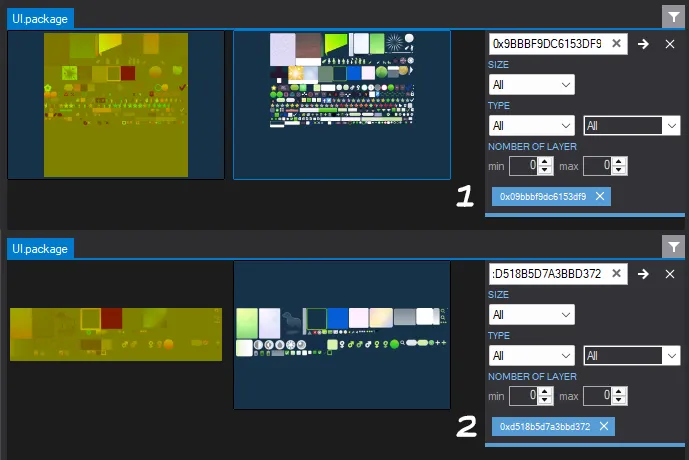
To find the wrench icon, filter for 0x09BBBF9DC6153DF9 [1]
To find the CAS swatch icon, filter for 0xD518B5D7A3BBD372 [2]
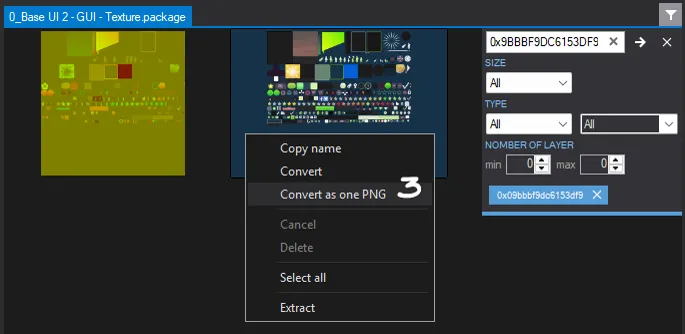
Right click on the image, select Convert as one PNG [3], and save it someplace you'll remember. Use the newly converted file as a base to work with.
🗒️ To use my UI recolors file as a base, you can open these package files in the Image Viewer and export the same images (I recommend having the original as well as my UI recolors to make editing easier):
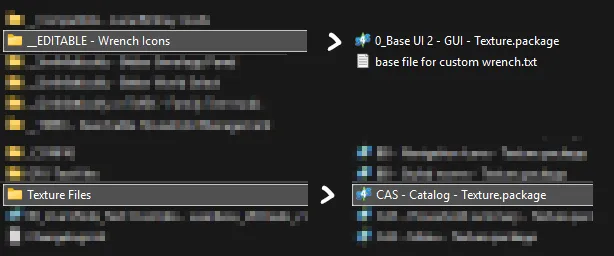
For the wrench icon, it can be found in the "0_Base UI 2 - GUI - Texture" file from the _CONFIG folder.
For the swatch icon, it can be found in the "CAS - Catalog - Texture" file from the Textures folder.
You can also use the image viewer to explore in-game textures in case you ever want to create texture overrides :-)
// adding in your custom wrench icon
After opening up the exported image in your editing program, find where the wrench icon is and replace it with your custom wrench icon, whether from an image you've saved or drawn. Save the image when you're done.
🗒️ To also apply it to my UI recolors, simply copy & paste over the layer to my UI recolor image. Doing it this way will ensure you don't place it outside of its assigned boundary (otherwise parts of your wrench icon will show up in other UIs if you go over it).
// converting & importing the UI file
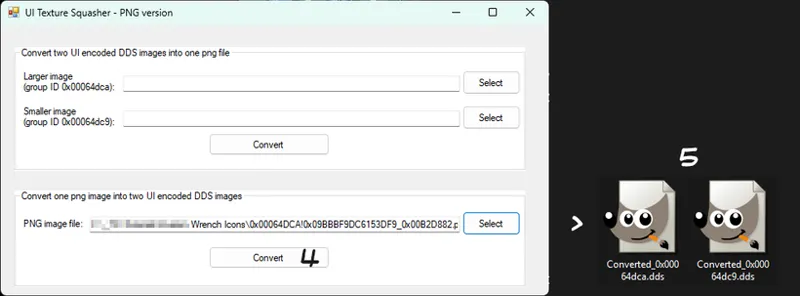
Open UI Texture Squasher
Select your edited image to convert it [4}
To make locating it quick initially, Ctrl + Shift + C (windows) on your image to copy its filepath, click Select to browse, and paste in the filepath onto the File name text box.
Once saved, it will save as 2 DDS images [5] but before you import it into S4S, there's a final step to do.
// removing semi-transparent dark boxes
If you import the converted file as it is, it will produce a semi-transparent box around the wrench icon and on other UIs sourced from the same image. Here's how you can fix it.
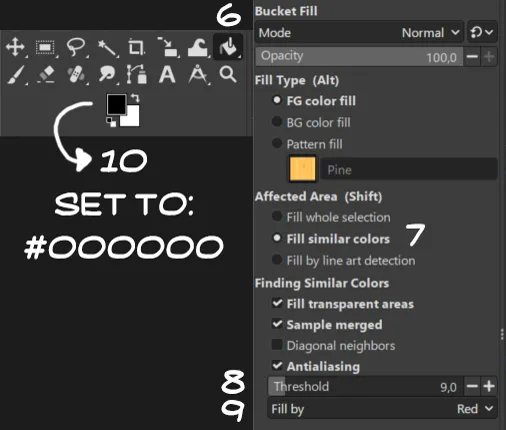
Open the 00064DCA DDS file in GIMP
Select the bucket fill tool [6] and set the options to Fill similar colors [7], Threshold to ~9.0 [8], and Fill by method to Red [9] (it will use the red channel which stores the alpha/transparency data and gives a better cleanup).
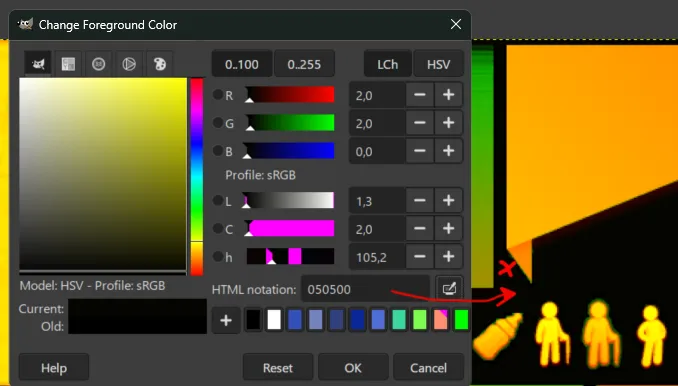
⚠️ Make sure the foreground color is set to black / #000000 [10] ! This is important as this is used to fix the transparency issue.
Fill in the areas with black on where it should be transparent. You can switch between black or white to see which areas have not been filled yet and fill in the unaffected areas.
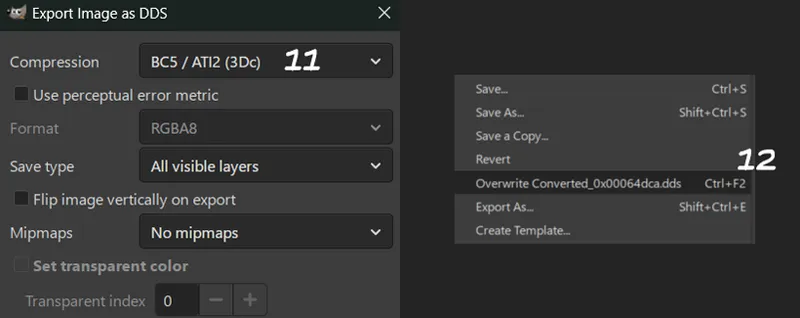
Go to File > Export As, then choose BC5 / ATI2 as the compression method [11]. Alternatively, you can use Overwrite [12] to replace the image while keeping the compression method.
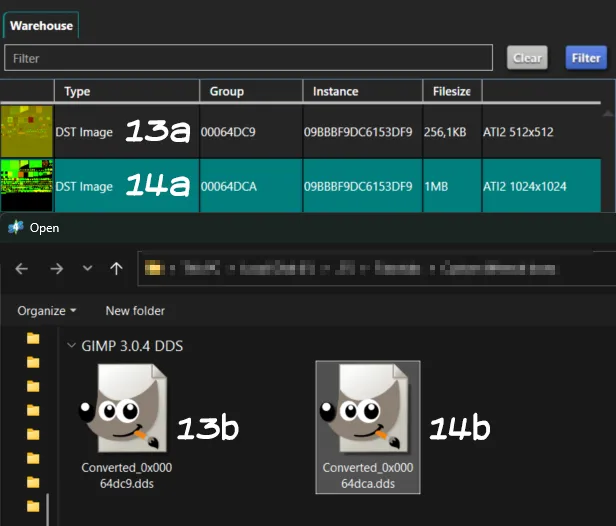
Once you've saved your changes, open your package file and import the 2 DDS files into their respective resource [13 & 14].
You can choose to replace my package file for personal use, or if you plan on sharing it, duplicate my file and rename it in a way that it will override my file. (Adding a ! or !! at the beginning of your filename usually works.)
Once you've done all that, check your game to see your new custom wrench icon! :-)
// extras
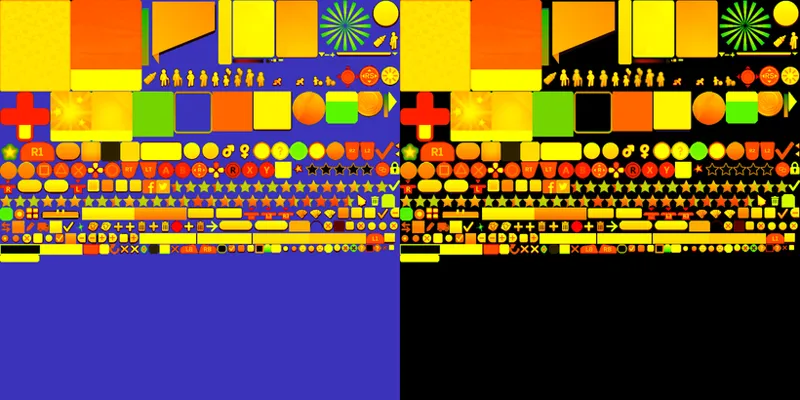
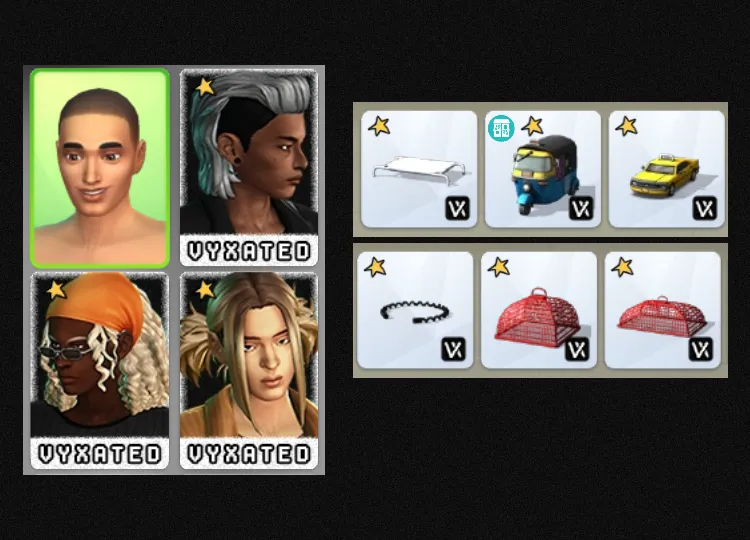
Here is a comparison between keeping & importing the converted file as is versus doing the clean up in GIMP:
The semi-transparent grey boxes are caused during the image conversion process, producing a #050500 black instead of a pure #000000 black (which is what makes if fully transparent), hence why you'd want to fill in the correct color in GIMP :-)
And yes, this whole process is applicable to creating UI recolor mods too!
Comments (12)
this is a great tutorial, thank you! on an unrelated note, I want to grab some of the UI button icons from the game and turn them into Stream Deck buttons - do you have any idea where I can find said UI images since you've modified a bunch of them for your UI edits?
You can search for any images w/ Lot51's tuning builder site (just go to the image viewer tool)
I was told to use this to update a wrench that was abandoned. Since it already exists, would I just skip to the part where you import it into S4S? Or the convert via texture squasher first?
i am making my first cc wrench. love how easy this tutorial is. can i do this with my own photo.
Yes :-)
Awesome tutorial! Especially the fix for the semi-transparent boxes, they were driving me crazy. If it's not too much of a bother, I was wondering how you edit the text color in the UI, thanks!
i really like the star one you made here! could you share it for us to download?? ⭐
i rlly like the one u used in the tutorial, do u remember what u used? thank u so much for this tutorial btw!(:
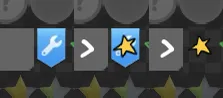
the star? I drew it specificially for this tutorial ^^
thank you so much for this! could you please share the download of this one you made in the tutorial? i really liked it but unfortunaly can't make it myself since I am on mac :(
is there any way to make custom wrench icons on a mac? or is it literally only possible on a windows pc?
I don't have a mac, so I can't test the programs myself, but as long as you have an editing program, S4S, and the UI Texture Squasher working on mac then you should be able to make one. The Image Viewer isn't completely mandatory, it's there just for the ease of exporting the UI as one png image.