
Automation tips for CC creation (using photoshop + other softwares)
(archiving some guides I posted on tumblr here too just in case c: plus for any creators not on tumblr to read!)
Sections to find/skip to, since the pics made it long:
Convert .DDS files to .PNG in bulk
Convert .PNG files back to .DDS in bulk
Photoshop's Actions for anything that can be automated
Photoshop's Batch feature
Export layers to files
Photoshop's Layer Comps for everything in general
Batch export Layer Comps into files
Bulk Rename Utility
// Convert .DDS files to .PNG in bulk
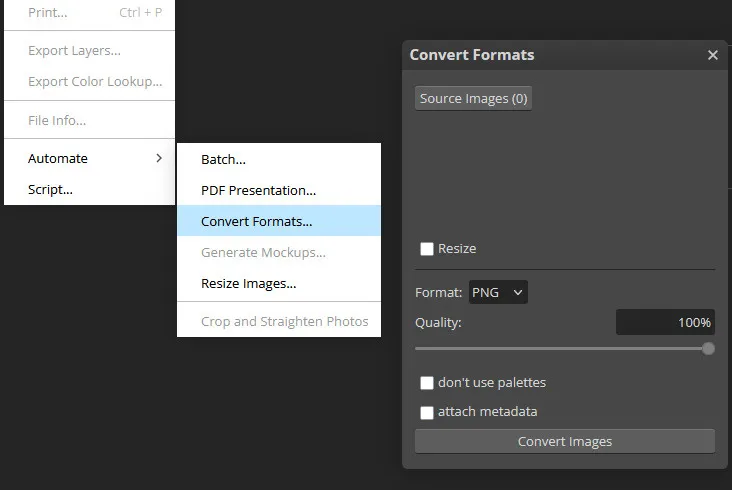
Useful for textures exported via S4S' Warehouse Batch Export button. Here's a quick way to convert many .DDS files into .PNG!
tools used: photopea
Batch export all textures that you want to edit from your package file
Using Photopea > click File > Automate... > Convert Formats > select previously exported images and choose PNG as format
Save .zip file and voila! They'll all retain the filename structure that S4S uses for batch export/import :-)
// Convert .PNG files back to .DDS in bulk
Some textures can only work properly if the file format imported is in .DDS. Unfortunately, converting them into .DDS using Photopea's feature wasn't working for me, so instead I found and used this program that does it automatically!
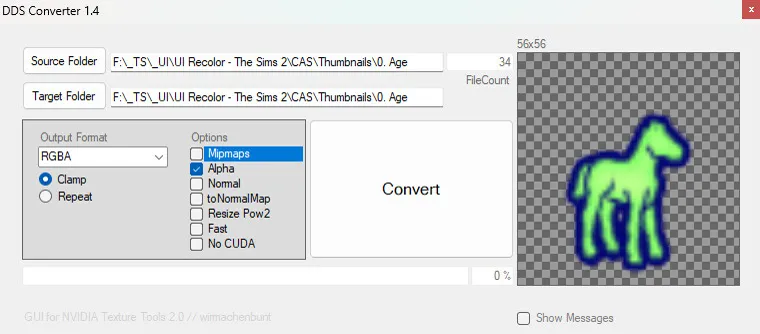
tools used: DDS converter
Source Folder: where your .dds files are; Target Folder: where your .png files are saved
To input, just drag and drop the folders into each text box and it will automatically fill in for you their folder paths
Choose the Output Format and Options depending on what you need, and Convert! (Check via S4S to see which settings you need to input.)
For example, some UI-related textures must be imported as .DDS with RGBA8, w/ alpha/transparency and no mip maps. So I selected RGBA as the Output Format, enabled Alpha in Options, and disabled everything else.
// Photoshop's Actions for anything that can be automated
I won't get too much into this since there are tutorials using Photoshop Actions for recoloring a base texture/making an all-in-one recoloring set, but it can also be used to apply a set of steps/actions to several texture files, which leads me to the next point/tip:
// Photoshop's Batch feature
Say you have 50+ similar looking but not 100% identical textures that you want to edit, but going to each file and editing them takes a bit of time of your day. Easy fix!
tools used: photoshop/photopea
Create/record actions as usual on one of the files (and make sure it works well/comes out right).
File > Automate > Batch
Select your recently made action > choose source files/folder you want to apply the action to.
⚠️⚠️ Make sure that you don't have the .PSD file of the texture you were editing on in the source folder, or else the batch feature will apply the action on your .PSD file as well and mess it up.
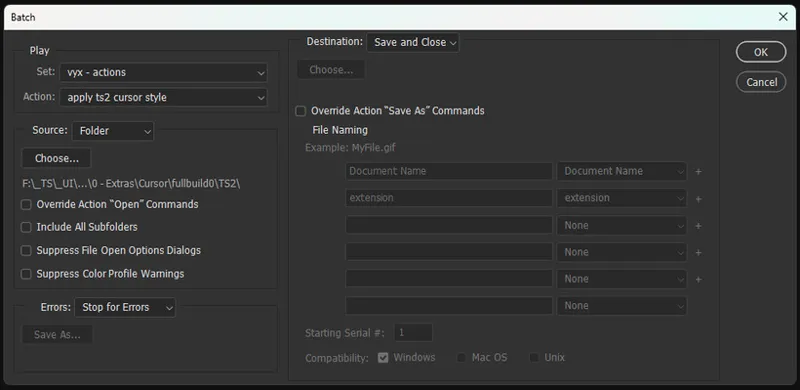
Choose Destination as either Save and Close (will override) or Folder (makes a duplicate, can be renamed, more safe too).
examples of what I've used it for:
applying different backgrounds for my TidyCAS thumbnails
recoloring 30+ ts4 cursors into ts2 style cursors and other recolors
recoloring 2000+ CAS/BB thumbnails for my Pastel UI by copying an adjustment layer for one color (manually) then letting the action do the rest to my existing icons (pasting and merging the layers together, all automatic)
// Export layers to files
script/addon link: Export layers to files Fast
If you use an all-in-one recolor action set that applies different color swatches to different layers, you can use Photoshop's Export Layer to Files feature to quickly export them into their own files/images!
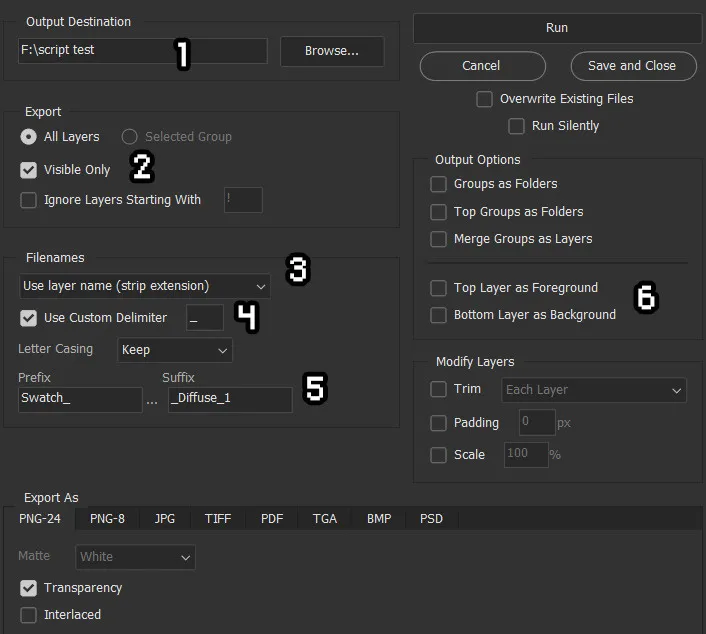
The image below is from a modified version of the original script, which offers a much faster performance and batch export settings.
01. Output Destination: where to save your exported files in.
02. Visible Only: check this box to only export visible layers in case you have other layers hidden in the file but would rather not be deleted.
03. Filenames: choose how the layers will be named when exporting them as files.
Use layer name (strip extension): if your recolor action rename the layers to correspond with the swatch number they're in, then use this option.
Use index descending: will replace the layer name into numbers, which is useful if you don't have your layers named correctly. If your top-most layer is the first swatch, then use this option.
Use index ascending: if your top-most layer is the last swatch, then use this option.
If you use either of the last 2 options, the layers will be exported as 01 instead of just 1 (only if you have 10+ layers), so you'll have to remove the 0s manually. Use Bulk Rename Utility to rename them quickly.
04. Use Custom Delimiter: if the layer name has spaces, it will be replaced with what's inputted here.
05. Prefix & Suffix: adds prefix & suffix depending on your input. I use this along with naming my layers with numbers instead of renaming each layer as Swatch_X_Diffuse_1.
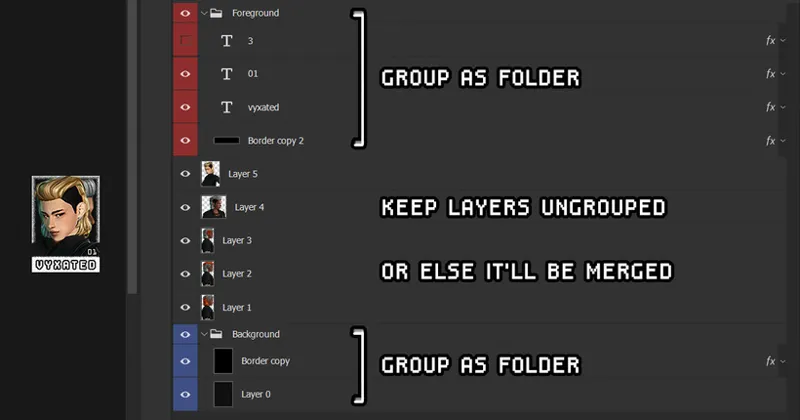
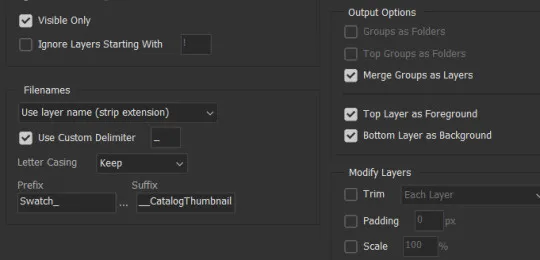
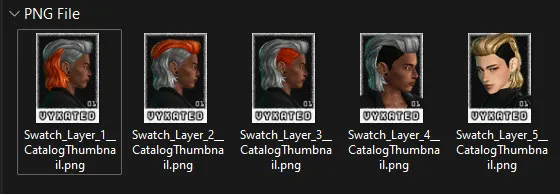
06. Top/Bottom Layer as Foreground/Background: if you create custom thumbnails for each swatch, you can enable these options. I'd also recommend enabling Merge Groups as Layers under Output Options and put all layers into one folder that you want merged. Example:
06/a. Layer Setup:
06/b. Settings: changed Suffix into __CatalogThumbnail so it gets recognized by the batch import in S4S.
06/c. Output:
// Photoshop's Layer Comps for everything in general
With S4S batch feature in mind, layer comps can be used to rename & export your files in the format that S4S uses to batch import them (so you don't need the hassle of manually saving textures, most of the work is done at the initial stage). What's great about this is that you can:
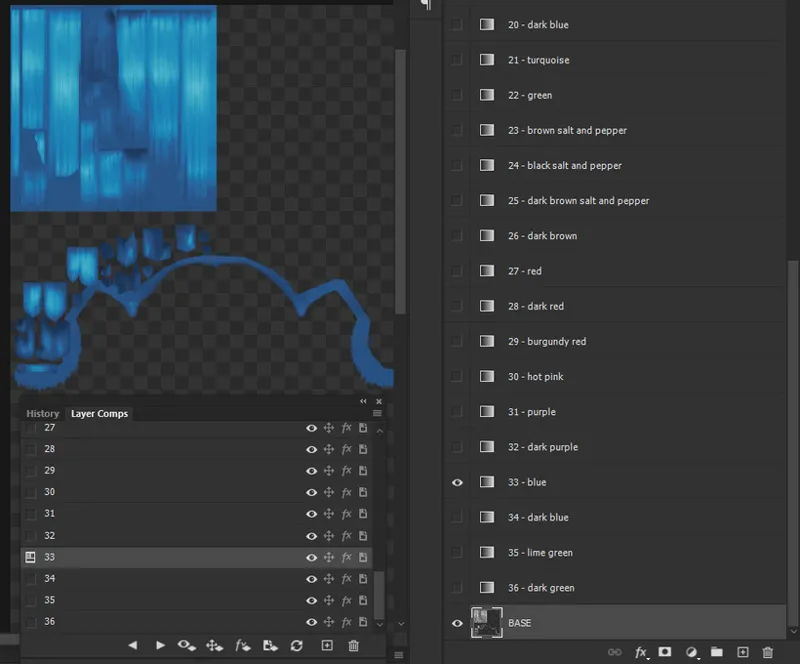
Utilize layer comps for recoloring instead of using photoshop actions + you can easily update them if you make any changes to the base texture/adjustment layers :D very adjustment layer friendly for exporting too as opposed to the Export Files as Layers method above.
Make a base .psd file with layer comps for each swatch, then copy that base file whenever you start a new recoloring project: (PSD with layer comps are smaller in size as opposed to a PSD w/ all-in-one action set applied to the base texture then merged.)
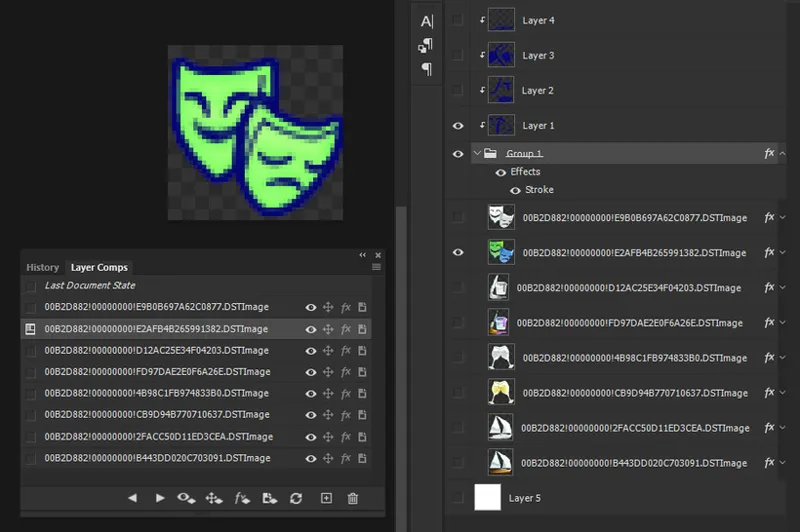
Create multiple variations of your texture in the same .psd/project file and save them as layer comps, instead of trying to remember which layer to show/hide:
Rename the layer comps to match with the original texture(s) file name, so that they can be used for batch importing later on:
// Batch export Layer Comps into files
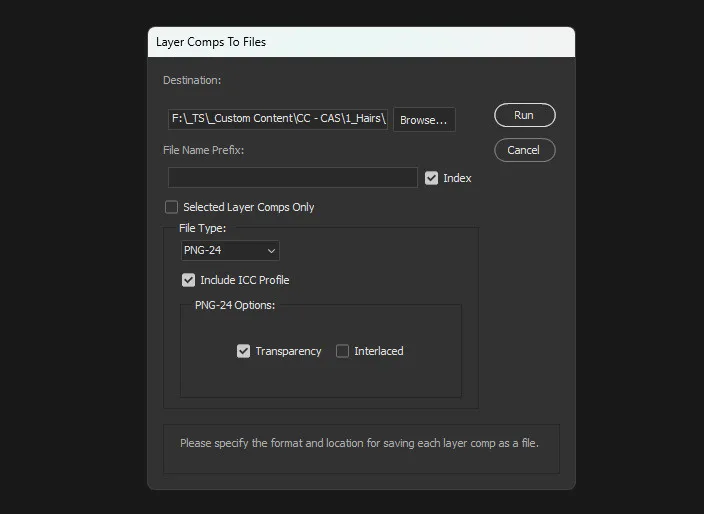
What's nice about layer comps is that you can export each comps as individual images with the name that you gave them with! To export them:
File > Export > Layer Comps to Files
Enable Index if you didn't name the layer comps properly (but have arranged them in the order you want them to show up in). Useful too if you add new layer comps in between and don't want to rename everything else that comes afterwards.
// Bulk Rename Utility
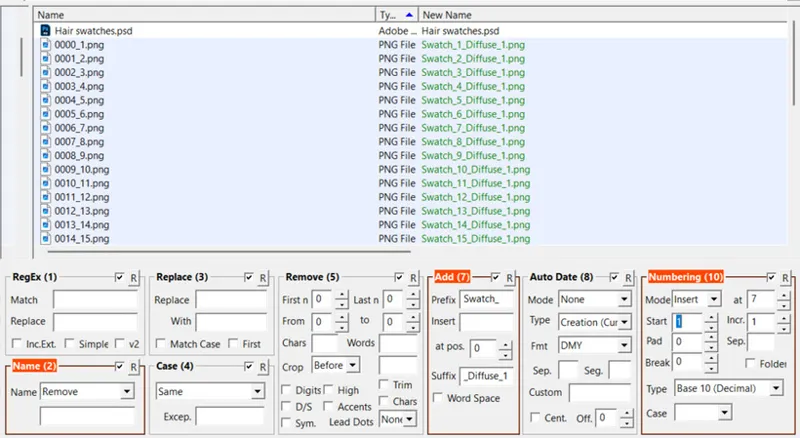
On the occasion that I don't name my layer comps properly (and have the Index option enabled), I just use the bulk rename tool to add the necessary prefix/suffix :-) and practically anything else you may need the tool for.
Comments (8)
Ty so much for this!
You're a genius—The Sims couldn't do without you! Me neither.
Desperately needs the link to the Export-Layers-to-Files-Fast script! I was wondering for a while why mine looks so different until I went to your tumblr post
you are an icon! tysm
Thank youuuuuuuuu ❤
💖
can we have a pdf file too pls. so i can save it and go back to it
oh that's a good idea 🧐 i'll try to make one when I can