

🔄 Update 5/27/2025 -- [5/30] SGFX Overrides and Patches updated, but "No Event Button" variants cannot be updated yet.
UPDATE NOTES - https://../news/update-5-27-2025
—
Pfft!
I woke up this morning and decided I was gonna do a video for creating JSON files 'cause it's really simple and I meant to explain it a month ago when I found the "egg hunt" thanks to TajLibra and subsequently figured it out.
I got the internet working and then I saw a new comment on my "All-In-One Live Event Rewards Unlocker" asking if the mod will be updated for the new event, and I'm like "What you talkin' 'bout?! Did we get upda- Oh! We did... There goes my morning!"
And here we are.
☆// - THINGS I NEED TO DO:
Update my FOMO Unlock for the new event.✔️
Update my SGFX Overrides.✔️
I haven't updated my Main Menu Override yet.❌
I can't update "No Event Button / Background" variants because the changes EAxis made to the SGFX resources require me to test my modifications, and I can't test my modifications without an Event Button. I might still release those variant overrides with just the basic modifications in order to avoid confusion.❓
Update my SGFX Patches if necessary.✔️
Better BuildBuy and UI Cheats were updated. I assumed they would have been due to the changes EAxis made to the SGFX resources.
I can't update "No Event Button / Background" variants because the changes EAxis made to the SGFX resources require me to test my modifications, and I can't test my modifications without an Event Button. I might still release those variant overrides with just the basic modifications in order to avoid confusion.❓
Update my Sweet Allure Kit CAS Override if necessary.❓
Start verifying my mods for update compatibility.❓
Give kitty head pats and nose boops!✔️✔️✔️😸
☆// - HIGHLIGHTS FROM THE NOTES:
Increased frame rates, with up to 22 FPS gain in Laptop Mode.
Unless absolutely necessary, you should not be using "Laptop Mode". This setting should probably only be used by folks on really low-end / non-gaming / doesn't have a "discreet graphics card" laptops.
My 2014 ASUS with an NVIDIA 860M can run The Sims 4 at 1080p between 40~60 FPS. This of course won't be the same for all simmers and your FPS will drop if you play with large families with bug overly decorated houses and filters and tons of CC.
Point is, if you're on a laptop and your game defaults to "Laptop Mode", turn it off and restart the game and see how it runs in Live Mode.
An "FPS display" of some kind will help with this. I can't recall if The Sims 4 has one built-in.
Streamlined game elements, saving over 18 MB in memory usage for improved performance.
18 MB? I didn't realize we were that strapped for memory.
Did they perhaps fix the memory leak or whatever that causes that "glitch" when deleting a saved game without restarting the game? I should BUGWATCH this thing.
SWEET ALLURE KIT
The color of the tights (yfAcc_TightsSP64CK006Bow) will remain consistent regardless of the skin tone of the Sim wearing them.
Fixed visual glitch on the backs of Sims’ legs when wearing the skirt (yfBottom_SP64CK006Skirt).
Fingernails no longer clip into a Sims finger when wearing the Layered Sweater (ymTop_SP64CK006LayeredSweater).
Fixed armpit indent/clipping issue seen on masculine frames in the blazer (ymTop_SP64CK006Blazer)
I might need to update my... did I do a CAS Override for this?
☆// - "BUGS" AND OTHER WEIRD !@#$:
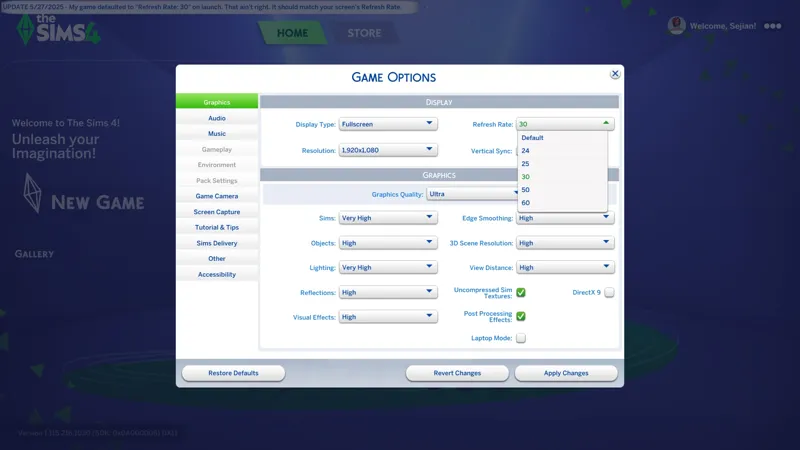
MY REFRESH RATE DEFAULTS TO (30) - This might be a normal thing and I just don't remember or I just absentmindedly always adjust it... I dunno, it stood out to me this time. Double check that yours didn't change. It shouldn't have, but double check anyway.
OUTFIT GENERATION IS STILL BROKEN - Because of course it is. Why would it have been fixed yet? It's only been SEVEN (7) MONTHS! Have some patience! They'll totes notice there's a problem one day!
CAS IS STILL A HOT MESS - Categories are still broken and camera zoom is still shite. Do I really need to go PYTHON spelunking and fix this myself?
TBC...
☆// - THE SIMS 4 FPS DISPLAY + TROUBLESHOOTING:
Thanks for reminding me about this!
I can't recall if The Sims 4 has one built-in.
Press CTRL+Shift+C to open the command prompt.
Type and use the "fps on" command / cheat to turn on FPS display. It appears in the bottom left corner in a fugly blue text color.
Type and use the "fps off" command / cheat to turn off FPS display.
Keeping an eye on your FPS is how you determine how well your game is performing with your current graphics settings, then you can tweak accordingly.
If you're on a 60 FPS screen like I am, then a average of 60 FPS is good. You might dip to anywhere between 35~60 sometimes but it's fine unless it dips low and stays low.
My GAME OPTIONS » GRAPHICS » GRAPHICS have always been set to "Ultra" with "Uncompressed Sim Textures" enabled and "Post Processing Effects" enabled.
I currently run the game on a dinosaur NVIDIA 1050 Ti graphics card and 32 GB of high-end, low latency G.SKILL DDR4 RAM. I use to run the game on a dinosaur ASUS gaming laptop with an NVIDIA 860M graphics card and 32 GB of "generic" DDR3 RAM.
My GRAPHICS options have never changed, but I play with ONE (1) sim in a small house.
—
It is also important to know that if EAxis' servers are "encountering issues" or you cannot reliable connect and stay connected to them, then your game performance will suffer.
I have experienced this myself on my old laptop computer and on my now desktop computer over the past few years that I've been playing this game, on both good internet and whatever this crap is that I'm currently using.
When EAxis' servers are shite, my game tanks from 60 FPS to 29 FPS and sometimes lower.
This is why "we" recommend going Offline in App and Game if you're encountering long load times or random sluggish gameplay.
The Gallery ain't as important as your game performance.
☆// - CHECK THE STATUS OF YOUR FAVORITE MODS:
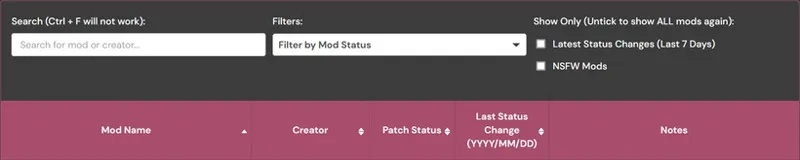
1️⃣ Visit Scarlet's Realm, maintained by Scarlet - https://scarletsrealm.com
2️⃣ Hover over "The Mod List" and click on one of these options (or any of the others):
SFW Only - https://../the-mod-list-sfw-only-edition
SFW + NSFW - https://../the-mod-list-sfw-nsfw-edition
3️⃣ Scroll down to "The Mod List" section and follow the instructions to search for your favorite mods using the Search feature.
4️⃣ Toss a coin to your Witcher - https://www.patreon.com/posts/129956488
5️⃣ My sim's name is pure coincidence.
☆// - MY "GAME JUST UPDATED" ROUTINE:
Every time the game updates, I do this routine. It ensures that my game is always working the way it's meant to. I have never encountered issues with launching after an update because I always do this.
The "TS4 USER FOLDER" is your "Documents\EA*\The Sims 4" folder.
1️ RENAME my TS4 USER FOLDER.
Doing this removes all mods, caches, and settings, and forces the game to create a brand new TS4 USER FOLDER with all new configuration files - meaning the game should run as it's meant to without any issues.
I simple suffix the date of the last game update to the folder name, e.g. "The Sims 4_250429" is today's rename because 4/29/2025 was the last game update.
YYMMDD or YYYYMMDD is proper archiving for file systems.
DDMMYY is calendar and clock trash. That's just the way it is. 😹
2️⃣ LAUNCH the game and re-configure my GAME OPTIONS » GRAPHICS » GRAPHICS options.
Display Type = Windowed Fullscreen
If you're experiencing performance drops with "Windowed Fullscreen", then you should play "Fullscreen". At least this is how it was back in the day with games. "Fullscreen" was the recommended thing for best performance, but with advances in technology it has become less of "a thing".
Vertical Sync = ENABLED
3️⃣ EXIT and RE-LAUNCH the game for other game stuff to initialize.
There are some stuff in the background that doesn't initialize the first time you launch the game, so this "EXIT and RE-LAUNCH" dance is required.
4️⃣ Click through the "Pack Pop-ups" and re-configure my other GAME OPTIONS.
5️⃣ After all of the above is done, I migrate my "personal data" into my new TS4 USER FOLDER. My "personal data" includes:
📁 ConfigOverride (folder) - I have a third-party mod that enhances shadows and textures that goes in here. I should "Community Highlight" this mod. Of course, you need to verify compatibility before migrating this if you use that mod.
📁 Custom Music (folder) - I have MP3 files in here for the custom radio station that I need to continue work on.
📁 Mods (folder) - I NEVER migrate this folder. I verify my mods in batches then toss them over when I'm sure they're compatible.
📁 saves (folder) - I don't migrate this folder because I create a new saved game with every new update. Yep... I ain't ever gon' progress in this wretched game. 😹
📁 Screenshots (folder) - Because screenshots.
📁 Tray (folder) - This is where all of your locally saved Gallery households, etc. and CAS-created households, etc. get saved. This is your "Library" a.k.a. your personal Offline Gallery.
📄 ExcludedMusic.txt (file) - If you disable radio songs, this "text" file is where those settings are saved.
But wait! I have another routine...
☆// - MY "GAME JUST UPDATED" ROUTINE FOR S4S:
Every time the game updates, I delete the following folders and files located in the "S4S USER FOLDER" a.k.a. "Documents\Sims 4 Studio". This ensures Sims 4 Studio is always working optimally:
1️ EXIT Sims 4 Studio if it's open BEFORE updating the game.
2️⃣ DELETE the "Tuning" folder.
3️⃣ DELETE the "S4Studio_v*.sqlite" file.
4️⃣ (KEEP READING...)
5️⃣ LAUNCH Sims 4 Studio and wait for it to rebuilt the "S4Studio_v*.sqlite" file.
6️⃣ Click on TOOLS » "Extract Tuning..." to open the "Export Tuning..." window and wait for Sims 4 Studio to rebuild the contents of the "Tuning" folder.
That's it, but...
7️⃣ If you use a "*_TDESC.zip" file in the "Tuning Descriptions" folder, you should probably move it out and check for an updated "*_TDESC.zip" file.
This thing is provided by EAxis in their official Discord server.
It's kinda useful but it can also completely ruin your Tuning mod if you don't know what you're doing or if it's not compatible with the Tuning resource you're modifying, e.g. this thing completely ruins my "CAS Filters" mod if I make any changes using the features it enables in Sims 4 Studio.
If Sims 4 Studio updates, I do all of the above and one more thing:
4️⃣ DELETE the "Settings.xml" file BEFORE re-launching Sims 4 Studio.
Yep! This is why I left out #4 up there.
Don't forget to re-configure your options (and your "Creator Name") before modding.
Cheers!

Comments (2)
Thanks for looking into the FOMO update so quickly! You can show FPS in game by typing the fps on/fps off command.
I normally use my NVIDIA FPS display so thanks for that! I'll add it to the post! As for the FOMO stuff, as long as the data was added to the game and it's locked the same way all the others are locked, I can unlock it without issue. I'll know for certain in a few minutes.