

How to install interface mods | UI Modes Mods | The Sims 4
A basic but useful tutorial on how to install my interface mods for The Sims 4.
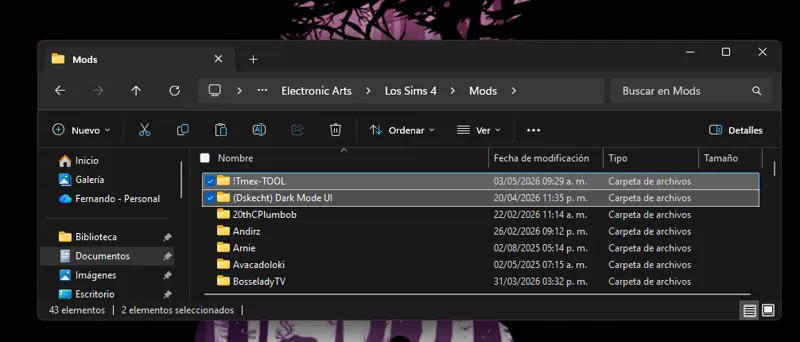
Installing my interface mods is very simple, you just need to drag the mod folder to The Sims 4 mods folder.
Remember that my interface mods include optional patches that you should remove if you don't have those mods, as they could cause errors in the game's textures.
Note:
When updating my mods, you should always perform a clean installation; never overwrite existing mods.
One more thing, most mods are just retextures for that mod, since for various reasons it is not possible to create a real and functional patch.
In other words, I have to re-upload the entire conflicting mod, but modified, to create a patch, and that's not right.
Simply having the patch installed and changing the load order of the conflicting mod is more than enough to make the mod work.
If you want to know which mod requires a special installation, you can check out my collection of help posts and tutorials for the game.
If you have any questions, please leave them in the comments. I hope these tips have helped you solve your problem.
Comments (2)
I am confused as to what you mean by updated patches for specific MODS that we have installed? So if we have a MOD that is the name for one of the patches inside your MOD folder, than we just delete that file inside your MOD file and then put yours in the first order to get it to work or vice versa?
No, you have to remove any patches that you are not going to use, as it contains textures or modified files from the conflicting mods, and those patches only work if you have the corresponding mods installed as well.