

How to view, track, and fix mods that are broken or conflicting with others? | The Sims 4
Hola, In this post, we'll talk about how to troubleshoot incompatibility issues, view and order mod loads, and search for broken mods. Not just with my mods, but with any type of mod. This will be a long post, and more than one person could use some of these tips.
View or adjust the mod load order.
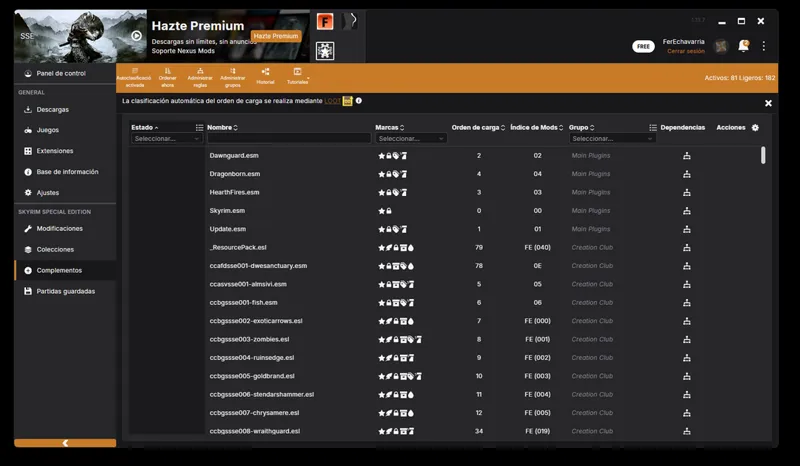
If you've played games like Skyrim, Fallout 4, RimWorld, etc., you're probably familiar with the term "load order." It basically refers to the priority with which the game loads files to avoid conflicts.
Although this feature is built into these games, it's usually quite basic. It only allows you to change the order manually or use an automatic order option with a button, which depends solely on the developers' rules. Even then, errors can occur.
Additionally, it's necessary to use external tools like Vortex, Loot, Rimpy, or Skyve to properly organize mods. These tools, supported by their respective communities, offer helpful feedback on the order in which mods should be loaded.
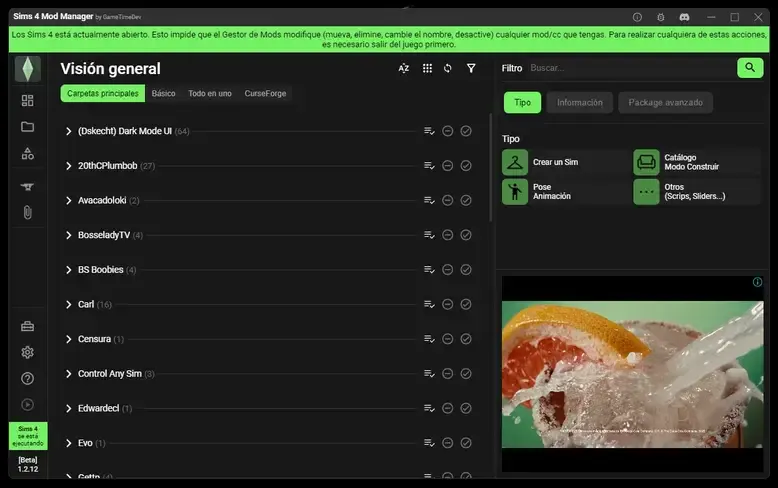
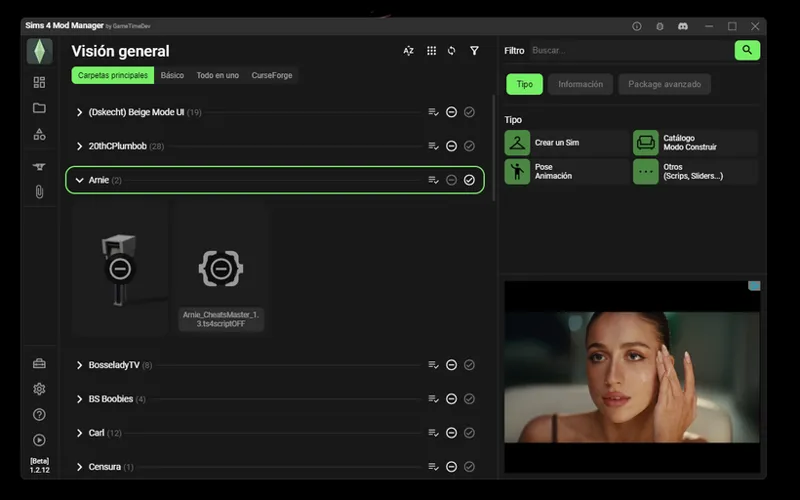
Although The Sims 4 has a mod manager called "Sims 4 Mod Manager," it is still limited, as it only allows you to activate or deactivate mods, with the option to delete and update them if the mod is hosted on "Forge."
Can you edit the load order of mods in The Sims 4?
The answer is yes, although not in the most conventional way you might expect. Don't worry, you won't need to edit any files, but you may need to reorganize some folders.
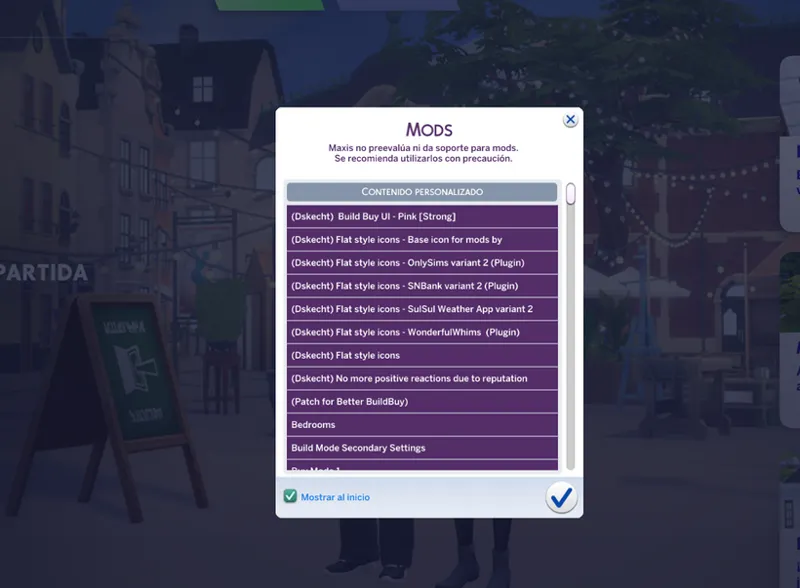
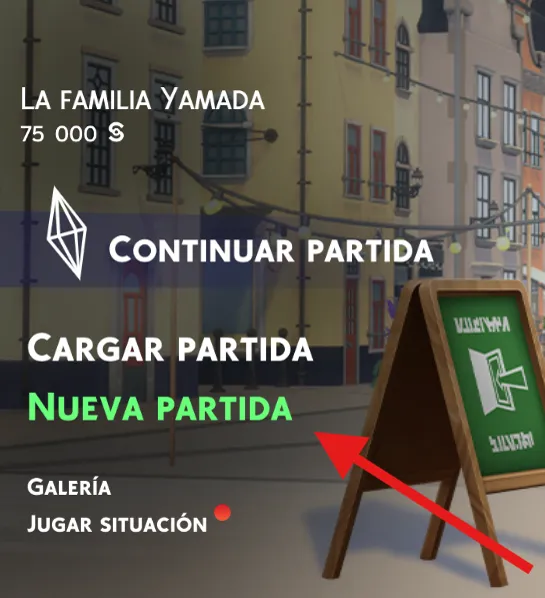
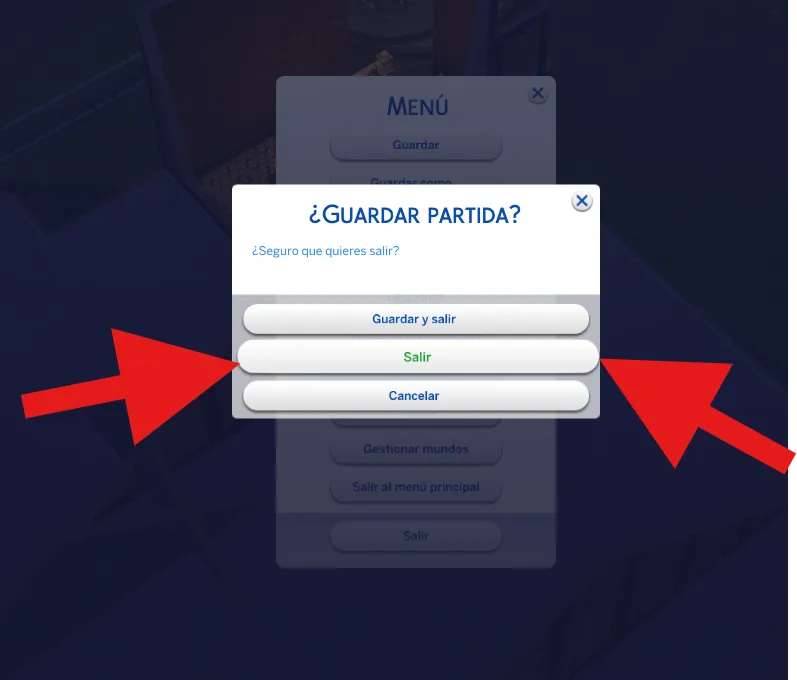
You've probably seen this screen when launching the game, or perhaps, like in my case, you disabled it because it becomes annoying over time. This is the non-editable load order screen in The Sims 4.
Many people think this screen shows the files loaded correctly, but that's not the case. It only indicates which "readable" files are in the mods folder and were recognized by the game, without confirming whether they work properly. You may even have empty "readable" files, and the screen will show that they were loaded, but it doesn't guarantee that they work correctly.
With this in mind, how can you interpret or understand the load order?
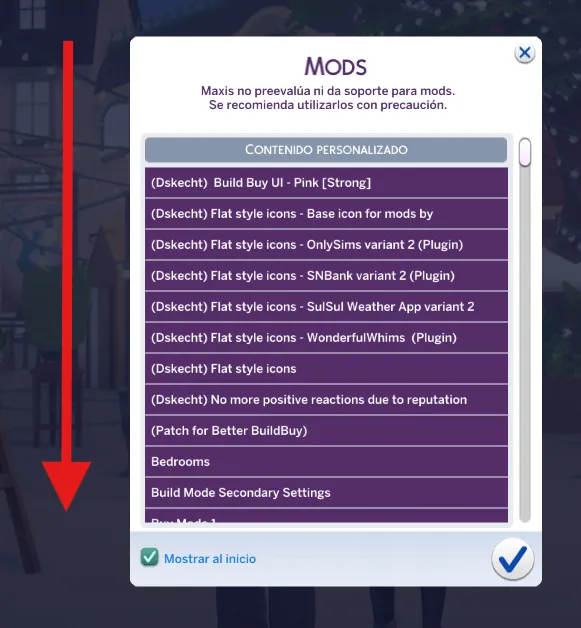
The loading order is displayed from top to bottom and determines which file is overwritten first. The top file overwrites the next one, and that one overwrites the next one, and so on.
Since this menu doesn't allow you to directly modify the loading order, how can we do it?
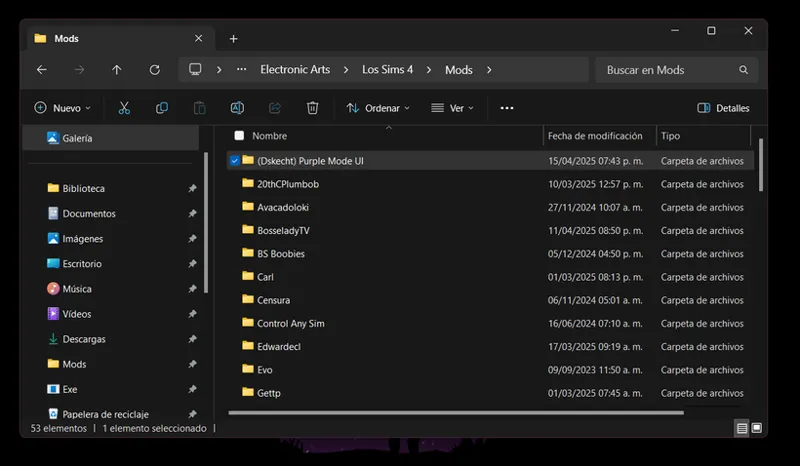
It's simple: just edit the names of the files and folders in the "mods" folder.
If you're one of those people who doesn't like organizing their files, or you just say, "I don't even organize my room, so why should I organize my mods folder?", there's no easier way forward. It's that simple. You can take the advice or stay the way you are. The decision is entirely yours. This is the point of no return.
The game loads mods like this.
If the file or folder name starts like this, in descending order:
The space: " " - To do this you must be on a Linux or Mac distribution.
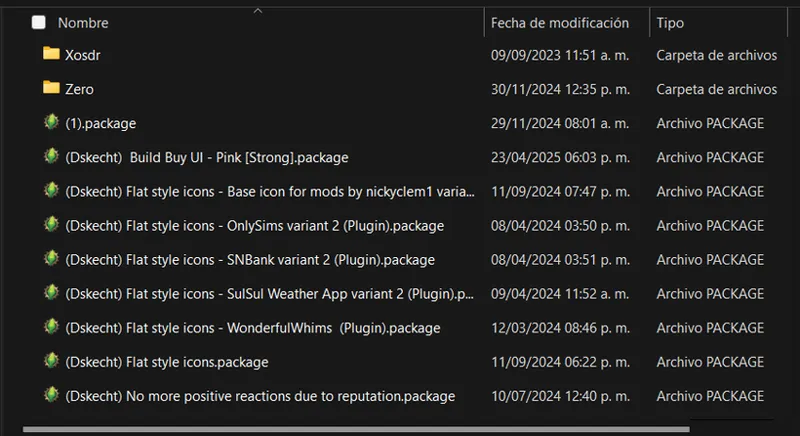
Symbols: "!#$%&()..." - In this order, from left to right, with the left having the highest priority.
Numbers: "123456...."
Latin alphabet: "AaBbCcDdEeFf..."
Other alphabets....
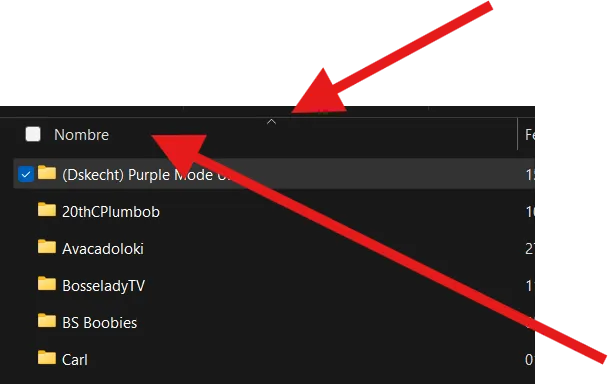
By clicking here, we can organize and observe how the game loads files. This gives us a rough idea, as it's not exactly the same. Unlike Mac or some Linux distributions, on Windows, folders are placed first. The game only cares about the name.
What happens to files in folders?
The same rules apply. The game organizes all files. If the first or next file in the list is a folder, it will open and perform the same process within it, up to a maximum of six folders. The seventh folder and its contents will be ignored, and the game will continue with the next file.
Knowing this, we can adjust the loading order of a mod. For example, if we like the textures in one mod, but it disables certain features in another, we can prioritize it by adding a symbol to the loading files, sacrificing one feature in favor of another.
With this in mind, on how to manipulate the loading order of mods, we can move on to the next topic.
How to detect conflicts between mods.
We've already learned how to manage the load order; now we'll move on to conflict detection.
One of the easiest ways to identify conflicts is through gameplay. We install a mod and notice that we're not getting the expected results or an error is popping up. This allows us to confirm that there is a conflict. So, what steps can we take next?
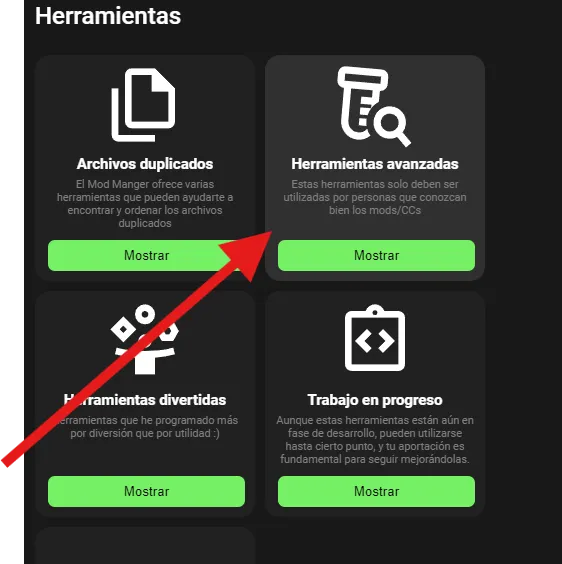
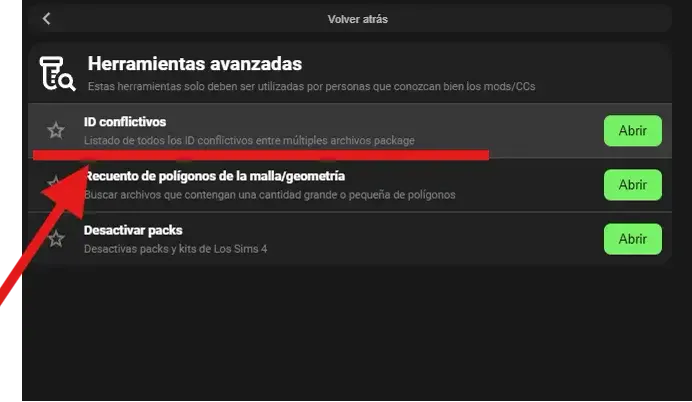
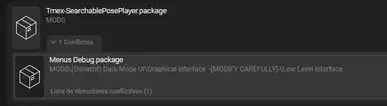
With external tools like The Sims 4 Mod Manager, we can use features like ID search to help resolve conflicts. You just need to identify the mod you wanted to use that didn't work as expected and search for it in the list.
Once we find it, we can contact the authors of the conflicting mod to determine if it's possible to use both mods or if we'll have to choose one and follow their instructions.
Why do these conflicts occur?
In this example, we'll use three mods that conflict with each other:
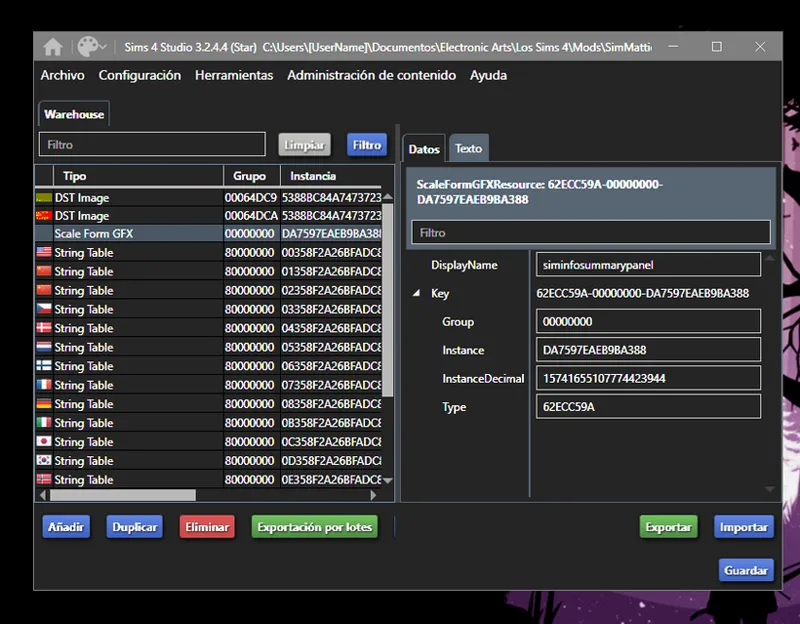
Better Simology Panel, created by SimMattically
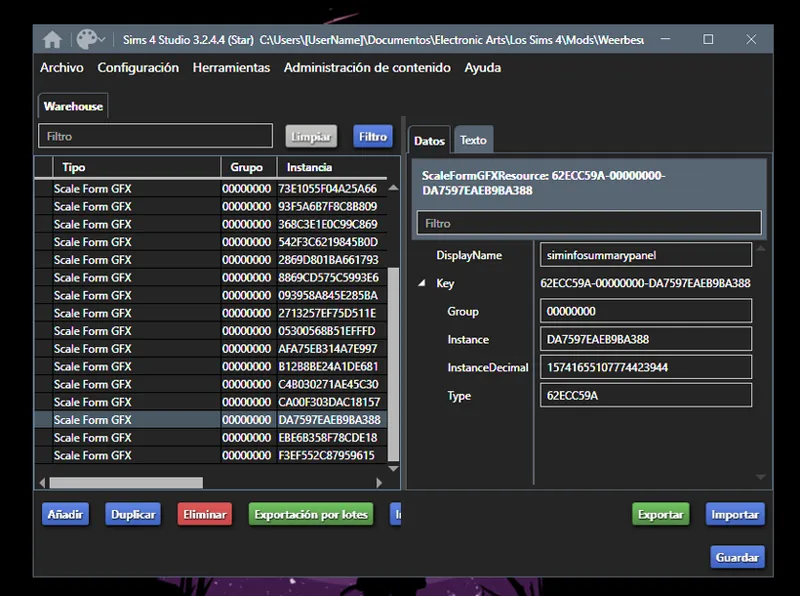
UI Cheats Extension, created by Weerbesu
Dark Mode, created by Dskecht
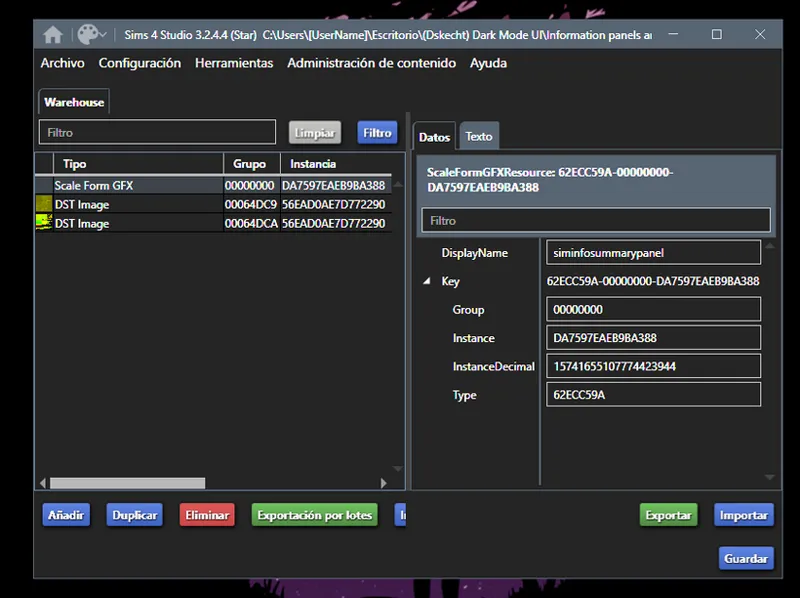
These 3 mods conflict with the same issue, both modify the same gfx file, with instance DA7597EAEB9BA388.
For this example, a hypothetical scenario could be considered where SimMattically has not created a variant for the UI Cheats Extension. And that in Dark Mode there is no patch for UI Cheats Extension and Better Simology Panel.
What does each one do?
Better Simology Panel modifies the sprites in the SimBiology panel.
UI Cheats Extension adds code to detect interactions for the SimBiology panel.
Dark Mode changes the color of the text and sprite backgrounds in the SimBiology panel.
Since these three mods modify the same file, the one with loading priority will overwrite the other two. This, seen in-game, would look like this.
(Dskecht) Dark Mode UI.file
Filler mods...
SimMattically_BetterSimologyPanel_v1.1.package
Filler mods...
UI_Cheats_Extension.package
Filler mods...
Remember that the game only cares about the name of the file or folder, regardless of whether it's a file or a folder. It only cares about the name to determine which one to load first.
And considering the following, Dark Mode disables the other two modes, preventing them from working properly, or at least as expected. Here, we have a few options.
Changing the loading order, taking into account dark mode, not only modifies the text color, but also the textures, since they are designed for light text, not dark text, as the game uses by default.
Sacrificing a feature, seeing that we can't order the mods to play more comfortably, means opting to delete one. Since dark mode is modular, we could delete the file that modifies that part. All that remains is to verify which loads first, either the Better Simology Panel or the UI Cheats Extension.
We only selected one mod and deleted the other mods. To keep things simple, we decided to delete two of the three mods.
Again, this is a hypothetical scenario, as in real life, Dark Mode has an alternate texture for the Better Simology Panel to work properly, and the Better Simology Panel has a variant for the UI Cheats Extension. All that's left is to prioritize loading the Better Simology Panel so everything runs smoothly.
How to identify and track broken mods.
The first and most important step is to ORGANIZE YOUR MODS FOLDER.
Why is this essential?
If you're someone who only overwrites files without checking if the previous ones have been deleted, you could run into trouble.
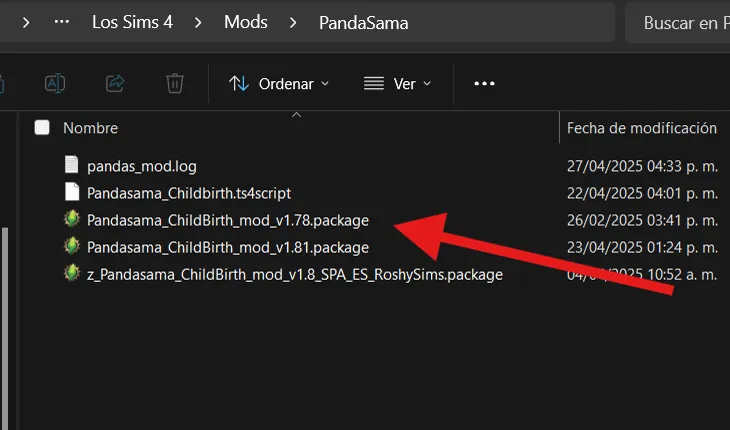
For example, let's take the author Pandasama. If one of his mods is updated and you simply drag the new files to overwrite them, but doing so doesn't delete the old files, they could conflict with the new ones.
As you can see, the mod didn't update correctly because there's still an old file. This happens because the file name is different from the new one, and the file manager doesn't overwrite it. If we follow the load order rules, the old file will be overwritten by the new one, which can cause the mod to malfunction.
For this reason, the creators prefer not to overwrite their mods and recommend performing a clean install, as file names sometimes don't match.
What's the best way to organize mods?
Personally, I use two methods. If I only have one mod from a creator, I use the mod's name to save it, and if it already has its own folder, even better.
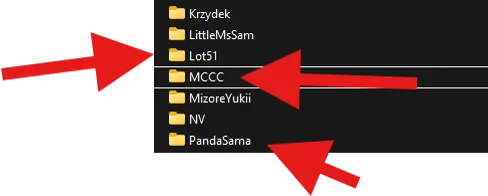
If I have multiple mods from the same creator, I create a folder with the creator's name. For CC, I do the same, but I keep all those folders inside a main folder called CC.
How do I identify errors, whether in CC or in complex mods?
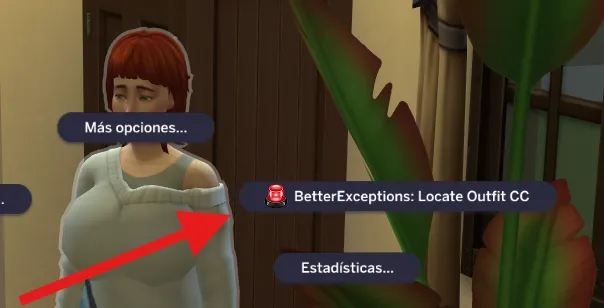
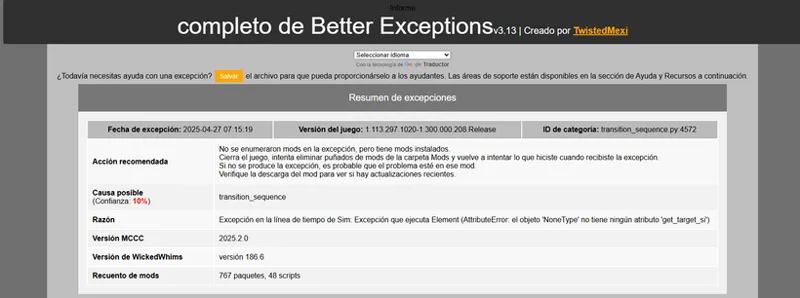
Well, we can use external tools for this again. In this case, the Better Exceptions mod offers detailed error reporting and has a useful feature: by clicking on a Sim, the mod can scan it for glitchy textures and list all the CCs it has. In my case, the Sim didn't have any CCs because none were installed.
This mod is also useful for analyzing exceptions, as it offers an error summary and an advanced report. It's crucial to interpret these reports correctly, as they aren't completely accurate. It's important to review the detailed report and understand what happened before jumping to conclusions. Many people think that if the mod is listed, it's already corrupted, but that's not the case; it's usually a game error. While Better Exceptions is a very handy tool, it's essential to know how to interpret errors and understand what actually happened.
Alternative to view and manage CC without entering the game.
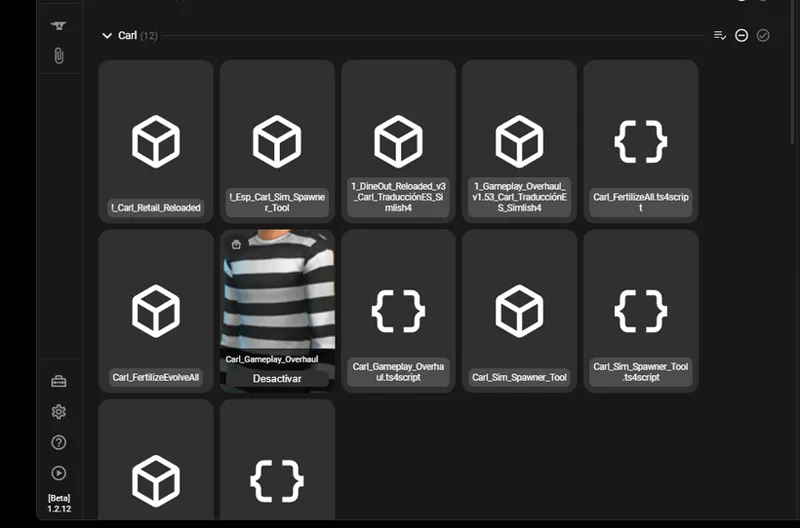
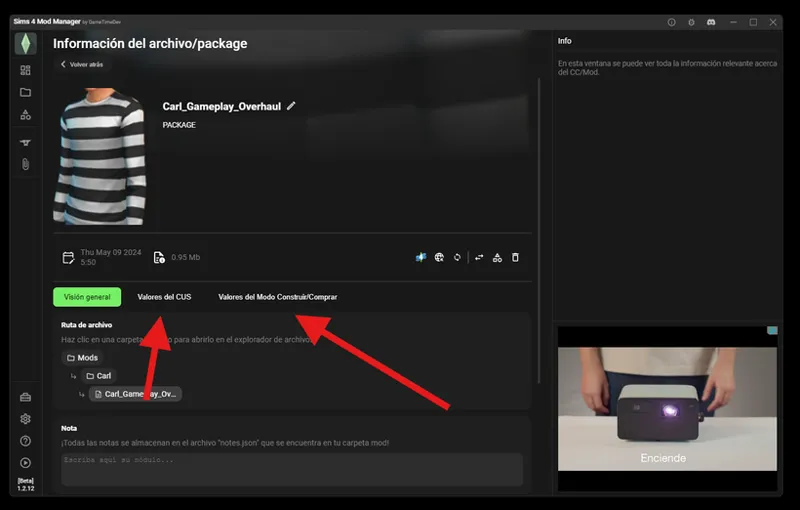
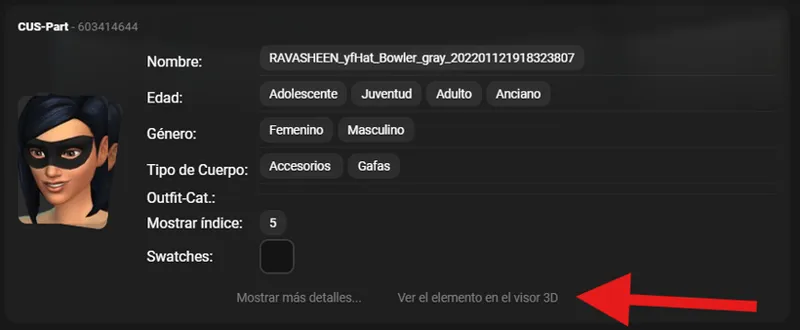
Okay, not many people know this, but the Sims 4 Mod Manager lets you see what custom content each mod includes. Right-clicking on the file to open it reveals a lot of useful information about the mod. In this case, we'll use author Carl and his Gameplay Overhaul mod as an example.
If we enter, we can see a lot of useful information, from where it is located to searching for it online, but on this occasion we are interested in two tools: "CUS Values" and "Build/Buy Mode Values."
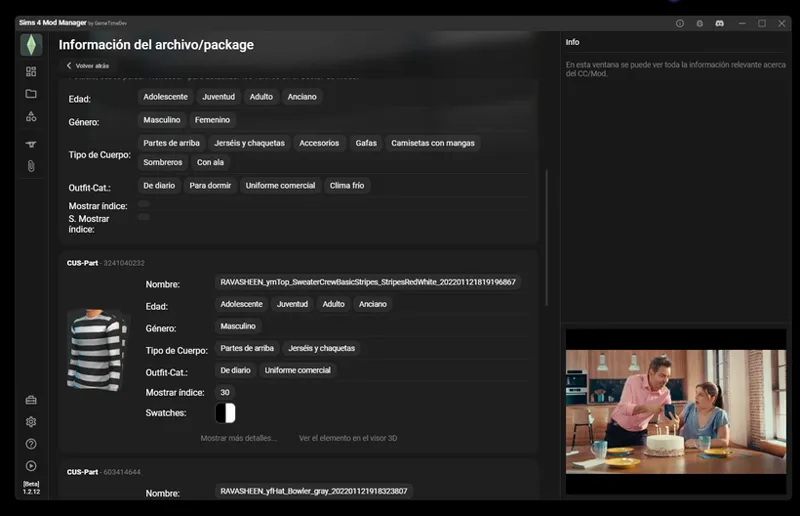
Here we enter the CUS values and we will be able to view the different CC that are available in the game for the CAS.
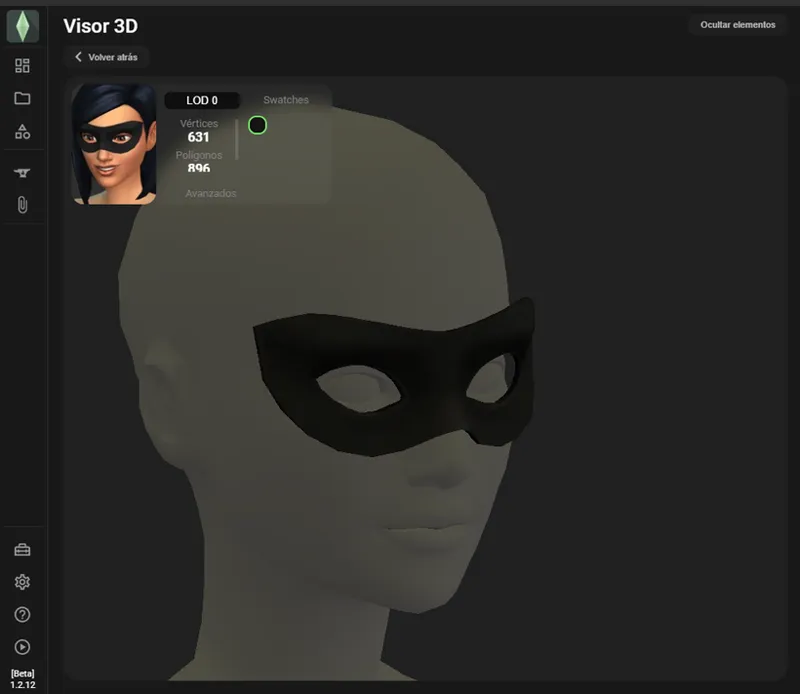
If we enter the option to view elements in the 3D viewer, it will show us a render where we can visualize how it would look in the game.
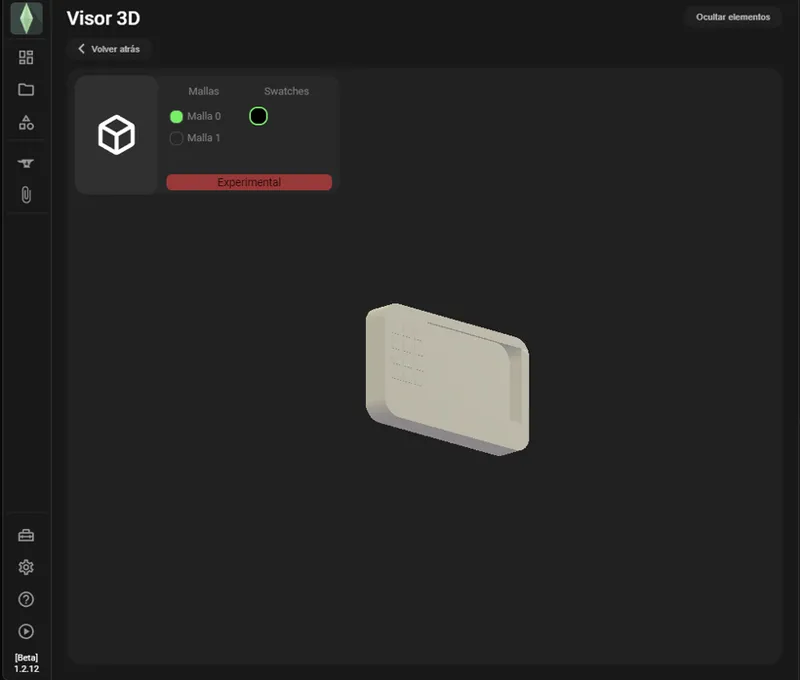
Here we can see its appearance and whether it has different alternate colors. And for buy and build mode, more of the same, but only showing the meshes without textures, as it's an experimental feature at the time of writing in version 1.2.12.
And here you might wonder if it's a good idea to combine all the CC files into one file to save space.
The truth depends on the situation. If you're the creator and own the original files, you'll be able to take action and fix any errors.
If you're not the creator and downloaded a pack that combines all the CC from different creators, I don't recommend combining the CC unless it was uploaded by the original creator. It's important to remember that CCs are mods and can break with each update. If you combine all your CC yourself, and one of your thousands of combined files breaks during an update, you won't be able to delete that file unless you know what you're doing and can track down the original files for that specific CC.
Many will say that changing your CC to improve game performance is a good idea, but the truth is, I've already tested it and the impact is almost zero. It's not worth it. You can learn more about it in this post.
Suppose there's an error that neither Better Exceptions nor MC Command Center detects, but we know it exists; how could we address it?
The solution is simple: start a new game without mods. To confirm if the error is caused by a mod, if the problem persists even without mods, it means it's a game bug. In this case, you'll have to wait and hope the error is fixed in the next game update.
Now, let's suppose that removing the mods makes the error disappear. What can we do to track it down?
There are two methods, but the most important thing is to keep the mods organized in folders that are convenient for you. Once this is done, create a mods folder and start a game. Try to work through the hypothetical scenario where the error occurs. If the error doesn't appear, exit the game without saving, as it's critical that the save file remains intact.
Then, add another mods folder and repeat the process until the error appears. When the error occurs, we can fix it by identifying the problematic file or mod, updating it, or deleting it. If there are too many files in the folder where the error occurs, the reverse process will be necessary: delete the files one by one until the error disappears. Once identified, update or delete it, as mentioned above.
The second method is the same, but using the Sims 4 Mod Manager and using the deactivate mods or folders feature. It's that easy. Depending on how fast your computer is, it may take more or less time, but it's easy to find broken mods.
Some helpful tips include:
Keep your mods folder organized.
Occasionally, delete mods or CCs that you no longer use or that have lost your interest.
Keep a clean save file, free of mods, as you never know when you might need them.
Follow updates from your favorite mod creators to stay up-to-date.
If you find errors in any of your mods, let the creator know; if you can provide proof of the error, even better, so they can fix it.
That's all there is to it. Some methods are already well-known, but others aren't as well-known or are quite technical, such as the mod loading order, something many didn't even know existed. In particular, knowing the mod loading order can solve many problems with little effort; it all depends on each person's creativity.
If you have any other questions, feel free to comment in your language (as long as Google can translate them). With that, I'll sign off.
Que tengas un día, tardes, o noche.
Comments (11)
Of couse there's a frikin load order like modding a Bethesda game and I only know about this today. I'm so glad that the habit of naming folders and mods in descending order for importance and your priorities that you want and double checking whether two mods are gonna conflict, sticks and paid off big time for this game.
Fantastic tutorial. I’ve learned a lot of vital information. Thank you for taking the time to share this.
this might be silly, but all conflicts aren’t bad, right? sometimes i see conflicts within mods (typically modular ones). i figured this makes sense because it’s the same mod, right?
That's right, it depends on the situation, since patches, from the game's point of view, also represent conflicts, as they overwrite the files.
danke für den ausführlichen bericht, ich habe ständig irgendwelche probleme und muss dann wieder ewig dran suchen. zb ziehen sich meine sims bei woohoo nicht mehr aus, oder erst sehr spät, woran kann das liegen
Merci pour ces éclaircissements. j'avais remarqué ce problème de loading avec WW. j'ai dû mettre le symbole ! pour que le jeux le charge en priorité depuis j'ai plus de problèmes avec. Le problème des mods est surtout dû à cette methode de loading. c'est dommage. j'ai 13000 fichiers de cc et mods au bout d'un moment ca devient compliqué de s'y retrouver même en essayant de tout tenir à jour. je sais que j'ai des cc qui ne sont plus à jours où pour bcp qui ne se chargent même pas. mais lesquels ? entre les modeurs qui ne mettent pas des noms correct pour leur cc et le jeux qui pour le CAS ne te permet pas de savoir le nom du CC c'est compliqué de s'y retrouver. Si au moins en survolant l'objet ou l'habit on aurait le nom du CC qui s'affiche on y verrait plus clair.
Aquí es donde entra el gestor de mods, ya que te permite filtrar el contenido, y como proporciona miniaturas de los mods, puedes rastrear cuál CC corresponde a cada uno. Además, en las últimas versiones añadieron un visor 3D para poder visualizar el CC.
Thank you so much! This helps a lot! I appreciate the time you took to write this out!
That's a great guide, thank you so much! I really didn't know that we could change the load order in the Sims 4 as well. As I currently am working on redoing my legacy save file, which I had lost due to save file corruption, this will definitely come in handy. Currently I'm checking my CC one by one for broken pieces, but after I'm done with that, I'll probably merge them, so the game can load them faster. Also, I found it useful to keep a text file in my mods folder where I document the sources for all my mods, so I can check for updates faster. I guess that won't be necessary when using a mod manager though.
In fact, it doesn't matter whether the CC is all in a single package or not, since the game reads it file by file. This is because ".packages" are similar to a ".zip" or a ".rar" file; not the same, but the same principle. If you use tools like Sims4Studios, you'll see that it's very similar to how you would use Winrar. Additionally, you may rewrite some CCs in the process or come into conflict, since some creators often reuse meshes or textures to create their CCs.
This is so helpful! Thank you so much!