
AER v2
If you're here, reading this, it's likely that you already know how grandiose it is to play your favorite games in VR. Just to be there, inside the virtual world. To be able to crane your neck and peek behind a corner. Friend or foe? See and admire details that would never even register with your brain if you were playing on a flat screen.
And yet, if you're here reading this, it's also pretty likely that your favorite game is not in VR (at least officially), because publishers are so scared to invest in the sector. The poor things, I pity them. No, seriously, I do. I mean, it must be hard sitting on billions of dollars and giving up the opportunity of a lifetime, to be part of a revolution which is much greater than when movies transitioned from black and white to color, possibly deeper and more meaningful than the invention of movies themselves... just because you're so fixated on the bottom line that thinking of investing like 0.1% of your revenue to build a market without an immediate profit guarantee, has you running for the hills while mumbling "a fad... it's just a passing fad..."
But as you know, the number one item on my not-so-hidden agenda is "demolish any rationalization that can be used to resist the inevitable".
We already went a long way together with the rationalization "Aww, but I cannot possibly redesign my whole game to implement motion controls, they're so hard! Everything needs to be made grabbable and physics-responsive, all my costly animations for the thousands of actions that the main character can use to interact with the world will have to be redone or thrown away, don't even get me started on the nightmare which is to redesign the inventory, EVERYTHING in the game will need to be tested again..."
Ah, no. We proved that playing immersed, with exactly the same control scheme and interaction model as were built for the original 2D version, is perfectly feasible and greatly enjoyable.
What is the next wall of resistance that we need to break down?
Performance, or "you can select any frame rate for our game, as long as it's 60 fps"
When Oculus and Valve started the current iteration of VR, they boldly posited that every VR game should run at 90 fps. Well, that's kind of reasonable, isn't it? Not so much harder than running at 60 fps as every other game does (erm, PC games at least: console versions still have a tendency to drag their feet at 30 fps).
But then, when the memo gets to the engineering team of a studio, their reply is that 90 fps is 50% more performance, or 33% shorter frame time. It takes months of work to shave down 5-10% of execution time from a well-optimized engine; 33% is a very big ask, they say. Also, since the time quantum in a Windows system is exactly 1 ms (Windows is not a true realtime operating system), and there are only 11 ms in a frame at 90 fps, there's really not much room left for maneuvering.
That's before you tell them that all of that will have to happen at the highest possible resolution that the engine supports, because everything in VR is life-sized and each pixel gets magnified and put under close scrutiny.
And before you drop the bomb that actually there will be two full frames to render (one for each eye) in those meager 11 milliseconds of time. And no, don't even think of deep-pipelining the GPU, because latency is BAD!
As those of you who have been following me for some time know already well, I began to tackle this hairy issue since the very early days of my framework by using Alternate Eye Rendering, which put simply means having the game draw only one eye in each frame time (so ideally in those 11 ms allowed by the headset refresh period). The other eye is reprojected, which means that the previous image for it gets rotated around the user's head in such a way as to simulate the relative orientation that the world would have had for the current frame when seen from the "stale" eye, if that eye view had in fact been drawn by the game engine.
At the next engine tick, the renderer will draw the other eye (that's where the "alternate" comes from) and reproject the previous image, so for example: frame 1 = render L; frame 2 = render R and reproject L from 1; frame 3 = again render L and reproject R from 2; and so on.
That takes care of smoothing things out when you turn your physical head while in VR, and with a few extra engineering tricks (what you might have seen called "camera rotation compensation" or "yaw folding") you can also get a smooth rotation for the game camera with the gamepad right stick or mouse, as long as you're in first person.
But everything else is problematic. Strafing (whether it's your character that's doing it or other players or NPCs in the game), orbiting the camera around your avatar when playing in third person, moving your physical head from side to side, in general any kind of relative lateral motion between your eyes and the virtual objects you're looking at, all of that will trigger a psychovisual illusion caused by the rapid flashing of the low-persistency headset display, where it looks like the borders of objects get duplicated or triplicated. I simulated the effect, which happens in the viewer's brain so can't actually be captured on video, here in the leftmost or AER side of the comparison.
This ghosting effect becomes worse as the game frame rate gets lower, because on average your vision will be hit by more flashes of the same repeated image.
If you manage to squeeze 90 fps from your game (drawing alternate eye views each time) the ghosting is barely noticeable, and you can get used to it and learn to "unsee" it in just a few minutes.
If the game runs at 70-80 fps, the ghosting is there but only annoying when NPCs move from side to side very close to you.
However (and that's the case for quite a few people), if your PC is not top-shelf and you can only get the game to run at the canonical 60 fps or even less, the ghosting starts to become an issue. That's why I spent an inordinate amount of time developing my own frame generation solution, which I called Alternate Eye Rendering version 2, or AER v2 for short.
AER v2
In the main tab of the R.E.A.L. VR overlay, under the "Advanced" section, you have access to two new rendering modes. They are simply called "1/2 rate" and "1/3 rate". Apart from that, you will of course still be able to fall back on the good old Alternate Eye Rendering mode (which is now called Legacy AER) and on Mono for monoscopic rendering.
The "1/2 rate" and "1/3 rate" modes will try to lock the game frame rate to the respective frequency, so for instance if you're using a Quest 3 set to refresh at 72 Hz, which means 144 fps when running at full rate and drawing both eyes each frame, the "1/2 rate" will cap the game at 72 fps or 144/2, while "1/3 rate" will cap the game at 48 fps or 144/3. To make another example, if you have a Valve Index set to 120 Hz, the caps will be at 240/2=120 fps and 240/3=80 fps respectively (always remember that the starting rate is double the frequency of the headset, because the headset needs both eye views refreshed on each tick).
In order to avoid stuttering or missed frames, it is fundamental that no other external limiters are competing to also tell the game how fast it should render, so as always with my framework you should keep V-Sync off and not use any third-party limiters like the one provided by RivaTuner. The internal fps limiter of the game is usually fine, as long as it's set to a frequency above or equal the one you're targeting.
The "1/2" and "1/3" fractions are also important to keep in mind because they represent how many of the frames sent to the headset are actually rendered by the game, as opposed to those which are being synthesized (interpolated) by my new implementation. So, with 1/3 rate, each eye will get one frame rendered by the actual game engine camera, then two frames interpolated by my tech, and then again one frame rendered and so on.
So, which one should you choose? "1/2 rate", meaning for example 90 fps with a 90 Hz headset, or "1/3 rate" for 60 fps with the same headset? The answer is yours to give, in the sense that it depends on the power of your system and on what balance you prefer to strike in the triangle of constraints: clarity/fluidity/latency.
If you need your game to be super-responsive, and your system does not have lots of GPU power under the hood, then choose 1/2 rate and lower the resolution, or the game graphics options, until R.E.A.L. VR reports a stable 90 fps. If you prefer nicer eye candy and don't mind a few more milliseconds of latency, choose "1/3 rate" and you will have a lot more headroom to move your graphics knobs. And of course, if you are the lucky owner of an RTX 5090, choose "1/2 rate" with all the bells and whistles and enjoy your perfectly smooth and insanely detailed VR :-D
The new paradigm ("give your GPU some breathing room") and what to expect
When the tech is functioning properly, basically every frame rate will look and feel as you were playing a native VR game, i.e., there will be no ghosting and no juddery motion whatsoever, because the headset will always be fed a steady stream of stereo images at the requested refresh rate. That magic will last as long as you're hitting the stipulated target, and that can only occur reliably if you have some GPU headroom left.
In other words: if you ask too much from your system, and your GPU usage hits, say, 97% or higher, your poor graphics card will no longer be capable of completing all its required tasks on time. Visible effects will be: motion in the virtual world beginning to appear juddery or jittery; the runtime mirror window, or even the headset itself, starting to lose frames; tracking problems; frame drops in the capture if you're recording or streaming, and so on and so forth.
If that only happens for a second or two, no problem, as you might've just hit a rough spot in the game: let it pass and keep on truckin'. But if that occurs too often or even constantly, it indicates that you need to choose a more conservative setting on the interpolation scale, or alternatively lower the resolution, close other apps, reduce your graphics settings and so on (cough upgrade your hardware cough ^_^) until you have a steady fps meter.
Bonus
All the reprojection/filtering/interpolation passes have built-in automatic sharpening, which is fully controllable by the user with the "Emphasis" slider found in the main tab of the R.E.A.L. VR overlay, under the "Advanced" section.
To clarify: all texture manipulations are done in such a way as to preserve all the detail in the original rendered images, and if requested with a sort of "overdrive" or emphasis that allows for a sharper image than provided by the game itself.
Additionally, my framework also implements post-processing sharpening with the CAS algorithm. That almost always leads to a noticeable improvement in image quality, so you'll find that the corresponding "Deblur" slider defaults to 1.
Regarding that, I believe that in the past I haven't been clear enough on one possible conflict: Meta's headsets like the widespread Quest 3 also default to post-processing sharpening when Link or Air Link is used.
However, I find that the quality their implementation provides is not quite as good as a full CAS applied before the video encoding, and moreover you probably don't want two sharpening passes on the same image, otherwise defects like residual shimmering from imperfect antialiasing or upsampling halos will be exacerbated.
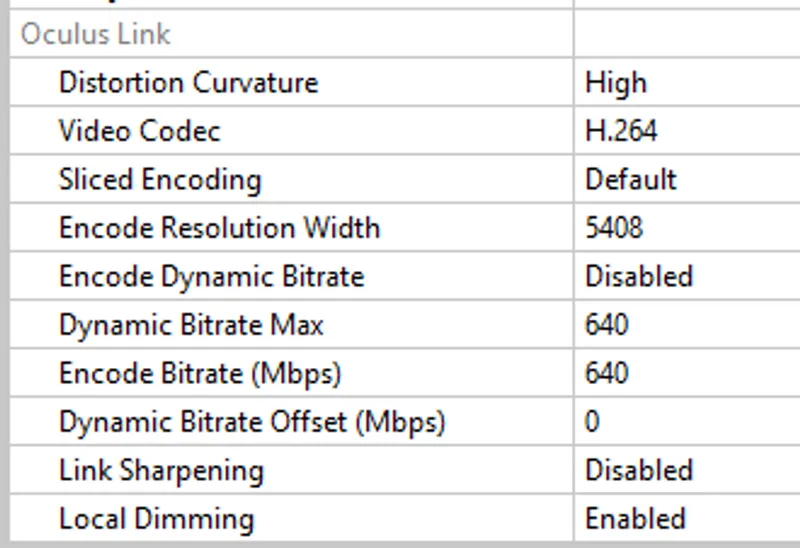
Thus, I always have "Link sharpening" set to "Disabled" in the Oculus Debug Tool.
That, together with the enhanced video encoding parameters that you can also see in the snip above, gives me the absolutely best image quality that can be squeezed out of the Q3 with a Link cable.
Higher quality AER v2
My first implementation of AER v2 dates back to December 2022 (I can't believe time went by so fast!)
More recently, in April 2025, I added a new, more accurate optical flow estimator for AER v2. It's now selected by default because it brings visible benefits on all NVIDIA systems, but it can be a little more taxing on the GPU and older cards might fail to keep a steady frame rate when it's activated, so if you want to try switching it off you can use the checkbox found in the Advanced section of the R.E.A.L. VR overlay main tab.
Don't expect a night-and-day difference. It's actually a very subtle improvement, mostly intended to make the AER v2 fringe artifacts smoother and more regular, rather than to get rid of them altogether. Unfortunately the artifacts cannot be completely eliminated on current hardware because the optical flow estimation the card provides is simply not good enough. But for me this improvement does the trick of making my brain more tolerant to the defects, which is all I can strive for at the moment.
Frame generation
Sadly, hardware-based frame generation cannot be used in VR. And it's not one of those cases where I say no and then start hammering on it for weeks until it finally becomes workable. Frame generation is not for VR because NVIDIA doesn't want it to be.
While DL(S)SS happens in user space, and the upsampled buffers are given back to the game so developers can do what they want with them, with FG the interpolated frames are kept hidden in the driver, and they never make their way back to the application. When it's time to present them, the driver sends them directly to the monitor (which makes it impossible to even record them for replay and analysis without specific hardware capture tools), and the game doesn't get any information about the precise time the frames were presented, let alone the contents of the buffers.
VR headsets are basically screens with accelerometers and lenses, but despite that they are not seen by the driver as a generic screen, due to engineering decisions taken by Oculus, Valve and the IHVs involved in the early days of modern VR. So, frame generation doesn't take VR headsets into account, at all. If you were to employ FG on a VR conversion, and for some lucky combination of events the hack didn't crash, all you'd get would be smoother motion on the monitor display with increased GPU usage, but no extra frames at all in the headset.
That is not going to change until NVIDIA reverses their policy on not making the generated frames available to developers, and frankly I deem such a reversal exceedingly unlikely. The only scenario in which NVIDIA could reconsider their decision is if there was huge demand for the feature from gamers, and I don't expect that to happen because flat games don't need access to the interpolated frames.
Comments (12)
This makes Dead Space 2023 unplayable for me. I have an RTX 4080 and other VR mods work great. But with AER, the screen is extremely flickering which hurts my eyes, which is saying a lot since I'm a veteran VR player since 2013. And it didn't even boost performance, Dead Space 2023 is ghosting and is nauseating. I compare this to the Dishonored VR mod that was free, has motion controls and performs excellent without any AER flicker fest tech. I apologize for my comment, I'm just frustrated that the first time I pay for a VR mod, it's worst than the free ones I got working. No motion controls or snap turning for a paid mod when free mods have these features is wild.
How would it boost performance? AER makes 45fps per eye doable but ultimately VR is going to eat up more performance. What fps were you playing at? What rendering mode were you using? How is Dishonored VR performance flat at the same resolution compared to DS2023 flat on your system? Dishonored is probably way easier on performance I would guess, so that is probably not a fair comparison. Especially if you were using max settings :) I would say this game is pretty good on performance though compared to lots of others that are not much more dated examples. That is kind of like expecting DOOM TDA to have similar performance to DOOM Eternal. Dishonored came out in 2012....... DS2023 came out in..... you get the idea 😉 If you use REAL to play one of its supported titles from around that time, I bet you will find the performance far far better. Dark Souls came out in 2011 for example, and you can run that at 180fps at decently high resolution no problem. Same with part 2. Just depends on the game. I am guessing rendering mode probably had a lot to do with it and you were using the default 1/3 or something like that. Plus, you don't just pay for one supported title (not a mod, which also makes a big difference) You got over 40 if it is your first time subscribing. I am not saying you want them, but it's a big library of supported titles vs one mod.
Is there a list of games supporting full-rate AER v2 with no interpolation? I know of the Dark Souls series, Death Standing, DOOM and DOOM Eternal.
It is mainly titles that can actually use it :) Just be aware that it caps at 2x the refresh rate that your headset is set to. That is hard to reach in newer games. You can however add it yourself. Just put ExpertMode= 1 under the [RVR] section in the RealVR.ini file for the game.
Is it possible to reproject the current left eye image to the right eye image (with respect to the IPD and the right eye ball orientation relative to the left eye ball), such that the left and right images are in sync ? And use the reprojection from the previous frame only to fill the occlusion holes ? This is what PureDark is working on for his Alternative Frame Warping (AFW) method for UEVR, and it shows very promising results. Basicaly there are no desync left/right frames. Reprojection from previous frame is surely less accurate than reprojection from the current frame of the other eye.
thanks Luke - one more question on that topic of Oculs Debug too, it always defaults to PC Asynchronous spacwarp to AUTO, and everytime I have to disable it before any game as it pops up on the mod interface as warning - you have it always on DISABLED, as well and have to do it everytime new as settings are not saved?
I don't have that issue at all when using my Quest 3 🤷♂️ Actually, now that I think about it more, it popped up maybe a couple times. Not with any frequency though. I believe REAL is already doing the first one, Ctrl + Numpad 1. Here is some stuff you could try. Quick Ways to Disable ASW (That Work Better Than Just Closing ODT) Keyboard Shortcut (Easiest for on-the-fly control) Once you're in a PCVR session (headset connected and Link/Air Link active): Press Ctrl + Numpad 1 (use the numeric keypad 1, not the top row). This disables ASW immediately. You can do it inside games too. Ctrl + Numpad 4 → back to Auto Ctrl + Numpad 2/3 → force half refresh rate (with or without ASW) Num Lock must be on for these to work. Use the Oculus Debug Tool Properly (Before Each Session) Go to: C:\Program Files\Oculus\Support\oculus-diagnostics\OculusDebugTool.exe (run as Administrator if possible). Set Asynchronous Spacewarp to Disabled. Then go to the top menu: Service → Restart Oculus Service. Close the tool, reconnect your headset/Link, and test. This often holds it better than just changing the dropdown and closing. Create a One-Click Shortcut to Disable ASW Automatically (Recommended workaround) Many users do this because the setting won't stay disabled otherwise: In the oculus-diagnostics folder, right-click OculusDebugToolCLI.exe → Send to → Desktop (create shortcut). Right-click the new desktop shortcut → Properties. In the Target field, add this at the very end (after a space): -f Commands.txt (Full example target: "C:\Program Files\Oculus\Support\oculus-diagnostics\OculusDebugToolCLI.exe" -f Commands.txt) Create a text file called Commands.txt in the same oculus-diagnostics folder with these two lines: server:asw.off exit Double-click your new desktop shortcut before (or right after) starting Link/Air Link. It runs the command silently and disables ASW for that session.
Thank you Luke for all those interesting explanations. And thank you for the Quest adjusments recommandations. I'm surprising that the link sharpening is set to disabled ?
That is an amazing summary of everything Luke! Well done! It's an interesting read. I was wondering, if I see sometimes the black bars (left/right , top/bottom) when I turn my head too quickly (in the headset). What kind of resources would improve this? is it the frame-rate issue, or latency issue? Or is it some setting that I am missing? I am on Shadow Ultra PC, streaming to my Quest Pro headset on a WIFI 6 via Virtual Desktop. (I know, not the best setup but it is what it is, can't get the 5090 yet, maybe one day ;) ) Once again, Luke, great work! I am a long time subscriber and I appreciate the groundbreaking VR experiences I have thanks to you! And big thanks to Brandon for taking care of everyone in the comments!
The black bars on the sides are either from low performance, high latency or a mix of those and possibly the fov optimizations. The Hfov and Vfov optimizations keep the game from rendering beyond your headsets fov. This can be problematic if your performance is too low (not meeting your fps cap solidly), or latency is high. Try lowering the "reduce shaking" slider first to see how much that helps. Then try moving to Legacy rendering mode to see if those two things together solve it. If they do, then that is a good sign. It means you can try using 1/2 if possible. 1/3 will have the highest amount of latency, so it is most likely to have a hard time keeping up when moving your head inside the headset. Since the game view in your headset is cut off right at the headsets fov, any delay keeping up when moving your head will now create black bars where the game isn't rendered. You could disable the Hfov optimization in the main tab of the REAL overlay as a last resort, but that will cost you a chunk of performance. Since the game is now rendering more pixels beyond your headsets fov. Refresh rate would also possibly play a role here, if set to something like 72. Latency will be higher running 1/2 or 1/3 at that refresh rate. Virtual Desktop should have its own form of this now in the settings. So, you could disable REAL's fov optimizations and use VD's option to fine tune it if that seems to work better for your preferred rendering mode and refresh rate etc.
Please, help make AMD cards work well with an updated step by step guide! Now is the time that there are so many AMD people and the whole Internet is talking about you. Be the king that made AMD work well with your RVR! Please 🙏🏻
Did you ever get Optiscaler working on your end?