



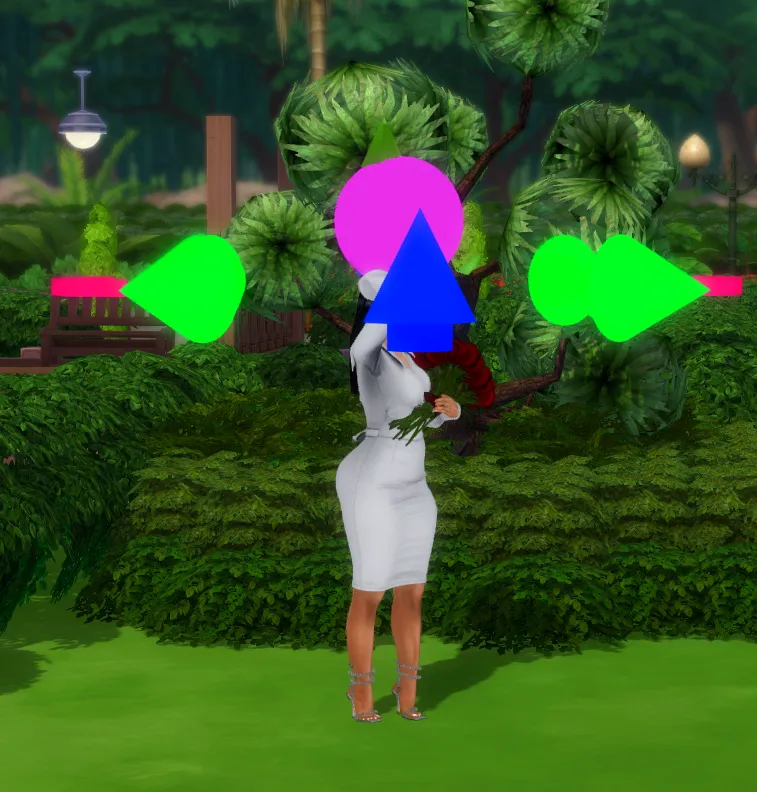



Posing Using Sims Using Wicked Whims 👅👿
The Wicked Whims Positioning Tool is a useful feature for precisely adjusting Sims during animations and poses, especially if you're aiming to create custom scenes or perfect your screenshots. Here’s how you can use the positioning tool in Wicked Whims:
1. Install Wicked Whims Mod
If you haven't installed the Wicked Whims mod, follow these steps:
Download the mod from the official website: WickedWhims by TURBODRIVER.
Extract the files and place them in your Mods folder: Documents > Electronic Arts > The Sims 4 > Mods.
Enable Script Mods and Custom Content in the game options (Options > Game Options > Other).
Restart the game to apply the changes.
2. Activate the Positioning Tool
The positioning tool is used primarily to adjust Sims' alignment during poses or animations.
Start by selecting a Sim: Click on the Sim you want to position.
Access Wicked Whims: Right-click on the Sim and open the Wicked Whims menu.
Activate Positioning Tool: Within the menu, look for an option that says "Enable Positioning Tool." When this is activated, you’ll have the ability to move, rotate, and adjust your Sim's position.
3. Using the Positioning Tool
Once the tool is activated, a user interface will pop up with sliders and options to adjust your Sim's position. Here's what each adjustment does:
Move Tool: Adjust your Sim’s position on the X, Y, and Z axes. This allows you to move them left, right, up, down, forward, or backward to fit them better in the scene or pose.
Rotate Tool: Rotate the Sim on different axes to fine-tune their orientation in the pose. This is useful for ensuring Sims are correctly aligned with each other in couple/group poses or to face a certain direction.
Scale Tool: While not always used, some poses may benefit from slight adjustments to size, depending on the pose pack you're using.
4. Fine-Tuning
If using couple or group poses, you can use the positioning tool on each Sim to perfectly align them with each other.
After selecting a pose for each Sim, use the sliders to make small adjustments until the Sims are positioned just right.
5. Locking the Position
Once you've adjusted the Sims to your liking, make sure they hold their position by locking it within the positioning tool. This will ensure that the Sim doesn’t move unless you deactivate the tool or reset their pose.
6. Take Screenshots
After you have your Sims perfectly aligned and positioned using the Wicked Whims Positioning Tool, you can capture screenshots by pressing C or using any external screenshot tool you prefer.
7. Deactivating the Positioning Tool
Once you're satisfied with the positioning and pose, you can deactivate the positioning tool by going back to the Wicked Whims menu and selecting "Disable Positioning Tool."
Your Sims will stay in their final positions until you make changes or reset them.