



Posing Your Sims Using Andrews Pose Player
Using poses in The Sims 4 can add a creative touch to storytelling and screenshots. Here's a step-by-step guide on how to use poses:
1. Download Pose Packs
Find and download pose packs from popular creators on sites like The Sims Resource, Tumblr, or Patreon.
Pose packs usually come in .package format. Be sure to download the appropriate poses that suit your needs (e.g., single sim, couple, group).
2. Install Pose Player Mod
Download Andrew’s Pose Player Mod and Teleport Any Sim Mod:
Andrew's Pose Player is essential for activating poses in the game.
The Teleport Any Sim mod allows you to position sims exactly where you want them.
Extract the downloaded files and place the .package files into your Mods folder, located in Documents > Electronic Arts > The Sims 4 > Mods.
3. Enable Mods in the Game
Launch The Sims 4 and go to Options > Game Options > Other.
Enable both Script Mods and Custom Content.
Restart your game after enabling these options.
4. Place Teleport Any Sim Statue
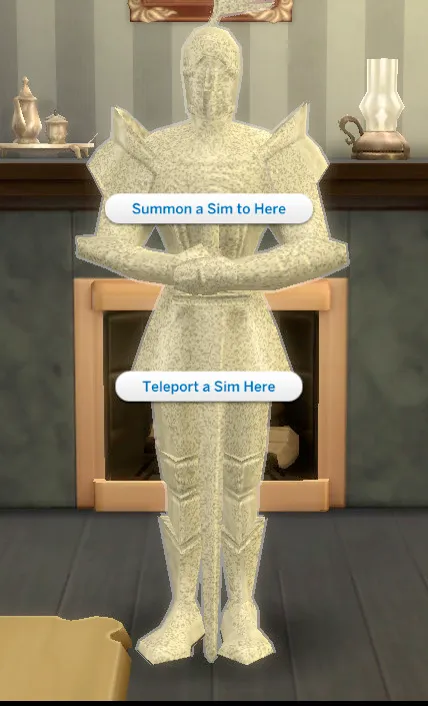
In Build/Buy Mode, search for the Teleport Any Sim Statue (it looks like a knight statue).
Place the statue wherever you want your sim to stand.
5. Teleport Your Sim
Click on the knight statue and choose "Teleport a Sim Here."
Select the sim you want to teleport to that location.
6. Use the Pose Player
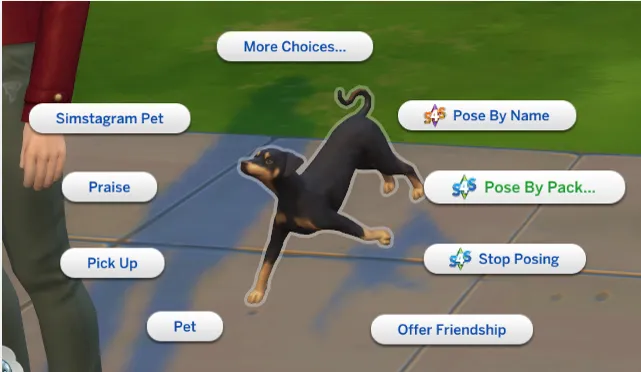
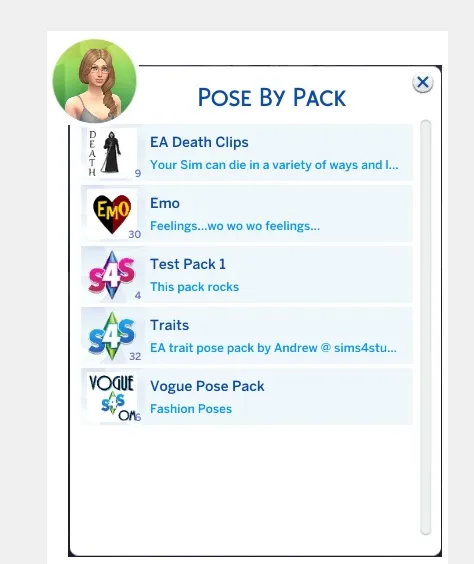
Click on the teleported sim and select "Pose by Pack."
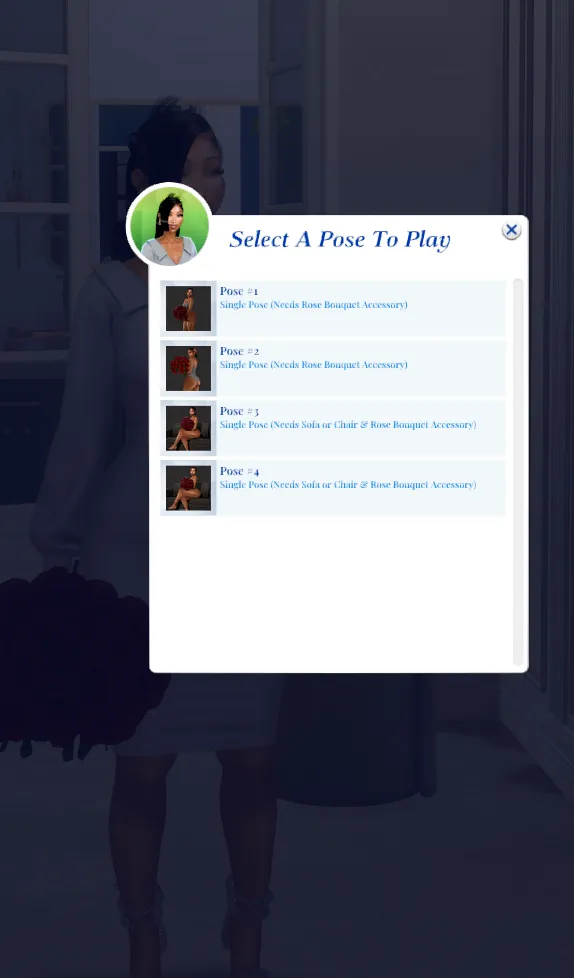
A list of your installed pose packs will appear. Choose the pack and specific pose you want.
Your sim will now perform the selected pose.
7. Taking Screenshots
Once your sim is in the desired pose, press C to capture a screenshot or use custom screenshot programs for more control.
8. Cancel the Pose
To stop the pose, click on your sim and choose "Stop Posing."
That's it! Using poses can elevate your Sims 4 storytelling, especially for screenshots and creating engaging content.