
Back-up
There is a lot to say about setting up a backup system, and I recently had to redo mine (for the second time) after realizing I had lost some previous shoots due to disk corruption (*).
And since I cloned one disk onto another, the backup of the backup was also gone, and I only realized this many months later.
Let me explain what I do now, having learned my lesson the hard way.
Twice.
Some golden rules of Back-up
You need to be able to access your files securely and fast.
If files are lost, you first need to know when they went missing. And you need to be able to access and restore the backup files within a reasonable timeframe (whatever that means to you).
You should have everything saved in at least 3 places, on at least 2 physical locations, in case of theft, fire, water damage, or similar events.
You need to find a balance between media cost and accessibility, and ideally, a solution that can scale.
No media is completely secure; both magnetic HDs, magnetic tapes, optical disks (DVDs), SSDs, and Flash RAM/SD (memory cards) can, and will, deteriorate over time.
Cloud backup can sound enticing, but only as long as you have a super-fast internet connection, AND assuming the cloud service lets you use that speed. And you don't have all that many files.
Many online providers will downthrottle that speed, though.
At one point, I used Backblaze with unlimited storage, which was fairly cheap.
That is, it was unlimited until I reached 8 TB, after which they closed my account with 30 days' notice. The download speed was severely downthrottled, and it took me about 21 days, 27/7, to download that 8 TB, even on a fiber connection.
These days, I have about 70 TB of files, and paying for online storage of that is well above my budget, so I opt to own my own backup.
File/Folder naming
First, all my sessions are named “ModelsName_sometimeslocationinfo_Day_month_year”. For example, “Silas Ash 9+10-06-2025” and I rename the individual filenames (Using A Better Finder Renamer) to the same name + a sequential 4-5 Digit number, so "Silas Ash 9+10-06-2025 - 3976."
Then I separate the shoots into manageable chunks, grouped by session year, approximately 8 TB each, since this fits on a 10 TB disk with a little space to spare.
This is logical when you do it with archival material, but I now do it with all the new files as well.
Back-up
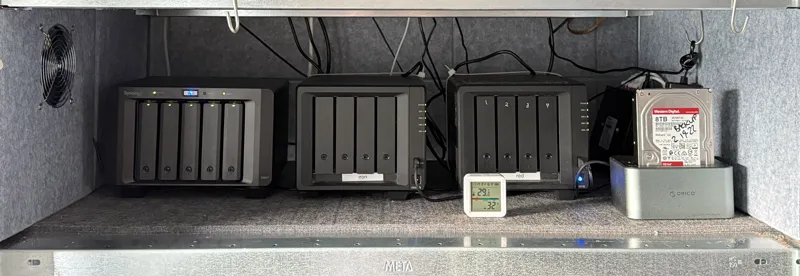
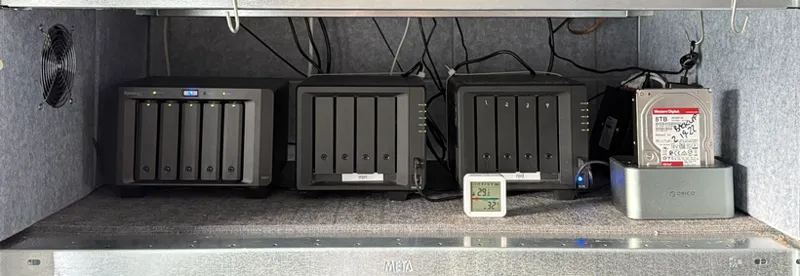
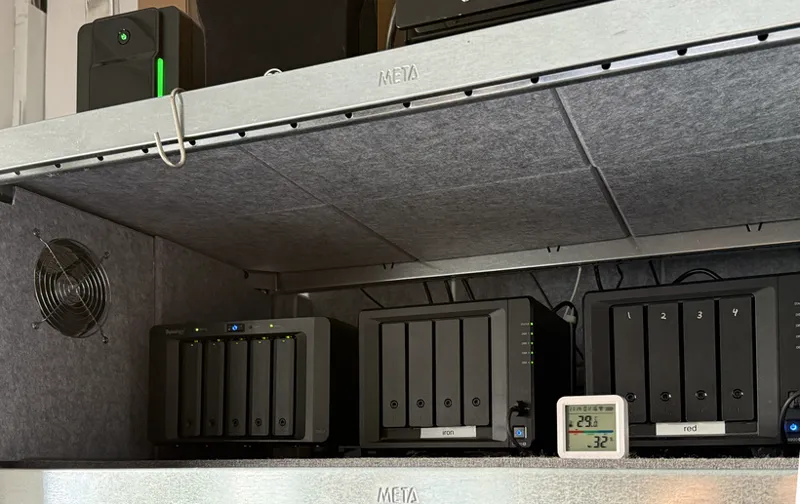
I have two Synology NAS (Network Attached Storage) devices, one with a 5-bay expansion drive equipped with 16TB drives, running SHR, which is sort of like RAID 5, meaning every byte is saved across two disks in the configuration.
This means that even if one disk dies, all the files remain intact on the remaining disks, and when I replace the bad disk, it will be rebuilt from the other disks.
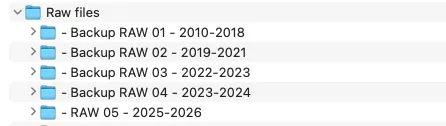
So on my Synology NAS (Network Access Server), I currently have five folders with raw files:
2010-2018 RAW
2019-2021 RAW
2022-2023 RAW
2023-2024 RAW (I couldn’t fit everything from 2023 on one disk, so the last 3 months spilled over to the next folder.)
2025-2026 RAW, where I’m still working on many folders and have finished others.
The 2026 shoots I’ve done so far, and the ones I'll make later this year, will go into the last folder until that folder reaches 8TB.
(Since I've upgraded most of my original 10 TB disks to 16TB disks, I have some spare 10TB disks that have no missing sectors and limited runtime lying around, so I'm backing up on those instead of buying new disks.
External HD Back-up and formatting
All the folders on the NAS are backed up to separate 10TB HDs.
That back-up is done directly from the NAS via a USB HD enclosure (DuoDock) to an external Disk drive formatted to “EXT4,” so I can do the back-up without having to use a computer, and still have files verified when copied.
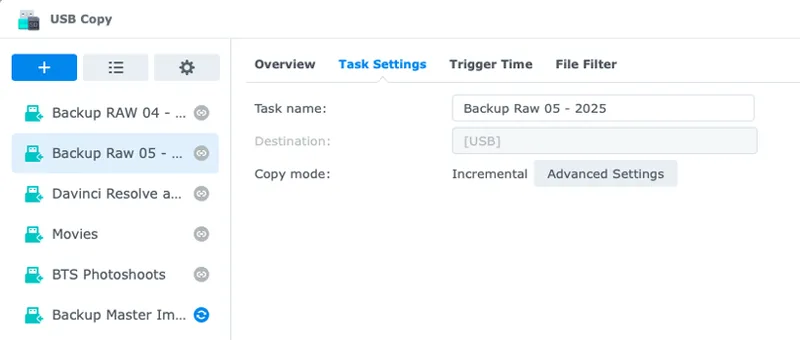
I use Synology USB Copy, which verifies data integrity for every byte copied and supports incremental backups, so data integrity should be ensured. I can top up the disks over time.
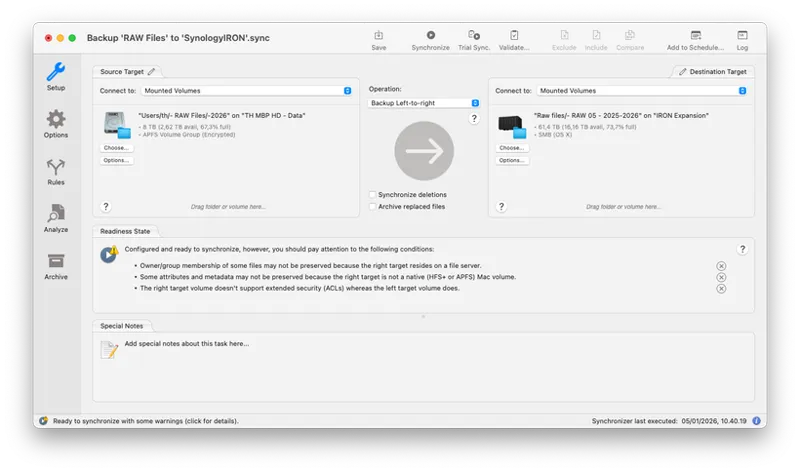
One important thing: Every time I complete a new shoot and rename the files, I copy them from my laptop to the NAS in the appropriate folder (i.e., 2026) and perform an incremental backup to the aforementioned external HD once a month.
For copying from the Mac, I use ChronoSync, which verifies file integrity, ensuring that everything is copied over and preventing corruption. If I use normal copying and the connection is cut off for whatever reason, I may not get all the files from the session copied over. And if I don't notice something went wrong, I might not get them backed up at all.
The last folder (2025-2026 RAW) is also periodically synchronized with the other NAS, just in case.
I’ll usually work on the newest files from my Mac, but even if my Mac gets stolen or crashes, or if I need to free up some space, I'll still have all my shoots on the NAS, a backup on the other NAS, and, mostly, on an external disk.
The external disks are then duplicated using a DuoDock disk cloner and stored in a shock and humidity-resistant case.
The duplication is also done incrementally, once a month or when I feel the urge.
And I bring the disk copy home (offsite) and verify that the data is intact.
In the future, I'll likely bring the offline disks home while duplicating, so I will never have all the files in one location.
And since a DuoDock can clone a disk without a computer, speed is not an issue.
Verifying files on Mac.
This part is a little tricky because you can’t mount EXT4 (Linux) disks on a Mac, so I use Ubuntu and Parallels to create an SMB (Windows) share, which lets me mount and read from/write to the EXT4-formatted disks.
So 2-3 times a year, I'll mount the disks, spin them up, copy a few files to check integrity, and then run a SMART scan to verify that the disks are still good, and don’t have missing blocks
And change the Lightroom folder for additional verification (more on this later (**).
So, in effect, I currently have everything online on the Synology, offline at work on a disc in a safe, and a copy at home.
Cataloging files in Lightroom
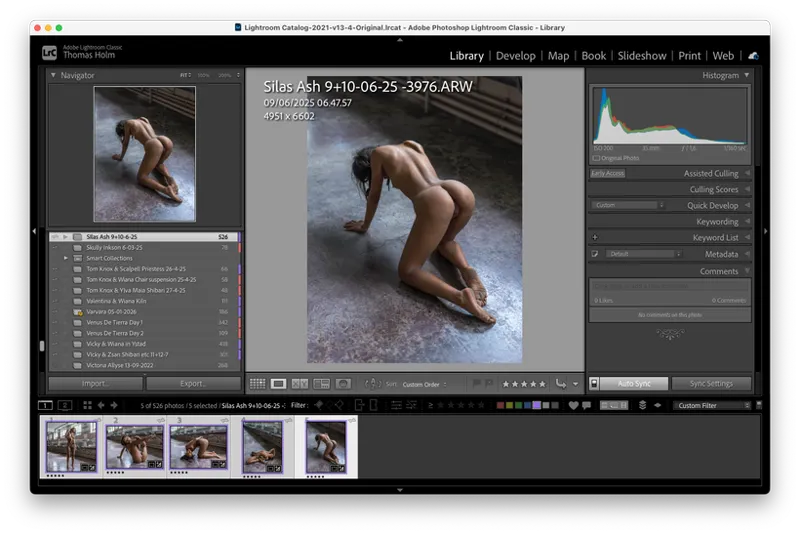
Saving the data is one thing; finding anything is another, and I use Lightroom for this:
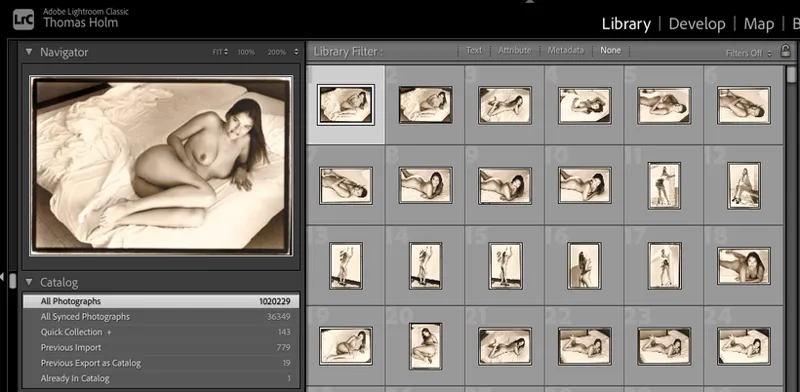
I’ve set my computer to spend some weeks over Christmas cataloguing everything and building smart previews for the folders(disks) on the NAS, in their respective folders, which amounts to more than a million images.
So I can search for a model name, location, or date in Lightroom, and as long as I’m at work, I can access the files online within seconds.
Offline Work
When I’m at home, I can’t access the NAS (because of security and speed). But since I have offline backup disks for everything I have created in Lightroom, I can right-click the folder in Lightroom (say, 2019-2021 RAW) on my Synology, mount the corresponding offline disk, right-click the "year-span folder" folder in Lightroom, and choose Find Missing Folder, and point to the mounted folder.
Then I can see and access all my shoots in Lightroom from home if need be.
Coming back to work, I’ll do the same: find the missing Folder (point to the folder on the Synology NAS), then I can work on the files from the NAS again.
Even if I have to delete the files from the NAS, as I might need to do with some older files at some point, I still have everything on two backup disks that are periodically checked.
Lightroom - missing files verification (**)
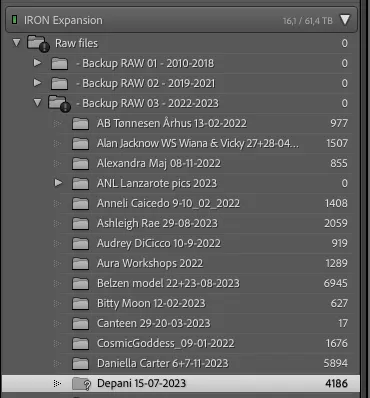
In addition, Lightroom Classic (v. 15.1) will show a small exclamation mark in the top-level folder, and a question mark on the actual folder if any folders or files in any folder are missing on the actual disks.
That is a genius function that essentially tells me whether all files on a given disk are there and readable.
So even if both backup disks go bad, I still have the original on the NAS and can make new copies onto another disk.
The cool thing is that all the ratings, color coding, and previews are in the Lightroom catalogue on my Mac, not on the specific disk where the files reside.
That said, I rarely need to work on the offline disks anywhere other than my work network.
Some gritty details
Power
A couple of other notes: I have the NAS on an Uninterruptible Power Supply (UPS), which can provide power for an hour or so and will safely shut down the NAS in case of a power failure. And all power supplies are on the shelf above to avoid increasing NAS temperatures.
Sound insulation
I'm keeping my NAS on a large shelf, that's resonably sound insulated using acoustic tiles on the top, sides, and the wall behind the NAS drives (with about 10cm 3" air).
And I have a 10mm felt plate below and have RAISED the nas on 3CM/1.3" Vibration-dampening feet so air can pass all around them.
And I have another acoustic panel to close off the front so the ticking read/write sound isn't annoying me.
To make sure the system doens't overheat, I've built in a standard adjustable PC fan on the side of the enclosure and connected it to a Wi-Fi-enabled smart plug, which is connected to a smart home app.
Temperature regulation
And I've placed a Wi-Fi-enabled thermometer, also connected to the smart plug.
Then I've created an automation that turns on the smart plug with the fan when the temperature exceeds 27 degrees entigrade, and turns it off again when it falls below 25 degrees Celsius.
I can monitor the temperature of the actual disks in the NAS, and the surrounding temperature keeps the drives within an optimal range without any intervention from my side. The thermometer runs on a battery, and the smart plug, like my NASs, is powered by the UPS.
The NAS drives are both encrypted and securely fastened to the concrete wall behind them, so it's not easy to steal, and if stolen, the data is unusable without the encryption key.
Breaking up the Lightroom catalogue
I’m considering breaking up my rather large (800 GB) Lightroom catalogue into a separate catalogue per "year-span" folder to keep it manageable, but I haven’t yet weighed up the pros and cons.
It might be easier to preserve the integrity of a smaller catalogue, and I could free up about 1 TB of space on my MacBook by moving the catalogues to the Synology and the individual backup disks.
The main downside would be the speed of reloading a new catalogue from Synology (or SSD Disk), and I would need to know which folder to open to find the files. That part can be tested fairly easily, though.
This could, of course, be easily gleaned by doing a Finder search, as long as the files are online on the NAS.
Speed - or lack thereof:
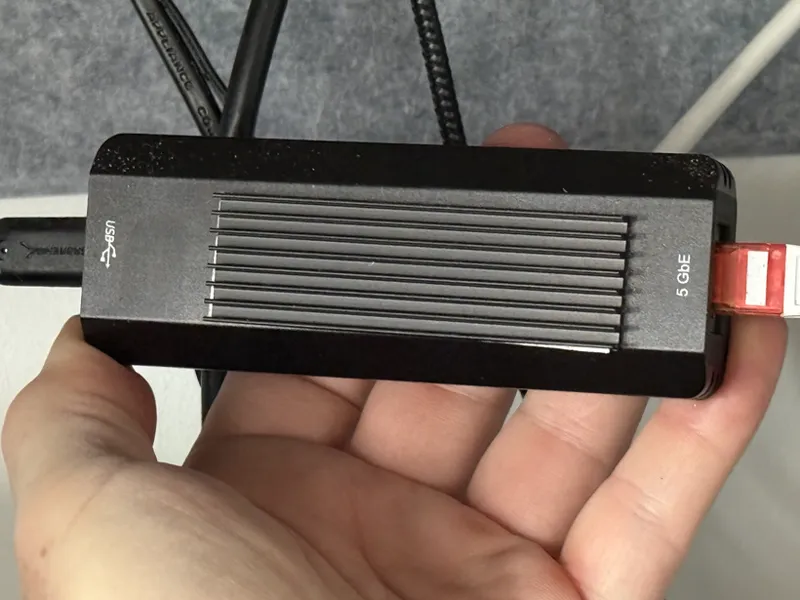
I found that my Synology's normal Ethernet speed was too slow. Transferring max. about 120-160 Mbps, so I upgraded it with a Sabrent 5Gbps USB-Ethernet adapter with a couple of retrofitted heatsinks to keep them cooler (and with those, the speed maxes out at 3 Gbps), which effectively makes any large file transfer 2.5-3X faster.
My Mac has a 10 Gbps Ethernet adapter, and I also have 10 Gbps routers and Cat 6a cabling throughout.
This is even fast enough for 5-camera multicam editing in Davinci Resolve, even though the videos are stored on the NAS rather than SSDs.
But enough about Back-up:
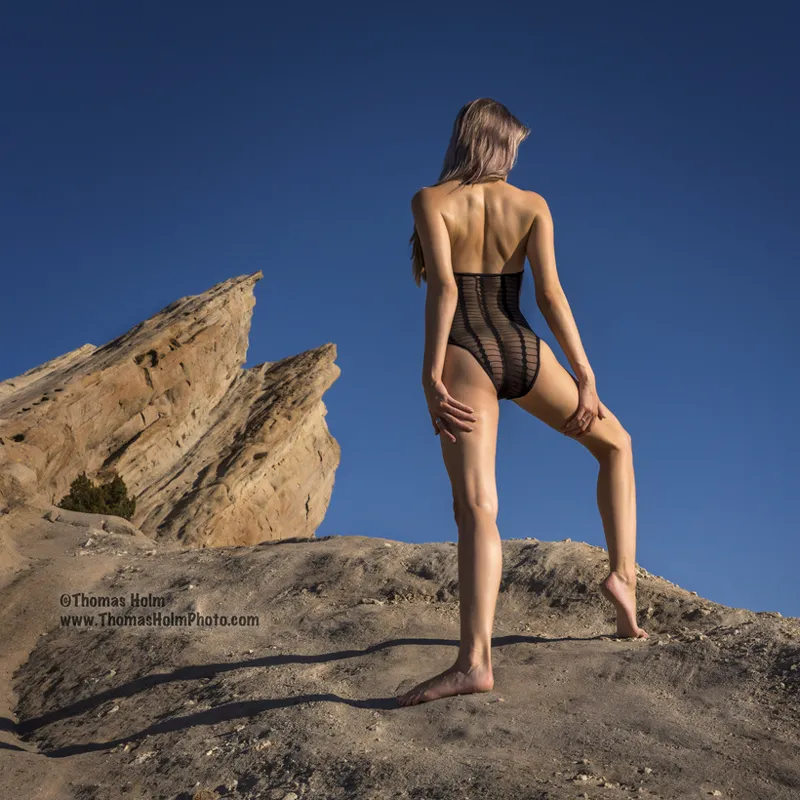
The picture below is Kitten With Fangs - looking for Captain Kirk, in Vasques Rock.
I’m told Kirk could help me get the shots back I have previously lost due to some bad sectors on one of my disks.
(*)
PS. The disk with the shots I have lost is likely recoverable by a professional disk recovery company, but it's about $1000-1500 to have it done, or to find out if it's possible...
Comments (10)
Very precious advices, thank you !
A very interesting and un-sexy post. ;-)
I have a couple of other tips. 1. I agree with you, If you have a large library of photos, get the synology nas that has a 10GbE card, or one that can be upgraded to that card. You will get about 500 to 800 MB/sec across the network. 2. Run the “Data Scrubbing” every 6 months which will check and repair files. 3. Consider SHR-2 vs SHR-1 depending on how good your other backup is. A disk volume repair can take 4 days or more for a large library. Another disk failure during that repair is a big problem, thus the need for shr-2. If your nas is just cold storage then shr-1 might be okay. If it’s used much, …. 4. Stagger the age of your hard drives. 5. Mark the Nas drive bay with the year you installed the drive. it’s recommended to replace drives after 10 years. Surprisingly 10 years goes by fast. 6. I had a drive go from perfect SMART score to failed in about an hour after running the latest SMART test. When drives fail, you have very little warning. 7. To take advantage of a 10 GbE you have to be feeding the nas from multiple other hard drives (typical HD is about 120MB/sec off it), or SSD drives. 8. Big arrays of large drives are more likely to have a failure. They take a long time (days) to build the array, and days to “scrub”, and/or repair. SHR-2 incurs a significant time penalty over SHR-1. Google the discussion on failure rates of big NAS arrays. I don’t really have a good solution to these issues.
Thanks, Appreciate it.
Probably worth considering changing hard drives every 10 years and staggering their ages.
I might well be yes.. None of mine (for archival) is more than 5 years old, and the 16TB is only about 6 months old. None have missing sectors or a perfect S.M.A.R.T. score, so I'm good for a bit of time.
Thanks for the great write-up. I am definitely lacking in my back up situation compared to this and have so far just been lucky enough to no need it! Do you do any sort of culling for your shoots or do you save everything? For example, I do a once pass through where I separate "No" from the "maybe/yes" photos. I'll process the Yes, keep the Maybe's in a different folder with a separate naming convention and forever delete the No's.
Thanks. No I keep everything and I’m glad I do: sometimes when I revisit old shots I find my taste have changed and some of the 0-rated images are now my favorites. I can’t possibly predict how my taste will change so I prefer to not delete my gold. And it’s easier to keep things in a single shoot folder than potentially having multiple naming conventions - at least to me. And yes things add up but it’s also much less expensive over time to save data.
Great advice, as usual! Hope someday you recover the lost photos/disk.
Thanks.