
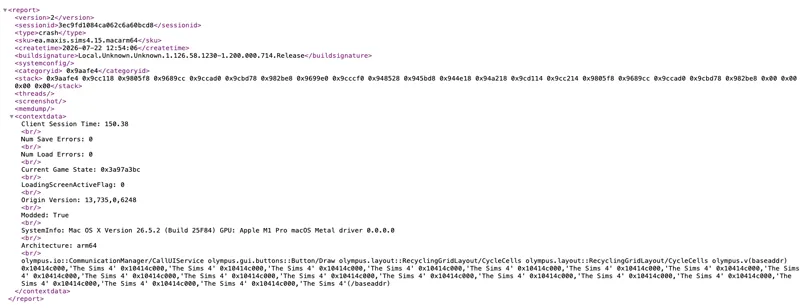
Sims 4 Mythbusting: The "encrypted" lastCrash.txt File
The myth: when your game hard crashes, it leaves behind a lastCrash.txt file, and "everyone knows" that file is encrypted, useless, and readable only by EA.
The reality: it is a plain text file. Nothing in it is encrypted. You will not get everything EA can get from it, but you can almost always narrow a crash down to a specific mod, driver, or moment in your session using nothing but the text editor already on your computer. Here is how to actually read one.
A quick note before we start: the example below is from a Mac (you will see macarm64 and a few Apple names in it). Windows files are structurally identical. Only some of the module names at the very end will look different. The parts that matter read the same way on both systems.
Where it lives and what it is
lastCrash.txt is written when the game process is killed by an unrecoverable fault. Where to find it:
Windows: C:\Users\<YourName>\Documents\Electronic Arts\The Sims 4\lastCrash.txt
Mac: ~/Documents/Electronic Arts/The Sims 4/lastCrash.txt
This is different from a caught last exception, which goes to lastException.txt, or a caught UI error, which goes to lastUIException.txt (both in the same folder) instead. The lastCrash.txt file is a single line of XML. That is all it is.
1. Make sure the file is fresh
The game does not write a new lastCrash.txt unless a hard crash actually happens. When a new lastCrash.txt is generated, any old one will have a numeric string added to the filename. To ensure that you are always looking at a freshly generated lastCrash.txt, delete ALL old lastCrash*.txt files from your The Sims 4 directory while the game is closed. Then run your one thing. If the game crashes and a new lastCrash.txt file appears, you know it belongs to this run.
2. The fields that matter
Open the file. It is one <report>...</report> element. These are the parts to read, in order:
<createtime> : the time of the crash. Check it against when your test ran.
<sku> : your build and platform, for example ea.maxis.sims4.15.macarm64.
<contextdata> : the most useful field. See section 3.
<stack> : a list of hex addresses. See section 4.
<threads> : usually empty in these reports. Ignore it.
3. Read <contextdata> first
<contextdata> is human readable. It is a list of key: value pairs. The ones worth your attention:
Modded: True means mods were loaded. A crash with Modded: True and no matching lastUIException usually means a fault the game could not catch cleanly, which often points at a script or injection issue rather than an ordinary UI error.
The last line of <contextdata>, right before the (baseaddr) block, is frequently the exact UI method that was running when the game died. It looks like a Class/method name, for example:
'olympus.gui.buttons::Button/OnMouseRollOver'
This is the single most valuable clue in the whole file. It names what the game was doing at the moment it crashed. If you are a creator and that method is one your mod changes or hooks into, your change to that method is your first suspect. If you are a player, this line tells you the crash happened during a specific action (hovering, clicking, loading), which helps you reproduce it.
Current Game State, LoadingScreenActiveFlag, and Client Session Time tell you when in the session it died: on a loading screen, in Create A Sim, out in the world, and how long you had been playing.
4. The <stack> address list
<stack> is a space separated list of hex addresses, innermost first:
<stack> 0x96ab60 0x9cccf0 0x948648 ... </stack>
These are runtime addresses inside the game. They are not function names, and without EA's private symbol files you cannot turn them into function names. This is the one part of the file that is genuinely EA only, and it is worth being honest about that. But the addresses are still useful to you in two ways:
Shape. A very long stack that repeats a small cycle of the same addresses suggests something ran away in a loop. A short stack suggests the game died instantly.
Comparison. If two crash files share the same leading addresses and the same <contextdata> method, they are almost certainly the same bug. This is how you tell "my fix did nothing" apart from "I caused a brand new problem."
The trailing block that lists load addresses and repeats the game's name for each frame is normal. Names like Foundation and CoreFoundation at the very end are just the operating system, also normal.
5. The reading procedure, start to finish
Delete lastCrash.txt, run the one thing you want to test, observe for a crash.
If the game crashes and generates a lastCrash.txt file, open it in your preferred text editor OR rename the file suffix from .txt to .xml and open in a web browser (Chrome recommended).
Read <createtime>. Confirm this is your run.
Read the end of <contextdata>. Note the Class/method name.
Ask yourself: did I do anything to that method, or was I doing that specific action when it crashed? If yes, that is your first suspect. Revert it, guard it, or avoid it and test again.
If the method is game code you never touched, look at what happens right before it, and at anything your mods do that feeds into it.
Save the file somewhere else before your next test, so you can compare the two.
6. What it will not tell you
Being real about the limits:
No source lines, no variable values, no plain error message. For those you need a caught error (lastException, lastUIException), which only exists when the game survives the error. A hard crash skips that.
No named native stack. Those hex addresses stay dead ends without EA's symbols.
So in short, the three pieces of info in a lastCrash.txt file that are useful are the <contextdata> method, the freshness of the file, and the ability to compare one crash's signature to the next.
That is the whole trick. Not encrypted. Not magic. A text file and a method, nothing more. Now go have some fun with it!