How to use JSON file to get your Corvette! (Tutorial)
A new updated and easier to use with new tools tutorial video I made is online. Please check it out here: https://www.patreon.com/posts/153016383
Here is my tutorial for how to use the Json files I provided to import it in your save game and use my corvettes freely!
Process seems intimidating at first if you are new to this but actually once you do it, you will realise it is only a couple of clicks and copy paste operation. Please use my save editor to make a backup of your save file first just in case to be safe!
What you need:
- a PC :)
- 2 Programs:
+ NomNom Save Editor : https://github.com/zencq/NomNom
+ NMS Base Builder (optional but very helpful): https://www.nexusmods.com/nomanssky/mods/2598?tab=files
First in game you create a dummy corvette ship to replace with my corvette build. (or you can replace your current one too but it will be lost if you dont back up it first)
Lets begin:
Install 2 programs I linked above.
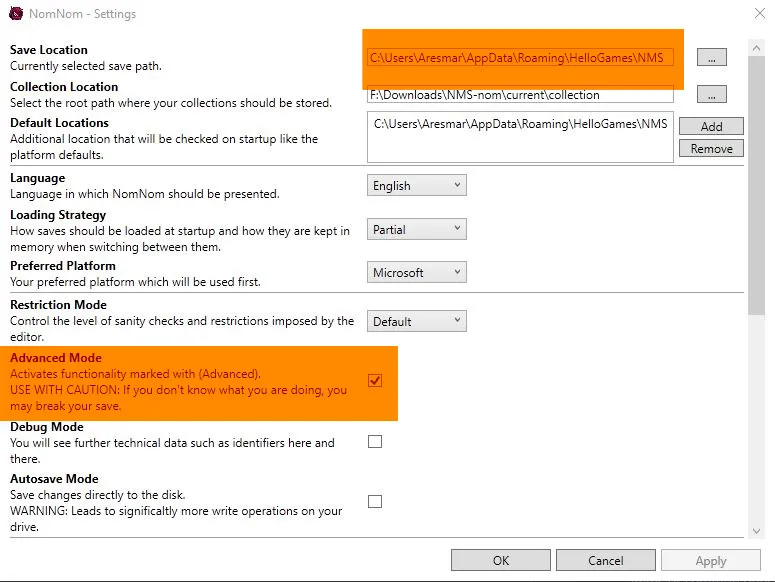
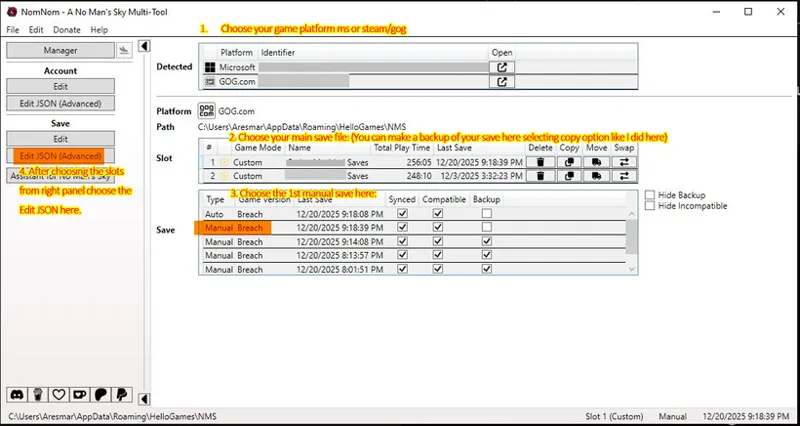
Than open your NMS Save Editor NomNom. Enter File/Settings. And Check "Advanced Mode". Also check your save game file location is correct.
Apply and close settings.
Click your main game platfrom.
Click your current active save game name.
Click your top "Manual Save" (not Autosave).
Click Edit JSON Advanced under the "SAVE" part left of screen (NOT ACCOUNT ONE).
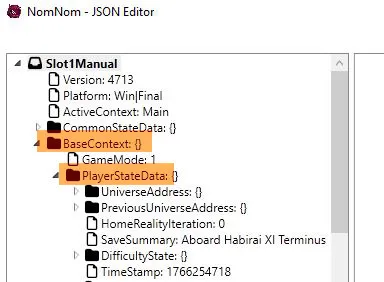
Click "BaseContext: {}"
Click "PlayerStateData: {}"
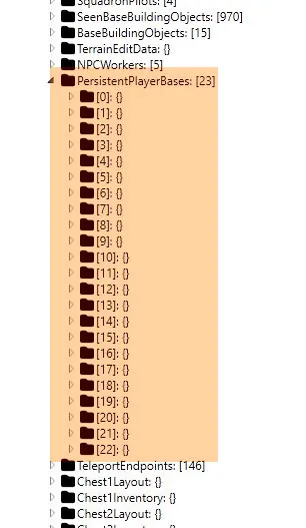
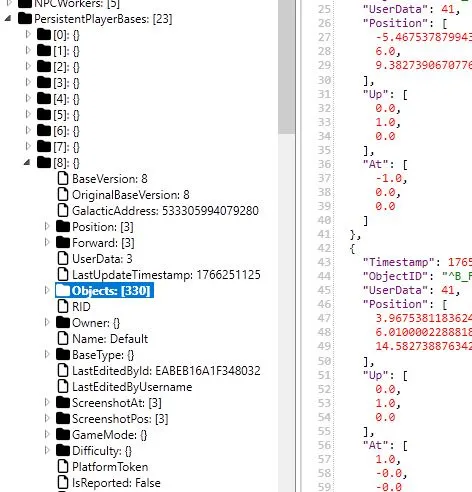
Scroll a bit down and find and click: PersistentPlayerBases:
Under it you will see numbered (0 to XX) what your save game file has for your bases and corvettes and even nearby other player bases at the moment.
Now you gotto find your dummy corvette you created to replace with my ship build.
The second program is a base builder program and I said optional but it is safer to check with this program what we are replacing live and be sure about it.
Click the last number probably be your dummy ship but it may not be so we check it.
So after clicking the last base there select all of the json data text on the right panel of the program with (CTRL+A) Than Copy it to clipboard (CTRL+C).
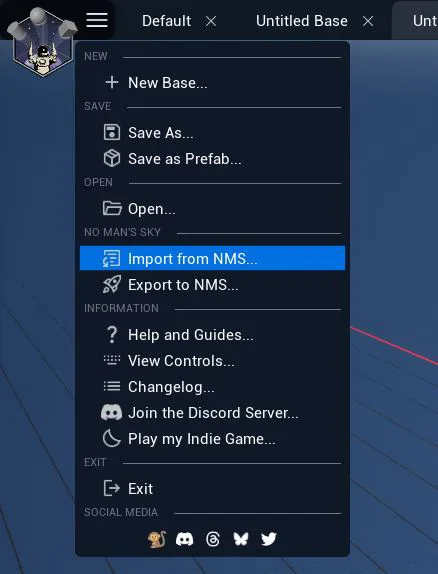
Than open NMS Base Builder program and click on the left top most "file menu" and select "import from NMS" and paste it in the opening popup screen with (CTRL+V) than click import.
You will see the base or corvette you have selected in the designer program! This is where I build my ships or in Blender with NMS plugin. ;)
If it is the correct one you can close this nms base builder program. Now we are sure of the number slot! If not with same steps check other numbered slots and find which one is your dummy corvette going back one by one.
So we no know which one is the dummy corvette we wanna change! Rest is easy now. :)
Now lets choose one of my builds and get it!
Download one of my Ship Builds JSON Objects file from this post of mine:
https://www.patreon.com/posts/146294683
Open it in any text editor and select all of Objects JSON Data in it and copy it in clipboard.
( CTRL+A CTRL+C )
Than click on your numbered slot which you know now in NomNom Save editor.
And select OBJECTS: [xx] there. (Here in example I have my corvette in 8 numbered slot)
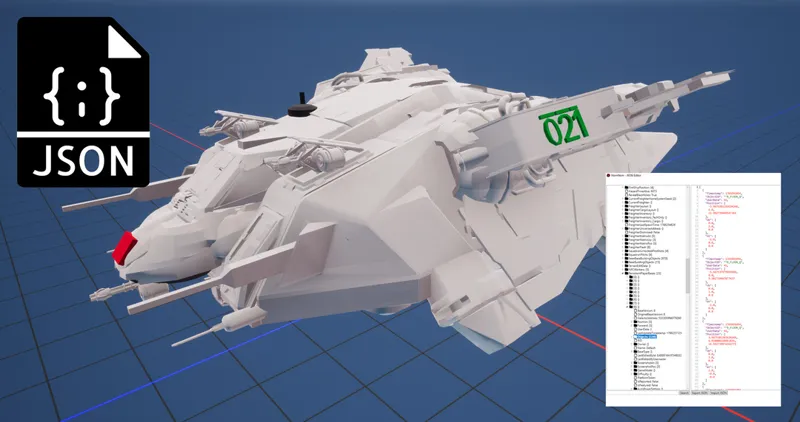
And select all text on the right panel which are your corvette objects, delete them pressing DEL or Backspace. Now press CTRL + V to paste my ship build OBJECTS (you previously copied in clipboard) Json to same box. And click OK bottom right of window. A window will ask to save the json data changes save it.
Than Select main "File" menu "Save" the changes.
Thats it! Close the NomNom Save editor and run the game and you will see your new Corvette hopefully! :D
Have fun! If you have any questions please send me a message or ask in chat.
Aresmar