
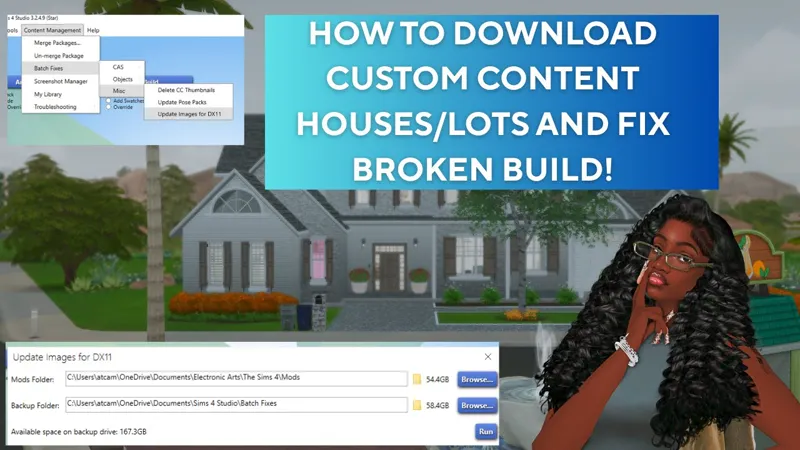
HOW TO DOWNLOAD CUSTOM CC HOUSES & LOTS FOR THE SIMS 4
If you’ve ever seen a gorgeous CC house or a fully decorated custom lot and thought, “How do I get that into MY game?” — this video will show you exactly how to do it. Whether you’re downloading from Patreon, Tumblr, CurseForge, or anywhere else, this guide works the same!
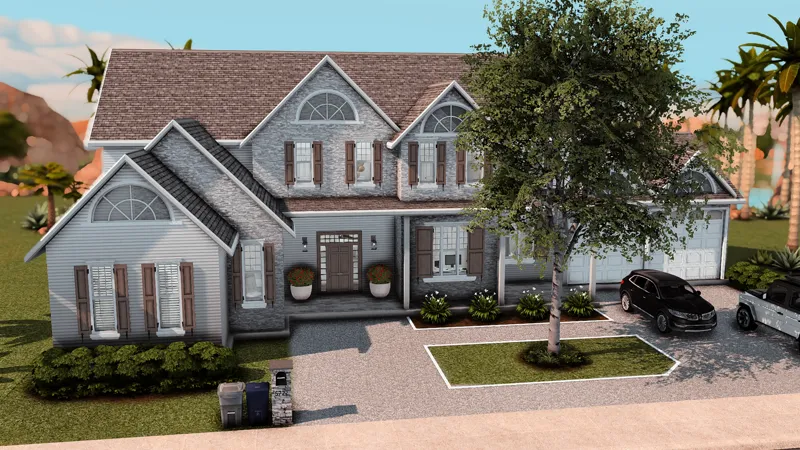
The build in the video is by Slaytastic → The Modern Luxury Home
♡︎Below are the full instructions in case you need them written out ♡︎
♡︎ 1. Download the Files
When you download a CC house/lot, you’ll usually get one or more of the following file types:
.package files (custom content objects, furniture, textures)
.trayitem files
.blueprint, .bpi, .sgi (Lot/House files)
A .zip or .rar folder that contains everything
Make sure to extract the folder if it’s zipped!
♡︎ 2. Install the TRAY Files (The Lot Itself)
These files control the structure of the house — walls, floors, rooms, layout, etc.
Place these files here:
👉 Documents > Electronic Arts > The Sims 4 > Tray
DO NOT make a new folder for tray files.
They must go directly inside the Tray folder.
♡︎ 3. Install the CC Files (Furniture, Decor, Objects)
If the house uses custom content objects, you’ll have .package files included.
Place them here:
👉 Documents > Electronic Arts > The Sims 4 > Mods
You can put CC in subfolders, just don’t go more than 1–2 folders deep, or the game might not read them.
♡︎ 4. Enable Mods in Your Game
Open The Sims 4 and go to:
Game Options → Other
✔ Enable Custom Content & Mods
✔ Enable Script Mods (optional)
Then restart your game.
You should see a “Mods” pop-up list when the game loads — this means everything is installed correctly.
♡︎ 5. Place the Lot in Your Game
Go to:
Manage Worlds
Pick any lot
Click Gallery (Library tab)
Make sure these filters are ON:
✔ Include Custom Content
✔ LotsCTRL + Shift + C ton bring up cheats menu then type bb.moveobjects on (should say move objects enabled)
Look for the house you downloaded in your library and make sure include custom content is checked
Click Place Lot
Make sure the lot size matches the house (ex: 30x20, 40x30, 50x50).
You can bulldoze a lot before placing the new one.
♡︎ Common Issues & Fixes ♡︎
House not showing up?
– You forgot to check “Include Custom Content.”
– Your Tray files aren’t in the correct folder.
– You didn’t restart your game.
Missing furniture?
– CC furniture wasn’t placed in your Mods folder.
– You need to download extra CC listed by the creator.
✨ 💗 Enjoy Your New House!
Once everything is placed, your new home should load fully decorated, beautiful, and totally playable.
Feel free to renovate, redecorate, or make it your own!
How to download custom cc houses and lots for the Sims 4  (YouTube)
Comments (1)
Thank you so much!!