

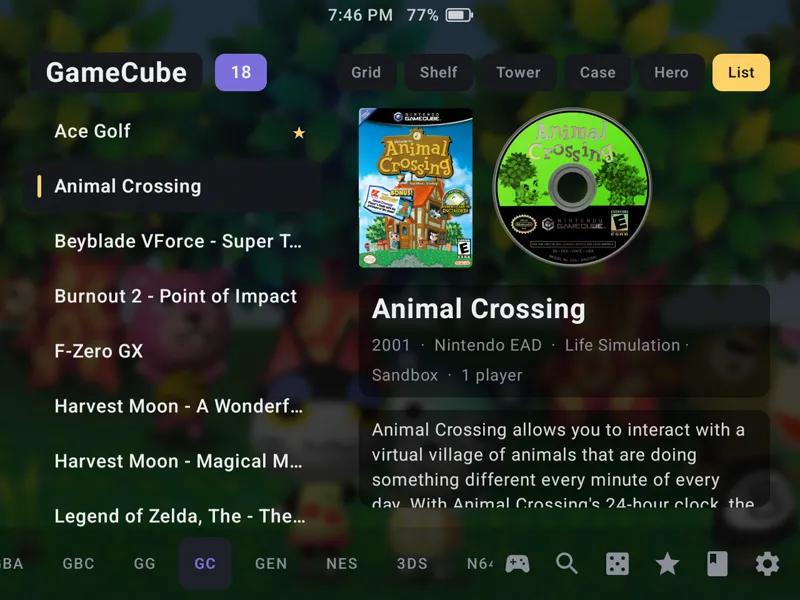
Jump 1.5 - List & Hero views, game backgrounds, custom systems, folder support, multi-discs & more!
Hello everyone, it’s time for a new Jump update! I’ve been working on this for a couple of weeks so there’s quite a lot of new stuff! That’ll undoubtedly mean there will be bugs so please keep reporting bugs and I’ll be sure to work on them all! I read every bug report and message, even if I don’t always have the time to reply to them all. I’ll work on a bug patch update in the next week! This should also be the first update that you can get through the app itself through Settings -> Backup -> Check for updates (as long as you’re running version 1.4) so please let me know if it updated successfully within the app :)
New:
- Hero view: game Hero images (backgrounds) show behind your games and include game descriptions and details. You can either have a row of carts/discs and the box art up top or a row of boxes and the cart/disc up top.
- List view: a simple list of game names on one side with the game box, cart/disc, and details on the other side. You can choose either the left or right side to match your preference.
*Also worth pointing out here that with the new update adding more views, it can start to get quite cluttered at the top of the app so by holding your finger down on any of the views (Grid, Shelf, Tower, Case, Hero, List) it’ll bring up a menu where you can disable any you’re not using. And remember you can also hide all of these buttons in Settings -> Look -> ‘View buttons on pages’ which then also lets you center the system name and game count.
- 26,000+ Backgrounds added to the Jump art library which can be fetched from Settings -> Art -> Fetch -> Backgrounds. You can also adjust the opacity and blur of them in Settings -> Look and scrolling down to the very bottom or within the updated theme editor (more below). You can add your own backgrounds to Jump/art/<system>/heroes with the same name as the ROM -OR- by saving your background as <rom name>-hero.jpg next to the ROM itself.
- Game descriptions. Many games now have descriptions, information etc.
- Custom systems! This one has been requested a lot. You can now set your own custom systems to cover anything that hasn’t yet been added into the app. Go to Settings -> Library -> ‘Add a system’ and you can choose the folder the games are in, give the system a name, and choose the app that opens those games. It’ll treat everything inside as a game so make sure to move other files somewhere else or to hide them within Jump in order to keep things clean.
- Multi-disc games now show as one game and open a disc selector when chosen. Let’s say you’ve got Shenmue on Dreamcast which is comprised of 4 discs. Instead of showing 4 discs, it’ll now show just one. When you choose it, it’ll pop out its own little box and let you choose the disc you want to jump into.
- Folders folders folders! Originally Jump showed everything in a folder but nothing in deeper nested folders. I updated it and added an option to scan subfolders which would then show everything in all the subfolders. I’ve now added a 2nd toggle ‘Show subfolders’ - this will show the actual folders themselves so that you can navigate through them within Jump. So if you have a ‘Pokemon’ folder inside your GBA system, you’ll now be able to see that and navigate in and out of it. You can also add your own folders by holding down on a game and choosing Folder -> New Folder which will let you create your own folders directly in Jump. These will only show in Jump and won’t affect your files on your SD card or internal storage. Holding on another game will then let you add it to the created folder. Games will be moved out of the regular system view and into the folder. Deleting the folder will move them all back to the system.
- Collections on the System Bar. When holding a Collection’s name to bring up its settings, it can now be added to the System Bar, so you can see it alongside your game systems. So if I created a collection of all my favourite 007 games, I could then add it to the System Bar and see ‘007’ alongside GBA, GBC etc. Pretty cool!
- Random Game Launcher! This has been requested a few times so there’s now a random game launcher button. It shows as a die (dice) on the System Bar. Tapping it will randomly launch one of the games on the current screen. So if you’re in the PS2 system right now, pressing the die will load a random PS2 game from your library. If you’re on the Home tab, pressing the die will launch a random game from anywhere in your library.
- There is also a dedicated button for the Backlog now as well to access it in a quick tap. These buttons can all be turned on or off depending on your preferences.
- More buttons can be customized now
- Two shelves - I sometimes felt like there was a bit of wasted space in the Shelf view on taller handhelds so in Settings -> Look -> Shelves you can now enable a 2nd shelf and stack 2 on top of each other. This is mostly only working well with touch controls right now and intended for vertical handhelds. There’s also an option for adding art and description above the shelf too but this is experimental right now.
- Added systems: 3DO, ColecoVision, and Neo Geo CD
- Added emulators: PrimeHack, Vita3K Dual Screen, WatermelonDS and SeedlessDS
Improved:
- The theme editor has been improved to make it easier to work with. By going to Settings -> Look -> Edit [theme name] it’ll bring up the theme editor which can now be moved to the left or right using the arrow, be hidden with the eye icon (and shown again using the left or right arrow on the side of the screen), and it has the new background opacity and bluriness sliders added in.
- Automatically ’Start’ games for your Backlog. You can optionally turn this on in Settings -> Home screen -> ‘A launched game goes to started’ which will add games you launch to your ‘Started’ section of your Backlog. It may not always register perfectly so let me know if it’s buggy still. Not recommended if you’re constantly launching games to test but once you’ve got everything dialed in this can be very useful to get on track with your backlog :)
- Backlog buttons tidied up. I’m still not perfectly happy with this and will work on it more but the buttons have been centered and moved around a little to be a bit neater.
- The ‘About’ section has neater links
Bugs fixed:
- Freezing and blank art on weak handhelds (cough Retroid Pocket Duo Lite cough) by using less cores for decoding art and allowing the cache to last longer
- PS1/Dreamcast failing to launch without proper RetroArch cores now give a “Use DuckStation/Redream/Flycast” button
- Systems added later after the initial setup weren’t launching. They now get picked up properly.
- Dual screen: The bottom screen of a dual screen handheld had a black bar at the top
- Dual screen: closing Jump on one screen left it stuck on the other
- Dual screen: holding an app on the top screen only added it to Favorites. It now shows the full app control pop-up, the same as the bottom screen.
- Dual screen: DS emulators would only open on the bottom screen. They should now open properly on both screens.
- DraStic doesn’t launch properly if it hasn’t been granted folder access. Jump now shows how to enable folder access.
- PS Vita games installed inside Vita3K didn’t launch properly. Daijisho’s .dpt files and ES-DE’s .psvita files can now launch.
- Redream should now launch from m3u files.
- The Backlog page wasn’t zooming with the right stick. It should now work.
- And more that I didn’t write down and forgot!
Thank you so much to everyone who continues to use and support Jump. I’m putting the finishing touches on my RetroArch Transfer app that you may have seen in my recent Retroid Pocket Duo Lite & Anbernic RG DS Plus video. It should hopefully make setting up new handhelds much easier for everyone!
I will keep working hard on providing the best updates I can, I will keep detailing all the updates here, add some videos only for Patrons, and continue to work on my apps and little tools that will help us all out. I really appreciate all of you! ❤️
Comments (16)
Seems like arcade systems don't properly scrape neither box art or the game names. Neo Neo does, other games for other machines don't. I have a ton of Capcom play system II games, alongside Cave vertical shooters and Sega Naomi, Naomi 2 and Atomiswave games. All of these follow MAME naming conventions. And maybe scraping is a difficult task. I myself found these name files in this page: MAME machines https://share.google/vyJWkbzrC3SRDQJcJ It lets you search by rom name under mame conventions and shows the game name and version. Or you can search the game name and it shows it's mame rom name. Maybe there are more resources on arcade game out there. This is the one I used for building my rom library. On another note. It seems that there is no scraping at all when it comes to custom systems. I hope it could be fixed in the future. Thanks for your work!
Hi! Nice updates. Is there any chance that we could have an option for fetching a specific region box art regardless of the actual game region? There are some USA box arts that I quite dislike, specially Sega Saturn or Mega CD ones (Time Gal USA looks very ugly imo, I very much prefer the japanese box art. Same with panzer dragoon and a lot more others scattered across most game systems) So it would be nice to have some sort of option like: Box Art [ By Game Region, JAP, USA, EUR ] This could be a global, per system or per game setting. That way everyone would always get their preferred box art for their games! Thanks for reading the request. You are doing a really nice frontend
I will work on this as it's been requested a few times. I don't currently have it set up yet but it's in the pipeline!
Another smashing update, Ryan. Always improving. Only had a quick play around with it and love the enhancements. Any chance you could make the text blurb for the game scroll so you don't have to use the touchscreen to read about it if it's too long for the dedicated field? Also, have you seen that new launcher that is clearly combining all features of other launchers called Cartridge? It's done some similar things to yours like shelves to display games and a spine view that works similarly to yours. Any chance you've thought about dimming the bottom screen when not in use to avoid potential burn in and maybe tracking game time per game?
You're the best!
Hello Ryan, thank you first for this amazing frontend! Where can we leave wishes or suggestions?
PS3 as a system would be one of mine 🫂
Update works great
Would you be willing to add an “All” section in the system bar? I think it would be absolutely sick to have all my games, regardless of view, all coexisting with each other, as well as adding Sort options
I'll see if I can get that added for the next update!
It looks awesome, though I’ve run into the issue of ps1 games not launching when I’m using duckstation
Beautiful work man! So this is not a problem with your frontend but a general frontend problem and i am not expecting a fix for it just a question. But was wondering if there where anyway that the oled screen protection could work properly in frontends or if its a ayn update thing. Thx again for your hard work on this beauti !
Well apparently it just works in this update xD so forget my question. Keep up the good work!
Amazing! Ryan Retro. Thank you. Loving the app. Keep up the good work ⭐️
Thank you for your hard work!
Thanks for using it! Is it working now?