












Journal Entry #1 - How to extract Makeup/Eyebrows
* This entry was originally uploaded on my Discord server. This is a re-upload to my Patreon
1) Find the original texture and the makeup texture
For this example, I'll be using HID Leah as an example.
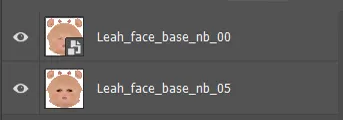
Locate the character's texture folder, and find 2 texture maps:
(They are usually in "[Your Daz Content Library]\Runtime\Textures\[Vendor/Product Name]"
Face without Makeup
Face with Makeup
2) Extract the makeup using any image editing software (Photoshop/Gimp/...)
I'll demonstrate with both Photoshop and Gimp.
Photoshop:
Put the makeup texture at the bottom, and original texture on top.
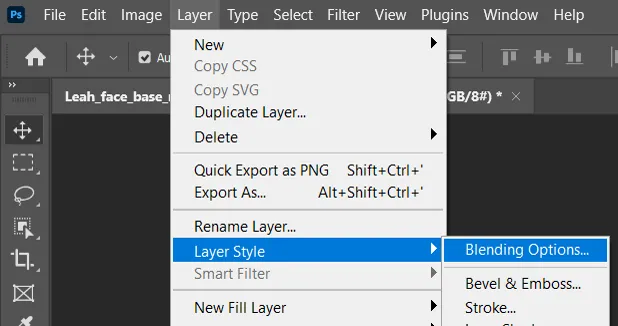
Select the original texture and go to Layer > Layer Style > Blending Options
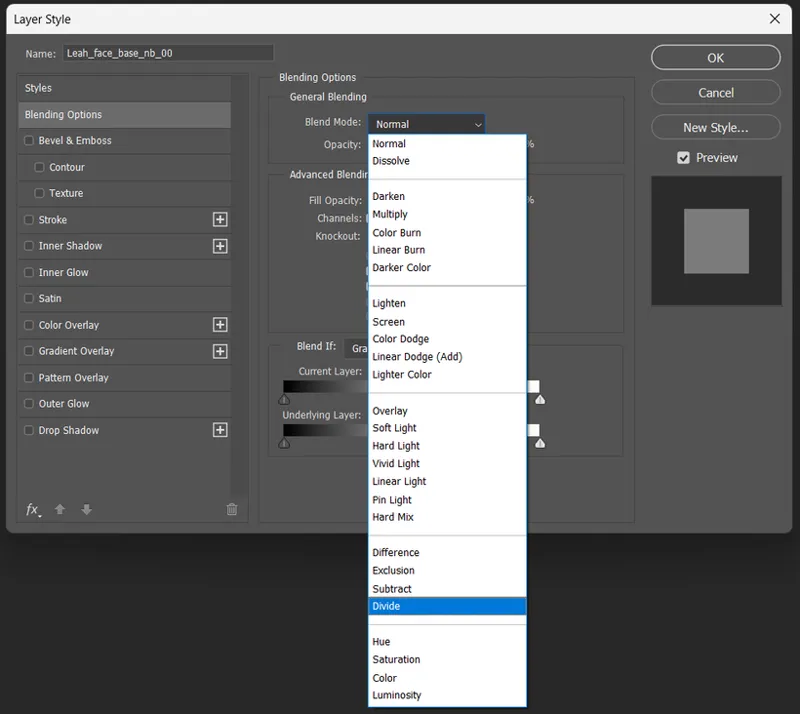
A window will open, and in Blending Mode, select Divide in the drop down menu.
Gimp:
Put the makeup texture at the bottom, and original texture on top.
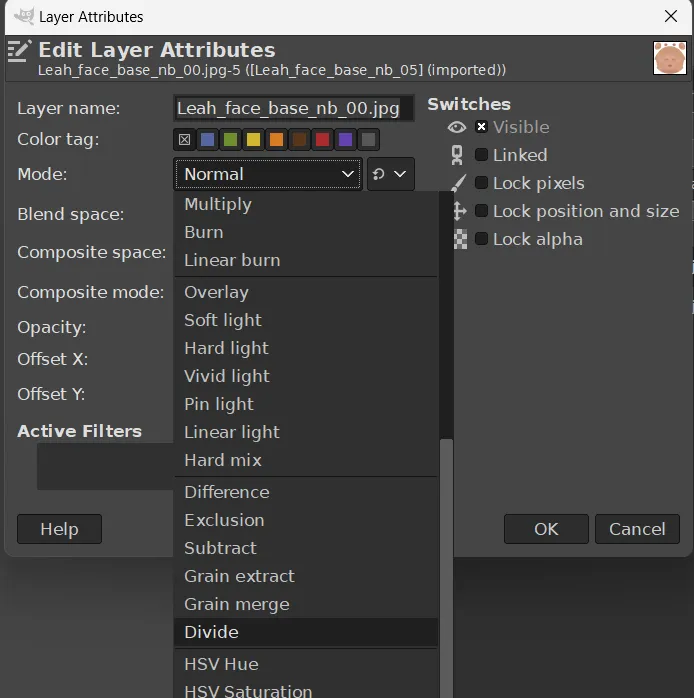
Right click the original texture, and select Edit Layer Attribute from the menu
A new window will open, and in Mode, select Divide in the drop down menu.
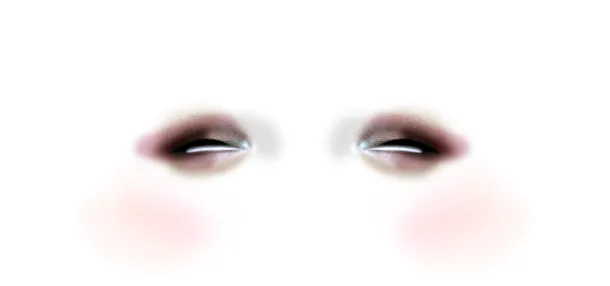
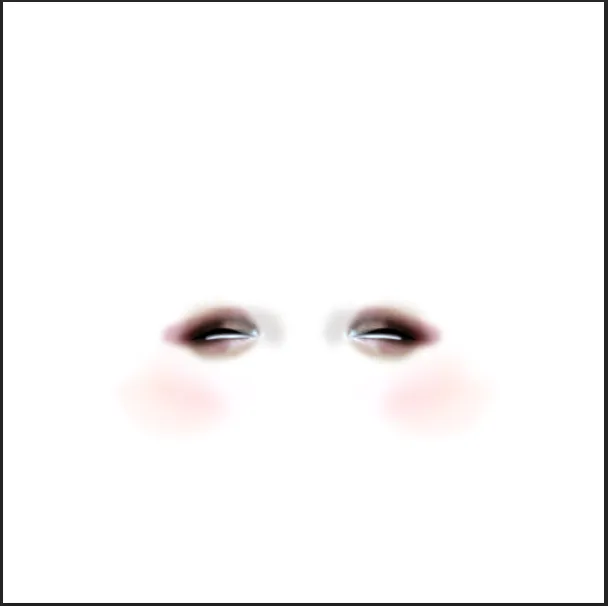
Once it is set to Divide, press OK and your image will look like this:
3) Export the extracted makeup
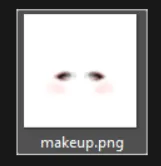
Export the layer into jpg or png.
4) Applying the makeup to characters in Daz
Load a character in Daz.
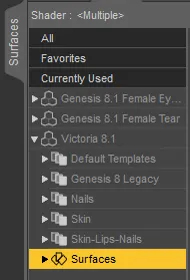
Select the character and go to the Surface tab
Under the Surfaces drop down menu, select Face.
You're looking for the Base Color and Translucency Color texture map.
Click the texture images, and it will open a menu list. Select Layered Image Editor
A new window will open.
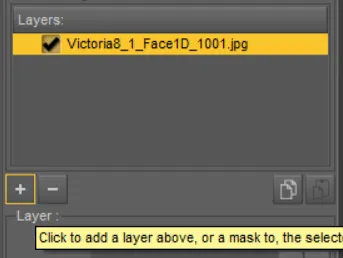
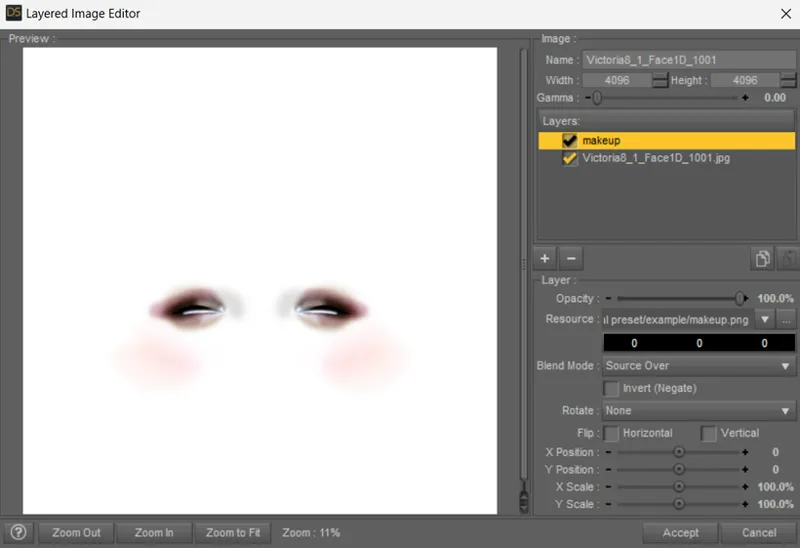
Select the "+" sign to add a new image layer.
You will be prompted to open a file. Select your extracted makeup layer.
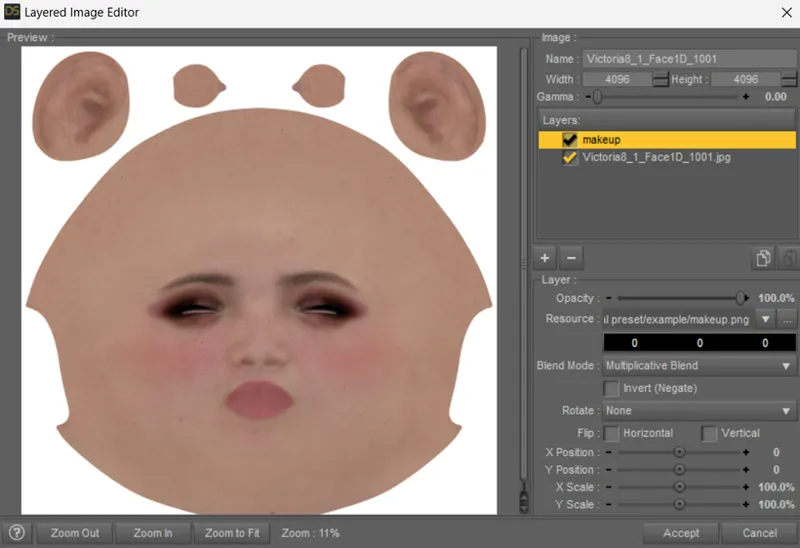
Make sure the makeup layer is selected, and in Blend Mode, select Multiplicative Blend.
It should look like this at the end:
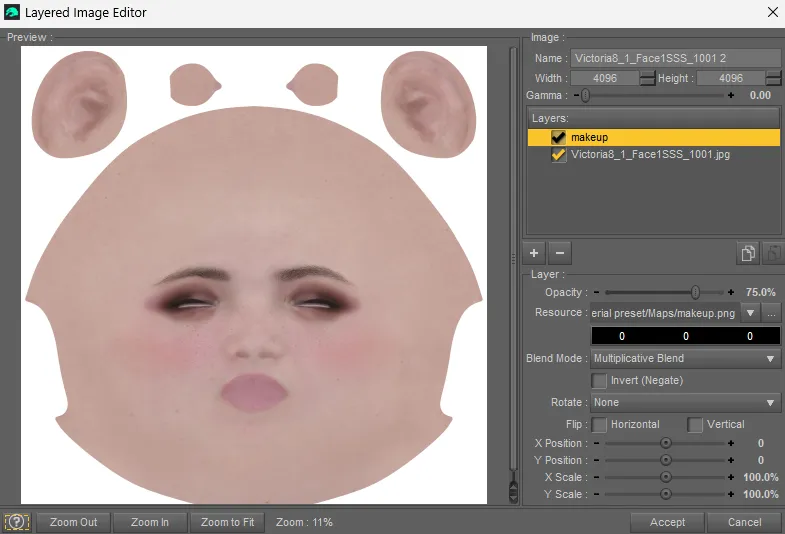
Apply this to the Translucency Color map as well.
Note:
The makeup layer on the Base Color map will not be noticeable enough by itself.
By adding it to the Translucency Color map as well, the effect will be more noticeable.
Adjust the Opacity of the makeup layer in the Translucency Color map to change the intensity.
I have set the Opacity to 75% so the makeup feels less intense
5) Result
Note: The above procedure can be used on eyebrows extraction as well.
Comments (11)
Instruction unclear, the face is now upside down
Unfortunately, Tom, this is Halloween material 🎃🐈⬛. At least put the wig on the model, that way we won't be quite so scared 👀😜.
😂👍
Wow. Good demonstration that shows its not easy to create these VNs. And hopefully my joining will help Sort of Justice a bit more. The story was great and I hope I can help a bit.
Happy you are here brother ! 🫡💯👍
Unintentionally (or intentionally?) very appropriate images for Halloween
Too much technical stuff...😝
Lol...I thought being in the military, you would love attention to detail and technical stuff.
morning!teacher!
Too many steps 😵💫... 😵. But it's nice to see BTS and see how it's done 😋. Both makeup and eyebrows 😅.
🤣🤣🤣