

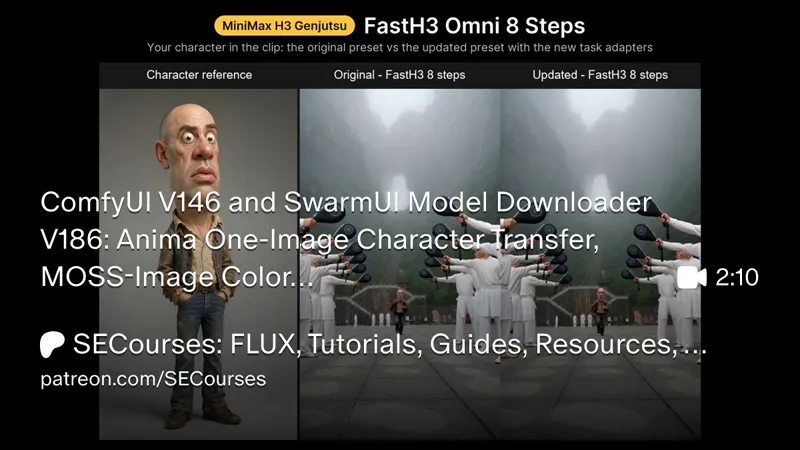
ComfyUI V146 and SwarmUI Model Downloader V186: Anima One-Image Character Transfer, MOSS-Image Color + Depth Control, Improved MOSS Image Edit, Faster FastH3 LightVAE Video Decoding, Stronger MiniMax H3 Genjutsu Character Swap and 91 Amazing SwarmUI Presets
SwarmUI : https://www.patreon.com/SECourses/posts/swarmui-auto-and-114517862
ComfyUI : https://www.patreon.com/SECourses/posts/comfyui-auto-2-105023709
Intro
This update brings 5 new presets and several upgraded ones to both ComfyUI and SwarmUI, plus Amazing SwarmUI Presets V85 with 91 presets. Turn one image of your character into a whole series of new scenes with Anima, and place and pose people exactly where you want with simple color and depth maps in MOSS-Image. Edit your photos with the improved MOSS Image Edit, decode FastH3 Omni videos faster with LightVAE, and swap the person in any clip for your character more convincingly with the new Genjutsu task adapters. The model downloader's core bundles now include every new model, so one click gets you ready to generate. Every result shown comes from real runs of the shipped presets.
24 October 2026 Update V145 - ComfyUI
Presets Folder Content In Latest Zip File
This is a MiniMax H3 Genjutsu update. V145 adds two Genjutsu presets that replace the person in any video with your own character: add your clip and one image of the new character, press Run, and the result keeps the clip's motion, timing, camera, length, aspect ratio and original sound. One preset uses FastH3 Omni at 8 steps, the other MiniMax H3 Ref2VA at 20 steps. V145 also adds a Genjutsu section to the MiniMax H3 prompt guide and brings the new Genjutsu nodes of our FoleyExtension.
Our test: this armoured warrior image and a 9.8-second phone clip of a man shadowboxing in a gym. Both new presets put the warrior into the clip, punch for punch and step for step, in the clip's portrait format and with its own sound:

Every result in this post comes from a real run of the shipped presets in ComfyUI started with our Windows_Run_ComfyUI_Default.bat: each preset was opened from the Workflows sidebar and run with the Run button, with its shipped settings and the example it opens with. The times are ComfyUI's times on our RTX 5090 for a first run, model loading included. We ran both presets again on the newest ComfyUI that the installer installs today and got the same videos, frame for frame.
Exact V144 → V145 zip audit:
2 new files: the two MiniMax H3 Genjutsu presets.
1 changed file: the MiniMax H3 prompt guide, with the new Genjutsu section.
No files were removed. The other 238 files are identical. The Genjutsu nodes arrive through Windows_Install_Or_Update_ComfyUI.bat, which installs our updated FoleyExtension.
Here is the complete Presets folder of V145: 108 ready-to-use ComfyUI presets, plus 3 API presets in the api_paid folder. The two new presets are marked NEW:

The presets cover image, video, lip sync, audio and music models: AvatarForever, ERNIE Image, FastH3 Omni, Fibo 2.0, FLUX.1 Dev, Kontext and SRPO, FLUX 2, FLUX 3 Klein, Ideogram 4, Krea 2, LTX 2, LTX 2.3, LTX 2.5, MiniMax H3 (now with Genjutsu), MiniMax Music 3, MOSS-Image and MOSS Image Edit, Phantom Wan, Qwen Image, SDXL, Stable Video Infinity 2 Pro, Wan 2.1, Wan 2.2 and Z-Image.
NEW PRESETS — MINIMAX H3 GENJUTSU: PUT YOUR CHARACTER INTO ANY VIDEO
"MiniMax H3 Genjutsu - FastH3 Omni 8 Steps - 261024"
"MiniMax H3 Genjutsu - Ref2VA 20 Steps - 261024"
How it works: SAM 3.1 finds the person in every frame of your clip, and only that person is colour-inverted. MiniMax H3 then copies the clip's motion, timing, camera and lip movements, but not the performer's face, hair or clothes. A local Qwen3-VL 8B (Auto Describe) looks at your character image and six frames of the clip and writes the prompt for you: the new outfit, the action, the setting, the lighting and the framing. The clip's soundtrack is locked into MiniMax H3's audio stream for lip sync, and the saved video carries the original sound.
Your inputs: the clip as @video1 and one image of the new character as @image1, added with Add references or Load + trim (to pick the part of the clip you want; 4 to 10 seconds works best, up to 15). The presets open with our example loaded; if those example files are not on your PC, remove the two cards and add your own.
The output follows the clip: the same length, the same aspect ratio at about 1 megapixel, and the original sound. Our 9.8-second 1080x1920 clip gave 226 frames (9.4 seconds) at 768x1344.
Prompt: keep the short default note, type your own notes (for example "He wears his red scarf."), empty it, or paste a complete MiniMax H3 prompt from ChatGPT, Claude or Gemini; a complete prompt is used as written.
Background: video keeps the clip's location, lighting and framing and replaces only the performer (character replacement); image keeps your character image's background and takes only the motion (motion transfer).
Target: who to replace, in plain words: person, or man in red:1 to pick one of several people.
Speed: FastH3 Omni 8 steps made the 9.4-second example in 4.4 minutes and Ref2VA 20 steps in 8.3 to 9.4 minutes, first runs with model loading on an RTX 5090.
Here is the FastH3 Omni preset right after the run of our example, with every part numbered:

After a run, CHECK THE MASK shows the performer in red in every frame, MOTION GUIDE shows what MiniMax H3 copies the motion from, and FINAL PROMPT SENT TO H3 shows the prompt Auto Describe wrote. The token meter under the prompt now follows Genjutsu too: it shows the clip's length and aspect ratio before you press Run.
UPDATED PROMPT GUIDE — MINIMAX H3 GENJUTSU
The MiniMax H3 guide in Automatic_Prompt_Generate_Enhance_To_Video_And_Image_Models_LLM_Instructions has a new Genjutsu section. Give it to an LLM that can watch video (for example Gemini) together with your clip and your character image, and paste its answer into the prompt box. It can write the exact spoken words for word-by-word lip sync.
HOW TO UPDATE
Download the latest ComfyUI_V145.zip from this post.
Extract it over your existing installer folder and overwrite the older files.
Close ComfyUI, and SwarmUI too if it uses this ComfyUI as its backend, then run Windows_Install_Or_Update_ComfyUI.bat. It updates ComfyUI and installs our FoleyExtension with the Genjutsu nodes.
If you have not done it since V144, run Windows_Custom_Nodes_Bundles_Installer.bat and install/update bundle 100.
Restart ComfyUI and refresh the browser tab.
Use our latest SwarmUI Model Downloader (SwarmUI_Model_Downloader_v185.zip or newer) and download the bundle from the SwarmUI Bundles tab:
FastH3 Omni Core Bundle (60.12 GB, 11 files) for the FastH3 Omni Genjutsu preset, or the MiniMax-H3 Core Bundle (79.91 GB, 19 files) for the Ref2VA 20 steps preset. Both now include SAM 3.1 (1.63 GB) and Qwen3-VL 8B INT8 (8.71 GB, the same file as the Qwen Image 2.1 encoder, so you do not download it twice), sizes as the downloader shows them.
If your ComfyUI reads your SwarmUI Models folder through extra_model_paths.yaml, ComfyUI uses the files downloaded there without a second download.
SwarmUI Installer and Unified Massive Models Downloader: https://www.patreon.com/posts/114517862
28 October 2026 Update V186
Anima character transfer, MOSS-Image layout control, stronger MiniMax H3 Genjutsu and faster FastH3 decoding. Put one character into any scene with Anima, place and pose people with simple color and depth maps in MOSS-Image, swap characters in your clips more convincingly with the new Genjutsu task LoRAs, and decode FastH3 Omni videos faster with LightVAE.
Amazing SwarmUI Presets moves to V85 with 91 presets: 5 new, 2 updated, and 24 others now switch the new options off when you apply them.
With the adapter's example maps, both new MOSS-Image presets put the two men where the mannequins stand, in their poses; without maps, the same prompt and seed picks its own layout:

Every result in this post is a real run of the shipped presets in SwarmUI on our RTX 5090.
All 91 presets of Amazing SwarmUI Presets V85 in SwarmUI's Presets tab, the new ones marked NEW and the updated ones UPDATED:

The 5 new and 2 updated presets up close:

Windows_Preset_Delete_Import.bat brings all of them into your SwarmUI; the steps are in How to update at the end.
NEW PRESETS — ANIMA: TAKE YOUR CHARACTER INTO A NEW SCENE
"Anima - Advanced Text To Image - 261028"
"Anima - Reference Character And Style - 261028"
One image of your character, any new scene. The Anima reference adapter carries the face, hair and outfit, and part of the drawing style, from your image, while your prompt picks the pose, place and light. Every final image is a clean 2048 × 2048.
To run them, download the Anima Core Bundle (3.84 GB) from the model downloader:

Our example: one character made with text to image, then four new scenes from that single image with one click on Generate prompt batch:

Where to find it: Presets tab → filter Anima → Direct Apply Anima - Reference Character And Style - 261028. Upload your character in Anima Reference Image, add your scene prompts and click Generate prompt batch:

The new Anima_Enchance_Prompt_Feed_For_LLMs.txt lets ChatGPT, Claude or Gemini write your prompts or a whole scene series.
NEW PRESETS — MOSS IMAGE COLOR + DEPTH CONTROL: PLACE YOUR PEOPLE WITH A MAP
"MOSS Image - Color + Depth Control - 261027"
"MOSS Image - Turbo 8 Steps Color + Depth Control - 261027"
Draw the layout, MOSS-Image follows it. A color map marks where each person or object goes, a depth map shows what is near and far, and your prompt says who they are. Turbo makes a 1024 × 1024 image in about 4 seconds.
To run them, download the MOSS-Image Core Bundle. It now includes the color + depth adapter; if you already have the bundle, only that 0.29 GB file downloads:

Where to find it: Quick Tools → Reset Params to Default, then Presets tab → filter Color + Depth → Apply. Add your maps with the Upload buttons of MOSS Image Color Map and MOSS Image Depth Map, describe each person and press Generate:

Part 8 of the MOSS-Image prompt guide writes the prompt for your maps.
NEW PRESET — FASTH3 OMNI WITH THE LIGHTVAE VIDEO DECODER
"FastH3 Omni - LightVAE References to Video 8 Steps - 261027"
The same FastH3 Omni video, decoded faster. LightVAE by LightX2V decoded and saved our 5-second video in about 4 seconds instead of about 6.5, with frames that look the same.
To run it, download the FastH3 Omni Core Bundle. It now includes the LightVAE decoder and the three Genjutsu files:

Where to find it: Quick Tools → Reset Params to Default, then Presets tab → filter LightVAE → Apply. The new MiniMax H3 Video Decoder parameter in Core Parameters picks the decoder for any MiniMax H3 or FastH3 Omni model:

Set it to None for the original decoder; every other H3 preset does that for you.
UPDATED PRESETS — MINIMAX H3 GENJUTSU: CHARACTER SWAP AND MOTION TRANSFER LORAS
"MiniMax H3 Genjutsu - FastH3 Omni 8 Steps - 261024"
"MiniMax H3 Genjutsu - Ref2VA 20 Steps - 261024"
Swap the person in any clip for your character, now with task LoRAs trained for exactly this job. Character Swap v1.1 and Motion Transfer v1.0 by Alisson Anjos bring your character's look over much more closely, and clips with mono sound now work.
The FastH3 Omni 8 Steps preset uses the FastH3 Omni Core Bundle above. The Ref2VA 20 Steps preset uses the MiniMax-H3 Core Bundle, which now includes the three Genjutsu files:

Same warrior, same shadowboxing clip, same seed: the original method and the new task LoRA default:

The task LoRA brings his big scale shoulder guards and heavy build over. original Genjutsu is still one click away in Genjutsu Method.
Where to find it: Quick Tools → Reset Params to Default, then Presets tab → filter H3 Genjutsu → Apply. Attach the clip and your character with Add References and press Generate:

Low VRAM mode is on by default with the same output.
ALSO IN V186
The MiniMax-H3 Low VRAM Bundle and the Complete Image Generation and Editing Bundle include the new models too.
The Krea 2 and FLUX 3 Klein bundles no longer download their shared text encoder again on every run.
MiniMax H3 Long Lip Sync - References no longer adds a second pass after an image-to-video preset: about 5.5 minutes instead of 11.
HOW TO UPDATE
Download SwarmUI_Model_Downloader_v186.zip from this post and extract it over your downloader folder.
Close SwarmUI and run Windows_Install_or_Update_SwarmUI.bat.
Update the ComfyUI backend. With our ComfyUI installation, close SwarmUI again (step 2 starts it) and run Windows_Install_Or_Update_ComfyUI.bat from our ComfyUI V146. With SwarmUI's own ComfyUI, open Server → Backends, edit the ComfyUI Self-Starting backend and set AutoUpdate to Always Update for one start.
Restart SwarmUI, then run Windows_Preset_Delete_Import.bat to import Amazing_SwarmUI_Presets_v85.json. It backs up your current presets first, then replaces them all, your own presets too.
Run Windows_Start_Download_Models_App.bat and download the core bundles shown above.
ComfyUI Installer and Presets: https://www.patreon.com/posts/105023709