




Latest SwarmUI Updates - Amazing New Models and Presets
Download The Zip File From Here : https://www.patreon.com/SECourses/posts/swarmui-auto-and-114517862
Here below latest 4 updates we made
23 October 2026 Update V184
This is a Fibo 2.0, MOSS Image Edit and FastH3 Omni update. V184 adds four presets for Bria's Fibo 2.0, which generates and edits images from long JSON captions, two MOSS Image Edit presets that edit your photos with a short instruction, and four FastH3 Omni presets that turn your images, videos and sounds into video with synchronized audio, stills or audio in 8 steps. The model downloader gets the FastH3 Omni and Fibo 2.0 Core Bundles and a redesigned, much faster interface, keeps the model files whose header SwarmUI rewrote instead of downloading them again, and fixes the Qwen Image 2.1 text encoder that SwarmUI downloaded a second time.
Amazing SwarmUI Presets moves to V83 with 84 presets: 10 new presets, corrected descriptions for the four FLUX 2 8-step presets and the fixed text encoder in the two Qwen Image 2.1 Unified presets; the other 68 presets are unchanged. The new presets need the new FastH3 Omni Core Bundle, the Fibo 2.0 Core Bundle and the updated MOSS-Image Core Bundle of the model downloader.
All 84 presets as they appear in the SwarmUI Presets tab; the new presets are in the last rows:

Every preset still has its own animal. The ten new presets on their own:

Four Fibo 2.0 presets (text to image and image editing, Dev and Turbo), two MOSS Image Edit presets (30 steps and Turbo 8 steps) and four FastH3 Omni presets (references to video, long lip sync, text to image and audio only), each with its own artwork.
Exact V183 → V184 zip audit:
Presets: Amazing_SwarmUI_Presets_v81.json was replaced by Amazing_SwarmUI_Presets_v83.json. Of the 74 presets it keeps, 68 are unchanged in every setting, description and thumbnail; the four FLUX 2 8-step presets have a corrected description and the two Qwen Image 2.1 Unified presets select the fixed text encoder.
9 changed files: the model catalog and its size data (the FastH3 Omni and Fibo 2.0 models and bundles, the MOSS-Image edit LoRA, the Qwen Image 2.1 encoder names and the new source of the MiniMax H3 video VAE), the downloader app (new interface, shows v184), HF_model_downloader.py (keeps files whose header SwarmUI rewrote), update_swarmui.py (the new Fibo2 premium extension), the bundle report generator and the regenerated Which_Bundles_Downloads_Which_Preset_Models.html, and the MOSS-Image and MiniMax H3 prompt guides.
New: the Fibo 2.0 prompt guide in Automatic_Prompt_Generate_Enhance_To_Video_And_Image_Models_LLM_Instructions.
Windows_Install_or_Update_SwarmUI.bat brings SwarmUI with its native Fibo 2.0 support, the new Fibo2 premium extension, MossImage with Image edit mode, MiniMaxH3References 1.21.0, QwenImage21 1.0.2, SECoursesAudioTools and ComfyUI-TeaCache. The ComfyUI backend is updated separately (step 3 of HOW TO UPDATE).
NEW PRESETS — FIBO 2.0: TEXT TO IMAGE AND IMAGE EDITING, DEV AND TURBO
"Fibo 2 Dev - Advanced Text To Image - 261022"
"Fibo 2 Dev - Advanced Image Edit - 261022"
"Fibo 2 Turbo - Image Edit 4 Steps - 261022"
"Fibo 2 Turbo - Text To Image 4 Steps - 261022"
Fibo 2.0 by Bria is an 8B image model that generates and edits images. It was trained on long structured JSON captions that describe every object, the lighting, the camera and the text in the image, so a JSON caption gives the most control; plain text also works. All four presets load the models in INT8 ConvRot with the Qwen3-VL 4B INT8 ConvRot text encoder and the FLUX 2 VAE, set 1024×1024 and turn on our new Fibo2 extension. Measured in SwarmUI on an RTX 5090 at 1024×1024, for a new prompt with the models already loaded:
Dev - Advanced Text To Image: Bria's official recipe: 50 Euler steps, CFG 5 and Bria's JSON negative prompt from the model card. 17.3 seconds per image.
Turbo - Text To Image 4 Steps: Bria made the 4-step Edit Turbo model for editing, but in our tests it also renders text to image very well, lettering included: 4 steps, CFG 1, 1.9 seconds per image.
Dev - Advanced Image Edit: the official editing recipe with 50 steps and CFG 5: 34.7 seconds.
Turbo - Image Edit 4 Steps: Bria's distilled editing model, 4 steps, CFG 1: 2.5 seconds.
About 1 megapixel is the trained size (1024×1024, 1424×800, 1248×832 and the other shapes); 2 megapixels such as 1664×1248 also work well.
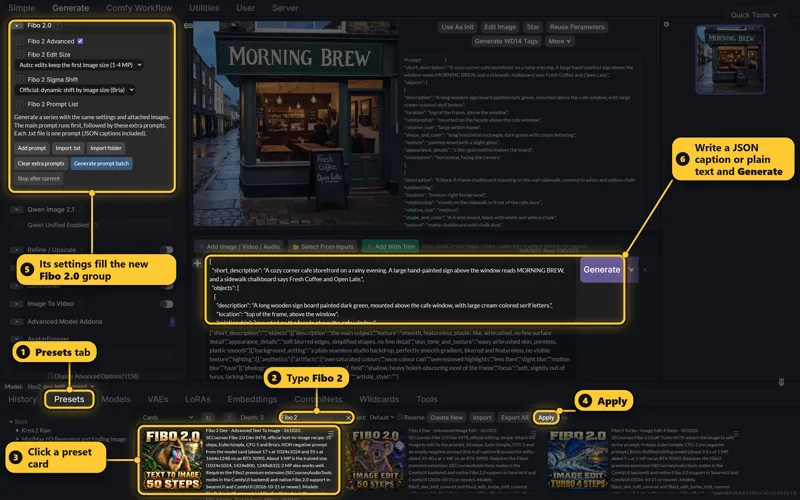
Where to find it: Presets tab → type Fibo 2 in the filter → click a preset card → Apply. Its settings fill the new Fibo 2.0 group of the parameters.

Fibo 2 Advanced (on): encodes your prompt with ComfyUI's native Fibo 2.0 text encoder exactly like Bria's pipeline. SwarmUI's generic encoder wraps Fibo 2.0 prompts differently and leaves edit images out of the text encoder.
Fibo 2 Sigma Shift: Bria's official shift, which changes with the image size.
Fibo 2 Edit Size: edits keep the size of the first image from 1 to 4 megapixels.
Editing: attach 1 to 4 images to the prompt with Add Image / Video / Audio (or drag them onto the prompt box) and write the instruction; @image1, @image2 refer to them. Masked edit: an Init Image plus a mask painted in the image editor (white = change).
Prompt syntax: a JSON caption in Bria's format (the new Fibo 2.0 LLM guide writes them for you) or plain text. {red|blue} picks one at random following the seed; (word:1.2) weights are removed because Qwen3-VL would read them as text.
Fibo 2 Prompt List: prompt batches from typed prompts, .txt files or a whole folder (one prompt per file, JSON captions included), like the MOSS-Image prompt batches. Generate prompt batch runs your main prompt first, then every extra prompt.
The extension acts only on Fibo 2.0 models. Apply any other preset and its own workflow runs unchanged.
NEW — ONE JSON PROMPT: FIBO 2 DEV 50 STEPS VS TURBO 4 STEPS
The same JSON caption and seed (261023) through both text-to-image presets. The caption asks for a cafe on a rainy evening with a green sign that reads "MORNING BREW" and a sidewalk chalkboard with "Fresh Coffee" and "Open Late":

Both presets wrote every word as asked, with the warm window light, the wet cobblestones and the guests inside. Turbo needs 1.9 seconds instead of 17.3, which suits trying many prompts; Dev is the full, non-distilled model with CFG and Bria's official recipe, and the model to train LoRAs on.
NEW — ONE PORTRAIT, THREE NEW EDIT PRESETS
A portrait made with Fibo 2 Turbo Text To Image, attached to the prompt as Image 1 and edited with each new edit preset and its default instruction (seed 261023):

Both Fibo 2.0 edits redrew the photo as an anime illustration and kept the pose, the clothes, the coffee cup and the flower shop. MOSS Image Edit replaced the street with a sunny beach and kept the same face, hair, clothes and pose, in 11.1 seconds.
NEW PRESETS — MOSS IMAGE EDIT: EDIT YOUR PHOTOS WITH ONE SENTENCE
"MOSS Image Edit - Advanced Image Edit - 261022"
"MOSS Image Edit - Turbo 8 Steps - 261022"
Both presets use MOSS-Image SFT INT8 ConvRot with ChenkinLab's Moss-Image-Edit LoRA, which the MossImage extension's new Image edit mode adds by itself together with the adapter's reference branch. Attach up to 4 images: image 1 is edited and the others are references, named image 1, image 2 (or @image1, @image2) in the instruction. Say what changes and what stays, for example "Change the background to a sunny beach, preserving the person's identity and pose."
Advanced Image Edit: the official edit recipe: 30 steps, CFG 4, shift 5 and an empty negative prompt. 11.1 seconds at 1024×1024 on an RTX 5090.
Turbo 8 Steps: the community 8-step DMD LoRA at 0.7 with 8 steps and CFG 1: 2.4 seconds. Turbo is close to the 30-step preset in many edits, but for our busy street portrait it kept the street on all five seeds we tried, while the 30-step preset gave a beach on all five. When Turbo ignores a big change such as a new background, use the 30-step preset.
The result has image 1's shape at up to 1024 pixels on the long side (MOSS Image Edit Reference Size; 1536 also works).
Colors, clothes, expressions, lighting, seasons, backgrounds and style edit best. Placing an object from a second image works; copying its exact look is weaker.
Where to find it: Presets tab → type MOSS Image Edit → click a preset card → Apply, then add the photo with Add Image / Video / Audio.

The preset sets MOSS Image Mode to Image edit (attached images). The new MOSS_Image_Edit_LoRA.safetensors (0.28 GB) is part of the updated MOSS-Image Core Bundle.
NEW PRESETS — FASTH3 OMNI: VIDEO WITH AUDIO FROM YOUR REFERENCES IN 8 STEPS
"FastH3 Omni - References to Video 8 Steps - 261022"
"FastH3 Omni - Long Lip Sync - References 8 Steps - 261022"
"FastH3 Omni - Text to Image with Optional References - 261022"
"FastH3 Omni - Audio Only with Optional References - 261022"
FastH3 Omni by FastVideo and Nuva Lab is MiniMax H3's references-to-video-and-audio model distilled to 8 steps. One model makes video with synchronized 32 kHz stereo audio from your prompt plus up to 9 images, 3 videos and 3 audio files, with no turbo LoRA: 8 steps, CFG 1. The presets load it in INT8 ConvRot with the INT8 ConvRot Qwen3-VL 32B text and vision encoder. The References to Video and Long Lip Sync presets also run the sparse attention FastH3 was trained with (VSA): sampling was about 1.4× faster for 5 seconds and 1.9× for 10 seconds of 1344×768 video on an RTX 5090, with the same quality in our tests.
References to Video: 1344×768, 124 frames (5.2 seconds) with audio: 53 to 57 seconds in our runs with one reference image (one run took 108 seconds; we could not find why). It also works as text to video without references.
Long Lip Sync: put the complete soundtrack in Init Audio and a portrait beside the prompt as @image1; one 24 FPS video follows the whole audio in overlapping 8-step windows at 832×1248. About 3.5 minutes for 15 seconds of speech (3.32 minutes in our SwarmUI test).
Text to Image with Optional References: stills from text, or with up to 9 reference images: 9.8 seconds at 1344×768 for a new prompt with one reference image.
Audio Only with Optional References: 32 kHz stereo audio returned as a lossless FLAC: 8 seconds of audio in 7.2 seconds. Put spoken words inside <d>[English] ... </d>.
Where to find it: first Quick Tools → Reset Params to Default, so no MiniMax H3 turbo LoRA from an earlier preset stays selected. Then Presets tab → type FastH3 Omni → click a preset card → Apply, add your images, videos or audio with Add References and mention them in the prompt as @image1, @video1, @audio1.

The prompt describes the woman from @image1 in front of a flower shop: she smiles, raises her coffee cup, greets the viewer with a spoken line in <d>, laughs and takes a sip. Nine frames from the start to the end of the clip:

Her face, curly hair, freckles, earrings and clothes stay those of the portrait in every frame, and the clip follows the prompt from the greeting to the sip. Video and its 32 kHz stereo soundtrack came out of one 8-step run.
NEW — MODEL DOWNLOADER: FASTH3 OMNI AND FIBO 2.0 CORE BUNDLES
FastH3 Omni Core Bundle (49.78 GB, 9 files): FastH3 Omni INT8 ConvRot (20.69 GB), the MiniMax H3 Qwen3-VL 32B INT8 ConvRot text and vision encoder (25.28 GB), the MiniMax H3 video VAE (2.62 GB) and audio VAE (0.56 GB), plus the face models the presets' face refinement and mouth pass use. MiniMax H3 users already have the audio VAE and the face models, and the INT8 ConvRot encoder if they chose it. The video VAE now comes from Comfy-Org, the file SwarmUI itself downloads: if an earlier downloader saved Kijai's copy at the same path, it is replaced once (2.62 GB).
Fibo 2.0 Core Bundle (20.50 GB, 4 files): Fibo 2.0 Dev and Edit Turbo in INT8 ConvRot (7.83 GB each), the Qwen3-VL 4B INT8 ConvRot text encoder (4.52 GB, saved as qwen3vl_4b_int8_convrot.safetensors so it never replaces the qwen3vl_4b.safetensors other models use) and the shared FLUX 2 VAE (0.31 GB).
MOSS-Image Core Bundle (21.91 GB, 7 files): now also downloads MOSS_Image_Edit_LoRA.safetensors (0.28 GB) for the MOSS Image Edit presets.
Where to find it: run Windows_Start_Download_Models_App.bat. The FastH3 Omni Core Bundle and the Fibo 2.0 Core Bundle are the first two bundles of the SwarmUI Bundles tab.

Optional, under Video Generation Models → FastH3 Omni Video Models: FastH3 Omni in BF16 (41.20 GB), FP8 (21.46 GB) and NVFP4 QAD (12.83 GB, for RTX 50 series and other Blackwell GPUs). Under Image Generation Models → Fibo 2.0 Models: both models in BF16 (15.32 GB each), the BF16 text encoder (8.27 GB, saved as qwen3vl_4b.safetensors, the name the FP8 encoder of FLUX 3 Klein and Krea 2 also uses, so keep one precision) and Comfy-Org's Fibo 2.0 turbo LoRA (1.85 GB), which lets Dev and your Dev LoRAs run in 4 steps; the presets do not select it.
NEW — THE DOWNLOADER KEEPS MODELS WHOSE HEADER SWARMUI REWROTE
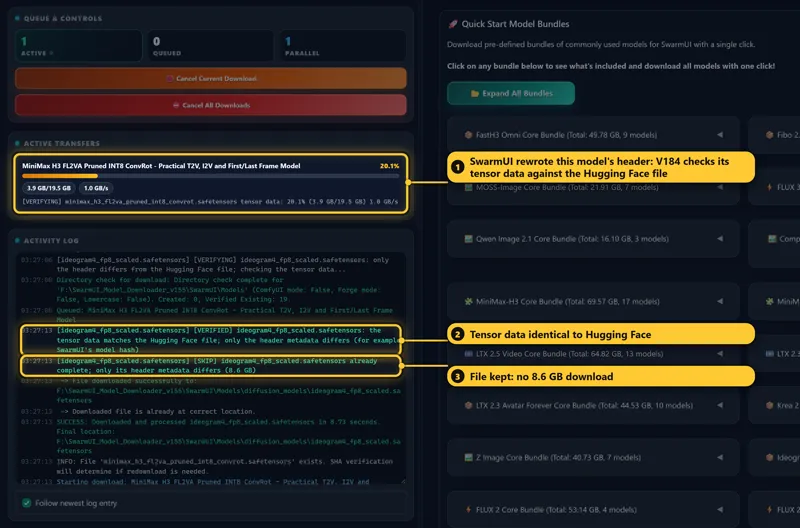
The first time SwarmUI uses a model, it writes the model hash into the file's header (SwarmUI's ImageMetadataIncludeModelHash setting, on by default). The tensor data stays the same, but the file gets a little larger or its bytes change, so V183 failed its size or SHA-256 check and downloaded the whole model again. V184 reads the original header from Hugging Face, checks your file's tensor data behind it, and keeps the file when every tensor byte matches. A checked file is remembered, so the next run skips it at once.

The log says "[VERIFIED] ... the tensor data matches the Hugging Face file; only the header metadata differs" and "[SKIP] ... already complete". On our test PC, 59 model files with 581 GB in total were a little larger than their Hugging Face files, the sign of SwarmUI's header rewrite. The Fibo 2.0 Core Bundle's four files were checked and kept in 25 seconds instead of downloading 20.50 GB again. Files whose tensor data differs are still downloaded again, as before.
FIXED — SWARMUI NO LONGER DOWNLOADS THE QWEN IMAGE 2.1 TEXT ENCODER AGAIN
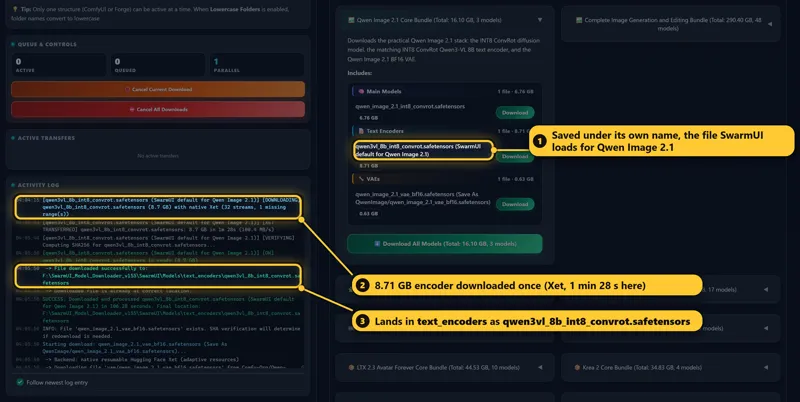
Thank you to the supporter who reported this: after the Qwen Image 2.1 Core Bundle, SwarmUI said the text encoder was missing and downloaded it again. The downloader saved the INT8 ConvRot Qwen3-VL 8B encoder as qwen3vl_8b.safetensors, but SwarmUI's native Qwen Image 2.1 support loads qwen3vl_8b_int8_convrot.safetensors; qwen3vl_8b.safetensors is the name SwarmUI uses for its Ideogram 4 encoder. The folder was right: the downloader puts text encoders in the folder SwarmUI's own settings name (Models/text_encoders or Models/clip).

V184 keeps the original names of all three Qwen Image 2.1 text encoders (INT8 ConvRot, BF16 and W4A8). The two Qwen Image 2.1 Unified presets and our QwenImage21 extension 1.0.2 select qwen3vl_8b_int8_convrot, so the presets and plain Qwen Image 2.1 generations share one 8.71 GB file. In our test the downloader got it in 1 min 28 s (1 min 46 s with the SHA-256 check), and SwarmUI then generated with it without downloading anything.
Downloaded with an older version? Older downloaders saved every Qwen Image 2.1 text encoder, and Ideogram 4's too, as qwen3vl_8b.safetensors. Check that file's size in SwarmUI's text encoder folder (Properties shows the bytes; a file SwarmUI has used is about 64 KB larger):
9,350,798,360 bytes: the Qwen Image 2.1 INT8 ConvRot encoder. Rename it to qwen3vl_8b_int8_convrot.safetensors. If SwarmUI already downloaded that file itself, the old one is a spare 8.71 GB copy.
17,534,334,616 bytes: the Qwen Image 2.1 BF16 encoder, rename it to qwen3vl_8b_bf16.safetensors. 6,312,105,364 bytes: the W4A8 encoder, rename it to qwen3vl_8b_w4a8.safetensors.
10,588,637,512 or 6,305,221,764 bytes: Ideogram 4's own FP8 or NVFP4 encoder: keep it.
After a rename, Ideogram 4 gets its own encoder from the Ideogram 4 Core Bundle or SwarmUI's automatic download. The Qwen Image 2.1 Unified presets do not download models, so they need qwen3vl_8b_int8_convrot.safetensors: rename the old file, or run the Qwen Image 2.1 Core Bundle again (it keeps the model and the VAE after checking them).
UPDATED — REDESIGNED, MUCH FASTER MODEL DOWNLOADER
V183 refreshed its status panels through a timer every half second, and after a search or Expand All every refresh blocked the browser for 0.2 to 0.35 seconds. V184 updates only what changed, and search and the precision filter no longer redraw the whole page. Measured in Chrome on our PC with the same catalog, V183 → V184:
Search while typing: results shown about 0.44 seconds after the last key → already shown 0.12 seconds after it.
Clear Search: 673 ms → 10 ms. Expand All: 648 ms → 194 ms.
Precision filter "Display only GGUF models": 851 ms → 11 ms.
Idle page after these steps: busy 65% of the time → 0%.
New look: bundle and model counts in the header, a light / dark switch that your browser remembers, model and bundle cards with an exact size on every file, colored buttons, a colored Activity Log and Active Transfers cards with a progress bar, size, speed and ETA (size and speed also while a file is being checked).
Search shows up to 50 result cards (was 15) with the category, the size or the bundle total; click a card to queue it.
Exact sizes: files below 0.1 GB show in MB, so a 4.8 MB file no longer reads "Size: 0 GB" and counts as unknown in the totals.
The status refresh pauses while the browser tab is hidden; downloads continue. The app's download, queue and cancel logic is unchanged; the only change to file checks is the header check above.
NEW AND UPDATED PROMPT GUIDES FOR LLMS
New: Fibo_2.0_Enchance_Prompt_Feed_For_LLMs.txt. Paste it into ChatGPT, Claude, Gemini or a local LLM, describe the image you want or the edit (attach the images to the LLM chat for an edit), and it returns a JSON caption in Bria's format. Its first part explains how the SwarmUI and ComfyUI presets use the prompt: where it goes, image labels, resolutions and the negative prompt. It is based on Bria's model card and the caption schemas of Bria's own captioning library, plus our tests.
MOSS_Image_Enchance_Prompt_Feed_For_LLMs.txt: new Part 7 for the MOSS Image Edit presets: one short plain-text instruction, the change first and then what stays, and how to name several images.
MiniMax_H3_Enchance_Prompt_Feed_For_LLMs.txt: new FastH3 Omni section: write FastH3 prompts exactly like MiniMax H3 references-to-video prompts.
UPDATED — BUNDLE REPORT AND FLUX 2 PRESET DESCRIPTIONS
Which_Bundles_Downloads_Which_Preset_Models.html is regenerated for V83: all 84 presets, and every new preset is fully covered by its core bundle. The report generator now knows FastH3 Omni's automatic text encoder and VAEs, the edit LoRA that MOSS Image edit mode loads, Qwen Image 2.1's own text encoder and VAE, and shows small files in MB.
The four FLUX 2 8-step presets told you to add --no-cache to the backend arguments for out-of-RAM errors. ComfyUI's argument is --cache-none; their descriptions are corrected.
TESTED — REAL GENERATIONS IN SWARMUI
Every result shown in this post is a real SwarmUI run on 23 October on an RTX 5090 (SwarmUI d74f8ce4, ComfyUI 6cbc3862) after Windows_Install_or_Update_SwarmUI.bat had installed the new extensions and nodes, with the V83 presets imported by Windows_Preset_Delete_Import.bat and applied by real clicks: all four Fibo 2.0 presets, both MOSS Image Edit presets and three FastH3 Omni presets, with seed 261023. The input portrait and four of the five MOSS seed checks ran earlier the same day, before that update. The FastH3 Omni Long Lip Sync preset was tested separately in SwarmUI with a portrait and 15 seconds of speech. The downloader ran from its own bat file: it kept the Fibo 2.0, MOSS-Image, Ideogram 4 and MiniMax H3 files that SwarmUI had rewritten, saved the Qwen Image 2.1 encoder under its own name, and the Qwen Image 2.1 Unified preset then generated without any download in SwarmUI.
CUSTOM NODE PACKS WE DEVELOP OR MAINTAIN UPDATED
SECoursesAudioTools
New Fibo 2.0 nodes for our SwarmUI and ComfyUI Fibo 2.0 presets: prompt and image encoding with ComfyUI's native Fibo 2.0 text encoder (JSON captions encoded like Bria's pipeline, edits keep the first image's size from 1 to 4 MP), Bria's size-dependent shift, and masked edits with ComfyUI's native Mask Editor.
ComfyUI now puts the Fibo 2.0 negative prompt into Bria's chat template itself (22 October), so our nodes no longer wrap it a second time. With the same seed, the four Fibo 2.0 presets give pixel-identical images to before.
New MOSS-Image Edit References node: the reference branch of ChenkinLab's Moss-Image-Edit adapter on ComfyUI's native MOSS-Image model, used by the MOSS Image Edit presets in both apps.
H3 Long Lip Sync without a soundtrack now says that the soundtrack is needed instead of failing with a TypeError.
ComfyUI-TeaCache
The MiniMax H3 Speed Optimizer has a new VSA mode for FastH3 models: ComfyUI's native Video Sparse Attention, used the way FastH3 was trained. Its output is bit-identical to ComfyUI's own VSA node, and sampling is 1.37× (5 seconds) and 1.87× (10 seconds) faster than dense attention at 1344×768 on an RTX 5090.
The default face-pass prompt no longer asks for "beard strands": on a FastH3 Omni image of a woman, the face pass had drawn a beard. Saved workflows keep their own text.
SWARMUI PREMIUM EXTENSIONS UPDATED
Fibo2 1.0.0 (new): Fibo 2 Advanced encoding like Bria's pipeline, Bria's size-dependent shift, automatic edit size (1 to 4 MP), masked edits from Init Image plus mask, the INT8 text encoder as default and prompt batches. It acts only on Fibo 2.0 models. Windows_Install_or_Update_SwarmUI.bat installs it.
MossImage: new Image edit (attached images) mode: it adds the Moss-Image-Edit LoRA and the reference branch, gives the result image 1's reference size, turns @image1 into "image 1" and keeps the attached images out of SwarmUI's text encoder.
MiniMaxH3References 1.21.0: the FastH3 sparse attention choice vsa; when SwarmUI's NVFP4 Qwen3-VL 32B encoder is missing and the INT8 ConvRot encoder of the FastH3 Omni Core Bundle is installed, MiniMax H3 models use it instead of downloading another 14.61 GB file; Audio Only works with FastH3 Omni without a routing warning.
QwenImage21 1.0.2: the Qwen Unified Text Encoder default is qwen3vl_8b_int8_convrot, the file SwarmUI's native Qwen Image 2.1 support loads.
HOW TO UPDATE
Download SwarmUI_Model_Downloader_v184.zip from this post and extract it over your existing downloader folder.
Run Windows_Install_or_Update_SwarmUI.bat. It updates SwarmUI to the version with native Fibo 2.0 support (added on 21 October), installs the new Fibo2 premium extension, MossImage with Image edit mode, MiniMaxH3References 1.21.0 and QwenImage21 1.0.2, and updates SECoursesAudioTools and ComfyUI-TeaCache.
Update the ComfyUI backend to its latest version. Fibo 2.0 needs ComfyUI from 21 October or newer and FastH3 Omni from 18 October or newer. With the updated SECoursesAudioTools of step 2, Fibo 2 Dev text to image encodes its negative prompt exactly like Bria's pipeline only on ComfyUI from late 22 October or newer. If SwarmUI uses our ComfyUI installation, update it with our ComfyUI installer V144 (Windows_Install_Or_Update_ComfyUI.bat). If SwarmUI uses its own ComfyUI, open Server → Backends, edit the ComfyUI Self-Starting backend and set AutoUpdate to Always Update for one start. You can switch it back afterwards. Our ComfyUI installer V144 also brings the same Fibo 2.0, MOSS Image Edit and FastH3 Omni presets and the new prompt guides to ComfyUI.
Restart SwarmUI and its ComfyUI backend so the new extensions and nodes register.
With SwarmUI running, run Windows_Preset_Delete_Import.bat to import Amazing_SwarmUI_Presets_v83.json. It backs up your current presets, thumbnails included, to utilities\presets_backups, deletes them all (your own presets too) and imports the new pack.
Run Windows_Start_Download_Models_App.bat and download the FastH3 Omni Core Bundle, the Fibo 2.0 Core Bundle and the MOSS-Image Core Bundle (the files you already have are checked and kept). Qwen Image 2.1 users: see the text encoder fix above.
ComfyUI Installer and Presets: https://www.patreon.com/posts/105023709
18 October 2026 Update V183
This is a MOSS-Image update. V183 adds six MOSS-Image presets and our new MossImage premium extension to SwarmUI's new native support for OpenMOSS's MOSS-Image: the official quality recipe, Fast 25 Steps and Turbo 8 Steps presets, two Base model presets, visual layout boxes, JSON layout prompts and prompt batches from .txt files. MOSS-Image renders the text you quote in your prompt, such as shop signs, poster titles and labels. The model downloader gets the MOSS-Image Core Bundle (21.64 GB), the zip adds a MOSS-Image prompt-writing guide for LLMs, and AvatarForever gets live previews and new tested lip motion settings.
Amazing SwarmUI Presets moves to V81 with 74 presets: 6 new MOSS-Image presets, an updated AvatarForever preset and new artwork for the three FLUX 3 Klein presets; the other 64 presets are unchanged. The new presets need the new MOSS-Image Core Bundle (21.64 GB) of the model downloader.
All 74 presets as they appear in the SwarmUI Presets tab; the six MOSS-Image presets are in the last two rows:

The three FLUX 3 Klein presets just before them have new artwork as well (an otter, a flamingo and a meerkat), so every preset has its own animal again. The six new MOSS-Image presets on their own:

Like every other preset, each MOSS-Image preset has its own artwork that shows its task: Text To Image 50 Steps, Fast 25 Steps, Turbo 8 Steps, Layout Boxes, and the Base Model Text To Image and Layout Boxes presets.
NEW PRESETS — MOSS-IMAGE: QUALITY, FAST, TURBO, LAYOUT BOXES AND BASE MODEL
"MOSS Image - Advanced Text To Image - 261017"
"MOSS Image - Fast 25 Steps - 261017"
"MOSS Image - Turbo 8 Steps - 261017"
"MOSS Image - Advanced Layout Boxes - 261017"
"MOSS Image Base - Advanced Text To Image - 261018"
"MOSS Image Base - Advanced Layout Boxes - 261018"
All six load MOSS-Image in INT8 ConvRot with SwarmUI's own Qwen3.5 9B INT8 ConvRot text encoder and the FLUX 2 VAE, set 1024×1024 and turn on our MossImage extension. MOSS-Image is a 5B single-stream image model that reads plain language, tags or JSON layouts, with prompts up to about 4K tokens. Measured in SwarmUI on an RTX 5090 at 1024×1024, for a new prompt with the models already loaded:
Advanced Text To Image: the official quality recipe (50 Euler steps, normal scheduler, CFG 3, shift 5, negative-branch skip of layer 22 and the official negative tags) plus PyTorch attention and the SFT de-band fix. 12.9 seconds per image.
Fast 25 Steps: 25 ER-SDE steps with Score Rescaling 0.95 and layers 22 and 24 skipped from 10% to 70% of sampling: 6.9 seconds, nearly twice as fast. Large lettering held up in our tests; small text can get an occasional misspelling.
Turbo 8 Steps: the community 8-step DMD LoRA (lodestones, Apache-2.0) at 0.7 with 8 Euler steps and CFG 1: 1.8 seconds per image. The LoRA is a work in progress, so its images differ more from the official model and can show stray small text.
Advanced Layout Boxes: the official recipe with visual layout boxes, ready with three example boxes.
Base - Advanced Text To Image and Base - Advanced Layout Boxes: the raw Base model with the official 50-step recipe (13.0 seconds for Base Text To Image). Base gives more varied images and is the model that LoRAs trained on Base expect; SFT gives clearer text grouping and layouts. With the same seed, 80 steps gave no visible gain over 50 in our tests, so the Base presets keep 50. There is no Base Turbo preset, because the 8-step LoRA was trained on SFT.
Where to find it: Presets tab → type MOSS Image in the filter → click a preset card → Apply. Its settings fill the new MOSS-Image group of the parameters.

The MOSS-Image group and the preset settings in detail:

Seed: -1 gives a new image every time; a fixed seed repeats the same image (pixel-identical in our tests).
Mode: Text / JSON prompt or Layout boxes.
Negative Skip Layers (22): the official skip-layer guidance; the negative branch runs without these layers. Skip Start / End limit it to part of sampling. It needs CFG above 1.
Attention (PyTorch): with PyTorch attention the INT8 ConvRot files gave images close to the official BF16 outputs. Setting it here also protects the BF16 files, which gave black images with a --use-sage-attention backend in our RTX 3090 tests.
Score Rescaling (1 is off): the Fast preset uses 0.95; lower values give more detail, higher values smoother images.
SFT De-Band (on): MOSS-Image SFT draws faint vertical color stripes on skies, fog, walls and backdrops. The fix loads MATLOWAI's de-band LoRA (Apache-2.0, in the MOSS-Image Core Bundle) for SFT models only; Base models never get it.
Your usual SwarmUI controls keep working: resolution, batch size, variation seed and LoRAs. 1 to 2 megapixel resolutions are recommended.
The extension acts only on MOSS-Image models. Apply any other preset and its own workflow runs unchanged.
NEW — ONE PROMPT, FOUR PRESETS: QUALITY, SPEED AND THE BASE MODEL
The same prompt and seed (261018) through four of the new presets. The prompt asks for a bookshop on a rainy evening with a sign that reads "THE LAST CHAPTER", a chalkboard that says "New arrivals / Hot tea inside", a sleeping orange cat in the window and string lights:

All four rendered the sign and the chalkboard text as written, with the sleeping cat in the window. Fast needs about half the time of the 50-step preset, and Turbo returns an image in 1.8 seconds, which suits trying many prompts. The 50-step presets are the most faithful; Base gives its own, more varied take on the same prompt.
NEW — VISUAL LAYOUT BOXES: PUT TEXT AND OBJECTS WHERE YOU WANT THEM
Choose Layout boxes mode, draw boxes on a canvas that has the shape of your output image and describe each box. The main prompt becomes the overall image caption. The extension builds the layout with ComfyUI's native MOSS-Image layout nodes, so the model places each box's content where you drew it.
Draw a box with the mouse and drag it to move it; select a box and drag its lower-right corner to resize it.
Each box is an Object, Character or Text / lettering box. Text boxes render their exact text, line breaks included, and every edge can be typed in percent.
Add, delete and reorder up to 32 boxes, or open the JSON.
Boxes guide the composition; they are not inpainting masks.
Where to find it: apply the MOSS Image - Advanced Layout Boxes preset or its Base version. The canvas is in the MOSS-Image group.

The preset's three boxes put the title "EXPLORE THE ALPS" at the top, the mountain lake illustration in the middle and the subtitle "Summer 2026 | Lakes, trails and fresh air" at the bottom, as drawn, in 13.5 seconds of generation time.
NEW — PROMPT SYNTAX AND JSON LAYOUT PROMPTS
MOSS-Image reads the prompt with Qwen3.5 as plain language, tags or JSON. Long, specific prompts work best; put the text that must appear in the image in quotes and use real line breaks to control its lines.
{red|blue} picks one at random, following the seed.
[red:blue:0.5] switches from one word to the other halfway through sampling, and [red|blue] alternates them from step to step.
(word:1.2) weights are removed, because Qwen3.5 would read them as literal text; describe emphasis in words instead. Times and ratios such as (10:30) or (4:3) stay.
A complete JSON layout passes through unchanged, and pixel drafts from the official MOSS-Image prompt enhancer are converted to the model's own box format at your output size. SwarmUI's own prompt tags keep working.
NEW — PROMPT BATCHES FROM .TXT FILES OR A WHOLE FOLDER
Generate a series with the same settings. Add prompt adds a prompt you type; Import .txt and Import folder load text files, one complete prompt per file, JSON layouts included. Generate prompt batch runs your main prompt first and then every extra prompt; Stop after current ends the batch after the current prompt finishes. The normal Generate button still generates only the main prompt.
Where to find it: MOSS-Image group → MOSS Image Prompt List, in every MOSS-Image preset.

Three imported .txt files plus the main prompt gave four images with the Turbo 8 Steps preset in 7.4 seconds, from click to finish: the bookshop, a "COASTAL ESCAPE" travel poster, a "MORNING RITUAL" coffee cup and a sleeping fox. A batch takes up to 63 extra prompts. If a preset is only selected and not applied, the batch asks you to apply it first, so the preset's own prompt cannot replace your batch prompts.
NEW — MODEL DOWNLOADER: MOSS-IMAGE CORE BUNDLE (21.64 GB)
One click downloads everything the six presets use:
moss_image_sft_int8_convrot.safetensors (5.04 GB): the quality fine-tuned SFT model, the preset default.
moss_image_base_int8_convrot.safetensors (5.04 GB): the raw Base model for the Base presets, LoRA training and variety.
Qwen3.5 9B INT8 ConvRot text encoder (9.08 GB), saved as qwen3.5_9b_int8_convrot.safetensors, the file and name SwarmUI itself downloads for MOSS-Image, so SwarmUI reuses it.
FLUX 2 VAE (0.31 GB), saved as VAE/Flux/flux2-vae.safetensors, the same file FLUX 2 Klein and FLUX 3 Klein use.
MOSS_Image_SFT_DeBand_L37-41.safetensors (1.05 GB, MATLOWAI, Apache-2.0): the SFT banding fix that the presets apply automatically.
MOSS_Image_SFT_8_Steps_DMD_LoRA.safetensors (1.11 GB, lodestones, Apache-2.0): the 8-step LoRA of the Turbo preset, saved from lodestones' latest release file, which can change upstream.
Where to find it: run Windows_Start_Download_Models_App.bat. The MOSS-Image Core Bundle is the first bundle of the SwarmUI Bundles tab.

Optional, under Image Generation Models → MOSS-Image Models: the original BF16 SFT and Base models (9.47 GB each; BF16 Base is the recommended precision for LoRA training and fine-tuning), a smaller Qwen3.5 9B W4A8 GPTQ text encoder for low RAM and VRAM (6.84 GB; select it in the Qwen Model parameter), the FLUX 2 small-decoder VAE that decodes faster with less VRAM (0.23 GB; select it as the VAE) and an extra banding fix for stubborn smooth skies (1.05 GB).
Why INT8 ConvRot with PyTorch attention: on an RTX 3090 the INT8 ConvRot files run about twice as fast as BF16, and with PyTorch attention their images were close to the official BF16 outputs. The INT8 files' own INT8 attention is about 20% faster, but it changed the images noticeably in our tests, so the presets use PyTorch attention. Our ComfyUI graph with these settings reproduced official MOSS-Image Space examples from the same seed, with the same composition, subject and details.
UPDATED — AVATARFOREVER: LIVE PREVIEWS, TESTED LIP MOTION SETTINGS AND A HISTORY FIX
Live previews: the AvatarForever sampler now shows a preview frame after every denoising step, starting at step 1, and the finished video after export; in SwarmUI the previews appear in the normal generation preview. They use taeltx2_3.safetensors (0.02 GB) when you have it, now part of the LTX 2.3 Avatar Forever Core Bundle (44.53 GB), and a fast latent preview otherwise. Previews do not change the video: with previews on and off, the same 452-frame MP4 came out byte for byte in our test.
Tested lip motion settings: the AvatarForever Unified Image + Audio or Text + Audio preset now renders an exact 512×768 portrait canvas with 16 latent frames per chunk (was 4) and a prompt that asks for expressive mouth movement. In a six-second comparison with the same portrait, song, prompt and seed, 4-frame chunks kept the lips closed and 16-frame chunks gave visible mouth movement, which held through the complete 18-second song. At 1024×1024 the mouth stayed mostly closed in the same test even with 16-frame chunks, so the preset keeps 512×768. Larger chunks use more memory; check a short sample when you change the image, the audio or the resolution.
History fix (AvatarForever 1.0.3): an interrupted video export could leave an incomplete MP4 that kept SwarmUI's History waiting, and with several browser tabs open even finished images stopped loading. SwarmUI now skips the metadata of such files; complete files and generation settings are unchanged.
Where to find it: Presets tab → type AvatarForever → click the preset card → Apply, then attach a speech or song to the prompt and, if you like, a portrait as Init Image.
NEW — MOSS-IMAGE PROMPT GUIDE FOR LLMS
New file: Automatic_Prompt_Generate_Enhance_To_Video_And_Image_Models_LLM_Instructions/MOSS_Image_Enchance_Prompt_Feed_For_LLMs.txt. Give it to ChatGPT, Claude, Gemini or a local LLM together with your idea, and it writes MOSS-Image prompts: detailed captions, exact text for signs and posters, and layout drafts with boxes that the presets convert to MOSS-Image's own coordinates at your output size. Its first part explains how the SwarmUI and ComfyUI presets use the prompt (recipe, prompt syntax, layout mode and resolutions); it is based on the official MOSS-Image user guide and its prompt enhancer.
UPDATED — BUNDLE REPORT AND DOWNLOADER APP
Which_Bundles_Downloads_Which_Preset_Models.html is regenerated for V81: all 74 presets, and every MOSS-Image preset is fully covered by the MOSS-Image Core Bundle. The report generator now knows SwarmUI's default MOSS-Image text encoder and VAE, the de-band LoRA that the MossImage extension loads by itself for SFT models, and AvatarForever's live-preview file.
Windows_Start_Download_Models_App.bat now installs the downloader's packages in pip's isolated mode, so your user pip configuration and PIP_ option variables no longer affect its install.
The downloader app shows v183.
HOW TO UPDATE
Download SwarmUI_Model_Downloader_v183.zip from this post and extract it over your existing downloader folder.
Run Windows_Install_or_Update_SwarmUI.bat. It updates SwarmUI to the version with native MOSS-Image support (added on 17 October), installs the new MossImage premium extension and AvatarForever 1.0.3, and updates SECoursesAudioTools.
Update the ComfyUI backend: MOSS-Image needs ComfyUI from 16 October or newer. If SwarmUI uses our ComfyUI installation, update it with our ComfyUI installer V143 (Windows_Install_Or_Update_ComfyUI.bat). If SwarmUI uses its own ComfyUI, open Server → Backends, edit the ComfyUI Self-Starting backend and set AutoUpdate to Always Update for one start. You can switch it back afterwards. Our ComfyUI installer V143 also brings the same six MOSS-Image presets and the MOSS-Image prompt guide to ComfyUI.
Restart SwarmUI and its ComfyUI backend so the new extension and nodes register.
With SwarmUI running, run Windows_Preset_Delete_Import.bat to import Amazing_SwarmUI_Presets_v81.json. It backs up your current presets, thumbnails included, to utilities\presets_backups, deletes them all (your own presets too) and imports the new pack.
Run Windows_Start_Download_Models_App.bat and download the MOSS-Image Core Bundle. AvatarForever users: also download taeltx2_3.safetensors (0.02 GB) for the live previews; it is in the LTX 2.3 Avatar Forever Core Bundle and under Video Generation Models → LTX 2.3 Video Models.
ComfyUI Installer and Presets: https://www.patreon.com/posts/105023709
16 October 2026 Update V182
This is a FLUX 3 Klein update. V182 brings Black Forest Labs' new FLUX 3 Klein image model to SwarmUI with three advanced presets and our new FLUX 3 Klein premium extension: text to image, image editing with up to 10 reference images, visual layout boxes, ComfyUI-style prompt syntax and prompt batches from .txt files. The model downloader gets the FLUX 3 Klein Core Bundle with our HQ INT8 ConvRot model (10.85 GB in total), and the zip adds a FLUX 3 Klein prompt-writing guide for LLMs.
Amazing SwarmUI Presets moves to V80 with 68 presets: 3 new FLUX 3 Klein presets, and the other 65 presets are unchanged. The new presets need the new FLUX 3 Klein Core Bundle (10.85 GB) of the model downloader.
All 68 presets as they appear in the SwarmUI Presets tab; the three FLUX 3 Klein presets are in the last row:

Like every other preset, each FLUX 3 Klein preset has its own artwork that shows its task: Text To Image, Image Edit or Layout Boxes.
NEW PRESETS — FLUX 3 KLEIN: TEXT TO IMAGE, IMAGE EDIT AND LAYOUT BOXES
"FLUX 3 Klein - Advanced Text To Image - 261015"
"FLUX 3 Klein - Advanced Image Edit - 261015"
"FLUX 3 Klein - Advanced Layout Boxes - 261015"
All three load our HQ INT8 ConvRot FLUX 3 Klein model with SwarmUI's own Qwen3-VL 4B text encoder and the FLUX 2 VAE, and set 1024×1024, 16 steps, Euler/simple and CFG 1 (CFG 1 ignores the negative prompt). Each preset turns on our FLUX 3 Klein extension in its own mode: Text / optional references, Reference edit or Layout / optional references. Measured in SwarmUI on an RTX 5090 at 1024×1024: about 2 seconds of generation time for an image and 3.9 seconds for an edit with one reference image.
Where to find it: Presets tab → type FLUX 3 Klein in the filter → click a preset card → Apply. Its settings fill the new FLUX.3 Klein group of the parameters.

The FLUX.3 Klein group and the preset settings in detail:

Seed: -1 gives a new image every time; a fixed seed repeats the same image (pixel-identical in our tests).
Mode: text to image, reference edit or layout boxes. Reference images are optional in the text and layout modes.
Reference Megapixels: the size of each attached image, from 0.1 to 4 megapixels (1 is about 1024×1024), independent of the output size.
Your usual SwarmUI controls keep working: resolution, batch size, variation seed and compatible FLUX 3 Klein LoRAs.
The extension acts only on FLUX 3 Klein models. Apply any other preset and its own workflow runs unchanged.
NEW — EDIT IMAGES WITH UP TO 10 REFERENCE IMAGES (@image1, @image2)
Attach images to the prompt with Add Image / Video / Audio and cite them in your prompt: @image1 is the first attachment, @image2 the second, and so on (@img1, @picture1 and @pic1 work too). Describe the complete result: what changes and what stays. The extension turns these names into FLUX 3 Klein's own reference labels.
Up to 10 images. Each keeps its aspect ratio, and transparent areas are filled with white.
Reference edit needs at least one image. If the prompt cites an image that is not attached, SwarmUI shows a clear error; video and audio attachments are refused with a message.
Where to find it: apply the FLUX 3 Klein - Advanced Image Edit preset, attach your photo above the prompt and describe the result.

Here the white mug of the attached photo became cobalt blue in 3.9 seconds of generation time, while the croissant, the window, the light and the camera angle stayed. To take one object out of several references, name the image it comes from and say which other objects should be absent: in our test with this coffee photo as @image1 and a red teapot as @image2, asking for the vessel from @image2 gave the teapot alone.
NEW — VISUAL LAYOUT BOXES: PUT EVERY OBJECT WHERE YOU WANT IT
Draw boxes on a canvas that has the shape of your output image, describe the object of each box, and cite the boxes in your prompt as <obj_1>, <obj_2>. SwarmUI turns them into FLUX 3 Klein's native layout table, so the model places each object in its box.
Draw a box with the mouse and drag it to move it; select a box and drag its lower-right corner to resize it.
Each box is an Object or Text / lettering with the exact text to render, and its edges can be typed in percent.
Add, delete and reorder up to 32 boxes, or open the JSON. Reference images still work in this mode.
Boxes guide the composition; they are not inpainting masks.
Where to find it: apply the FLUX 3 Klein - Advanced Layout Boxes preset. The canvas is in the FLUX.3 Klein group.

The preset's two boxes put the red teapot on the left and the blue cup on the right, as drawn, in 2.0 seconds of generation time.
NEW — COMFYUI-STYLE PROMPT SYNTAX
The FLUX 3 Klein presets understand the prompt syntax of our ComfyUI presets, next to SwarmUI's own prompt tags:
(ceramic:1.1) weights a phrase.
[red:blue:0.5] switches from one word to the other halfway through sampling.
[red|blue] alternates the words from step to step.
<break> splits the prompt into separately encoded parts.
{red|blue} picks one at random, following the seed.
SwarmUI tags such as <random:red|blue>, <fromto[0.5]:red|blue> and <alternate:red|blue> keep working.
A complete native caption with its JSON layout table, as the new prompt guide writes it, works in the text and reference edit modes.
NEW — PROMPT BATCHES FROM .TXT FILES OR A WHOLE FOLDER
Generate a series with the same settings and reference images. Add prompt adds a prompt you type; Import .txt and Import folder load text files, one complete prompt per file, in natural file-name order. Generate prompt batch runs your main prompt first and then every extra prompt; Stop after current ends the batch after the current prompt finishes. The normal Generate button still generates only the main prompt.
Where to find it: FLUX.3 Klein group → FLUX Klein Prompt List, in every FLUX 3 Klein preset.

Three imported .txt files plus the main prompt gave four images in 8 seconds, from click to finish. A batch takes up to 63 extra prompts.
NEW — MODEL DOWNLOADER: FLUX 3 KLEIN CORE BUNDLE (10.85 GB)
One click downloads everything the three presets use:
FLUX-3-Image-Klein-INT8-ConvRot-HQ.safetensors (5.66 GB): our HQ INT8 ConvRot version of the distilled FLUX 3 Klein, with selected layers kept in BF16.
Qwen3-VL 4B FP8 text encoder (4.88 GB), saved as qwen3vl_4b.safetensors, the file name SwarmUI itself uses for FLUX 3 Klein.
FLUX 2 VAE (0.31 GB), saved as VAE/Flux/flux2-vae.safetensors, the same file FLUX 2 Klein uses: if you already have it, it is verified and skipped.
Where to find it: run Windows_Start_Download_Models_App.bat. The FLUX 3 Klein Core Bundle is the first bundle of the SwarmUI Bundles tab.

Optional, under Image Generation Models → FLUX 3 Klein Models: the original distilled BF16 model (10.34 GB), the undistilled Base BF16 checkpoint for fine-tuning and LoRA training (10.32 GB; accept its license on Black Forest Labs' gated Hugging Face page and enter your Hugging Face token in the downloader; it uses its own 50-step, guidance 3.5 settings), and a Qwen3-VL 4B BF16 text encoder (8.27 GB). The BF16 encoder has the same qwen3vl_4b.safetensors name as the FP8 one, so download only one of them.
Why HQ INT8: in our 40-state test against the original BF16 model (BF16 text encoder, RTX 3090), the denoiser output of our HQ INT8 ConvRot model differed by 2.14% on average, against 3.05% for the official INT8 ConvRot file with its default settings and 2.27% with matched attention; with matched attention, one held-out edit case favored the official file (3.84% against 3.58%; 4.73% with its default settings). The transformer peaked at about 6 GiB of VRAM instead of 10.5 GiB and ran each step about twice as fast as BF16. These are numerical-fidelity measurements, not image-quality percentages.
UPDATED — TEXT ENCODERS GO WHERE YOUR SWARMUI LOOKS FOR THEM
SwarmUI keeps text encoders in the folders of its SDClipFolder setting: text_encoders;clip on installs from late November 2025 on, and only clip on older installs, because SwarmUI never changes a setting it has saved. The downloader now reads this setting from your SwarmUI (Data/Settings.fds next to the Models folder you download into):
A text encoder you already have in one of those folders is verified where it is, instead of being downloaded a second time.
A new text encoder goes into the first folder, where SwarmUI saves its own downloads too.
If the downloader cannot find your SwarmUI settings, it uses clip, which SwarmUI scans by default on every install.
The ComfyUI and Forge folders are unchanged. We tested this on new, old and custom SwarmUI folder settings.
NEW — FLUX 3 KLEIN PROMPT GUIDE FOR LLMS
New file: Automatic_Prompt_Generate_Enhance_To_Video_And_Image_Models_LLM_Instructions/FLUX_3_Klein_Enchance_Prompt_Feed_For_LLMs.txt. Give it to ChatGPT, Claude, Gemini or a local LLM together with your idea, and it writes FLUX 3 Klein prompts: text-to-image captions, edits that say what stays and what changes, multi-reference prompts with @image1 and @image2, exact text for posters and signs, and layout boxes. Its first part explains the SwarmUI presets (modes, @image numbering, the box editor, prompt syntax and batches); the rest is the same research-based guide, version 1.5, as in our ComfyUI installer, with original examples.
UPDATED — BUNDLE REPORT, PRESET BACKUPS AND DOWNLOADER APP
Which_Bundles_Downloads_Which_Preset_Models.html is regenerated for V80: all 68 presets, and the three FLUX 3 Klein presets are fully covered by the FLUX 3 Klein Core Bundle. The report generator now also knows SwarmUI's default FLUX 3 Klein text encoder and VAE.
Preset backups keep their thumbnails: Windows_Preset_Delete_Import.bat now saves every preset's thumbnail inside the backup file, so a backup holds everything needed to bring your own presets back with their images.
The downloader app shows v182 and uses Gradio 6.30.0. Windows_Start_Download_Models_App.bat updates Gradio automatically, and the RunPod / SimplePod and Massed Compute instructions install it.
TESTED — REAL GENERATIONS IN CHROME
The extension and the presets were tested on 15 October with SwarmUI 967f005c and ComfyUI 20b46065 on an RTX 5090 in a real Chrome: text to image, scene-preserving edits, two-reference selection, visual layout (drawing, moving and resizing boxes), advanced prompt syntax, prompt batches, .txt file and folder import, Stop after current, and 23 workflow checks (reference numbering, the 10-image limit, duplicate images, layout tables, reference sizing and model gating). Every generated result shown in this post is a real run on the HQ INT8 model. The optional BF16 models and FLUX 3 Klein LoRAs were not generated separately.
CUSTOM NODE PACKS WE DEVELOP OR MAINTAIN UPDATED
SECoursesAudioTools
LoRA and DoRA files trained with SECourses Musubi Trainer now load completely. ComfyUI silently skipped some of their layers: the MLP halves of Qwen Image 2.1, the q, k and v parts of Z-Image's fused attention, and every HiDream-O1 layer. The node pack now maps the trainer's layer names to them, DoRA scales included. SwarmUI gets this too: Windows_Install_or_Update_SwarmUI.bat installs this node pack for SwarmUI's self-starting ComfyUI backend.
New FLUX.3 Gallery Prompt and FLUX.3 Optional Gallery References nodes connect our reference gallery to FLUX 3 Klein in our ComfyUI presets: @image1 names, seeded {red|blue} choices and up to 10 references with their own size.
SWARMUI PREMIUM EXTENSIONS UPDATED
FluxThreeKlein 1.0.0 (new): FLUX 3 Klein advanced prompting, image references, visual layout boxes and prompt batches on SwarmUI's native FLUX 3 workflow. Windows_Install_or_Update_SwarmUI.bat installs it.
HOW TO UPDATE
Download SwarmUI_Model_Downloader_v182.zip from this post and extract it over your existing downloader folder.
Run Windows_Install_or_Update_SwarmUI.bat. It updates SwarmUI to the version with native FLUX 3 Klein support (added on 15 October), installs the new FluxThreeKlein premium extension and updates SECoursesAudioTools.
Update the ComfyUI backend: FLUX 3 Klein needs ComfyUI from 15 October or newer (tested with 20b46065). If SwarmUI uses our ComfyUI installation, update it with our ComfyUI installer V141 (Windows_Install_Or_Update_ComfyUI.bat). If SwarmUI uses its own ComfyUI, open Server → Backends, edit the ComfyUI Self-Starting backend and set AutoUpdate to Always Update for one start. You can switch it back afterwards.
Restart SwarmUI and its ComfyUI backend so the new extension and nodes register.
With SwarmUI running, run Windows_Preset_Delete_Import.bat to import Amazing_SwarmUI_Presets_v80.json. It backs up your current presets, thumbnails included, to utilities\presets_backups, deletes them all (your own presets too) and imports the new pack.
Run Windows_Start_Download_Models_App.bat and download the FLUX 3 Klein Core Bundle.
ComfyUI Installer and Presets: https://www.patreon.com/posts/105023709
10 October 2026 V180
This is a MiniMax H3 RefMods, Long Lip Sync and presets update. V180 adds MiniMax H3 RefMods (save a character, a scene or a voice once and reuse it in every H3 preset), the new RefMod Builder preset, two MiniMax H3 Long Lip Sync presets (one complete soundtrack → one continuous video), new artwork for every preset, MiniMax H3 Optimizations on ComfyUI's native SOL attention, model downloader bundles that now hold every model their presets use, and the matching updates of our SwarmUI premium extensions and custom nodes.
Amazing SwarmUI Presets moves to V79 with 65 presets: 3 new presets, the 4 Wan 2.1 presets removed, and all 62 other presets updated. No new model downloads are needed for the SwarmUI presets. The new presets use the models of the existing MiniMax-H3 Core Bundle.
All 65 presets as they appear in the SwarmUI Presets tab, with their new thumbnails:

Every preset now has its own artwork: a different animal or mythical creature for each preset, with the model family or task and the mode or step count on the thumbnail, so you can find the right preset at a glance.
Exact V178 → V179 zip audit:
7 changed files: Amazing_SwarmUI_Presets_v77.json was replaced by Amazing_SwarmUI_Presets_v79.json, the downloader app shows the new version, update_swarmui.py now moves SwarmUI's ComfyUI-GGUF and ComfyUI-LTXVideo node packs to our fixed forks, and the model catalog, its size data, the bundle report generator and the regenerated Which_Bundles_Downloads_Which_Preset_Models.html carry the bundle updates described below.
The other 35 files are identical.
Everything else for SwarmUI arrives through Windows_Install_or_Update_SwarmUI.bat: our premium extensions, FoleyExtension, SECoursesAudioTools, ComfyUI-TeaCache and the ComfyUI-GGUF and ComfyUI-LTXVideo fork switch. Our ComfyUI installer V139 brings the same fork fixes plus ComfyUI-WanVideoWrapper.
NEW — MINIMAX H3 REFMODS: SAVE A CHARACTER, SCENE OR VOICE ONCE, REUSE IT IN EVERY H3 PRESET
A RefMod is a small .safetensors file that stores ready-encoded MiniMax H3 references: photos, a video with its soundtrack, audio, or a mix. Build it once, then cite it in any MiniMax H3 prompt as @refmod1, @refmod2 and so on. You no longer attach the same media and VAE-encode it again for every generation.
Works in 11 MiniMax H3 presets: text to image, text to video, image to video, first and last frame, references to video, audio only, and both new Long Lip Sync presets.
No attachment needed: RefMods alone are enough for MiniMax H3 References, and normal prompt attachments still work next to them.
Every row has its own controls: enable, strength from 0 to 1 (how much reference detail is kept) and a component filter: all, visual or audio. Use only the voice of a video bundle, or only its look.
The right model is picked for you: active RefMods switch an FL2VA model to the matching Ref2VA model, and the FL2V Turbo 4-step and 8-step LoRAs to their Ref2V versions.
No fixed number of files: add as many rows as your VRAM and context allow. The picker shows the extra reference tokens.
Fully optional: empty, disabled and zero-strength rows change nothing, and RefMods are off in every preset until you turn them on.
Compatible: reads MiniMaxH3Mod v4 and legacy single-reference files, v5 bundles and Fantastic files, and new bundles open in those projects too. Files live in the ComfyUI backend's models/refmods folder (SwarmUI's Models/refmods is found as well); Import files uploads them from your computer and never overwrites an existing file.
Where to find it: apply any MiniMax H3 preset, open the MiniMax H3 RefMods group (between Resolution and Sampling) and tick MiniMax H3 RefMods.

Each row picks a file, its strength and which parts of the bundle to use:

Here @refmod1 is a character-and-voice bundle at full strength, and @refmod2 adds only the voice of a video bundle at strength 0.8. Validated on an RTX 5090: all 11 RefMods-enabled MiniMax H3 presets generated in SwarmUI with active RefMods, and in our parity check, disabled and zero-strength rows built exactly the same SwarmUI workflow as no RefMods. RefMods add reference conditioning; they do not guarantee an exact identity or voice clone.
NEW PRESET — MINIMAX H3 REFMOD BUILDER: BUILD YOUR OWN REFMODS INSIDE SWARMUI
"MiniMax H3 RefMod Builder - Images Video Audio - 261009"
Apply the preset first (it clears the prompt, Init Image and Init Audio), then attach photos of one character, a video, audio or a mix above the prompt, set the RefMod name and press Generate. Only the H3 video and audio VAEs run: no diffusion sampling, no text encoder and no training. On an RTX 5090 a bundle took a few seconds in our tests (4.6 seconds of generation time in SwarmUI). The file is saved in models/refmods and a source preview returns to SwarmUI; press Refresh in the RefMod picker to use it right away.
One character stacks several photos into one visual reference; separate references keeps them as numbered pictures.
Videos keep their soundtracks, so one bundle can carry both a look and a voice.
Resolution 512 and compression none are the defaults. Compression 32, 16 or 8 pools the encoded references spatially to save tokens.
Existing files are never overwritten: new files get numbered names. One bundle can hold up to 256 references.
Where to find it: Presets tab → MiniMax H3 RefMod Builder. Its settings are in the MiniMax H3 RefMods group.

The builder settings in detail:

Here three photos of the same presenter become one "my_presenter" character RefMod.
NEW PRESETS — MINIMAX H3 LONG LIP SYNC: ONE COMPLETE SOUNDTRACK → ONE CONTINUOUS VIDEO
"MiniMax H3 Long Lip Sync - References - Turbo 4 - 261008"
"MiniMax H3 Long Lip Sync - First Frame - Turbo 4 - 261008"
Put your complete narration or song in Init Audio, add a portrait and press Generate. The video follows the whole recording automatically: there is no manual duration, and every word and pause keeps its original timing. The result is one 24 FPS H.264/AAC MP4 with your soundtrack.
Native latent continuation: the video is generated in overlapping native H3 windows that follow your soundtrack (default 243 frames, about 10.1 seconds) with a 39-frame overlap (about 1.6 seconds). Each window continues from the previous window's clean latents instead of re-encoding decoded pixels.
Two modes: References attaches the portrait beside the prompt as @image1 (Ref2VA); First Frame puts it in Init Image (FL2VA).
Tuned defaults: 832×1248, Turbo 4 steps and MiniMax H3 Low VRAM on, with MiniMax H3 Optimizations and First Block Cache off. Long mode always samples with Euler/simple at CFG 1, so the Sampler, Scheduler and CFG Scale settings are not used.
Video Face Inpainting must be off in long mode; SwarmUI shows a message if it is on.
Adjustable: H3 Long Window Frames 141, 192, 243, 294 or 345 and H3 Long Overlap Frames 39 or 90. Smaller windows need less memory.
The prompt token meter shows the estimate for one window, so a long soundtrack stays within budget.
RefMods work here too.
Where to find it: Presets tab → a Long Lip Sync preset. The new controls are in the Init Audio group.

The new Init Audio controls, here with a 2-minute narration:

Measured in SwarmUI end to end on an RTX 5090: a 30-second 512×768 First Frame video took 125.81 seconds, and a 60-second 832×1248 References video took 753.98 seconds (with MiniMax H3 Optimizations on), both covering the full audio. Long mode is experimental, so review every result: joins can show short soft frames or motion changes, and very long high-resolution clips can drift in framing.
UPDATED — THE 9 EXISTING MINIMAX H3 PRESETS ARE REFMODS-READY
The 9 existing MiniMax H3 presets now include the optional RefMods settings, explicitly switch Long Lip Sync, RefMods and the RefMod Builder off, and set MiniMax H3 Video Shift to 12, the value they already used. Applying one of them after a Long Lip Sync or RefMod Builder preset therefore turns those features off and restores Video Shift 12 (the First Frame preset uses 6). Their descriptions explain how to use @refmod1, @refmod2.

Updated: Text to Image with Optional References, References to Video, Text to Video, Beginning and Ending Image/Frame to Video, Image to Video, Audio Only with Optional References, Text to Video 8 Steps, Beginning and Ending Image/Frame to Video 8 Steps, and References to Video 8 Steps.
New: Long Lip Sync - References, Long Lip Sync - First Frame and the RefMod Builder.
REMOVED — THE 4 WAN 2.1 PRESETS
Removed from Amazing SwarmUI Presets: Wan 21 Text To Video Base Model, Wan 21 FusionX Text to Video, Wan 21 Image To Video Base Model and Wan 21 LightX2V LoRA Image to Video. Windows_Preset_Delete_Import.bat removes them when it imports V79.
The Wan 2.1 models and the Wan 2.1 Core Models Bundle stay in the model downloader, and the Wan 2.2 presets are unchanged.
UPDATED — NEW ARTWORK FOR EVERY PRESET AND TWO PRESET FIXES
New thumbnails for all 65 presets, shown in the first image of this post.
FLUX 2 - 8 Steps Fast Realism - Low RAM - 251230: Flux Guidance Scale 7 → 1. It now matches the standard Fast Realism preset; only the GGUF model and the GGUF text encoder differ.
FLUX Kontext Dev Edit Images: the description now explains how to use it: put the image in Init Image (or paste it into the prompt) and describe the change. SwarmUI detects the official Kontext file as plain Flux.1 Dev, which ignores your image, so the description also gives the one-time fix: the model's ☰ menu → Edit Metadata → Architecture: Flux.1 Kontext Dev → Save.
UPDATED — MINIMAX H3 OPTIMIZATIONS NOW USE COMFYUI'S NATIVE SOL ATTENTION
The MiniMax H3 speed option is now called MiniMax H3 Optimizations (it was MiniMax H3 4x Speed). Its parameter ID did not change, so saved presets and API calls keep working. Through our ComfyUI-TeaCache fork it now uses ComfyUI's own native H3 sparse attention (SOL), and SOL and caching have separate switches:
MiniMax H3 Speed Sparse Attention (SOL): auto benchmarks the complete attention path on your GPU and keeps SOL only when it is at least 5% faster; enabled skips the benchmark; disabled keeps normal attention.
MiniMax H3 First Block Cache (new switch): on by default, as before. Untick it to run SOL alone.
First Block Cache now works together with other native attention patches, such as SLA, instead of replacing them.
Where to find it: type MiniMax H3 into Filter parameters, tick Display Advanced Options? and tick MiniMax H3 Optimizations in Core Parameters. First Block Cache then appears in Advanced Sampling next to Speed Sparse Attention; both apply only while Optimizations is on.

The same controls in the parameter panel, numbered like the steps above:

Measured on an RTX 5090 (FL2VA INT8, Turbo 4 steps, 832×1248, 10-second narration, First Block Cache off): 110.9 s with dense attention and 99.2 s with the default protected SOL schedule (1.12×); at 512×768 the gain was 1.06×. In a matched run, the old bundled integration took 207.1 s against 116.0 s dense, so this update removes that slowdown. SOL and caching are approximations, not lossless.
FIXED — INIT AUDIO MATCH DURATION IN SWARMUI'S OWN MINIMAX H3 GRAPHS
With Init Audio and Init Audio Match Duration on (the default), the video length now follows your audio in text to video, image to video with a MiniMax H3 Video Model, and native reference generations. These graphs used to keep the Text2Video Frames or Video Frames length, so longer audio was cut and shorter audio was padded with silence. Now, for example, 2.5 to 3 seconds of audio gives 73 frames (3.04 seconds), tested at 22.05, 44.1 and 48 kHz.
FIXED — OPTIONS OF DISABLED FEATURES ARE NO LONGER SENT WITH EVERY GENERATION
The option groups of our extensions (AvatarForever, Qwen Unified, SVI Pro, LTX 2.3 Foley, LTX 2.5 Audio To Video, LTX 2.3 Licon MSR and the MiniMax H3 groups, including Video Face Inpainting) stayed visible and were sent with every generation, even while their feature was off. In one test, a plain Z-Image Turbo picture carried 85 unused parameters, and SwarmUI SHA-256 hashed 11 unrelated model files (47.1 GB) into its metadata. Now these options stay hidden while their feature is off and are no longer sent: the same picture has 0 unused parameters and is pixel-identical. With a feature on, its values are sent exactly as before.
FIXED — MINIMAX H3 AUDIO NODES WORK WITHOUT TORCHAUDIO
ComfyUI removed torchaudio on 21 September, and new Linux SwarmUI installs no longer have it. Our MiniMax H3 Init Audio node (FoleyExtension) and the H3 Long Lip Sync and H3 Streaming nodes (SECoursesAudioTools) now resample with ComfyUI's own resampler, so any sample rate works on a torchaudio-free install. The new resampling was bit-identical in all 88 comparisons, and a real MiniMax H3 Turbo 4 run with a 48 kHz soundtrack gave 120 of 120 identical frames and bit-identical audio.
UPDATED — MODEL DOWNLOADER: EVERY CORE BUNDLE NOW DOWNLOADS ALL MODELS ITS PRESETS USE
We checked all 65 SwarmUI presets and all 90 presets of our ComfyUI installer against the downloader: every model file a preset names, including bypassed nodes and optional switches, and every model our extensions and nodes load by default, is now downloaded by that preset's own core bundle. Files that a node downloads by itself, such as the RIFE interpolation model, are not part of the bundles.
MiniMax-H3 Core Bundle (67.55 → 69.91 GB) and MiniMax-H3 Low VRAM Bundle (51.85 → 54.21 GB): add codeformer.pth and the InsightFace det_10g.onnx detector for the CodeFormer mouth pass of the ComfyUI MiniMax H3 Lip Synch preset, the InsightFace recognition model (w600k_r50.onnx) that MiniMax H3 face refinement uses to tell faces apart and the landmark model (2d106det.onnx) of its landmark-align node, and the LightX2V Turbo-SLA 4-step LoRA that the ComfyUI H3 lip sync presets load when SLA sparse attention is on.
LTX 2.3 Avatar Forever Core Bundle (44.34 → 44.50 GB): adds w600k_r50.onnx and 2d106det.onnx next to det_10g.onnx. insightface downloads its buffalo_l pack only when that folder does not exist yet, so a folder with det_10g.onnx alone left the face refinement without its recognition and landmark models. The updated face refinement also repairs such a folder itself.
LTX 2.5 Video Core Bundle (64.64 → 64.82 GB): adds the same three InsightFace files, which the LTX 2.5 Audio To Video presets use for face detection (without them they fall back to a simpler detector).
New SDXL Core Bundle (6.46 GB): RealVisXL V5, the model of the ComfyUI SDXL preset, which no bundle downloaded before.
Which_Bundles_Downloads_Which_Preset_Models.html is regenerated for V79. The report now reads the model settings of our AvatarForever and Qwen Image 2.1 extensions and SwarmUI's default MiniMax H3 and LTX 2.5 text encoders and VAEs, so every preset shows its own core bundle with full coverage. Run Windows_Update_And_Open_Model_Report.bat to check your own model folders.
The MiniMax-H3 Low VRAM Bundle holds the W4A8 versions of the two main H3 models: with only that bundle, select them in place of the INT8 models the presets name.
HOW TO UPDATE
Download SwarmUI_Model_Downloader_v179.zip from this post and extract it over your existing downloader folder.
Run Windows_Install_or_Update_SwarmUI.bat. It updates SwarmUI, our premium extensions (MiniMax H3 References 1.19.1, AvatarForever 1.0.2), FoleyExtension, SECoursesAudioTools and our ComfyUI-TeaCache fork, and it moves an existing ComfyUI-GGUF (SwarmUI's DLNodes) and ComfyUI-LTXVideo (SwarmUI's own ComfyUI) to our fixed forks. If you install GGUF support in SwarmUI later, run this .bat once more.
Update the ComfyUI backend: native SOL needs comfy-kitchen 0.2.37 or newer, and Long Lip Sync was tested with ComfyUI 52f98af2 (v0.39.0 plus 24 commits, 8 October). If SwarmUI uses our ComfyUI installation, update it with our ComfyUI installer V139: Windows_Install_Or_Update_ComfyUI.bat, plus Windows_Custom_Nodes_Bundles_Installer.bat options 5 and 17 for ComfyUI-LTXVideo and ComfyUI-WanVideoWrapper. It updates ComfyUI, comfy-kitchen and our forks together; updating ComfyUI alone breaks the GGUF and LTX 2.3 Foley presets. If SwarmUI uses its own ComfyUI, open Server → Backends, edit the ComfyUI Self-Starting backend and set AutoUpdate to Always Update for one start (step 2 already moved its GGUF and LTXVideo node packs to our forks). You can switch it back afterwards.
Restart SwarmUI and its ComfyUI backend so the new nodes and parameters register.
With SwarmUI running, run Windows_Preset_Delete_Import.bat to import Amazing_SwarmUI_Presets_v79.json. It backs up your current presets to utilities\presets_backups, deletes them all (your own presets too) and imports the new pack.
Run Windows_Start_Download_Models_App.bat and download the MiniMax-H3 Core Bundle (or the Low VRAM Bundle). If you already have it, run it again: files that are already there and verified are skipped, so only the new files download.
ComfyUI Installer and Presets: https://www.patreon.com/posts/105023709