





















Qwen Image Edit Full Tutorial: 26 Different Demo Cases, Prompts & Images, Pwns FLUX Kontext Dev
Tutorial Link
Extra Info
I tested newly arrived Qwen-Image-Edit-Lightning-8steps-V1.0 (arrived after tutorial recorded) and definitely our existing preset which uses Qwen-Image-Lightning-8steps-V1.1 is better than it, so this tutorial and presets are still 100% best quality and up-to-date
Info
Qwen Image Edit just has been published and since then I have been experimenting to prepare you this amazing tutorial. I have literally shown 26 unique cases and provided demo images and prompts. After watching this tutorial your image editing skills will move to next level i promise you that. Also this tutorial will give you a lot of ideas.
Content
Prompts, Demo images, Models downloader, SwarmUI installer and Presets : https://www.patreon.com/posts/114517862
ComfyUI backend installer : https://www.patreon.com/posts/105023709
Image and Video comparison sliders : https://www.patreon.com/posts/133935178
How to install ComfyUI and SwarmUI main tutorial : https://youtu.be/fTzlQ0tjxj0
Massed Compute SwarmUI & ComfyUI tutorial : https://youtu.be/8cMIwS9qo4M
Massed Compute is recommend cloud service
RunPod SwarmUI & ComfyUI tutorial : https://youtu.be/R02kPf9Y3_w
SECourses Discord (11k+ members) : https://discord.com/servers/software-engineering-courses-secourses-772774097734074388
SECourses Reddit (6k+ members) : https://www.reddit.com/r/SECourses/
Video Chapters
0:00 Introduction to the Qwen Image Edit Model & Tutorial Overview
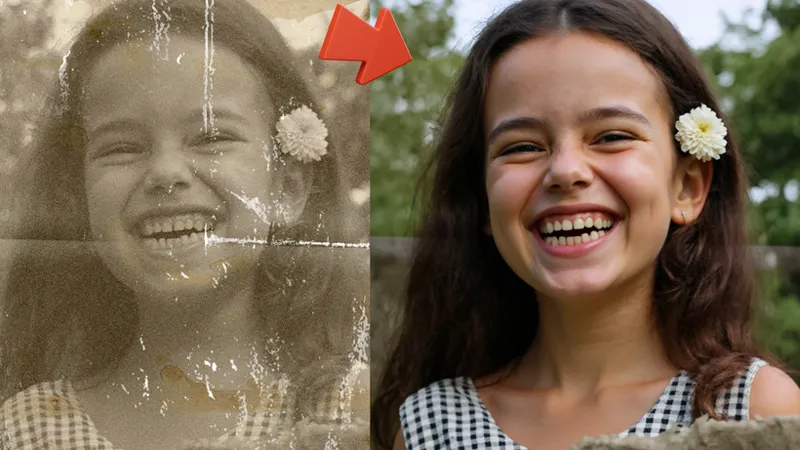
0:32 Demo 1: Next-Level AI Photo Restoration
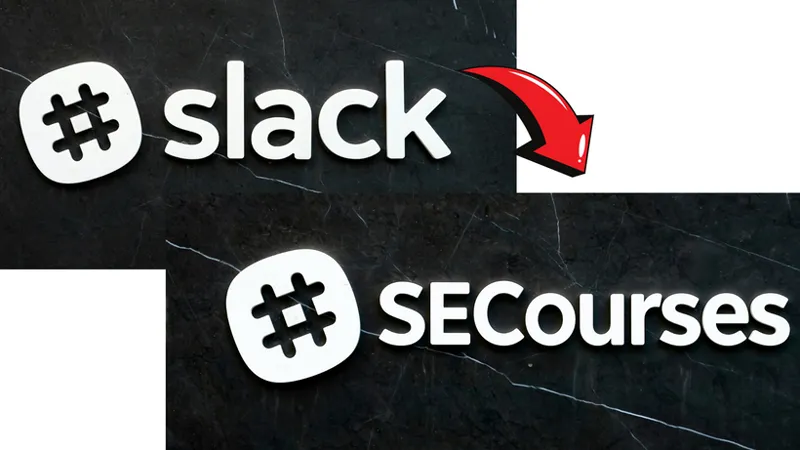
1:04 Demo 2: Changing Text on Existing Images
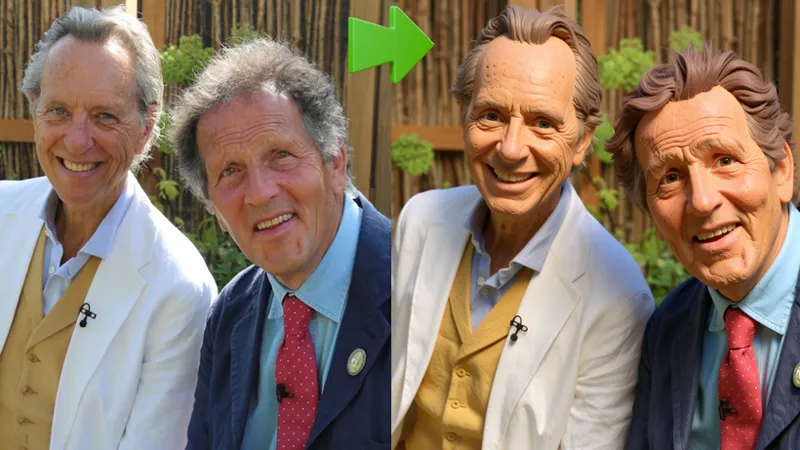
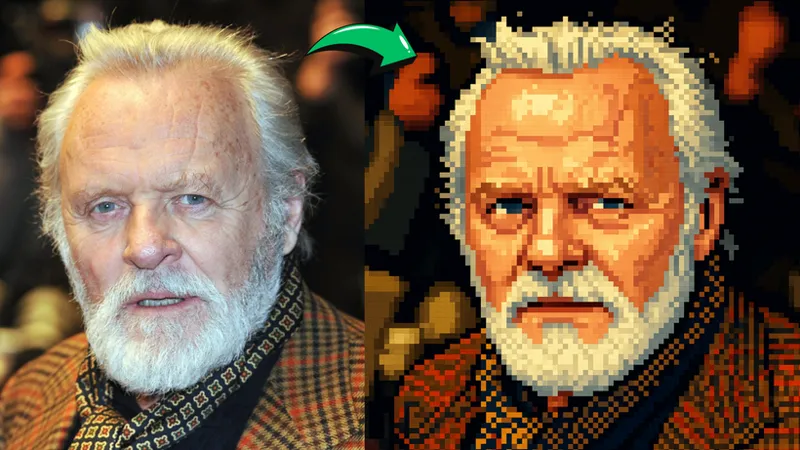
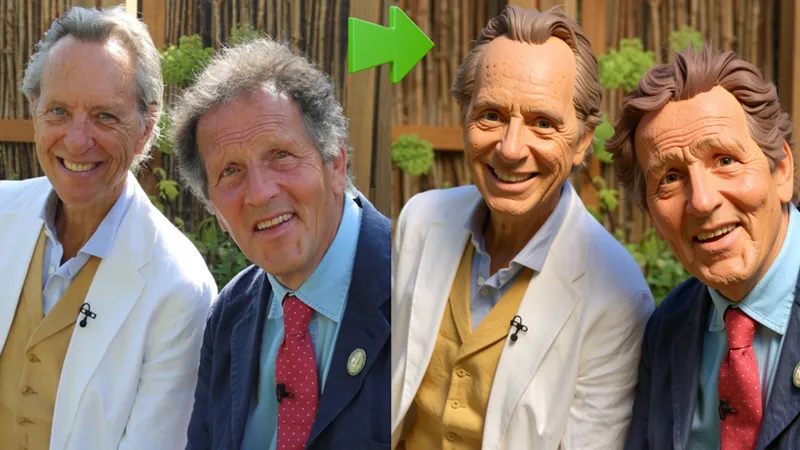
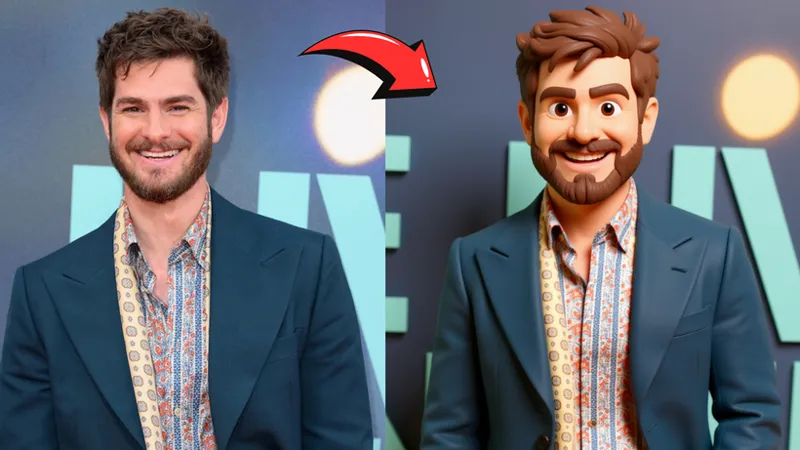
1:22 Demo 3: Image Stylization (Pixel Art, Cartoon, Pixar, 3D Render)
2:21 Demo 4: Changing Object Materials (Wood to Marble)
2:41 Demo 5: Generating High-Quality Logos from a Blank Canvas
3:39 Demo 6: Generating Images with High-Quality Text
3:57 Demo 7: Adding Realistic Objects to a Scene (Lion)
4:21 Demo 8: Removing Objects from an Image
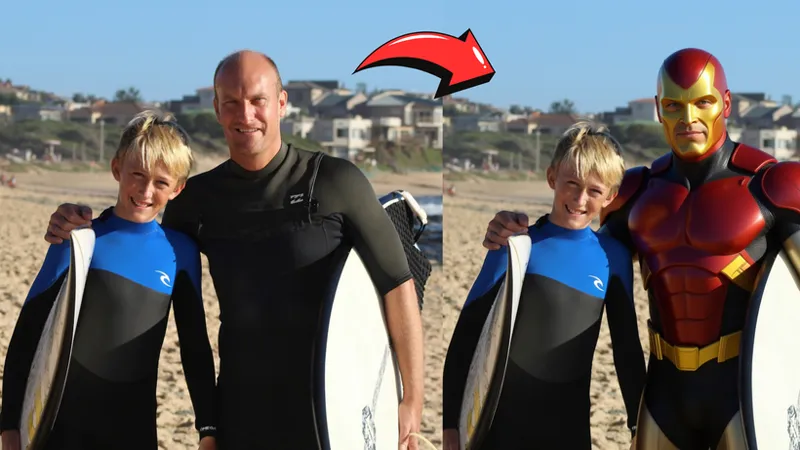
4:46 Demo 9: Replacing People with Characters (Iron Man)
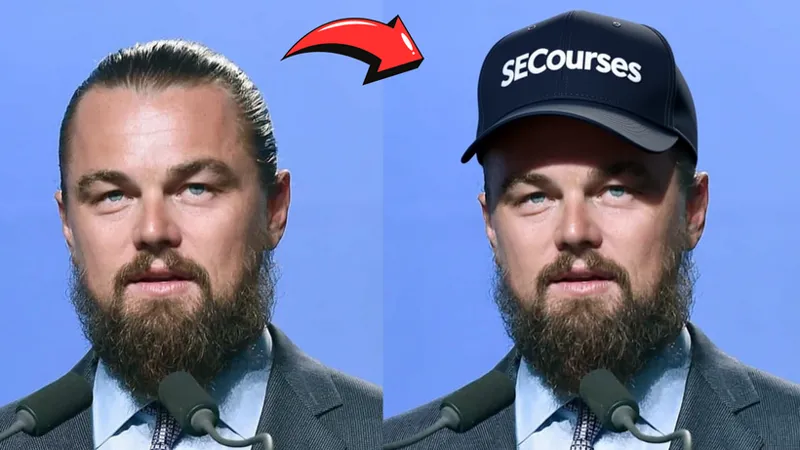
5:25 Demo 10: Adding Accessories to People (Hat)
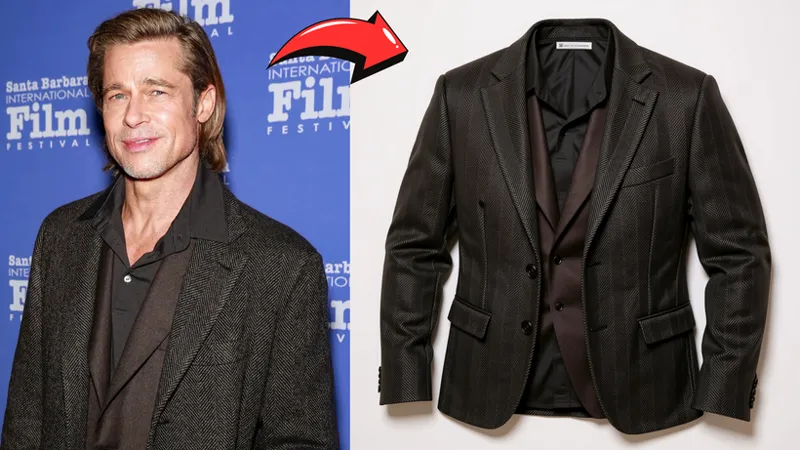
5:44 Demo 11: Extracting Clothing from an Image
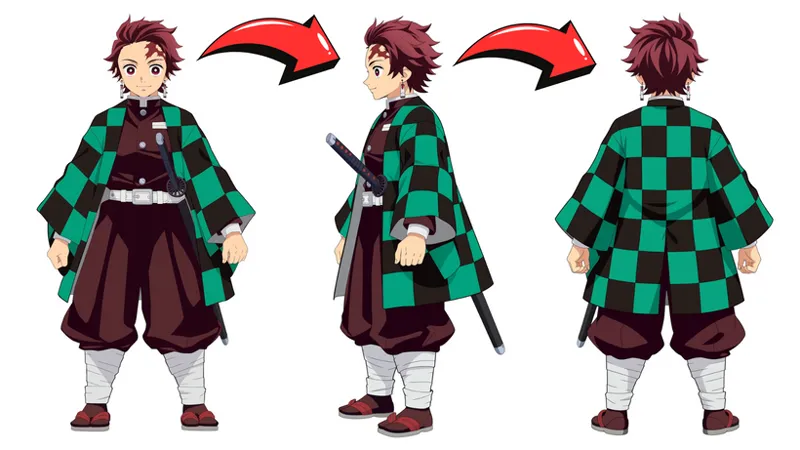
6:03 Demo 12: Rotating Subjects to Different Angles
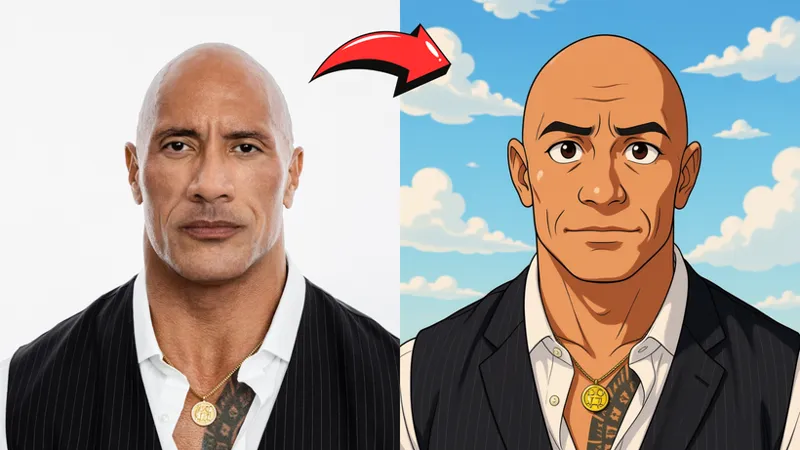
6:37 Demo 13: Anime & Ghibli Stylization
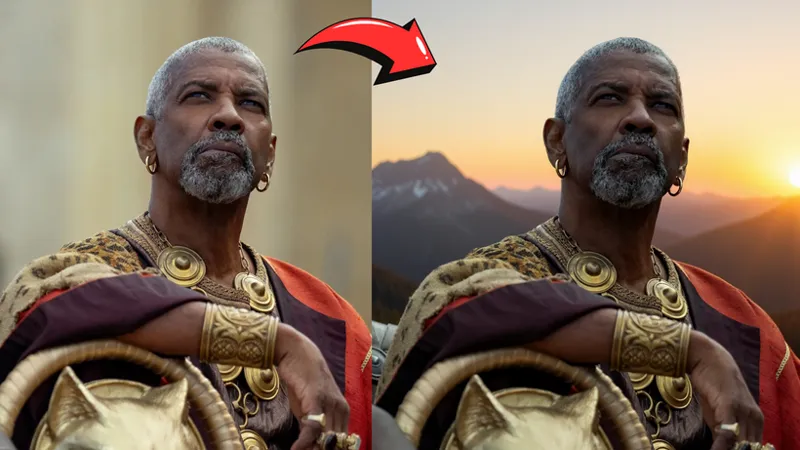
7:11 Demo 14: Background Removal & Replacement
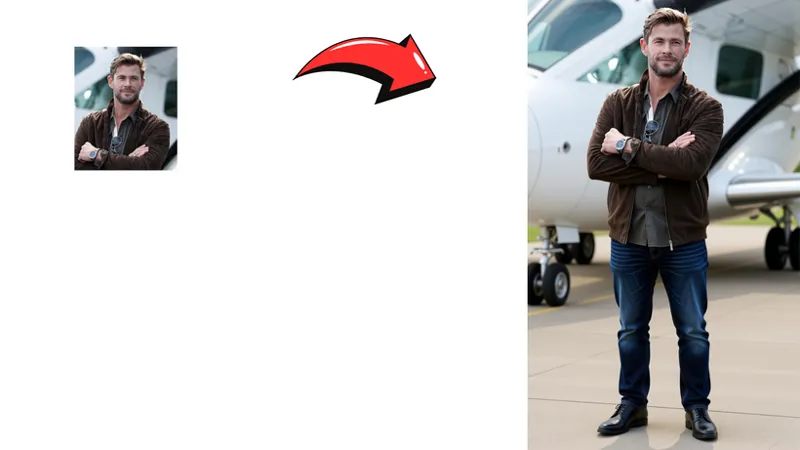
7:30 Demo 15: Image Expansion (Outpainting)
7:47 Demo 16 (Limitation): Modifying Facial Expressions
8:16 Demo 18: Changing Clothing (T-Shirt to Suit)
8:34 Demo 19: Changing the Season (Summer to Winter)
9:08 Demo 21: Keeping Text While Changing Background & Style
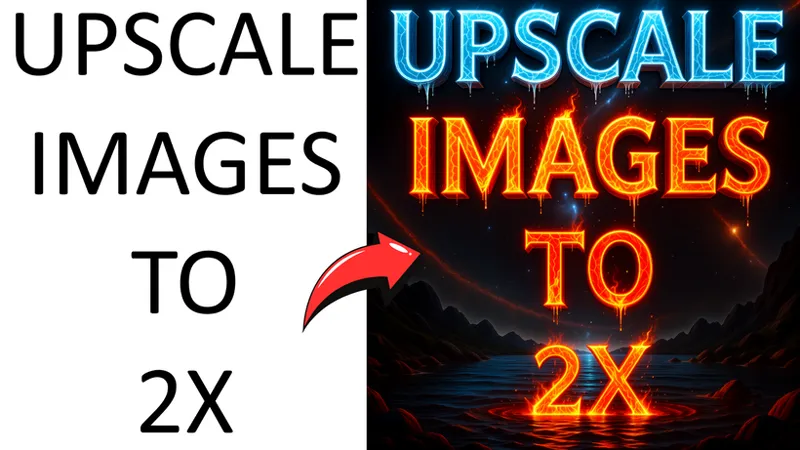
10:01 Demo 22: Advanced Text & Background Styling for Thumbnails
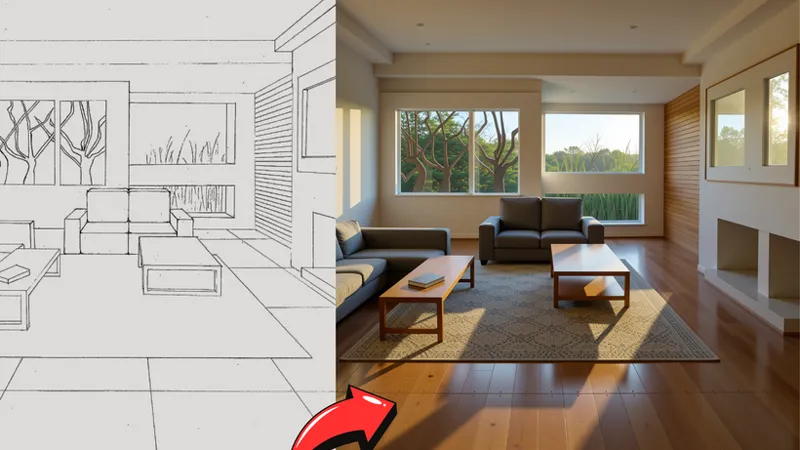
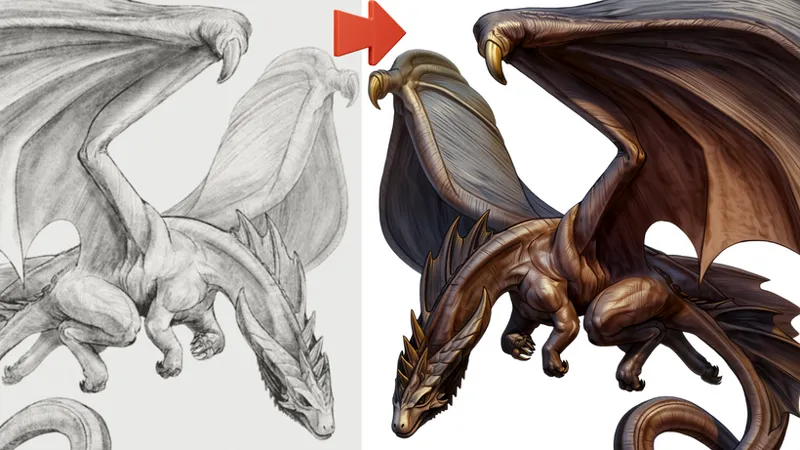
10:42 Demo 24: Colorizing & Shading Rough Sketches
11:07 Demo 25: Rendering Professional & Technical Sketches
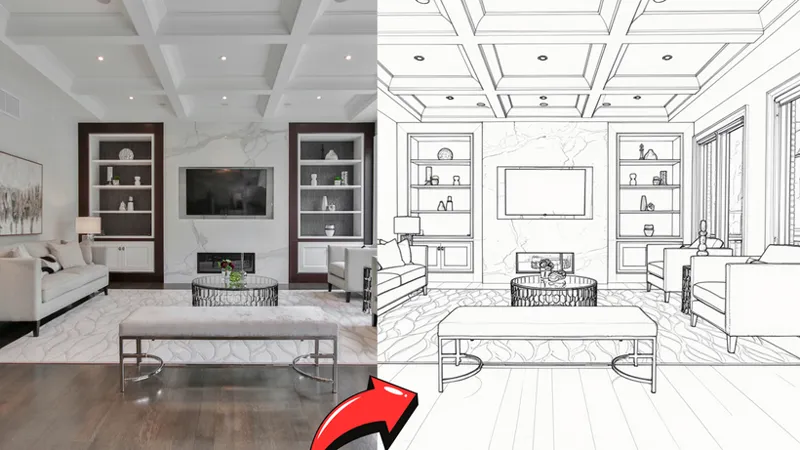
11:37 Demo 26: Converting Real Photos into Professional Sketches
12:04 Installation Guide: Required Downloads & Initial Setup
12:50 Step 1: Updating ComfyUI & SwarmUI
13:28 Step 2: Importing the Latest Presets (Clean Import Method)
14:21 Step 3: Downloading the Qwen Image Edit Models
14:44 How to Select Low VRAM Models (GGUF Quantizations)
15:46 Troubleshooting: How to Fix Black Image Outputs
16:52 How to Use: Applying the Preset & Verifying Model Architecture
18:20 Workflow: Using a Prompt Image (No Init Image)
19:22 CRITICAL STEP: Matching Output Resolution to Input Image
20:00 Tutorial: How to Perfectly Resize Images with Paint.net
21:39 Running Your First Generation & Checking Progress
22:54 How to Upscale Your Generations
23:45 When to Use (and Not Use) the Upscaler
26:03 Generating Images from a Blank Canvas (No Input Image)
28:36 Comparing Upscaled vs. Original Generations
30:00 For Best Realism: Use the SUPIR Upscaler
31:11 Coming Soon: Qwen Image Edit LoRA Training Application
32:14 Final Resources & Where to Get Help
20 Unique Cases Demo Images Comparisons
More Info From Official Source
Introduction
We are excited to introduce Qwen-Image-Edit, the image editing version of Qwen-Image. Built upon our 20B Qwen-Image model, Qwen-Image-Edit successfully extends Qwen-Image’s unique text rendering capabilities to image editing tasks, enabling precise text editing. Furthermore, Qwen-Image-Edit simultaneously feeds the input image into Qwen2.5-VL (for visual semantic control) and the VAE Encoder (for visual appearance control), achieving capabilities in both semantic and appearance editing. To experience the latest model, visit Qwen Chat and select the "Image Editing" feature.
Key Features:
Semantic and Appearance Editing: Qwen-Image-Edit supports both low-level visual appearance editing (such as adding, removing, or modifying elements, requiring all other regions of the image to remain completely unchanged) and high-level visual semantic editing (such as IP creation, object rotation, and style transfer, allowing overall pixel changes while maintaining semantic consistency).
Precise Text Editing: Qwen-Image-Edit supports bilingual (Chinese and English) text editing, allowing direct addition, deletion, and modification of text in images while preserving the original font, size, and style.
Strong Benchmark Performance: Evaluations on multiple public benchmarks demonstrate that Qwen-Image-Edit achieves state-of-the-art (SOTA) performance in image editing tasks, establishing it as a powerful foundation model for image editing.
License Agreement
Qwen-Image is licensed under Apache 2.0.
Comments (14)
How I do install and run SwarmUI on Massed Compute? The ZIP file with the model downloader only seems to have installation instructions for Windows and Runpod.
Massed compute already has installed swarmui. So you just run update button there. But install comfyui and give its backend. This video shows all check video chapters : https://youtu.be/8cMIwS9qo4M?si=FqHmbhv66e5k3DIn
I followed your tutorial which I think is amazing, there were definitely moments when I had to do some deep diving as it doesn't cover some basic things like which folder does what. I am sure you have it in another video somewhere, I am now generating images which is great. Down side is it 50/50 doesn't use my image that I supplied for it to edit. I am using your prompts unchecked Init image, followed the resolution trick you showed, but for the life of me can't figure out why it won't use my photos. Reaching out to see if I may have missed something. Thanks in advance!
it depends on what you are trying to do. at some tasks sadly it is failing. but for my demo prompts it should work. generate at least 4 images with random seed to be sure
The video was saying to install swam ui nodes by clicking the Windows_Install_Update_SwarmUI_Nodes.bat bat file. I clicked that and then told to restart the server (thinking that might be related to the problem of the Lora bit still not working in the preset for qwen image edit), so after it restarted the server it said: 16:33:04.527 [Warning] [ComfyUI-0/STDERR] Traceback (most recent call last): 16:33:04.528 [Warning] [ComfyUI-0/STDERR] File "H:\ComfyUI-from-SECourses-new-install\ComfyUI\nodes.py", line 2129, in load_custom_node 16:33:04.528 [Warning] [ComfyUI-0/STDERR] module_spec.loader.exec_module(module) 16:33:04.529 [Warning] [ComfyUI-0/STDERR] File "", line 879, in exec_module 16:33:04.530 [Warning] [ComfyUI-0/STDERR] File "", line 1016, in get_code 16:33:04.531 [Warning] [ComfyUI-0/STDERR] File "", line 1073, in get_data 16:33:04.532 [Warning] [ComfyUI-0/STDERR] FileNotFoundError: [Errno 2] No such file or directory: 'H:\\ComfyUI-from-SECourses-new-install\\ComfyUI\\custom_nodes\\SwarmUI_ExtraNodes\\__init__.py' 16:33:04.533 [Warning] [ComfyUI-0/STDERR] why does it seem like clicking the update swarmui nodes bat file has messed up the comfyui installation?
well you must report this to swarmui developer. he would fix
I saw that qwen now has controlnet, but I seem to fail with getting them to work in swarm ui. Is there something I do or is it just not supported yet? Anyone have an idea?
it is on my research list i saw too
I am getting the follwing error aftert following the tutorial: All available backends failed to load the model 'D:/SwarmUI_Model_Downloader_v77/SwarmUI/Models/diffusion_models/Qwen_Image_Edit_GGUF_Q8_0.gguf'. Possible reason: ComfyUI errored: { "error": { "type": "prompt_outputs_failed_validation", "message": "Prompt outputs failed validation", "details": "", "extra_info": {} }, "node_errors": { "100": { "errors": [ { "type": "required_input_missing", "message": "Required input is missing", "details": "type", "extra_info": { "input_name": "type" } } ], "dependent_outputs": [ "9" ], "class_type": "CLIPLoader" } } }
probably comfyui or swarmui not up to date. i recommend fresh install comfyui as in this video and give its backend path : https://youtu.be/fTzlQ0tjxj0
Since the tutorial mentioned that you can expand/outpaint but now "how"... Does anyone know/figured it out?
it is easy. shown in tutorial. it also exists in the demo zip file and prompt there too
Fantastic. Looking forward to the training results and tutorial.
you are welcome working on it