






FUM DevLog #1: Folders
Hey! Thanks for tuning into the first FUM DevLogs. These logs will include details on certain features currently being worked on and intimate details on it's process and creation. At the end of each DevLog, the feature being worked on that is the subject of that DevLog entry will be completed and the next update will have that feature in it. Depending on certain circumstances, it may even be a Hotfix and dished out that same day the DevLog is posted! I hope you enjoy the DevLogs from here-on-out and we all have fun designing Federal Unit Manager together!
----------------------------------------------------------------------
Folders
Since FUM v1.0, entity categorization has always been a lacked feature. It didn't even have a Search back then, either! Now we have a search with filters but unfortunately if your entities are all so spread out, the constant searching to jump across the board to the entity you're wishing to view and/or modify will get tedius and inconvenient very quickly. So we will try to remedy that just a bit by adding folders to categorize these entities.
1. Identification
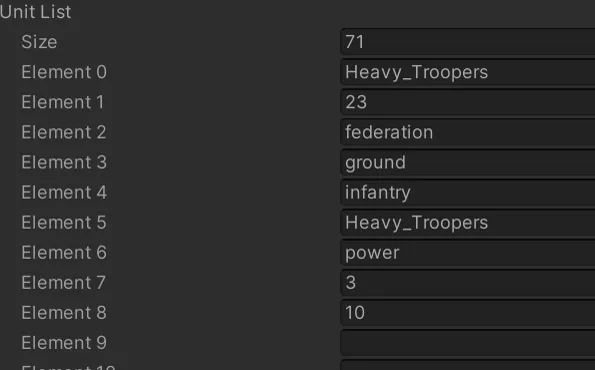
Entities' parameters are all categorized in their own separate field!
For our folders, first of all we're obviously going to need to find a way to identify these entities, so the folder will know what to put in itself. The issue here is we can't save our folders to the game's files. Doing this will cause the game to break and it won't read it. Crafty modders have created their own organization in the game's entity files itself by using what's called commenting lines out. They look like this:
//Hi! I won't show up in the game and crash it!
If you're familiar with commenting then this is nothing new for you. These work because of the two forward slashes in the beginning. Anything on that line after it will not be read by the game. Useful since this can be used to describe what's underneath the line! This is important because this tactic can actually break Federal Unit Manager and so it's to be designed to remove those comments. A comment does not have parameters such as "Name", "ID", "Traits", etc. so Federal Unit Manager would have issues with these. The issue with these comments for modders is that they aren't as very organized as one would like, unfortunately. They are not "Folders". They are simply notations that is usually used to define what's underneath it. It's handy but we can do better than that. To start, though, we're going to look at our parameters above to identify an entity. We can identify them by using their name, ID, traits or a combination of anything listed in those 71 elements! We'll stick with names, though, since namess are unique and FUM does not allow you to save if you have conflicting names or IDs.
2. Definition
So our non-existent folder can detect entities. Great, right? But that wouldn't matter if the folder doesn't exist so let's create a folder!
... But what exactly does a "Folder" need to be defined as a folder? We'll need to list that to move on.
Location the folder will be in the list of entities
Entities that will go in the folder (Determined by Name)
Save data that this folder exists with it's name attached and color code
So now we got all of that down, we can very easily create a folder.
We created our folder's base identity!
Category Index represents where the folder is. (Is it under Rifle_Squad, for example?)
Entity IDs represent all of the Names of the entities that will be inside of our folder.
Folder Name is our folder's name. Would be kind of hard finding out which entities are in it if we don't have a name!
Folder Colors are our color coding. This can help modders with quickly finding their organized folders.
With this, we should also add this to our save data.
By the way, you can find YOUR save data in FUM_Data/data.dat
So far this is quite easy. Folders aren't as complex as one would probably think. We have our data of a folder but we absolutely need to make a physical representation of a folder. Without that a folder isn't very useful, is it?
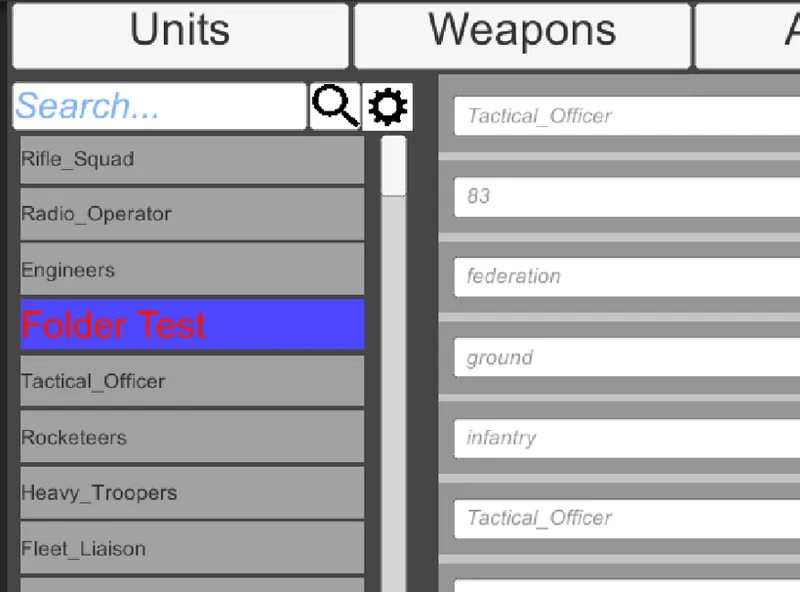
Fancy.. Could be better but it doesn't really do anything, unfortunately. Those pretty buttons, "Create Folder Here" and "Add to Folder" sadly have no functions - They're flukes!
Let's fix that.
3. Button Functions
3.1 Create Folder Here
The first button we will tackle, since it's the easiest, is "Create Folder Here" button. It's a very simple mechanic: We create our folder (Folder Test) when the button is pressed then it's put into the location it needs to be at in the list and that's it!
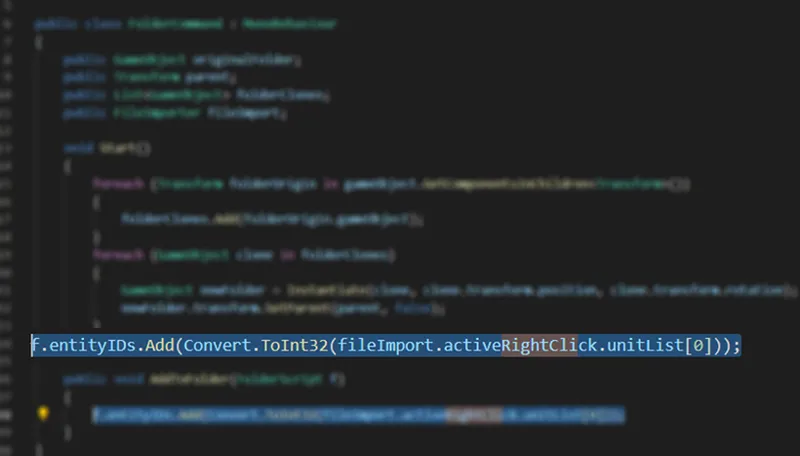
This next image may be a bit confusing to a few of you but that's ok! All it's doing is setting our "Category Index" (Do you remember what that is? It's the location our folder will be in the list!) to that of the entity we right clicked. If, for example, we scrolled way down to "Warrior_Bugs" and right clicked it to create the folder then it will check it's location in the long list and put itself right ontop of it. Pretty handy but also very simple.
Now when we click the button, it'll create the likeness of a folder! But unfortunately it doesn't really work like a folder yet... In fact, it's actually just wasting space in our list at the moment. Without any functions, it's honestly just a mock entity. We don't want that so let's move on and create the more advanced feature: Add to Folder button!
3.2 Add to Folder
This function is far more advanced than simply creating the folder. In fact, this is the heart of the entire feature! Firstly, we'll have to find a way to get all folders. The reason this is necessary is because when we click an entity (Or even a folder~) and decide we'll add it to a folder, FUM has to know which folder you want to add it to, right? Consider you might have 100 folders! To start off, we'll make a pop up dialog which will list all of them when you press the button.
I put placeholder names for some of the folders for now.
It looks a bit bland but we can always fix that later. Now that we have a space for the folder, we just need to populate the list with our folder. To do this, though, first we will need to store our folders into a container. We'll show our physical list here... But that's not really useful if it's not coming from a data location to populate here. Packaging our list up is useful to us as we design it because it'll be used for a plethora of things such as our physical list shown above! We'll get into that "Plethora" later but let's just get that off of our plate by first creating our container.
Custom Folders is the container! It'll list all of our folders nice and neat right here then whenever we need them they will always be here, hosting all of our data! Of course it currently has no folders in it so let's put something in there. When we press "Create New Folder" it'll create and the moment it's created, it'll put itself in our handy-dandy list here. Awesome!
So we got the "Create Folder" button, it puts itself in our list in the last image, holding it's data and all... But that doesn't really help us actually SEE our folder in our list, right? Hm... To show our "Folder Test" in the list, we just need to grab all of the folders from our list we created. So let's do that when we press "Add to Folder".
To accomplish this, all that's needed is to create a few buttons that appear when the menu we created pops up. They will be created based off of all of the folders that are in Custom Folders container. The buttons will have the name of the folder and, once pressed, will add the current entity to that folder.
Ah, there we are. This entire code is dedicated to just this reason, but the focused section: That's the meat! This might be a bit confusing to look at so I only focused us on the part that matters.
This finds our entity's identification and stores it in our container we named Custom Folders up there. Very neat functionality. Now we can finally view all of our folders in our physical list, as long as our physical list can see Custom Folders... Which of course it can! Let's test it all out:
Nice. Now when we press "Add To Folder" we can see all of our folders. Let's make more folders and see it populate.
Does this look like it works so far? Looks like it to me. Remember we found our entity's identification (it's name) and passed it through to the folder once we clicked it? Well it has worked!
Now we have the ability to create the folder wherever we want and add entities' identification (The name) to our folder. This wouldn't have been possible without our custom container. Of the "plethora" of features that it gave us access to, we can now throw folders wherever we want, duplicate them as well and put them anywhere.
Whew... Didn't I tell you the "Add To Folder" button would be WAY more complicated than the Create Folder button? At least we've fought that big bug and we won!
4. Categorization
4.1 Preparations
Unfortunately our work isn't quite over yet. Even though we stored our entity's identification in our folder's information... The folder doesn't really do much with the information yet. What exactly does a folder do with the information? If it doesn't hold the information and do SOMETHING with it, then it doesn't REALLY function as a form of data management, does it? Well let's back up and remember our list!
Location the folder will be in the list of entities
Entities that will go in the folder (Determined by Name)
Save data that this folder exists with it's name attached and color code
We've finished the Location the folder will be in the list of entities. In that location we grab the entities' information and store it. But now we need to actually do something with the entities that are in the folder. That's note number 2! So let's start off by brainstorming.
How exactly does a folder categorize it's contents in this situation?
In this situation, we want 2 things to happen:
1: The folder to hide and show the entities when we press it as if we're "Closing" and "Opening" the folder.
2: The entities whose data is in the folder to go under the folder in the list.
Let's start off with part 1. This is important because there's a prerequisite before either of these can be accomplished and it's a smaller leap from that prerequisite and function number 1, than number 2.
So what is that prerequisite?
4.2 Hide/Show Entities
Remember how we made the entities' names store itself into the folder? A "name" as a form of identification is great for identifying but currently we just store the name and don't actually identify anything. The prerequisite is that we need to actually identify the entity based on our stored information. For example: If we want to store Rifle_Squad, it will be stored as Rifle_Squad. We need our folder to look for the Rifle_Squad entity in the list, grab it, and do function number 1: Hide and show the entities if the folder is clicked on. Good thing Federal Unit Manager already has it's own containers and variable for categorization so the hard work is laid out for us. We just need to identify our Rifle_Squad entity in that organized category that already exists within FUM. So let's do it and see the result.
Pay attention to the "Rocketeers" at the top. When clicking on our folder (Hey! WHo changed the name of our folder?!) it hides it's derived entity and unhides it: Rocketeers. Do you see that? That's the kind of functionality that we need in FUM!
... Except there're obvious issues with this. It finds and detects all of our entities. But why doesn't it actualy look like it's IN the folder? If we kept it this way, it would basically be a "quick group-autohide" instead of a real folder. Rocketeers must be UNDER our mis-named folder, not in it's default spot. That's function number 2: The entities whose data is in the folder to go under the folder in the list.
4.3 Categorize Entities
So we've finally hit our stop. The purpose of the folder is to categorize our entities. Without the categorization, without being able to manipulate the position data of our entities, the entire feature begins to fall short. We already have a hide and show button by clicking on the folder itself. We can derive from this same feature! The moment you "Show", it can grab all of it's entities like we already programmed it to do and place them where they need to be! That's why I said it's better to have a hide and show FIRST, so we can just get the hard part out of the way in baby steps! This is easy. We need only to add a small little bit of code in the "Show" button and set the entity at the same spot (But under, of course) as our folder.
This all sounds nice, but what about if we DON'T show the entities? It had to have been hidden in the first place to show it, right? If we don't show the entities in the folder, wouldn't they be in it's default location and NOT underneath the folder they're meant to be in?
Correct! So then that means we'll need to organize all of the entities on startup unless we want to go to every folder and click them to hide all entities, then click them again to show them in their correct places but obviously no one really wants to do that so we'll need to fix that. There are many ways to accomplish this but of course we want the way that costs limited resources on your CPU as well as one that doesn't take Disc Space by saving position data for every single entity. It might be tiny but the more we save to our save file, the more we'll have to manage when we unpack our save file so let's not save the position data of every entity and, instead, only save the position data of our folders and then distribute the position data with our one line under algorithm we created earlier which was used to create the folder in the location of your choosing.
5. Save Data
This leaves us with Save Data. Without Save Data, our hard entity categorizing work would have all been for nothing, right? We don't want that so let's look at our list from the beginning of our Log:
Location the folder will be in the list of entities
Entities that will go in the folder (Determined by Name)
Save data that this folder exists with it's name attached and color code
We've done the first two bullet points. All that's left is the final design. We mention 3 things in that last part:
1: This folder exists
2: Name of the folder
3: Color code
So far we know the folder exists. It holds our data but the other 2? Well to be quite frank, there's currently no way to name your folder! How inconvenient... There's also no way to choose the color of the folder. These are very important features but the reality of them is that they aren't very important as of right now. What's important, however, is to ensure we have their color data and their name recorded, even if we can't set them. Remember "folderColors" and "folderName" from back in Definition section? Well that's good because I'm sure FUM remembers them as well. This means that we already created their existence so we don't need worry about that since we already did it! For the time being, we will ignore actually SETTING them since our Save Data won't really care what your folder name or color is since there will be a default. This means that all three of those sets of data are already done! So what's left if we already did all that? What's left is to actually save it into our save data files, of course! We have quite a lot of functions and definitions of variables in our folders to make it exist, many of which aren't explicitly shown in this DevLog but imperative for the folder to work the way it does. However, none of that "Function" backroom crap matters in our Save Data. What matters is what we set in the very beginning:
We need to make sure our Save Data remembers these or we wouldn't really be saving much.
Category Index lets FUM know where this folder should be in the hierarchy when it launches and generates our folders
Entity IDs lets FUM know which entities should be under this folder so we can assign them in their proper position while the entities are being generated
Folder Name will name our folder to what we named it when we saved FUM
Folder Colors will be applied while the folder gets generated to what it'll find in our save file
So with all of this data, it should make a lot of sense so far what exactly FUM will do when it tries loading our save data and creating our folders.
In the end, we can now create, delete, change the name of, add to and change the color of our folder and all of it saves when returning without messing with our game files!
Of course we aren't done. In fact, we aren't even close to done. But we should pat ourselves on the back! This took over 48 straight hours (I barely slept...) to simply make a folder system. It was very hard work even though it seems simple. I typed this DevLog concurrent with creating it.
6. Concluding...
There are still more steps! Not only does this currently lack a lot of features and have quite a few errors, there's always room not only for improvement, but to test for stability. This is unfortunately not the luxury I have yet until, of course, the update hosting these folders get launched but troubleshooting and testing the product is an always must. No questions asked. After the large amount of hours taken to make this feature, there were even more hours ontop of that just to work out serious kinks. There are already massive kinks but they hopefully aren't application breaking.
When doing this troubleshooting and error fixing, I realized that when I decided I wanted to remove an entity by deleting it from the list, the entire folder broke: It no longer could find the entities inside of it. That's no good! Good thing I already created a "Refresh List" function I built into FUM from the start. This let's our folder know that if an entity that is supposed to be inside of it does not exist, please do not cry over it and stop working.
Other issues included names and colors not saving despite me clearly saving them. There is still the issue with the hierarchy not puting certain entities in the list like they should be without us opening and closing the folder. Unfortunately that's a big issue and would take much longer than I have before the September 12th deadline.
The entire folder feature actually wasn't meant to be in this update! I decided I had time since this update, v1.91, was really meant for bug fixes of the previous update.
After a long journey, we did it! From start to end, we have functioning folders, albeit a bit funky and needs a lot more testing, (These were whipped up as quickly as I could and speed in only about 48 hours of little sleep!) and you've made it through the entire first DevLog! I really hope you enjoyed reading this. Just by reading my work and being apart of it, you're helping me continue it! Thank you everyone who got this far. Until our next DevLog- Go end some bug life!