
[PC] How to easily keep all DLSS + Streamline files updated Globally (no more manual swapping!)
With NVIDIA constantly releasing newer and better versions of both DLSS Super Resolution, DLSS Frame Generation, DLSS Ray Reconstruction and all the .dll files related to them (in the Streamline SDK), both devs and users are struggling to keep up as (more often than not):
Developers used outdated DLSS versions during the games' development and keep them that way without ever updating them with a patch after their release (as they aren't willing to re-test them with newer versions or they just move on to other projects)
Users needed to manually "swap" old DLSS files with newer one for each game or by using external tools like DLSS Swapper to do so a bit more easily
Games' store like MS Store will revert manually replaced/updated .dlls if they differ from their original versions when a new game patch is released or after periodic integrity checks, forcing Users to re-do the manual swapping (but if they forget to re-check from time to time they could return using old DLSS versions without knowing it). Also some online games with strict Anti-Cheat may block you from launching the game if files within the games folder were altered or you won't be able to use the altered DLSS versions at all once in-game
Recent NVIDIA drivers now allow "DLSS Versions Override" both in NVIDIA App and/or using NVIDIA Profile Inspector, making the games use the DLSS files within the currently installed drivers, but often even the newest drivers don't have latest official DLSS .dlls or sometimes newest drivers are just worse than previous versions, so an user can decide to hold off updating to them. Also the official Override doesn't include all the "Streamline" support .dlls which are as important as the main DLSS ones to make everything work as best as it could
All these annoyances are basically solved now with a new, open source, free tool: nvidiaDlssGlom
This tool is similar to the driver-level "DLSS Override" but with the advantage of:
Manually choose what DLSS versions/dlls to Override globally
Also Override all support Streamline .dlls along with the main DLSS ones
Automatically download and apply latest versions of DLSS and Streamline files directly from NVIDIA servers
Includes debugging options to see if the Overrides are working correctly (e.g. Show DLSS Indicator)
It's lightweight, easy to use, unobtrusive and will NOT run in background.
Here's how to set it up:
Download the latest version of nvidiaDlssGlom from its official repository, here
Extract it in a folder, example C:
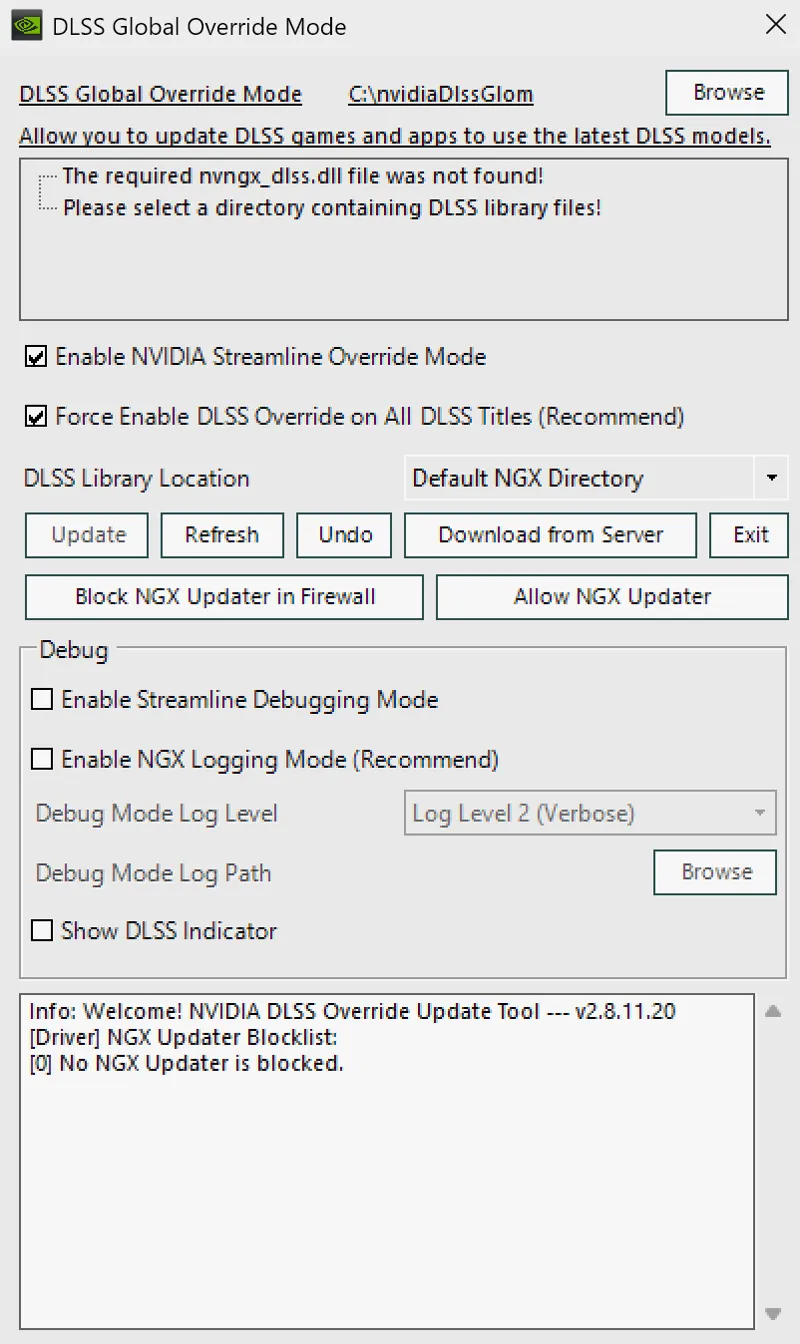
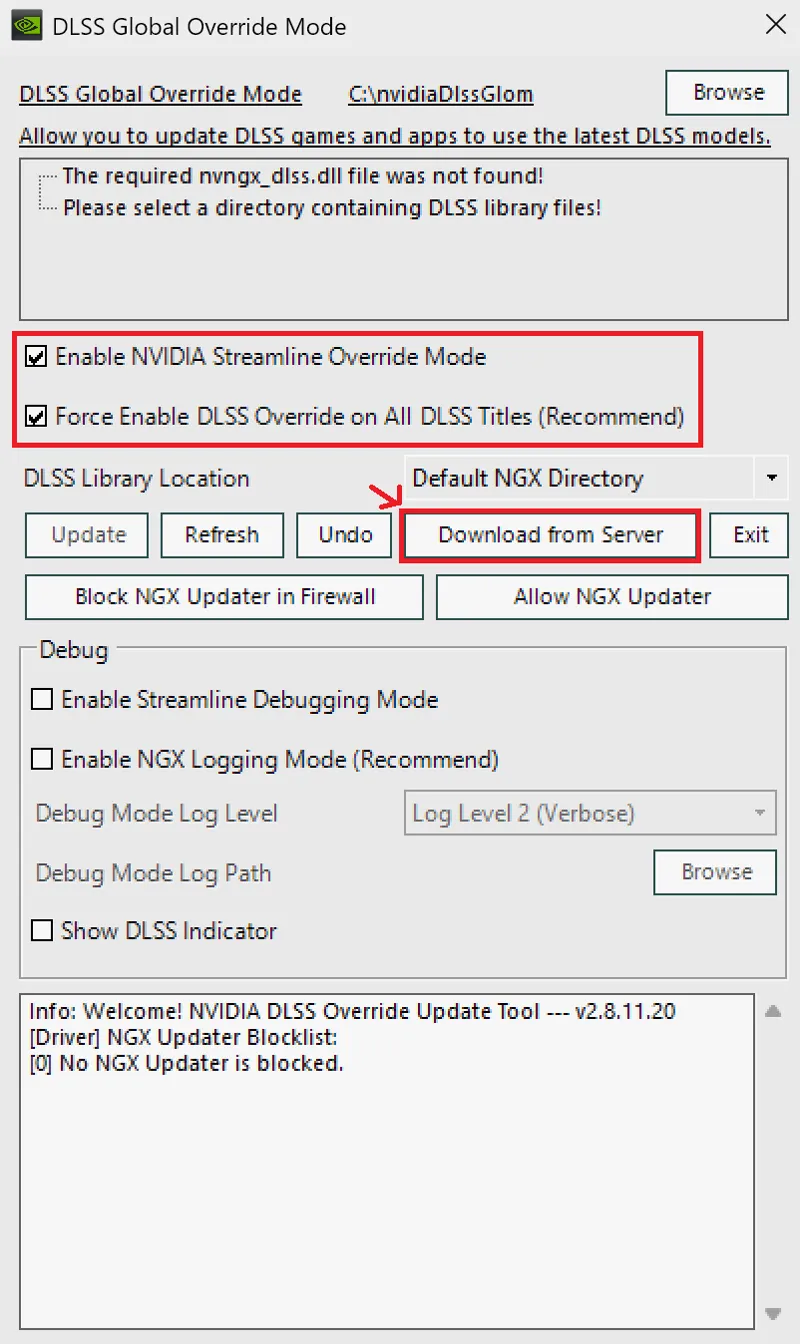
Open nvidiaDlssGlom.exe (as an Administrator. Also click Yes on the UAC prompt) and be sure both "Enable Streamline Override Mode" and "Force Enable DLSS Override on All DLSS Titles (Recommended)" options are checked and then just click the "Download from Server" button!
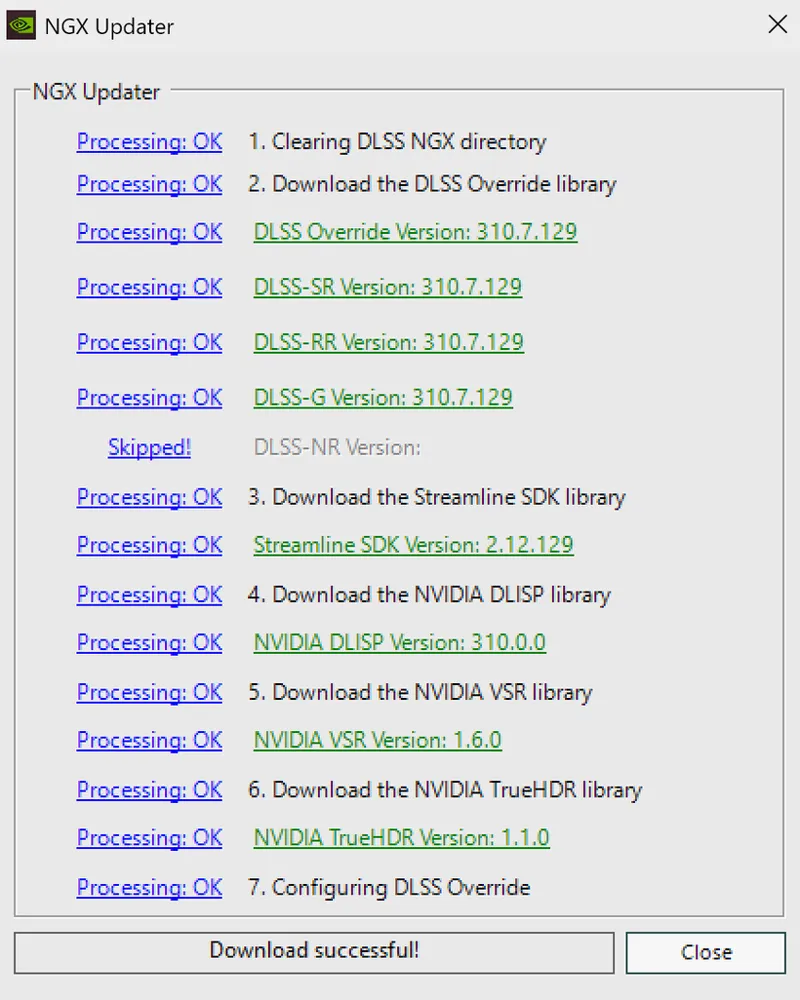
All latest DLSS + Streamline files will be downloaded directly from NVIDIA servers and configured globally automatically. When you see every step processed as OK and the last status "Download successful" you can close the window, then close the program itself.
If some file will be "Skipped" (like DLSS-NR = DLSS 5) that's only because there's no official/public override yet...but the tool will get that too once available for all as well :)DONE :)
Now all the games which use DLSS will automatically load the updated file versions you just configured with nvidiaDlssGlom. No more manual swapping! ;)NOTE:
After you update an NVIDIA driver, for precaution just re-open nvidiaDlssGlom.exe and re-click on "Download from Server" againNOTE #2
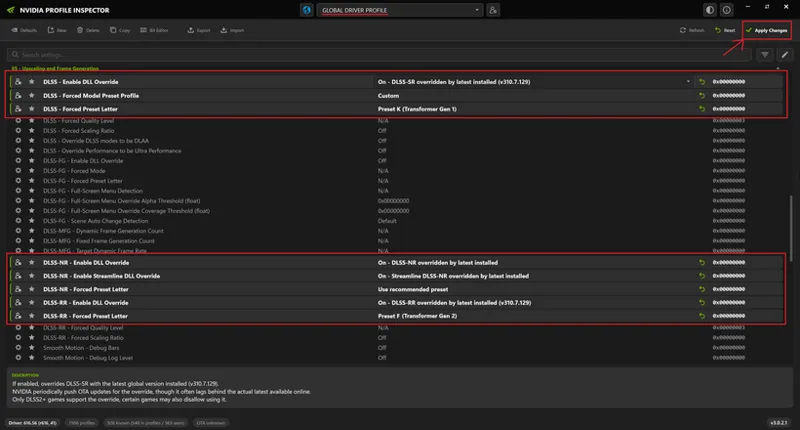
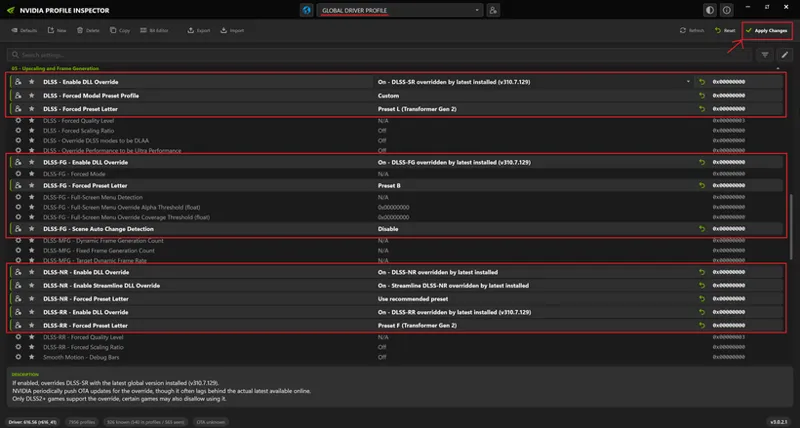
To force "Recommended" or specific DLSS "Presets" globally you still need NVIDIA Profile Inspector.
I also recommend enabling NVIDIA "DLL Override" options there to be sure even older DLSS .dlls (like v2.4) get automatically replaced by newest ones, which sometime nvidiaDlssGlom alone won't do in those cases. Those will work fine together:
For RTX 2000/3000 Series:
Click for fullscreen
For RTX 4000/5000 Series and newer:
Click for fullscreen
NOTE #3
After DLSS SR 4.5, I recommend to use DLSS Performance mode + forced "Preset L" + Sharpness 0 in-game at all resolutions if you have a RTX 4000/5000 Series card and newer.
If you have an RTX 2000/3000 Series card, I suggest using DLSS-SR "Preset K" instead as it's the best balance between image quality and performance there.
For DLSS 4.5 Ray Reconstruction, you can separately force RR "Preset F" and I also recommend using DLSS Performance mode with it.
I also suggest to force enable the new DLSS 4.5 Frame Generation "Preset B" which will improve UI elements stability when using FG (in compatible games)
DLSS-NR = DLSS 5 = Which at the moment is causing a major backlash among the community as, unlike everything above (which is objectively useful for improving both image quality and performance at the same time) it currently does the exact opposite: it will noticeable alter the original creators/artists' intent, vision, cohesiveness of their games by slapping an "AI Slop Filter" on top which will also cut the performance in half on average (-50/-60% loss officially confirmed by NVIDIA)...
NVIDIA also confirmed its "debut" for 5000 Series only but modders already successfully hacked it to 4000 and previous Series as well, so in NVPI I suggest to just enable the file Overrides for keeping DLSS5 files updated as well and to set it to "Recommended" preset on all cards...but I highly recommend to keep it Disabled in-game, at least for now.
In the future:
IF the performance cost will drop from -50/60-% to -10/-20% maxIF it will also be officially backported at least to 4000 series as well
IF the model will stop ageing people and further respect original materials by default, along with reducing/fixing artifacts
IF the devs natively supporting it will do a good customization job with those sliders to actually match their artistic vision for their games with it
THEN it could be an interesting new tech to use, especially coupled with realistic games, disabling Ray Tracing / Path Tracing and enable DLSS 5 on top of raster instead to achieve similar/better results at equal or even lower performance cost.
Like modders already tried to do here.
NOTE #4
I also recommend to enable the new option "Shader Cache - Pre-compile Shader Options" or "Auto Shader Compilation" (in NVIDIA App) to Medium which will automatically compile shaders in the background when Windows is in an idle state in order to accelerate the games' loading and reduce in-game stutters after every NVIDIA driver updates.
Enjoy ;)
-P
Comments (74)
For rtx 3090 preset k and quality ?
Preset K for sure, then you can use whatever you please. At 4K you can go as low as Balanced and will look good. At 1440p/1080p I would use Quality
Paolo one question I game at 4K and for some reason I don’t understand why when I do you’re dlss guide I get for red dead redemption 2 about 60 to 70 fps everything on high settings but on native at 4k I get the same fps I have an rtx3090 and 12900k intel ?
I think it's not possible having the same performance with Native 4K compared to 4K DLSS Performance. The latter should almost have double the performance than Native + TAA while also looking better. Are you sure you're using DLSS SR Preset K on RTX 3090 as suggested and not L?
New option for glom disable nvidia ota dlll
Cool but don't know why you should use it tho
Morning! Hope you're doing well. I've configured NvidiaDlssGlow and Profile Inspector to match the values in this guide, but I have a quick question. Since I have the NVIDIA App installed, should I leave everything set to "Use 3D App settings" for each game profile?
No, I would use the user/custom specified settings globally and set them as suggested in my other full PC guide for classic NVIDIA Control Panel (you'll find the same settngs also in NVIDIA App)
Afternoon. Hope you're doing well. Quick question—will this configure the best settings for my rig? I'm running an RTX 5090 and a Ryzen 9 9950X3D. Appreciate any advice on this. Also, is it just a matter of installing the program, running it, and letting it do its thing? no using the Nvidia app no more ?
Yes, just follow the guide and the NVPI settings screenshot for 4000/5000 series. Personally I don't use NVIDIA App at all (only using classic NVCP + NVPI and nvidiaDlssGlom and that's it. You also don't need any of these running in the background)
it says backup failed, what should i do?
Try the previous version of nvidiaDlssGlom
Hey P40L0! What do you think about the new frame limiter from Market, FramePacer? Have you tested it yet, and if so, how does it compare to RTSS in terms of latency and frame pacing?
I haven't tested yet but it seems very similar to RTSS Front Edge Sync which will have higher latency than Reflex and is not very compatible with DLSS Frame Generation (which always enables Reflex) So I would just stick with RTSS Reflex universally for best results and no manual hassle
UPDATE - 2026/09/02 - Updated my thoughts on DLSS 5 in "NOTE #3"
Hi P40L0! sorry to bother but i have a question: i have a 4070, and i was trying following your screnshot for 4000/5000 series. All set, but in the section "DLSS - RR force preset letter" i only have preset D and E transformer Gen 1, and to the letter L there is written "(unused)". Is there a solution?
Still set it to F (Unused), it will work. Read the other comments for why
Hello , i installed the latest nvidia driver 616.56 ( rtx 4060 desktop pc ) , i followed ur guide to install the software ,the steps worked perfectly , and the software is woorking perfectly , but when i tried to open nvidia profile inspector revamped i got an error ! and am pretty sure the nvidiadlssgloom caused it ( because before installing the software i literally was tweaking the rebar settings in the revamped profile insepctor ) and here are the logs === NVIDIA PROFILE INSPECTOR Crash Report === Date/Time: 2026-08-31 04:09:45 Version: 3.0.2.0 OS: Microsoft Windows NT 10.0.26200.0 64-bit: True Driver: 616.56 (r616_41) === Exception Details === Type: System.ArgumentException Message: Offset and length were out of bounds for the array or count is greater than the number of elements from index to the end of the source collection. Source: mscorlib TargetSite: Void BlockCopy(System.Array, Int32, System.Array, Int32, Int32) StackTrace: at System.Buffer.BlockCopy(Array src, Int32 srcOffset, Array dst, Int32 dstOffset, Int32 count) at nvidiaProfileInspector.Native.NVAPI2.NVDRS_SETTING_UNION.get_binaryValue() in C:\nvidiaProfileInspector\nvidiaProfileInspector\Native\NVAPI\NvapiDrsWrapper.cs:line 241 at nvidiaProfileInspector.Common.DrsSettingsService.CreateSettingItem(NVDRS_SETTING setting, Boolean useDefault) in C:\nvidiaProfileInspector\nvidiaProfileInspector\Common\DrsSettingsService.cs:line 535 at nvidiaProfileInspector.Common.DrsSettingsService.<>c__DisplayClass21_0.b__0(IntPtr hSession) in C:\nvidiaProfileInspector\nvidiaProfileInspector\Common\DrsSettingsService.cs:line 584 at nvidiaProfileInspector.Common.DrsSessionScope.DrsSession[T](Func2 action, Boolean forceNonGlobalSession, Boolean preventLoadSettings) in C:\nvidiaProfileInspector\nvidiaProfileInspector\Common\DrsSessionScope.cs:line 46 at nvidiaProfileInspector.Common.DrsSettingsServiceBase.DrsSession[T](Func2 action, Boolean forceDedicatedScope) in C:\nvidiaProfileInspector\nvidiaProfileInspector\Common\DrsSettingsServiceBase.cs:line 54 at nvidiaProfileInspector.Common.DrsSettingsService.GetSettingsForProfile(String profileName, Boolean showActiveFromDisabledSources, Dictionary`2& applications) in C:\nvidiaProfileInspector\nvidiaProfileInspector\Common\DrsSettingsService.cs:line 575 at nvidiaProfileInspector.UI.ViewModels.MainViewModel.RefreshCurrentProfile() in C:\nvidiaProfileInspector\nvidiaProfileInspector\UI\ViewModels\MainViewModel.cs:line 1110 at nvidiaProfileInspector.UI.ViewModels.MainViewModel.d__412.MoveNext() in C:\nvidiaProfileInspector\nvidiaProfileInspector\UI\ViewModels\MainViewModel.cs:line 707 --- End of stack trace from previous location where exception was thrown --- at System.Runtime.ExceptionServices.ExceptionDispatchInfo.Throw() at System.Runtime.CompilerServices.TaskAwaiter.HandleNonSuccessAndDebuggerNotification(Task task) at System.Runtime.CompilerServices.TaskAwaiter.GetResult() at nvidiaProfileInspector.UI.Views.MainWindow.d__15.MoveNext() in C:\nvidiaProfileInspector\nvidiaProfileInspector\UI\Views\MainWindow.xaml.cs:line 226 --- End of stack trace from previous location where exception was thrown --- at System.Runtime.ExceptionServices.ExceptionDispatchInfo.Throw() at System.Windows.Threading.ExceptionWrapper.InternalRealCall(Delegate callback, Object args, Int32 numArgs) at System.Windows.Threading.ExceptionWrapper.TryCatchWhen(Object source, Delegate callback, Object args, Int32 numArgs, Delegate catchHandler) EDITT : the normal nvidiaprofileinspector is working perfectly tho .
Don't use NVPI Revamped. It's just a fork or regular NVPI with added customizations (and instability) Stick with original NVPI (Release/Public Channel)
Hey I just want to mention I experiment framerate issue in several games when I tried to force the latest DLSS, Frame Gen or super resolution. The frame rate dropped by 50% . For example, vision of mana, COD MW 4 Beta et I got this issue with RDR 2.
I tried 15 games and no issues so far. Are you sure you're using the same settings?
Hi I can see Preset F(Unused) not Preset F (Transformer Gen 2) on NVPI. How to change it like yours?
I manually edited the XML file the program uses 😅 , but even if you see "Preset F (Unused)" it will still work (as it's just a label) A new version of NVPI will be released soon and you will also see "Preset F (Transformer Gen 2)" 👍
Have you done any testing with the new dlss 4.5 SR and frame gen dlls? But more importantly, have you seen in person how dlss 5 butchers your games yet lol!
Yes I did. DLSS 4.5 RR (Preset F) is amazing, a big step up in visual quality and denoising over previous D/E and will run with more or less the same performance. DLSS 5 is absolute dogshit instead for now, that's why I suggested NVPI to just keep its .dlls updated but if it stays that way on launch you NEED to absolutely keep it disabled in-game (you can luckily do that)
UPDATE - 2026/08/30 - Guide updated with new nvidiaDlssGlom version + new NVPI screenshots, overrides and suggestions for DLSS 4.5 Ray Reconstruction and DLSS NR = DLSS 5
Read the Note 3
This tool seems to be stuck downloading an older version of the .dll (namely 3.10.6, the latest is 3.10.7)
310.6 is the latest official "OTA" version of DLSS Override also used by NVIDIA App Override so that's normal. 310.7 seems only available for devs through GitHub. When the OTA will be aligned with latest version, nvidiaDlssGlom will get and download it
Just a tiny question For a setup with 5070Ti - why use DLSS Performance and not Balanced / Quality or even DLAA ? Thank you for explaining
Because now with DLSS 4.5 and Preset L you can already achieve better-than-Native picture quality at 50% internal resolution, so you'll get both visual quality and much higher performance at the same time
Hello, it fails when i download from the server. i have launched it as admin btw as instructed https://snipboard.io/7HS1UF.jpg
Be sure to use "Game Ready" NVIDIA drivers and not "Studio" drivers
Hello P40L0, thank you very much for the guides and the recent updates. I have a specific question regarding DLSS override global setting with NVPI . I have a 5070ti, and i've set the dlss 4.5 preset L like you've suggested, to use it in performance/balanced mode in my games: but what happens in the very particular cases of games that let you choose the dlss model in their games options? ex: Arc Raiders (you can choose cnn vs transformer), or Crimson Desert (you can choose 4.0 or 4.5 with two presets). Does the game runs the dlss i choose in the game options, so it overrides the "global setting"? Because for example Crimson Desert has a very bad implementation of dlss 4.5 right now, so i would prefear to use the 4.0 version set to DLAA or Quality, possibily with preset K. I just need to very simply select that trough game options or its the global settings of NVPI that commands? Thank you in advance.
What question?
I play on a 5090 and when I'm using your profile inspector settings frame generation completely stops working in Cyberpunk 2077. Any idea what that could be? Only if I revert do default settings it starts working again...
I have no issues with my settings and CB2077 + FG. Are you sure you correctly did the nvidiaDlssGlom override before doing NVPI changes?
UPDATE - 2026/04/06 Updated both the PC Optimization Guide and nvidiaDlssGlom guide. Changelog: - Updated NVIDIA Profile Inspector screenshots and suggestions to reflect the new major version and also the new NVIDIA features introduced with Driver 595.97 and latest NVIDIA App (e.g. DLSS Frame Generation Preset B, Auto Shader Compilation) - Updated nvidiaDlssGlom screenshot to reflect the OTA availability of NVIDIA DLSS 310.6.0 + Streamline 2.11 .dlls, which are necessary for the new features above to work - Split and updated screenshots/suggestions for RTX 2000/3000 Series and RTX 4000/5000 Series and newer - DLSS MFG above 2x could introduce noticeable artifacts and higher input latency, so I specified a note in the PC Optimization guide to revert to 2x or turn it Off if those are too noticeable for you Enjoy ;) -P
UPDATE - 2026/03/24 Split NVPI recommended settings and presets' images between RTX 2000/3000 Series and RTX 4000/5000 Series and newer
For when using the DLSS Performance mode via Profile Inspector, Do I change the "Forced Quality Level" to Performance?
Personally I don't do that as I like to experiment by changing DLSS modes in-game. So just remember to set DLSS Performance in-game and that's it
Paolo one question in dlss 4.5 is ultra performance dllls preset l better then m in terms off picture quality like ghosting and artifacting even though it’s much heavier on the gpu
Yes, L is better than M, the only drawback is that it's heavier but I found I didn't lost almost any fps when forcing L in DLSS Performance mode (instead of Ultra Performance) on my 4080
Hi. When I download from server using dlss glom the Dlss SR version fails. Also in profile inspector the dlss override is overriden by latest installed (v0.0.0) not version 310.5.2 Any help would be appreciated thanks
Make sure you're using "Game Ready" drivers and not "Studio" drivers. Also maybe try changing your DNS to manual/public Cloudflare DNS: 1.1.1.1 1.0.0.1 Then try again the Download from Server button
NOTE #3 - UPDATED - 2026/03/02 After DLSS 4.5, it's recommended to use DLSS Performance mode + Sharpness 0 in-game at all resolutions if you have a RTX 4000/5000 Series card and newer. If you want to force a specific preset I currently suggest "Preset L" coupled with DLSS Performance mode at all resolutions. For DLSS Ray Reconstruction, you can separately force RR "Preset E" and I also recommend using DLSS Performance mode with it. If you have an RTX 2000/3000 Series card, everything should be the same as before (with DLSS4), so basically leave everything "Recommended" More info and comparisons in the post
Care to explain why preset L when from what read on many forums preset M seems to be the recommended one 🤔 ?
As an example: if i played Kena Bridge of Spirits, will that game update to DLSS 4.5?
If you followed the guide, yes. You need to just set DLSS Performance (Recommended) or Ultra Performance (only suggested to use at 4K) in-game
UPDATE 2026/01/15 - Updated nvidiaDlssGlom server update screenshot showing how it's possible to easily upgrade to new/official DLSS 4.5 version 310.5.2, which now fixed the "auto preset switch" logic (DLSS Performance will use Preset M, Ultra Performance L, all the others K automatically) - Updated NVIDIA Profile Inspector settings as after latest version the previous "Always use latest" option was renamed as "Use recommended preset" (following NVIDIA App change as well) + a new option "DLSS - Forced Model Preset Profile" also to be set as "Recommended" was added in order to fix specific/older games to also use the new "auto preset switch" logic with latest DLSS 4.5 .dlls (v310.5.2 and above)
But if use recommended and I want to play stellar blade in dlss preset M would that even work ?
UPDATE 2026/01/13 - Guide updated/simplified with OTA Update/Configuration with 1 click - Added DLSS 4.5+ recommendations and links to know more
Added all the dll files manually. Should I re-do the process with the new method and download them directly from the Nvidia servers due to some files possibly missing/not being applied correctly ?
Hello Paolo :) When I set a custom scale for DLSS with profile inspector without installing DLSSGLOM The game keep my ultra quality dlss custom scale and when I install it, the custom scale doesnt work anymore. And when I try to undo and delete DLSSGLOM the custom scale still doesnt work. It work only when I uninstall and reinstall the driver. Do you have any solution for this ? Thank you.
I honestly wouldn't use any custom scale and just stick with DLSS 4.5 Performance with Preset M now (if you have a 4000/5000 series) It will look like old DLAA if not a bit better and run much faster with lower latency and lower VRAM/RAM usage. Just remember to set in-game Sharpness to 0, so not use any additional Sharpening with it
Paolo do I have to be in safe mode to use DDU when installing drivers (clean)
I recommend disconnect from internet, reboot to safe mode, delete everything with DDU, reboot to normal mode and install the new drivers there. Once finished and rebooted again you can reconnect. This should only be done in cases of issues, not always
UPDATE 2025/01/07 - NVIDIA officially released DLSS 4.5: no changes are needed to the guide or NVPI, but there are important new things to know you can read here: https://www.resetera.com/threads/pc-gaming-optimized-the-ultimate-guide-including-nvidia-amd-cp-g-sync-freesync-hdr-best-settings.757693/post-149714818
for me, for exemple the last preset M offer better quality vs preset K in racing games, the preset K still have ghosting behind cars!
UPDATE 2025/10/12: - I also recommend enabling NVIDIA "DLL Override" options in NVIDIA Profile Inspector to be sure even older DLSS .dlls (like v2.4) get automatically replaced by newest ones, which sometime nvidiaDlssGlom alone won't do in those cases. Those will work fine together.
i would like to ask , do we have to check manually from time to time the github website for an updated streamline SDK in order to download the updated dlss files from the bin/64 folder?
Yes
Any way to check if the app overriding worked? As we're not manually replacing the dlss and all files so they are technically still there and could be used no?
Temporarily flag the DLSS Indicator in nvidiaDlssGlom to see what the games are actually using on launch
Cant you just use the Over-the-Air update instead of having to download the dlls files? But this is great news for me since now i can use the latest dlss files even for my older drivers
OTA update is not always as up to date as the Streamline Github page
Will this work on a nvidia driver from may? I got a laptop where the latest driver are from that date and the latest drivers for 50 series are broken for the lenovo legion laptops atm Also since this replaces dll files oould that not get you banned? In online games
NVIDIA Drivers 581.08 are very good and solved most issues for all series. Try those
It worked tha data came from a different pc hat to check the box for allowing still thanks bro
Tried that also but it’s just not opening
Try updating to latest drivers 581.08, then try again. It works here
But nothing pops up :/ don’t know why
paolo the glom exe is not opening for me
Try to run it as an Administrator You also have to click Yes on the UAC prompt