
Switch 2 HDR Calibration app - HDR Optimized Settings
Like Xbox, Playstation and PC: finally Switch 2 now also provides an official system-level HDR Calibration app with the same goal of all the others: 1 time setup HDR for your display on system level so for the (supported) games to automatically apply the settings they find there.
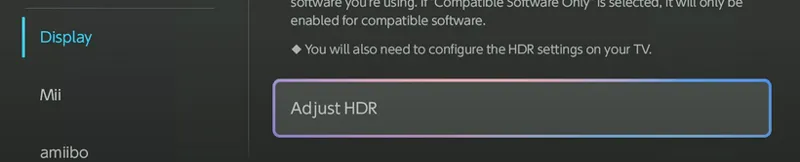
It can be accessed from Display settings -> Adjust HDR
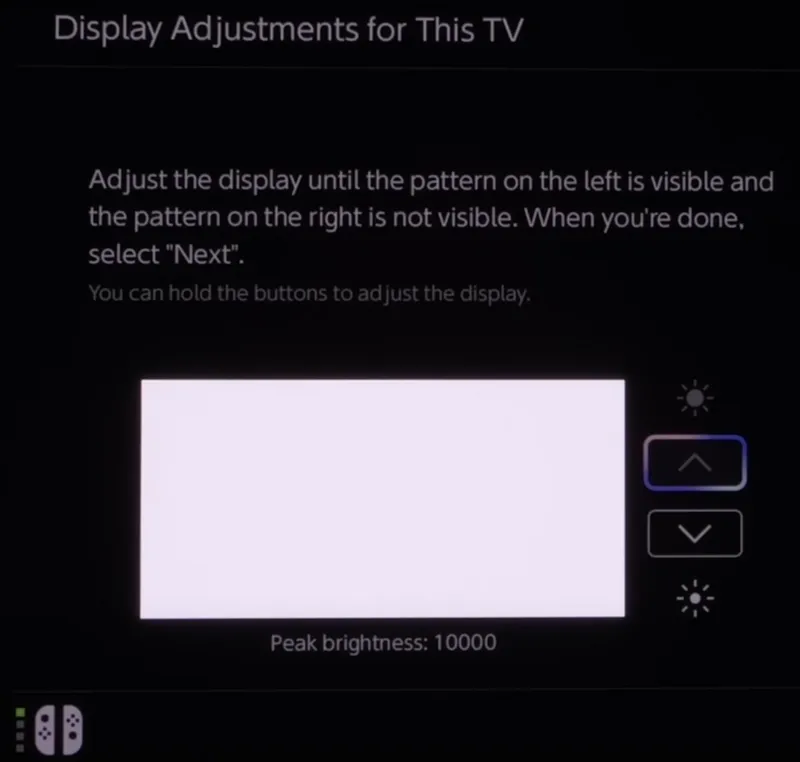
In the first screen you see above you can set the Peak HDR Luminance for your TV up to 10.000 nits, for which Nintendo has now added the exact number for each step in nits value after you press Y.
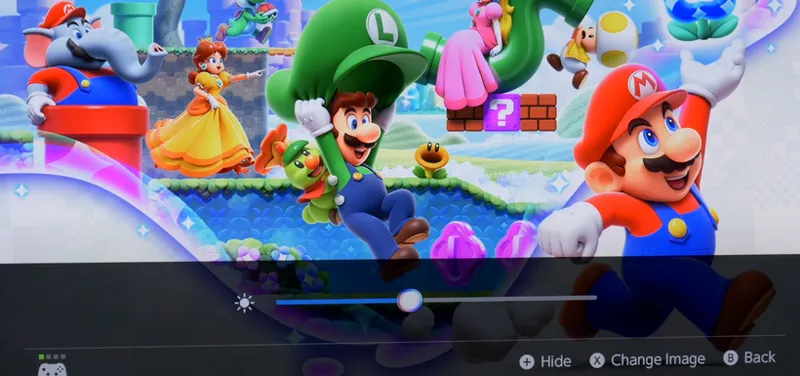
The second screen is a system-level Paper White slider (which you can also access by pressing Y) which Nintendo also improved as no matter what you choose in the first screen, it will always default to 300 nits (which can be a bit too bright for most TVs but much better than the previous default value of 500 nits at 1.000 nits peak which was way overly bright) and now also changes consistently based on clicks to the right (from leftmost position) instead of changing the amount of clicks based on first screen value.
So:
If you have an LG OLED and:
> you're using Dynamic Tone Mapping or Dynamic Contrast, set:
First screen (Peak HDR Luminance): 4.000 (nits)
Second screen (Paper White): +5 clicks (from leftmost = 200 nits)
> you're using HGIG:
First screen (Peak HDR Luminance): 800 (nits) or 1.000 (for G2/C4) or 1.500 (for G3/G4/C5/C6) or 2.500 (for G5) or 3.100 (for G6)
Second screen (Paper White): +5 clicks (from leftmost = 200 nits) or +6 clicks (for G3/G4/C5/C6) or +7 clicks (for G5/G6)
If you don't have an LG OLED and:
> you don't have an HGIG option:
First screen (Peak HDR Luminance): 1.000 (nits)
Second screen (Paper White): +5 clicks (from leftmost = 200 nits)
> you're using HGIG:
First screen (Peak HDR Luminance): Set your real TV Peak HDR Brightness (in nits)
Second screen (Paper White): +5 clicks (from leftmost = 200 nits; if you have a Peak HDR Luminance up to 1.000 nits) or +6 clicks (for 1.500 nits Peak) or +7 clicks (for 2.400+ nits Peak)
And that's it, you've now calibrated your Switch 2 for HDR at system level :)
Now, I would also add some notes about the HDR experience in general on Switch 2 so far:
Switch 2 LCD display is pretty bad in HDR as it only maxes out at 450 nits Peak Luminance which is definitely not enough for proper HDR rendition. Luckily you can disable HDR on the LCD panel but keep HDR when docked to an external Display. I highly recommend doing that
Even if the system-level HDR calibration is properly setup, most Nintendo first-party titles (like Zelda, Mario and others) have very raised black levels when played in HDR at the moment. This is NOT a fault of the system-level HDR calibration app but it's all on Nintendo in-game HDR implementation side. This because with third-party native HDR games like Cyberpunk 2077 and others HDR behaves exactly like it is implemented on Playstation and Xbox, so this also means that third-party titles which do leverage system-level HDR calibration will also look as good as the other consoles.
Luckily Nintendo is finally catching up with 2025 gaming standards also for HDR in their games starting with Metroid Prime Beyond which correctly leverages system-level HDR calibration without any issues.
Enjoy!
-P
Comments (55)
Are you sure these are up to date? Because I have a 55 inch LG G5 OLED and use HGiG in Game Optimiser Mode (only other thing I changed was colour temperature to Warm 40) and on the first screen it says the image on the left needs to be visible while the one on the right disappears. Well that seems to happen around/slightly before 2000 nits (not 2400). I also noticed similar on your Xbox guide which also said set it to 2400 but the chessboard disappeared at 2000. Likewise on PS5 you said 22 clicks but the thing disappeared after 20 clicks???
Did you update to webOS 26? Also can you try Game Optimizer with DTM: Off and all Pro Slider 100 (if you have those options) to see if the Peak HDR Luminance goes back to 2400?
Hi after new update VRR is added. Shall we turn on?
Yes (if your TV supports it)
UPDATE - 18/08/2026 - Updated Peak HDR Luminance for C6/G6 after latest TV firmware updates.
StarFox Just got a Demo seems to have a hdr slider. No numbers just a contrast setting and was wondering if its best to leave it or adjust it. Any help would be appreciated!
I’m assuming you’d recommend HGIG over DTM here? And 1500 for G4 right?
Yes and yes
Here are the values we get from the Star Wars Outlaws demo, which is honestly a great resource. 800 nits peak: 0 ticks: 50 nits 1: 75 2: 100 3: 126 4: 151 5: 177 6: 202 7: 228 8: 253 9: 279 10: 304 So my question shouldn’t the correct value for a 800 nits panel not be 6 clicks instead of 5 got the resource from resetera
200 nits Paper White is standard for 1000 nits Peak, so having paper white slghtly below for 800 nits is also correct
Should I enable the vrr and gsync because on your chart you only state them for ps5 and Xbox either ?
Unfortunately Switch 2 doesn't support VRR via HDMI, it only supports it for the internal display... :/
Metroid Prime 4 has an ingame brightness setting. Leaving it at default or do I have to set it to something?
Set in-game Brightness to 25 ;)
UPDATE 2025/12/13 - Switch 2 system-level HDR Calibration guide totally redone after latest Switch 2 firmware changes for it
Hi P40l0, can you please have a look to the hdr settings of Metroid Prime 4? The game has a hdr brightness slider. Thank you in advance !
The game will use Switch 2 system-level HDR calibration, so be sure to setup that correctly. In-game use Brightness 25 and that's it :)
Just got a Switch 2 and on the HDR calibration it had an option to press Y to show the actual value. On a G3 invisible + 1 click landed at 2100 nits.
For DTM users, how come you recommend calibrating with HGIG on and then switching to DTM? For PS5 and Xbox, you recommend calibrating with DTM on. So I’m curious why it is different for switch?
Because Nintendo games on Switch 2 tend to be overly bright so setting it for 4.000 nits and then enable DTM after may be too bright for them
The HDTV test chart (shared in an earlier comment) suggests 6 clicks for the paper white slider for a 800 nits peak TV. Please could I ask why you suggest 8 clicks?
Because I measured around 200-250 nits with 8 clicks after you set the first screen to 800 nits
Hiya, any guidance on whether to go with "VRR & G-Sync" or "AMD FreeSync Premium" for Switch 2? I would've guessed G-Sync, given that it's an Nvidia GPU, but weirdly I tried both options and the TV was reporting VRR to be switched off either way.
Use VRR & G-Sync option. That said, VRR seems to only work in handheld mode for now... :/
Hi Paolo, a LG C2 with DTM user here. So the most optimal settings for DTM is to calibrate with HGiG, set the paper white to 200nits (+8 clicks) and then turn DTM on? Thank you.
Yes
UPDATE 2025/06/17: Updated Paper White accurate values for different LG OLED models with a new re-calibration as Paper White increase amount for each click will change based on the Peak HDR Luminance which was set in the first section of the app (very intuitive Nintendo...)
Hi P40L0, what do you think of the HDTV test HDR settings reference chart? Would you consider this an accurate guide to follow? For instance, for a 4000 nit TV, the guide suggests 392 clicks to clip and +5 clicks for paper white. I’d love to hear your thoughts as you’re a trusted source I look to.
Hi ! Thank you for your amazing job ! I have an old LG C7 from 2017 (I used your video to calibrate the screen) and I'm a little lost on the calibration without the HGIG option. For me when the right logo disappears the left one is also barely visible. Did I miss a step?
Unfortunately without HGIG it's normal you see that. In this case you can try disabling Dynamic Contrast, do the calibration and then re-enabling it again as suggested in my video guide for it.
Why giving an extra click up? Ps5 and xbox calibration is clicking till disappearing without an extra click up?
It's always recommended to very slightly clip both for absolute black reference and also absolute white. For example LG G3 and G4 are not actually 1.500 nits in HGIG (but more like 1400-1450 nits), but it's still better giving a slighter higher target to 1.500 to really fully leverage the whole TV range while staying visibly accurate.
What would you recommend for LG TVs pre HGIG? DTM on or off - the right sun never disappears
Probably DTM: Off only for the calibration, then DTM: On after
First of all, thank you very much for your tips and advice! I always enjoy trying out the recommendations. Regarding the deactivation of HDR in handheld mode: Of course, the brightness of the LCD panel is not really adequate for displaying HDR contrast. However, there is also the extended color space for titles that support HDR. Wouldn't it therefore make sense to at least activate HDR for native HDR titles that presumably use the extended color space? ... or am I making a mistake?! 😅
You won't even be able to appreciate the wider color space as tone mapping HDR in a such low nits panel will still make them look duller/dimmer compared to just using SDR there. Also the internal display HDR will just consume more battery while still looking worse than SDR, so it's a big no no in my opinion ;)
On LG C3 on FMM you can toggle to HGiG, on previos updates a didn't see that option can you confirm?
You need ColorControl app via PC/Windows to enable HGIG in FMM
Playing on a LG C2. Find the UI in Mario Kart World looks very dim and dull with Paper white set to +5 clicks. +7 clicks looks much better.
Yeah, +7 clicks is pretty universal like stated. The other values is if you want to be "reference accurate" based on model, but this may not translate to how visually pleasing the image will be. +7 should look good on most TVs instead.
Thank you so much for all of your work with this! For an LG C3, would you recommend 200 nits or 250 nits? I followed the steps for 250, but Mario Kart World still seems bright in some instances. It's almost like there's a grey wash over the screen. I followed the PS5 settings and used ColorControl to enable HGiG before calibrating within the Switch 2. Thanks again!!
If not specifically mentioned among LG OLEDs (like C3), use 200 nits = +5 Clicks That said Mario Kart will still look raised even when everything is calibrated as it just doesn't have a good in-game HDR implementation unfortunately...
UPDATE 2025/06/07 - Added accurate Paper White values for LG OLEDs
Anyone figured out number of clicks (or estimate) for LG CX and/or C1? (Visually it’s hard for me to use the calibration tools on all platforms, unfortunately)
There are over 250 clicks/steps to measure which is just overkill compared to just follow the instructions. Maybe you can ask help to someone to just tell you when to stop (when right logo totally disappears but the left is still visible and then just do 1 additional click Up) For the second screen (for Paper White) it's easier: leftmost position and then +7 Clicks on the right.
Any reason why you recommend "Console Screen HDR Output: Off?" Doesn't that negate all these recommendations? I thought I asked this already, but don't see it on here, apologies if this is redundant. Disregard: Realize now it's referring to the actual Switch screen, and not when it's docked.
I keep getting a slight brightness change when using the hdr. I have used the chart and colour control but nothing seems to fix it. Any ideas?
If you stay too much on that square or at the second screen the display will gradually dim to avoid burn in, which is normal. Just follow the guide with HGIG and you will be good to go.
UPDATE 2025/06/06: - As the default seems too bright for many, I've updated the Paper White Slider suggestion to +7 Clicks from leftmost position to achieve 250 nits Paper White (which should be universally good for all TVs)
Should both logos disappear or just the right one?
Just the right one, then as soon as it totally disappears, give an extra click Up.
Will u covering individual recommended settings for games like Zelda and Mario to help fix the raised black levels?
You can't do anything in-game at the moment to fix them but if you will in the future, sure, I'll also cover them ;)
Awesome, thanks for being so quick with this!
Thank you as always!!!