
How To Fix Broken Mods
Batch fixing in Sims 4 Studio is a feature that allows you to fix multiple custom content (CC) items at once. This is especially useful when a game update breaks certain CC items, or you want to apply a fix to a large number of files. Here’s how you can use the batch fix feature:
Steps to Perform Batch Fixes in Sims 4 Studio:
Download and Install Sims 4 Studio:
Ensure you have the latest version of Sims 4 Studio installed. The latest version usually has updated batch fixes for recent game patches.
Open Sims 4 Studio:
Launch the program and choose either “Standalone” (for objects, CAS, etc.) or “My CC” (to batch fix content in your Mods folder).
Navigate to Batch Fixing:
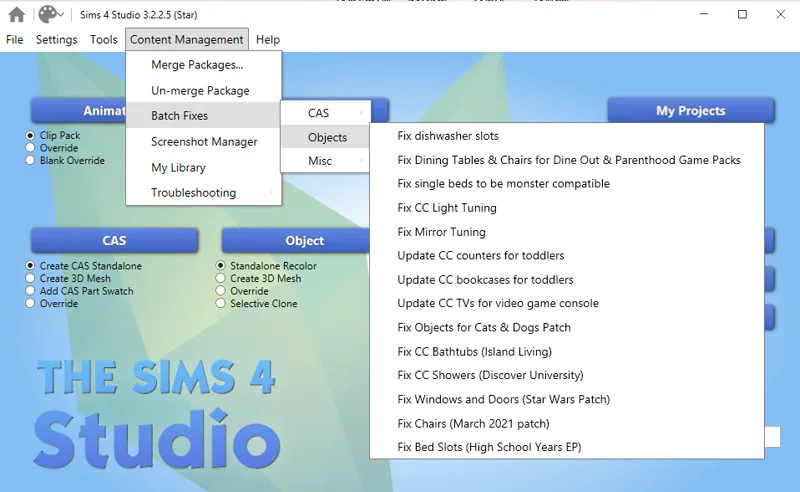
In the main window, go to the "Content Management" tab and then click "Batch Fixes" from the dropdown menu.
Select the Type of Batch Fix:
You’ll see a list of available batch fixes depending on the content type (CAS items, objects, etc.). Some common fixes include:
Fix for broken CC after game updates (e.g., hairstyles, clothing, or objects affected by a patch).
CC for disallowed items in random townies (stop random townies from using CC).
Fixing specular or normal map issues.
Allow CC for the opposite frame or gender.
Choose the Fix:
Select the batch fix you want to apply. For instance, if you’re fixing CC that was broken by a game patch, choose the appropriate fix for CAS or Build/Buy items.
Target the Files:
You’ll be asked where you want to apply the batch fix. Most users target their Mods folder, but you can also choose other locations if necessary.
Run the Batch Fix:
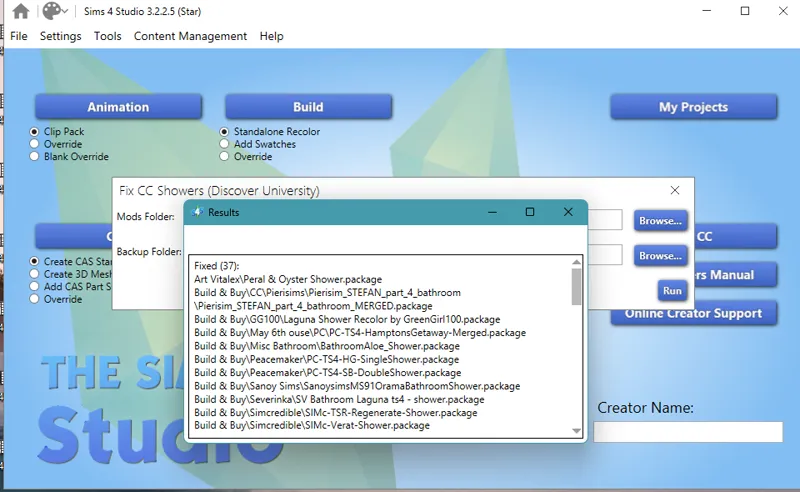
Click Run. Sims 4 Studio will scan your chosen folder for items that match the fix. It will then apply the fix to all relevant items automatically.
Review the Results:
After the process is done, Sims 4 Studio will generate a report showing which items were fixed and whether there were any errors.
Backup (optional but recommended):
Before running any batch fix, it’s a good idea to make a backup of your Mods folder, just in case something doesn’t work as expected.
Popular Batch Fixes:
Fix CC hair, clothing, and accessories after patches (especially useful after large game updates like Seasons or Eco Lifestyle).
Disallow CC for random: Prevent CC from showing up on random Sims.
Fix broken CC chairs: Corrects chairs that Sims can no longer sit on.
Fix specular maps on CAS items: Resolves shine/gloss issues.
Using batch fixing can save you a lot of time compared to manually updating or replacing each piece of broken CC individually!
Comments (2)
Thank you for the tip 🥰❤️
You're welcome !