

Tips For Organizing / Cleaning Your Mods Folder
Organizing your Sims 4 Mods folder is essential for avoiding game crashes, conflicts, and making it easier to troubleshoot or update content. Here are some tips to help you keep your mods and custom content (CC) well-organized:
1. Use Subfolders
Why: The Sims 4 supports subfolders within the Mods folder, making it easier to categorize and locate specific mods.
How: Create folders based on content type, creator, or functionality. For example:
Mods → CAS (Create-A-Sim)
Mods → Build/Buy
Mods → Script Mods
Mods → Furniture
Mods → Poses
Tip: Keep scripts no more than one subfolder deep, as the game may not detect them otherwise.
2. Rename Files with Meaningful Names
Why: Many creators use shorthand or random names for CC files, which makes them difficult to identify.
How: Rename mods to something recognizable, such as adding a prefix like the creator’s name or item type (e.g., Hair_CreatorName_Black.package).
Tip: Be careful not to rename files with custom scripts (e.g., .ts4script files), as it can cause them to malfunction.
3. Group by Creator
Why: If you download a lot of CC from specific creators, grouping them together can make it easier to update or delete their content when needed.
How: Create a folder for each creator and store all their content there. For example:
Mods → CreatorName_Hair
Mods → CreatorName_Clothes
4. Use a Mod Manager
Why: Mod managers like Sims 4 Mod Manager or TS4 Package Conflict Detector can help you identify and disable problematic files without manually searching.
How: Install one of these programs to help scan your mods folder for conflicts and easily manage files by toggling them on or off.
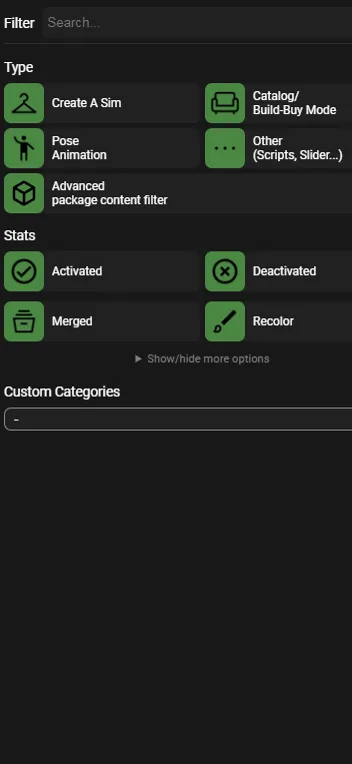
My favorite is the Sims 4 Mods Manager by Gametimedev
5. Keep a Backup Folder
Why: Keeping a backup of your Mods folder ensures you can easily restore files if something goes wrong after a game update or if certain mods are broken.
How: Create a separate folder (outside of your Sims 4 directory) and copy your Mods folder to it regularly, especially before major updates.
6. Separate Script Mods and Custom Content
Why: Script mods (which change game functionality) need to be handled carefully during game updates. Separating them makes it easier to troubleshoot or remove them when the game is patched.
How: Create a specific folder for script mods:
Mods → Script Mods
Tip: Disable script mods when there's a major game update until they're confirmed to be compatible with the new patch.
7. Delete Broken or Outdated Mods
Why: Outdated or broken mods can cause glitches and game crashes. Regular cleaning prevents these issues.
How: Use tools like Mod Conflict Detector or Sims 4 Tray Importer to identify broken or duplicate mods, and regularly check mod creator updates after game patches.
8. Create a "Testing" Folder
Why: When you download new mods or CC, it's good to test them first in case they cause issues.
How: Create a folder called Testing within your Mods folder. Place new mods or CC here before moving them to their proper folder after verifying they work.
9. Sort by Date for New Additions
Why: Sorting files by date added lets you quickly find recent downloads if something goes wrong after adding new content.
How: After downloading new mods, sort your files by "Date Modified" in the file explorer.
10. Maintain an Organized CC and Mods Spreadsheet
Why: A spreadsheet can help you track all the mods and CC you have, including where you downloaded them from and when they were last updated.
How: Use Excel or Google Sheets to create categories like File Name, Type (CAS/Build/Buy), Creator, Download Link, and Date Added/Updated.
By using these tips, you'll keep your Sims 4 Mods folder tidy, avoid game-breaking issues, and make future mod management much easier!
Here are some programs you can use to help you organize your mods folder.
Mods Manager by Gametimedev