
NalulunaSaberSound
Video:
https://youtu.be/0oiLh7_zUnA
A mod that adds sound effects to sabers in Beat Saber. Sound effects can be enabled or disabled individually and can also be switched per sound set. It does not affect appearance, hit detection, or score.
The included audio files are newly created, used with permission, or edited/mixed from those sources. Users can also add their own custom sound sets.
Installation
You can install this mod with NalulunaModAssistant.
- English:
https://docs.google.com/document/d/1_7V4V6HqCNHD4mikXmAd0ONm1ralWC33yg-lSOKgJoI
- Japanese:
https://docs.google.com/document/d/12f-UKupN3wGAjNRKP2k_ffX4UEo2V_L1V9F3C-_WtwA
Sound Effects
- Motion: Sound played when swinging the saber. The volume changes depending on swing speed, and the pitch rises at the beginning of a swing.
- Swing: A one-shot sound played when swinging the saber. Plays once per swing.
- Hum: Continuous sound that loops constantly.
- Lockup: Sound played while sabers are crossed together.
- Wall (Clash): Sound played while the saber is touching a wall.
- Floor (Clash): Sound played while the saber is touching the floor.
- Good (Cut): Sound played when cutting a note in the correct direction.
- Bad (Cut): Sound played when cutting a note in the wrong direction.
- Bomb (Cut): Sound played when cutting a bomb.
- On: Saber activation sound (at the start of a gameplay scene).
- Off: Saber retraction sound (at the end of a gameplay scene).
Settings
After launching the game, click Naluluna Saber Sound from the MODS button list on the left to open the settings screen. The settings screen is divided into three panes: Left, Center, and Right.
Left Pane
- Mod Enabled: Toggles the mod on or off.
- Master Volume: Adjusts the overall volume.
- Latency Compensation: Starts Good sounds early to match the game's Audio Latency setting so they stay in sync with the music. Because the sound starts before the cut, it may also play for missed notes. Has no effect when Audio Latency is 0.
- Off: Doesn't start sounds early (they play at the moment of the cut).
- Vanilla: Volume is calculated using the same algorithm as the base game. Before the cut, the volume follows how fast you swing the saber; at the moment of the cut it goes to full volume. It stays silent when you aren't swinging the saber, so with a large Audio Latency, short sounds may finish before the cut and sound quiet.
- Max Volume: Plays at full volume before the cut; after the cut, the volume follows your cut speed. Short sounds finish before the cut, so they're always at full volume.
Center Pane
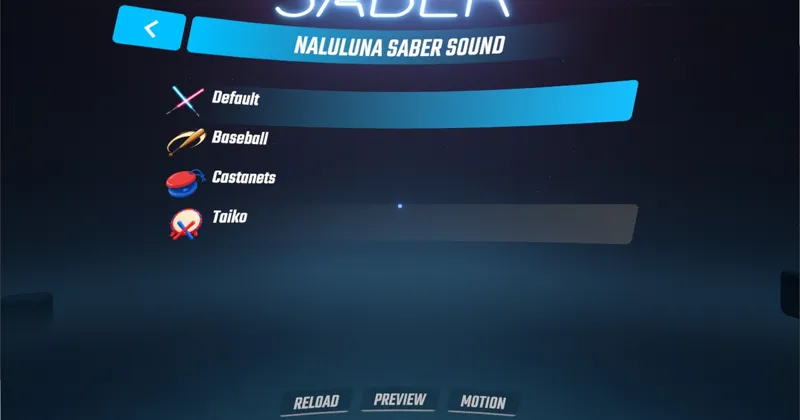
Select the set to use from the sound set list. The right pane displays the settings for the currently selected set.
- Reload: Reloads the sound sets in UserData (described below). Press this after replacing audio files.
- Preview: Each time you press this, it plays the sounds in the selected set one by one.
- Motion: Enabled only when the selected set has a Motion sound. Treats the movement of the left and right controllers as virtual saber motion, allowing you to preview the selected set's Hum and Motion sounds with the current settings. During playback, the button changes to Stop; press it to stop the preview.
Right Pane
Settings for the selected set are organized across tabs. Because settings are saved per set, switching sets will switch the values accordingly.
- Enabled: Toggles individual sounds on or off.
- Volume: Adjusts volume for each sound.
- Motion: Adjusts Motion sound settings.
- Swing: Adjusts Swing sound settings.
- Cut: Adjusts Cut sound settings.
- Other: Configures other settings.
Enabled
- Toggles individual sounds on or off.
- When disabled, it reverts to the game's default sound. Actions that originally have no default game sound will become silent.
- Items for sounds that do not exist in the set are displayed as off and cannot be adjusted.
Volume
- Adjusts volume for each sound. The final volume is roughly Master Volume × individual sound volume.
- Motion Min Volume / Motion Max Volume are the minimum and maximum volumes for the Motion sound. It stays at the minimum when stationary or moving slowly, and approaches the maximum when swung quickly.
- Cut sound volume varies based on cutting speed (cutting slowly results in a lower volume).
Motion
The Motion sound's volume changes according to swing speed, and its pitch rises at the start of a swing. The default values for Motion Start Speed and Motion Max Speed are tuned for fast swings using wrist snaps with one hand. If saber speed does not reach that high (e.g. when using double-bladed style), lower these values so that sufficient volume is produced.
- Max Pitch Multiplier: Maximum multiplier by which pitch rises at the start of a swing. Set to 1 to disable pitch rise.
- Pitch Jitter: The range of random pitch variation applied each time the saber is swung. Set to 0 to disable.
- Motion Up Smoothing: How quickly volume responds when increasing. Higher values track changes faster.
- Motion Down Smoothing: How quickly volume responds when decreasing. Higher values track changes faster.
- Motion Start Speed: The speed at which volume starts to increase.
- Motion Max Speed: The speed at which volume reaches its maximum.
Swing
The Swing sound is a one-shot sound that plays once when a saber swing is detected. Motion sound and Swing sound are independent; if both audio files exist, they will play simultaneously. Normally, having either one in a set is sufficient.
- Trigger Speed: When speed exceeds this value, a swing is detected and the sound plays.
- Rearm Speed: When speed drops below this value, the next swing can be triggered.
- Minimum Interval: Specifies the minimum interval (in seconds) between consecutive sounds.
Cut
Settings common to Good, Bad, and Bomb sounds.
- Cut Start Speed: The speed at which cut sound volume begins to increase. Below this speed, the cut sound plays at the minimum individual volume.
- Cut Max Speed: The speed at which cut sound volume reaches its maximum. Above this speed, volume does not change further with speed.
- Cut Pitch Jitter: The range of random pitch variation applied each time a cut is made. Set to 0 to disable. Since pitch also affects playback speed, both pitch and speed change together.
When Latency Compensation is set to Vanilla, a Good sound that started before the cut goes to full volume when the cut is confirmed, regardless of cutting speed. Cut Start Speed / Cut Max Speed do not affect its volume.
Other
- Loop Wall Clash: Toggles whether the sound loops while in contact with a wall.
- Loop Floor Clash: Toggles whether the sound loops while in contact with the floor.
- Loop Saber Lockup: Toggles whether the sound loops while sabers are crossed.
- Spatial Blend: The ratio of 3D sound. Closer to 1 increases attenuation, panning, and Doppler effects based on the sound position.
Creating Your Own Sound Set
Folder Location
(BeatSaberDir)/UserData/NalulunaSaberSound/<SetName>/
(BeatSaberDir) is your Beat Saber installation directory. The `<SetName>` part will be the set name displayed in the list. After creating the folder and placing audio files in it, restart Beat Saber or press Reload in the settings screen to recognize it. If you include icon.png or icon.jpg, it will be used as the icon in the list.
Sound Files
Place sound files with an extension matching the following names. None of the sounds are required; only the placed sounds will be active. Supported audio formats are .wav / .ogg / .mp3.
- hum
- motion
- swing
- lockup
- wall
- floor
- good
- bad
- bomb
- on
- off
Placing Multiple Candidates for the Same Sound (Random Playback)
By appending any character(s) to the end of the sound name (before the file extension), a sound will be chosen randomly from the candidates when played. For example, `wall.wav`, `wall1.ogg`, and `wall_alt.wav` are all candidates for the wall contact sound (Wall).
- Swing / On / Off / Good / Bad / Bomb: Selected randomly each time it plays.
- Hum / Motion: One candidate is selected randomly per sound type at the start of a song and used throughout that song (shared between left and right).
- Wall / Floor: Selected randomly each time contact begins (independently for left and right).
- Lockup: Selected randomly each time contact begins (shared between left and right).
When Audio Files Are Missing
- Good / Bad / Bomb: Types without audio files will play the game's default sound.
- Hum / Motion / Swing / Lockup / Wall / Floor / On / Off: Will be silent.
Known Limitations
- Currently, official multiplayer (available only on the latest Beat Saber version) is not supported because a modding environment cannot be set up and verified on the latest version.
- Coexistence with other mods that modify cut sounds has not been tested.