








Simple tutorial on converting objects to TS4 (Transparent version)
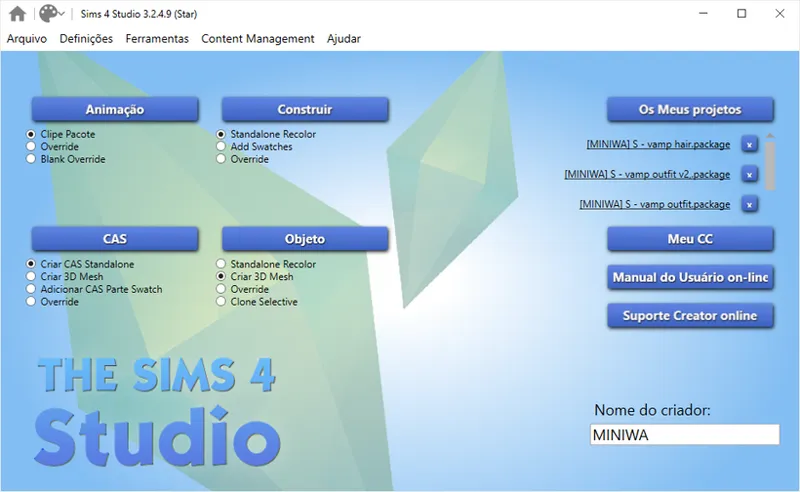
First, download the Sim4Studio app (I recommend the Star version).
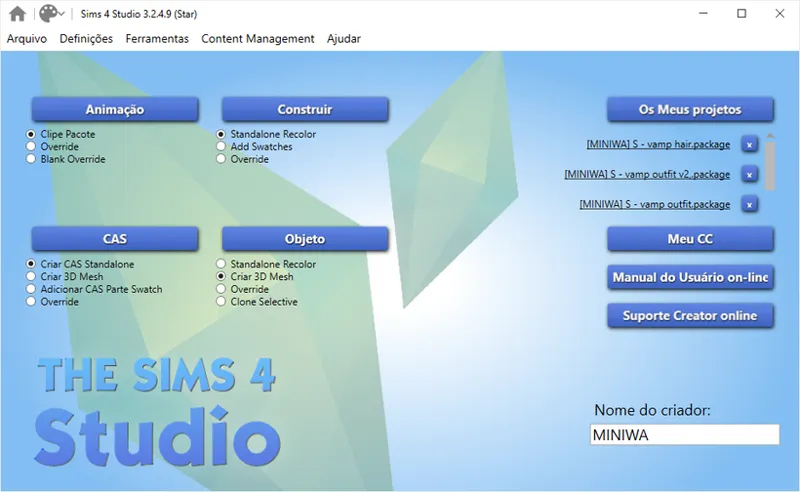
After downloading and setting up your Sims Studio, go to "Object" and then "Create 3D Mesh".
First of all, check if the file you are going to convert has transparency or not.
I will use flowers that are completely transparent to achieve this conversion.
I'll try to use a plant that has transparency, always from the base game, to do the conversion.
Choose your file and save it in an easily accessible folder.
A reminder: always use files from the base game. This way it will work for all versions of the game.
With the file you selected open, go to meshes and export the file we will use (save it with the name you want) (as well as the video above)
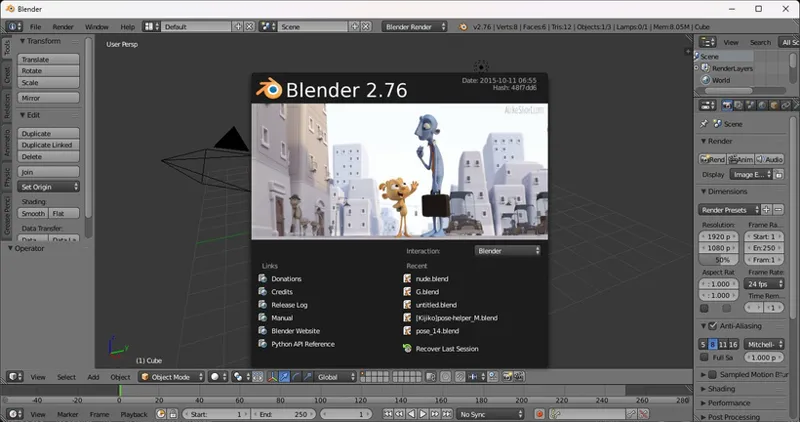
I will be using Blender 2.76 and 2.70 (you can use whichever version you prefer and feel most comfortable with (I learned with these two and have never been able to switch
Open the file you exported.
In my case, I saved it as an object, so I will import it into Blender:
Make sure your object's UV image is correctly edited, as this is an important step in creating textures.
Let's convert:
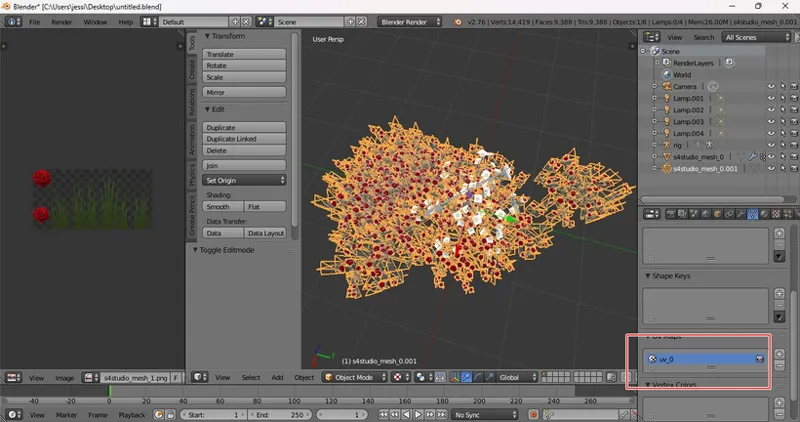
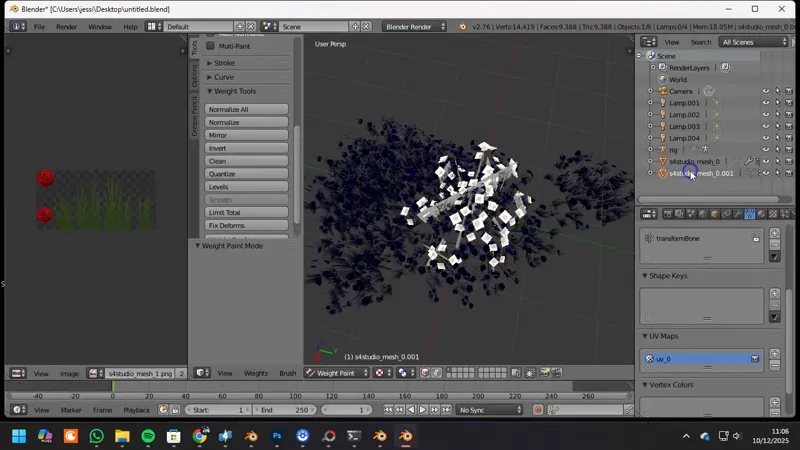
First, let's go to the triangle tool.
Then search for uvmaps.
Double-click on "uvmap" and type "uv_0" (always in lowercase).
I used to only use Blender 2.70 to convert objects, but after formatting my computer I downloaded a different version that doesn't have all the steps. So I'll be using Blender 2.76 and 2.70 instead.
After editing the uvmap, click on the mesh that we will use to perform the conversion;
Follow the steps in the video below:
Now I'll go back to Blender 2.76 to do another important step in the conversion.
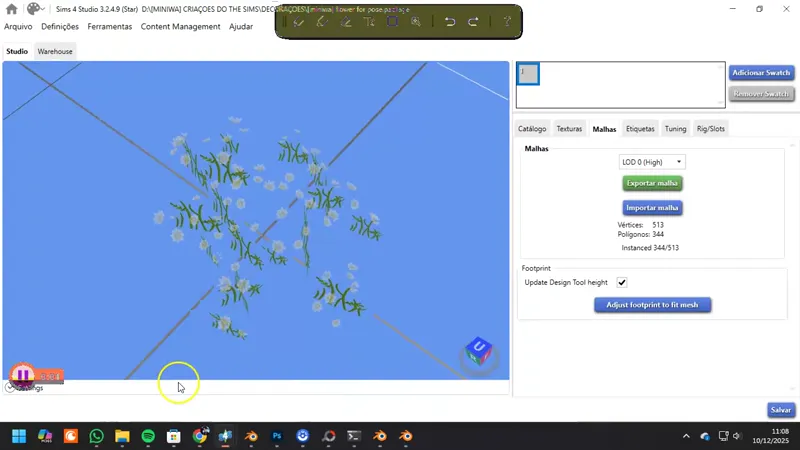
Now we need to import our files into Sims 4 Studio. (Depending on your computer and the file size, it may take a long time.)
Now that our file is imported into Sims 4 Studio, let's edit the textures.
Generally, for objects, the size is:
256 x 256 (Usually the standard for The Sims)
512 x 512; Low
1024 x 1024; HD
2048 x 2048; HD
4096 x 4096; Ultra hd
Remember that the larger the image size, the larger the file will be, and it may not run on all types of computers. (The same applies to clothing, hair, etc.)
Open the UV file you saved in Photoshop (or another editing program).
As shown in the video above, open your UV file and select the textures of the object you converted;
Edit the images in UV, just like I did in the example in the video above.
Always save as a PNG, and import into Sims 4 Studio.
I already had a texture prepared, so I used it in the video.
I already had a texture prepared, so I used it in the video.
Save and copy the file to your game.
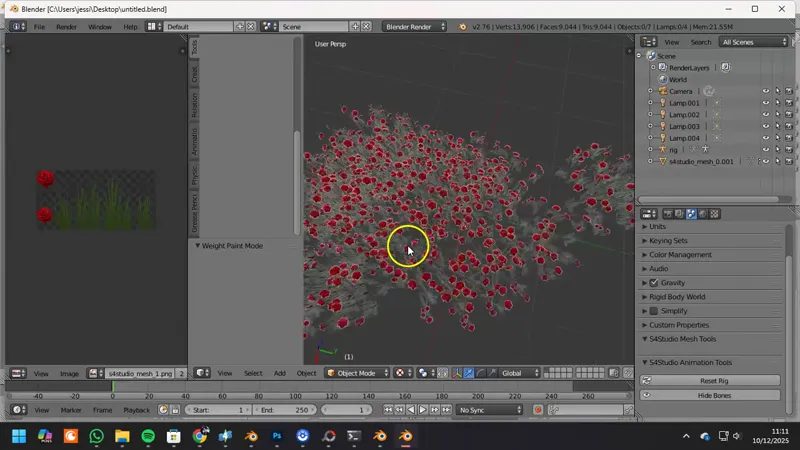
Since I didn't use the correct rose color for the texture, it looks a bit strange, hahaha, but as you can see, the white version looks better.
One thing I forgot, since I'm using a plant, you have to take the seasons into consideration in the game; depending on the season, the plant will appear dead. Always test in the summer.
If you don't want flowers, look for some transparent decoration, for example: rugs.