

Reading Phone Contacts with JavaScript
Not so long ago, accessing data from the phone using JavaScript was unimaginable. Now, it is possible—and really simple—using the Contact Picker API.
The technologies and processes described in this article are experimental and will only work in a few browsers. At the moment of writing, the Contact Picker API was only supported by Android Chrome (from version 80) and iOS Safari (from version 14.5, but only behind a flag). If you want to review the functionality, you can check a running demo on my website.
Reading entries from the contact list in a phone or tablet has traditionally been something limited to native apps. But with the Contact Picker API we can do just that using JavaScript.
This feature can be interesting in apps where we need contact information like phone numbers VoIP, in social networks where we want to discover known people, or maybe to fill in form information without having to swap applications to view the data.
As a developer, you will be able to select what information you want to read, you will have these available with the API:
Names
Phones
Emails
Addresses
Icons
The plurals here are important, as a contact can have more than one phone or email, or have multiple address. For consistency, the returned data will always be inside arrays, even if it is a single value. More on that later.
Privacy and Security
The contact information stored on a phone can contain sensitive information that we must treat carefully. Because of that, there are privacy and security considerations that we must take into account:
The Contact Picker API code must run in the top-level browsing context. It prevents external code, like ads or third-party plugins, from reading the contacts list on your phone.
The Contact Picker API code can only run after a user gesture. Thus, developers cannot fully automate the process. The user must act to trigger the contact reading.
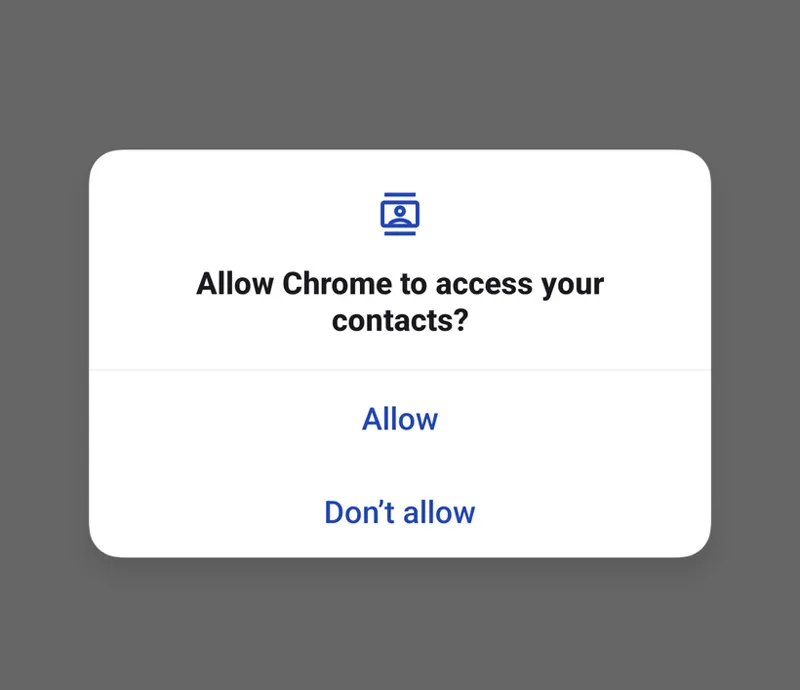
The person must allow access to the contact list. This restriction is imposed by the phone and not by JS. The user must grant the browser permission to access the contacts (if it doesn’t already have it).
The first time that they use a website that uses the Contact Picker API, they may get a message like this:
The phone will display this pop-up every time the Contact Picker API is used until it’s allowed. This is good; we want to ensure user grants the proper permissions. It’s also good that it is not displayed anymore after that, as the message could be annoying to the user, and having to grant permission each time the page runs would be a pain in the neck.
The API and Code
The code for the Contact Picker API will be simple as it only has two methods:
getProperties(): returns a list of the properties that can be requested to the device. In the definition there are only five: "address", "email", "icon"(this may not be the contact picture), "name", "tel" (telephone), but the device may not allow access to all of them.
select(): opens the contact pop-up and returns the selection once the user is done. It takes two parameters: a list of the properties to read and an optional object with options.
Both methods return promises, for simplicity I will add async / await in this article, but you could handle them as any other promise.
It may be tempting to ignore getProperties and request all the properties directly. While this will likely work, if for any reason one of the specified properties is not available, the select will throw an exception.
Example
Here’s a demo of the Contact Picker API in action (run it online here). It shows a button if the API is supported, then reads telephone, name, and email of the contact to finally display it.
<button onclick="getContactData()">Show contact data</button>
We need a button because, as detailed earlier in the Privacy and Security section, a user action is needed before we can call the API. The getContactData() function is where the main code will be.
Here’s the commented version of the function:
// it is asynchronous because we'll wait for the modal selection
async function getContactData() {
// only execute if browser supports Contact Picker API
if ("contacts" in navigator) {
// indicate what contact values will be read
// hardcoded values but we should verify with getProperties()
const props = ["tel", "name", "email"];
// wrap everything in a try...catch, just in case
try {
// open the native contact selector (after permission is granted)
const contacts = await navigator.contacts.select(props);
// this will execute after the native contact selector is closed
if (contacts.length) {
// if there's data, do something with it I just show an alert
alert("Selected data: " + JSON.stringify(contacts));
} else {
// ...if not, do nothing or do something (your call)
alert("No selection done");
}
} catch (ex) {
// if something fails, do something
alert(ex.message)
}
}
}
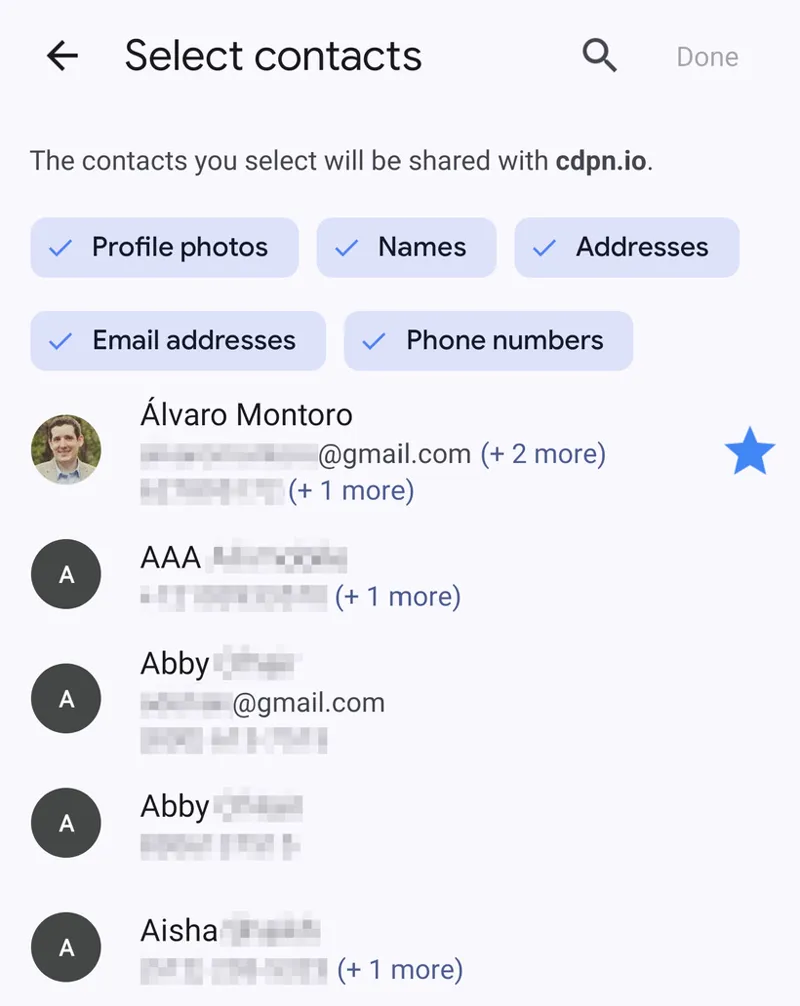
Once the button triggers this function, and if the browser has permissions, the contact modal will show up, indicating essential information: the URL reading the data, what data will be read, and the list of contacts with a showcase of their data.
After closing the modal, the contacts variable will store the data in JSON, as an array with an object containing the information requested (it may be empty if it is not available in the contact card).
[
{
"address": [],
"email": [ "fakeemail@gmail.com" ],
"icon": [],
"name": [ "Alvaro Montoro" ],
"tel": [ "555-555-5555" ]
}
]
If the data includes an icon, it will be a blob with the image. If the data includes an address, it will be a more complex object with street, city, country, ZIP code, etc. You can check the returned values in the specification.
But why an array if we only selected one contact? Because there’s an option to select more than one contact!
Selecting Multiple Contacts
It is possible to select more than one contact. If we want to do that, we need to pass a second parameter to the navigator.contacts.select() method indicating this option.
const props = ["tel", "address", "icon", "name", "email"];
// only one option available: read multiple or only one (default)
const options = { multiple: true };
try {
const contacts = await navigator.contacts.select(props, options);
// ...
The result is an array of contacts, so the rest of the code could remain the same for this example.
The code above can be intimidating, mainly because of all the comments I added. Here’s a lightly commented version of the code above. As you may notice, it is pretty simple:
async function getContactData() {
if ("contacts" in navigator) {
const props = ["tel", "address", "icon", "name", "email"];
const options = { multiple: true };
try {
const contacts = await navigator.contacts.select(props, options);
if (contacts.length) {
// code managing the selected data
} else {
// code when nothing was selected
}
} catch (ex) {
// code if there was an error
}
}
}
You can check a running demo on my website. Don’t worry, I don’t do any with the contact information beyond writing it on the screen. But review the code before if you don’t trust me.
Conclusion: Privacy Over Piracy
Contact information is considered PII (Personally Identifiable Information) and must be treated with all the care and security that sensitive data requires.
Apart from possible legal requirements that I am not going to go through (because I don’t know them, and they change from country to country), here are some basic guidelines when dealing with sensitive data:
Value people’s privacy. Don’t force them to share information they don’t want to share.
Treat the data with care and in a safe way. Would you be comfortable if the data you are processing were yours?
Only get the data that you need. Don’t be sneaky or shady. Get just what’s required to build credibility and trust.
Suppose a web app tries to read addresses, names, or emails while selecting a phone number. In that case, I will automatically reject the permission and leave the website.
So, explore JavaScript and the Contact Picker API, but always remember that there’s a person behind the screen and that the data they share could be risky if it falls into the wrong hands. Don’t be reckless.