
Skyrim Mod Organizer Logic for The Sims 4 – Multiple Profiles Without Multiple Installs
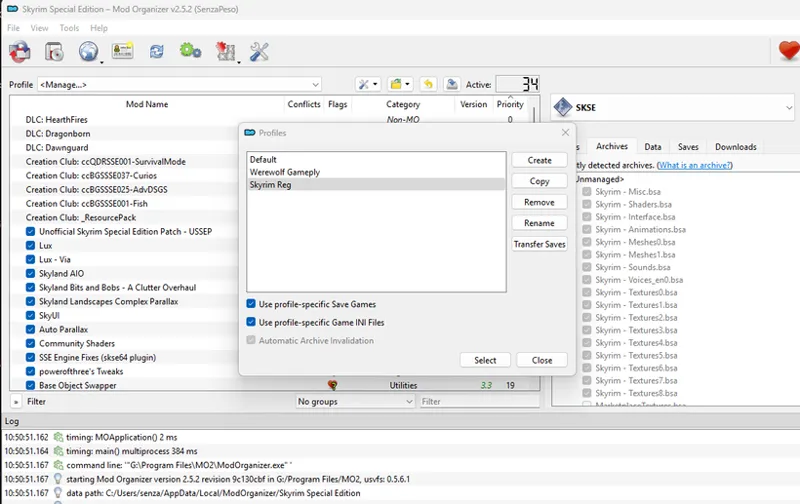
If you’ve modded Skyrim, you’ll know Mod Organizer is the cleanest way to keep a game stable: it creates virtual mod folders (profiles) instead of dumping everything into the game’s main mod directory, then reroutes the game to load from those profiles.
The Sims 4 doesn’t have anything that sophisticated. EA’s official advice when your game misbehaves is basically: “Move your entire Sims 4 folder in Documents somewhere else!” – which works, but is clumsy and unnecessary. We can apply the same profile logic manually.
How The Sims 4 Reads Game Data
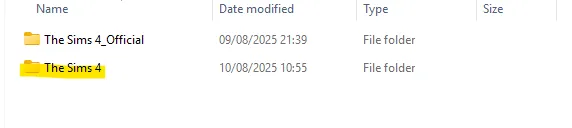
The Sims 4 only loads the folder in your Documents directory if it has the exact name The Sims 4. If it doesn’t, the game ignores it and generates a new one — complete with its own Mods, Saves, and Tray folders.
This means you can maintain two (or more) completely independent setups — different mods, saves, and builds — just by renaming folders. Change the name back to “The Sims 4” when you want to use that profile, and rename the others to something else so they’re ignored.
Note: This isn’t 100% foolproof. The last time I did this, I still managed to break something. But if you’re careful, it’s a quick and simple way to isolate mod setups without reinstalling the game.
Setting Things Up
Method 1 – Quick New Profile (Clean Start)
Watch the video for the simplest and cleanest way to generate a fresh Mods and Saves profile. This method uses nothing more than strategic folder renaming:
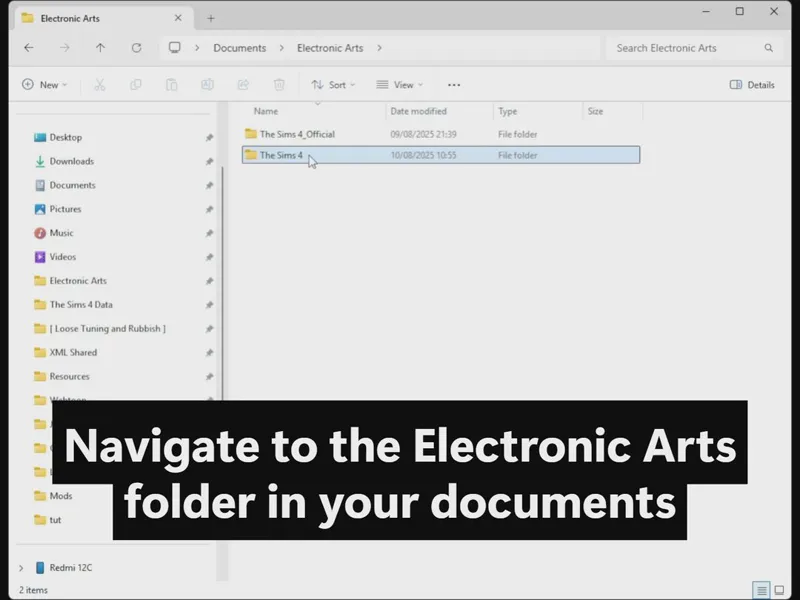
Go to your Documents → Electronic Arts.
Rename your current The Sims 4 folder to something else (e.g., The Sims 4 – Main or The Sims 4 – ModsOn).
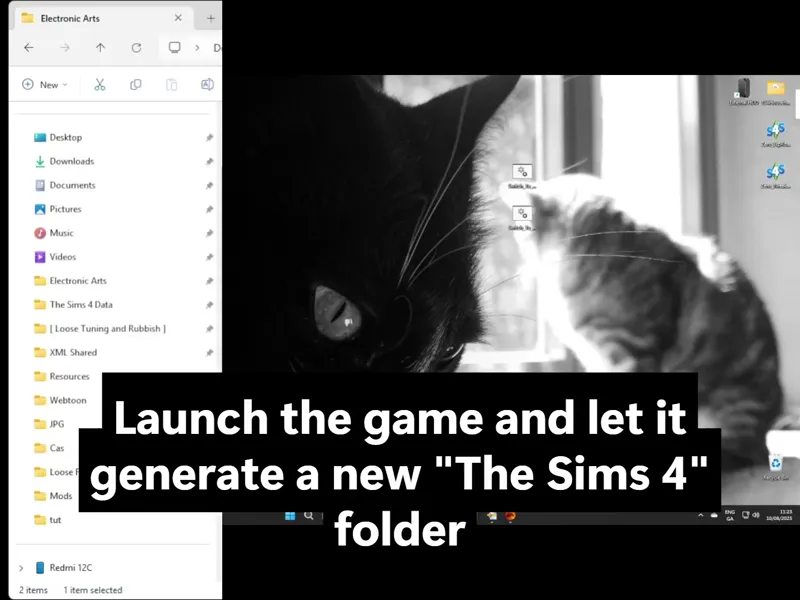
Launch the game. It will create a brand-new The Sims 4 folder with empty Mods, Saves, and Tray.
You now have two profiles. Rename whichever one you want to use back to The Sims 4 before launching the game.
Method 2 – Duplicate & Edit (Clone Your Setup)
If you want your new profile to start with your current mods, settings, and saves already in place:
Duplicate your existing The Sims 4 folder.
Rename the duplicate (e.g., The Sims 4 – BuildOnly).
Open the duplicate and delete whatever you don’t want in that profile — for example:
Remove Mods if you want it CC-free.
Remove specific save files if you want a clean save list.
Rename it to The Sims 4 when you want to use it.
Repeat as many times as needed to keep different setups separate — e.g., “Main Playthrough,” “Mod Testing,” “CC-Free,” etc.
Automating Profile Switching with a BAT File
If you don’t want to manually rename folders every time, you can use a simple Windows batch (.bat) file to swap profile names instantly.
Example Setup
Let’s say you have two profiles in Documents → Electronic Arts:
The Sims 4 – Main
The Sims 4 – BuildOnly
Example BAT Script
Create a new text file and paste the following:
@echo off
REM Switch from BuildOnly to Main
ren "C:\Users\<YOURNAME>\Documents\Electronic Arts\The Sims 4" "The Sims 4 – BuildOnly"
ren "C:\Users\<YOURNAME>\Documents\Electronic Arts\The Sims 4 – Main" "The Sims 4"
pause
Instructions:
Replace <YOURNAME> with your actual Windows username.
Save the file as something like SwitchToMain.bat (make sure “Save as type” is set to All Files, not .txt).
Create another BAT file to swap back the other way.
The first ren command changes your current active folder’s name to its stored profile name. The second ren changes the desired profile to The Sims 4, making it active.
You can create as many BAT files as you want for different profiles — just duplicate the commands and adjust the folder names accordingly. Double-click the BAT file to swap instantly without touching the folders manually.
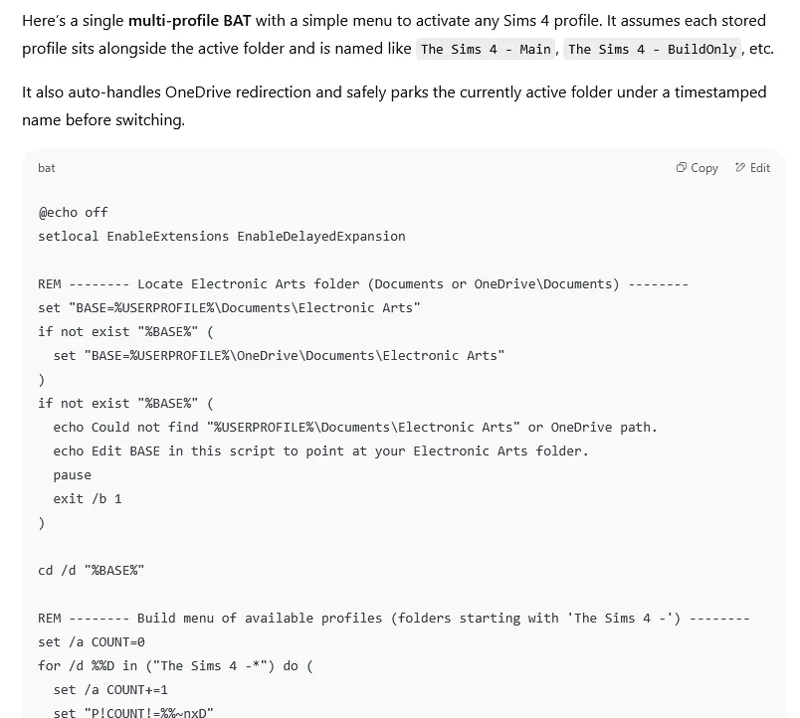
If you're completely new to this sort of things, AI can create a .bat file for you to switch profiles safely in two seconds, if given instructions:
Comments (12)
This is awesome. I've been adding and removing mods for particular saves, such as the ones without CC and the one with CC. I also have a save that is for builds and another for CAS without CC, so I can post on the gallery without worrying about the CC wrench showing up. Will the new profile have a 2nd, different gallery ID?
Nope. Still the same ID
OMG - I've been doing this for ages when I needed to test things but it never occurred to me that I could make it do the naming things for me. Bookmarking this for when I have the brain power to take it all in and actually implement it. Thank you!
I've been doing it this way for years now and have been lucky to not have any problems, aside from forgetting which profile is active. Also, I use junctions instead of storing everything in the Documents folder. It's been working quite well for me.
Forgetting the active profile is only a problem if you have two instances of the game installed that are on two different versions and sharing the same EA folder in documents.
Wow. I just learned A LOT. Thank you Zero. Thank you for providing this option and explaining it. Very helpful.
You can set up two (or more) versions of the game that are completely independent of each other. A legal version of the stable frozen game and a cracked version for testing mods. No one will accidentally launch the updated game with the user data folder from the old version. The crack from anadius allows this, as the configuration file has the option to virtually reassign the location of the Documents folder. I'm writing this here because I can't comment on the post about freezing the version.
I already did that. But they still share the same folder in documents by default, and that's how I fucked things up last time I kept two versions installed together. Also the bloody game is 80GB so I'm not going to keep both permanently installed, I'd have to reconfigure each time I reinstall the pirated version to extract tuning.
I don't know why this never occurred to me. I have a very structured storage system both on my pc and external hard drive, but both deal with the same Sims 4 profile. Now, I am so excited to create different profiles...1 with all my cc/mods (123 gb), 1 with save files I love and mods/cc I must have to play (about 50 gb) and 1 with no cc and only the most critical mods to make gameplay functional and fun. You've opened a whole new world Zero!!!
You're less likely to accidentally delete something or forgetting to put it back by renaming the folders rather than moving the Sims 4 folder to the desktop like they suggest you do on the official forums.
I have a similar set up. I have to batch files (well cmd, mostly the same) in my game folder (same level as my mods folder) ----Live.cmd---- @echo off ren Mods Mods_Beta ren Saves Saves_Beta ren Mods_Live Mods ren Saves_Live Saves rem timeout 15 "c:\Program Files (x86)\steam\steam.exe" steam://rungameid/1222670 ------ Beta.cmd is the same but swap the renames. Then I make shortcuts to the cmd/batch files to my desktop. Now my live and beta games (mods and saves) don't get mixed up. I use BeyondCompare to merge content between folders when ready. What happens if I run Live twice in a row? The rename errors out and Bob's your uncle. The only glitch I've found if I swap between live and beta fast before my cloud sync is done and folders are locked, but I rarely do that.
Oh, the timeout 15 is used for debugging, rem'ed out now (not in use for those who don't know).