
How to Translate Mods/CC
This is a quick tutorial to explain how to translate mods with Sims4Studio and separate the string tables so you don't break creator TOU's or other people's games by re-uploading the entire mod.
Note: I recommend using the Sims 4 Translator tool instead of Sims4Studio as it makes translating easier. It will separate the string table for you into its own package when you hit “Save” or "Save As" and even re-name the new package for you in the recommended format.
If you are familiar with translating but not separating string tables, go to Step 8.
(Pictures are attached as a .zip in case they are hard to see.)
1. If you haven’t yet, make sure Sims4Studio is downloaded. Here are the download links and some tutorials:
Installation Instructions for Windows/Mac
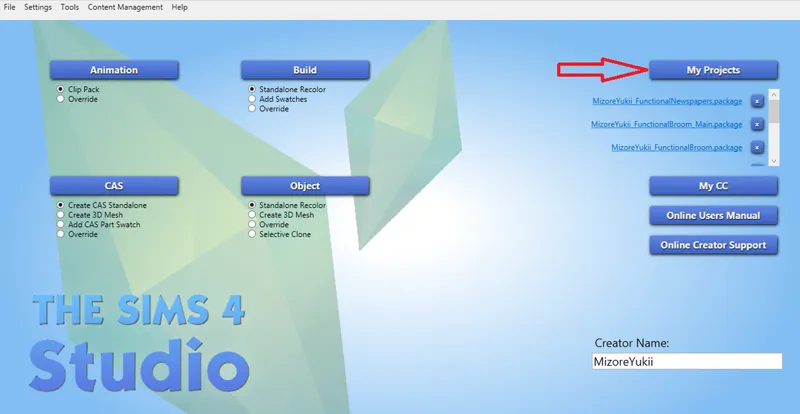
2. Once you’ve downloaded and setup the program, open the mod you want to translate by clicking “My Projects”, then locate the mod package.
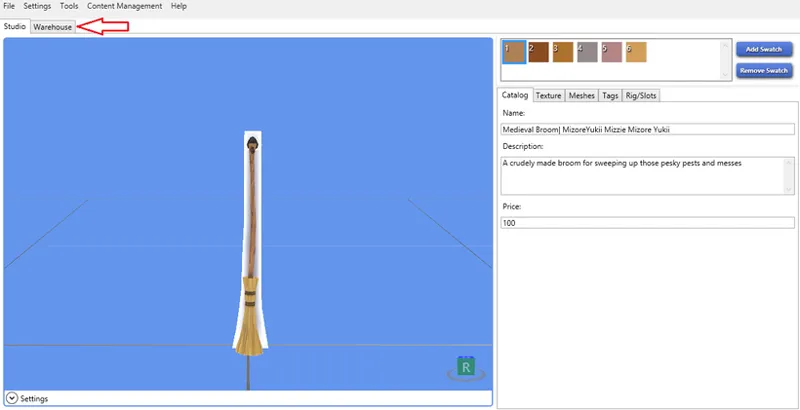
3. If this is an object and you are on the Studio/preview page where you can see the object, click on the “Warehouse” tab on the top left next to it. If this is a mod with no CC objects/ Studio page or is merged, you are already in the Warehouse so go to Step 4.
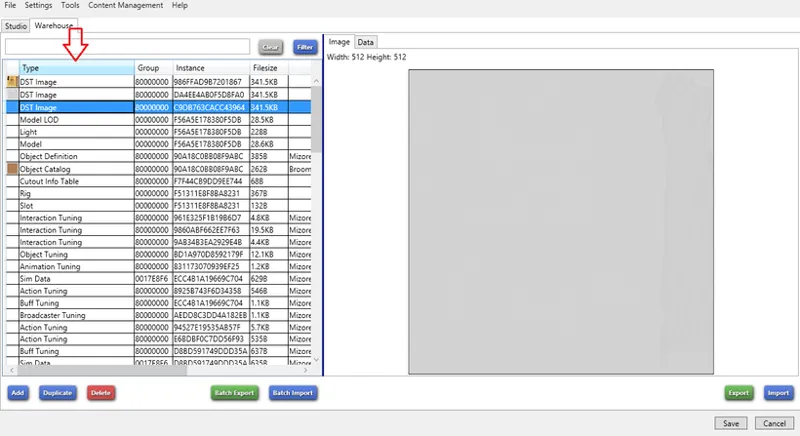
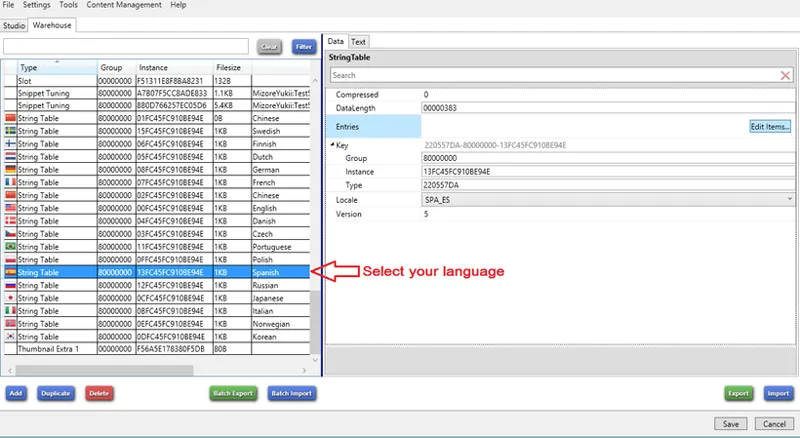
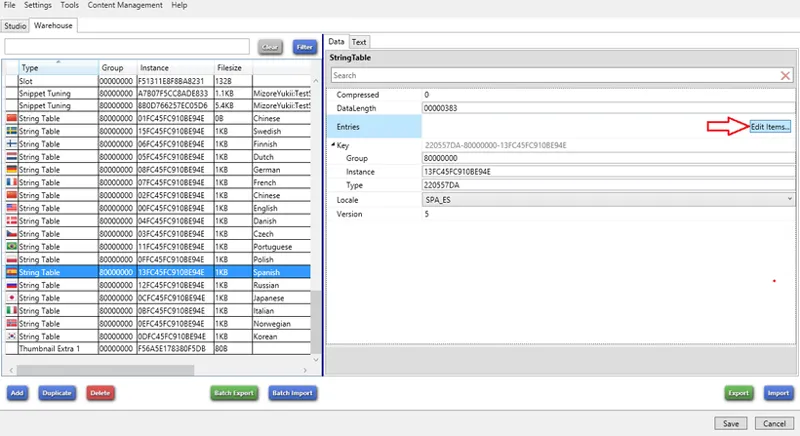
4. If this is a small mod, it should be easy to locate the strings without too much issue. If there’s a lot of files though, you can find it easier by clicking the “Type” column on the left to sort them and scrolling until you see the “String Table” files. Find your language and select it, which is labeled by flag and name.
5. On the right where it says “Entries” click the button across from it, which should say something similar to “Edit Items”.
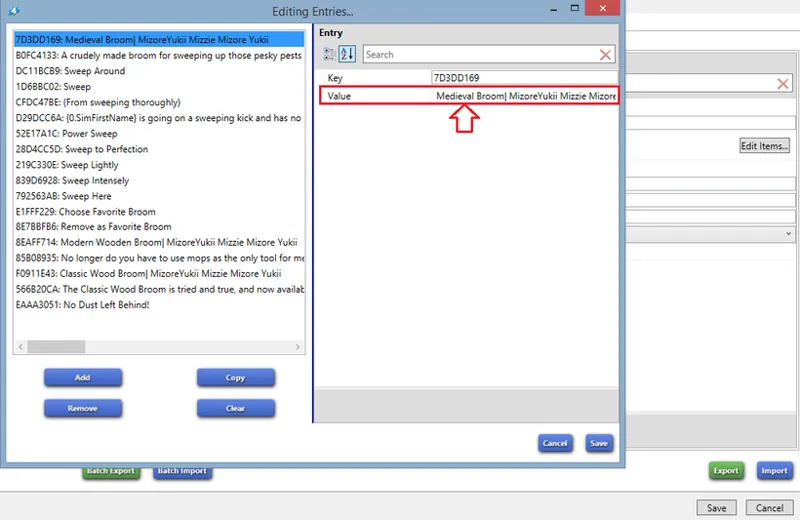
6. A popup window called “Editing Entries“ will open with all the strings. The left side of the window is a list of all the strings, while the right contains the Key and the Value of the selected string. The Value is what you translate, do not change the Key! Continue translating each string's Value until done.
- Skip the strings that say "Do not translate" or "Placeholder", or anything similar as they aren't meant to be translated.
- Do not translate anything within the curly brackets/braces {} other than the "He" and "She" in {M0.He}{F0.She}, which you can also use yourself when translating to add feminine/masculine words (check EA's strings for examples).
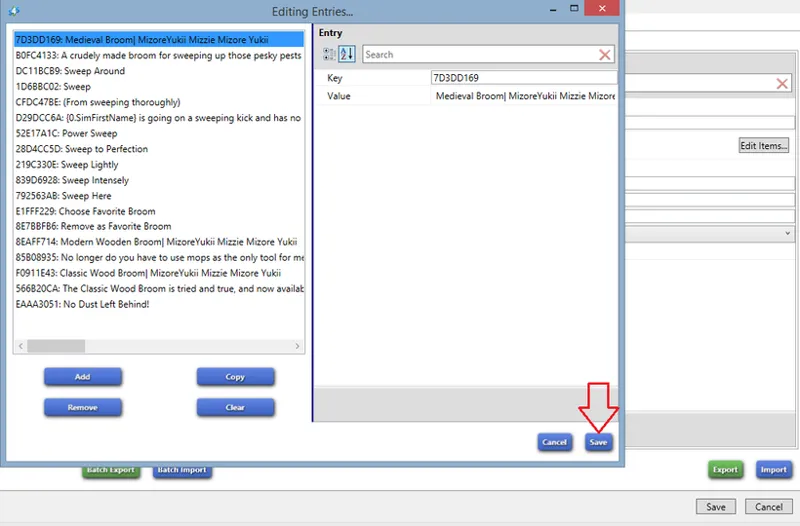
7. When done, make sure to click “Save” on that popup window to save your work.
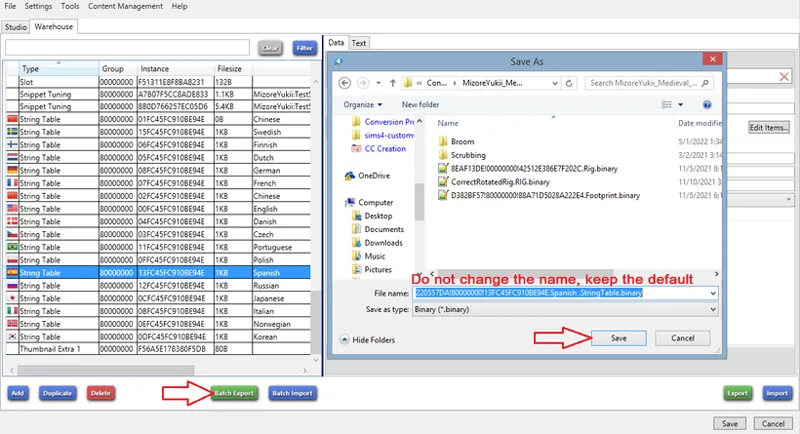
8. With your language still selected, click the “Batch Export” button at the bottom left, do not change the name, save it somewhere you will remember.
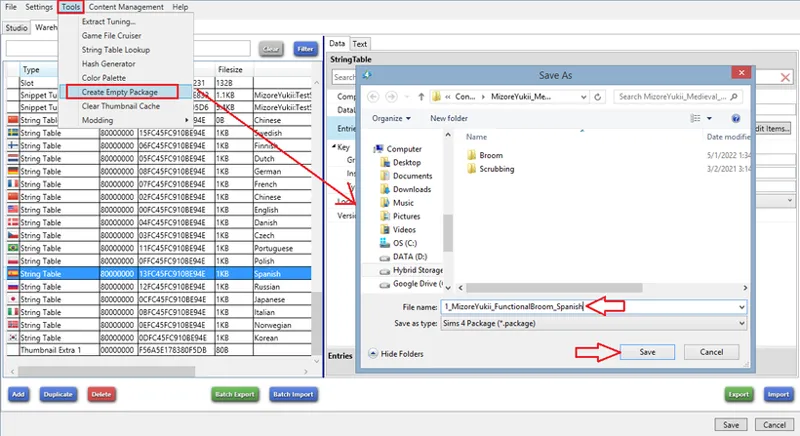
9. Now go to the top left, click Tools > Create Empty Package and name it something similar to this:
1_CreatorOfMod_ModName_Language
For example:
1_MizoreYukii_FunctionalBroom_Spanish
And you can add your name to the end of the file as well if you’d like, which makes it easier for creators to identify who it’s from, as well as downloaders if you are allowed to host the translation on your own. This naming format makes your translations load before the creator’s mod if it is in the same folder (it will too if placed in the folder above it), so downloaders will see your translation instead of English text.
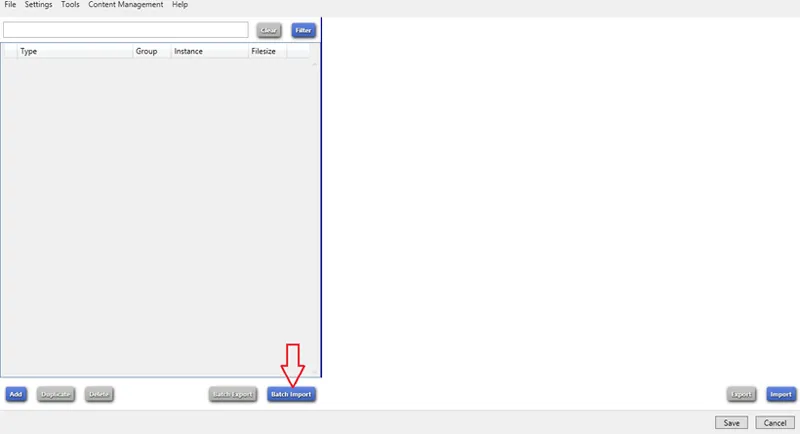
10. Once your package is created and loaded, go to the bottom left and click “Batch Import”, find the file you exported earlier and select it.
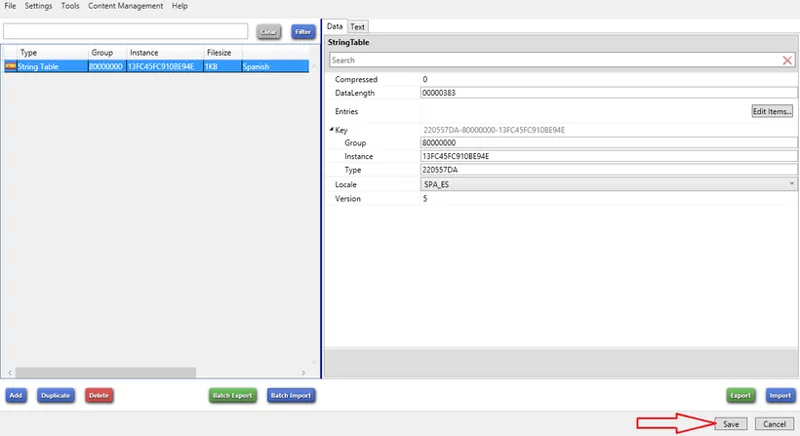
11. After it is imported you just need to click “Save” at the bottom right. Now you can send the translation to the creator (you can also just send the exported file), or if their TOU allows it or with permission, you can host the translations on your website.
Another way to separate the string table is to delete everything other than your language string table in the package, then at the top left click File > Save As and give it the same name format mentioned above.
Comments (1)
🤗❣️🤗