
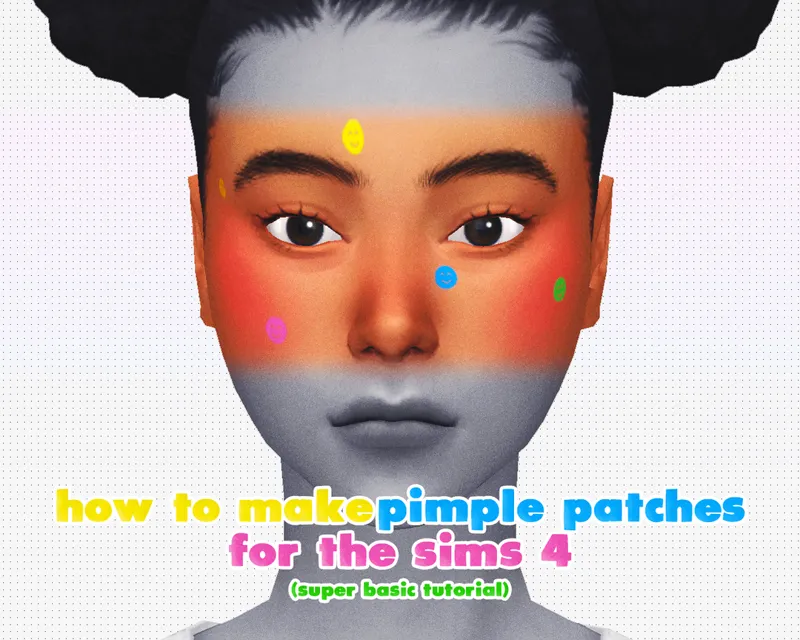
✧ How to Make Pimple Patches for The Sims 4 ✧
🩷 Note🩷: You can find the .docs version here: ¨[link]. You can also download a pdf version here.
(By DaisyPixels)
_______________________________________________________________________________________________________________________________________
✋ Before starting ✋
You will need a computer for this tutorial. The program used to import textures into The Sims 4 (Sims 4 Studio) works on Windows and Mac, but it does not work on mobile devices.
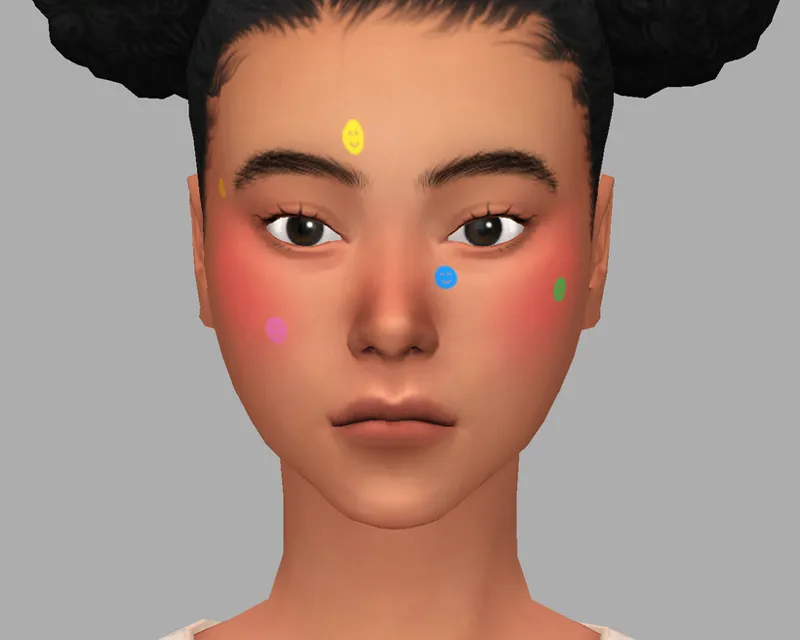
Hello 😊! In this tutorial, I’m going to show you how to make pimple patches for The Sims 4. It’s a really easy process, I hope you understand everything!
🩷 Tip 🩷: If you want to make tattoos or makeup, the process is almost the same. You just need to choose a different base package.
✧ What You’ll Need ✧
An image editing program that can open PSD files and export PNGs. I’ll be using Photopea because it’s free and browser-based.
Sims 4 Studio, which is free software for creating Custom Content.
My PSD file [link]
✧ Step 1 ✧
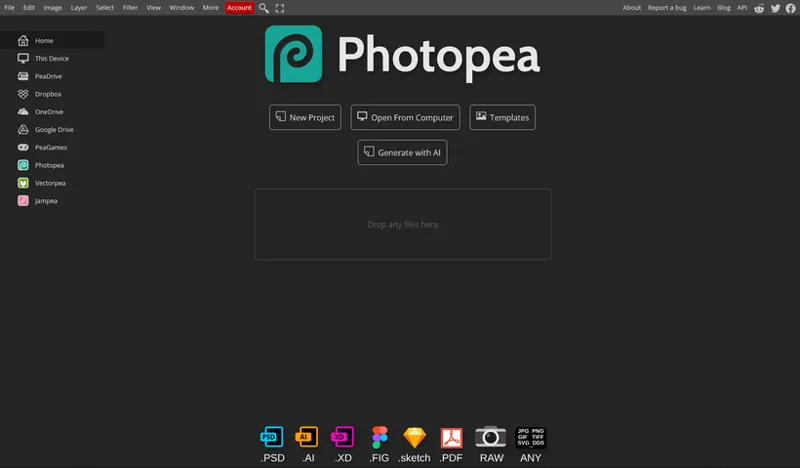
Open Photopea or any software that supports PSD files.
✧ Step 2 ✧
Download the PSD file and drag it into Photopea where it says “Drop any files”.
✧ PSD breakdown ✧
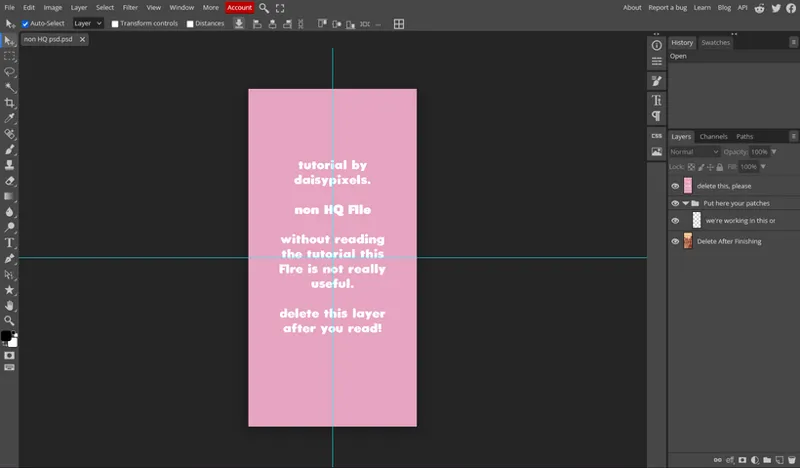
This file has three parts:
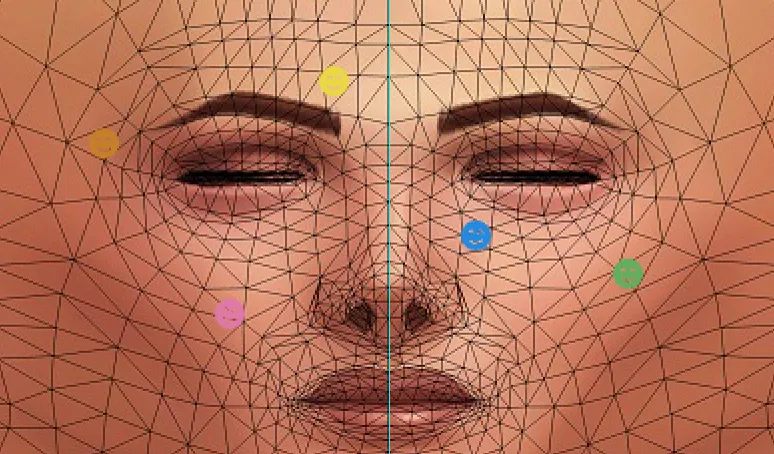
Instructions layer
Delete this after readingWorking group
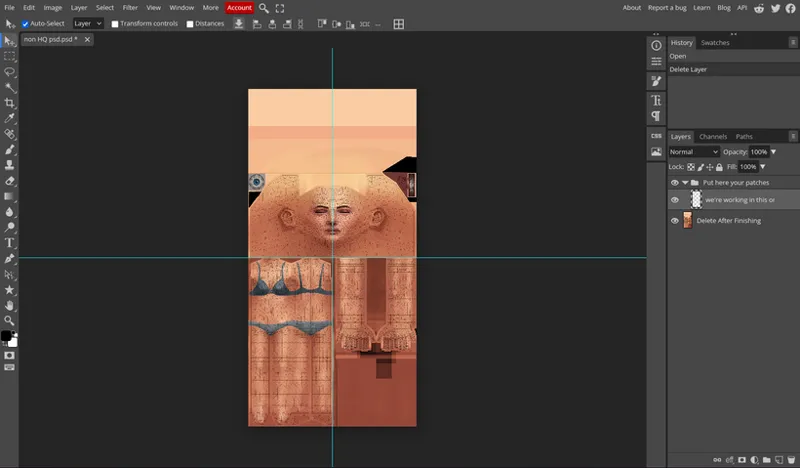
This is where you will create your designBase layer
This helps you position your design correctly (delete it in the end).
After deleting the instruction layer, select the working group.
✧ Step 3 ✧
Now you can draw, paste, or add anything you want for your final result. If you’re feeling creative, you can even draw something yourself 😉.
⚠️ Do not draw on the skin or base layer ⚠️.
🩷 Tip 🩷
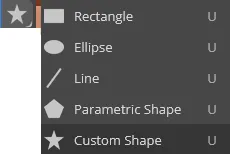
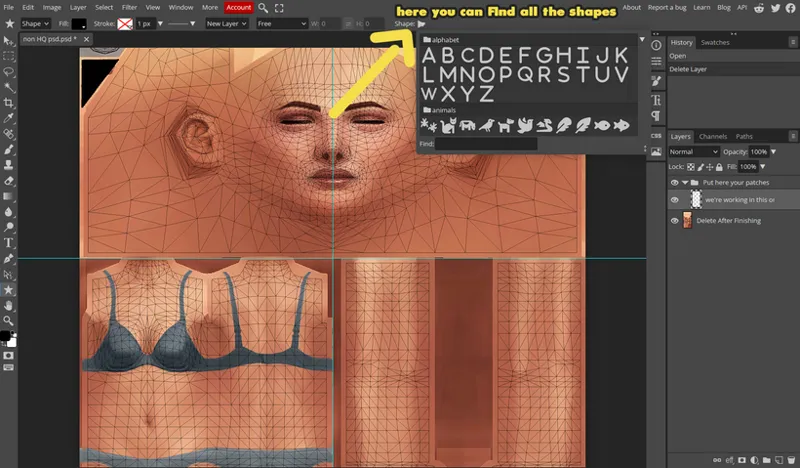
Since I’m not great at drawing myself, I will use the shape tool in Photopea to create patches easily.
There are many built-in shapes available at the top menu.
You can:
choose a shape.
adjust the size (around 15px works well for me).
place as many patches as you want.
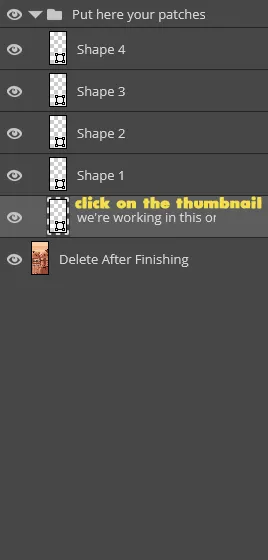
All shapes will appear black at first.
To change the color, double-click the shape icon.
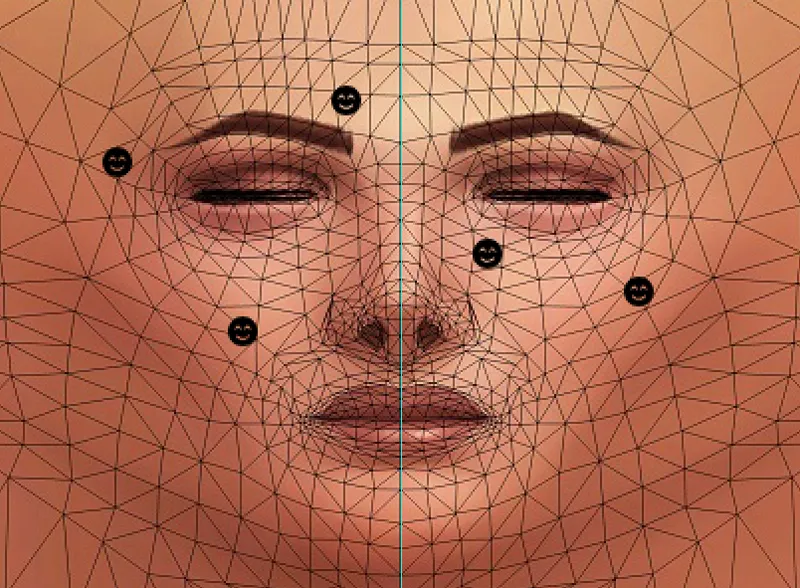
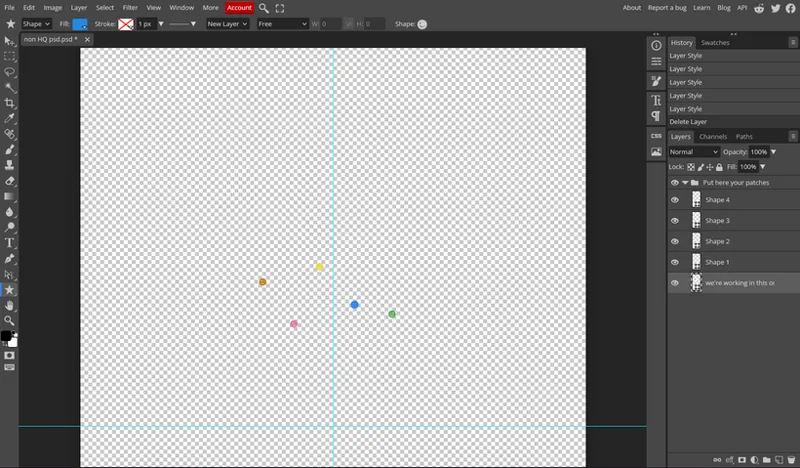
This is how they look now:
✧ Step 4 ✧
Delete the base layer.
Don’t worry if your screen looks empty. You should only see your patches now.
✧ Export ✧
Go to:
File > Export as > PNG
✧ Sims 4 Studio ✧
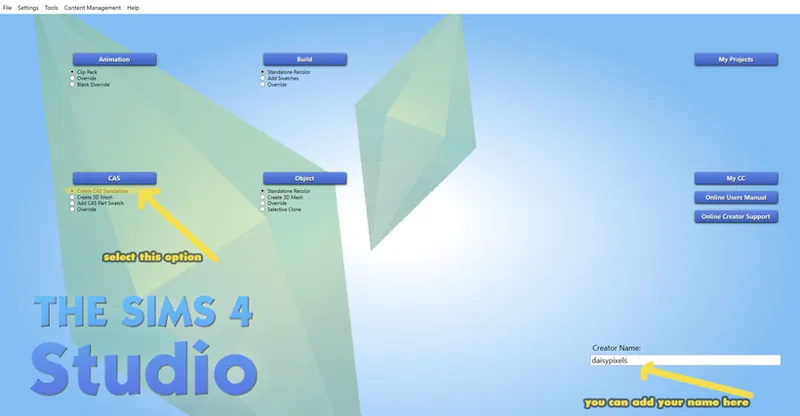
Open Sims 4 Studio.
Select:
CAS > Create CAS Standalone
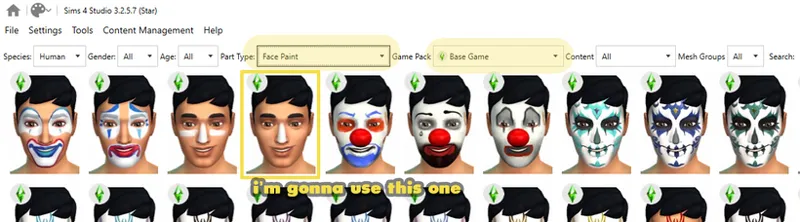
✧ Settings ✧
Part Type: Face Paint
or another category if you preferGame Pack: Base Game
Save your file with a name and location you will remember.
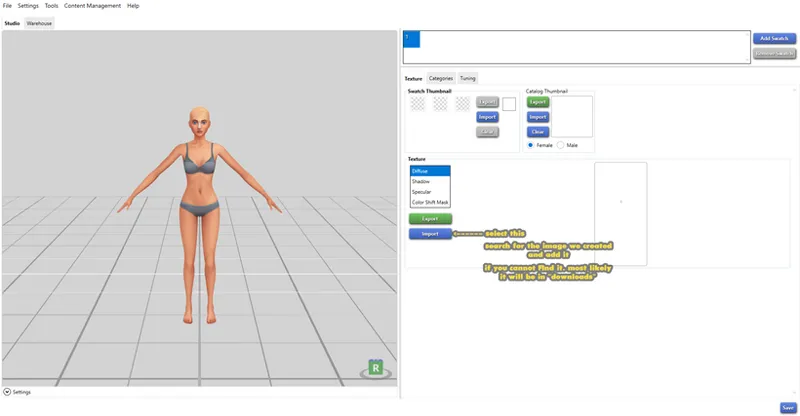
✧ Import your texture ✧
Go to Diffuse > Import
Select your PNG
Click Save
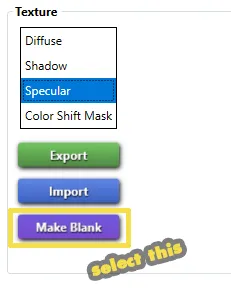
✧ Important step ✧
Go to Specular > Make Blank
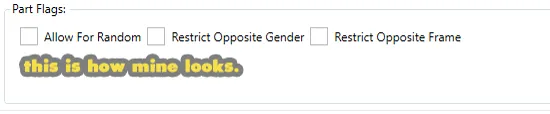
✧ Categories ✧
Go to the Categories tab
Uncheck Allow for Random
This prevents townies from wearing your patches
Save your file again.
If it is not in your Mods folder, move it there.
✧ Final step ✧
Open your game and test it 🥰
And that’s it! Now you're ready to share your CC with the community! Don't forget to tag me 🫡.
If you have any questions, feel free to ask 💌🥰.