


How to install mods for Dead or Alive 6 in Last Round
Hi, everyone.
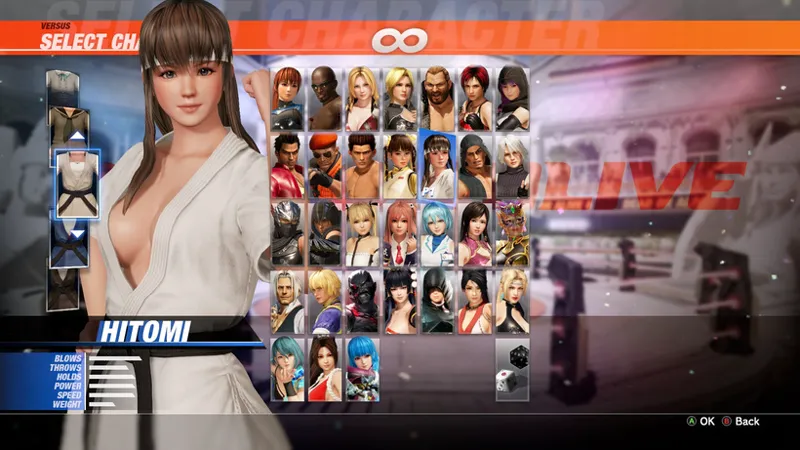
This is a tutorial about how to install a mod for Dead or Alive 6 in Last Round. I'm going to use Hitomi Cleavage as an example. Note that this method will create the equivalent of direct swaps (no Layer 2 method for Last Round, at least yet).
Requirements
This method uses RDB Explorer, a tool that also works for games like Nioh 3 (attached below).
This tool requires .NET Desktop Runtime 10.0.9. Install the version appropiate for your windows version.
Thanks to MrIkso for the tool.
Download DoA6LR_names.csv, also attached below. I created this list of names copying them from the latest qrdbtool for Dead or Alive 6. Note that it doesn't include any new costume in Last Round.
Settings
Open RDBExplorer .exe.
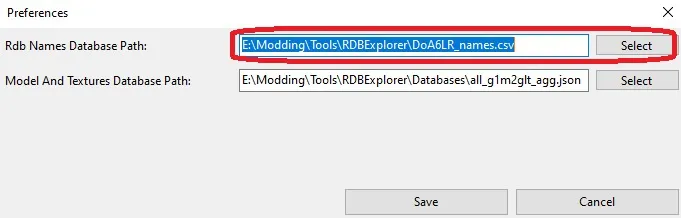
Go to Settings => Preferences.
In Rdb Names Database Path select the DoA6LR_names.csv you downloaded before.
This will show readable names.
Opening
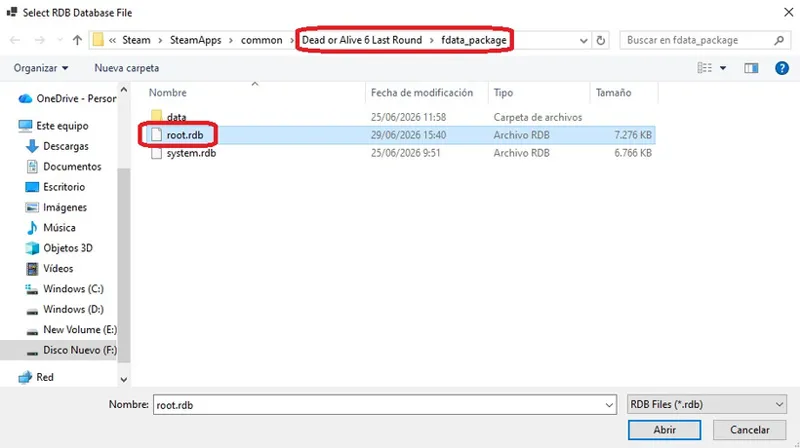
Go to File => Open
Open root.rdb
The list of files will be shown. By default it will be ordered by Hash, but you can click in the headers to order by Name, Type, Size, Container or Hash. Ascendant or descendant order.
For this use case, I recommend to order by name.
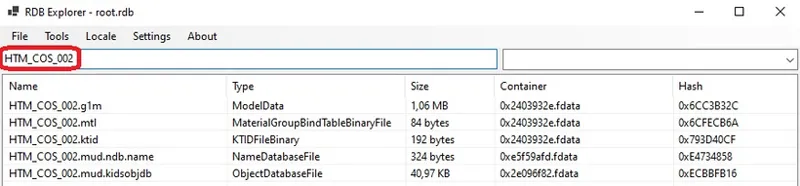
There is a field to search by name or hash. It will show only the files that match what you write or copy here, fully or partially.
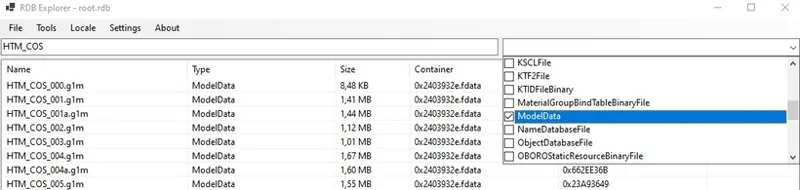
There is also a dropdown menu where you can select to filter files by type.
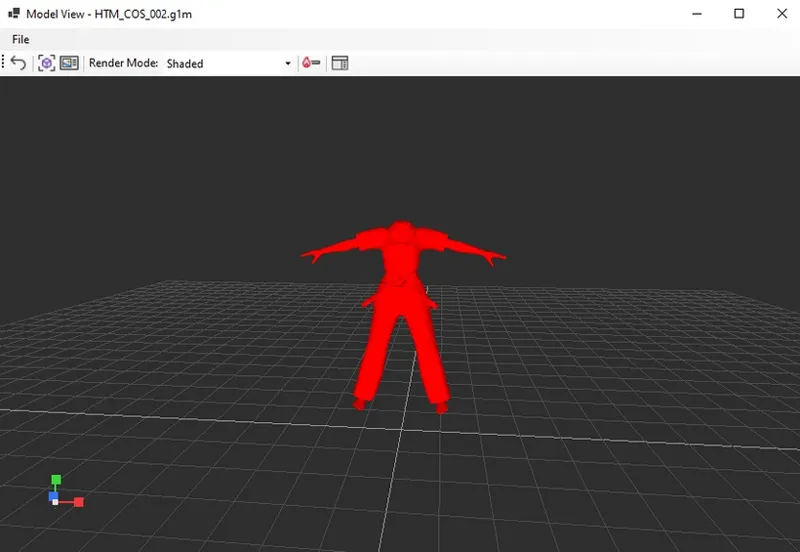
If you double click in a file you can open it in a viewer. There is even a texture viewer and a model viewer.
Back Up Original Files
This method replaces the original files, so you should make a backup of them.
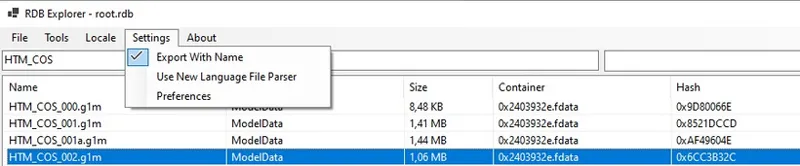
I recommend to activate Settings => Export With Name. This way reinjecting the original files will be easier.
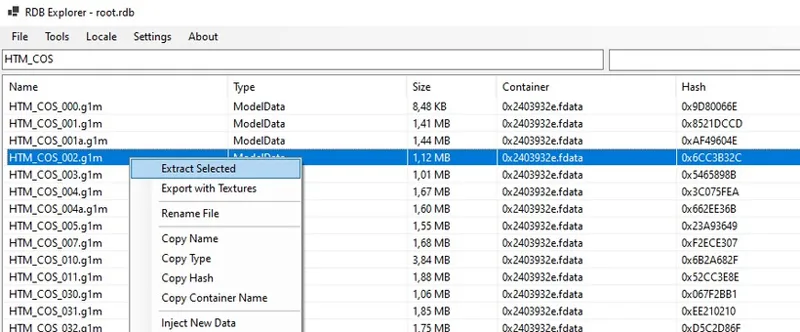
Look at the mod's files. In this case there is only one, HTM_COS_002.g1m. Type or copy the name in the search field and localize it. Then right click in it and Extract Selected.
Extract it to a folder where you can find it easily if you need it.
Do this with every file of the mod (Read Differences between DoA6 and DoA6LR below).
Inject Files
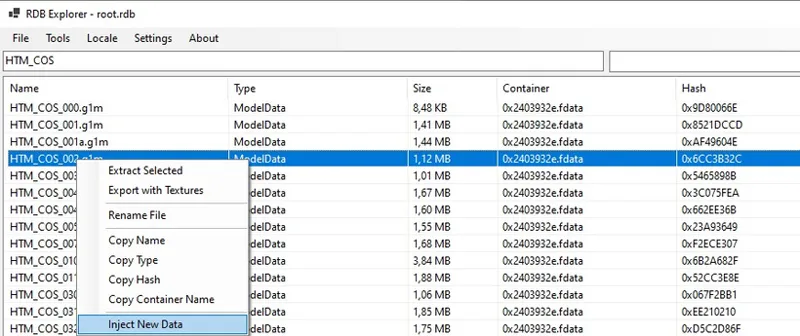
After locating the files, injecting the mod's files is as easy as right-click => Inject New Data and select the mod's file.
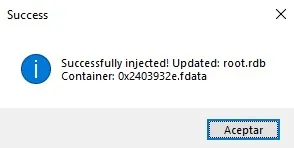
If everything went well, a success message appears.
Repeat this process with every file of the mod (Read Differences between DoA6 and DoA6LR below).
The mod is installed. Open the game and see the results.
Differences between DoA6 and DoA6LR
There are a couple of differences between both games:
In Last Round, some files are shared by different costumes and colors when they are identical:
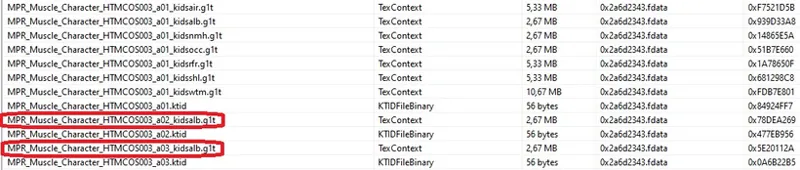
For example in the recolors usually only the non-identical texture files are included and the three of them share normal maps, occlusion maps, etc. In these cases just replace the files you see in the tool, that's enough.Another example is that the body textures are shared between several costumes. In this case, replace (with a previous back up) the corresponding file. You can search "body", look at them with the texture viewer and find which one matches with your costume (the difference is usually the nail colors).
While testing I noticed one file that used a different hash than the original, probably there will be more. This is the exception, most of the files identical. I've already modified this file in DoA6LR_names.csv.
Remove Mods
There are two ways to restore the original files:
Inject back the original files you extracted in Back Up Original Files.
In Steam, verify file integrity. This will remove all the mods you installed.
Note that game updates may also remove mods.
Comments (2)
it crashes my game, so this is not working for me u.u
What were you trying to install?