






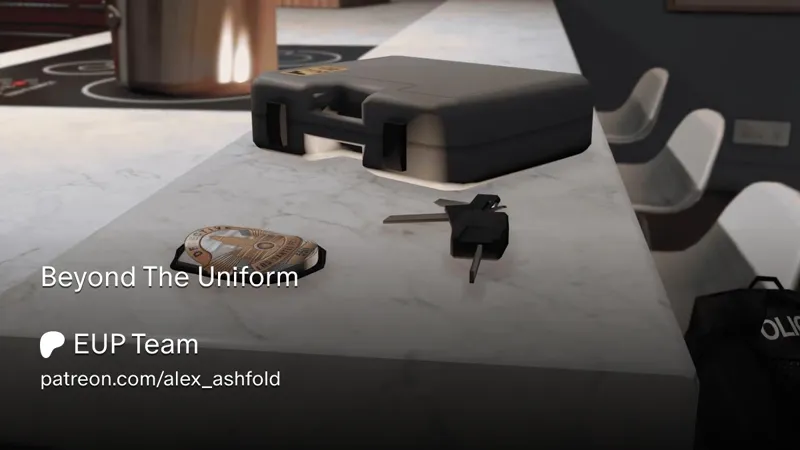
Beyond The Uniform
A Major EUP Menu Update Is Here!
Emergency Uniforms Pack has come a long way from its beginnings as a clothing and uniform customization menu.
With this latest update, EUP takes a major step toward becoming a fully integrated LSPDFR companion, introducing new ways to prepare for duty, customize your uniform, manage equipment, and interact with the gear you carry.
Your uniform is no longer just something you wear. It’s something you use.
A New Look and Feel
The changes aren’t limited to equipment functionality.
EUP Menu also introduces improvements to its presentation, including the menu camera, character animations, and more immersive customization interactions.
Together, these improvements help bridge the gap between selecting equipment in a menu and using it in the game world.
Your Character. Your Career.
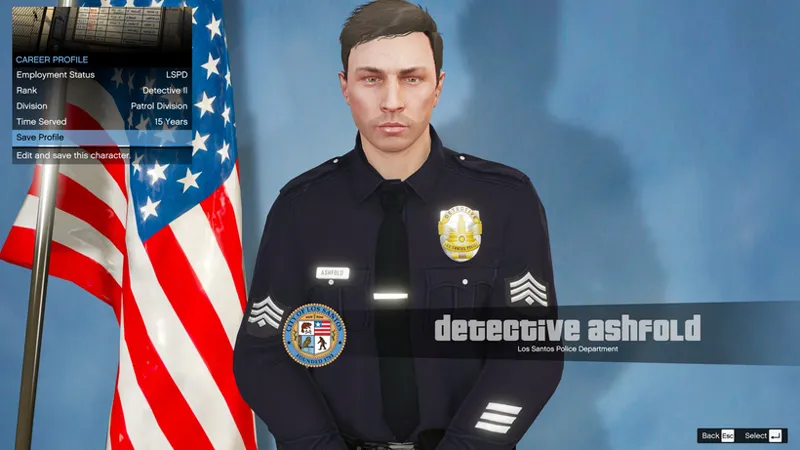
Already have a character in LSPDFR? You can use them with EUP and create a Career Profile linked to that character.
Employment Status: choose your character’s employer and preferred kitbag.
Rank: set their rank within the selected agency.
Division: define their division.
Time Served: choose their service history, reflected through service chevrons or stars on supported Class A and Class B uniforms.
These details help make your uniform specific to your character. Supported rank insignia and service markings follow the profile, while saved Outfit Setups remember your clothing and equipment choices.
How it works
With your LSPDFR character active, open Career Profile from the Locker room at a police station. If the character already has a linked EUP profile, you can review and update it. Otherwise, register the current character and save their career details.
This lets you build a career profile for EUP around your existing LSPDFR character without recreating their appearance. Once linked, EUP associates character-specific data, such as saved setups and packed kits, with the corresponding character.
Set up your career details, save your profile, and move on to preparing your uniform and equipment for the shift.
Build Your Uniform, Your Way
Rather than choosing only from predefined outfits, you can now build a uniform using individual clothing and equipment categories. Mix and match compatible pieces, adjust their variations, and create configurations suited to different assignments.
How it works
Open the Modular Outfit Builder and select the outfit you want to customize. Browse the available options and adjust your selections while previewing the changes directly on your character.
the builder also works with your character’s rank, allowing saved uniform configurations to use the appropriate rank insignia when equipped.
Once you’re satisfied, you can save your configuration as an Outfit Setup for future use.
Getting Ready for Duty
Preparing for your shift now extends beyond choosing a uniform. You can organize your outfits at home, dress at a station locker, or take your kitbag with you and prepare beside your vehicle.
At a supported apartment wardrobe, use the on-screen EUP Wardrobe prompt. Open Wardrobe → Uniforms to browse service outfits and customize them with the Modular Outfit Builder.
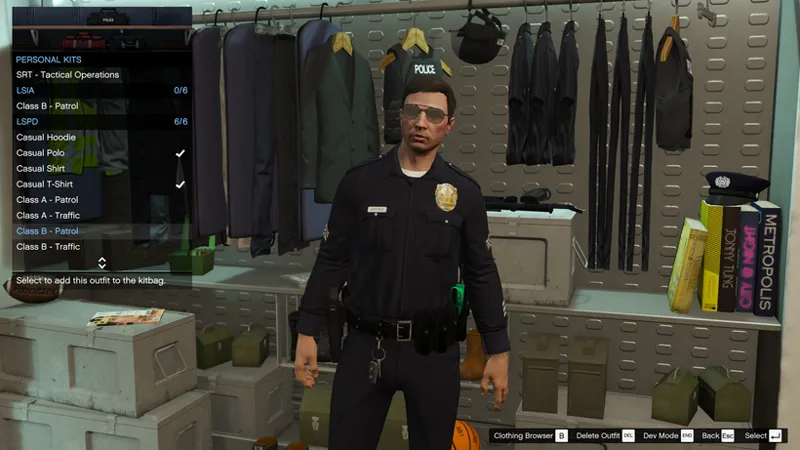
When you have a configuration you want to keep, choose Save Outfit Setup. You can then organize the outfits you want to take with you under Personal Kits.
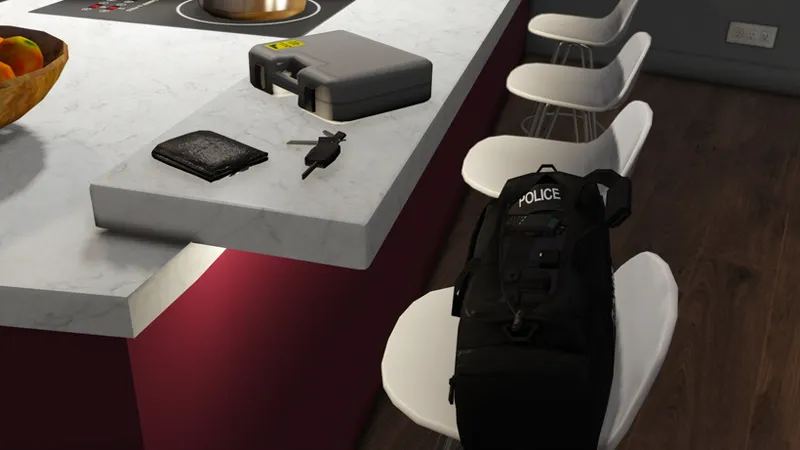
The nearby kitbag’s Go to Work interaction lets you collect your bag and carry it with you. Picking it up gives you physical kitbag access; you can prepare your uniform and equipment afterward.
At a supported apartment wardrobe, use the on-screen EUP Wardrobe prompt. Open Wardrobe → Uniforms to browse service outfits and customize them with the Modular Outfit
With the supported RollCall integration, selecting Police Locker opens EUP’s locker workflow. Choose your uniform, make your adjustments, and continue to Gear Management to prepare your equipment.
Confirm & Exit when your setup is ready. The station kitbag can then be collected separately if you want to take it with you.
Your kitbag can be carried, placed on the ground, or stored in a supported vehicle. Follow the interaction prompts to access it where you left it.
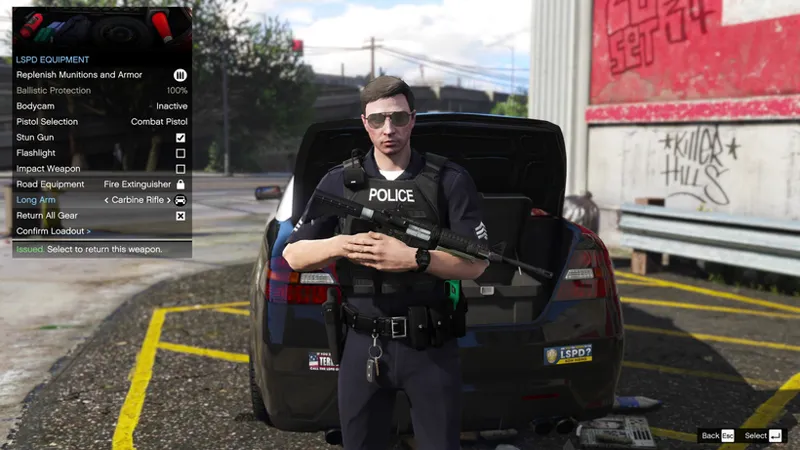
You can also prepare directly from a suitable vehicle trunk in Worksites mode. Before your setup is confirmed, the trunk’s Kitbag option opens uniform preparation. Afterward, Gear Management provides access to your equipment and spare kits.
Choose how you access the menu
Under Settings → Menu Access, choose between:
Worksites: use physical preparation locations and suitable vehicle trunks. Away from those access points, the menu hotkey provides limited utility access.
Unrestricted: open the main menu wherever you are. Settings opens immediately; selecting an activity starts its preparation sequence.
Collecting a physical kitbag switches the current session to access through that bag. If you store it in a vehicle, return to that vehicle to access the stored kitbag.
EUP preparation and LSPDFR duty status are separate. Collecting your bag or choosing Confirm & Exit does not automatically put you on duty in LSPDFR. It is recommended to use the police station locker rooms to get on duty and change into uniform.
Save Your Setup. Keep a Spare.
Build and save
Customize a supported uniform in the Modular Outfit Builder, then choose Save Outfit Setup.
EUP remembers your modular selections and supported variations for that character. Rank remains tied to the character’s career profile, so the saved setup can use the appropriate insignia.
Pack your Personal Kits
Open Personal Kits and select the saved outfits you want in your kitbag. A checkmark identifies a packed outfit; select it again to unpack it.
You can pack up to six outfits per agency, per character. Saving a setup adds it to Personal Kits; packing it is a separate choice.
Change through Spare Kits
Once your uniform setup is confirmed, use Gear Management → Open Spare Kits to access the packed outfits for your current agency.
Choose a spare kit when you need a different prepared uniform. Available changes still follow your Outfit Changes setting.
For example, you could save and pack a patrol uniform and a second configuration for another assignment, then switch between those prepared kits without rebuilding each outfit.
Your Equipment, Within Reach
The new equipment interactions give you two ways to manage your gear: Gear Management for the full menu, and the Quick Equipment wheel for supported actions during gameplay.
Use Gear Management to prepare and review
After choosing your uniform, continue to Gear Management → Equipment to manage available agency weapons, ammunition, armor information, and bodycam settings.
Once your setup is confirmed, Gear Management also provides Edit Current Outfit for permitted adjustments and Open Spare Kits for changing into packed outfits.
Your Shift. On Camera.
Body cameras are no longer simply accessories attached to your uniform.
The expanded Body Camera features introduce interactive controls, recording indicators, audio feedback, and immersive visual overlays.
How it works
Equip a compatible body camera and use its available controls to manage the recording experience.
Activate the camera to see its recording feedback and switch to the supported bodycam presentation to experience your shift from a different perspective.
Use the wheel for quick interactions
Hold the wheel control, highlight an available action, and release to select it. The choices depend on your confirmed outfit, compatible equipment, and nearby storage.
Depending on your setup, you can:
Put on or remove compatible gloves and eyewear, or reposition supported sunglasses.
Adjust a supported visor or gas mask.
Access bodycam controls.
Put down or access your carried kitbag.
Use available trunk shortcuts for equipment, armor, outer layers, or spare kits.
For example, you can lower supported sunglasses while on patrol, then return to your kitbag or a suitable trunk when you need a safety vest or another stored item.
The wheel adapts to what you are wearing and what you can access. Use Gear Management when you need the broader equipment menu.
Carry Your Rifle Naturally
The new Rifle Sling Carry feature adds another practical interaction to your equipment.
Instead of relying exclusively on traditional weapon handling, you can carry a supported rifle in a slung position, making it feel more naturally integrated with your officer’s equipment.
Available Now
The latest EUP Menu update is ready to download! for the Detective Tier and higher
This release represents a significant milestone in EUP’s evolution, bringing uniform customization and interactive equipment management closer together than ever before.
Whether you prefer a quick uniform selection or a fully immersive pre-duty routine, the goal remains the same: give you more control over your character and the equipment you use throughout your shift.
Download now on discord
Thank you for your continued support. There’s plenty more to come!
Comments (4)
I cant find the detective channel in discord. all that looks so cool.
the download links are provided in the detective channel
I don't see the download link in the discord? or am I also overlooking (found it)
Already this looks amazing!! This does the work of like 20 mods I use that only work half the time