




FM26 Hub - Football Manager 2026 Analytics Suite
Ahead of the release of the adboards update, for those of you interested in data analysis, I’m bringing you a new application I’ve been developing. Now that we can export game data using the FM26 Player Export tool, we can make full use of it.
FM26 Hub - Football Manager 2026 Analytics Suite is an analytics tool for Football Manager 2026. It imports your game data and generates professional reports on your squad, transfers and tactics, all within a desktop application for Windows.
What is FM26 Hub?
FM26 Hub is a standalone Windows application that analyses data exported from Football Manager 2026 using the FM26 Player Export plugin (available on FM Scout: https://www.fmscout.com/a-fm26-player-csv-export.html). It transforms raw CSV data from the game into interactive dashboards, professional charts and actionable recommendations to help you manage your club like a true sporting director.
9 Analysis Modules
1. Moneyball Report – A comprehensive valuation of your squad. It calculates the true value of each player, identifies overrated and underrated players, generates a transfer index and simulates transfers to maximise profits.
2. Club DNA Calculator - Measures how well your squad fits with different playing philosophies (Tiki-Taka, Gegenpressing, Catenaccio, etc.). Identifies which players are key and which do not fit.
3. Progression Tracker - Compares snapshots of your squad over time to see each player’s development. Identifies who is improving, who is stagnating and who is declining.
4. Tactics Selector - Find the optimal formation and philosophy for your squad. Includes an interactive pitch with the recommended line-up, showing the best XI with ratings by position.
5. Player Comparison - Compare up to 4 players head-to-head with radar charts, comparison bars and financial analysis.
6. Transfer Target Finder - Identify the best signings within your own squad based on the philosophy you wish to implement.
7. Custom Philosophy Creator - Create your own customised philosophy by defining the weightings for each attribute (technical, mental, physical and goalkeeping). Analyse your squad according to your own criteria.
8. Scouting Agents - Analyse scouting reports featuring thousands of players from around the world. Find wonderkids, bargains, free agents and targets by position. Includes a Transfer Summary section in the style of a sports website (13 templates: Transfermarkt, ESPN, Sky Sports, MARCA, Gazzetta, L'Equipe, BILD, beIN Sports, DAZN, Sky Bundesliga, The Sun, TyC Sports, BBC Sports) with news cards and a screenshot option for sharing on X.
9. Export Reports - Generate downloadable reports in CSV or Excel format with the results from any module.
Key Features
-Native desktop application - Opens as a Windows programme (no browser visible). Double-click and you’re ready to go.
-Bilingual - Full interface in Spanish and English, selectable from the sidebar.
-Multi-file - Load multiple templates simultaneously (First Team, U21, U18) + a separate scouting file.
-28+ interactive charts - Heatmaps, bars, scatter plots, coverage maps, tactical pitch, all with hover and zoom.
-Gaming/sports-themed visual style - Dark interface inspired by FotMob, SofaScore and FM26 with vibrant colours and animations.
-Screenshot + Share on X - Integrated buttons to capture any section and share it directly on social media.
-Smart analysis - Position-weighted ratings, age curves, potential factors, squad needs calculation.
-Scouting data support - Processes estimated attribute ranges (2-7, 11-18), CA/PA, and scout’s partial knowledge levels.
Requirements
-Windows 10/11
-Microsoft Edge or Google Chrome installed
FM26 Player Export plugin for Football Manager 2026 https://www.fmscout.com/a-fm26-player-csv-export.html
How it works
1) Export your game data using the FM26 Player Export plugin https://www.fmscout.com/a-fm26-player-csv-export.html
2) Open FM26 Hub.exe
3) Upload the CSV files from the side panel
4) Select a module and analyse
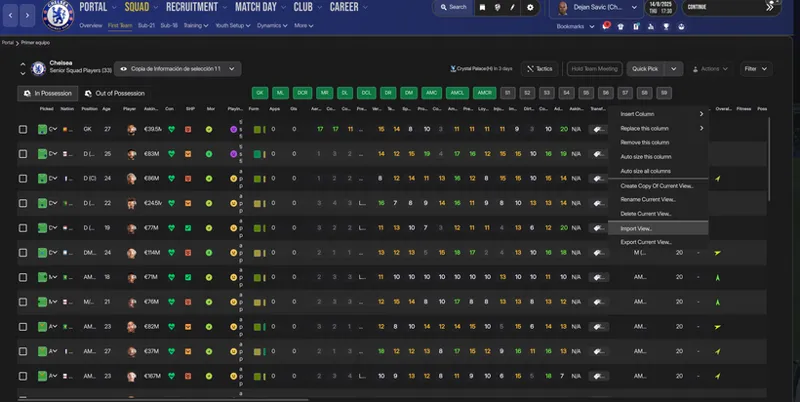
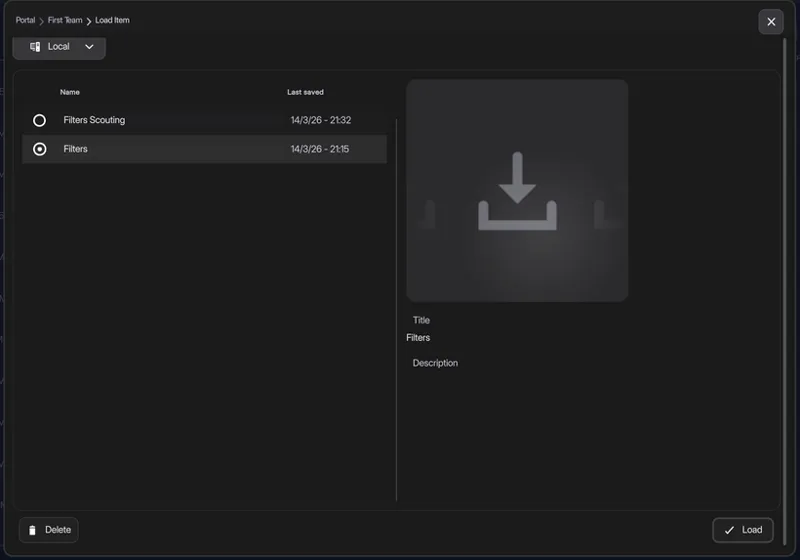
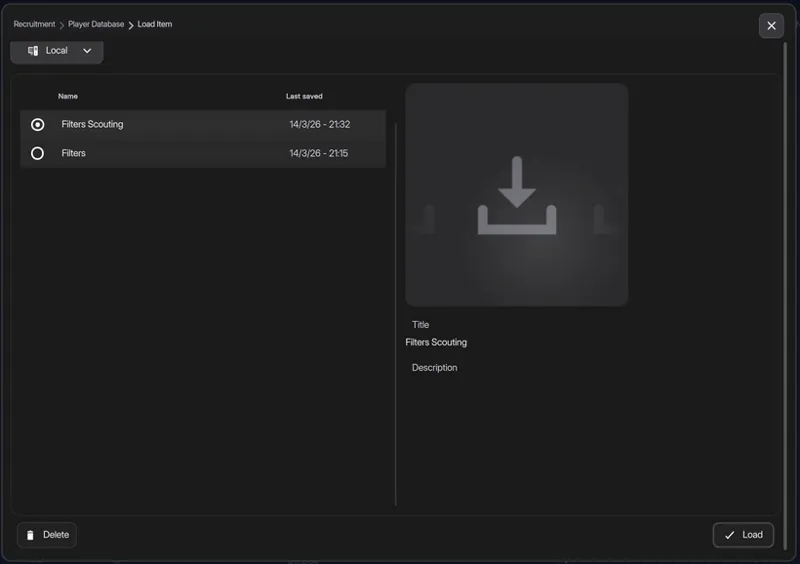
The included Views must be imported into the players window. The one called ‘Players’ is for your squad; the one called ‘Players Scouting’ is for scouting players to sign.
Comments (20)
Hola Miguel,
I can't seem to use the views, the game won't let me load them
Bravo! Quick question: does the Player Export Plugin mod work also when using other Bepinex mods? I have Bassyboy's Stadium mod installed.
This is brilliant, exactly how I love to play FM thank you. Quick question for the next update; would it be possible to get a description of what some of the categories mean, i.e. value score, age factor, market efficiency etc. Maybe hover text or something like that? I'm not really sure what some of it means.
Hi. I'm working on an update that will improve the layout of the interface. I'll take your suggestion into account and try to incorporate it.
Try it now—I uploaded it to Mega
HI the link on Mediafire keeps coming up saying need to generate new key and won't download. Would you be able to update the download please.
I've already updated the link
Great Tool! Is there going to be a version without using CA and PA, so pure moneyball?
I'll make a note of that for the update
doesnt work for me, can help me?
What's the problem?
when i export and drop files in FM26 HUB I get a KeyError "Best Value Estimate", can you help me
Hello. Are you using the views I shared when you exported the file?
Hi I have been trying to use the tool but keep getting the error failed to load Python 314.dll. The specified module could not be found. Any ideas on that?
Hello. It’s strange – the app has Python built in, so you shouldn’t need to have it installed, but in your case it seems you do. If you’ve already restarted your computer and you keep getting that error, you’ll need to install Python on your computer; you can find it at this link: https://www.python.org/downloads/release/python-3143
Few errors: Transfer Targets shows own squad data - not other data in player search Top Targets tab doesn't work at all im getting overall score of ''nan'/100
The “Transfer Targets” section doesn't make much sense. The section that displays information on potential signings is “Scouting Agents”, after loading the Scouting File.
The folder contains views; how can I use them in FM?
The one called ‘Players’ is for your squad; the one called ‘Players Scouting’ is for scouting players to sign. I'll add some images to the post to clarify