







How to Use 2D and 3D Guides (step-by-step)
I frequently receive questions on how to use 2D and 3D guides, so I thought I would make this post to detail the process!
Bloxelizer is a website with many functions, including a converter that you can use to convert the files provided here into 2D guides, 3D guides and even tutorials now! This means that those of you playing on Bedrock edition or without mods can recreate my builds in your own worlds!
How do I use Bloxelizer?
Step 1:
Download the main .zip folder of the build you want to convert. Locate the file on your device and extract the files within it.
Step 2:
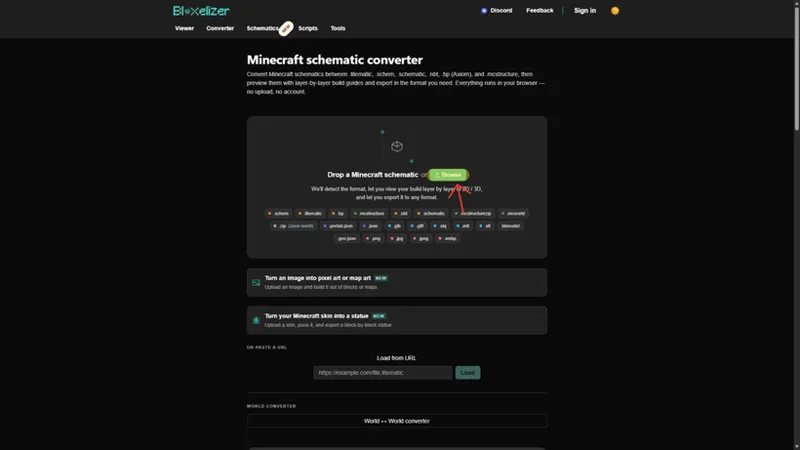
Head to the Bloxelizer website and click on the tab titled "Converter".
Step 3:
Click "Browse" and locate the file you would like to convert. For this, you can use the .litematic, .schem or .bp file.
Once you have selected the file, you will be given 5 options that you can choose. These options are as follows:
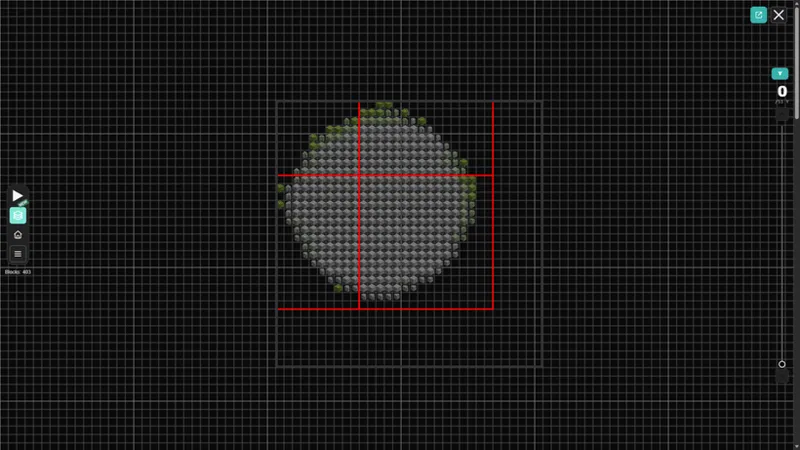
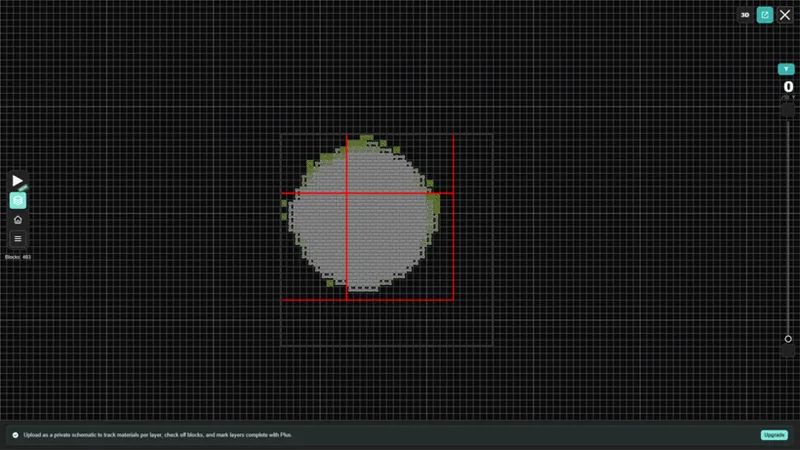
2D Layer View
A 2D birds-eye-view of the build, with the option to view each layer individually.
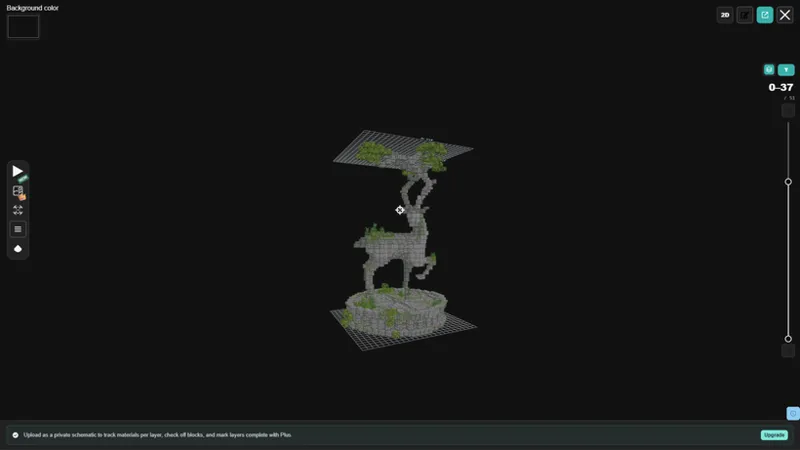
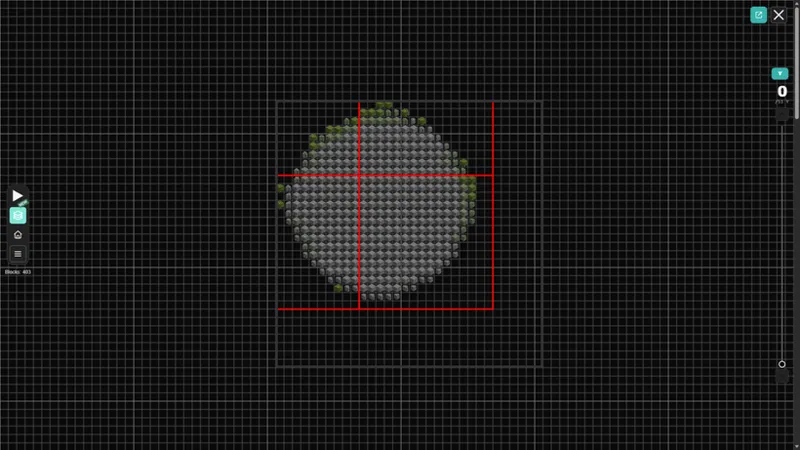
3D Layer View
A 3D view of the build that you can move around, with the option to view each layer individually.
Side by Side (2D + 3D)
A 2D birds-eye-view of the build on the left, a 3D view of the build on the right and the option to view each layer individually.
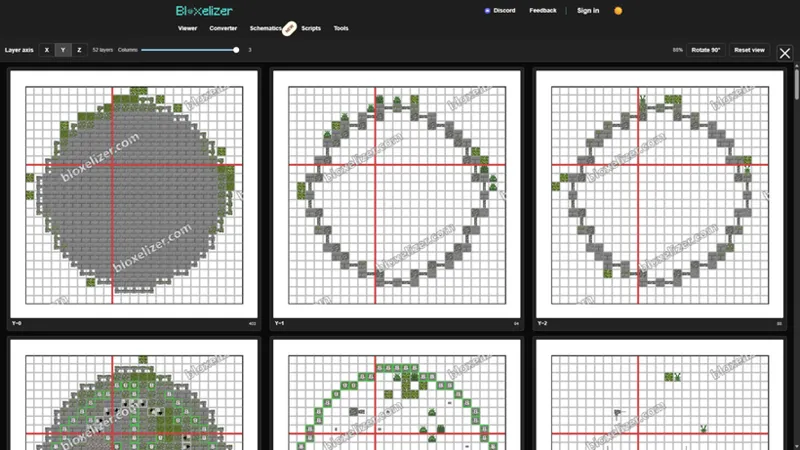
All 2D Layers
Each layer of the build as its own 2D birds-eye-view image.
Isometric Layer View
2D layer-by-layer view of the build using the Minecraft block item textures. This one is not likely to be as helpful for exact build recreation.
You can select one of these options and the file will be converted accordingly. You can easily switch to another view by clicking the X in the top right corner and reselecting.
I hope this guide is helpful! If you still need assistance, you are welcome to message me anytime! Please have patience though as I cannot always respond immediately.
Thanks for all of your ongoing support <3