










Raccoon Studio on Runpod!
Hello everybody,
I am very proud to announce that I can provide a Raccoon Studio Template for Runpod now!
What is Runpod?
In simple Words: You are able to rent per hour GPUs up to a RTX 5090. So everybody that has an AMD Graphic Card or not strong enough Hardware is able to use the Raccoon Studio over Runpod GPUs for little money (under 1 Dollar per hour). I built a Template where a Raccoon Studio Instance will be ready in a few minutes. Simply follow my little guide to setup your own instance. Its very important that you read all steps till the end.
Disclaimer: I only provide a Software Template for Runpod. You are responsible for your own account and actions when you are using Runpod.
Preparation
Visit https://www.runpod.io/ and Sign Up to create a new Account
After that log in, when not already done and charge your Credit. You can see your Credits on the Top right corner.
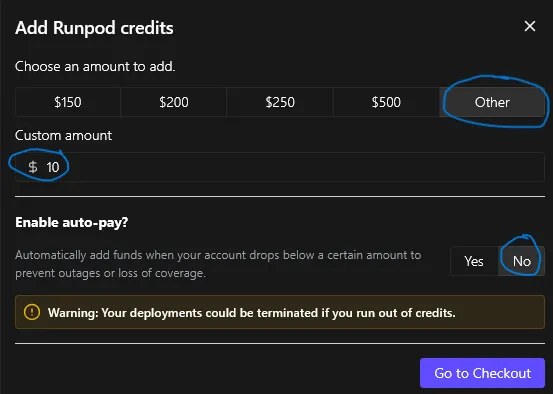
After that click on "Other" and charge a minimum of 10 Dollars say "no" to auto pay. This is important to save your money, when you for example forgot to delete your rented instance.
After that choose your desired payment option and go to the checkout.
Setup your Raccoon Studio Instance
Go in your left side menu to the point Pods.
Choose in the Filter "Secure Cloud" to have access to the most stable resources.
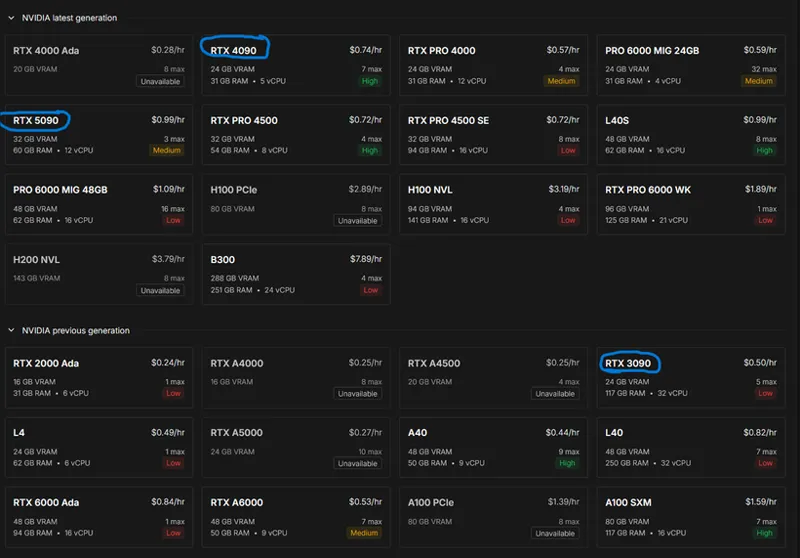
The Raccoon Studio Template is certified for RTX 3090, 4090 and 5090.
I would recommend for Image Only Generation a RTX 3090 and for Image + Video a RTX 4090 or 5090 for the best performance. Performance = time = Money.
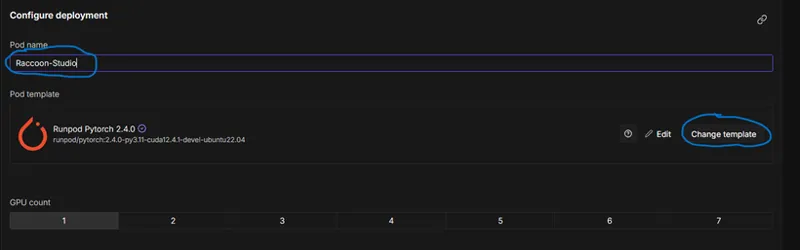
In the next step scroll a little bit down and give your Pod a recognizable Name and click on "Change Template"
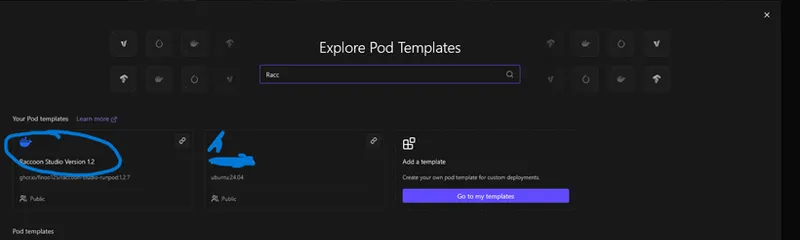
Search for the Raccoon Studio Template
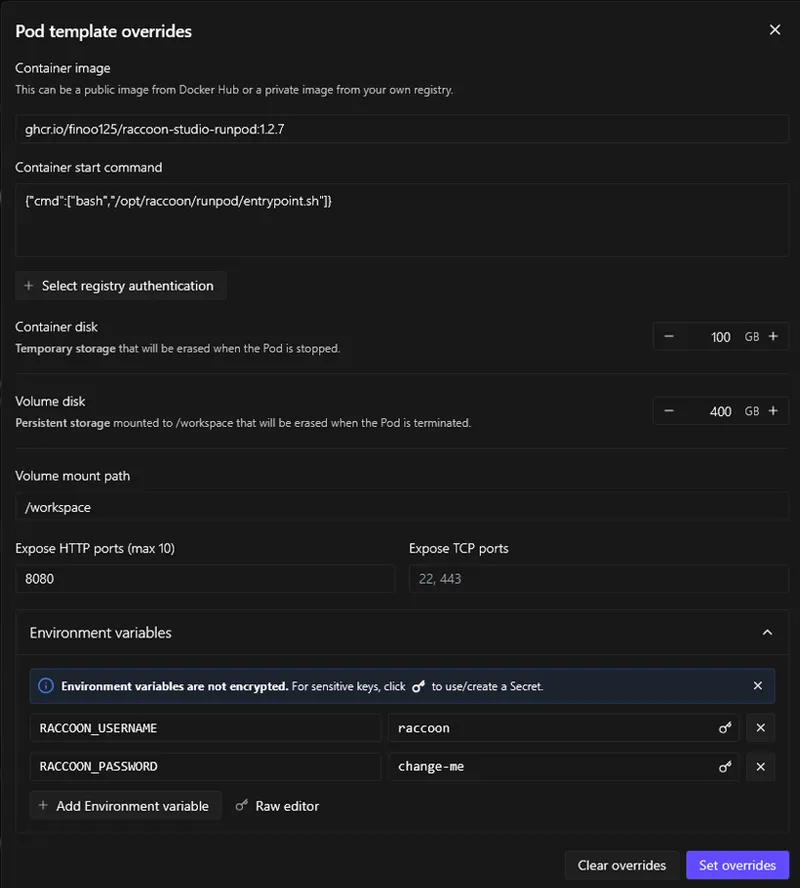
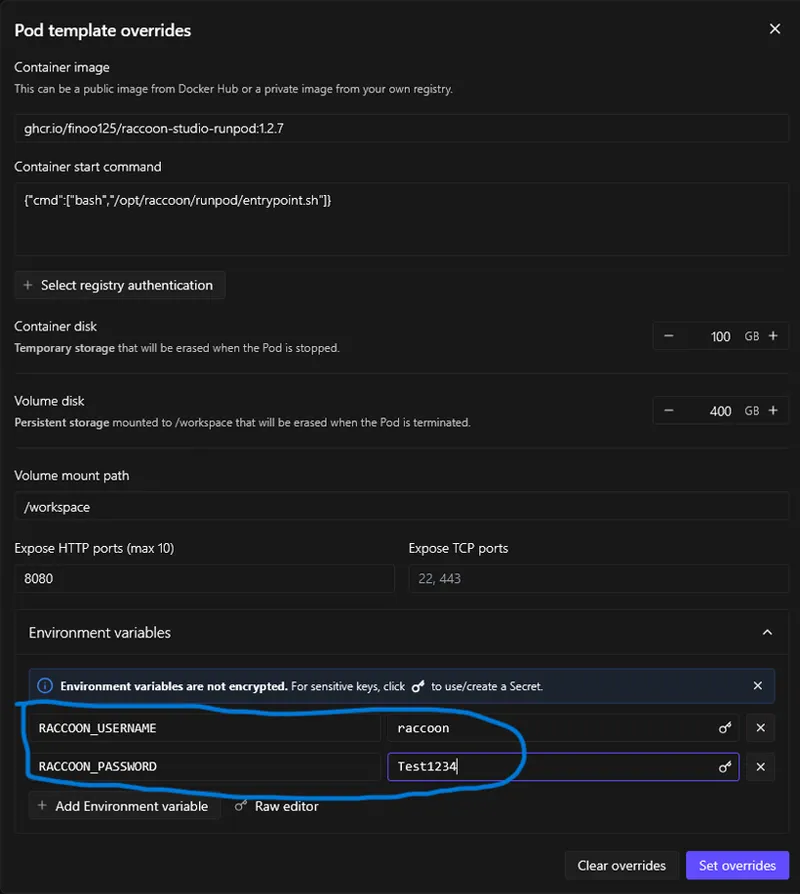
In the next Step click on Edit, we need to under Environment Settings a prefered username and password to protect our Raccoon Studio Instance.
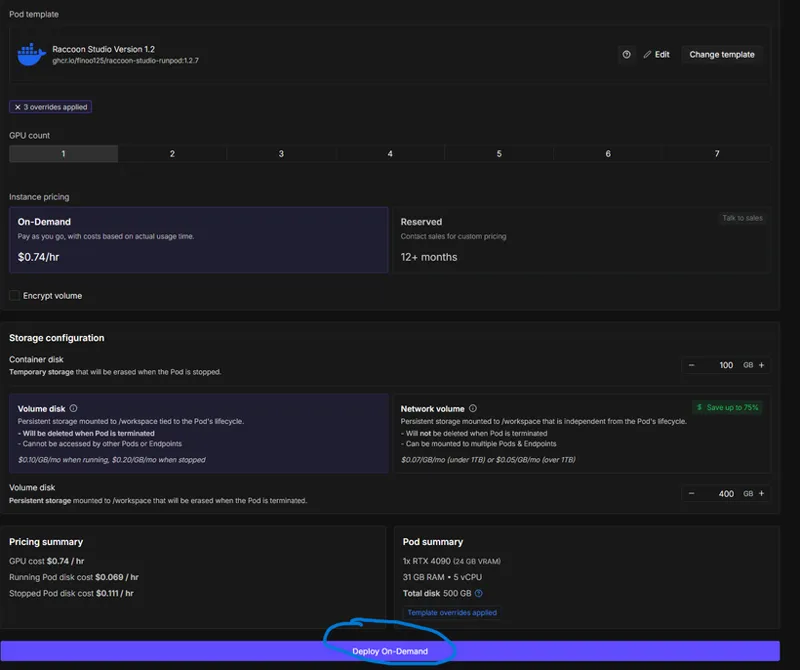
After that you can Deploy your Pod.
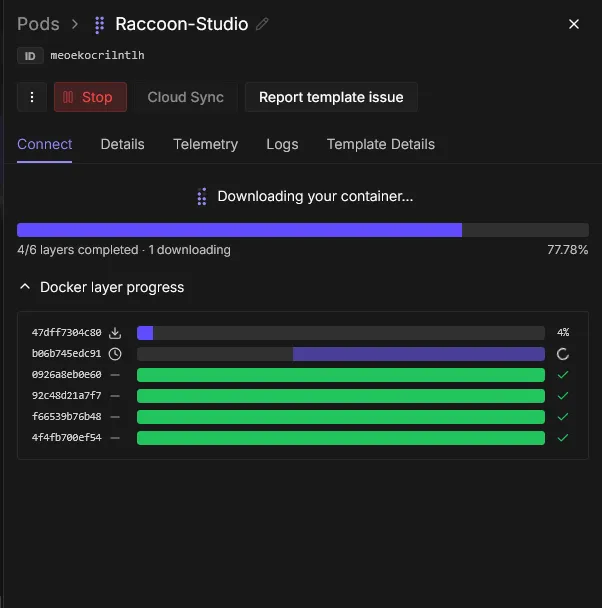
You will be redirected on a new page and can see the progress of the provisioning.
IMPORTANT: If your container is not increasing in progress you need to stop and terminate the pod. This is happening from time to time on Runpod. In that case you need to repeat all steps above to setup a new Pod.
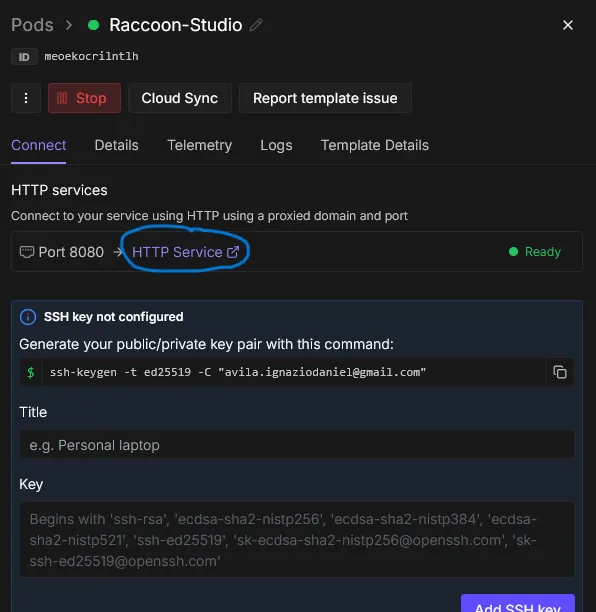
If the process ran successful, you can see the ready button and a http link. Clock on the link.
After that you can Login with your Credentials, that you set in the beginning.
Now you are ready to access the Raccoon Studio. Follow the assistant or go yourself on the Models Menu and Download your desired Models and make after that a restart of ComfyUI, after you downloaded your models.
Close the session properly after you did your work
This is very important otherwise the pod will run through until you have no credits left.
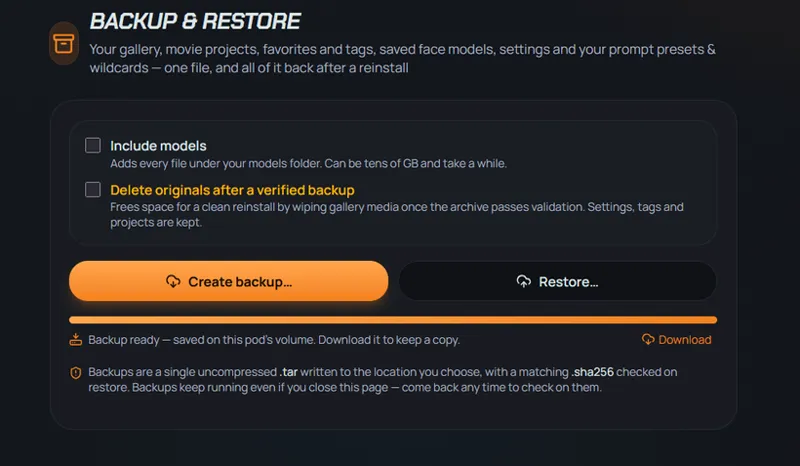
Go under in the Raccoon Studio under Utilities -> Backup & Restore to save your Settings and Images and Videos. Do NOT save the models. This will be too big and is reserved for Desktop Users.
Click on Create Backup. After that you can see a little "Download" Link. Click this link to save your Files and be able to restore your files in the next session.
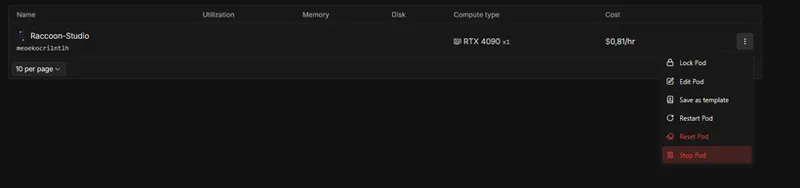
After that stop and terminate your pod. Make sure that the pod is really terminated and available anymore. Otherwise you will be charged.
That was it!
With these words, I wish you a happy generation!
Your raccoon from the neighborhood
Fino
Comments (4)
I was able to play around with Studio for a few days and it was great! Not sure this is something you can influence, but the issue I get now is a "Too Many Requests" error on runpod. Seems like lots of people are also using it (or I've used it too much XD)
Hi Dragon, I am very happy that the Studio is working fine for you. The September Update will bring even more useful features. Can you give me an Screenshot, where the Error Message is appearing?
Can't find Raccoon Studio Template on runpod
Hi Tobias, here is a direct Link with RTX 4090 set https://console.runpod.io/deploy?type=GPU&gpu=RTX+4090&count=1&template=wajbkffbuq