
How to Use Priority Folders for Mod Load Order in The Sims 4
When two mods edit the same tuning resource, one of them silently loses. This guide shows you how to tell the game which mod you want to win using Resource.cfg and priority folders.
If you just want the quick setup, there are downloads attached to this post that will get you up and running in about 30 seconds. Before that, there is a full explanation of how everything works, including how to set it up manually and what each line in Resource.cfg actually does.
Quick Setup (Downloads)
There are two versions available for download at the bottom of the post. Pick the one that best matches your needs!
1️⃣ One-Tier Setup
This version includes a ready-made Resource.cfg and an Overrides folder.
Anything placed inside Overrides will take precedence over everything else in your Mods folder. This is the version most people should use if they are not sure which one they need.
2️⃣ Two-Tier Setup
This version includes Resource.cfg, Overrides, and Secondary Overrides.
Overrides takes precedence over everything, including Secondary Overrides. Secondary Overrides takes precedence over your normal Mods folder.
This setup is useful for mods that need to stack on top of another mod, such as UI mods or compatibility files.
Each folder includes a reminder explaining what belongs inside it.
🔽 Installation
Open the zip file and extract the contents directly into your Mods folder. If Windows or macOS asks whether you want to replace Resource.cfg, choose yes.
Now comes the step people usually miss: move the packages that need priority into the new folder(s). The Resource.cfg file alone does nothing. The files themselves need to physically be inside the priority folder(s).
That is the entire setup. The rest of this guide explains what you just installed, how priority folders work, how to build them yourself, and how to troubleshoot common problems.
What Resource.cfg Actually Is
Inside your Mods folder, there is a plain text file called Resource.cfg. When The Sims 4 starts, it reads this file to determine two things:
Where to look for .package files.
Which files should win when two packages contain the same resource.
The second part is controlled by Priority.
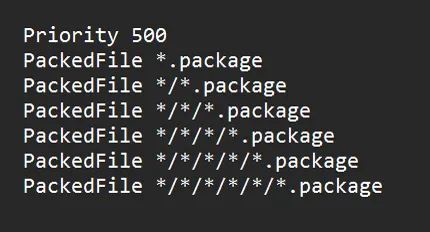
A default Resource.cfg looks something like this:
Let's break it down.
Priority 500 creates a priority group. Every PackedFile line below it belongs to that group.
"PackedFile *.package" means the game will load .package files located directly inside the Mods folder. Each additional folder level is represented on the following lines. If a package is buried deeper than the paths listed in Resource.cfg, the game will not load it at all.
That is the entire system. Priority groups tell the game which files win, and PackedFile paths tell the game where to look.
What Priority Means
When two packages contain the exact same resource, meaning they have the same type, group, and instance ID, the game has to choose one.
The package loaded from the higher Priority group wins. For example, anything in a Priority 1000 folder will beat anything in a Priority 500 folder.
A couple of important things to understand:
Priority does not make mods load faster or slower. It only determines which file wins a conflict.
Priority does not merge mods together. The winning file completely replaces the losing file for that specific resource. If two mods edit the same resource differently, you only get the version from the winner.
If two conflicting packages are inside the same priority group, the result depends on the order the game scans them. This is why people often rename files with things like !!! or zzz to force load order. It works sometimes, but it is fragile and not a great long-term solution.
If a file needs to win, place it in a higher priority folder instead.
Setting Up a One-Tier Priority Folder
You will create one folder and add a priority block to Resource.cfg.
The result: anything placed inside your priority folder will take precedence above everything else in your Mods folder.
Step 1: Find Your Mods Folder
Your Mods folder is located here:
Documents > Electronic Arts > The Sims 4 > Mods
If you have never launched the game before, start it once first so the game creates the folder and default Resource.cfg.
Step 2: Create Your Priority Folder
Create a folder inside Mods called: _Overrides
The underscore is only there to make the folder sort near the top of your Mods folder. It has no special meaning to the game. You can name the folder whatever you want, but the name must exactly match what you put in Resource.cfg.
Step 3: Edit Resource.cfg
Open Resource.cfg in a plain text editor.
On Windows, use Notepad. On Mac, use TextEdit in plain text mode. Avoid using Word or Google Docs. Rich text editors can break the file.
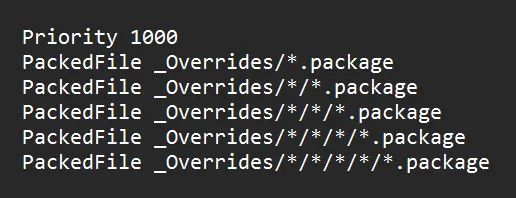
Add the following priority block above the default Priority 500 block:
Keep the original Priority 500 block below it. That is what loads the rest of your Mods folder. The order of the blocks does not matter. The numbers are what matter.
Step 4: Move Your Files
Save the file, then move the .package files that need to win into your _Overrides folder. The game only gives priority to files that are actually inside the priority folder.
Subfolders inside _Overrides are fine, so you can still organize files by creator or mod.
What Belongs in _Overrides
Not every mod belongs in your priority folder.
The folder becomes much less useful if you throw your entire Mods folder inside it. Only put a package in _Overrides when there is a specific reason it needs to load first.
Good candidates include:
A creator tells you to. Some mods are designed as overrides of game files or other mods and their instructions will tell you that they need to load last or override something else. A priority folder is the clean way to handle that.
You have a known conflict and know which mod should win. If two mods conflict and the creator has confirmed that one file only needs to override the other, a priority folder can solve that specific conflict.
Everything else should stay in your normal Mods folder.
Optional: A Second Tier
Sometimes mod A must beat mod B, but mod B must still beat everything else in your Mods folder.
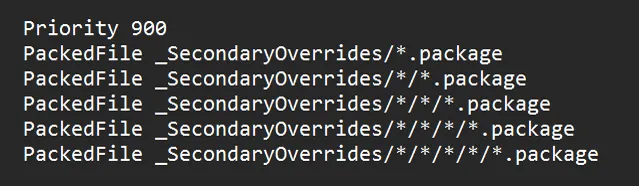
The fix is a second folder that sits between your top tier and your normal mods. This is exactly what the two-tier download ships. To build it yourself, add a _SecondaryOverrides folder to your mods folder and add this block to Resource.cfg:
You can add additional priority levels if you really need them, but two tiers should be more than enough for most players.
Troubleshooting
"I edited Resource.cfg, but nothing changed."
Nine times out of ten, the files are not actually inside the priority folder.
The Resource.cfg file only tells the game that a folder has priority. It does not move files there automatically. Make sure the package you want to win is physically inside your overrides folder and that the folder name matches exactly what is written in Resource.cfg.
"Will game updates undo this?"
No. Game updates do not normally overwrite an existing Resource.cfg. The file is only recreated if it is missing, such as after deleting it or repairing the game.
If you have heavily customized your file, it is still a good idea to keep a backup copy.
"A mod stopped loading after I reorganized my folders."
Check the folder depth.
The default Resource.cfg only loads packages up to a certain number of folders deep. If you moved a package deeper than the paths listed in the file, the game will no longer see it.
Either move the file higher in your folder structure or add another PackedFile line that reaches that depth.
Have any questions? Feel free to ask below in the comments!
Comments (13)
THANK YOU. I was so confused as to why your refreshed moodlet panel wasn't working, i love you!
Hii, so for simmatically better simmology pannel do I use two tier and add it to the second folder or first with your refreshed moodlet panel?
Better Simology and Refreshed Moodlet Panel don't conflict. You can put them in the same folder.
Would this work with more CAs columns and the color slider mod? The current set up requires them to be in the same folder but after the last updates, they no longer work together because they’re conflicting
Yeah. They don't have to be in the same folder. Put More CAS Columns in a higher priority folder and should resolve the conflict.
CHALLEGE TRACKER BY SIMMATICALLY FINALLY SHOWS UP IN MY GAME BECAUSE OF YOU!😭💕
Hey, what set-up tier did you choose, cause I'm having the same issue with SimMattically's challenge tracker not showing up in game, even though I followed his folder set up order.
This is very helpful thank you! I have a lot of cc/aesthetic overrides so even with only putting files in my overrides folder when the mod author says to, I end up having a lot of files. Do you know if making a few subfolders in the overrides folder is ok or would that cause problems?
Subfolders in the overrides folder is a-ok!
Hello Tyjokr Thanks for the guide :) To your knowledge, is it possible to have a "lower priority" folder ? With priority < 500 To make sure specific packages files load last after everything else ?
I don’t see why not! Should work the same as any other priority you set.
Thank you so much! What tier do you recommend for your mods assuming I use all of them?
You only need to use a priority folder if you have two mods that are in conflict with one another. If none of your mods override the same XML tuning, you have nothing to worry about!