Even if you don’t have a Discord account yet, you can create one during this process:
Log in to your Patreon account
Click Settings from the left-side menu
At the top, click More → Connected Apps
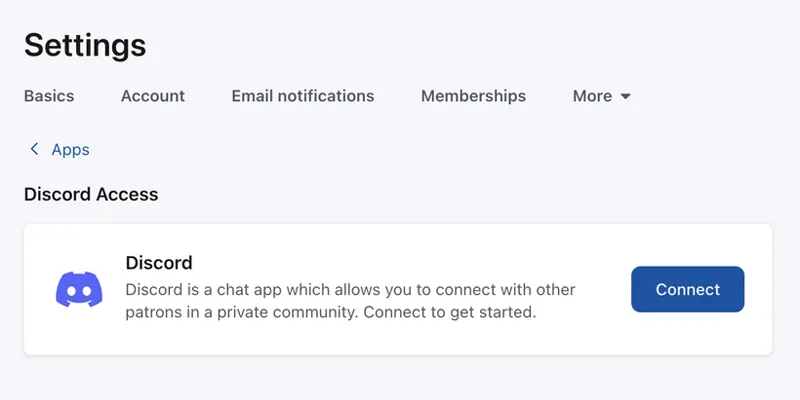
Find Discord and click the Connect button
A new window will open – enter your Discord email or phone number, and password, then click Login
Click the Authorize button
That’s it! You’ve successfully linked Discord to Patreon. You may need to refresh the page for the connection to show.
I don’t see the Discord login window
If the Discord login window doesn’t appear, an ad blocker or browser extension may be blocking it. Try disabling these while connecting Discord to Patreon.
Joining and Leaving a Creator’s Discord Server
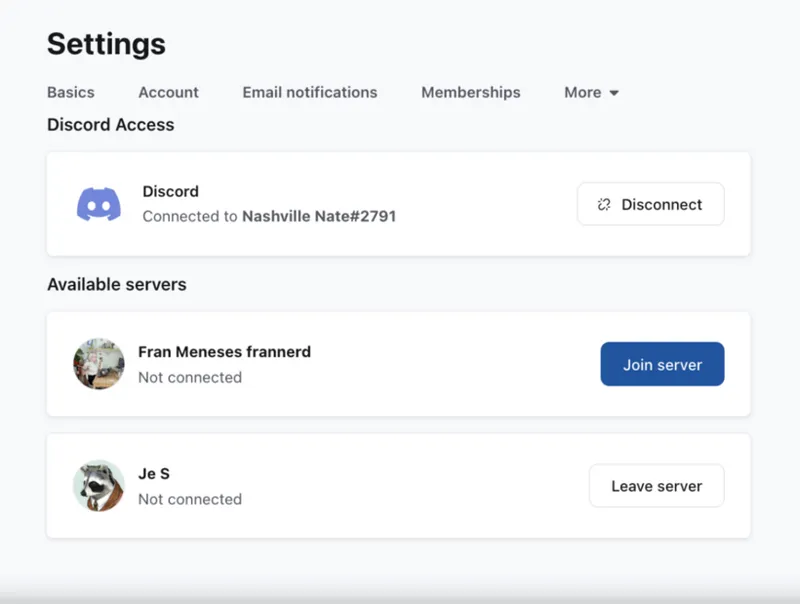
After linking your Discord and Patreon accounts, servers you can join will appear on your Discord Apps settings page. Click the Join server button to enter and get your role.
If you want to leave the creator’s server later, click the Leave server button. You can always rejoin later from the same settings screen.
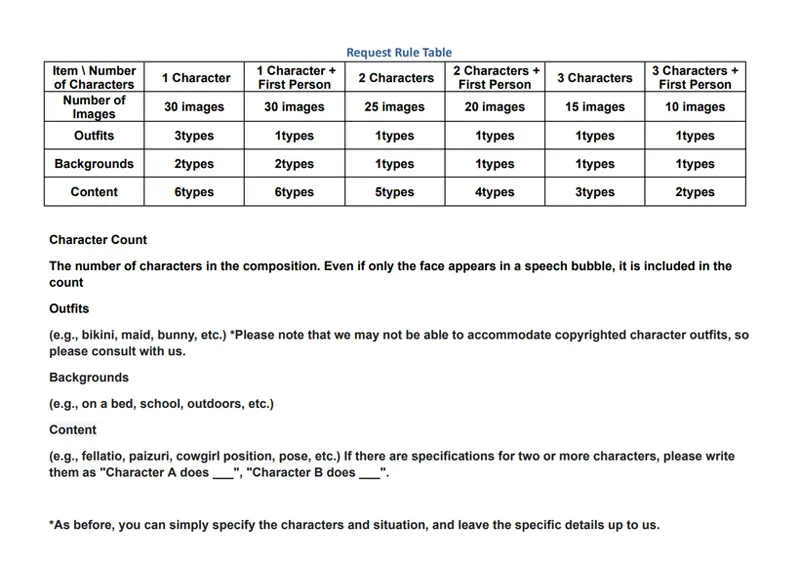
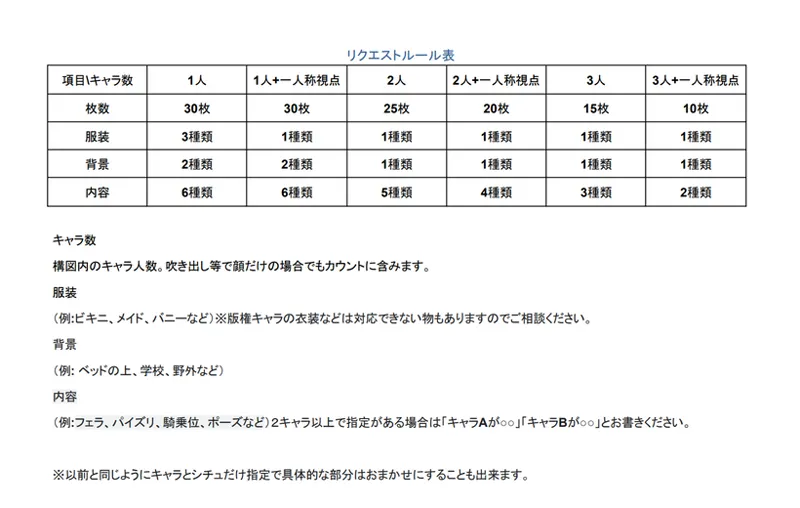
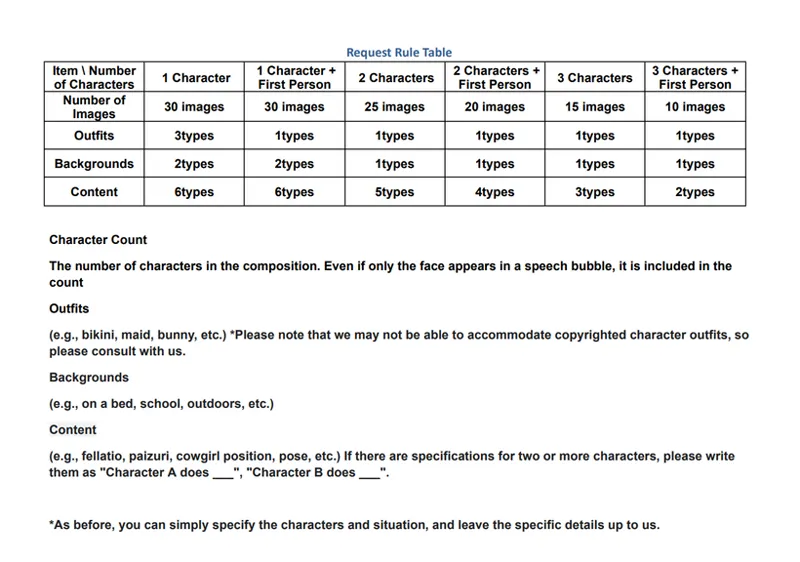
The number of illustrations created will vary based on your request content. For detailed information, please refer to the image below.
Requests open monthly at the beginning of each month on Discord, limited to the first 5 participants. The date will be announced in advance, but the exact time will be randomly chosen between 13:00 and 20:00 (JST).
The number of illustrations produced will vary depending on the details of your request. For specific guidelines, please see the image below.
Please note that certain characters, outfits, or situations may not be supported. If you're unsure, feel free to ask in the community anytime.