

Garry's Skydome App V0.11
Garry's Skydome App V0.11 can be downloaded using the button below.
Garry's Skydome App is a skydome texture manager that lets you build your own skydome sets for every weather and time of day using all of the textures you have installed. The app has been completely redone for this release, there are no more black sky bugs, it's much easier to use and it now works with any Pure skydome set you have installed instead of it being the ones I've set up myself.
It has the same redesign as the rest of my apps, which you can read about in the apps post here:, and Garry's App Hub V0.12 is included in the download so you can download and share skydome presets in the app.
There are 6 tabs and I go through them in order in this post.
1. Home
The Home tab is where you start. The top card shows whether the app is switched on in Pure and has a pill for every skydome set you have installed with how many skies are in it. Under that is your loaded preset and your recent presets, presets from the community which you can install and apply in one click, and buttons for the setup wizard, the tutorial and the video guide.
2. Sky
The Sky tab is where you see and change the sky you have right now. It shows the current weather, time and sun angle, and has a bar you can drag to preview your sky at any time of the day, so you can see what it looks like at sunset or at night without waiting for it in game.
Under that is every time of day from midday to night with the sky it's using, and you can click any of them to change it or lock it so it doesn't get changed.
Presets
Below that are your presets. You can hold any preset to preview it on your sky before you apply it, and view all shows every preset you have installed. Clicking a preset shows you every sky it uses, and you can apply it, preview it or edit a copy of it.
Preset Editor
The preset editor is where you build your own presets, and it's the biggest part of the app. You open it from the Sky tab, either to edit the preset you have loaded or to start a new one. New presets can start fully blank, partially blank where you pick the weathers and times of day you want to build and choose what fills the rest, or as a copy of any built in or saved preset.
The Grid
The editor is a grid with a row for each of the 6 cloud weathers (windy, broken, clear, few, scattered and overcast) and a column for each of the 5 times of day (midday, afternoon, sunset, twilight and twilight to night), so every cell is one weather at one time of day. You can select as many cells as you want and a bar comes up that lets you set their textures, copy them from another weather or preset, leave them empty or set them to same as everything else.
Every other weather in Pure, like rain, fog and storms, borrows the skies of one of the 6 cloud weathers unless its being set separately. You can open them up to see which one each of them borrows and change it, or choose separately to give a weather its own row in the grid, starting from the skies it already had.
Slots and Timing
Slots
Timing
Double clicking a cell opens it up, and this is where you set exactly which skies show and when. Each cell has up to 10 slots in the order the sun reaches them, and edit timing lays them out along a sun bar, so you can drag each slot's handle to set the sun angle where it takes over from the last one, and + slot adds another sunangle slot.
Every texture you have installed is shown below the slots, sorted by set, and clicking one puts it in the slots you've selected. You can search them by name, set or tag, and you can hold any of them to preview it on your sky.
Alternatives
Replace texture swaps the sky in a slot for the one you pick, and add alternatives gives a slot more than one sky, so it picks one of them each time the sun reaches it. You can also set how likely each one is to be picked, which means you can drive the same track at the same time of day and get a different sky each time.
Randomise, Fill and Locks
If you don't want to pick every sky yourself, randomise all gives every cell a sky made for its part of the day, the dice at the end of each row does the same for just that weather, and fill empty cells only fills the cells you've left empty. You can lock any cell with the padlock that shows when you hover it, so randomise and fill leave it alone.
Saving
Undo works on every change in the editor, and save on the toolbar keeps your preset with whatever name you give it. Cancel puts everything back to how it was when you last saved, and if you try to leave with changes you haven't saved the app asks you if you want to save or discard them first.
3. Sets
Any Pure skydome set you install is now picked up by the app by itself the next time it loads. It sorts every sky into the time of day it suits, sets up its brightness, sun and horizon, and makes a default preset for the set, and if a set gets updated the app imports the new version for you. This means you can use any set as soon as you've installed it without waiting for me to add it.
The Sets tab shows every sky you have, and you can search them, favourite them and hold any of them to preview it on your sky. It also shows you where you're already using a sky, and you can use it for a time of day, a weather or all of them straight from there.
4. Tweaks
This tab has the settings that save with your preset.
Brightness & Contrast
Brightness and contrast is now linked to the pure configs values aswell, so you no longer have to tweak them using the app.
Grading
Here you can grade the sky with a colour for each time of day. By default this section comes with 4 built in presets, those being Neutral, Warm, Cold and Filmic.
Lighting
The lighting has 2 modes. The first is Faithful, which is the default and lights the world the way Pure does for each set, and it can also light the track and cars from the skydome. The second is Classic, which is the older fixed lighting.
Fog, Wind and Crossfade
By default the fog uses Pure's own skydome fog, and if you turn that off you can set your own fog or have it tuned to the weather for you. Wind makes the skies move with the wind, and the crossfade time sets how long it takes to blend from one sky to the next.
5. Discover
The Discover tab shows community skydome presets and setups, and you can search, sort and filter them and install and apply a preset in one click. When you share a preset that uses a skydome set, anyone who doesn't have that set is told what they need to install.
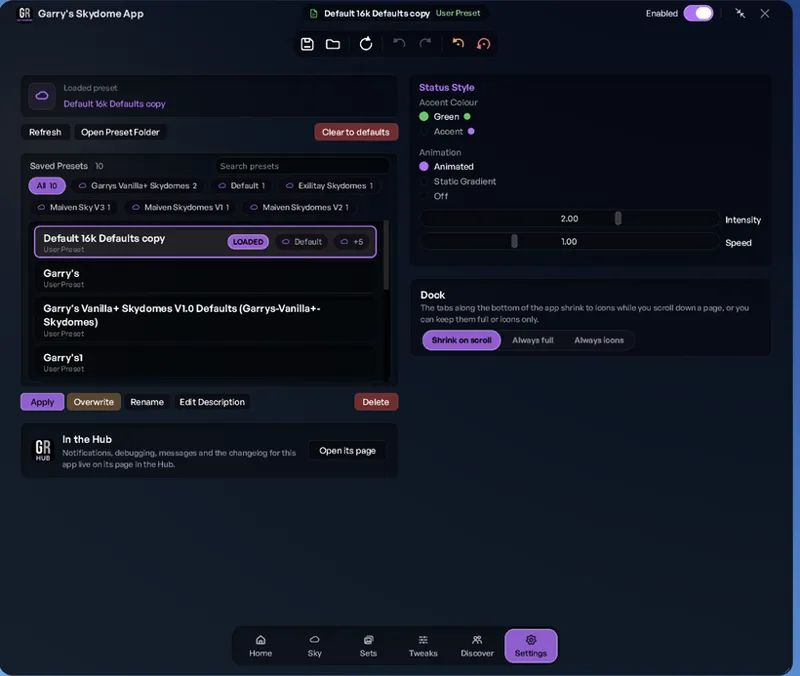
6. Settings
This tab has your saved presets, where you can apply, overwrite, rename or delete any of them, along with the status style and dock settings.
Comments (1)
W